In iOS 26, iPhone photos got a new feature that sounds on paper like something from Vision Pro but actually works right on a regular screen. Apple added the Spatial Scenes mode, which turns a flat shot into a 3D photo. When you tilt the smartphone in your hand, the image shifts slightly in the corresponding direction, creating the sensation that the picture is three-dimensional and moving.
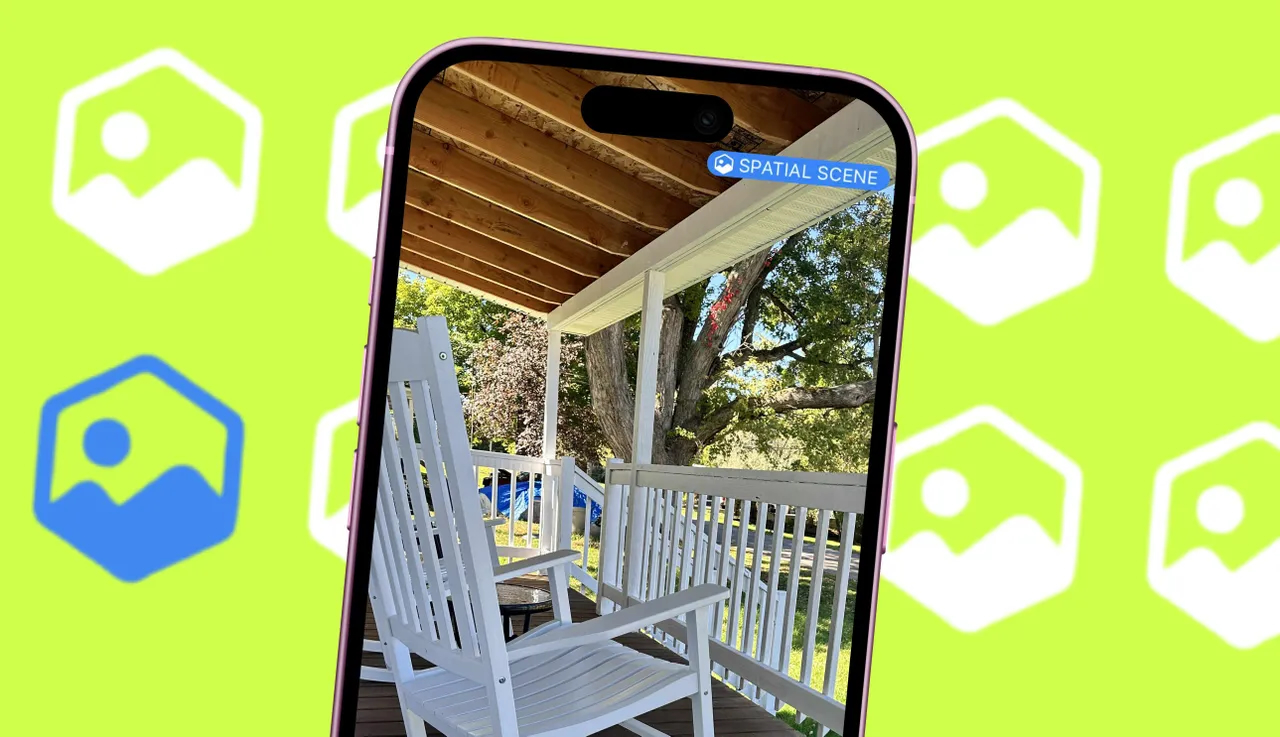
Spatial scenes can be created for virtually any image. Image: zdnet.com
The most interesting part is that you don’t need any special cameras, recent shots, or any particular conditions. Even an old photograph can work if it’s sharp enough and has good separation between the foreground and background. And if you like the effect, you can immediately set such an image as your lock screen wallpaper and see it every time you unlock your iPhone.
What Are Spatial Scenes on iPhone
It’s easy to get confused here because the names are similar, but these features work differently. Spatial Photos are a more complex format with depth that Apple promotes in conjunction with Vision Pro. Such shots can be taken by Vision Pro, iPhone 15 Pro, iPhone 16 and newer models, but on the iPhone itself they look like regular photos without any wow effect.
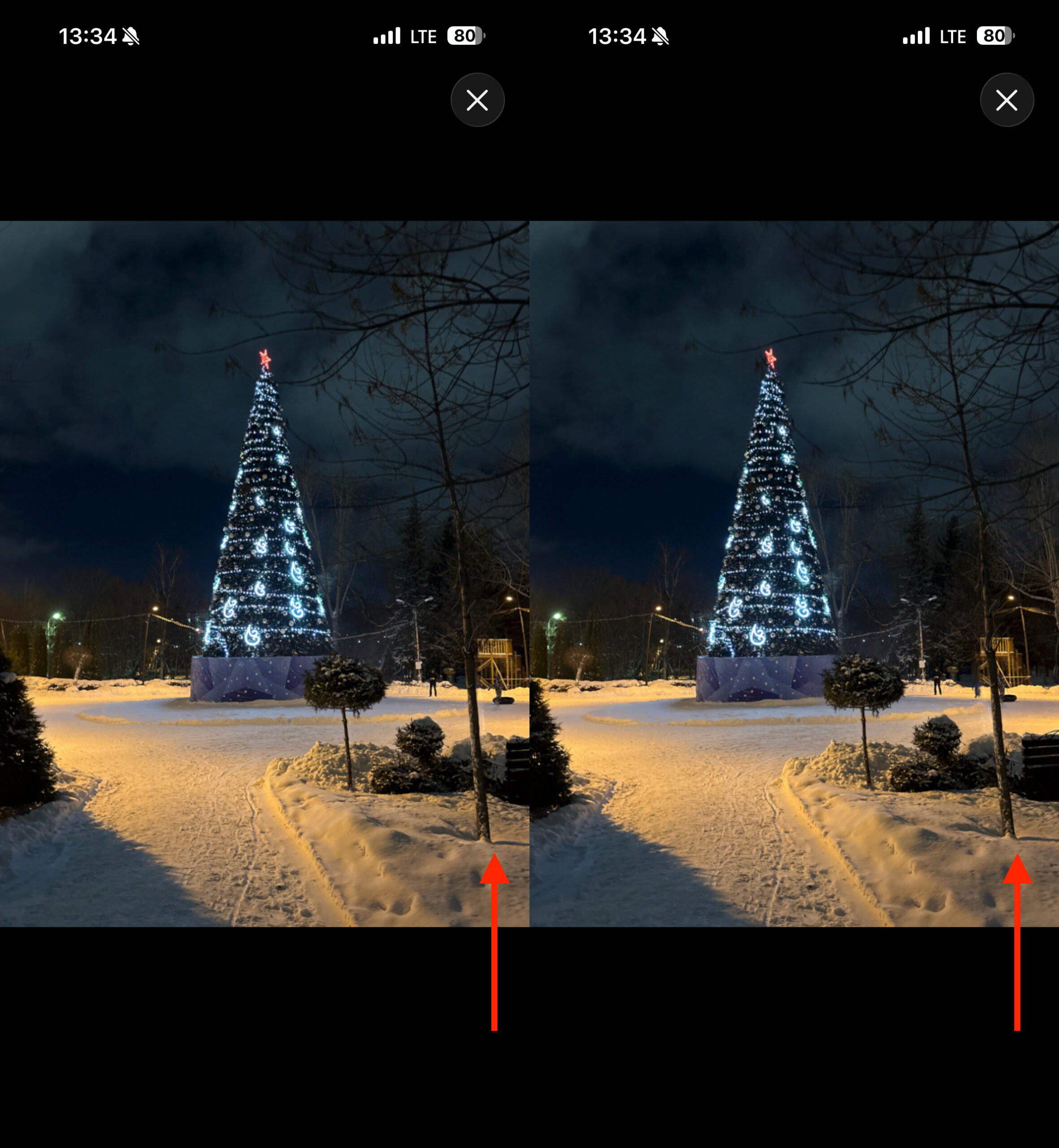
You can see by the tree how the background shifts depending on the tilt of the smartphone
Spatial Scenes work differently. This is a reworked 2D image in which the system reconstructs perspective and creates the illusion of depth. As a result, even on a regular screen without a 3D panel, it feels as though the background and foreground exist separately from each other, and the scene itself moves slightly following the tilt of the phone.
Which iPhones Support 3D Photos
First, you need to figure out compatibility, because there’s an important limitation here. iOS 26 itself installs on iPhone 11 and newer models. So many people will be able to update, but that doesn’t necessarily mean the new feature will work on your device.
To create Spatial Scenes, you need an iPhone 12 or newer. This feature doesn’t work on iPhone 11 and iPhone SE 2. So if you’ve updated to iOS 26 but don’t see the required button in the Photos app, the reason is most likely your device model, not some system bug.
How to Enable the 3D Effect for Photos on iPhone
After installing iOS 26, open the Photos app and select a shot that might look good in 3D. Photos that work best are those with a clear separation between the subject in the foreground and the background. For example, landscapes, streets, architecture, nature shots, or photos where a person is standing not too close to the camera.
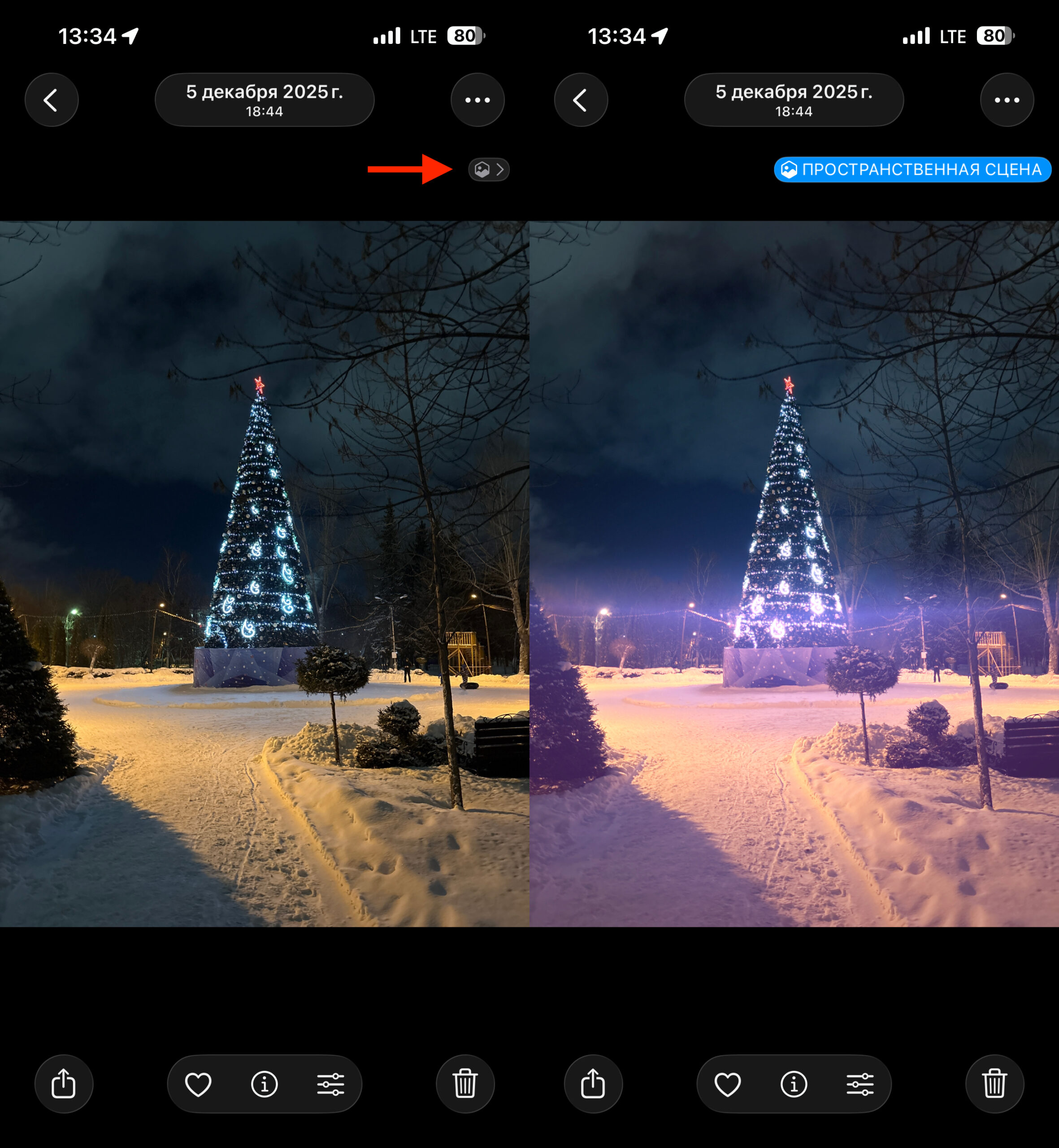
Spatial Scene is activated with one button
Next, tap the “Spatial Scene” button in the upper right corner. It’s a small gray hexagon icon located below the three-dot button. After tapping, an animation passes over the image, and within a few seconds, a regular photo turns into 3D. Then you can simply tilt your iPhone in your hand and watch the perspective change.
The effect works quite impressively, but not equally well on all shots. With landscapes and cityscapes, everything usually turns out very convincing because it’s easier for the system to separate the distant background from nearby objects. Portraits, however, sometimes look less natural. People and animals can resemble not a lifelike three-dimensional object but rather a cardboard cutout placed against a background.
This is actually explainable. Apple clearly isn’t trying to make faces overly three-dimensional to avoid creating a creepy artificial mask effect. So the system acts cautiously: it creates depth in the scene but doesn’t always model the shape of a face or body in detail. Because of this, some photos look impressive while others lack that wow effect.
How to Set a 3D Photo as iPhone Lock Screen Wallpaper
That’s not where it ends, because a finished Spatial Scene can be used as lock screen wallpaper. To do this, open the already processed photo, tap the “Share” button, and choose the option to use it as wallpaper. On the preview screen, you’ll see the same hexagon button that enables or disables the spatial effect.
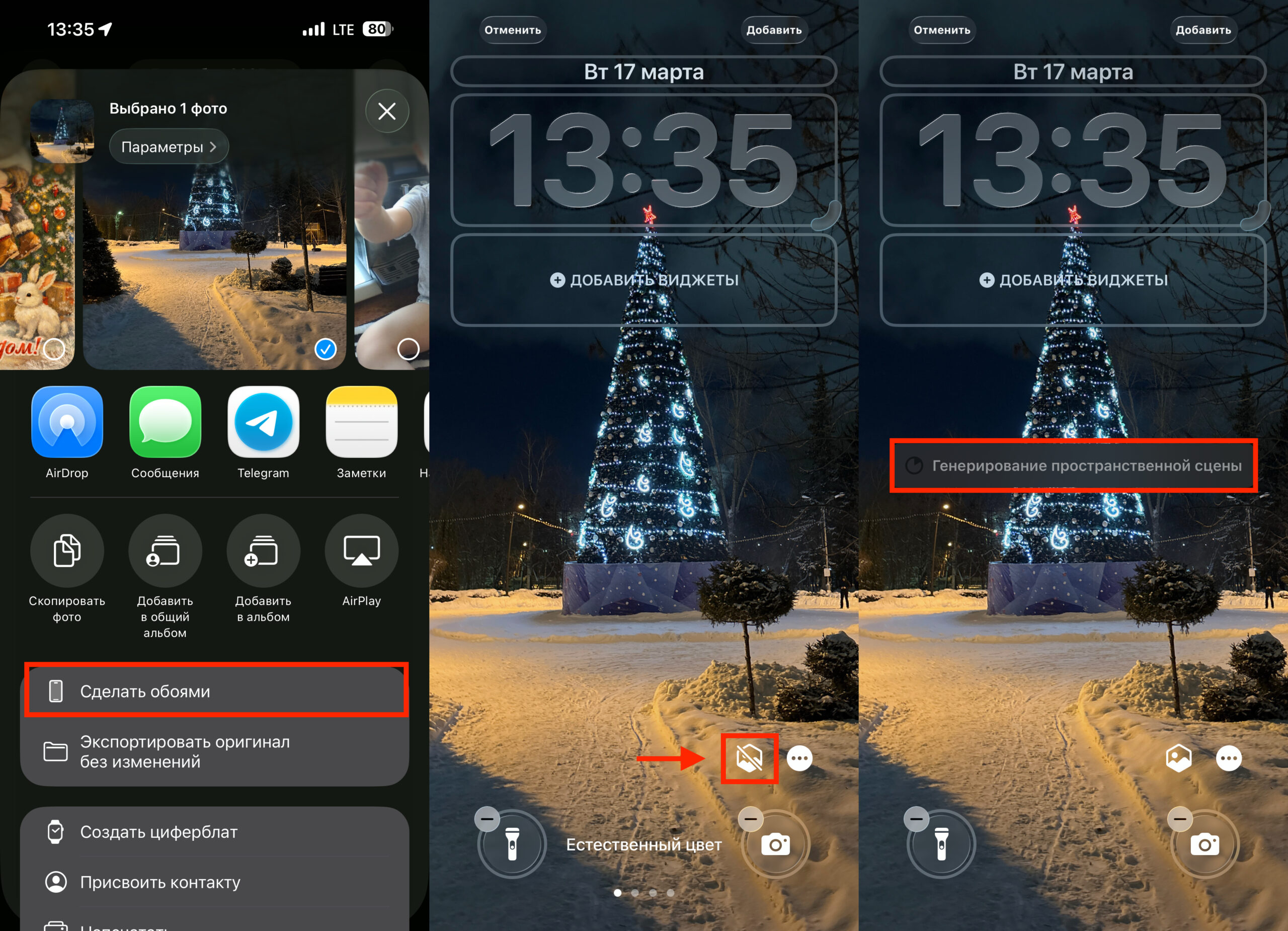
Spatial Scene can also be set as wallpaper
After that, tap “Done,” configure the Home Screen appearance, and save the changes. On the lock screen, such images look especially interesting because the scene movement pairs well with the semi-transparent interface elements and clock. Visually, this is one of the most striking yet quite simple tricks in iOS 26.
But the feature does have a limitation you should know about in advance. A regular photo on the lock screen can be moved and scaled so the subject is nicely positioned under the clock, and the system fills in empty space if needed. With Spatial Scenes, this trick doesn’t work as well. If the main subject is positioned too high, it may be overlapped by the clock and look messy. That’s why landscapes, buildings, and city views work best as wallpaper, rather than close-up portraits.
To put it simply, Spatial Scenes in iOS 26 is one of those features that doesn’t radically change the iPhone but makes it noticeably more interesting in everyday use. The key here isn’t even the 3D effect itself, but the fact that it works with old photographs and lets you see long-familiar shots in a new way. And this is truly a rare case where a beautiful visual feature turns out to be not a useless toy, but something you actually want to keep turned on.