The national messenger, whose name consists of three letters, has become one of the most discussed services in recent months. Despite questions about security and discussions about who can read your messages in MAX, you still have to use it. Because some foreign messengers work unstably or are blocked. Many people have a simple question: how to log into MAX on a phone or computer, and what methods are available. Below we’ll cover all options: how to access the national messenger, whether you can use the web version. And most importantly — what to do if you can’t log into MAX.
Overview of all login methods
How to Log Into MAX From a Phone
The most common method is logging into the MAX app on an Android smartphone. You need an active phone number for this, because the account is initially tied to it. Essentially, this is the basic MAX messenger login, which is where using the service begins:
- Install MAX from the app store.
- Open the app.
- Enter your phone number in international or local format.
- Wait for an SMS with a confirmation code.
- Enter the code in the authorization window.
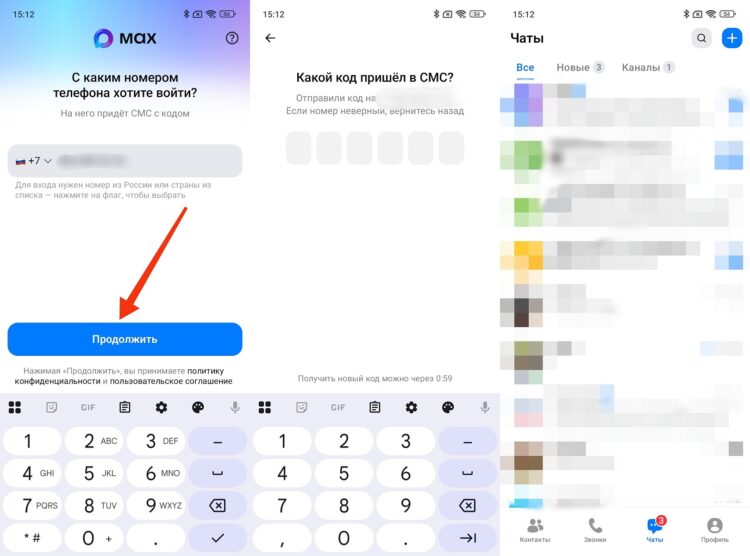
Standard login instructions for Android
After this, the MAX login by phone number is completed, and the system immediately loads your profile if it was previously registered. Usually, you don’t need to re-confirm your account unless you delete the app or change your device. If you simply moved your SIM card to another smartphone, you can log into MAX via phone the same way as the first time.
How to Log Into the MAX Web Version
If you need to open the messenger on a big screen, the MAX web login works well. But there’s an important limitation: the web version only works on a computer and doesn’t support phone number authorization. That’s why logging into MAX web on a computer works differently from regular apps:
- Open the official website web.max.ru in a browser on your computer.
- Wait for a QR code to appear on the screen.
- Launch MAX on your phone.
- Open the “Profile” tab.
- Select the “Devices” section.
- Tap “Log in via QR code.”
- Point your smartphone camera at the computer screen with the QR code.
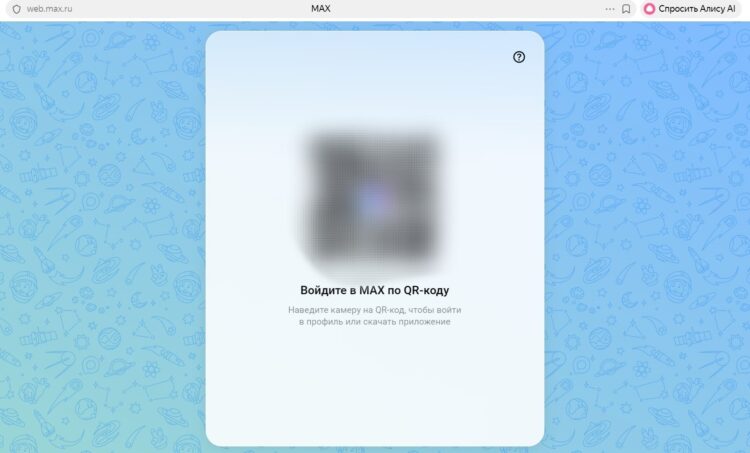
The web version displays a QR code for login
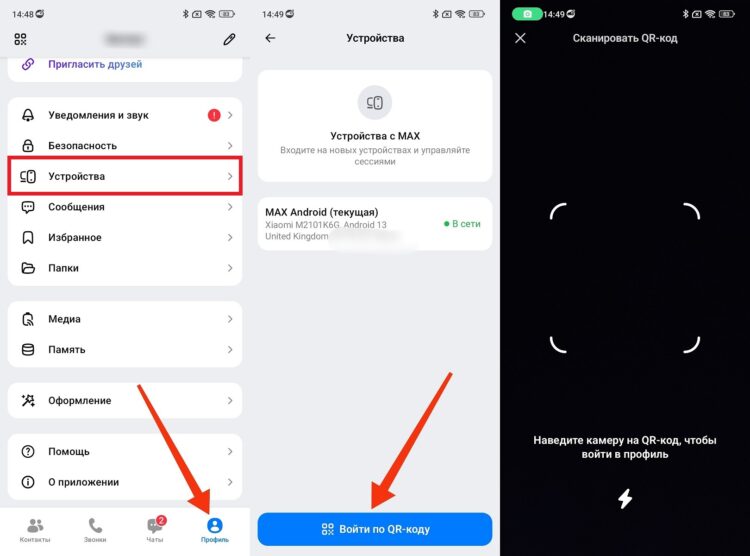
You’ll need to scan the QR from your phone
This is exactly how MAX web login via QR code works. You can’t access the messenger through a browser by phone number, because the web version only connects to an already active account on your phone. However, this is a convenient option for those who want to log into MAX without downloading a separate program on their PC.
How to Log Into MAX by Phone Number on a Computer
If you specifically need to log into MAX by phone number on a computer, you’ll need to use not a browser, but a separate MAX application for Windows or macOS. In this case, the login process is almost the same as on a smartphone. This is more convenient for those who want to log into MAX by phone number directly, without scanning a QR code.
- Download the MAX application for your computer from the official website.
- Install the program and open it.
- Select login by phone number.
- Enter your number and wait for confirmation.
- Receive the code via SMS.
- Enter the code and complete the authorization.
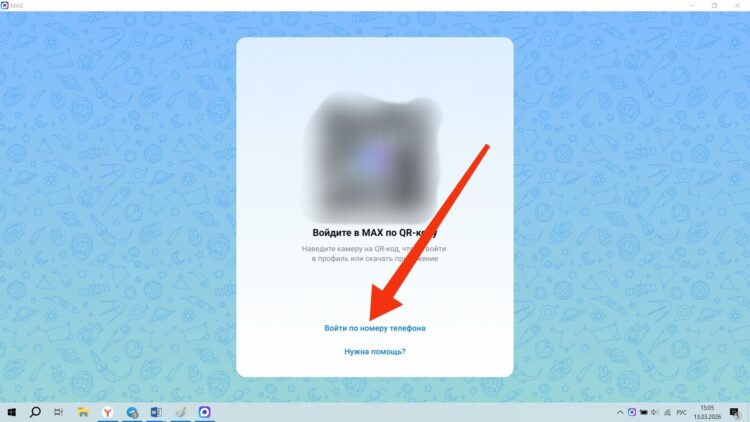
In the PC app, you can log in by phone number
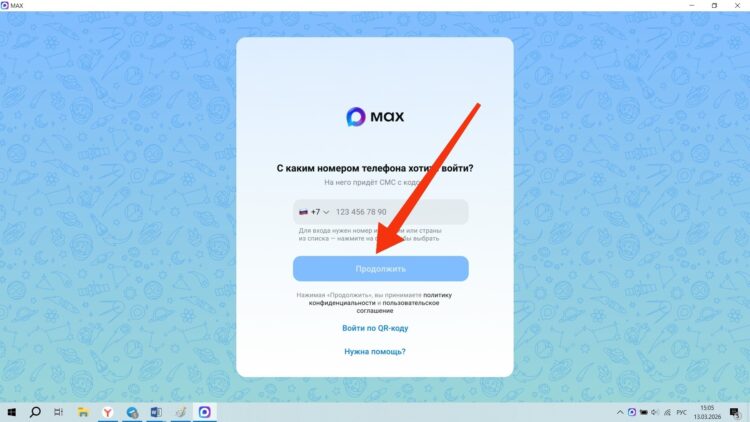
You need to enter the number linked to your phone
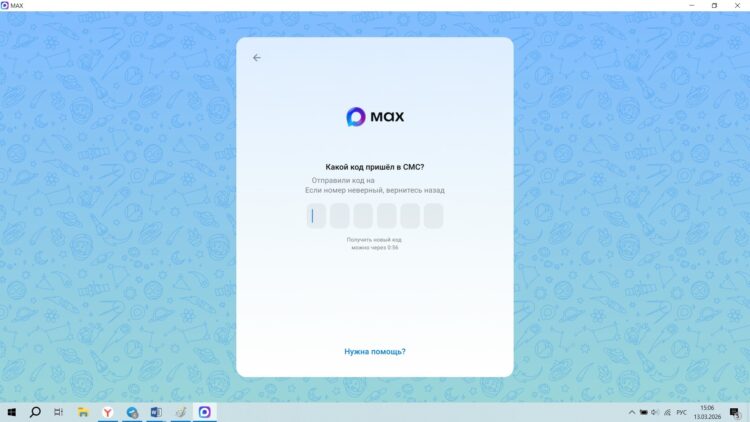
All that’s left is to enter the code from the SMS message
After this, you can log into your MAX profile directly from your computer and use the service as a regular desktop messenger. This option is suitable for those who don’t want to reach for their smartphone every time for QR confirmation. If you prefer to log into MAX by code rather than scanning, this is exactly that method.
Does MAX Work Without a Phone Number
You cannot use MAX completely without a phone number, because every account is initially tied to a SIM card. That’s why the query how to log into MAX without a phone most often leads to disappointment. The phone is still required for the first authorization. But there’s a nuance that makes many people ask how to log into MAX without the app on a computer:
- you cannot create an account without a phone number;
- the first authorization always requires phone number confirmation;
- you can access the web version without manually entering a number;
- for this, the phone must already be authorized;
- without an active account on a smartphone, web login won’t work.
So technically, you can log into MAX through a browser without entering a number, but only if you’ve already logged in on your phone before. That’s why the web version doesn’t replace regular registration — it only mirrors an existing account. In other words, you can’t completely bypass the phone number requirement, even if you just want to log into MAX messenger on a computer.
What to Do If You Can’t Log Into MAX
Sometimes the problem isn’t with the account, but with the authorization process itself. A user enters the number correctly, waits for the code, but the service won’t let them proceed or shows an error. In this situation, it feels like you can’t log into MAX, although the reason might be quite mundane:
- the number was entered with an error or in the wrong format;
- the phone has no signal;
- the confirmation code expired and was entered too late;
- the app hasn’t been updated in a long time;
- there’s a temporary service outage on MAX’s side;
- the browser is blocking the web version from opening;
If it seems like you can’t log into MAX by any method at all, first try restarting the app, checking your internet connection, and requesting the code again after a few minutes. Then you can try a different login method: for example, instead of your phone, use the desktop app, or conversely, switch from PC back to your smartphone. In practice, the problem can almost always be resolved if you check all the basic causes one by one, rather than trying to open MAX using only one method.