Logging into iCloud is a basic task for any Apple device owner, but questions about it come up all the time. Forgot your password, bought a new Windows computer, want to access iCloud photos from an Android smartphone — the situations vary, but you need a solution fast. This article covers all current ways to log into iCloud from a computer, iPhone, iPad, and even an Android device. Every step has been verified on iOS 26 and macOS 26.
How to Log into iCloud from a Computer or iPhone: All Login Methods in 2026
What Is iCloud and Why Log into Apple’s Cloud Service
iCloud is Apple’s cloud service that stores your data and syncs it across devices. It’s not just a “cloud drive.” iCloud holds your photos, contacts, notes, reminders, Keychain passwords, iPhone backups, files from Pages, Numbers, and other apps. Essentially, it’s the central repository of your digital life within the Apple ecosystem.
You might need to log into your iCloud account in a variety of situations:
- Photo access — view or download pictures from the iCloud Photo Library on any device
- Email access — open iCloud email (@icloud.com, @me.com, @mac.com) via a web interface or email client
- Device tracking — find a lost iPhone, iPad, Mac, or AirPods using Find My
- File management — open documents from iCloud Drive on a non-macOS computer
- Data recovery — access contacts, calendars, or notes after losing a device
- Storage management — check how much space is used and free up storage
Logging into iCloud is done through an Apple ID — Apple’s unified account. A single Apple ID grants access to all services: App Store, iMessage, FaceTime, and of course, iCloud. If you have an Apple ID, you can already sign into iCloud using any of the methods described below.
How to Log into iCloud on iPhone and iPad Running iOS 26
On iPhone and iPad, signing into iCloud happens automatically during the initial device setup — when you enter your Apple ID. After that, all iCloud services run in the background. But if you signed out of your account, bought a new device, or want to sign into a different account, here are the step-by-step instructions.
Signing into an iCloud account from a phone on iOS 26:
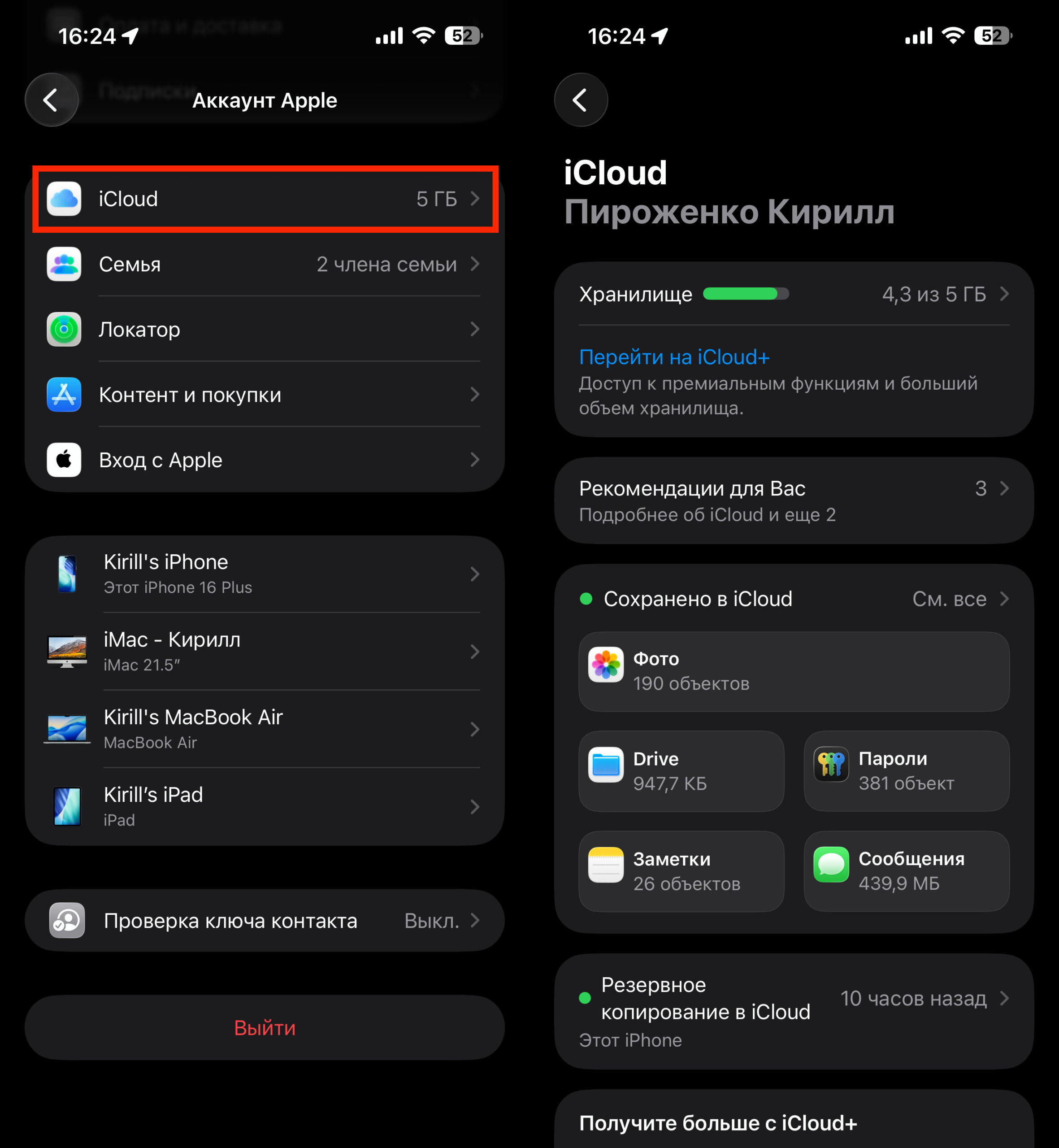
Sign in with your Apple ID to access iCloud
- Open the “Settings” app
- Tap “Sign in to iPhone” at the top of the screen (if you’re not signed in) or tap your name if you want to check the current account
- Enter the email address or phone number linked to your Apple ID
- Enter your Apple ID password
- If two-factor authentication is enabled, a six-digit code will be sent to your trusted device — enter it
- Choose which iCloud data to sync: photos, contacts, calendars, notes, and more
After signing in, all selected data will begin downloading to your device. This may take some time, especially if there are thousands of photos in your iCloud Photo Library.
To check what exactly is being synced, go to “Settings” — [your name] — “iCloud”. Here you can see which apps are using iCloud, how much storage space is occupied, and what data is being uploaded.
If you want to sign into iCloud from someone else’s iPhone — for example, to temporarily check your photos — it’s better to use the browser method via icloud.com (described below). Signing into someone else’s device through “Settings” is not recommended: it will link the device to your account and may cause data confusion.
How to Log into iCloud on a Computer Running macOS 26
On a Mac, signing into iCloud works similarly: during the initial computer setup, the system prompts you to sign in with your Apple ID. If you skipped that step or want to switch accounts, follow these steps:
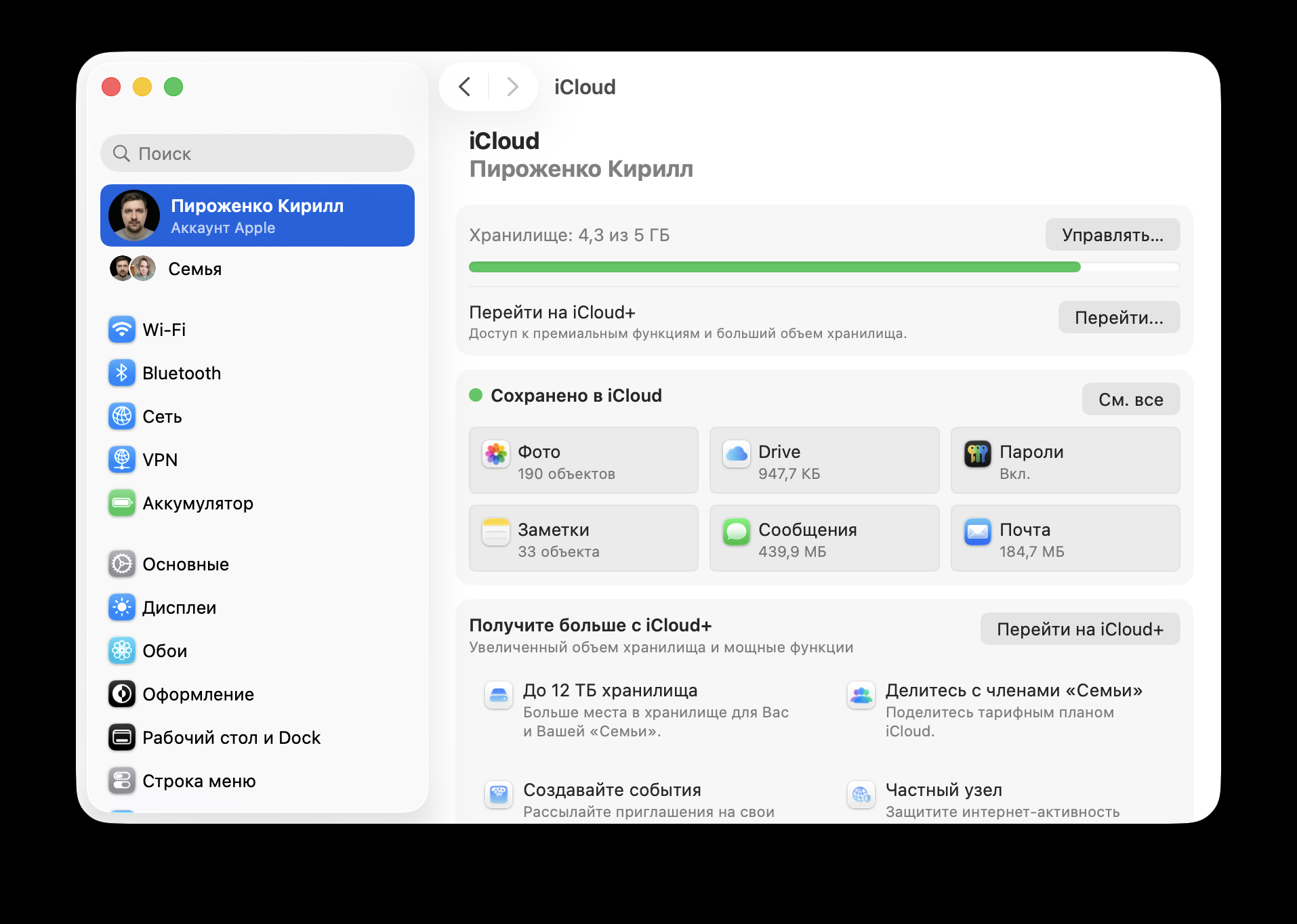
It’s easy to sign into iCloud on a computer too
- Open “System Settings” (the gear icon in the Dock or via the Apple menu — “System Settings”)
- Click “Sign in with Apple ID” at the top of the sidebar. If you’re already signed in, your name will be displayed there
- Enter your Apple ID email or phone number
- Enter your password
- Confirm the sign-in with a two-factor authentication code — it will be sent to your iPhone or another trusted device
- Choose which iCloud services to enable on this Mac: iCloud Drive, Photos, Mail, Passwords, Keychain, and more
After signing in, iCloud Drive files will appear in Finder in the sidebar. Photos from the iCloud Photo Library will load into the Photos app. iCloud Mail will automatically be configured in the Mail app.
For quick access to iCloud Drive files, open Finder — sidebar — iCloud Drive. This is where all documents that you or your apps have saved to the cloud are located.
How to Log into iCloud via Browser on Windows and Any Computer
The most universal way to sign into iCloud is through a browser. It works on Windows, Linux, ChromeOS, and essentially any device with a modern browser. This is the easiest way to access iCloud on a computer without macOS.
Signing into iCloud via browser:
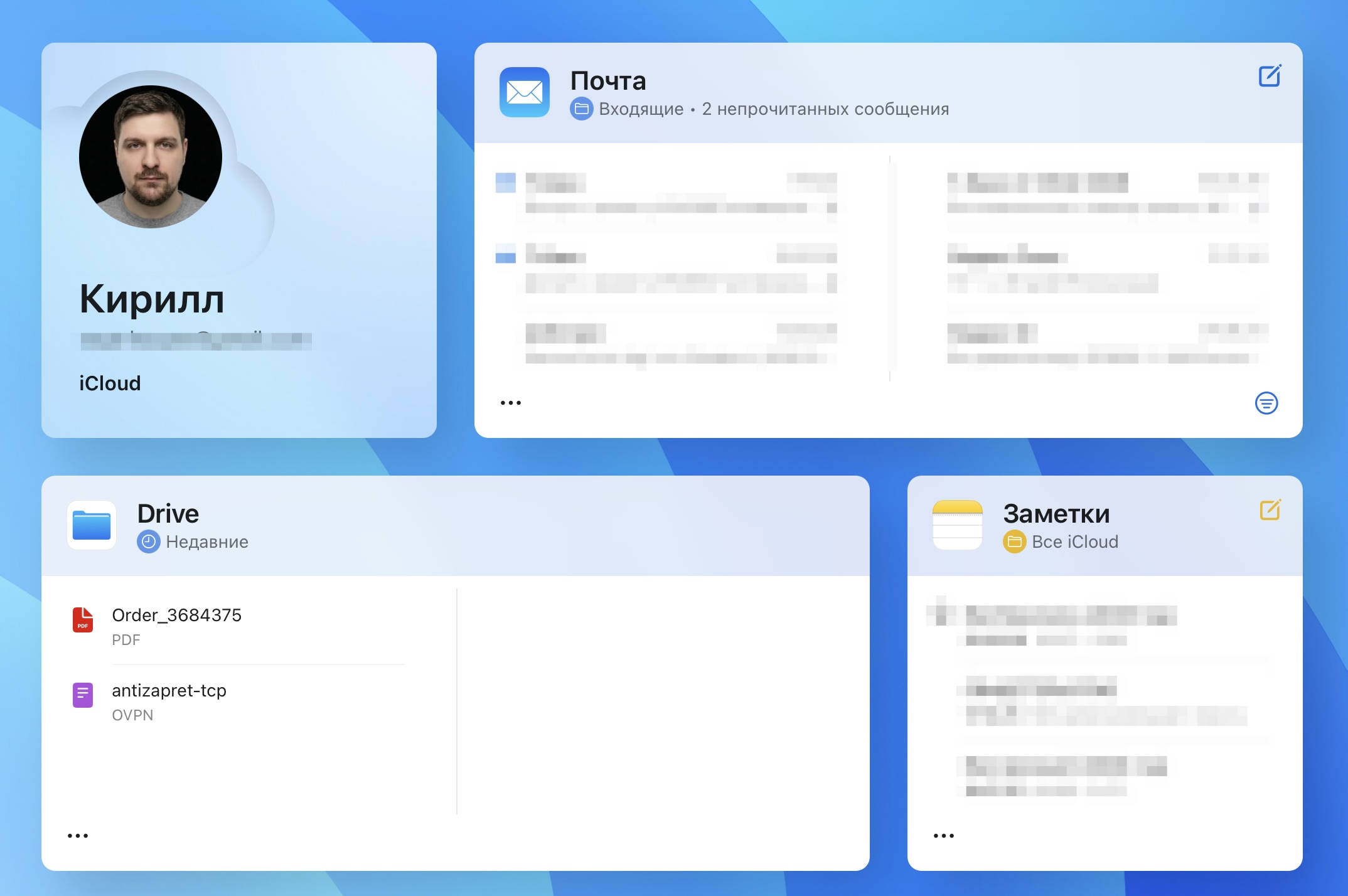
You can sign into iCloud through any browser
- Open a browser (Chrome, Edge, Firefox, Safari — any)
- Go to icloud.com
- Click “Sign In”
- Enter your Apple ID (email or phone number)
- Enter your password
- Confirm the sign-in with a two-factor authentication code
- Optionally, check “Trust This Browser” so you won’t need to enter the code again
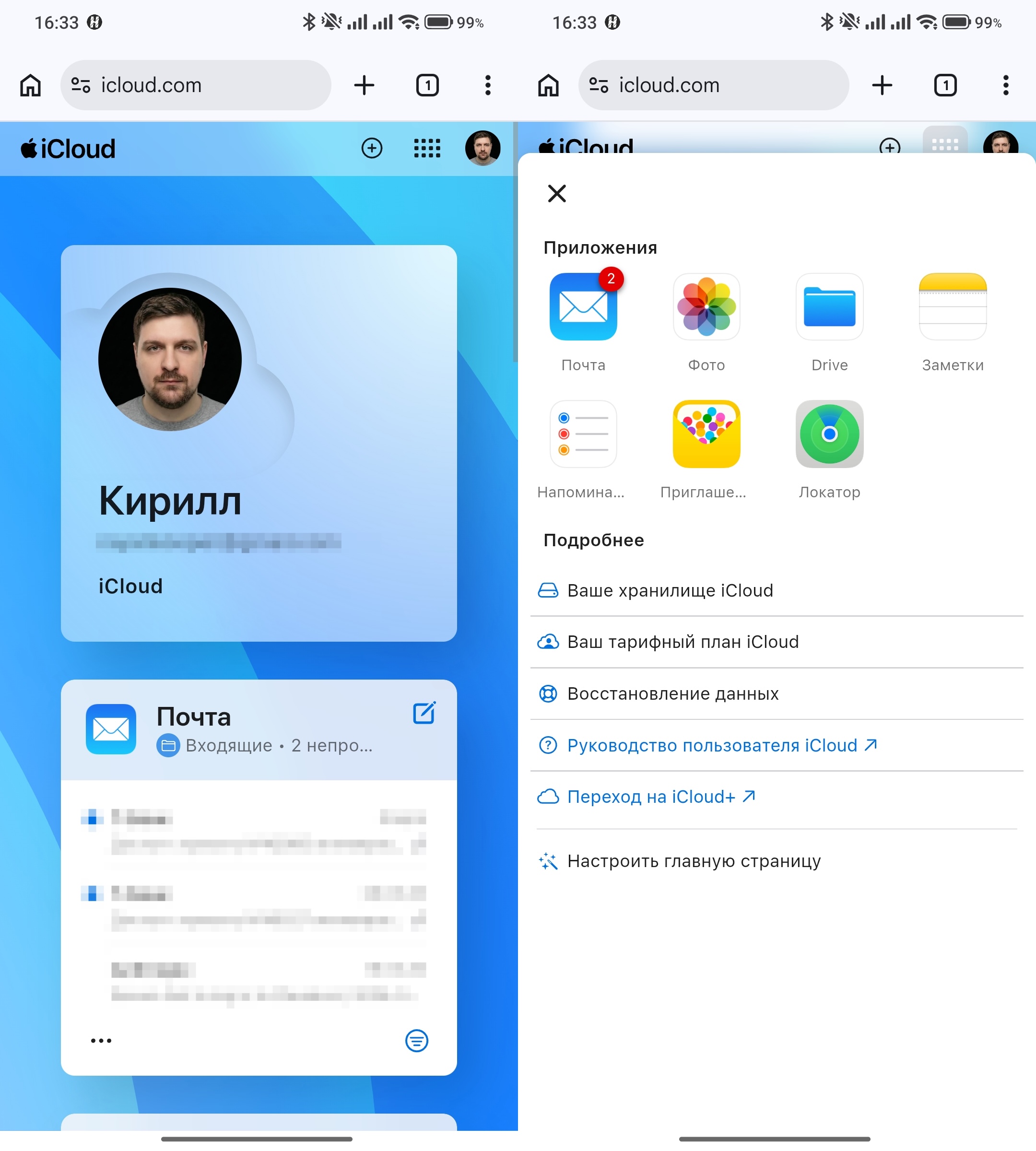
After signing in, you’ll see iCloud web apps: Mail, Contacts, Calendar, Photos, iCloud Drive, Notes, Reminders, Pages, Numbers, Keynote, Find My, and more. The interface is user-friendly and largely mirrors the apps on Mac.
What you can do in iCloud via browser:
- View and download photos from the iCloud Photo Library
- Read and send emails from your iCloud email
- Edit Pages, Numbers, and Keynote documents directly in the browser
- Find lost devices through Find My
- View and edit contacts, notes, reminders
- Recover deleted files
- Manage account settings
For Windows users, there’s another option — the iCloud for Windows app. You can download it from the Microsoft Store. After installation and signing in with your Apple ID, the app syncs iCloud Drive with Windows File Explorer, photos with a dedicated folder, and Keychain passwords can be used in Chrome or Edge via an extension. This is more convenient than going through the browser every time if you regularly work with iCloud files on a Windows computer.
How to Log into iCloud from an Android Device
Apple doesn’t release an iCloud app for Android, but you can still sign into your iCloud account from an Android phone or tablet. There’s one way — through a browser.