You can install Telegram on your computer for free in just a couple of minutes — on Windows, macOS, or Linux. The desktop version of the messenger syncs all chats with your phone and lets you conveniently work with files, texts, and calls on a big screen. This article provides step-by-step instructions for each installation method, account login, solutions to common problems, and useful post-installation settings.
Telegram is not just for smartphones and tablets, but for computers too
Why Install Telegram on a Computer
Telegram Desktop is a full-featured messenger client for PCs and laptops, not just a “mirror” of the mobile app. You can work with messages simultaneously on your phone, tablet, and computer, while the PC apps are fully autonomous — you don’t need to keep your phone turned on.
Here’s what the desktop version offers:
- Fast typing on a full-size keyboard — convenient for long messages and work correspondence
- Sending files up to 2 GB each — just drag a file into the chat window and send it
- Voice and video calls right from your computer via microphone and webcam (don’t forget to change your location to another country)
- Hotkeys and multi-tab support for managing chats
- Switching between dark and light themes, customizing color palettes
The app runs fast even on low-end hardware, consuming minimal system resources. Telegram on a computer is a working tool for those who communicate a lot, send files, or manage channels.
Telegram Desktop System Requirements
Before you download Telegram to your computer, make sure your device meets the requirements. They are minimal:
Current versions of Telegram Desktop support Windows 7 and newer, macOS 10.12 and newer, and 64-bit Linux distributions.
Minimum system requirements: a 1 GHz processor, at least 512 MB of RAM, about 100 MB of free disk space, and a stable internet connection.
If you have a very old system (Windows XP, Vista, or macOS 10.10), you won’t be able to install the latest version. However, older versions are available on the official website: v1.8.15 for Windows XP/Vista and v2.4.4 for OS X 10.10–10.11.
How to Install Telegram on a Windows Computer via the Official Website
This is the primary and most reliable method. Download Telegram only from the official website — this guarantees you get a safe version without viruses or ads.
- Open your browser and go to desktop.telegram.org.
- On the page you’ll see buttons “Get Telegram for Windows x64” and “Portable version”. Click the first one — this is the standard version with an installer.
- Wait for the tsetup-x64.exe file to download. It’s about 50 MB.
- Run the downloaded file. On the first launch, select the interface language — Russian is available in the list.
- Choose the installation folder (you can leave the default) and click “Next.”
- Decide whether you need a shortcut in the Start menu and on the desktop, then click “Install.”
- Wait for the installation to finish and click “Finish.” Telegram will launch automatically.
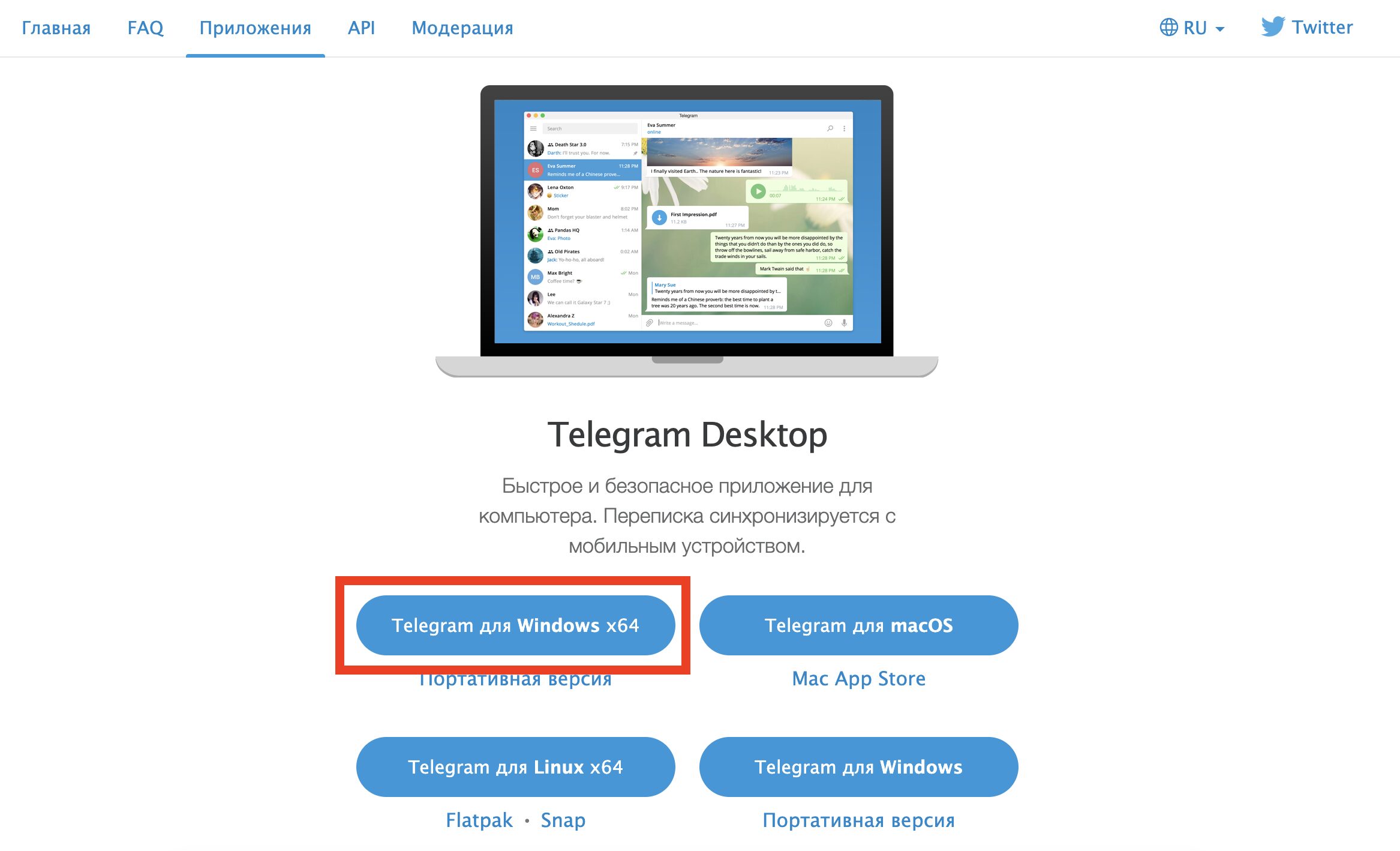
If you have a 32-bit system, click on Telegram for Windows in the bottom right corner
The entire process takes 1–2 minutes. After installation, proceed to the account login section below.
How to Install Telegram on a Computer via Microsoft Store
If you have Windows 10 or Windows 11, you can install Telegram through the built-in Microsoft Store app marketplace. The version is no different from the one downloaded from the website — it’s the same official client.
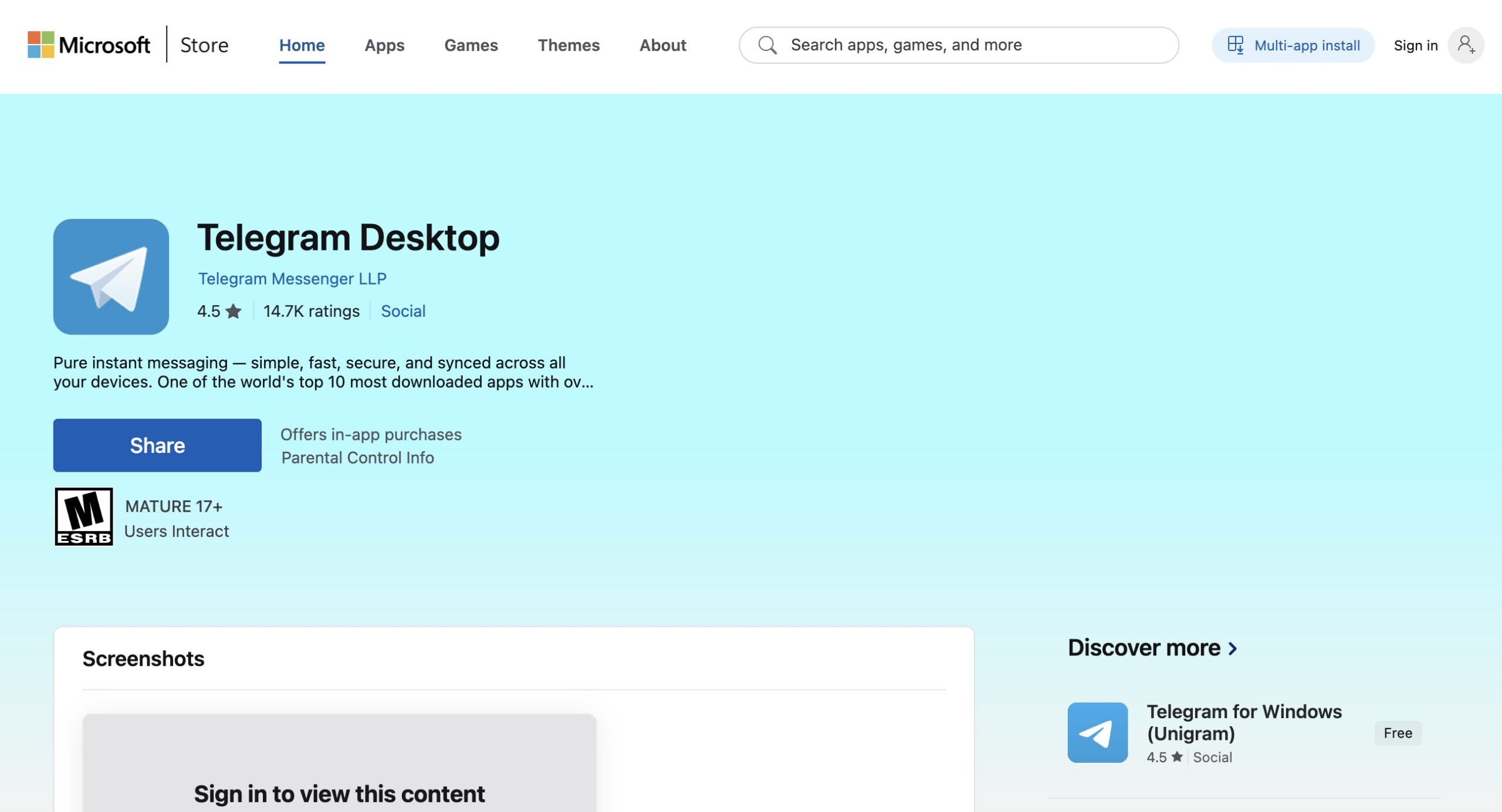
The app is available in Microsoft Store, and some may find it more convenient to install it from there
- Open Microsoft Store — find it through the Start menu or Windows search.
- In the store’s search bar, type Telegram Desktop or follow this link.
- Select the app by developer “Telegram Messenger LLP” and click the “Get” button.
- Wait for the download to complete. There’s no separate installation needed — the app is ready to launch immediately.
The advantage of this method is that updates will arrive automatically through the store. However, keep in mind that Microsoft Store sometimes delays publishing updates. If having the very latest version is important to you, the official website is a more reliable source.
How to Install Telegram on Mac (macOS)
Two versions of the Telegram client are available for Mac, and it’s important to understand the difference between them.
Telegram for macOS — a native application written specifically for Mac. The macOS version is developed by a separate Telegram team and carefully optimized for Mac. You can download it from macos.telegram.org or from the Mac App Store.
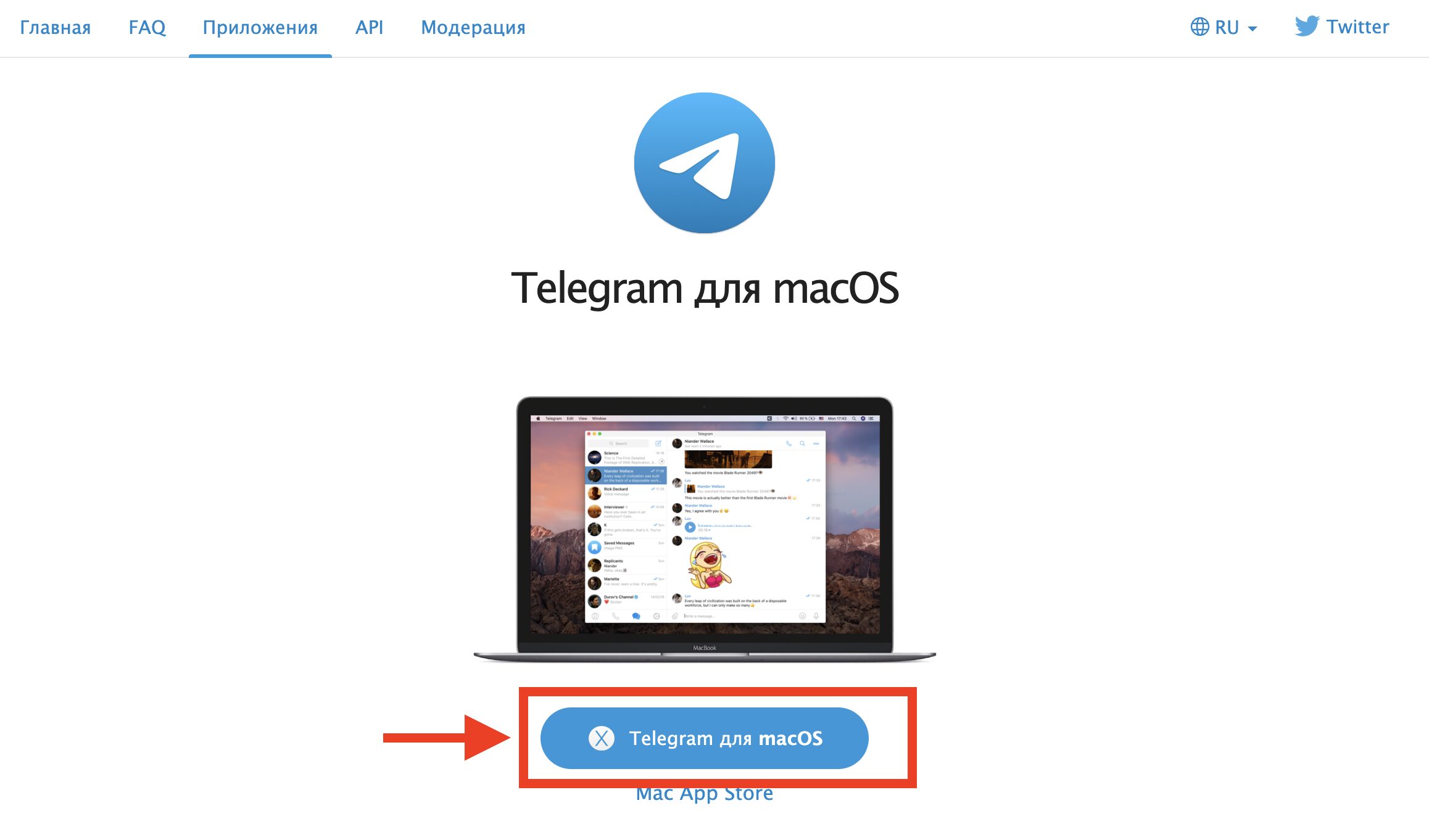
The app can be downloaded from the official website
Telegram Desktop — a cross-platform client (the same one as for Windows/Linux). Downloaded from desktop.telegram.org.
Installation via Mac App Store:
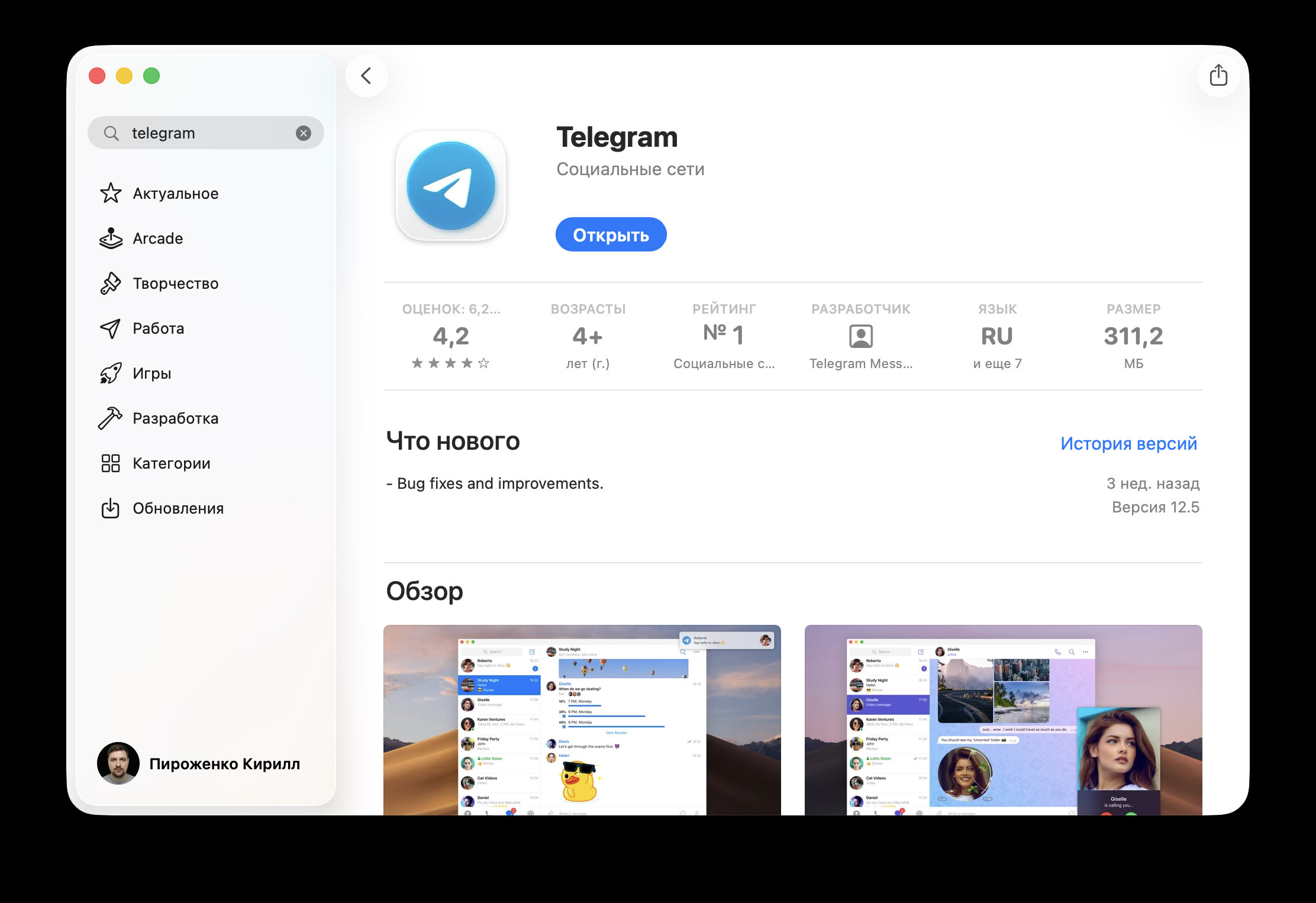
And some find it more convenient to use the Apple app store
- Open App Store on your Mac.
- Search for “Telegram” or follow this link.
- Select the app by developer “Telegram Messenger LLP” — make sure it’s the official client.
- Click “Get,” then “Install.” Confirm with your Apple ID password or Touch ID.
- After installation, open Telegram from the Applications folder or Launchpad.
Installation via the website:
- Go to macos.telegram.org and download the .dmg file.
- Open the downloaded .dmg file and drag the Telegram icon into the Applications folder.
- On the first launch, macOS may warn that the app was downloaded from the internet — click “Open.”
The App Store version requires macOS 10.13 (High Sierra) or newer.