MAX for tablet — a logical continuation of the forced transition to the domestic messenger. If your phone is already set up, the question arises: what about the tablet? Especially since the list of those who will have to install MAX in 2026 is quite extensive, and the question of obligations to the state application has long been resolved. Everyone will need the national messenger. So let’s figure out how to install MAX on a tablet.
Wait, you can do that too?
Can You Install MAX on a Tablet
You can install MAX on a tablet — that’s a fact. The app works on Android tablets just like on smartphones: chats, calls, channels, the notorious Digital ID. The interface adapts to the larger screen, though not perfectly. After all, MAX was originally designed for phones.
There’s one important nuance. Registration in MAX is tied to a phone number: when signing in, the system sends a confirmation code via SMS or through an already installed messenger on another device. If the tablet has a SIM card slot with an active SIM inserted — no problem, the code will arrive directly. If it only works via Wi-Fi, the confirmation code will be sent to your phone. This means that during the initial setup, your smartphone must be nearby. You can simultaneously use MAX on both phone and tablet.
How to Set Up MAX on a Tablet
Download MAX on a tablet in three ways: through Google Play, through RuStore, or via an APK file. The first suits most people, the second is relevant if there are issues with Google Play, and the third is a backup option. The steps differ slightly in each case.
MAX App in Google Play
The simplest method. MAX in the Play Store is available without restrictions for Russian Google accounts:
- Open Google Play on your tablet.
- In the search bar, type “MAX messenger.”
- Select the app from the developer MAX LLC.
- Tap “Install” and wait for the download to complete.
- Open the app and sign in with your phone number.
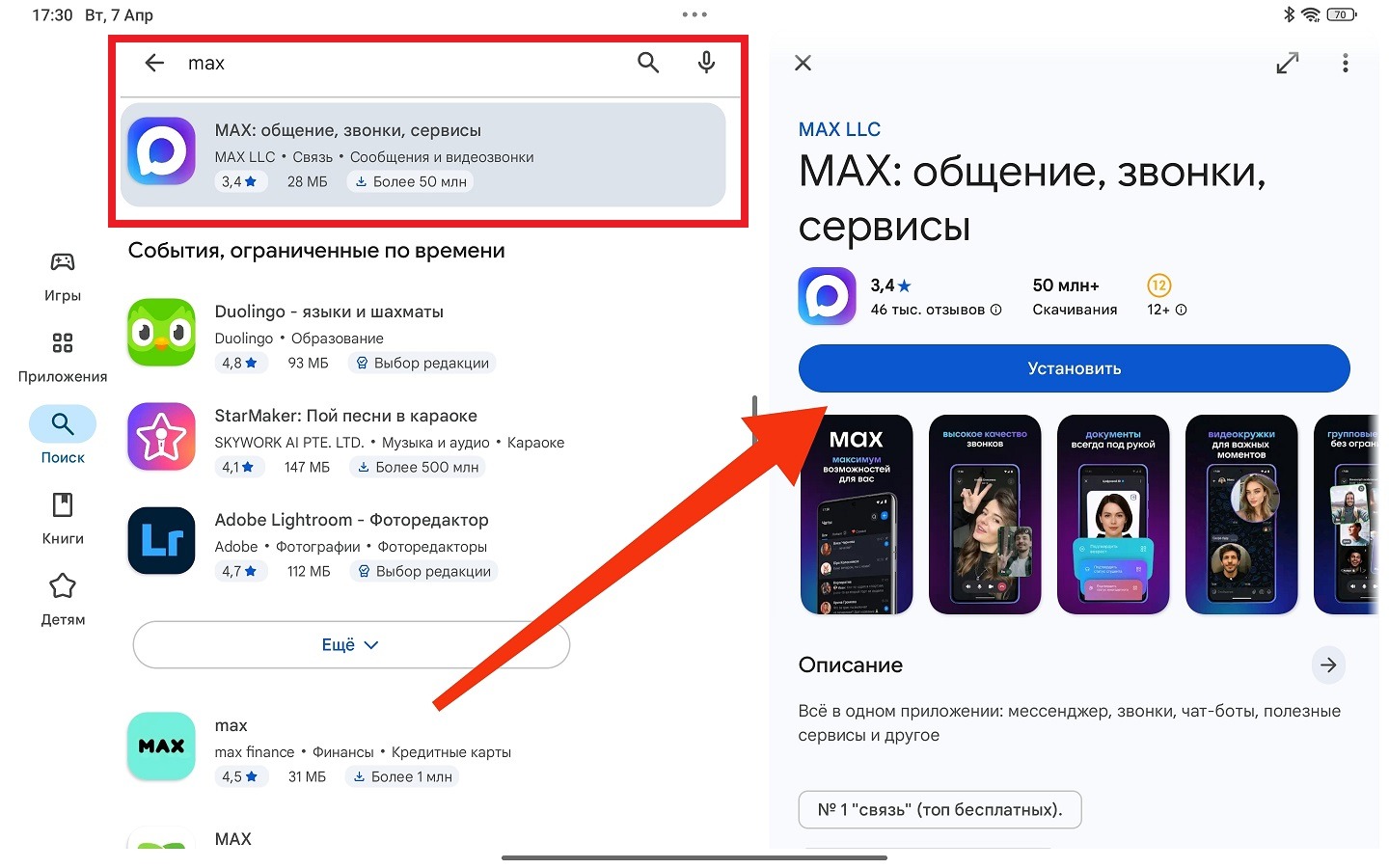
The basic way to install MAX on a tablet
If your Google account is registered in another region and the app doesn’t appear in search, use one of the following methods. For more details on signing in and initial setup, the steps are the same as for a tablet.
How to Download MAX via RuStore
MAX in RuStore is available without regional restrictions — it’s a convenient option if Google Play doesn’t work for some reason:
- If RuStore isn’t installed yet, download its APK from the official website rustore.ru through your tablet’s browser.
- Install RuStore, allowing installation from unknown sources for the browser.
- Open RuStore and sign in with a VK ID account or create a new one.
- In the search bar, type “MAX.”
- Select the app and tap “Install.”
- After installation, open MAX and sign in with your phone number.
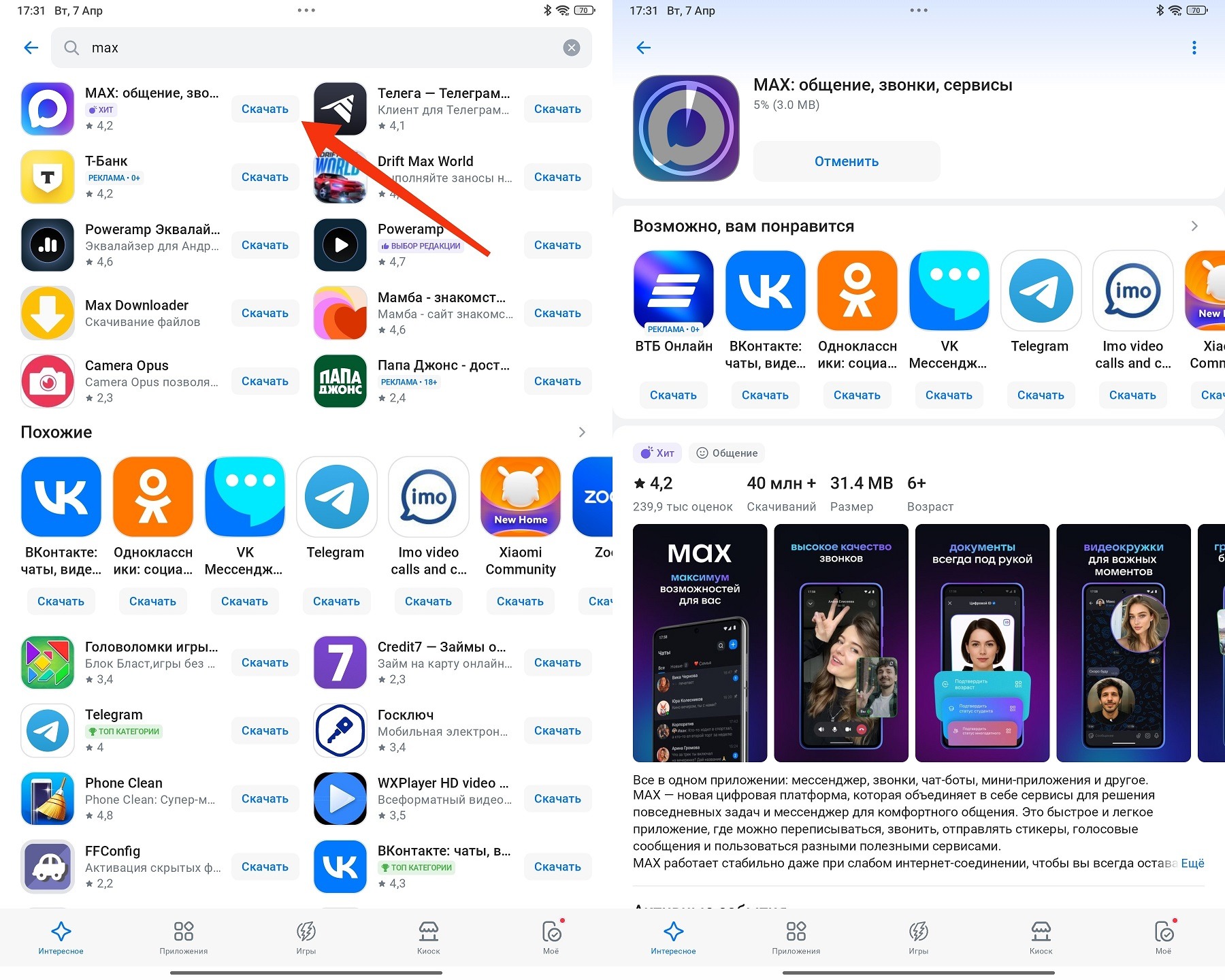
Another way to install MAX
RuStore automatically updates apps installed through it. This is more convenient than tracking updates manually.
How to Install the MAX APK File
MAX APK — the most flexible but also the most labor-intensive method. Suitable for tablets without Google Play and RuStore:
- Download the APK file from the official website and wait for the download to complete.
- Open your file manager and navigate to the “Downloads” folder.
- Tap the APK file (the system will request permission to install from unknown sources).
- Allow installation for the file manager or browser in the security settings.
- Go back and tap “Install.”
- After completion, open MAX and sign in with your phone number.
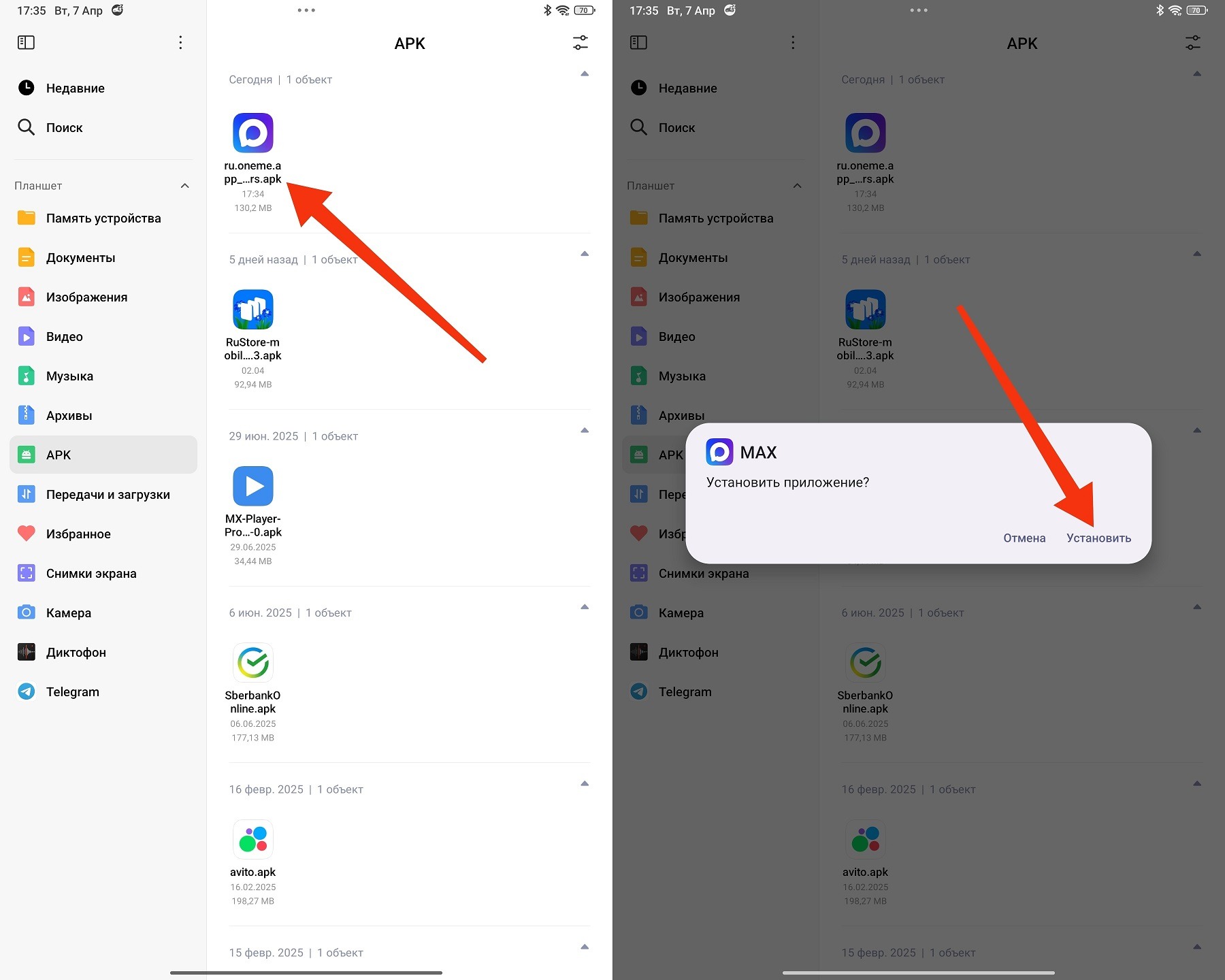
An option for those who don’t trust app stores
The main downside of the APK method is the lack of automatic updates. You’ll need to periodically visit the website and download the new version manually. If the tablet is used regularly, it’s more convenient to install RuStore and update through it.
What to Do If MAX Won’t Install on a Tablet
MAX messenger on a tablet may refuse to install for several typical reasons, and each has its own solution:
- Not enough storage space. MAX takes up about 150-200 MB during installation, but after the first launch and data loading, it may take up more. Check available space in “Settings” — “Storage” and free up at least a couple of gigabytes.
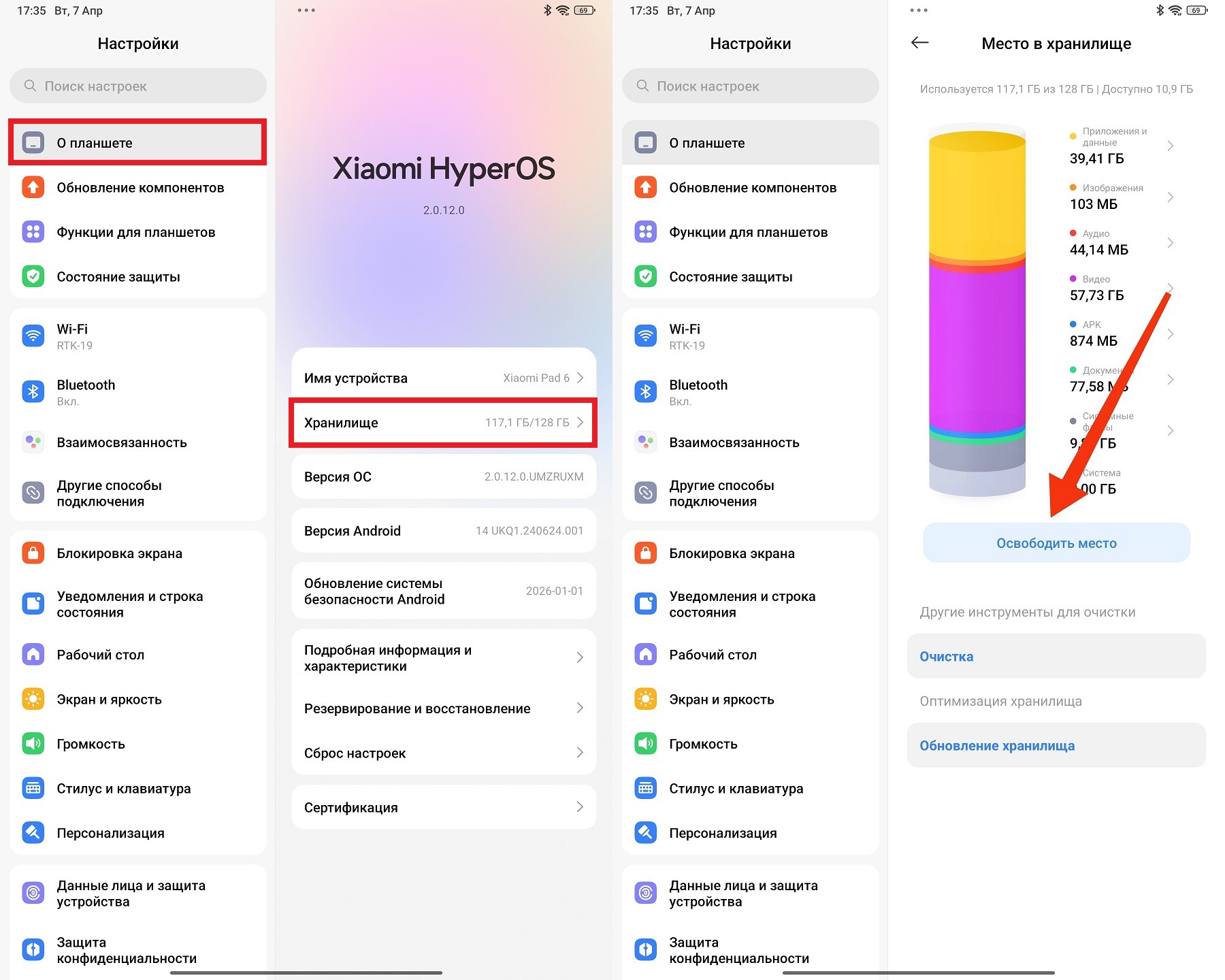
Free up storage


