Nowadays, as all alternative services become unavailable, the MAX app is becoming an indispensable communication tool. We have already covered how to use the national messenger on Android. But can you install MAX on a computer, or is this domestic app designed exclusively for mobile platforms? In short — yes, you can. However, the instructions for how to open MAX on a computer differ significantly from the steps for a smartphone.
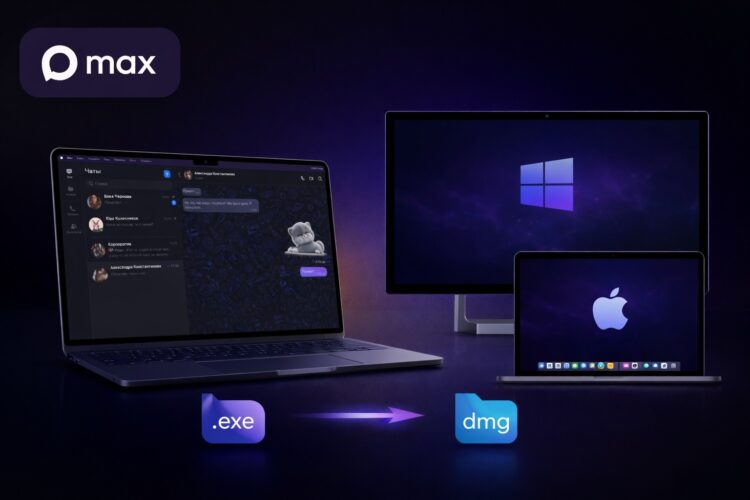
Learning to install MAX on PC
MAX Web Version on Computer
The simplest way to use the national messenger on a computer is the MAX web version. It is available at web.max.ru and does not require installing any additional applications. All you need is to launch a browser on your computer, whether it’s Yandex, Chrome, Safari, or Edge. The platform (Windows, macOS, or Linux) does not matter.
To log into MAX web on a computer, you will need not only a PC but also a smartphone, along with our step-by-step guide:
- Open the website web.max.ru on your PC, and a QR code will appear on the screen.
- Launch MAX on your phone.
- Open the “Profile” tab.
- Go to the “Devices” section.
- Tap the “Log in via QR code” button.
- Point your smartphone camera at the PC screen with the QR code.
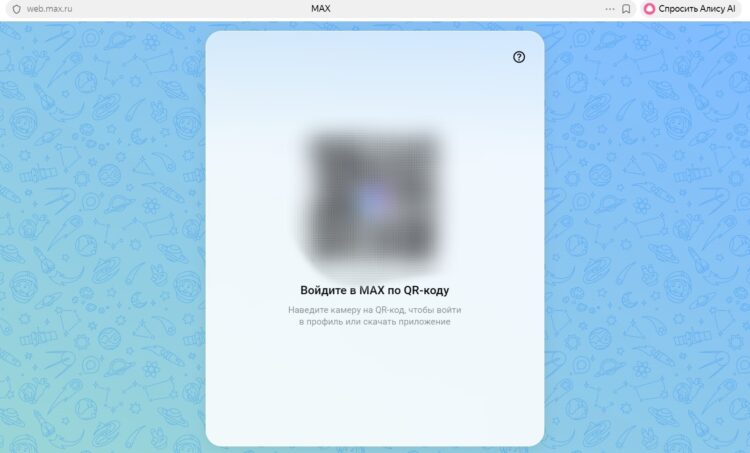
A QR code will appear in the web version
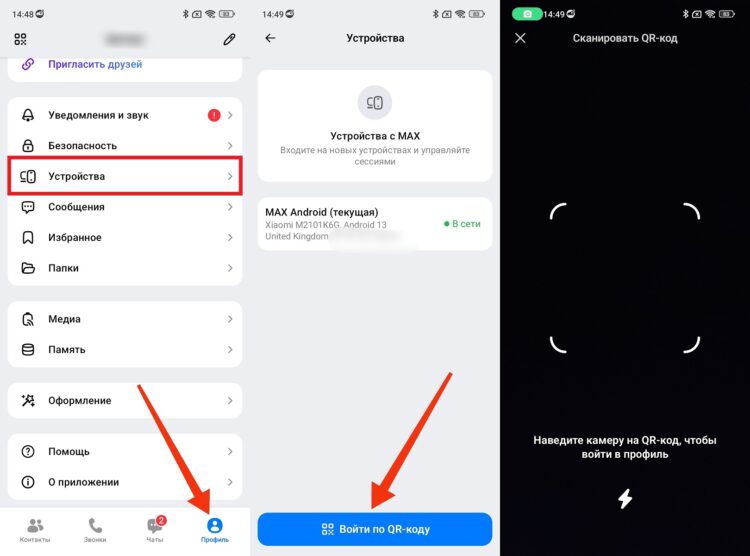
You need to scan the QR through the MAX app on your smartphone
Unfortunately, MAX web does not work with a phone number. Access to the messenger in the browser is only available via QR code. However, you can download the MAX app for your computer, which offers login by phone number in addition to QR.
Where to Download MAX for Computer
We recommend downloading MAX for your computer from the official website, located at download.max.ru. Here you can find the installation file for different platforms:
Simply confirm the file download, and then all that’s left is to install MAX on your computer using the simple instructions provided further in this article.
How to Install MAX on a Computer
Installing MAX on a computer is done the same way regardless of the platform (Windows, macOS, or Linux). Follow the instructions:
- Double-click the left mouse button to open the MAX installation file.
- Click the “Next” button.
- Choose the installation path for the application.
- Confirm the installation of MAX on your PC.
- Wait for the installation to complete.
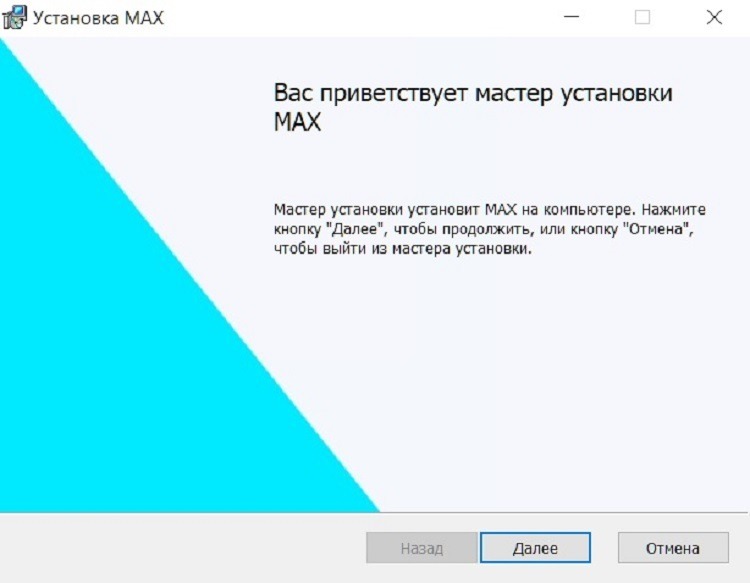
Starting the MAX installation on PC
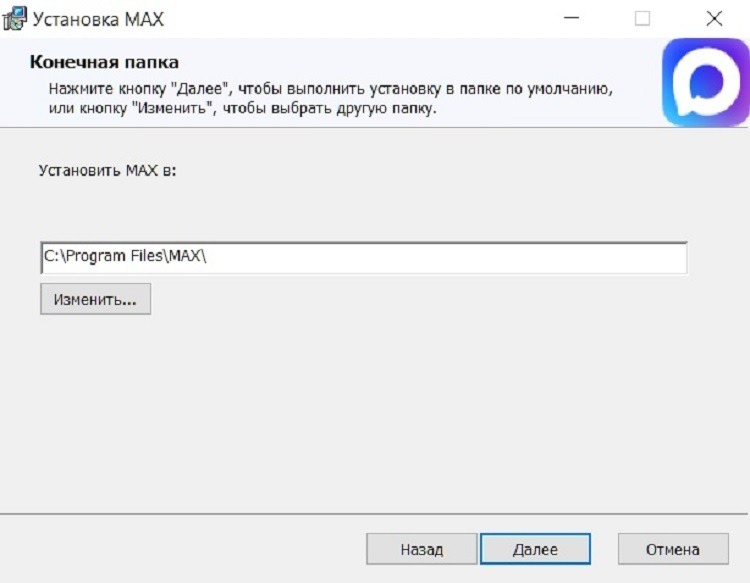
Change the installation path if needed
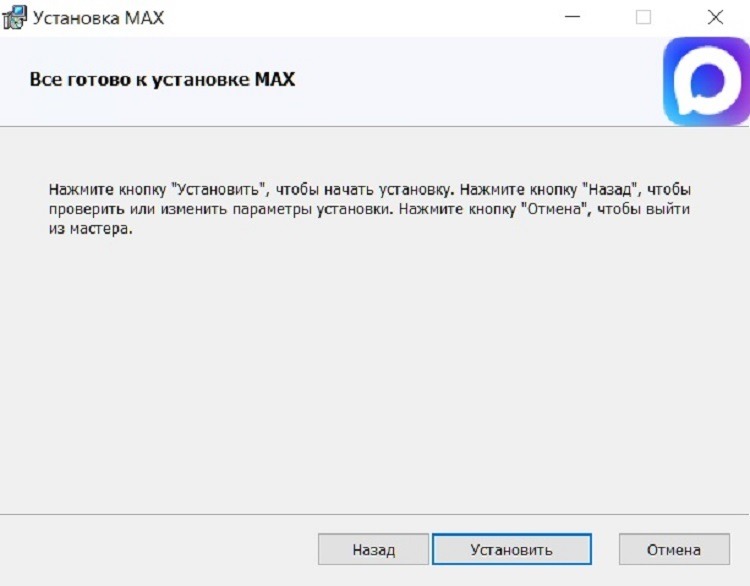
Confirm the messenger installation
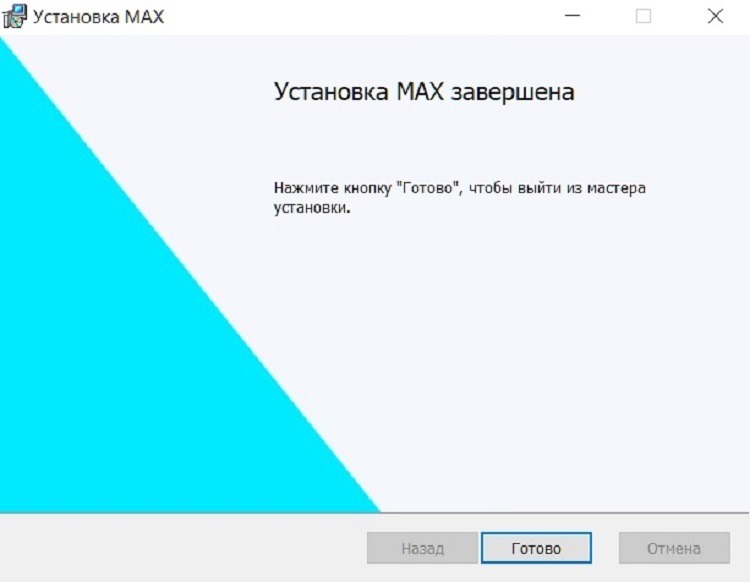
The national messenger is now on your PC
The entire process will take just a couple of minutes, and you will be able to start using MAX on your computer. But first, you will need to log into the national messenger.
How to Log Into MAX on a Computer
Logging into MAX from a computer through the app is done the same way as with the web version. That is, you need to scan the QR code using the messenger on your smartphone. But there is also an alternative option — logging into MAX on a computer using a phone number:
- Launch MAX on your PC.
- Click the “Log in with phone number” button.
- Enter your phone number.
- Enter the six-digit MAX confirmation code.
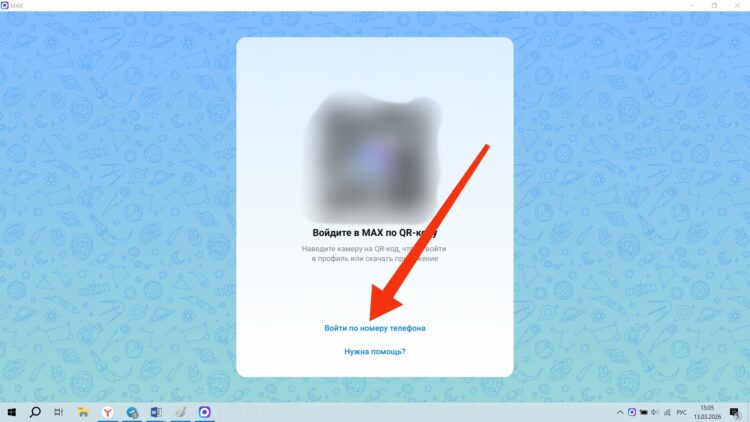
You can log into the app using a phone number
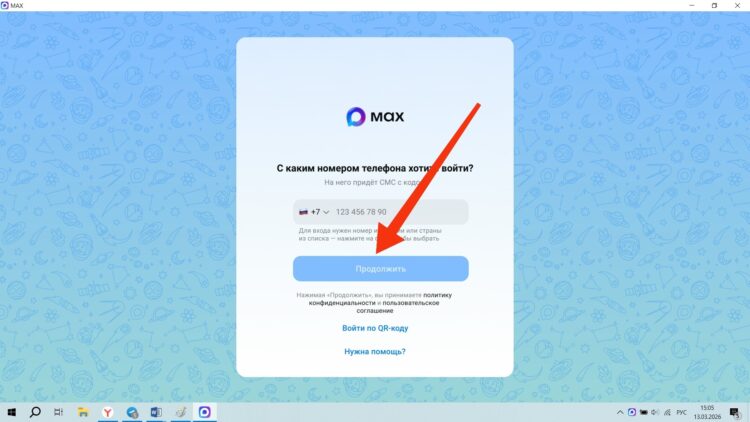
Enter the number linked to MAX and continue
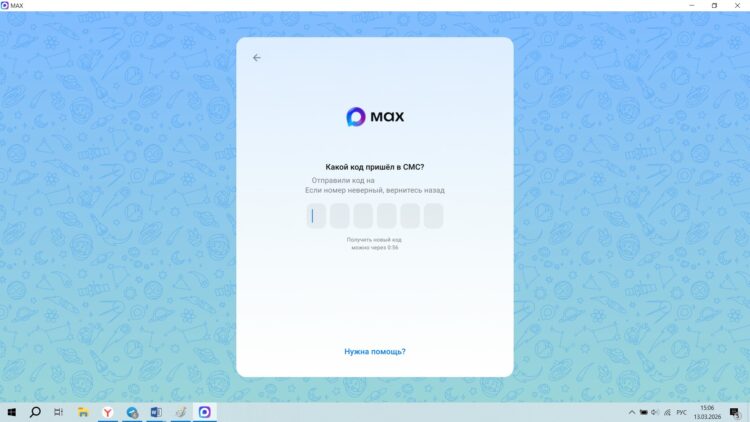
All that’s left is to enter the MAX confirmation code
After that, you will be automatically logged into your MAX account, where your chats and other data that were previously uploaded to the cloud will immediately appear.