The Alfa-Bank app has been unavailable on the App Store for several years now, but that doesn’t mean iPhone owners are left without mobile banking. Take a look at the different ways to get access to your accounts, cards, and transfers right from your phone. We break down each method — with step-by-step instructions, pros, and limitations.
You can easily use Alfa-Bank on iPhone. Image: myseldon.com
Why Alfa-Bank Disappeared from the App Store
Apple removed apps from most major Russian banks from the App Store due to sanctions restrictions. Alfa-Bank was no exception. The bank’s official client can no longer be found in the Apple App Store — neither under its old name nor under new ones.
Periodically, Alfa-Bank developers released alternative apps under different names — “Dengi v poryadke” (Money in Order), “Dengi prishli” (Money Arrived), “Dengi yest” (Money Available), “A-Klyuch” (A-Key), “Alfoto.” But App Store moderators removed them within hours of publication. Not everyone managed to download them in time.
The situation is not unique — customers of Sber, VTB, T-Bank, and other banks faced the same problems. But there are workarounds, and most of them don’t require any technical skills.
How to Add the Alfa-Bank Web Version to Your iPhone Home Screen
The simplest and fastest method that requires neither a computer nor a trip to a branch. The web version of Alfa-Bank’s personal account is almost as functional as the mobile app: transfers, bill payments, card management — everything is there.
Essentially, this is a Progressive Web App — a website that works like an app. Here’s how to install it:
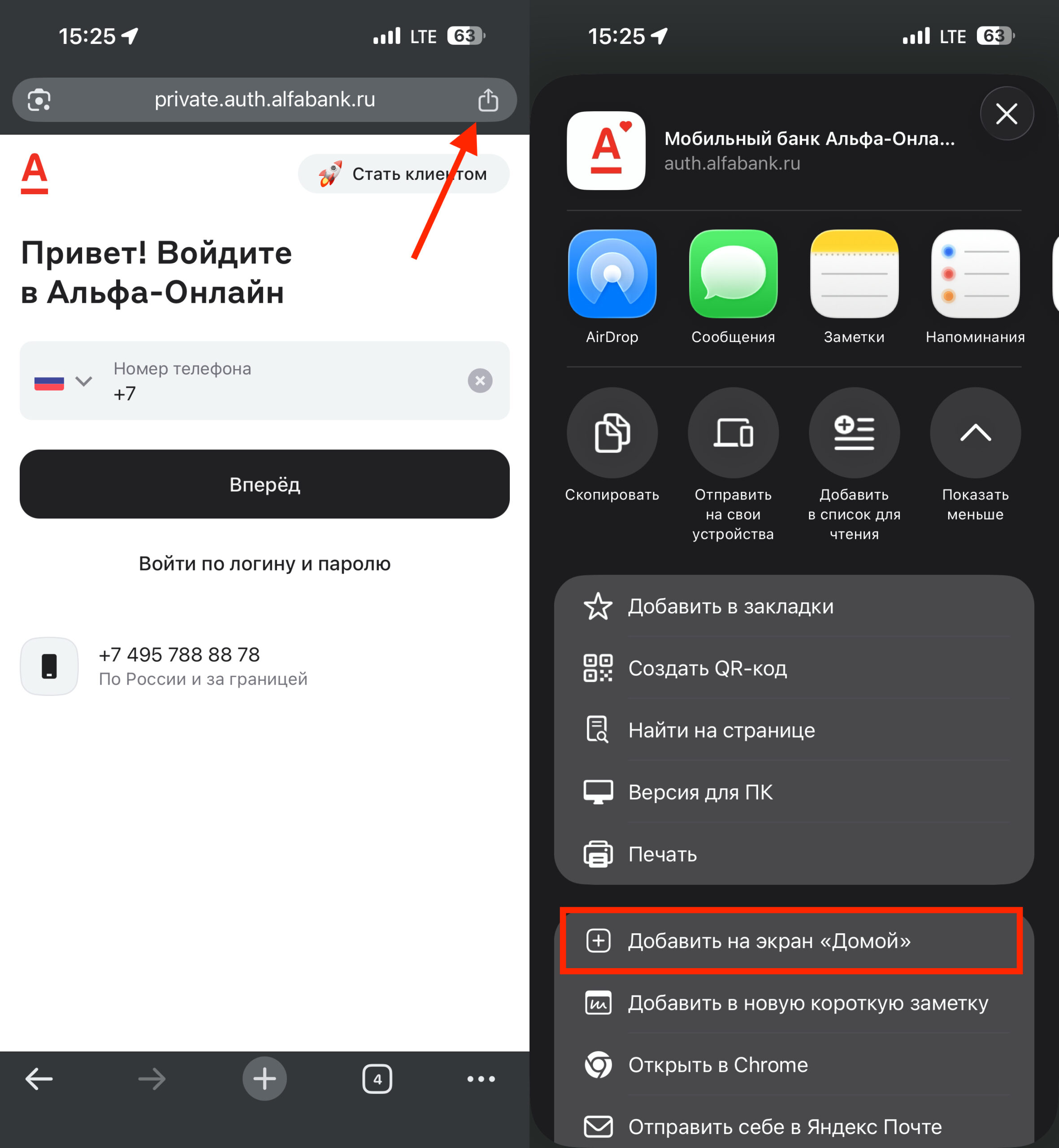
A couple of taps — and the web app is already on your home screen
- Open Safari and go to alfabank.ru → the “Alfa-Online” section.
- Tap the “Share” button (square with an upward arrow).
- Select “Add to Home Screen.”
- Enter a convenient name (for example, “Alfa-Bank”) and tap “Done.”
- An icon will appear on your home screen — on the first launch, you’ll need to log in to your personal account.
Important: this method works not only through Safari but also through other browsers. Chrome, for example, allows you to add PWAs to the Home Screen. Even PUSH notifications are supported, so you get a full-featured banking client without installing an app.
How to Install Alfa-Bank on iPhone Through a Bank Branch
Alfa-Bank, like other major banks, offers app installation through its own corporate developer certificate. To do this, you need to visit a branch in person or contact a bank representative. Here’s what you need to do:
- Find the nearest Alfa-Bank branch.
- Ask an employee to install the mobile app on your iPhone.
- The employee will install the current version of the client on your smartphone.
The advantage of this method is that you get a full-featured app with a familiar interface. The downside is that the app won’t update automatically. To get a new version, you’ll have to visit the branch again.
How to Download Alfa-Bank via iMazing from Apple ID Purchase History
This method is suitable for those who have ever downloaded the Alfa-Bank app (or its alternatives like “Dengi prishli,” “Dengi yest”) through their Apple ID. Even if the app has been removed from the App Store, it remains in your purchase history.
To restore it, you’ll need a computer (Mac or Windows) and the iMazing program:
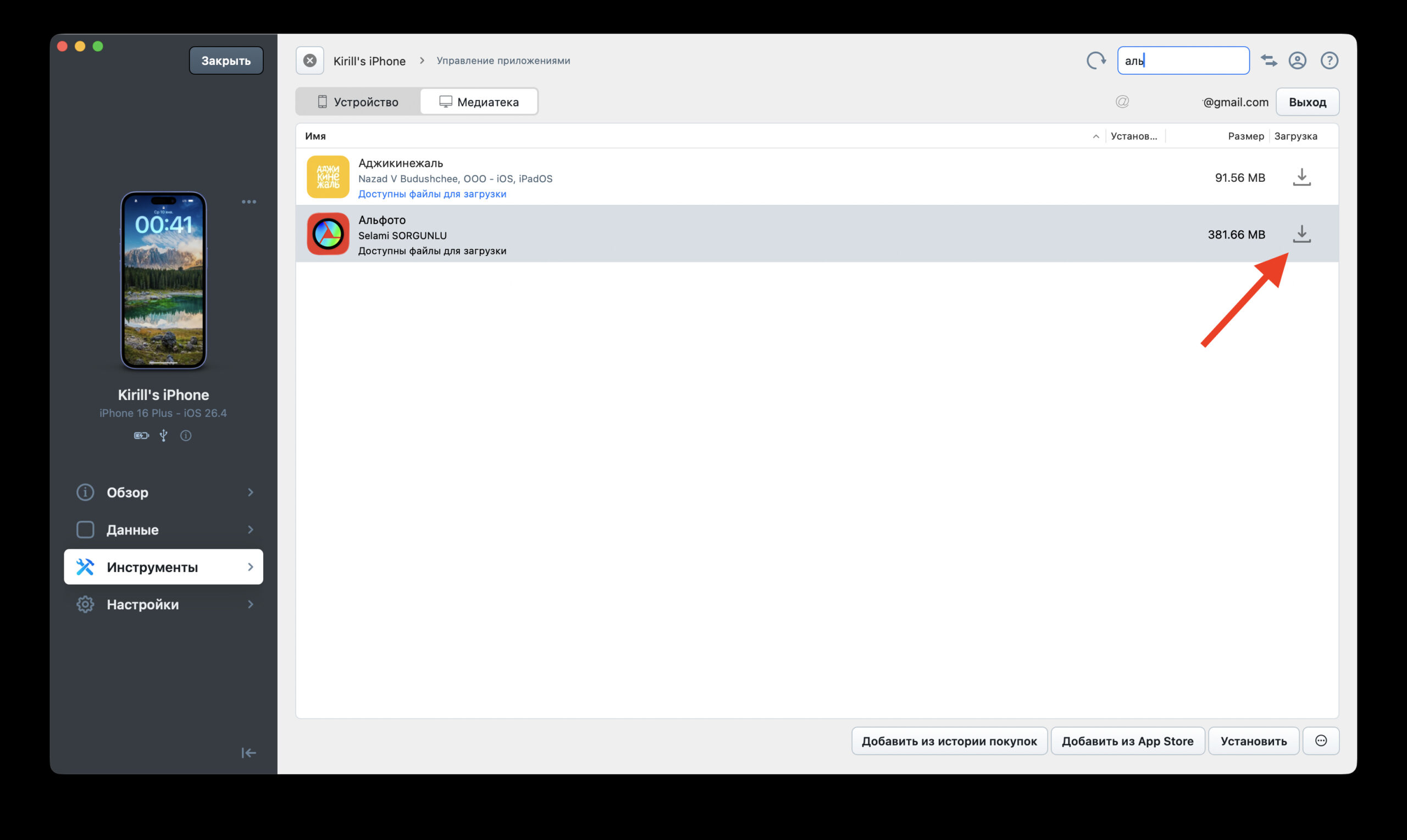
The method works for several months after the app is removed from the App Store and then stops finding it
- Download and install iMazing from the developer’s official website. The program is paid, but the trial version is sufficient for our purposes.
- Connect your iPhone to the computer with a cable and confirm trust on the phone screen.
- In iMazing, open the “Manage Apps” section → “Library.”
- Sign in with your Apple ID.
- Find the Alfa-Bank app (or one of its alternatives) through the search.
- Download it to your computer, then click “Install” to transfer it to your iPhone.
If you’ve never downloaded the Alfa-Bank app on this Apple ID, the method won’t work — it simply won’t be in your purchase history. Note that even if you previously downloaded the Alfa-Bank app on your iPhone, you’ll only be able to reload it onto your smartphone via iMazing within 2–3 months. After that, downloading it through the Library won’t work either.
Alfa-Bank via a Bot in MAX — Does It Work as an App Replacement?
Until summer 2025, Russian banks could develop not only their own apps but also Telegram bots as an additional access channel. However, by law, services can no longer be provided through foreign messengers and social networks, so Alfa-Bank didn’t miss a beat and created a bot in the national messenger MAX.
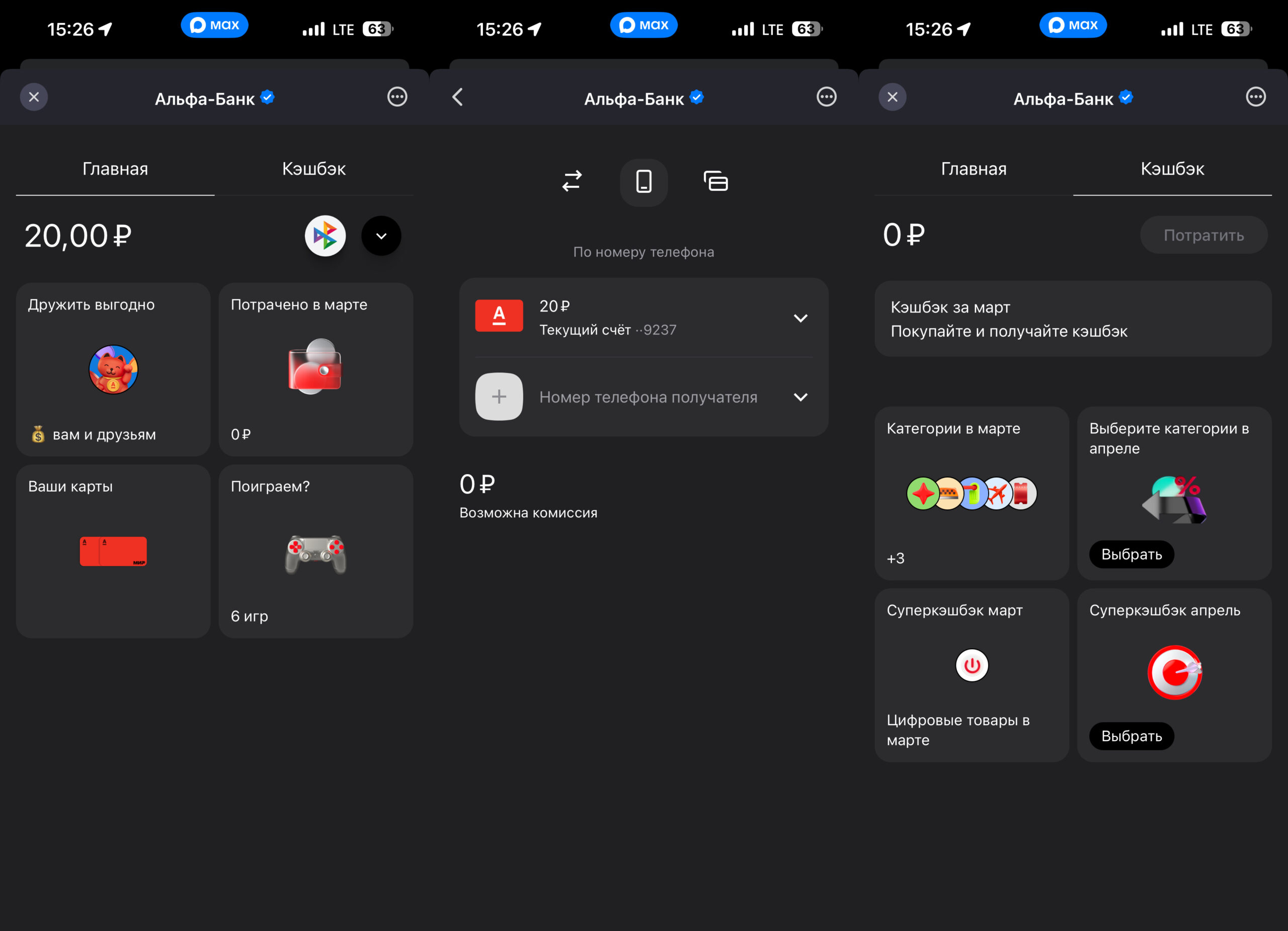
You can check your balance and make transfers in the bot
Through the bot, you can check your balance, get basic account information, make transfers, view card details, check your cashback amount, and review recent account transactions. However, you unfortunately can’t pay for services through it. You can’t even top up your phone balance. But SBP (Fast Payment System) is available, which is a plus. The MAX bot is not a full replacement for the app, but it can come in handy for quickly checking your balance on the go.
Comparison of Alfa-Bank Installation Methods on iPhone: Pros and Cons of Each
Here’s a brief comparison of all methods to help you decide:
- Web version via Safari — the simplest method. Requires nothing but a browser. Works for everyone. Suitable for most users.
- Installation at a bank branch — a full-featured app, but without auto-updates.
- Restoration via iMazing — only if you previously downloaded the app on this Apple ID. Requires a computer.
- Bot in MAX — only for checking balance and making transfers, not a replacement for the app.
For most users, the optimal option is the web version via Safari. It works reliably, doesn’t depend on certificates or purchase history, and its feature set is almost identical to the app. If you fundamentally need a native client — visit a bank branch, they’ll install it in a few minutes. Just keep in mind that you’ll have to come back for updates.