MacBook Neo unexpectedly received a feature that Apple for some reason decided not to talk about on stage and didn’t include in the specifications. It’s about a hidden display setting that allows you to switch the laptop screen to the Display P3 profile. It turns out that MacBook Neo has one fewer downside. On paper, this sounds like a minor thing, but in practice, the image becomes noticeably more pleasant, especially if you frequently view photos, videos, or simply don’t like washed-out colors.
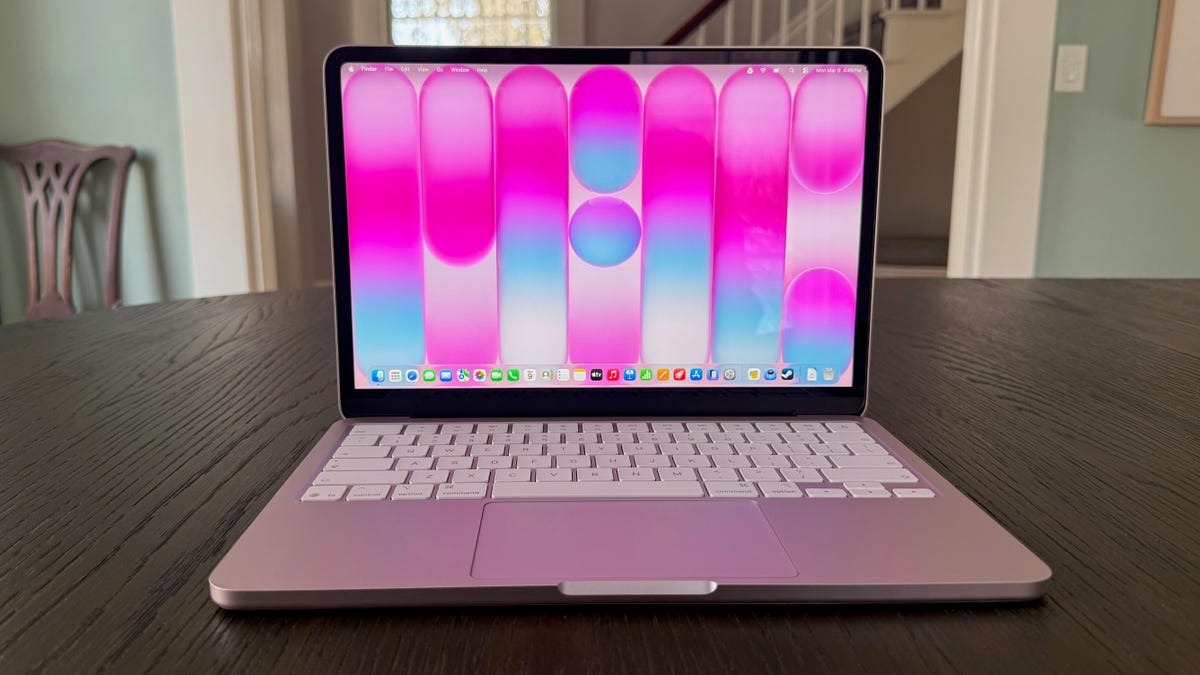
Thought the MacBook Neo display couldn’t be saved? No, there is a way out! Image: cnet.com
The most interesting thing is that any MacBook Neo owner can enable this option in a couple of seconds. No Terminal commands, third-party utilities, or complicated procedures are needed. You just need to go to the display settings and manually select a different color profile that Apple for some reason doesn’t advertise, even though it truly affects image perception.
How to Enable Display P3 on MacBook Neo
The unusual feature was discovered by content creator ZONEofTECH. He found that in the screen settings section of MacBook Neo, there is a color profile option where, in addition to the standard variant, you can select Display P3. By default, the laptop operates in sRGB, and this is the profile Apple lists in the device’s official specifications.
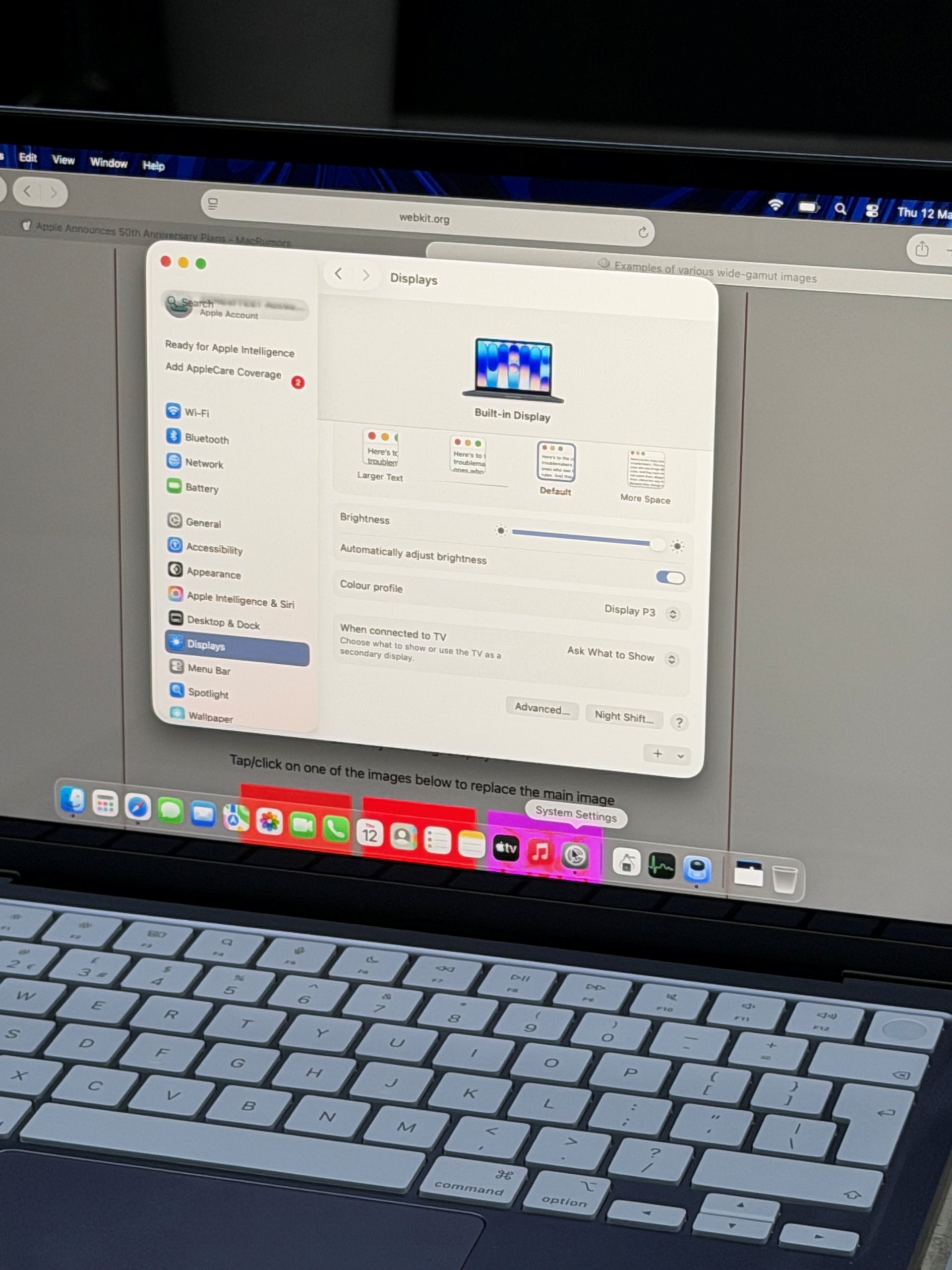
The color profile switch is waiting for you in settings
To enable the extended profile, you need to open “System Settings,” go to the “Display” section, and find the “Color Profile” option. If you select Display P3, the screen will start displaying images in a wider color space. Apple doesn’t specifically draw attention to this anywhere, so most MacBook Neo owners probably don’t even realize they have this option at all.
How Display P3 Changes the MacBook Neo Screen
It’s important not to have inflated expectations here. Enabling Display P3 doesn’t turn the MacBook Neo into a MacBook Pro with a mini-LED display and doesn’t make it a complete equivalent of the MacBook Air. But visually, the image does become more saturated, and colors in photos, videos, and the interface look more vivid than with the standard sRGB profile.
At the same time, the MacBook Neo screen still doesn’t fully cover P3. So this isn’t about full professional color accuracy, but rather a nice bonus that makes the display better for everyday use. For a $599 laptop, this still looks very respectable, because even a partially expanded color gamut already gives the impression of a more premium panel.
Why Apple Hid Display P3 in MacBook Neo
Apple may well have reasons for not featuring this setting in its marketing materials. The first and most obvious theory is lineup positioning. If they openly stated that the affordable MacBook Neo can display images closer to P3, it could make the difference between it, the MacBook Air, and MacBook Pro less obvious to buyers.
There’s also a second, more technical reason. If the panel doesn’t provide full 100% P3 coverage, Apple may simply not want to promise something it can’t fully guarantee. This is a typical approach for the company: it’s better to officially state more modest specifications than to later face complaints from those who expected a professional-level display but actually got just an improved consumer variant.
Who Will Benefit from Display P3 on MacBook Neo
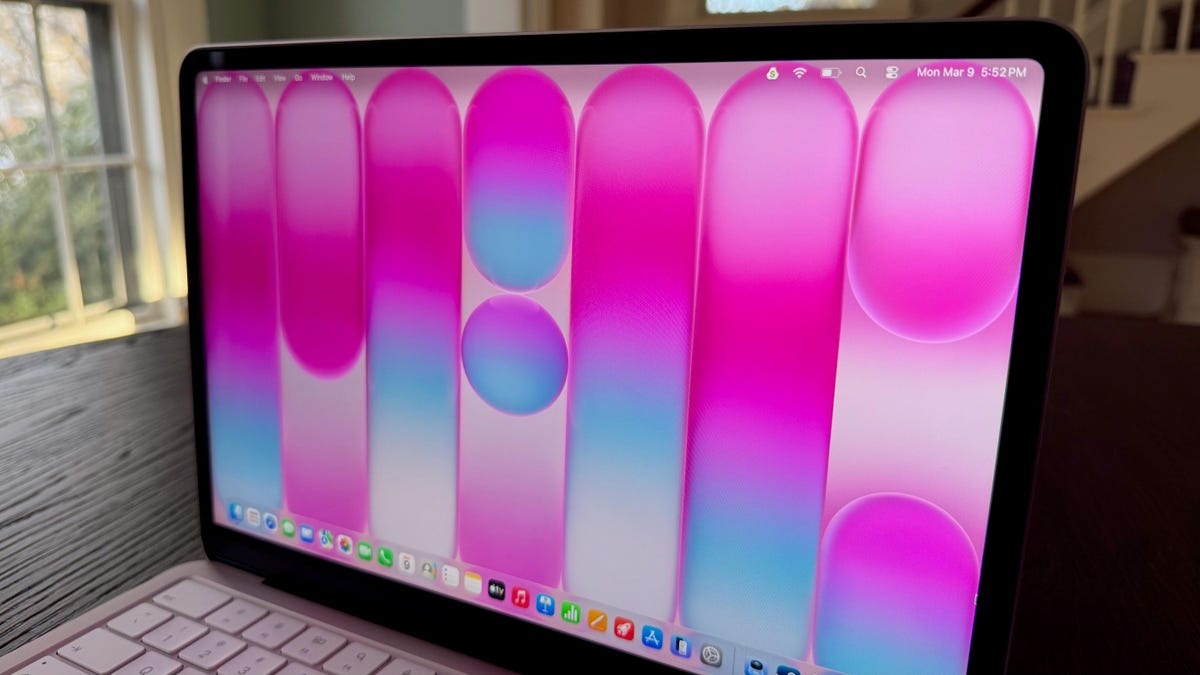
With P3, the screen becomes more interesting, but it won’t catch up to the Air and Pro displays. Image: cnet.com
If you’ve already bought a MacBook Neo and use it for viewing photos, videos, YouTube, TV shows, websites, or regular everyday work, this setting is definitely worth trying. Switching takes a few seconds, costs nothing, and in the worst case, you simply won’t notice a difference. But there’s a high chance the image will seem more vivid and pleasant, especially if you’re sensitive to colors.
However, for those who professionally work with graphics, retouching, design, or preparing materials for print, this mode alone won’t be enough. The hidden profile doesn’t eliminate the limitations of the panel itself, so MacBook Neo still doesn’t become a tool for serious color work. In that case, it makes more sense to look toward the MacBook Air or MacBook Pro, where support for a wide color gamut is already part of the officially stated display capabilities.