Sometimes you want a specific contact on your iPhone to not show up anywhere — not on the incoming call screen, not in the “Recents” list. The reasons vary: work and personal contacts on the same phone, “business” numbers you don’t want visible in screenshots, or simply a desire to tidy up your call log so that unnecessary entries don’t catch anyone’s eye.

Hiding the caller’s number and name on iPhone is very easy
There’s a simple trick in iOS that lets you make it so that for a specific contact, neither the name nor the number is displayed — and even in the call history, these will appear as blank lines. It’s all done through a regular contact card and takes about a minute.
How to Hide a Contact on iPhone
Let’s clarify right away that this method doesn’t hide calls from your carrier, doesn’t make your number “anonymous” to the other party, and doesn’t hide the fact that a call was made. It works locally on your iPhone: it simply removes the display of the name and number in the interface (incoming call screen, call log).
In other words, this is about on-screen privacy, not truly anonymous calls. The latter can only be achieved through your carrier using a paid “caller ID blocking” service, and not all carriers even offer that.
So, here’s how to make it so that the iPhone doesn’t show the name and number during a call:
- Open the Phone or Contacts app
- Find the person you need and open their contact card
- Tap “Edit” or “Edit Contact”
- Delete the name and replace it with a single space
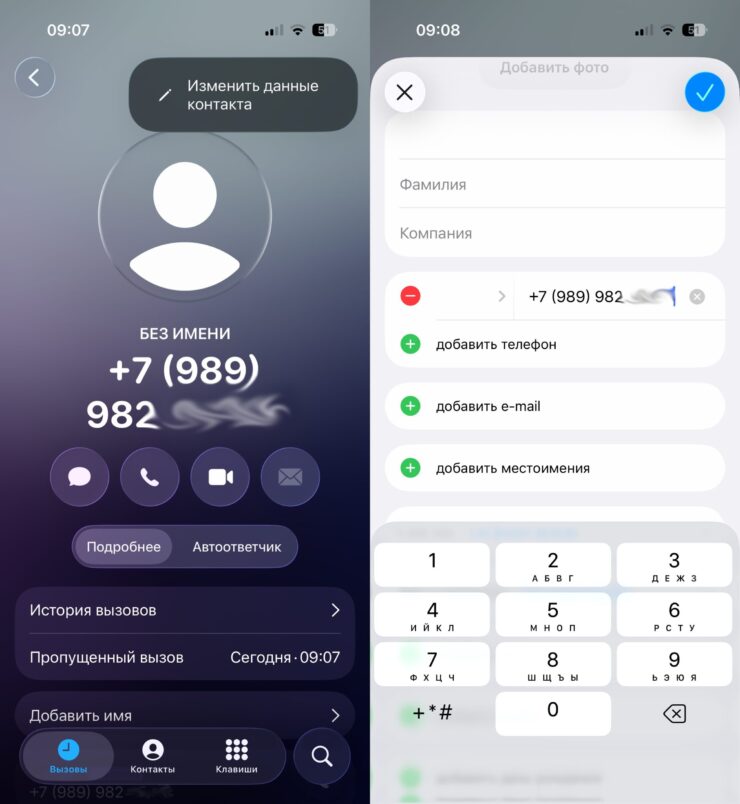
The main thing is not to forget whose number it is
- Scroll down to the phone number and tap the number type (e.g., “mobile,” “work”)
- Select “Add Custom Label”
- Enter a single space in the label as well
- Tap “Done” and save the contact
After this, when this contact calls, iPhone will show a blank field instead of the name or number, and the call log will display blank lines.
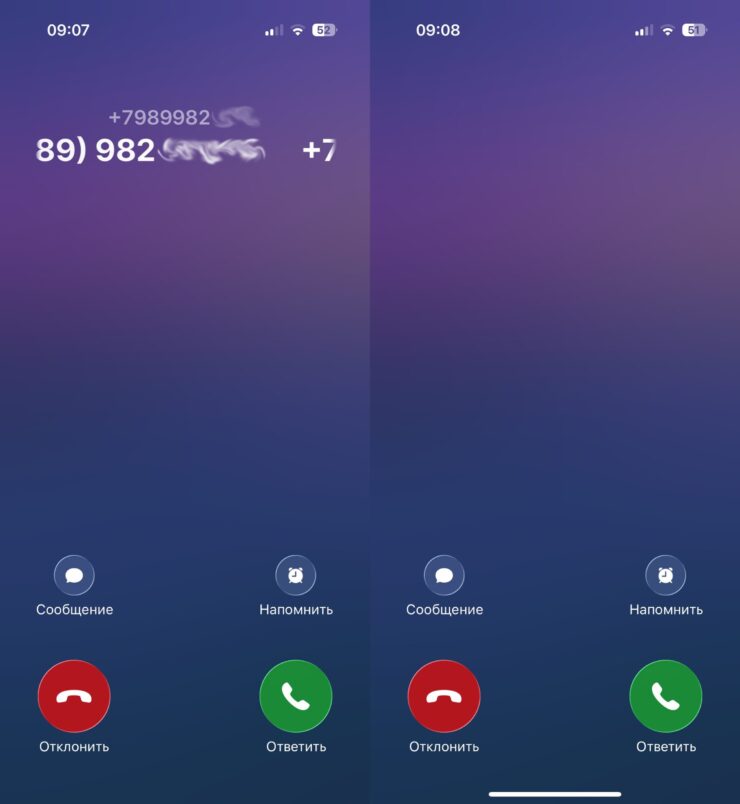
Poof, and the contact is gone
How to Unhide a Caller’s Number on iPhone
If you no longer need the trick, do the following:
- Open the contact card
- Tap “Edit”
- In the name field, delete the space and enter the actual name
- In the number type, replace the custom label with a standard one (“mobile,” “home,” etc.)
- Tap “Done”
If the trick for hiding the name and number doesn’t work, it means you missed something. Usually the problem is the same: people put a space only in the name but forget about the number label. So iOS still tries to display “mobile” or the number itself. That’s why it’s important to blank out both fields.
By the way, if you do this trick for several people, navigating your contacts will be difficult. In that case, it’s handy to add a separate note (at the bottom of the contact card) so that in a couple of months you don’t forget who you hid and why. The note doesn’t show up in the call log, but it will be visible when viewing detailed contact information and will help you avoid confusion.