Extracting audio from a video is a task that comes up more often than you’d think. If you’re recording on an iPhone, though, make sure to improve the sound recording quality, or you’ll be disappointed. Converting a video podcast into an audio file for headphones, saving a voice recording from a camera-shot clip, or pulling music from a video — all of this can be done for free in just a couple of minutes on any device. Below are step-by-step instructions for iPhone, Android, Mac, Windows, as well as online services.
Learning to separate audio from video
Why Extract Audio from Video and What Format to Save It In
The most common reason is to turn a heavy video file into a lightweight audio file. A one-hour video podcast can “weigh” a gigabyte, while the MP3 version of the same episode is only 50–80 MB. It’s convenient for listening on the go when your internet connection is unstable or data is limited.
Other cases: saving dialogue or the audio track from your own video, cutting out a fragment of a lecture, or grabbing music from a clip.
As for format — MP3 is sufficient for most tasks. It’s compatible with all players, devices, and services. The M4A (AAC) format offers slightly better quality at the same file size and is used by default in the Apple ecosystem. WAV and FLAC are uncompressed formats and are only needed for professional audio work.
How to Extract Audio from Video on iPhone — Shortcuts and Apps
The iPhone has a built-in method that doesn’t require installing third-party apps. The Shortcuts app allows you to create an automation for converting video to audio.
Method 1 — Using Shortcuts (no third-party apps needed):
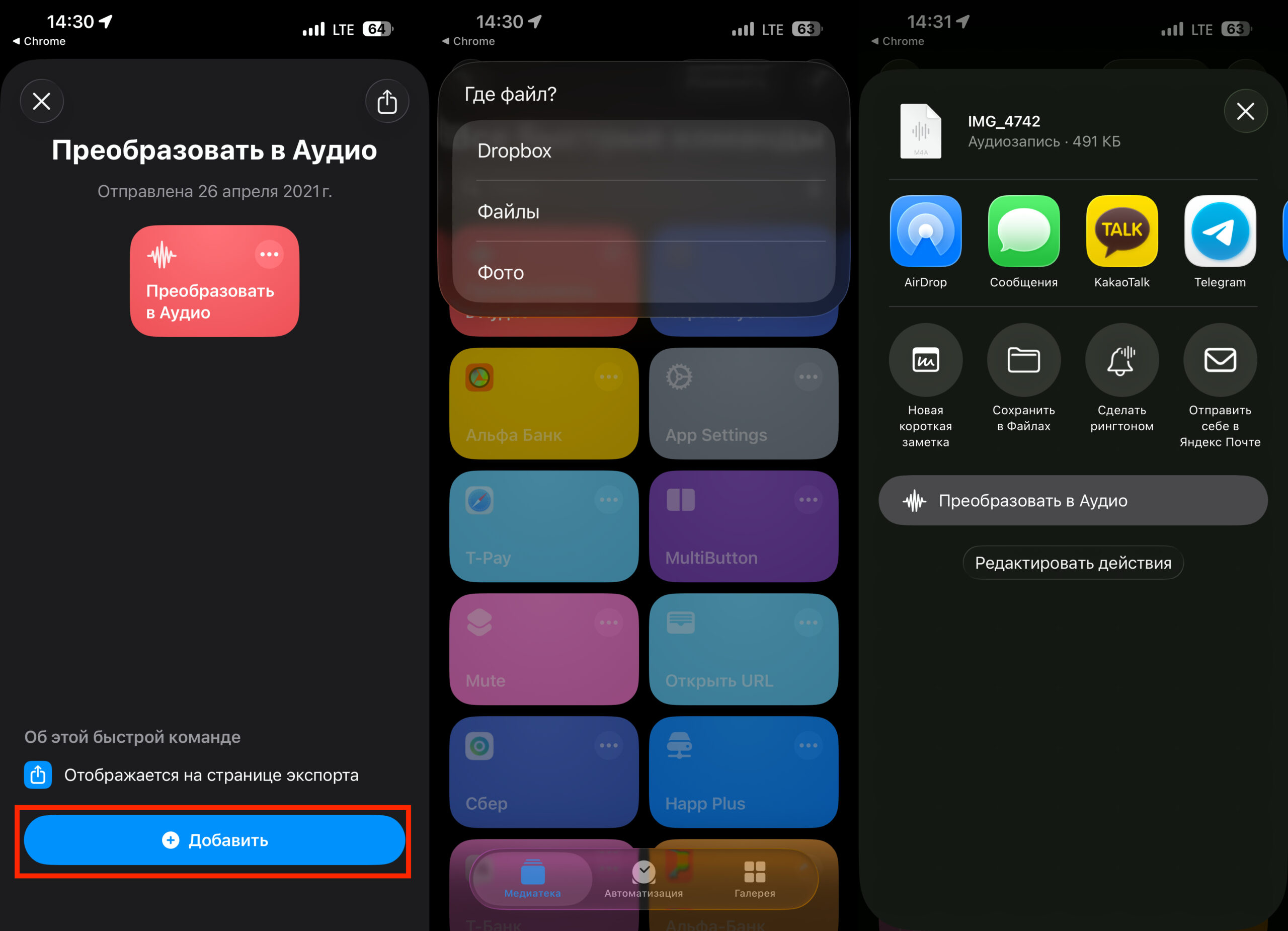
Shortcuts does it all in a couple of taps
- Install the ready-made shortcut for extracting audio.
- Open the Photos app and select the desired video.
- Tap “Share” and choose the installed shortcut from the list at the bottom.
- The audio file will be saved to the Files app in M4A format.
The shortcut works perfectly — you no longer need to download third-party apps to extract audio from video. Apps offer additional options, but this is a quick and convenient solution.
Method 2 — Using the MP3 Converter – Audio Extractor app:
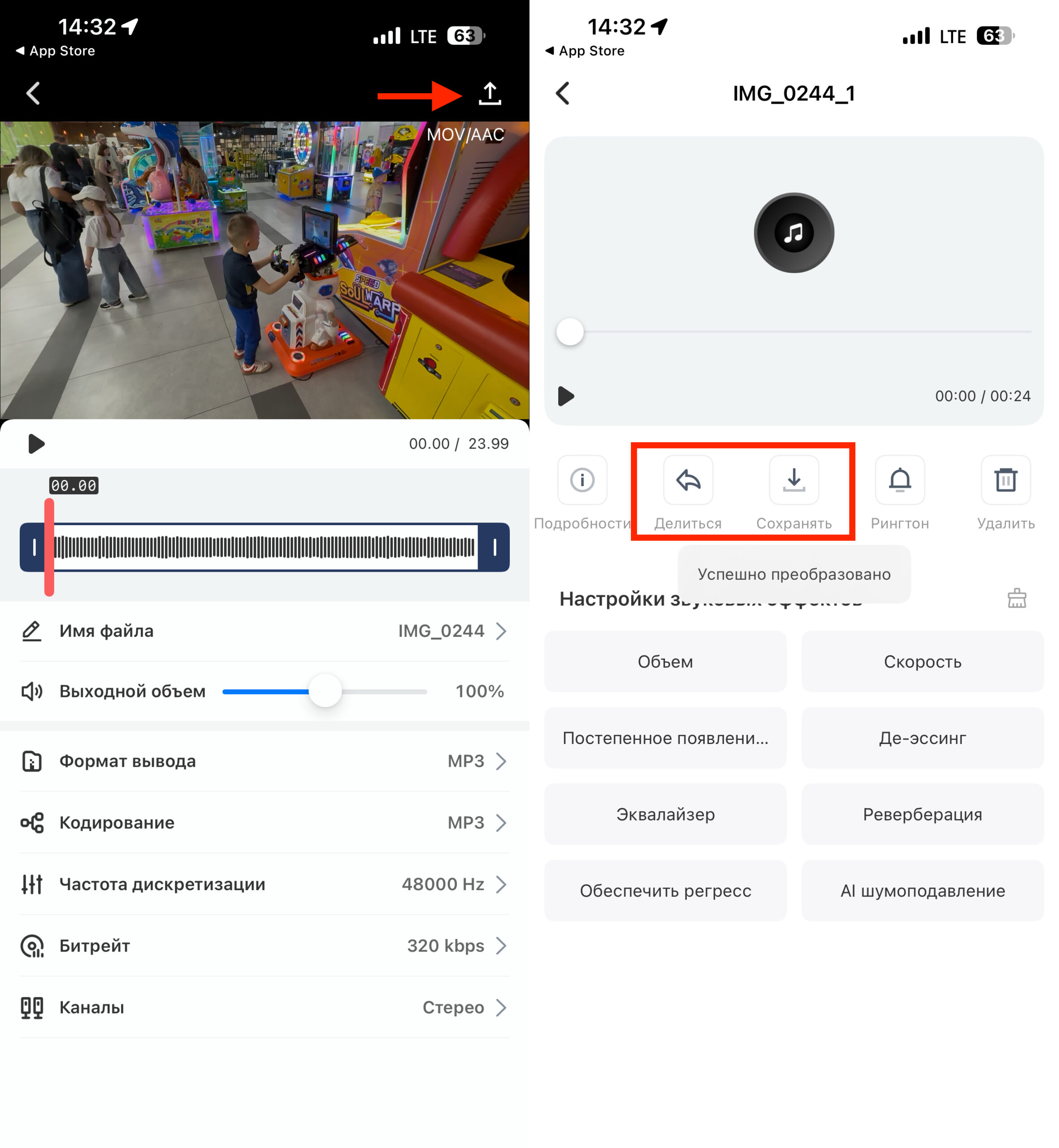
Separating audio from video via an app is also easy
- Download the free MP3 Converter – Audio Extractor app from the App Store. It doesn’t charge for its services and works simply and quickly.
- On first launch, close the paid services offer window (tap the X).
- In the “Tools” section, select the audio extraction function.
- Choose a video from your gallery or from Files, then tap “Next.”
- After processing, tap “Export” and choose “Save to Files.”
The app is free but shows ads. For a one-time task, this is more than enough.
How to Extract Audio from Video on Android — Apps from Google Play and RuStore
On Android, the selection of apps is wider, but the quality varies. Here are tested options.
Method 1 — “Music Editor, Audio Trimmer” (Google Play):
- Download the app from Google Play.
- On first launch, decline the subscription — you’ll have to close the window 2–3 times before being let into the main menu.
- Select “Convert Video to Audio.”
- Check the desired video from the list and confirm with the checkmark in the upper right.
- Enter a file name and tap “Save.” The audio file will appear in the “Recent” section of the file manager.
The only downside is having to decline the subscription and trial mode several times. Otherwise, the app works for free.
Method 2 — “Video to MP3 Converter” from RuStore:
RuStore offers the “Video to MP3 Converter” app — a fast converter that lets you trim video files and convert video to MP3 and AAC in seconds. You can extract high-quality MP3 music from video. This is a convenient option for those who don’t have access to Google Play.
How to Extract an Audio Track from Video on Mac and Windows
On a computer, there are built-in tools and free programs that handle the task without unnecessary complications.
On Mac — Using QuickTime Player (pre-installed):
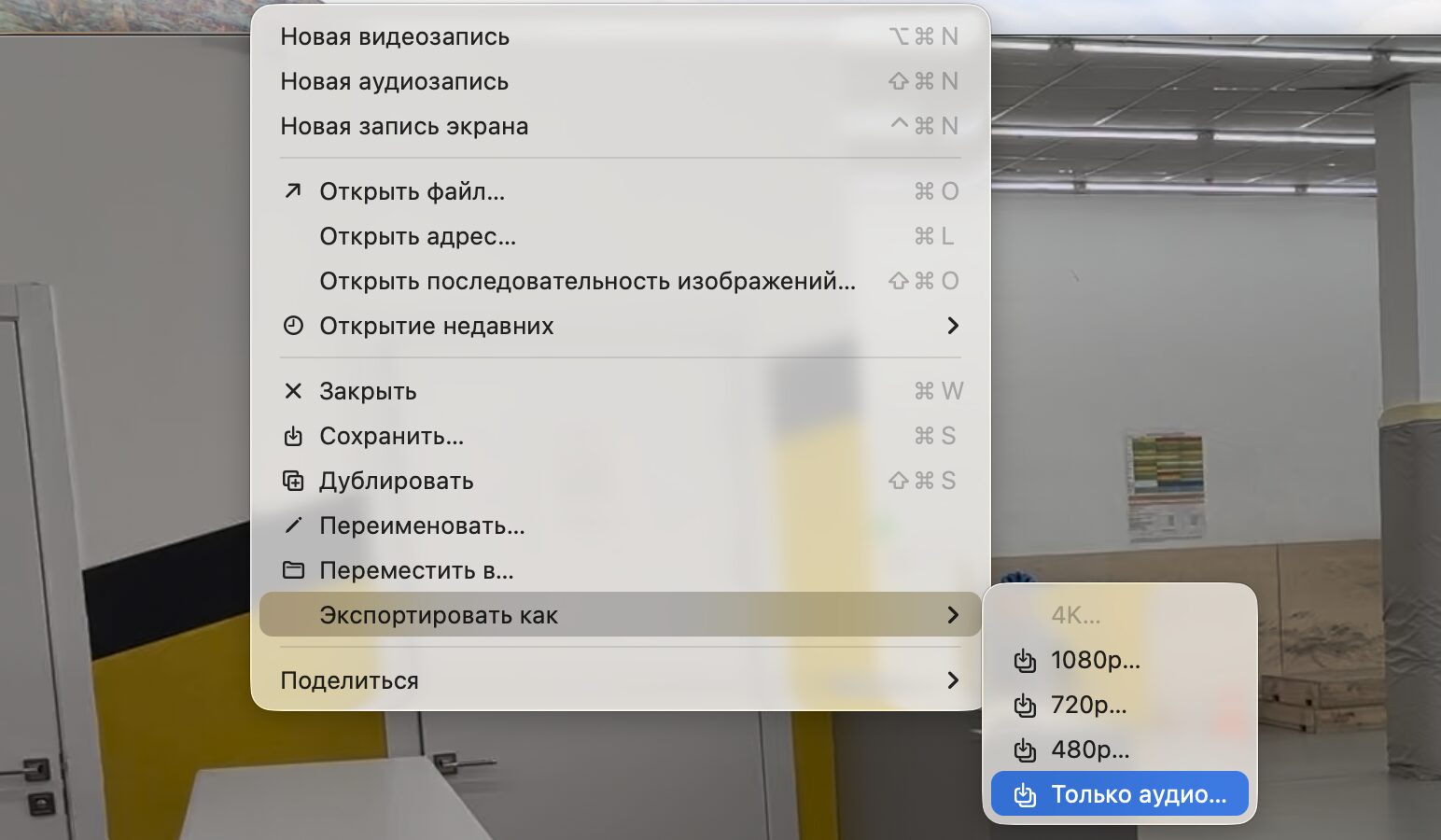
Believe it or not, on Mac you can do everything with built-in software
- Open the video file in QuickTime Player.
- In the menu bar, select “File” → “Export As” → “Audio Only.”
- Enter the file name and choose a folder to save it, then click “Save.”
The file is saved in M4A format, which can easily be converted to MP3, for example. QuickTime Player is built into the operating system by default, so there’s nothing to download or install.
Alternative on Mac — Using Finder:
- Right-click on the video file and select “Encode Selected Video Files.”
- In the window that appears, next to “Settings,” select “Audio Only.” Click “Continue,” and the resulting audio will appear in the same folder as the original video.
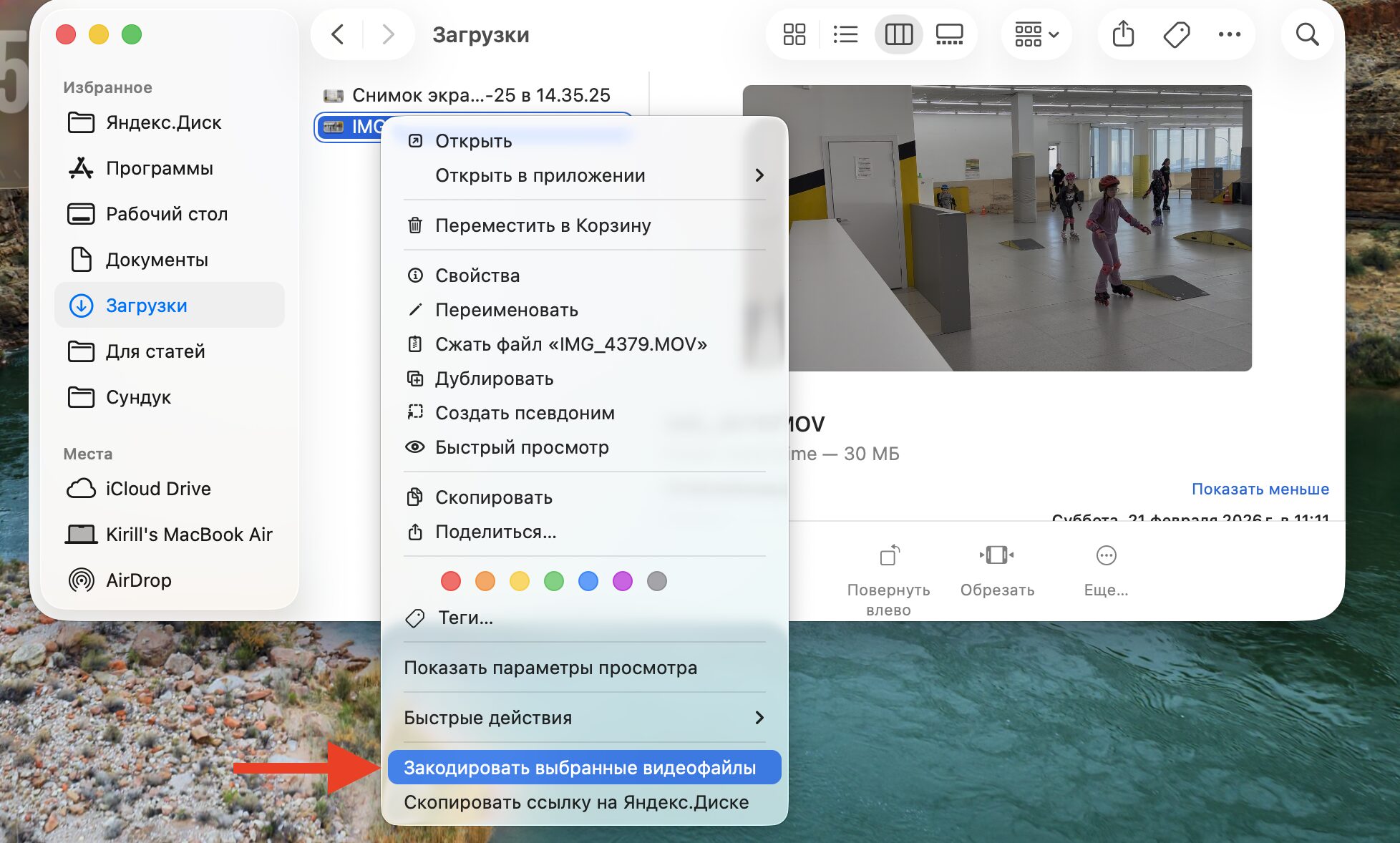
First, find this menu
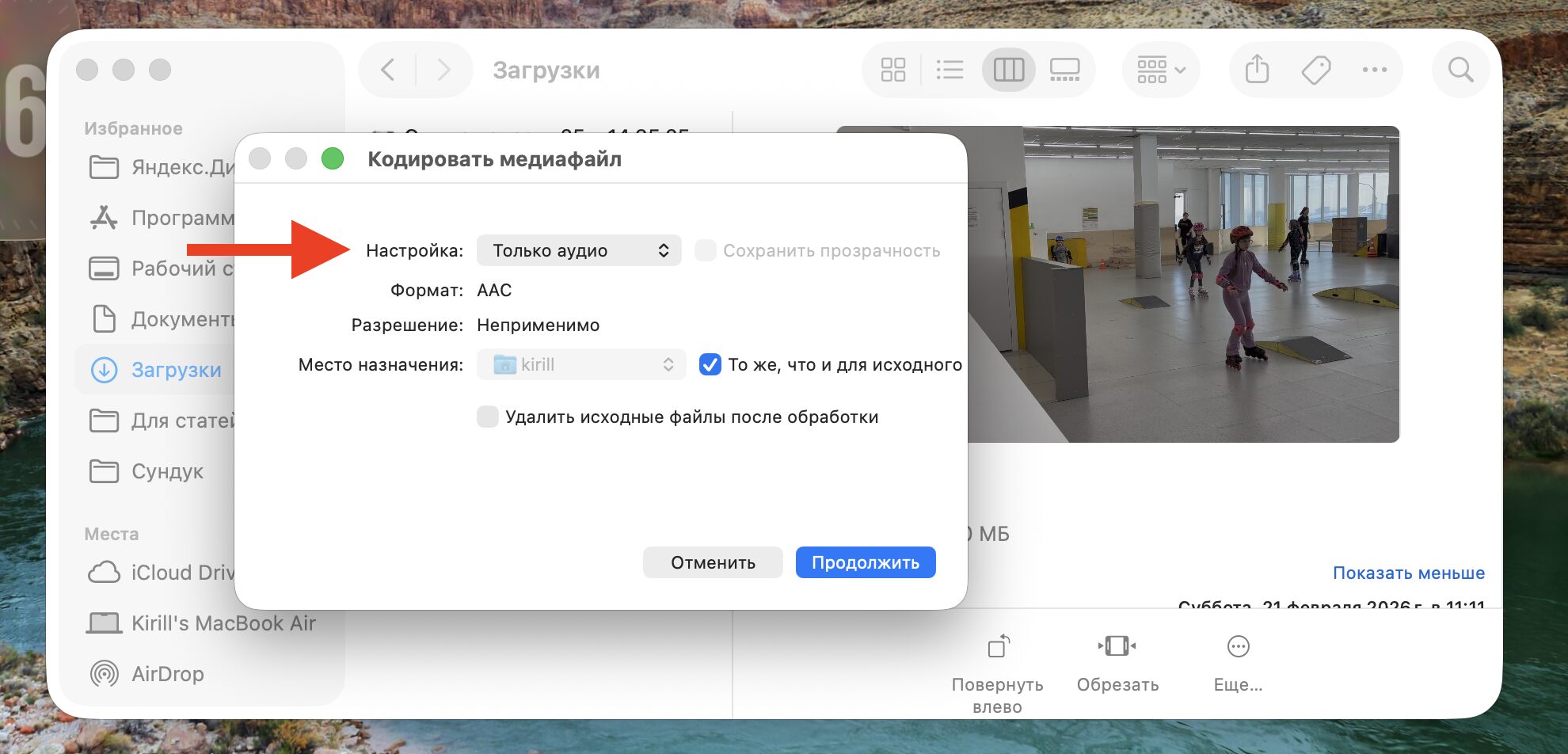
Then separate the audio from the video
On Windows — Using VLC Media Player (free program):
- Download VLC Media Player from the Microsoft Store and install it.
- Click “Media” → “Convert/Save” (or use the keyboard shortcut Ctrl+R).
- In the “File” section, click “Add” and load the desired video clip.
- In the “Profile” line, select “Audio — MP3.”
- In the “Destination file” line, click “Browse” and choose where to save the file.