You get in the car, start navigation, and suddenly realize you need to switch the music, but your hands are on the wheel. Siri helps, but it doesn’t always understand exactly what you want to tap on the screen. It turns out that in iOS 26 for CarPlay, there’s a separate feature that few people know about — Voice Control. It allows you to fully control the CarPlay interface with your voice, without touching the display.
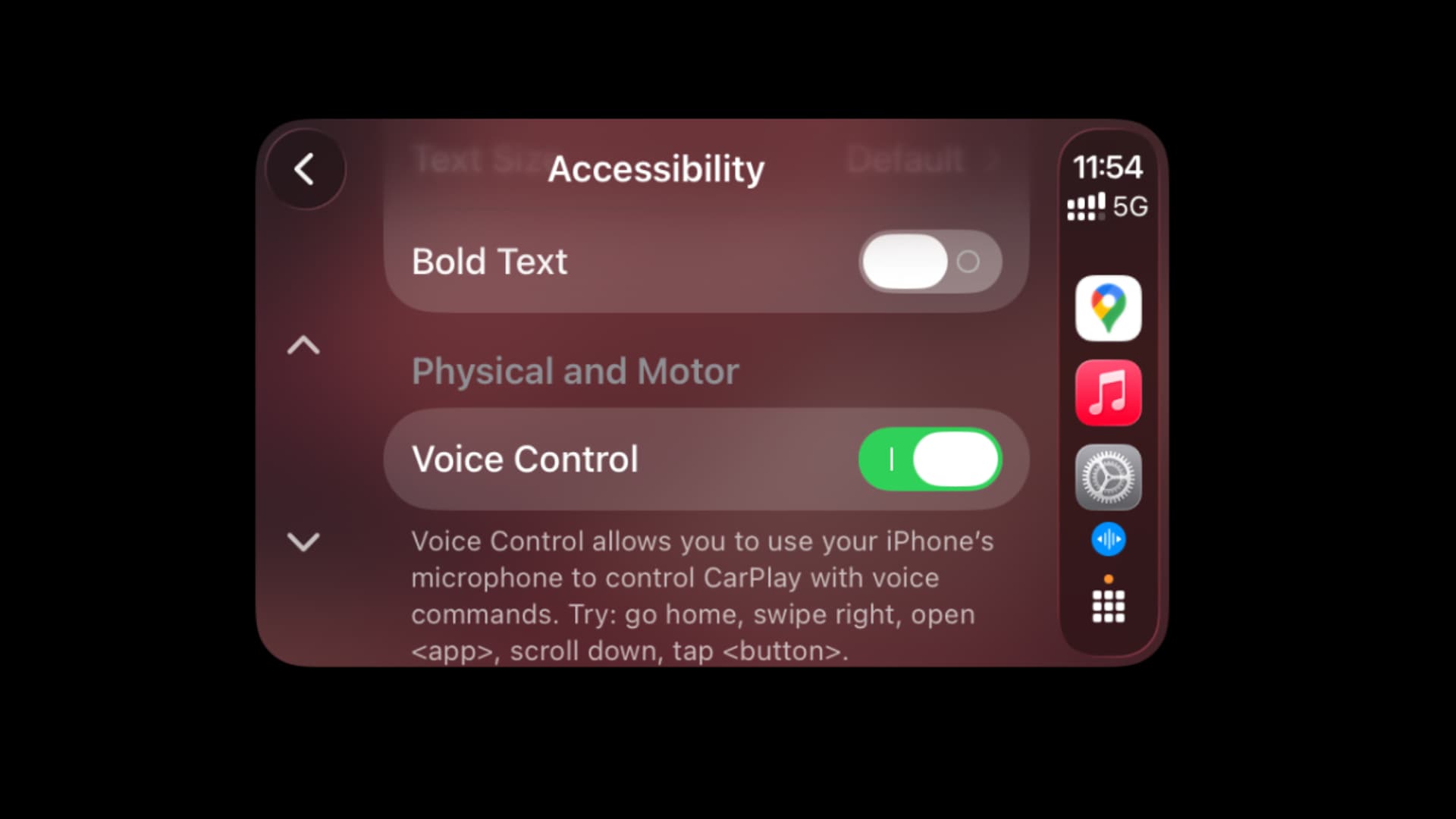
Hands-free voice control in CarPlay on iOS 26: a detailed guide. Image: idownloadblog.com
What Is Voice Control in CarPlay and How It Differs from Siri
Voice Control is not Siri, although many confuse the two. It’s a separate tool from the “Accessibility” section that appeared in CarPlay back in iOS 18, but truly came into its own in iOS 26. The main feature is that it allows you to interact with any elements on the CarPlay screen: press buttons, swipe pages, navigate maps, and even scroll through lists.
But there’s a catch. Voice Control works only with fixed commands. This means you need to say specific phrases — and the slightest deviation from the wording may cause the system not to understand you. Siri, on the other hand, understands natural speech, even if you phrase your request differently. That’s why the original guide’s author recommends keeping both features active simultaneously to get the best of each.
For comparison: Siri is convenient when you need to send a message or set a route in free form. Voice Control is indispensable when you need to tap a specific button on the screen that Siri simply doesn’t have access to.
Where to Find Voice Control in CarPlay Settings
The setup takes literally a minute. Here’s what you need to do:
- Get in the car and launch wired or wireless CarPlay via an iPhone with the latest version of iOS 26.
- Then open “Settings” in the CarPlay interface, go to the “Accessibility” section, scroll to the Physical and Motor section, and enable Voice Control.
- After activation, you’ll see a blue icon in the CarPlay sidebar (Dock). It means Voice Control is active and listening to your commands. The icon is displayed constantly while the feature is enabled.
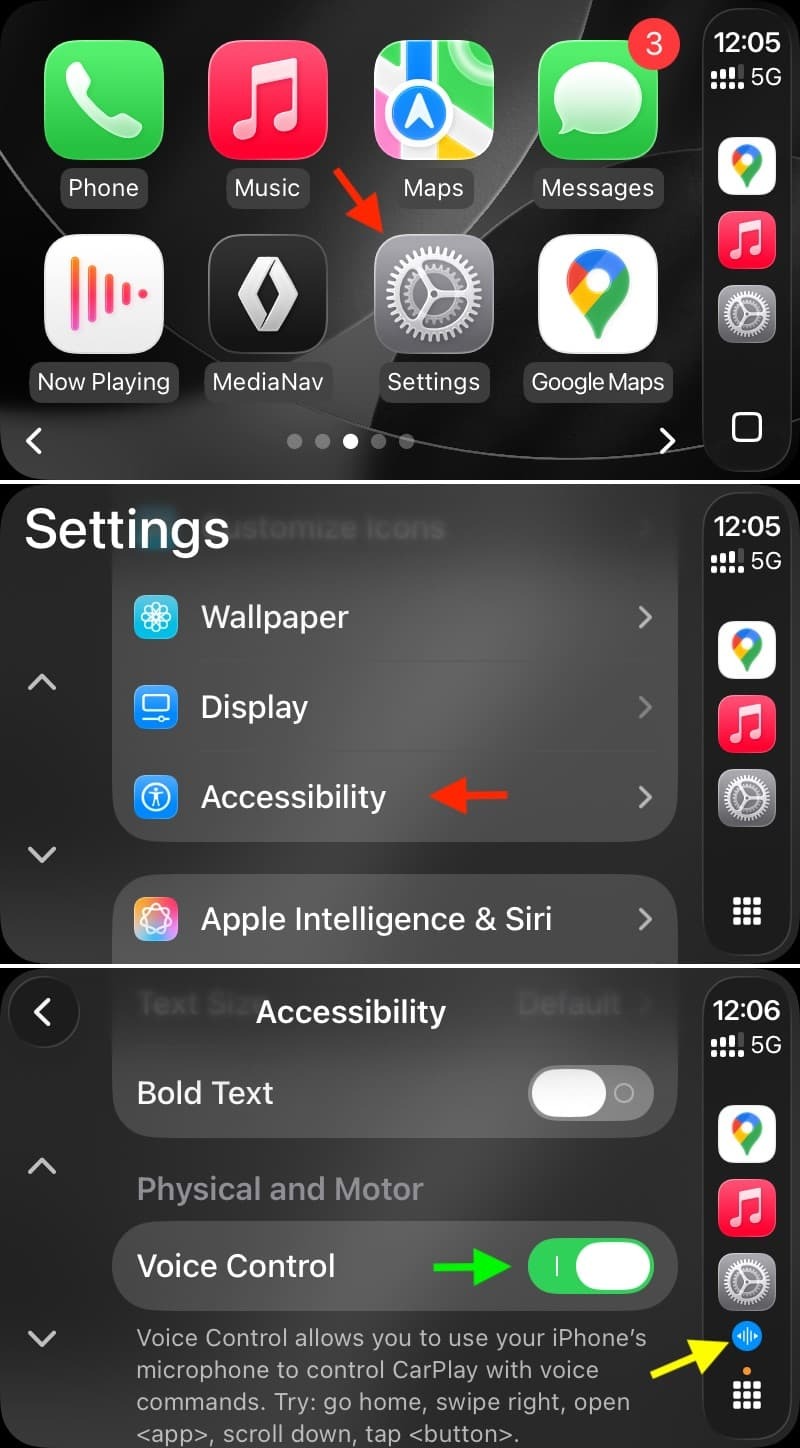
All accessibility settings are buried deep in the CarPlay menu — no wonder many people don’t even know about them. Image: idownloadblog.com
If you want to completely disable Voice Control, go back to “Settings” → “Accessibility” and turn off the toggle. It’s important to understand the difference: the “Stop listening” command only pauses the feature, but it continues to “listen” in the background, waiting for the “Start listening” command to resume.
What Voice Commands Does CarPlay Support
Here is the full list of commands supported by Voice Control in CarPlay. You need to pause at least half a second between commands, otherwise the system may get confused.
“Open [app name]” — opens the desired app. For example, “Open Maps” or “Open Music.”
“Go to home screen” — returns to the CarPlay home screen. It’s convenient to start with this command.
“Go back” — returns to the previous screen (works in apps with a “Back” button).
“Tap [object]” — taps on a screen element. If the button is labeled, simply say its text. If there’s no label, you can say something like “Tap first” or “Tap second,” indicating the icon’s ordinal number in a row.
“Single tap” — a tap on the screen. Useful in Maps, where some controls disappear after a few seconds.
“Double tap” — a double tap. Used for zooming in on the map.
“Swipe left, right, up, or down” — swipes for scrolling through pages and lists.
“Pan left,” “Pan right,” “Pan up,” “Pan down” — moving around the map or in other supported apps.
“Open Siri” — activates Siri directly from Voice Control. Handy when you need to switch to natural speech.
Note: on some budget multimedia systems, the “Tap” command may not work correctly. This is due to limitations of the CarPlay screens themselves.
In the Maps app, Voice Control lets you navigate the map by voice — as if you’re controlling your smartphone with telepathy.
How to Control Maps and Music in CarPlay by Voice
Maps and Music are the two apps used most often in CarPlay, and it’s no surprise. Apple has prepared dedicated voice control tips specifically for them.
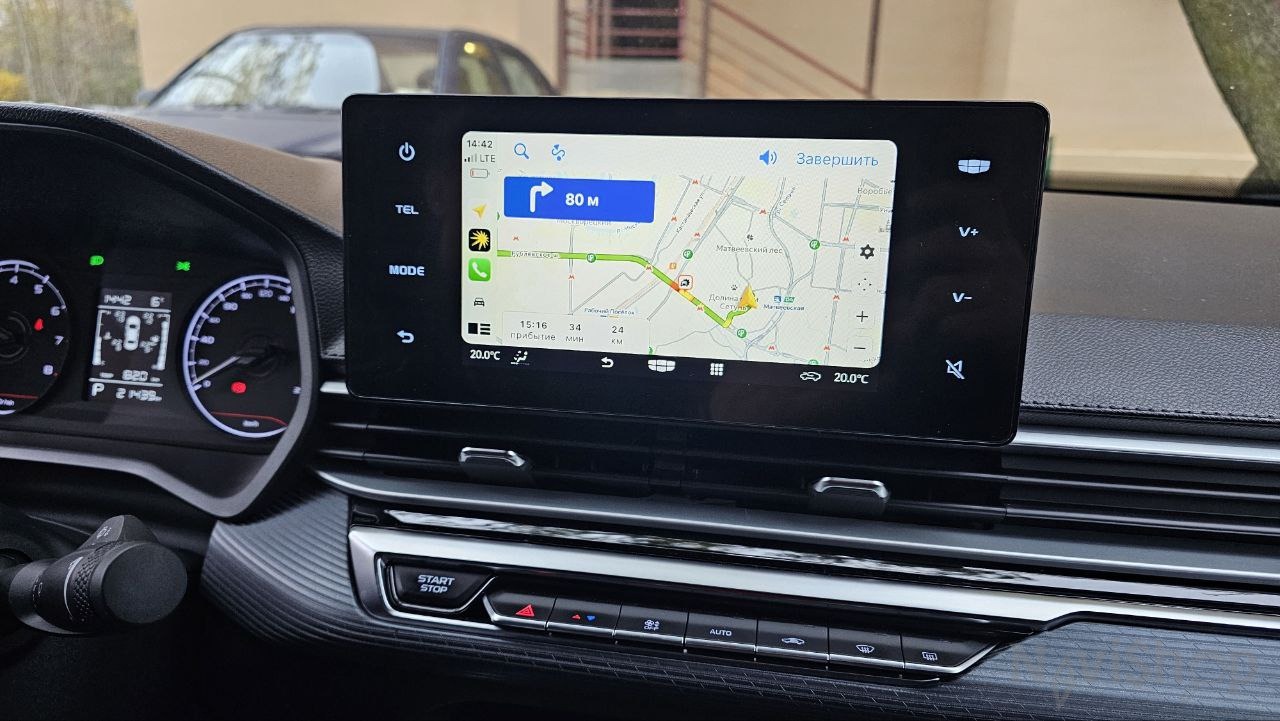
You can navigate maps by voice. Image: navishop.ru
The general rule is simple: if a button has a text label, say “Tap [button text]”. For example, “Tap Cancel” or “Tap Library.” If the button has no label or you don’t know what it’s called, Apple provides special diagrams with button names for Maps and Music.
These diagrams can be found on Apple’s support page.
Simply put, you don’t need to guess — just look up which names are assigned to the interface elements and use them in voice commands. This is especially useful for Maps, where zoom and direction buttons aren’t always obvious.
What Languages Does Voice Control in CarPlay Support
Good news for Russian-speaking users: Russian is on the list of supported languages. In addition to Russian, Voice Control in CarPlay works in Arabic, Cantonese, English (in several variants: Australia, Canada, India, UK, USA), French, German, Italian, Japanese, Korean, Mandarin Chinese, Spanish, and Turkish.
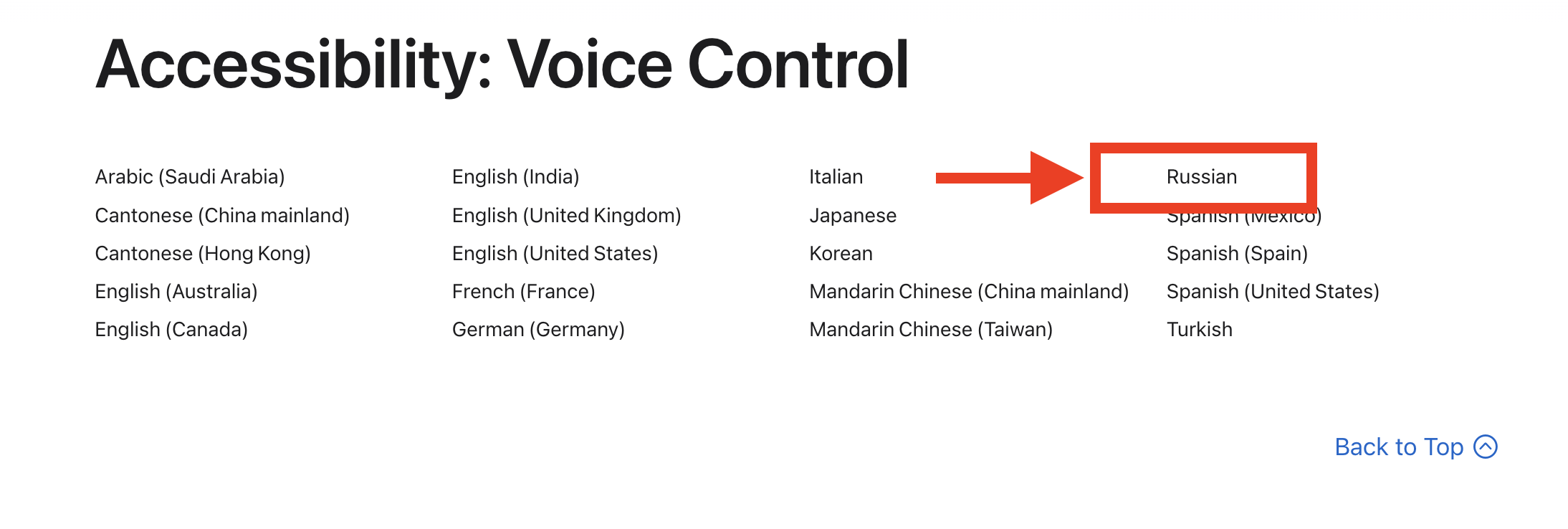
Good news, Russian is supported
It’s important to note that voice commands in each language may differ from their English counterparts. To find the exact phrases for your language, Apple recommends visiting the support page, clicking on the country name at the bottom, and selecting the one you need.
But there’s a catch. Despite Russian language support, the accuracy of fixed command recognition may vary. Remember that Voice Control requires precise phrasing — unlike Siri, which is more tolerant of free interpretations.