You’re sitting in a café, you hear an amazing track playing from the speakers, you frantically unlock your phone, search for the right app… and the song is already over. Sound familiar? Frustrating, right? But Apple and OpenAI are doing everything they can to make sure you never end up in that situation again. First, the ChatGPT neural network was integrated directly into Siri and taught to answer your questions, and now you can recognize music through Shazam right inside ChatGPT, without switching between apps or losing precious seconds.
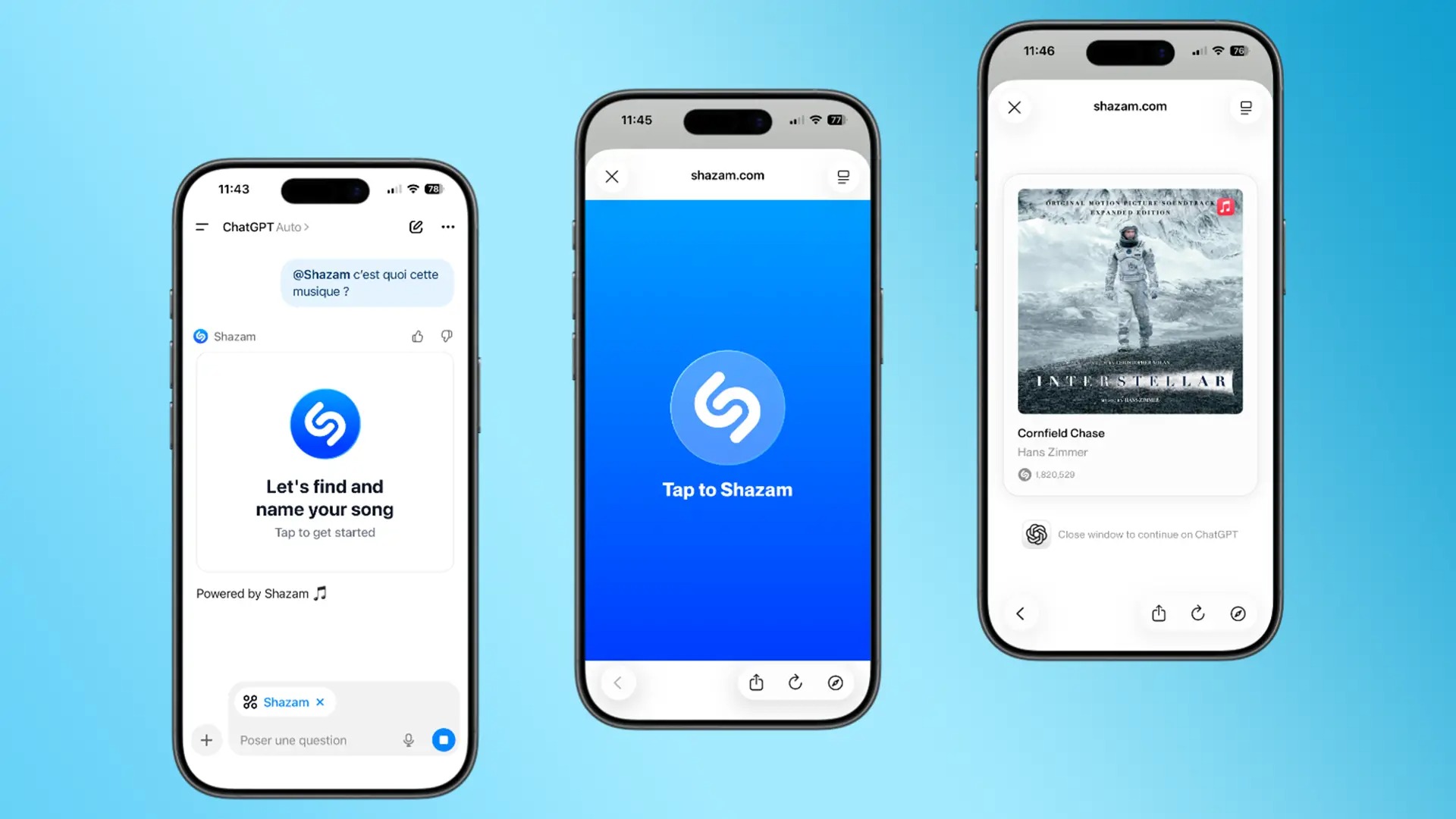
Shazam is now built right into the neural network. Image: justgeek.fr
How Shazam Works in ChatGPT
On March 9, 2026, it was announced that ChatGPT received full integration with the Shazam music recognition service, which is owned by Apple. This isn’t just a link to an external app — it’s a fully built-in technology: the full power of Shazam’s music recognition is now available directly within the chatbot’s interface.
To start recognition, all you need to do is type something like “Identify the song” in ChatGPT. After that, a “Tap to Shazam” button will appear on the screen. Tapping it lets the app listen to the playing melody and get its name. In simple terms, it works exactly like Shazam on any Apple device, just without the need to leave ChatGPT.
What’s especially convenient is that after recognition, you can listen to a track preview right in the chat without switching to a streaming service. For those who prefer living within a single app, this is a small but welcome victory.
Now you don’t have to leave ChatGPT to find out what song is playing. Convenient, right?
How to Enable Shazam in ChatGPT
Connecting Shazam to ChatGPT is simple. First, you need to activate it in the app’s settings. Here’s how:
- Open ChatGPT and tap on the two lines in the upper left corner;
- In the menu that opens, select “Apps”;
- Use search to find Shazam and tap the “Connect” button;
- To search for music through Shazam, tap the “+” in the text input bar and select “Shazam” from the dropdown menu;
- Send the command “Identify the song” and confirm the action on screen.
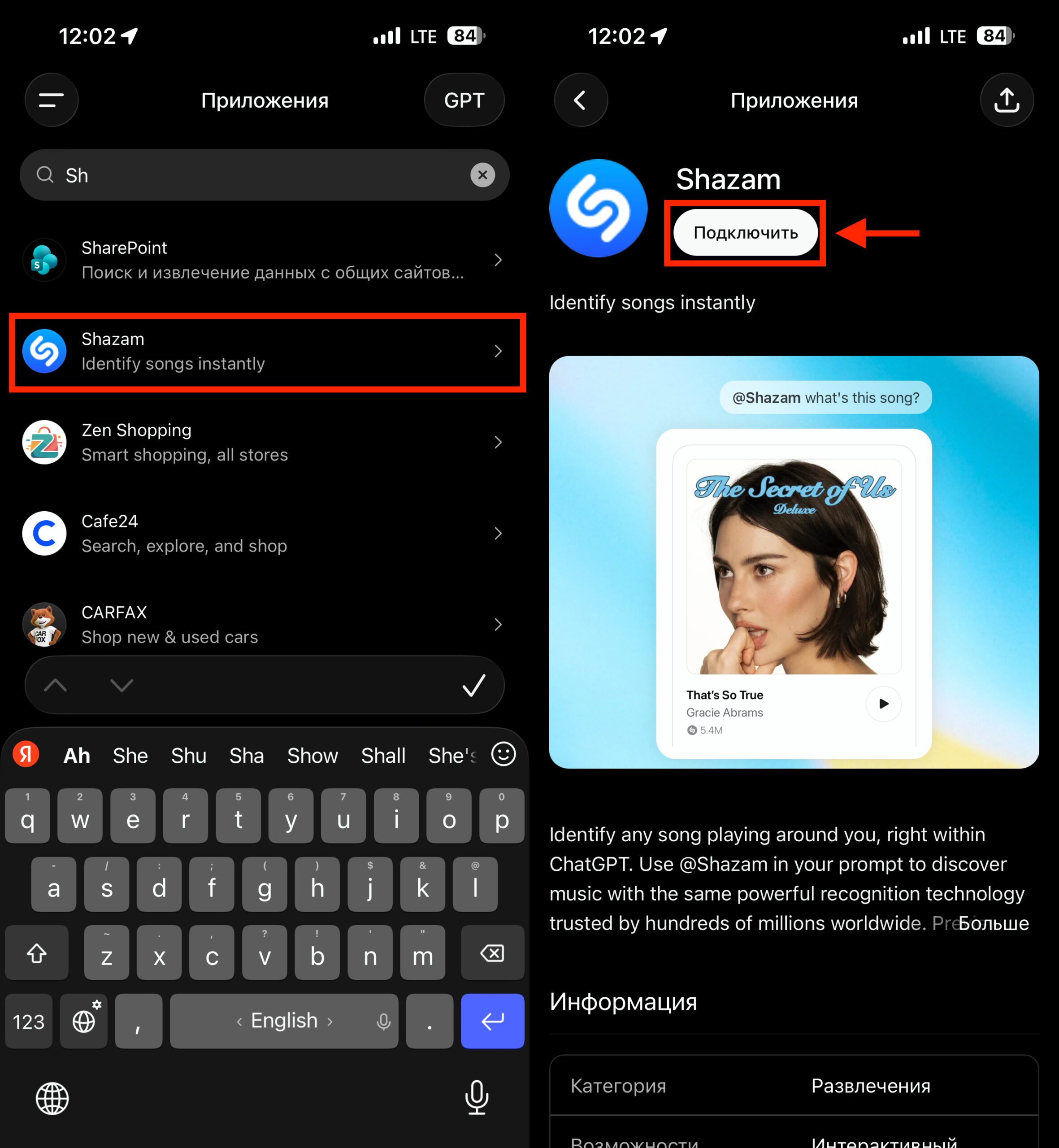
Activate Shazam in settings
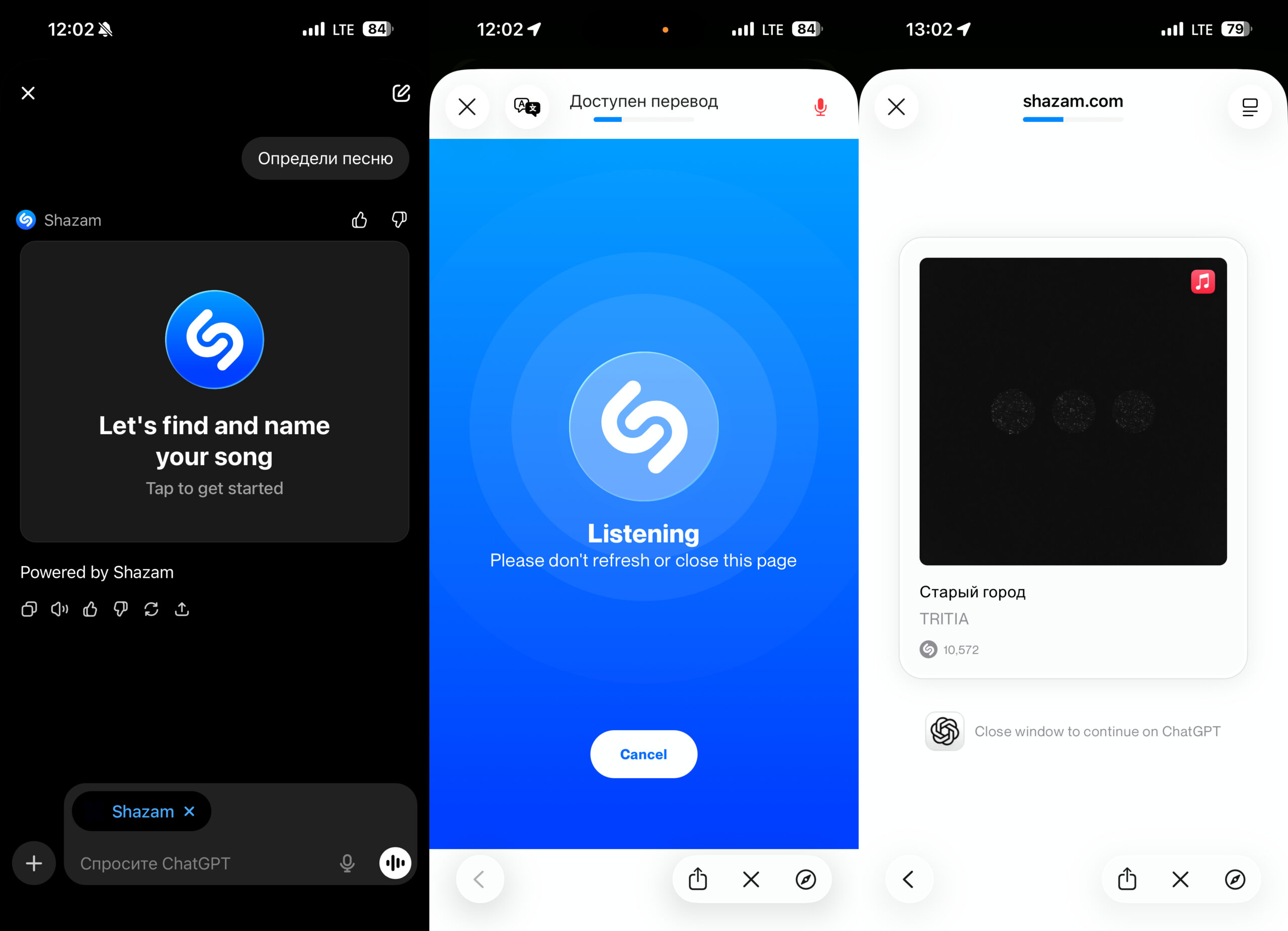
Start a search in any chat
Unfortunately, Shazam had to be activated manually, and the text command didn’t work for this. An important note: installing the separate Shazam app on your device is not required. The recognition feature works on any platform where ChatGPT is available. But there’s a bonus for those who do have Shazam installed: all tracks recognized through ChatGPT automatically appear in the Shazam app library.
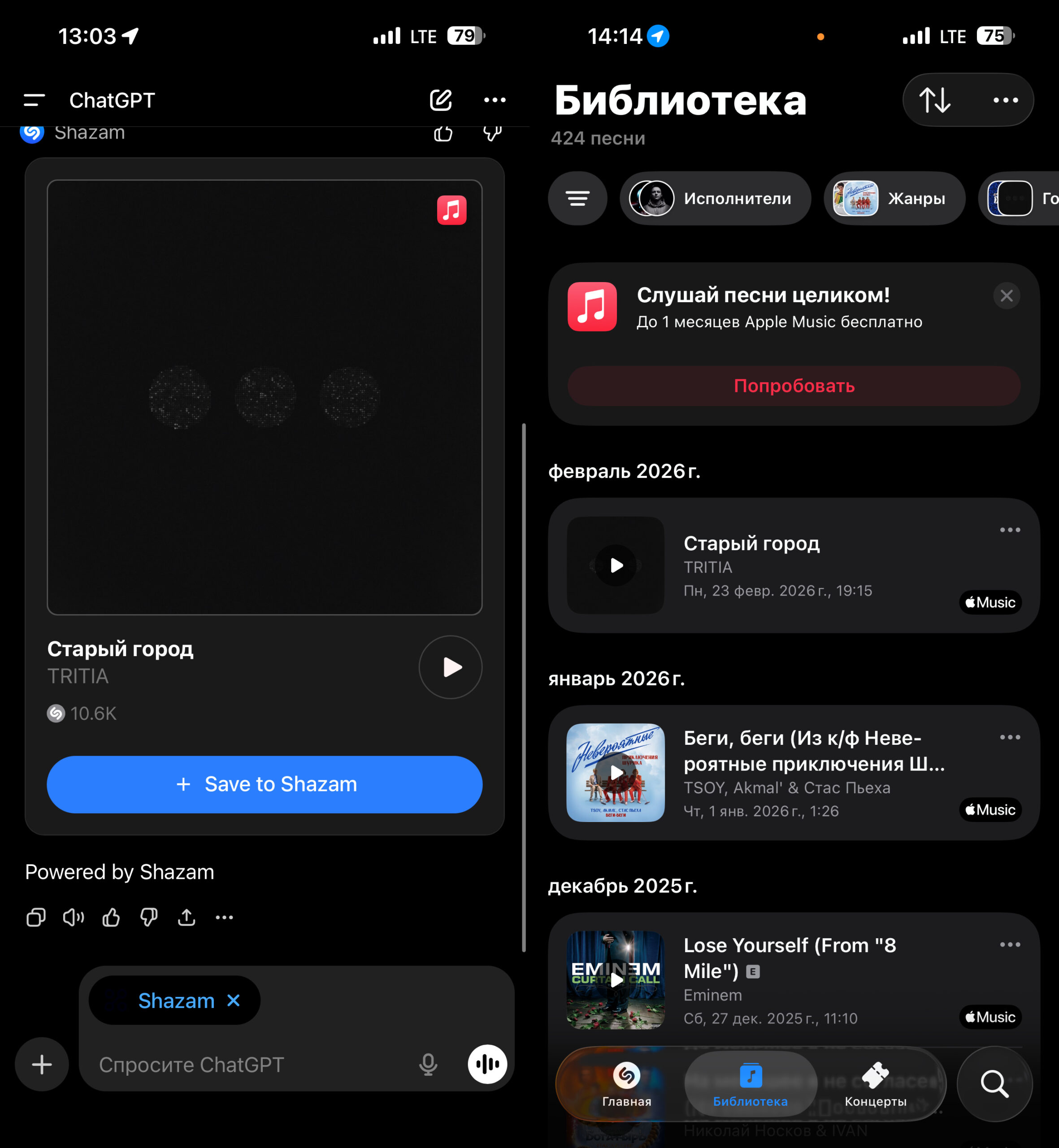
The song was found in ChatGPT and automatically appeared in the Shazam library
This means you can come back to them at any time. In fact, it’s precisely this detail that makes the integration truly useful. You don’t just find out the name of the song — you save it to your collection without taking a single extra step.
Finding Shazam in ChatGPT settings takes just a couple of seconds. The key is knowing where to look.
Why You Need Shazam in ChatGPT
You might wonder, why duplicate the functionality? Shazam works perfectly fine as a standalone app — you can launch it through Control Center on iPhone or simply ask Siri. But here’s the thing: not all ChatGPT users are on Apple devices. The integration works on any platform, which means Android smartphone owners and desktop ChatGPT users also get access to Shazam’s technology without having to install a separate app.
Additionally, for many people, ChatGPT has already become a sort of “single window” for solving all kinds of tasks. Ask about a recipe, write an email, translate text, and now find out what song is playing — all in one place. It’s not a revolution, but it’s definitely a step toward a universal assistant that can do literally everything.
That said, there are skeptics. Many users note that when you hear an unfamiliar track, you need to act fast, and opening ChatGPT and typing a command isn’t the quickest method. For those situations, the Shazam widget in the notification panel remains the fastest solution. But if you’re already in ChatGPT and music is playing in the background, the feature genuinely saves time.
When you’re already in ChatGPT, you really don’t want to switch to another app.
What the Shazam Integration in ChatGPT Offers
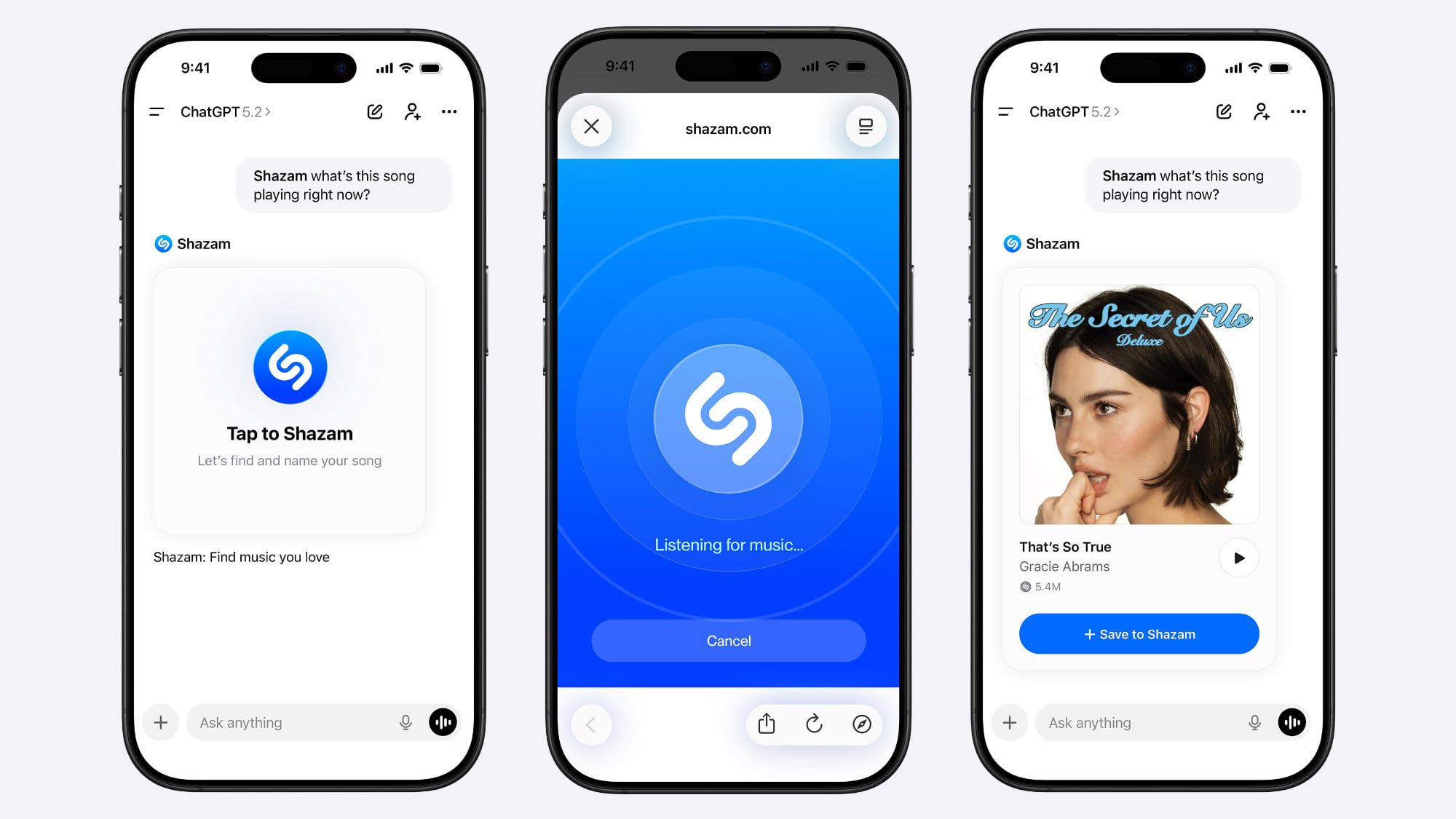
Identify music through Shazam right in ChatGPT
The integration of Shazam into ChatGPT is yet another example of how AI platforms are transforming into ecosystems. Not long ago, chatbots could only generate text, and now they recognize music, work with images, and connect third-party services. The fact that Apple allowed its technology to be embedded in an OpenAI product speaks volumes.
For Apple, this is also beneficial: every recognition through ChatGPT is a potential user who will open the track in Apple Music. And for OpenAI, it’s another argument in favor of ChatGPT being able to replace a dozen separate apps on your phone.
The feature is already available and working. If you frequently use ChatGPT and love discovering new music, give it a try — setup takes less than a minute, and you’ll appreciate the convenience from the very first use.
Two services that few people expected to see together are now working in tandem.