Flash alerts for calls on iPhone is a feature that has existed since 2011, but even experienced users still don’t know about it. Meanwhile, it solves a very specific problem: it helps you not miss a call or notification when your phone is on silent mode or you simply can’t hear the ringtone. With this indicator, you won’t miss a single alert even from a messenger. This guide is relevant for all models from iPhone 8 to iPhone 17.
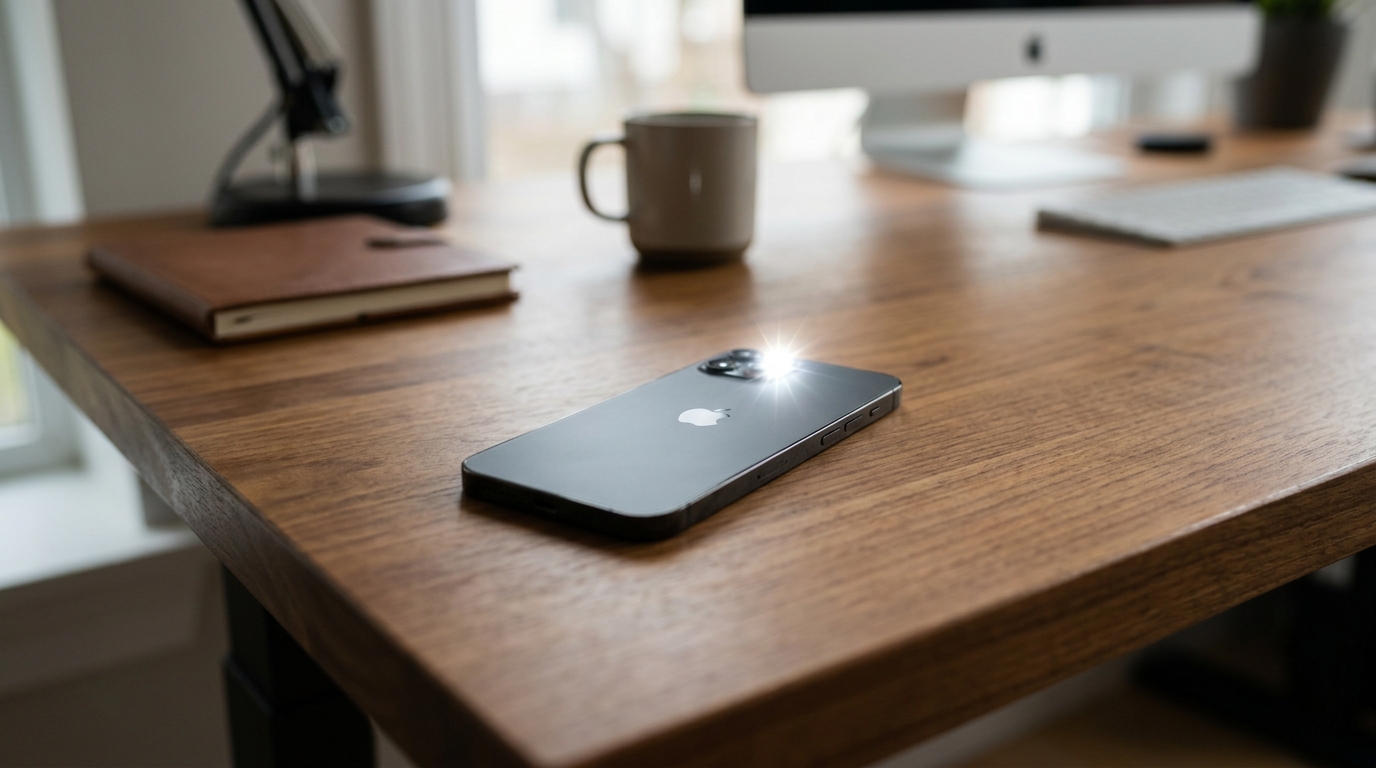
How to Enable Flash Alerts for Calls on iPhone: Step-by-Step Guide
Why You Need Flash Alerts for Calls on iPhone
Originally, Apple added this feature to the “Accessibility” section — for people with hearing impairments. But in practice, it’s useful for a much wider range of users. Here are several typical situations when flash alerts for calls really come in handy:
- The phone is on a table in silent mode — during a meeting, lecture, or in a library. Vibration on a hard surface is easy to miss, but the flash blinking is immediately visible.
- You’re in a noisy place — a café, public transport, or on the street — and can’t hear the ringtone.
- There’s a sleeping child or partner nearby, and you don’t want to wake them with sound but are afraid of missing an important call.
- You have reduced hearing, and a visual alert is more reliable than an audio one.
Important point: the flash activates not only for calls but also for any notifications — messages, reminders, and app alerts. The LED flashlight on the back of the iPhone blinks briefly several times to attract attention. The only condition is that the phone must be lying face down so you can see the rear camera with the flash. If you place it face up, the blinking simply won’t be noticeable.
How to Enable Flash Alerts for Calls on iPhone with iOS 18 and iOS 26
On iPhones with current system versions — iOS 18 and the newest iOS 26 — the setup takes less than a minute. The process is identical for iPhone 15, iPhone 16, and iPhone 17.
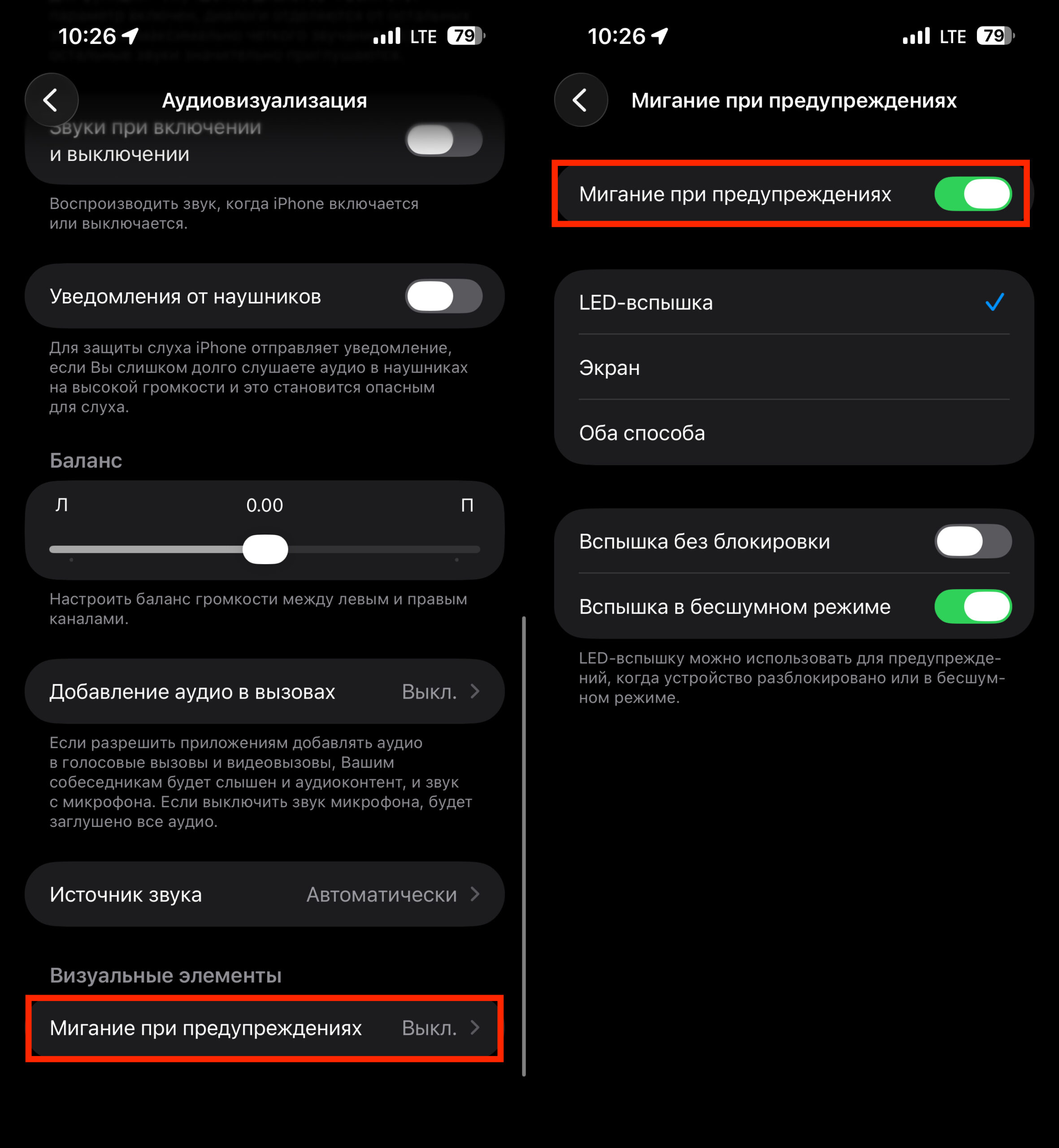
One toggle, and the flash is enabled
- Open “Settings.”
- Go to the “Accessibility” section.
- Select “Audio & Visual” (in iOS 26) or “Audio/Visual” (in iOS 18).
- Find the “LED Flash for Alerts” option and turn it on.
After activation, additional options will appear:
- “Flash While Unlocked” — the flash will activate even when the iPhone screen is unlocked and you’re using it. By default, it only flashes when the screen is locked.
- “Flash on Silent Mode” — the flash lights up only when the switch on the side of the iPhone is set to silent mode. This is convenient if you want visual alerts only during meetings or at night, and rely on sound the rest of the time.
How to Enable Flash Alerts for Calls on Older iOS Versions 15–17
On iPhone 8, iPhone X, iPhone 11, iPhone 12, iPhone 13, and iPhone 14 with iOS 15, 16, or 17, the path to the setting differs slightly — by just one menu item.
- Open “Settings.”
- Go to “Accessibility.”
- Tap “Audio/Visual” (this is exactly what the section is called in iOS 15–17, not “Audio & Visual”).
- Turn on the “LED Flash for Alerts” toggle.
Additional modes — “in silent mode” and “while unlocked” — are also available, although on the earliest versions of iOS 15, the second option may not be present. Otherwise, the feature works identically to newer system versions.
Can You Enable Flash Only for Notifications
There is no separate setting for “flash only for messages but not for calls” in iOS. The feature works the same for all types of alerts — both calls and notifications. Unfortunately, there is no way to bypass this limitation. The most you can do is limit the flash to silent mode only. Here’s how it works:
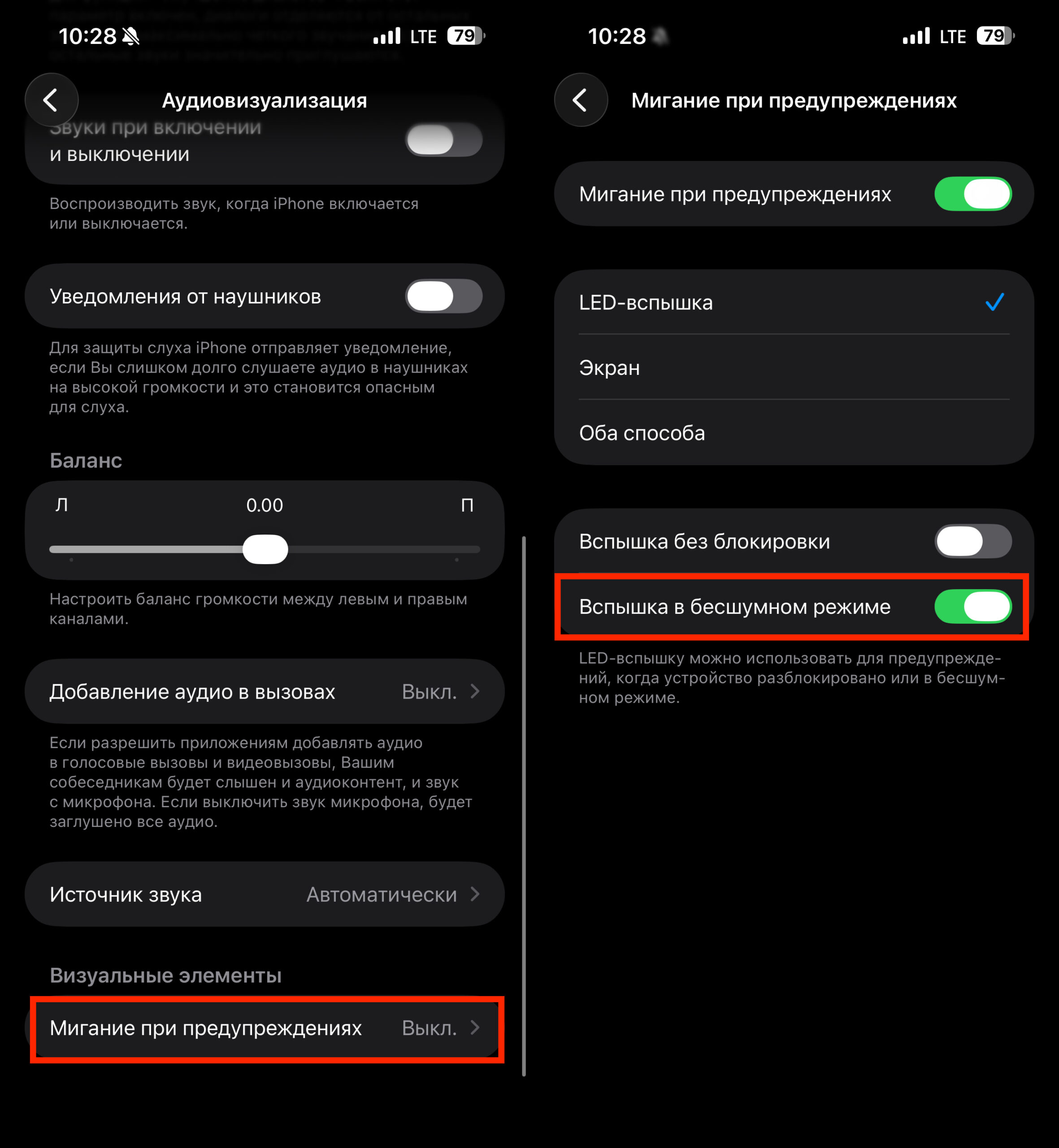
This toggle will limit the flash to silent mode only
- Enable flash for alerts as described above.
- Activate the “Flash on Silent Mode” option — then the flash will only blink in silent mode when the ringtone is already turned off.
It’s not a perfect solution, but it’s the only one iOS offers. You’ll have to make do with what’s available.
Flash Alerts Not Working on iPhone: What to Do
Sometimes after activation, the feature doesn’t work. Here are typical causes and solutions:
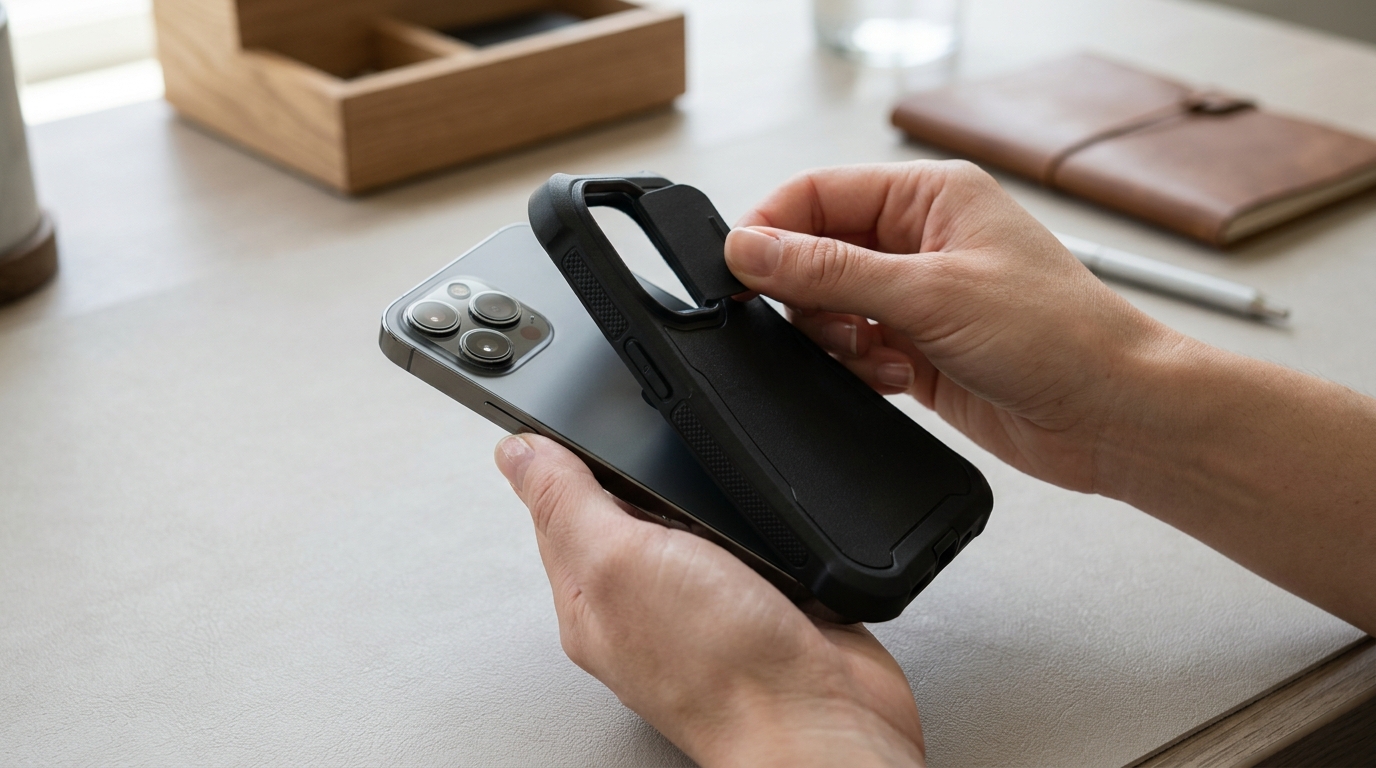
A thick case may block the flash area on iPhone
- Do Not Disturb or Focus mode is enabled. In these modes, iPhone suppresses notifications, and the flash won’t blink either. Check the Control Center — if the crescent moon or Focus icon is active, turn it off.
- The case is covering the flash. Some flip cases and thick bumpers partially block the camera and LED flashlight area. Try removing the case and check if the flash works without it.
- Software glitch. A simple restart helps: hold the side button and volume button, slide the power-off slider, wait 10 seconds, and turn the iPhone back on.
- Outdated iOS version. If a restart didn’t help, check for a system update in “Settings” → “General” → “Software Update.” In rare cases, the bug with a non-working flash is fixed specifically by an update.
- Reset accessibility settings. As a last resort — turn off the flash feature, restart the iPhone, and turn it back on. Sometimes that’s enough.
If none of the above helped, it’s worth contacting a service center — the problem may be with the LED module itself.
Does the Flash Affect iPhone Battery Life
A popular myth: constant flash blinking quickly kills the battery and wears out the LED module. In practice, this isn’t true. Flash for notifications blinks just 2–3 times per activation. Each flash lasts a fraction of a second. Even if you receive 50–100 notifications per day, the total LED flashlight operating time amounts to mere seconds. The impact on battery charge is so minimal that you won’t notice it — it’s incomparable to the screen, cellular connectivity, or background app refresh.
As for LED module wear — modern LEDs are designed for tens of thousands of hours of continuous operation. With such brief usage, the flash’s lifespan is virtually unaffected. So you can enable the feature without worry — it won’t harm the battery or the camera.
Flash alerts for calls is a simple but truly useful feature for those who often keep their iPhone in silent mode or work in noisy environments. Setup takes half a minute, works on all models from iPhone 8 to iPhone 17, and doesn’t require third-party apps. If you didn’t know about it — give it a try. If you knew but forgot — it’s time to enable it again.