WhatsApp* has long since stopped being just a mobile messenger. The desktop version lets you carry on conversations, send files up to 2 GB, and make calls right from your computer — without having to reach for your phone every time. Below is a detailed guide on how to install WhatsApp* on Windows 10, Windows 11, and macOS, how to use the web version with audio and video call support, and what to do if you don’t have your smartphone handy.

How to download WhatsApp* on your computer for free: installation on Windows 10, 11, and macOS 26. Image: hi-tech.mail.ru
Advantages of WhatsApp* on Computer Over the Mobile Version
The mobile version of WhatsApp* is sufficient for most tasks, but there are scenarios where the desktop client is noticeably more convenient:
- File exchange between PC and phone. Need to quickly send a document from your work folder to a chat — no need to copy it to your smartphone first.
- Working with large files. WhatsApp* allows sending files up to 2 GB. Uploading such volumes is easier and faster from a computer rather than over mobile data.
- Work conversations. If you already spend the day in front of a monitor, the desktop version lets you reply to messages without switching between devices.
In terms of functionality, the desktop client is nearly identical to the mobile one: chats, group discussions, voice and video calls, forwarding photos and videos — everything is there.
How to Download WhatsApp* on a Computer with Windows 10 and Windows 11
The installation process is the same for both versions of Windows. There are two ways to get the app: through the official website and through the Microsoft Store.
Method 1 — from the official website:
- Open whatsapp.com in your browser and click “Download” in the upper right corner of the screen.
- Wait for the installation file (.exe) to download.
- Open the “Downloads” folder, run the downloaded file, and follow the on-screen instructions. Installation takes a couple of minutes.
- Once complete, open the app and click “Get Started.”
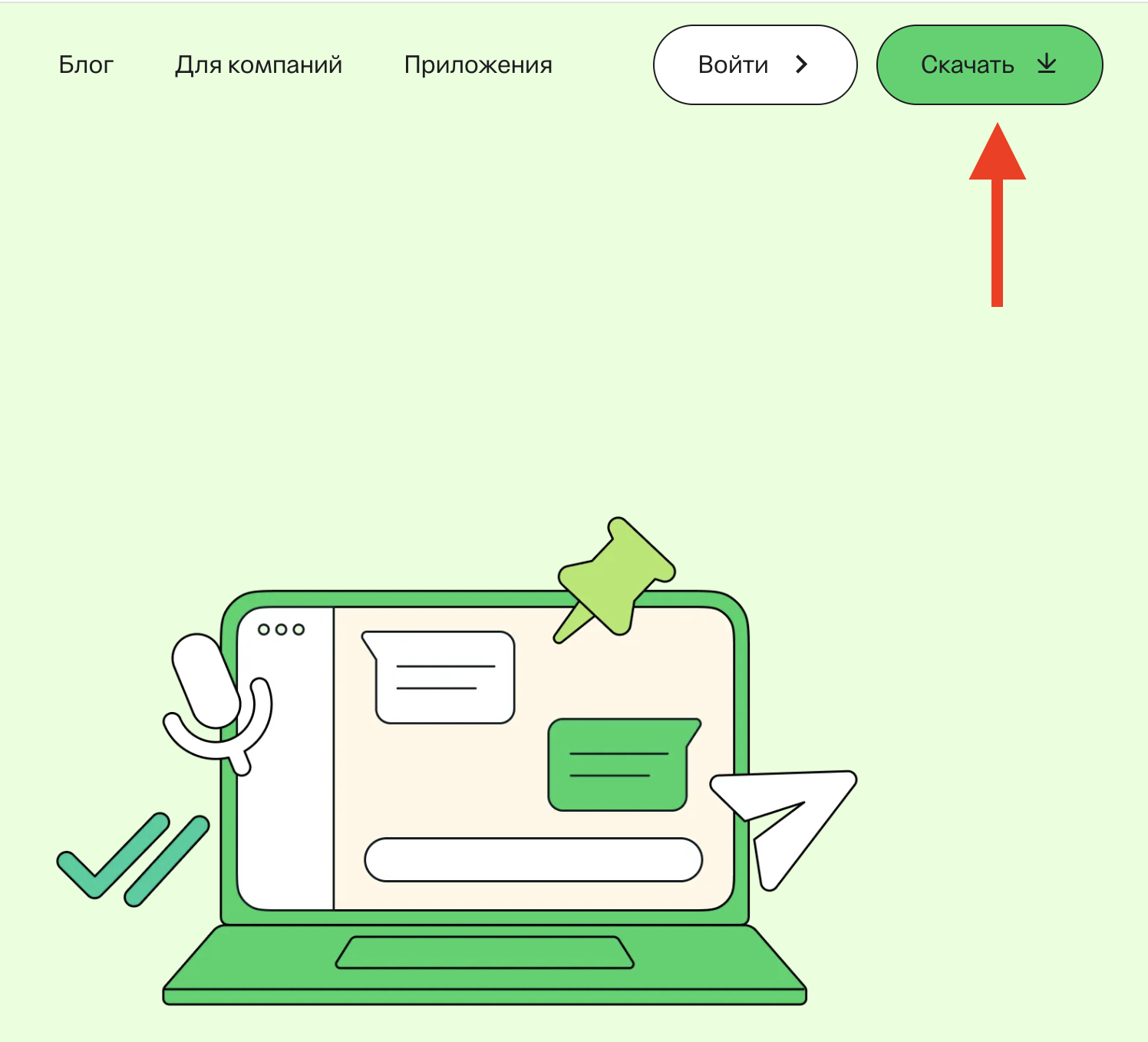
The site will automatically detect your OS and offer the appropriate file for download
Method 2 — through the Microsoft Store:
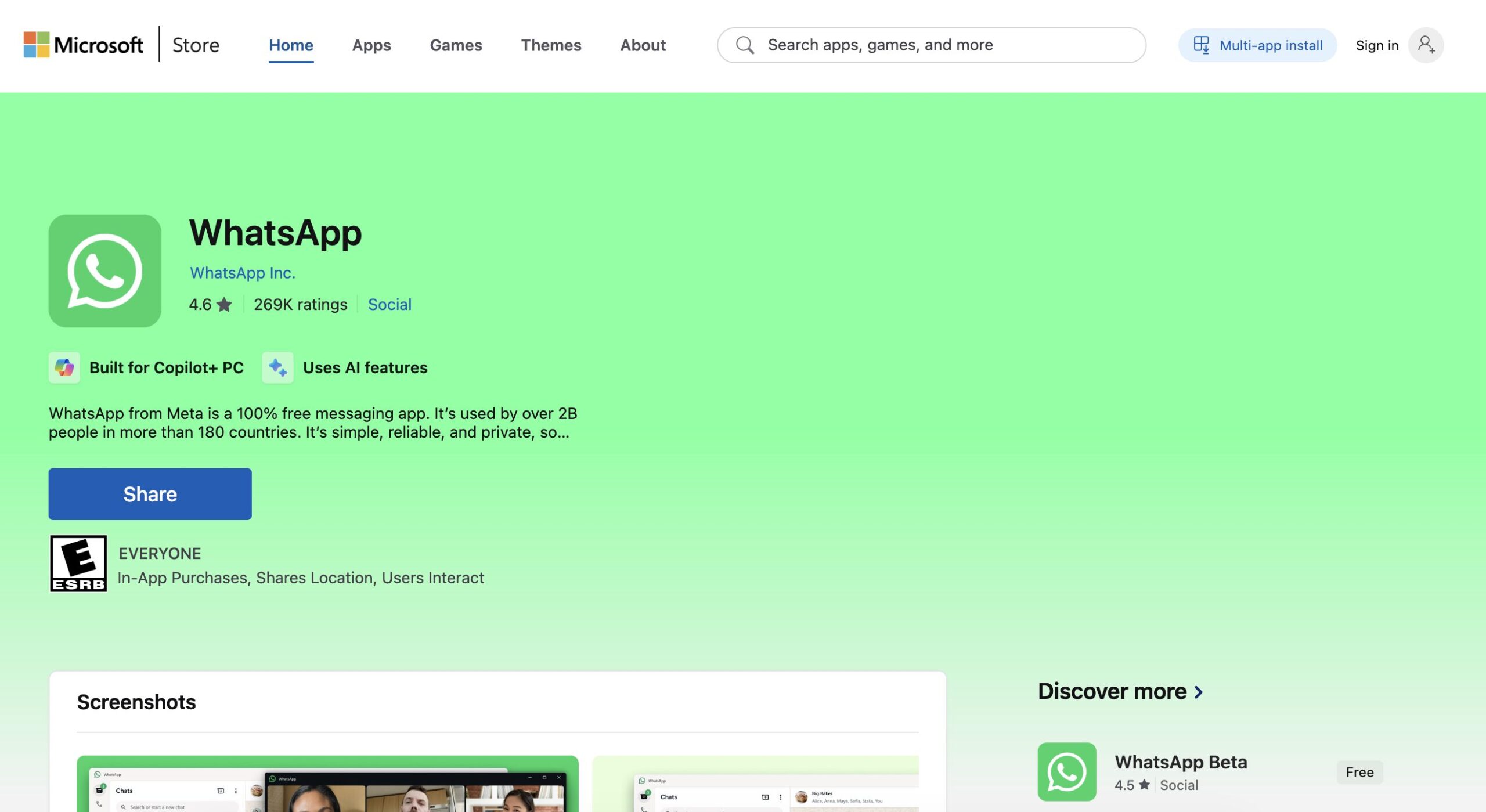
You can download it from the app store
- Open Microsoft Store on your computer.
- Search for “WhatsApp” or go to the direct link.
- Click “Get” and wait for the installation to complete.
Installing WhatsApp* on Mac — Website and App Store
On Mac, installing WhatsApp* is also simple. The app is available through the official website — the download page automatically detects your operating system and offers the appropriate file.
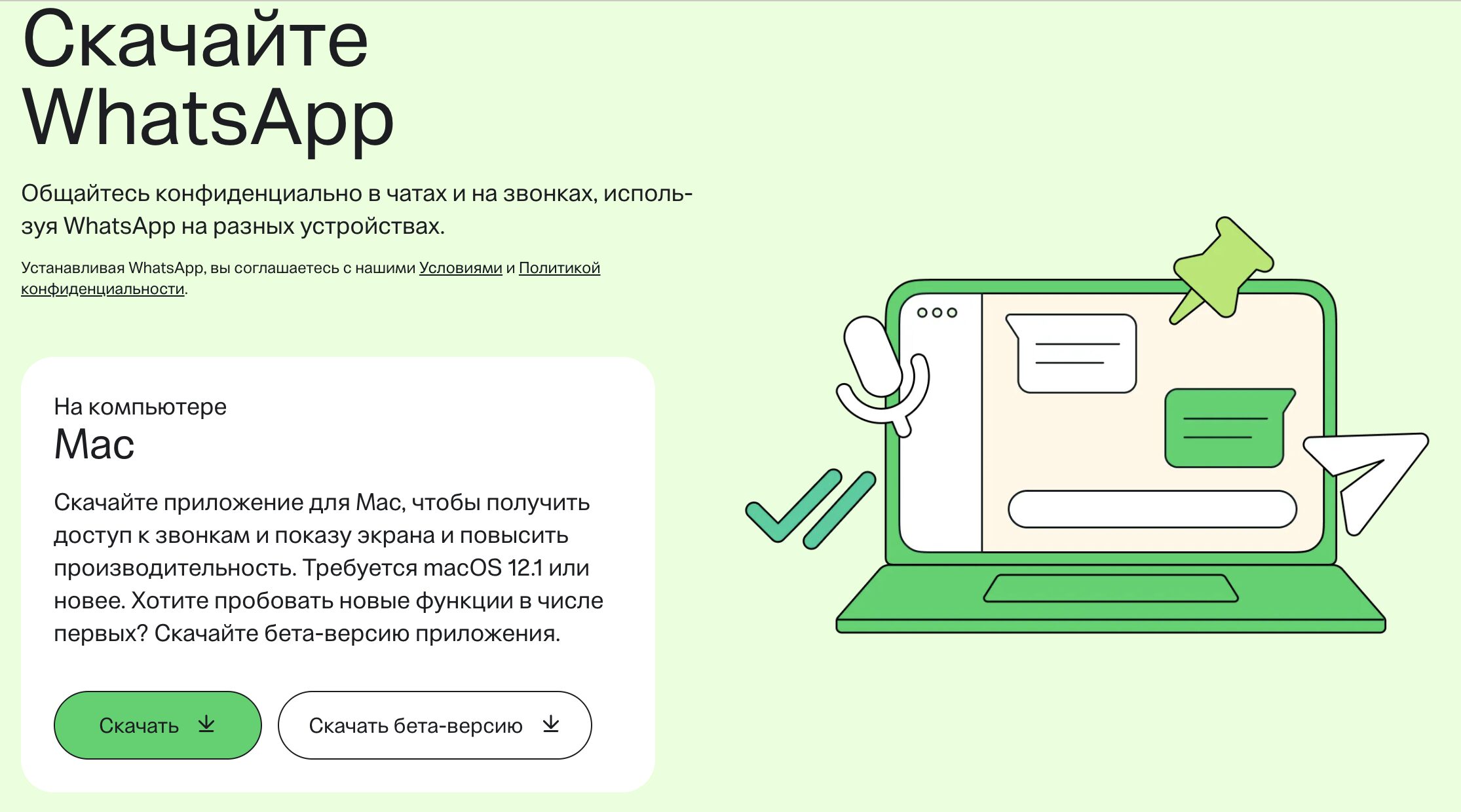
The Mac site also detects automatically
- Go to whatsapp.com and click “Download.”
- Open the downloaded file and drag the WhatsApp* icon into the “Applications” folder.
- Launch the app from the “Applications” folder or through Launchpad.
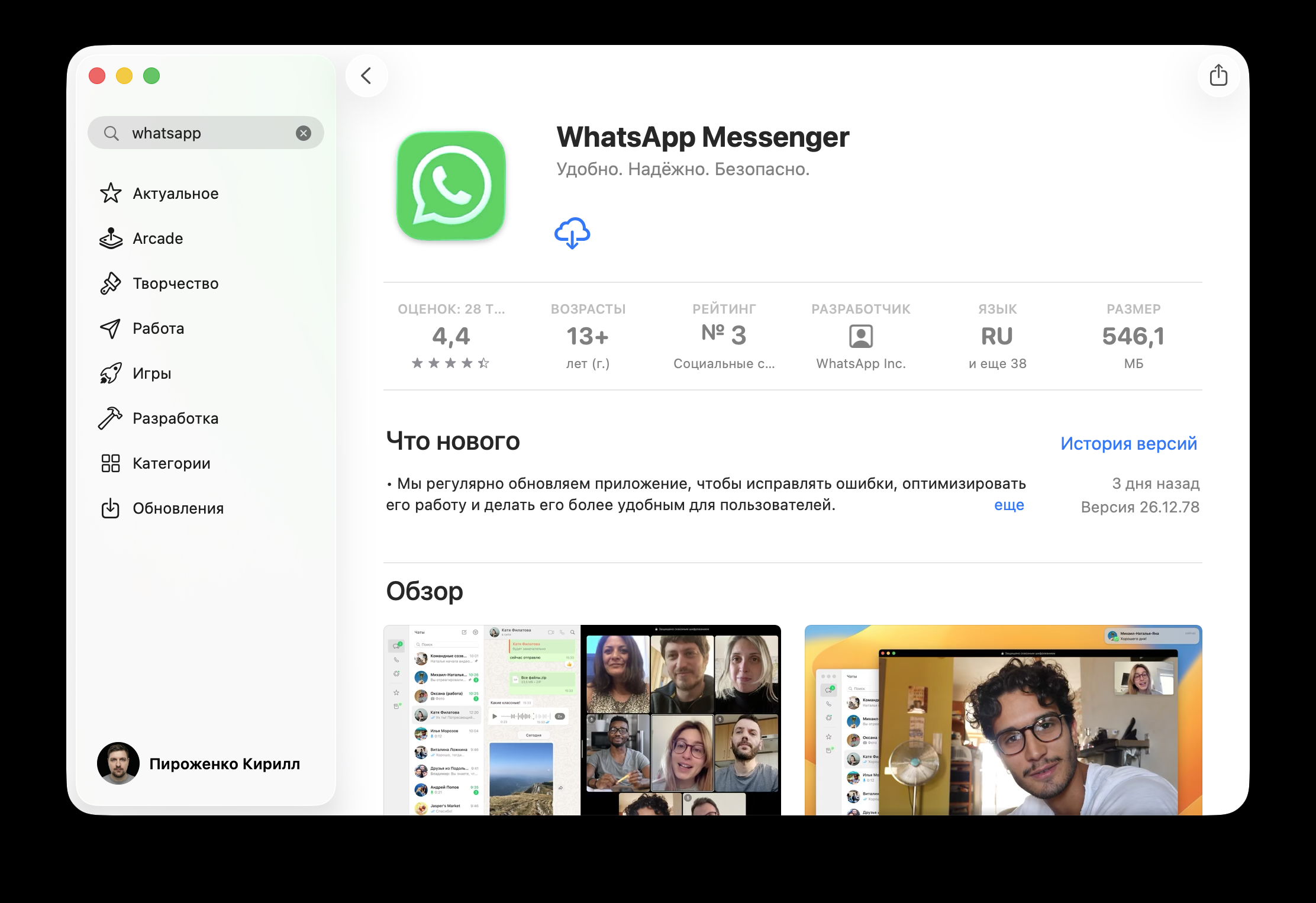
You can also download WhatsApp* from the App Store
Authorization on Mac works exactly the same as on Windows — via QR code or by phone number (more on that below). The app works on current versions of macOS, including macOS 26. Or you can simply download it through the App Store.
WhatsApp* Web — Browser Login Without Installation
If you don’t want to install anything or you’re working on someone else’s computer, the web version will do. It runs directly in the browser — Chrome, Safari, Edge, or any other.
- Open your browser and go to web.whatsapp.com.
- A QR code will appear on the screen. Open WhatsApp* on your phone, tap the three dots in the upper right corner — “Linked Devices” — “Link a Device” and point the camera at the QR code.
- Alternative option — at the bottom of the page, click “Log in with phone number,” enter your number, then in the mobile app go to “Link a Device” — “Link with phone number” and enter the eight-digit code from the computer screen.
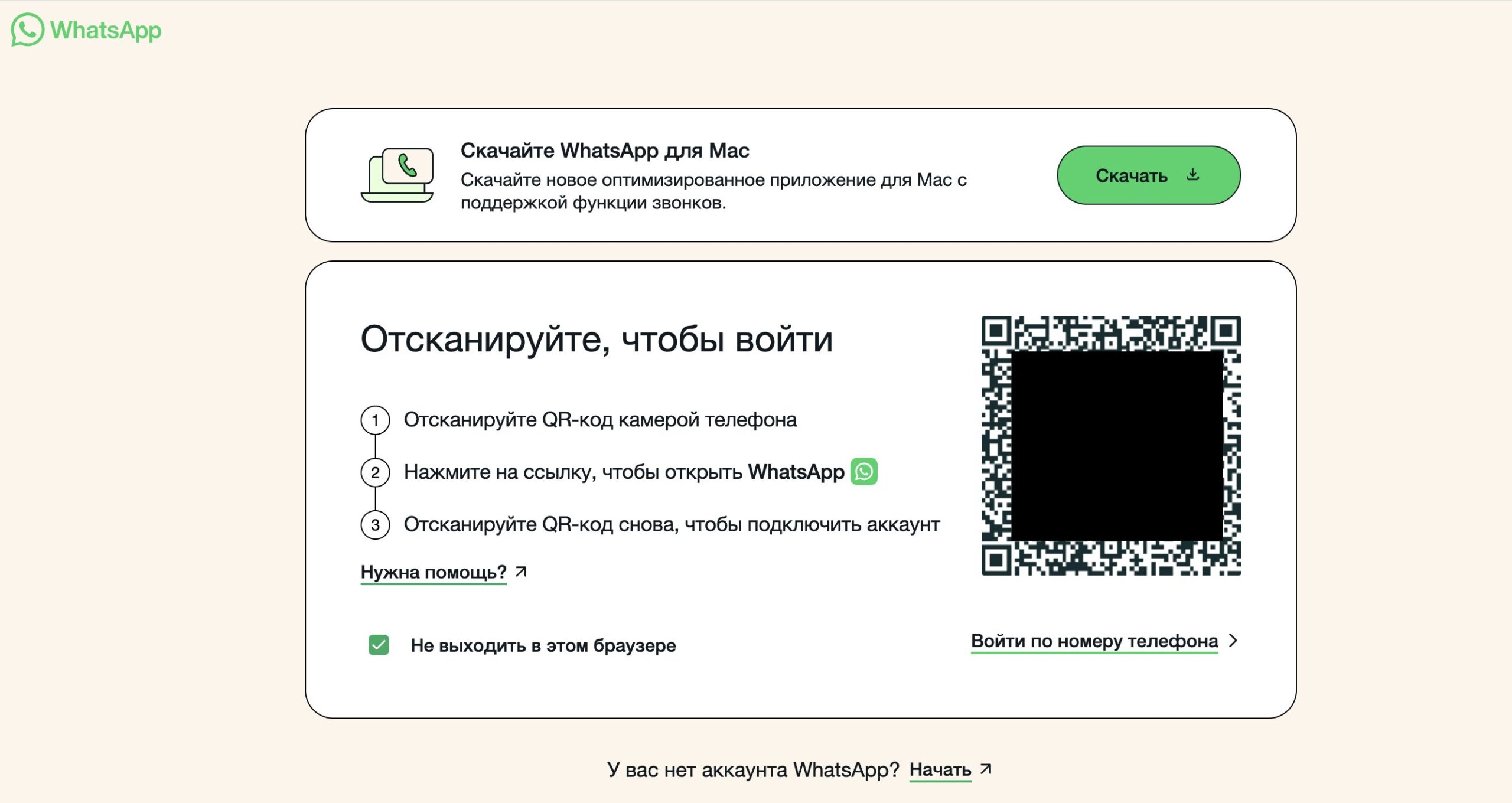
First, load the web version of WhatsApp
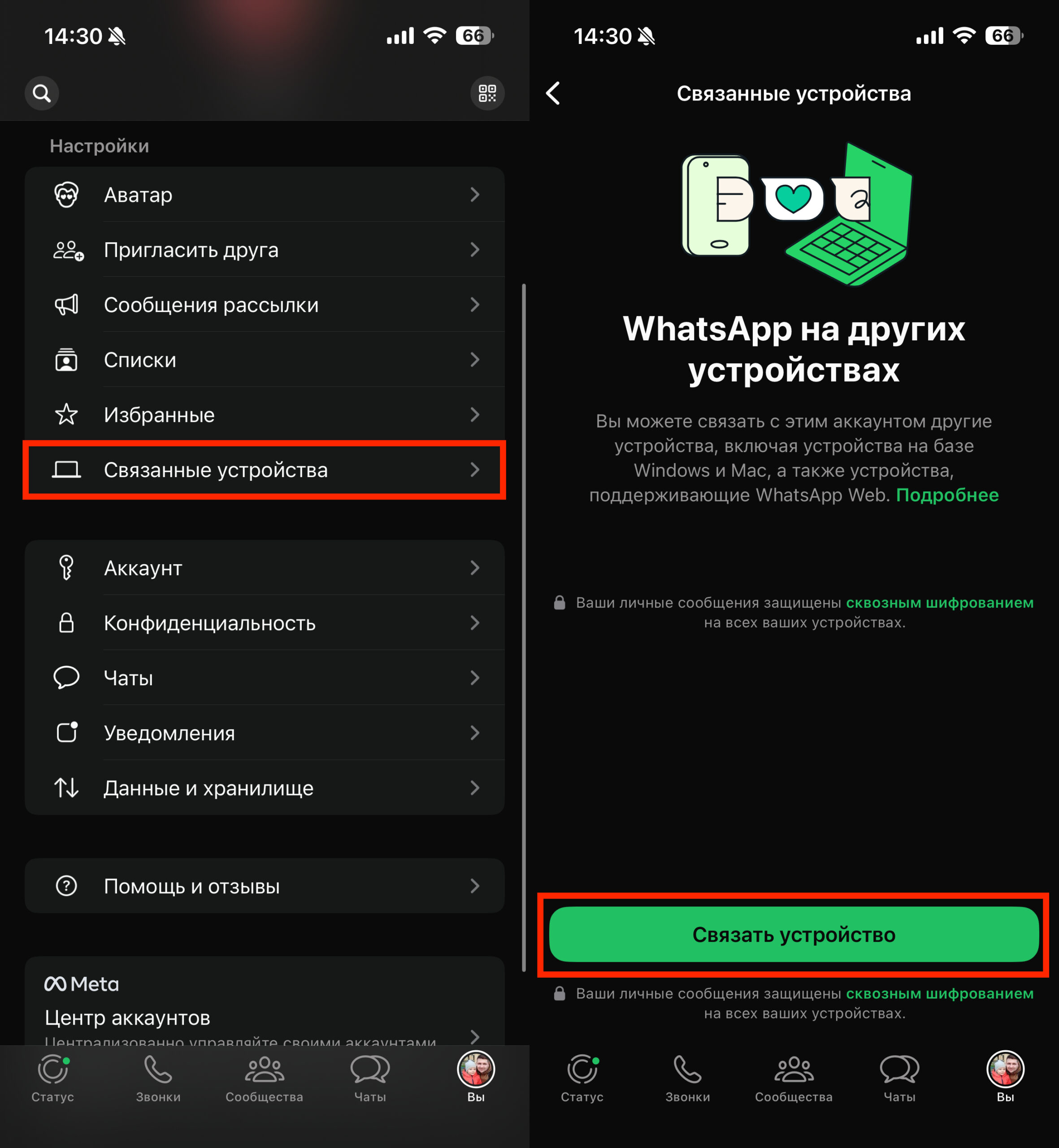
Then link it from your smartphone
The web version has limitations: you cannot create chat backups through it. For full functionality, it’s better to install the desktop application.
How to Log Into WhatsApp* on a Computer Without a Linked Phone
You cannot completely do without a smartphone. For the first login — both to the desktop app and the web version — you must have a phone with WhatsApp* installed.


