VKontakte is one of the largest video platforms in Russia, but there are almost no built-in ways to download a video to your device. While smartphones are more or less straightforward, downloading to a computer takes more effort. If you need to save a clip, tutorial, or movie for offline viewing, you have to find workarounds. We break down six proven methods — from the simplest to slightly more complex — and explain when downloading is legal.

You can download videos and movies from VK. Image: postium.ru
Is It Legal to Download Videos from VK
Before jumping into the instructions, it’s worth understanding the legal side. Videos posted on VKontakte are protected by copyright. This means that downloading someone else’s content for personal viewing is one thing, while distributing or using it for commercial purposes is something entirely different.
If you’re saving a video to watch it on a train or plane without internet, there are generally no issues. But uploading other people’s videos to your channel, editing them into content for sale, or passing them off as your own is a direct violation. All methods below are provided for informational purposes only, and you bear responsibility for how you use downloaded files.
Download VK Videos by Link Online Without Software
The fastest method is online services. You don’t need to install anything: just copy the video link and paste it into a downloader website. If you search for “download video from VK” in any search engine, you’ll find dozens of options, but one of the most well-known is SaveFrom.net.
Steps:
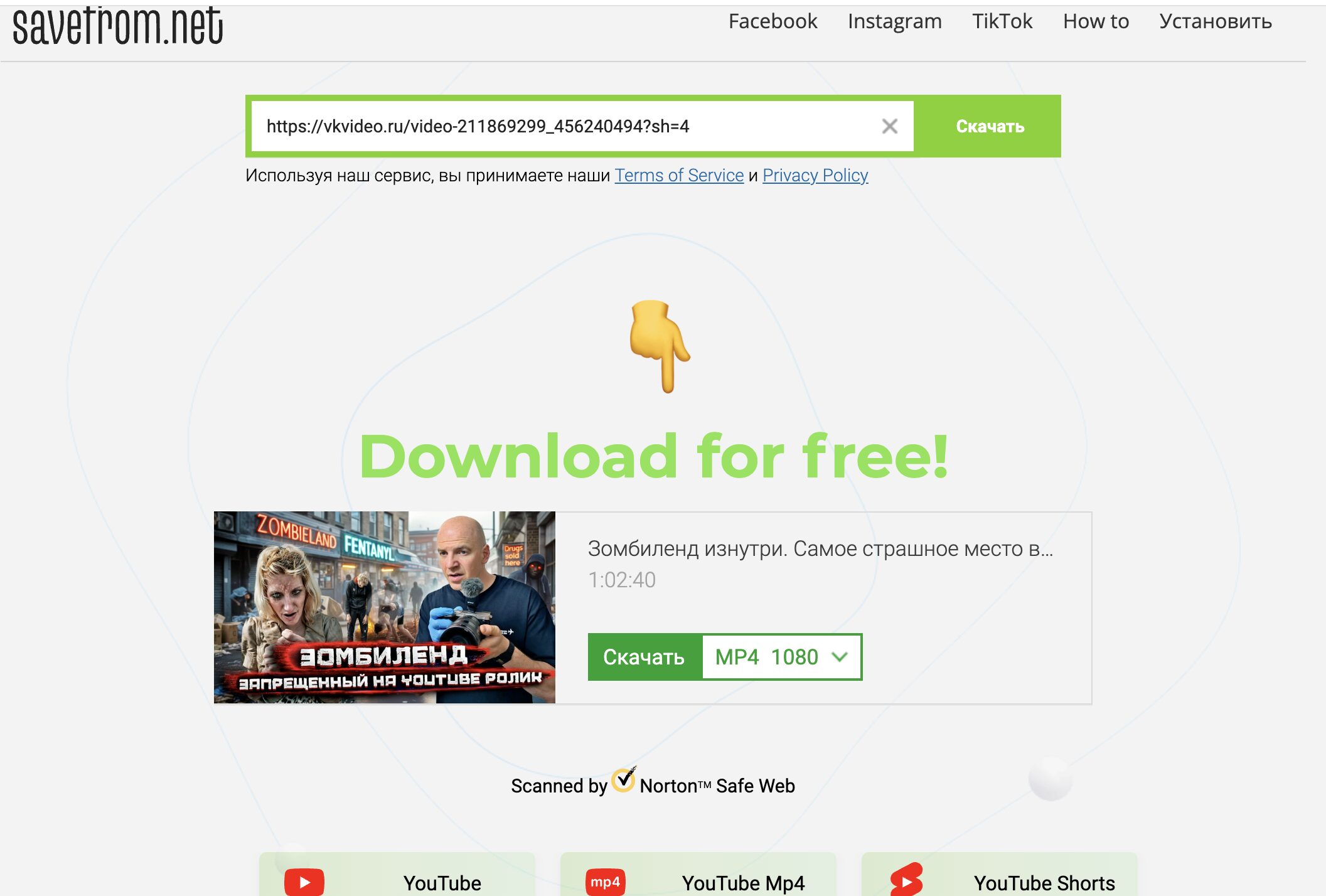
Choose quality and download the video to your device
- Open VKontakte or VK Video and find the video you need.
- Click “More” → “Copy link.”
- Go to the SaveFrom.net website and paste the link into the field on the main page.
- Choose the video quality and click “Download.”
- The file will appear in the “Downloads” folder on your device.
This method works on both computers and phones, although online downloaders are less convenient on mobile devices — intrusive ads get in the way, and smartphones without ad blockers can’t hide them. Important note: online services cannot download videos from private pages or closed groups — only members have access to such videos.
Telegram Bot That Downloads VK Videos for Free
Telegram bots are a convenient alternative to downloader websites. They work the same way on both phones and computers. Among the proven options:
- SaveFromVkBot — no subscriptions required, lets you choose quality.
- DNVideoBot — similar functionality.
We’ll show the process using SaveFromVkBot as an example:
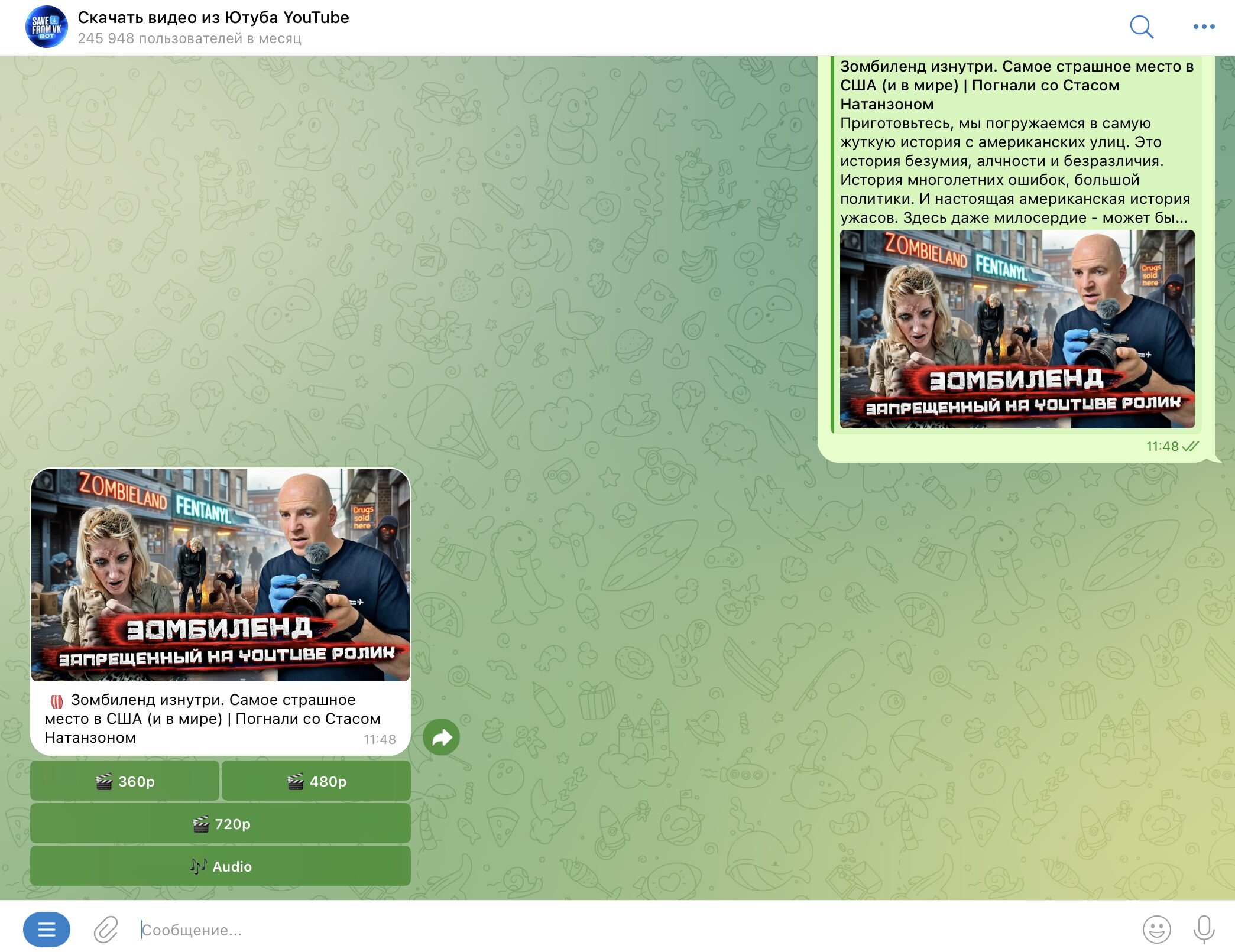
Just send the bot a link, choose quality, and get the video in Telegram
- Copy the video link from VKontakte.
- Open Telegram, find the SaveFromVkBot bot, and start it.
- Send the link in the chat.
- Choose the desired quality from the available options.
- The bot will send the ready file — save it to your device.
There are dozens of bots, and not all are equally reliable. Give preference to those with more users. Some bots require you to subscribe to partner channels before downloading — it’s not a virus, but it’s not the most pleasant feature either. Like online services, bots don’t work with videos from private pages.
How to Save VK Videos to Computer via Browser Extension
Browser extensions are arguably the most convenient method for those who frequently download videos on a computer. You can find a suitable plugin in your browser’s extension store: Chrome Web Store, Opera Addons, and so on.
How it works (using the “Download VK Video” extension for Chrome as an example):
- Install the extension from the Chrome store.
- Open the page with the desired video on VKontakte or VK Video.
- Click on the extension icon in the browser toolbar.
- Choose the quality — standard or HD.
- Wait for the download to complete.
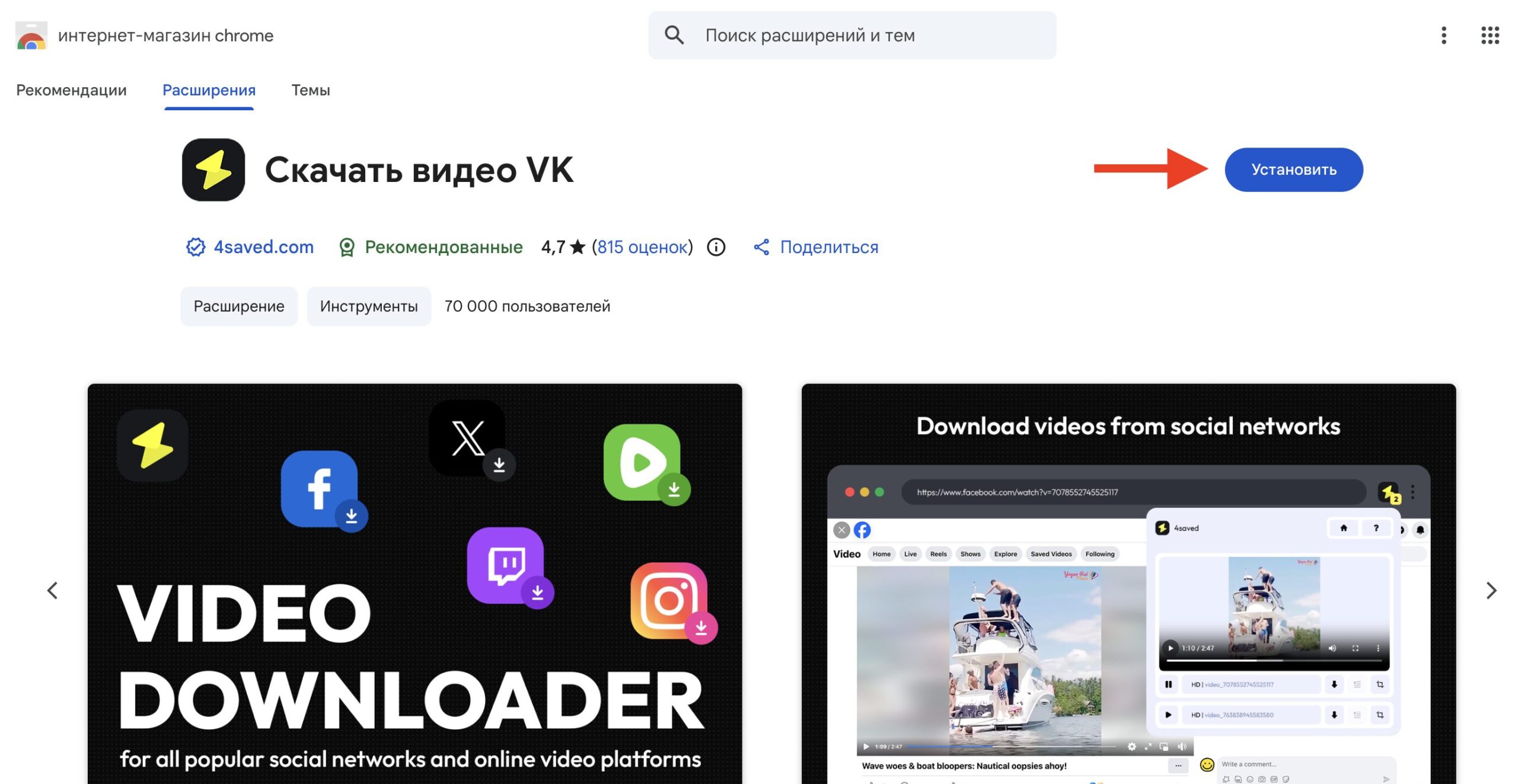
Install the extension in Chrome
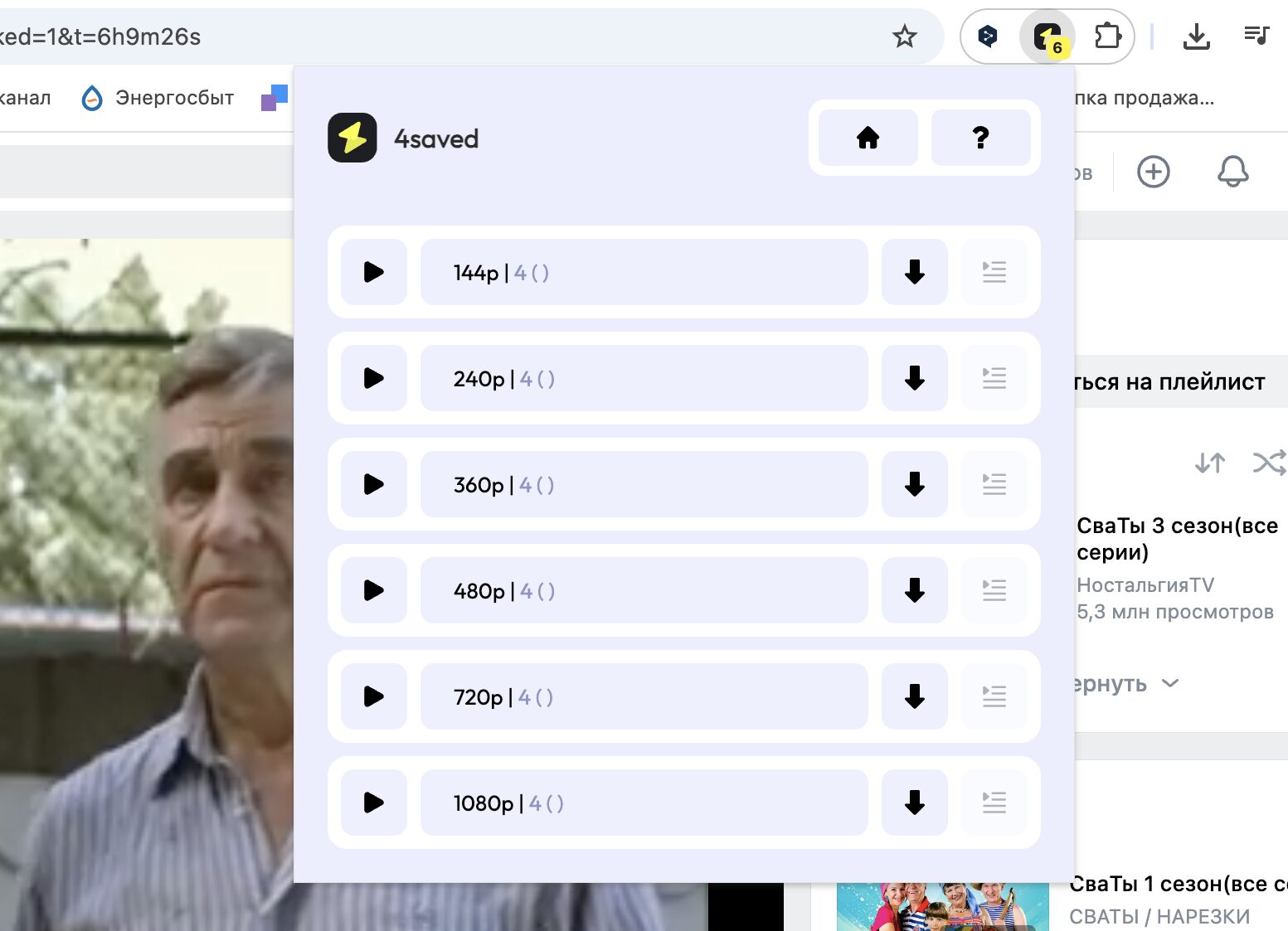
On the video page, activate the extension and download the video
Some extensions, such as the SaveFrom plugin, add a download button directly on the video page — you don’t even need to open the extensions panel. Just click the arrow next to the player, choose quality, and the file is saved.
There’s also a more complex but universal method — through the mobile version of VK. It lets you download videos even from a closed group if you’re a member:
- Open the desired video in the browser. In the address bar, add “m.” before vk.com — to open the mobile version (the link will start with https://m.vk.com/video).
- Right-click on an empty area next to the video and select “View Page Source.”
- In the opened code, press Ctrl + F and type mp4 — this will find direct links to video files.
- There will be several options: mp4_144, mp4_720, mp4_1440 — the numbers indicate the resolution. Choose the one you need.
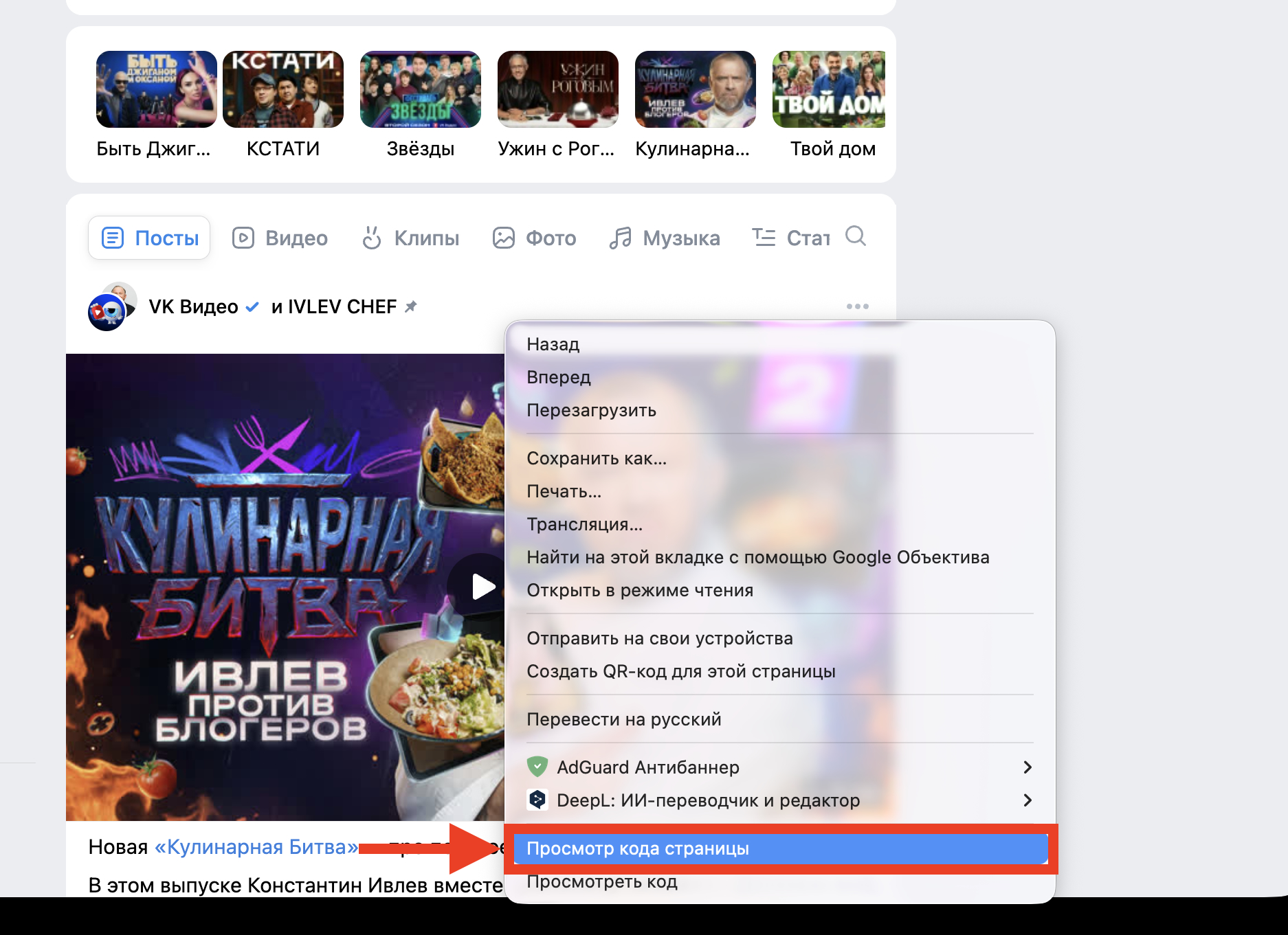
Open the page source code
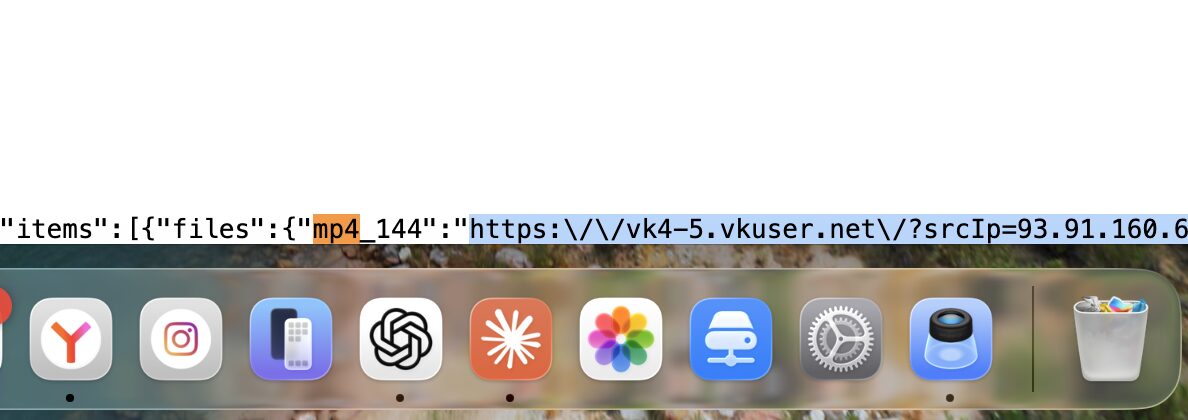
Copy the full URL and paste it into an empty tab


