After familiar services started disappearing from the Russian App Store, the iPhone became less convenient for everyday use for many people. The issue here isn’t just about payments or specific restrictions. What’s far more important is that users began losing quick access to banks, marketplaces, and other essential apps that used to open with a single tap. It might seem like there’s a solution: you can restore apps removed from the App Store through backups or third-party utilities. But in practice, this method doesn’t work for everyone.
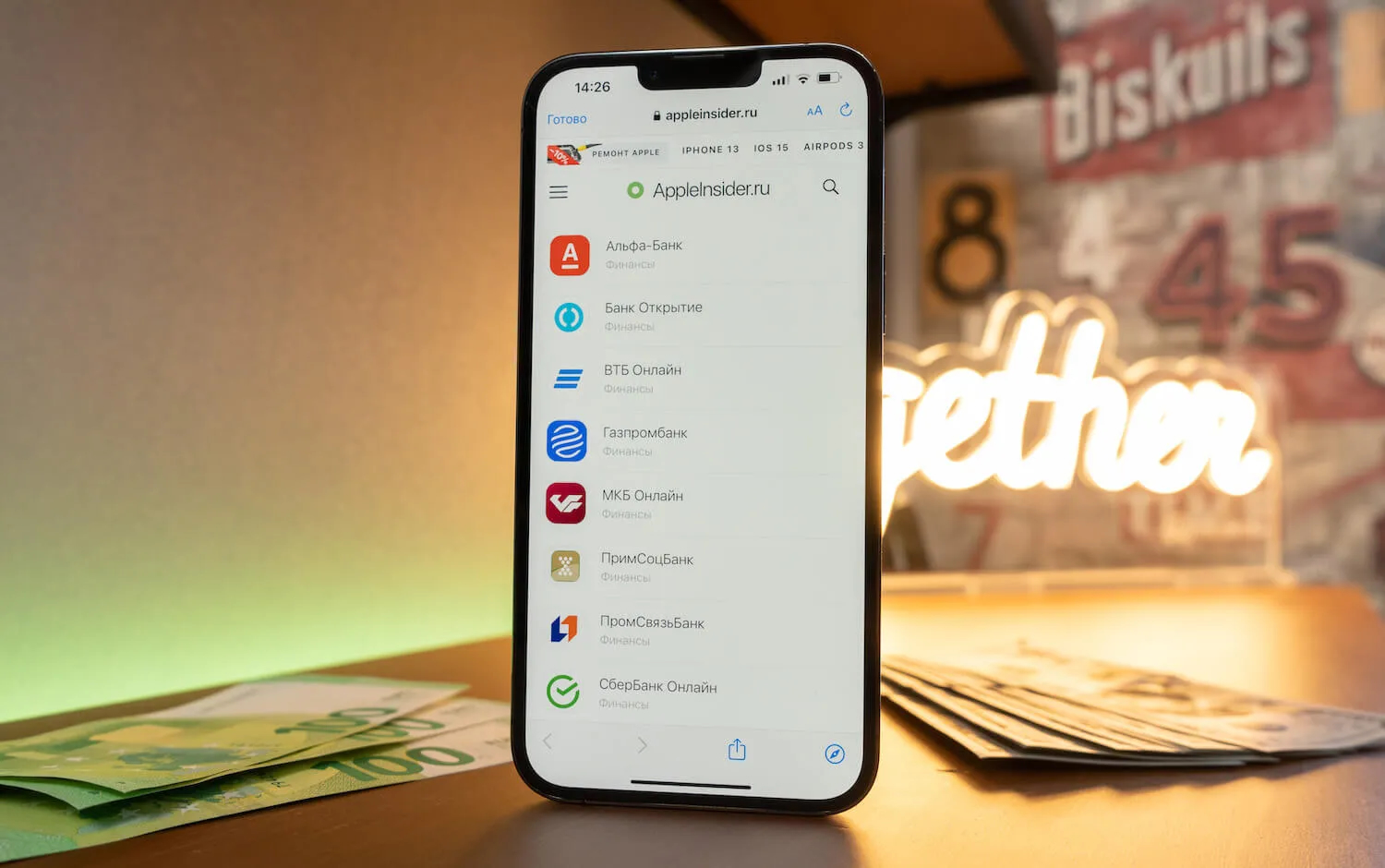
Our web app catalog is already waiting for you
Some people don’t have the right backup, others can’t get anything to restore, and some simply don’t want to deal with extra programs and complicated workarounds. That’s why it’s much more convenient to use another option — web versions of services that can be launched right from an iPhone almost like regular apps.
Apps Removed from the App Store in Russia — Full 2026 List
If a program has disappeared from the App Store, that doesn’t mean you can no longer use the service on your iPhone. Many banks, marketplaces, online services, and media outlets have fully functional browser versions. Yes, it’s not a native app, but for most everyday scenarios it’s enough: you can log into your account, view data, place an order, transfer money, or perform other familiar actions.
That’s exactly what the AppleInsider.ru web app catalog is for. It’s not an alternative store and not an attempt to bypass iOS rules. Essentially, it’s just links to official web versions of popular services gathered in one place, which you can open on your iPhone and add to your Home Screen. This approach significantly simplifies things because you don’t have to manually search for the right website and verify its authenticity every time.
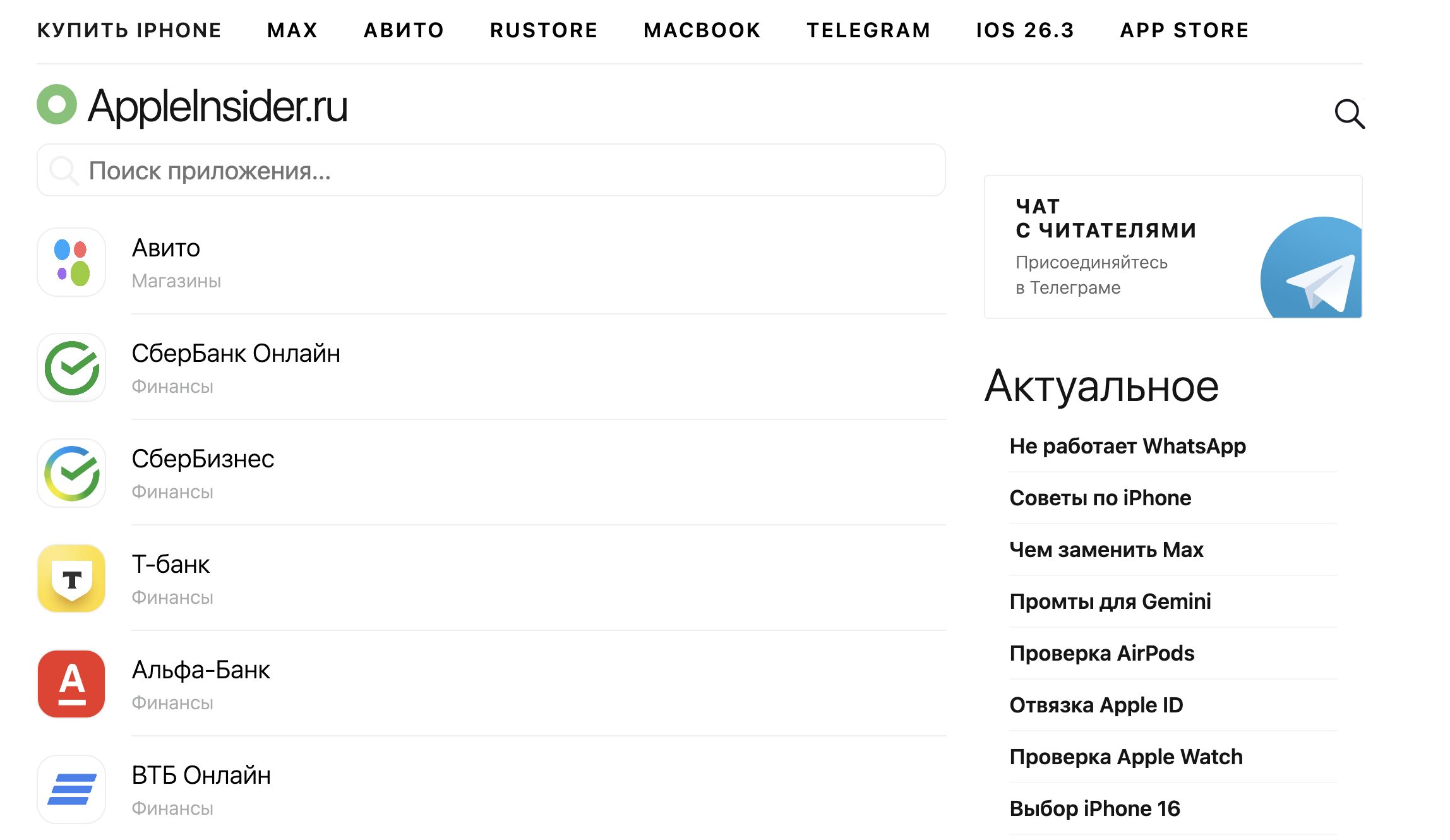
The catalog is available from both a smartphone and a computer
The idea behind this solution is to gather as many in-demand web versions of services that have either disappeared from the Russian App Store or become less accessible in one place. These can be banking apps, shopping and classified ad platforms, media, travel services, and other websites people use constantly. Here are just the most popular ones:
- Avito
- Alfa Investments
- Sberbank Online
- SberBusiness
- T-Bank
- Alfa-Bank
- VTB Online
- Halva
- Alfa-Business Online
- UBRiR
- PostaBank
- WebQUICK
- AbsolutBank
- Alfa Investments
- Bank Faktura
- Bank Avangard
- Bank Levoberezhny
- Bank MFK
- Bank Primorye
- Bank Rossiya
- Bank Saint Petersburg
- BelInvestBank
- VBRR
- VTB Investments
- Gazprombank
- Zenit Bank
- KreditUralBank
- MKB Online
- Modulbank
- Moscow Industrial Bank
- MTS Bank
- NovikomBank
- OTP Bank
- Privet, Mir!
- PrimSocBank
- PromSvyazBank
- PSB Business
- Rosbank — Small Business
- Rosselhozbank
- RostFinanceBank
- Russian Standard
- Sovcombank (Halva)
- T-Business
- T-Investments
- TKB Bank
- Tochka Bank
- Home Bank
- ChelindBank
- YuMoney
- AndroidInsider.ru
- AppleInsider.ru
- Hi-News.ru
- NTV
- Channel One
- Aviasales
- Level Travel
- Utair
- Rossiya Airlines
- Aeroflot
- RZD
- Kuper
- MegaMarket
- 2GIS
- Gosuslugi
- GET LKK
- Mail.ru Mail
- Deezer
- Google Earth
- Okko
- Premier
- TikTok
- VKontakte (VK)
- Zvuk
- LitRes
- Match TV
- Strelka
- RuTube
- Spotify
The catalog is constantly being updated, so if you don’t see a service you need, you can let us know.
How to Install Sberbank Online on iPhone Without the App Store
If you specifically need Sberbank Online, the simplest option right now is to open its official web version through Safari and add it to your Home Screen. This isn’t an installation in the traditional sense because the app isn’t downloaded from the App Store. But in terms of convenience, the difference for many will be minimal: a separate icon will appear on your desktop, and the service will open in its own window almost like a regular app. You can do this in just a couple of minutes:
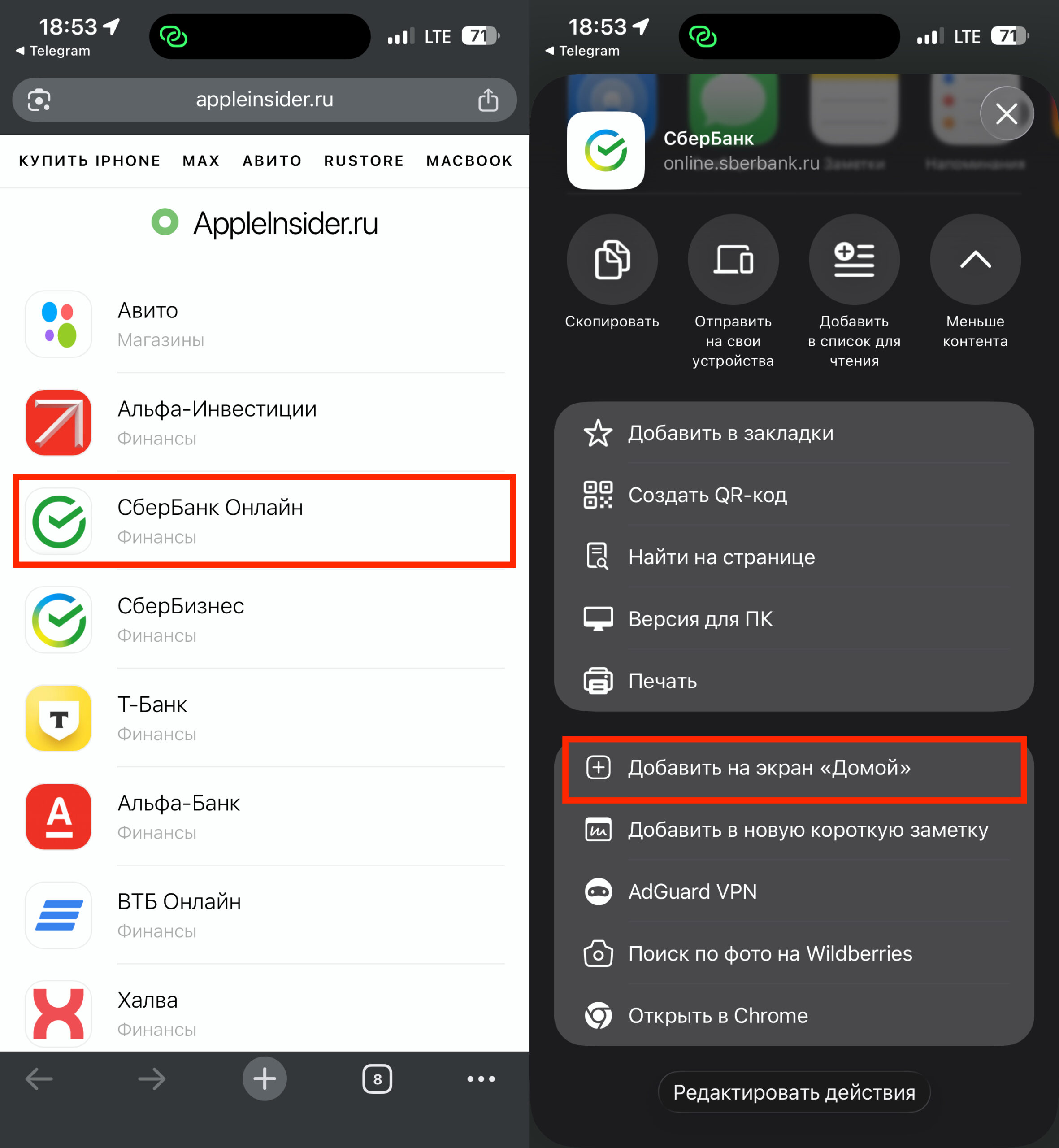
Sberbank Online supports Face ID authentication
- Open our catalog of web versions of removed services on your iPhone and tap on Sberbank Online.
- Tap the “Share” button in the browser.
- Scroll down the menu and select “Add to Home Screen.”
- Optionally, change the shortcut name.
- Confirm the addition, after which the icon will appear on your iPhone’s Home Screen.
After this, you’ll be able to launch Sberbank Online right from the Home Screen. For checking your balance, making transfers, paying for services, and other basic actions, this is usually sufficient. The key point here is that you’re using the official web service rather than questionable workarounds involving old app restoration.
How to Download T-Bank on iPhone in 2026
With T-Bank on iPhone, everything works on the same principle. If the official app is unavailable in the App Store, that doesn’t mean access to the service is lost. The bank has a working web version that you can open through Safari and save to your Home Screen. As a result, a separate icon will appear on your iPhone, and the service will launch without having to constantly type the address into the browser. The steps are the same:
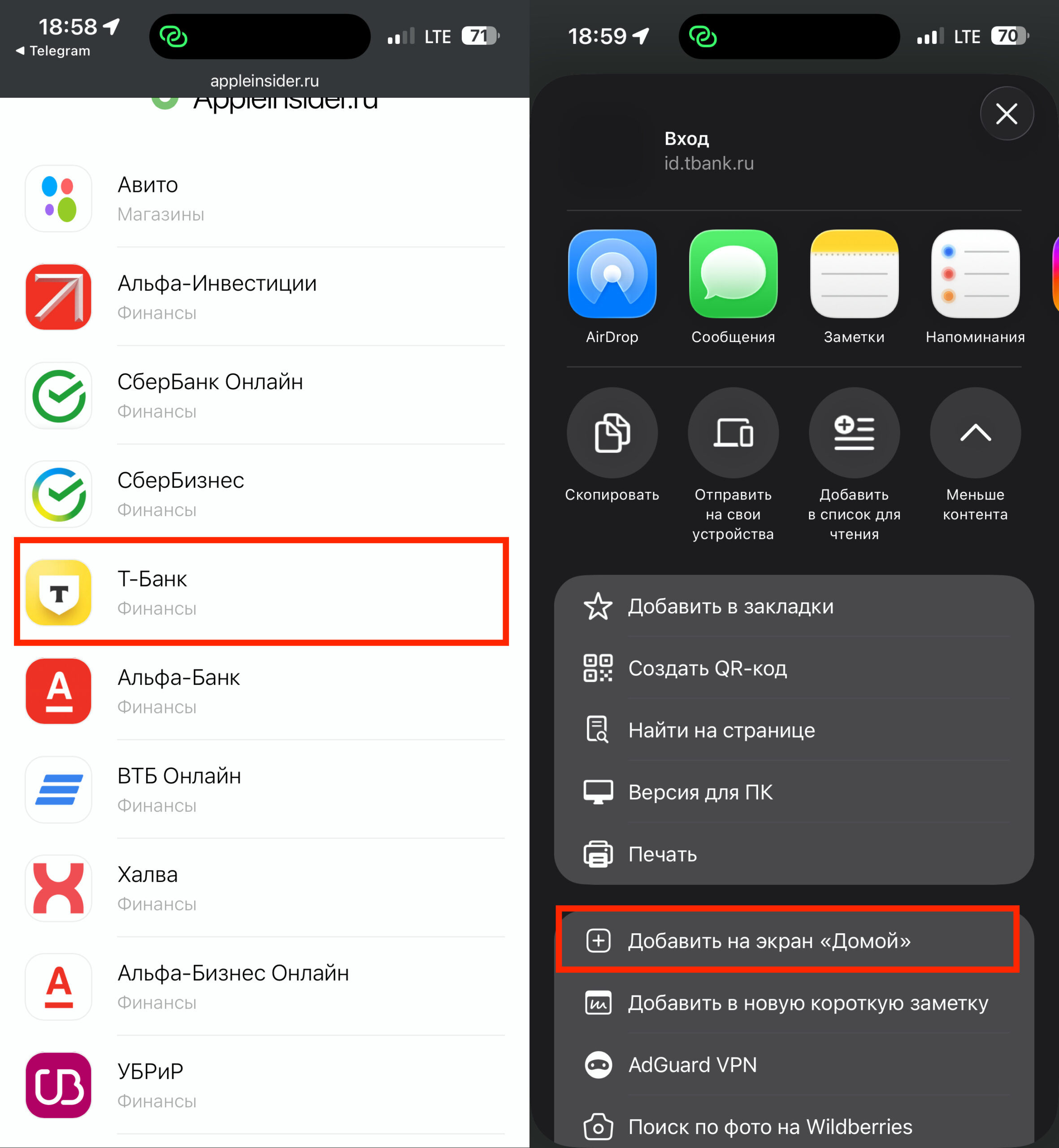
You’ll be able to log into T-Bank quickly and without any issues
- Open our web app catalog through Safari on your iPhone.
- Go to the web version of the service.
- Tap the “Share” button.
- Select “Add to Home Screen.”
- Confirm adding the shortcut.
By the way, T-Bank offers options for installing the full app on iPhone. You can try that as well if you don’t want to use the web app.