The internet always drops at the worst moment — on a plane, out of town, in the subway between stations. To avoid depending on connectivity, you can download a movie or series directly to your iPhone or iPad and watch it offline. Here are several working methods — from the simplest to the most advanced — and an explanation of which one suits you best.
How to download a movie to iPhone or iPad and watch it offline
How to Watch Movies Offline on iPhone Using Streaming Services
The simplest and safest option is to use the built-in download feature in streaming service apps. Virtually all major streaming platforms allow you to download movies and series for offline viewing directly within their app. You don’t need any third-party programs, converters, or complex settings.
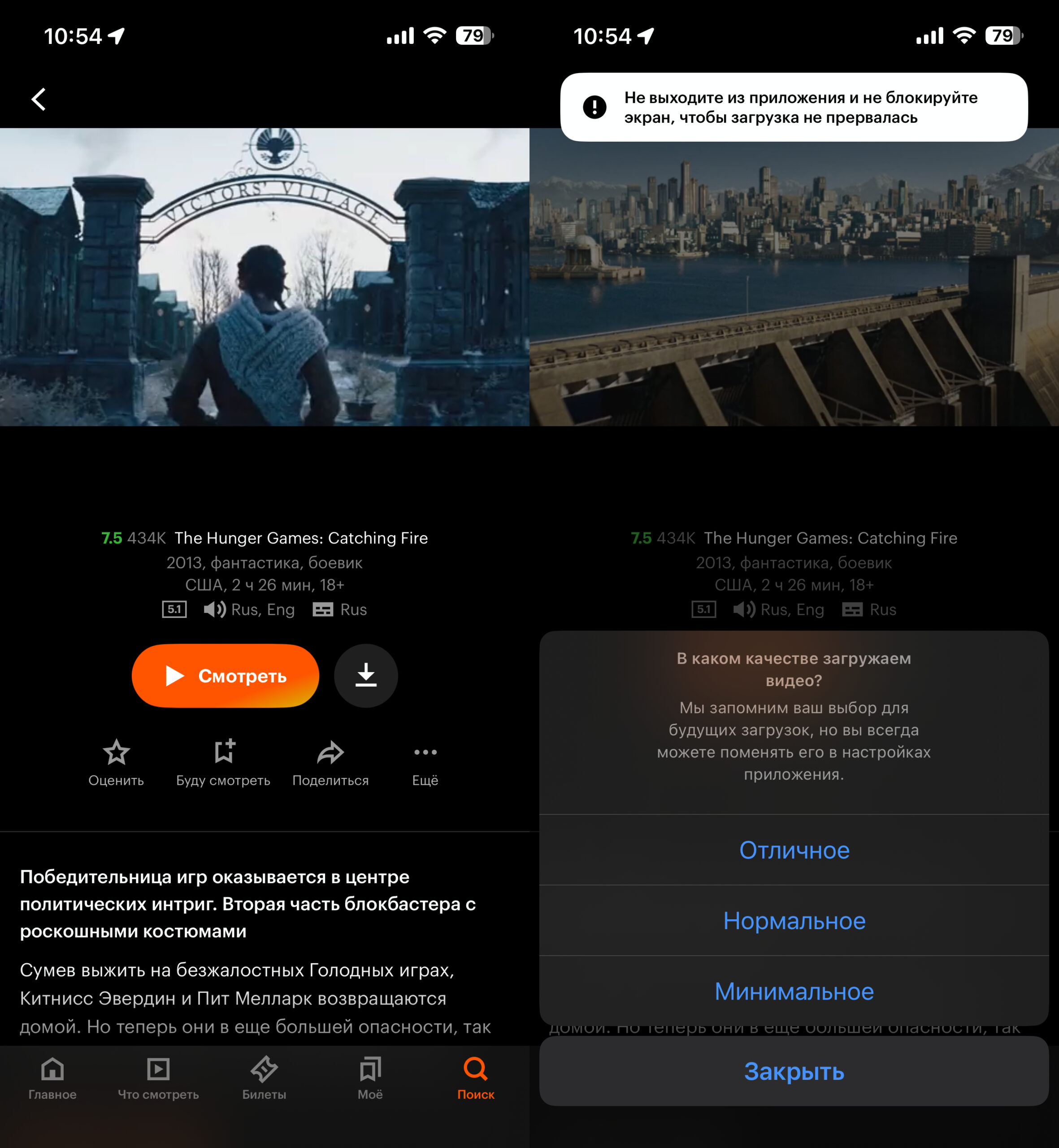
Downloading works more or less the same in all streaming services. Press the button with the arrow and choose picture quality
How it works: open the streaming app, find the movie you want, press the “Download” button — and within a few minutes it’s available without an internet connection. You can usually choose the quality: the higher it is, the more storage the file takes up.
There’s an important caveat: downloaded movies are tied to your subscription. If the subscription expires, the downloaded content becomes unavailable. Additionally, some movies can’t be downloaded due to licensing restrictions — there simply won’t be a download button for them.
Which Streaming Service for iPhone Is Best: KinoPoisk, Okko, Ivi, or Wink
All four services support offline downloads on iOS, but they differ in catalog, pricing, and convenience. Here’s what to consider when choosing:
- KinoPoisk — included in the Yandex Plus subscription (from 399 ₽/month). Large catalog of Russian and international films, user-friendly interface, great recommendations. One of the most popular options.
- Okko — “Optimum” subscription from 399 ₽/month. Strong library of new releases, has exclusive series. Downloading works reliably.
- Ivi — subscription from 399 ₽/month. One of the oldest Russian services with a large catalog, including children’s content. Great for family use.
- Wink — a service from Rostelecom, subscription from 399 ₽/month. The catalog is more modest, but the price is lower. Includes sports broadcasts.
There’s no universal “best” streaming service. If you already have a Yandex Plus subscription, KinoPoisk is the logical choice as it comes bundled. For families with children, Ivi is convenient. Good movies can also be found on Wink. Before subscribing, check if the movies you want are in the catalog — each service offers a free trial period.
How to Download a Movie to iPhone for Free Without Getting a Virus
Suspicious pop-up window on a site with “free” movies
Search queries like “download movie to iPhone for free” are among the most popular, and at the same time the riskiest. Sites that offer free movie downloads most often either distribute pirated content, or push malicious files, or both. iOS is better protected than Android, but that doesn’t make you invulnerable. Here’s what downloading from shady sites can lead to:
- The file might not be a movie at all, but a configuration profile that gives an attacker access to your device settings.
- The site may request your Apple ID and password — that’s phishing.
- Through aggressive ads and pop-ups, you might get subscribed to paid services.
- The downloaded file might simply not open or turn out to be in an unsupported format.
Safe free viewing options do exist — these include trial periods from streaming services, free sections on KinoPoisk and Ivi, as well as public domain movies (classics whose copyright has expired). Everything else is a gamble where you risk your device and personal data.
How to Transfer a Movie from Computer to iPhone Without iTunes
If you have your own movie collection on your computer — purchased, personally recorded, or from the public domain — you can transfer them to your iPhone or iPad. And you don’t need iTunes for this. You’ll need the free VLC media player (download from the App Store). It plays virtually any video format — MKV, AVI, MP4, MOV and others — without conversion.
Method via cable (macOS Catalina and later):
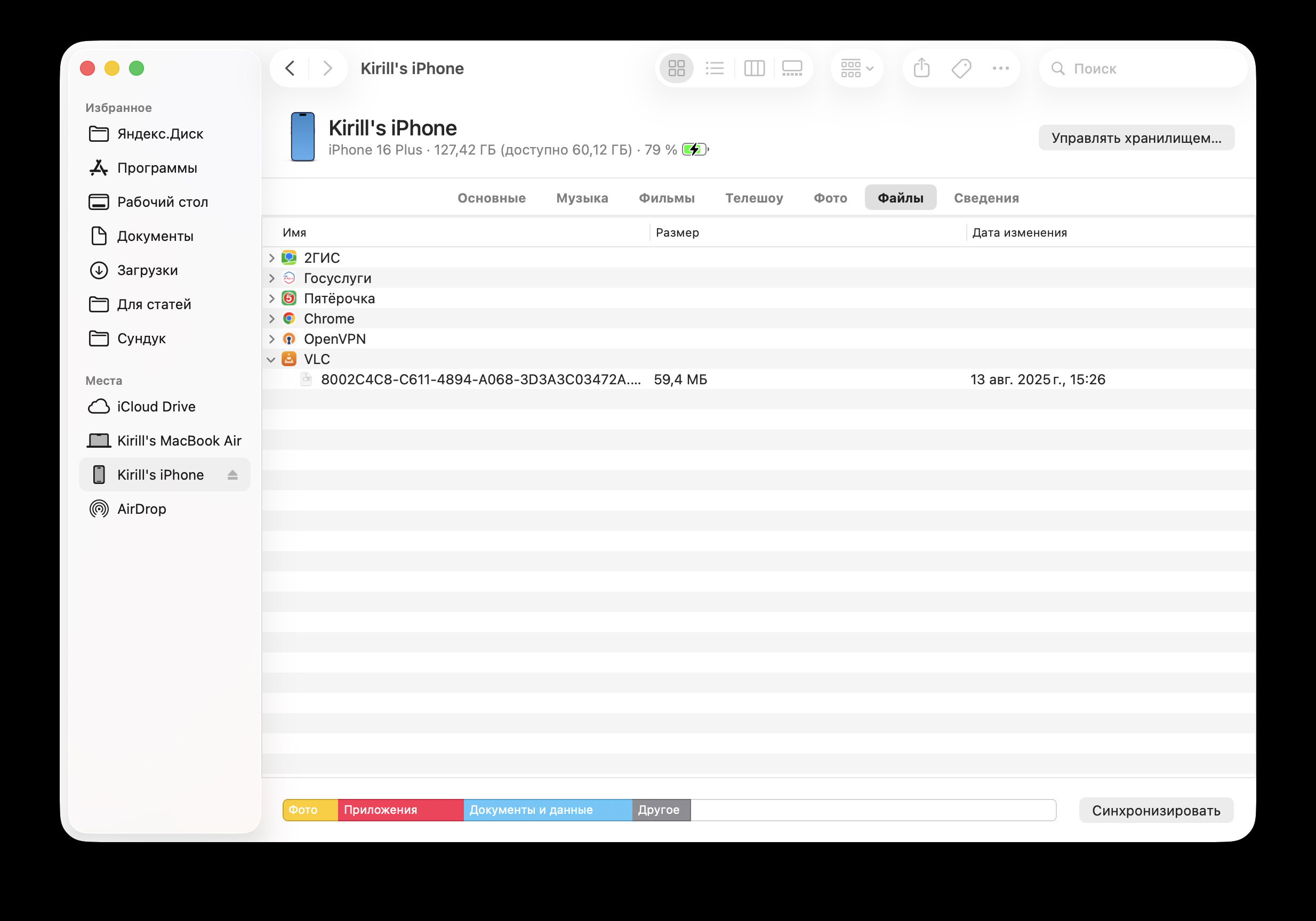
Simply drag the file onto the VLC line
- Connect your iPhone or iPad to your Mac with a cable.
- Open Finder and select your device in the sidebar.
- Go to the “Files” tab.
- Find the VLC app in the list.
- Drag and drop the movie file into the VLC window.
- Wait for the copying to finish, then disconnect the cable.
On Windows, the process is the same, except you use iTunes instead of Finder — but the movie will be in VLC, not in the standard player.
Wireless method — via Wi-Fi in VLC:
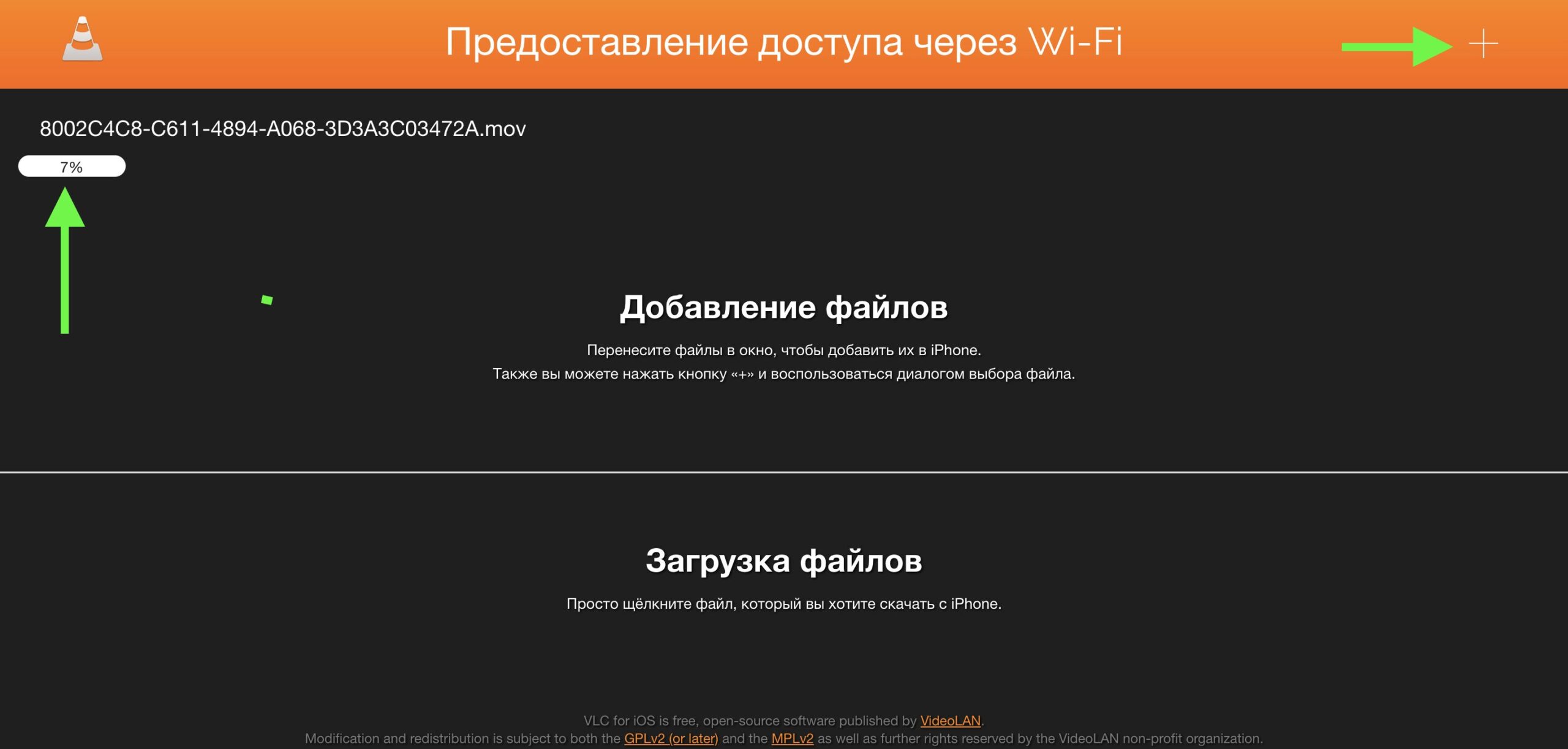
Press the “+”, select the file, and wait for it to upload
- Open VLC on your iPhone or iPad.
- Go to the “Browse” tab and toggle on “Sharing via Wi-Fi”.
- The app will display an IP address — enter it in the browser on your computer.
- Drag and drop the movie file into the browser window that opens.
- The file will be uploaded to your device over Wi-Fi.
Transferring a movie from MacBook to iPhone via VLC over Wi-Fi
The wireless method is convenient for files up to 5 GB. For larger movies (especially in 4K), it’s better to use a cable — the transfer will be significantly faster.