Face ID is one of the most convenient features of modern iPhones. It allows you to unlock your smartphone, confirm purchases, and sign into apps with literally just a glance. But there are situations when users want to ditch this technology and use only a passcode. For example, if the phone is frequently handed to other people, used at work, or you simply want to increase your level of control over device access.
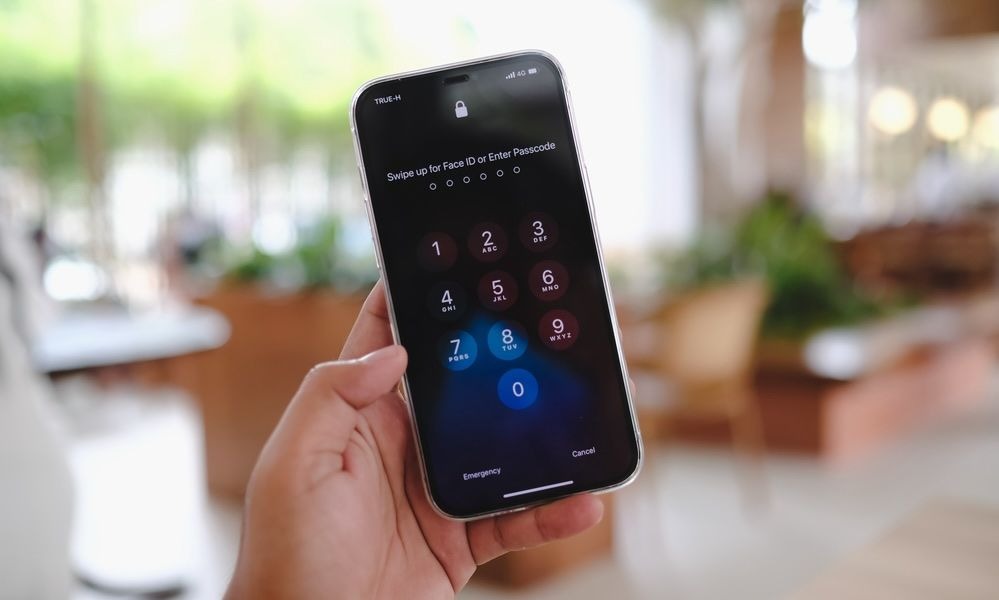
How to disable Face ID but keep the passcode. Image: idropnews.com
The good news is that you don’t need to completely disable Face ID for this. In iOS, you can configure the system so that the iPhone unlocks only with a passcode. Let’s figure out how to do this and which settings need to be changed.
Can You Disable Face ID on iPhone
Apple originally designed Face ID as the primary method of unlocking the iPhone. That’s why on most modern smartphone models, you’re prompted to enable it right during the initial device setup. The system works quickly and securely, and the probability of a recognition error is extremely low.
However, users always have the option to opt out of Face ID. Moreover, Apple has provided several levels of control over this feature. You can completely delete the face scan, disable only device unlocking, or leave Face ID only for specific tasks like payments in the App Store or signing into apps.
It’s important to understand that the iPhone passcode always exists and doesn’t depend on Face ID. Even if the face recognition system is disabled, the passcode continues to work as the primary method of protecting the device. So you can easily use only a passcode to unlock your smartphone.
How to Turn Off Face ID on iPhone
If you want your iPhone to unlock only with a passcode, it’s enough to disable the use of Face ID for device unlocking. The passcode itself will remain active, and the system will request it every time you turn on the screen. You can do this right in the iOS settings. Just change one parameter, and Face ID will stop being used to unlock the smartphone. Here’s how to do it:
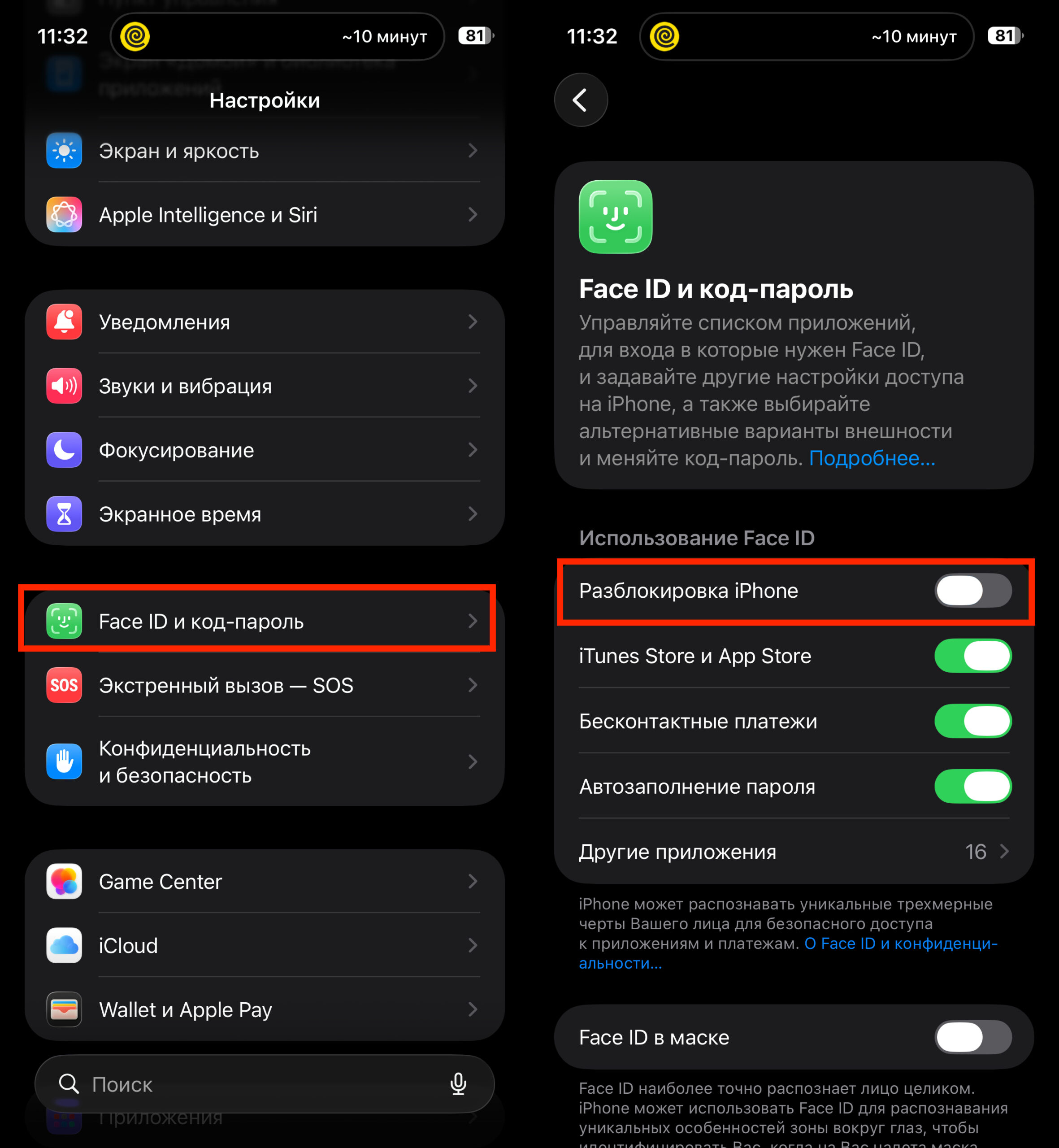
Turn off this toggle, and the iPhone will only unlock with a passcode
- Open Settings on your iPhone.
- Go to the Face ID & Passcode section.
- Enter your passcode.
- Find the iPhone Unlock option.
- Turn off the toggle next to this option.
After this, the iPhone will no longer unlock via Face ID. Every time you turn on the screen, the system will ask you to enter the passcode manually.
How to Remove Face ID from iPhone
Sometimes users want to not just disable unlocking, but completely remove Face ID data from the device. This can be useful if you no longer want to use face recognition at all. In this case, you need to delete the saved face scan. After this, Face ID will stop working in all system functions: iPhone unlocking, App Store purchases, password autofill, and app sign-in. Here’s how to do it:
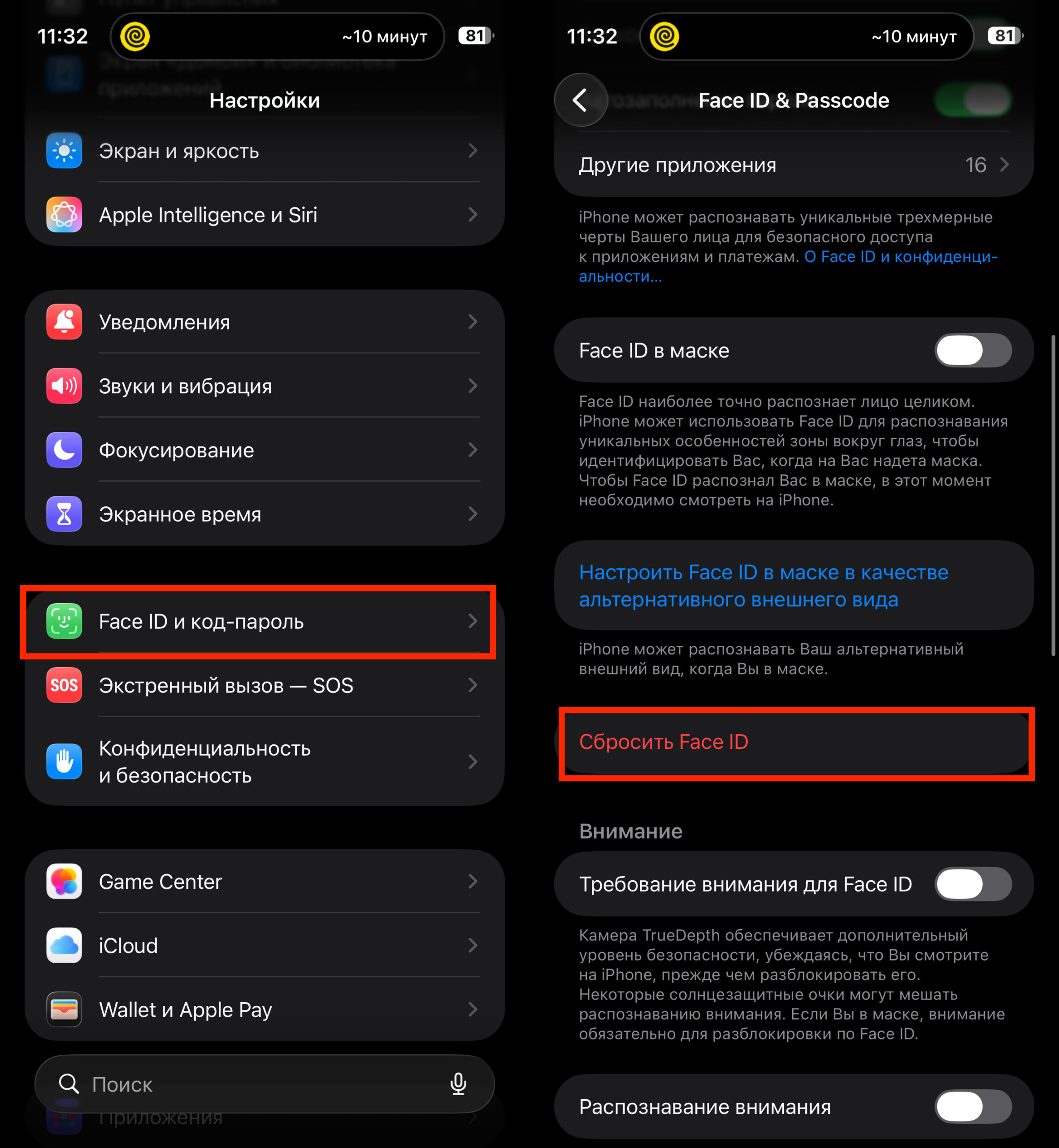
You can reset face data with just one button
- Open Settings.
- Go to the Face ID & Passcode section.
- Enter your passcode.
- Tap Reset Face ID.
After this, the system will delete the saved face data, and the iPhone will work only with a passcode.
Why iPhone Requires a Passcode Instead of Face ID
Even if Face ID is enabled, in certain situations the iPhone automatically requires a passcode. This is done to enhance device security. So users may notice that sometimes the system still asks them to enter a code manually.
For example, a passcode will be required after restarting the iPhone, if the device hasn’t been unlocked for a long time, or if the system failed to recognize the owner’s face several times in a row. This is standard protection that works on all iPhones with Face ID.
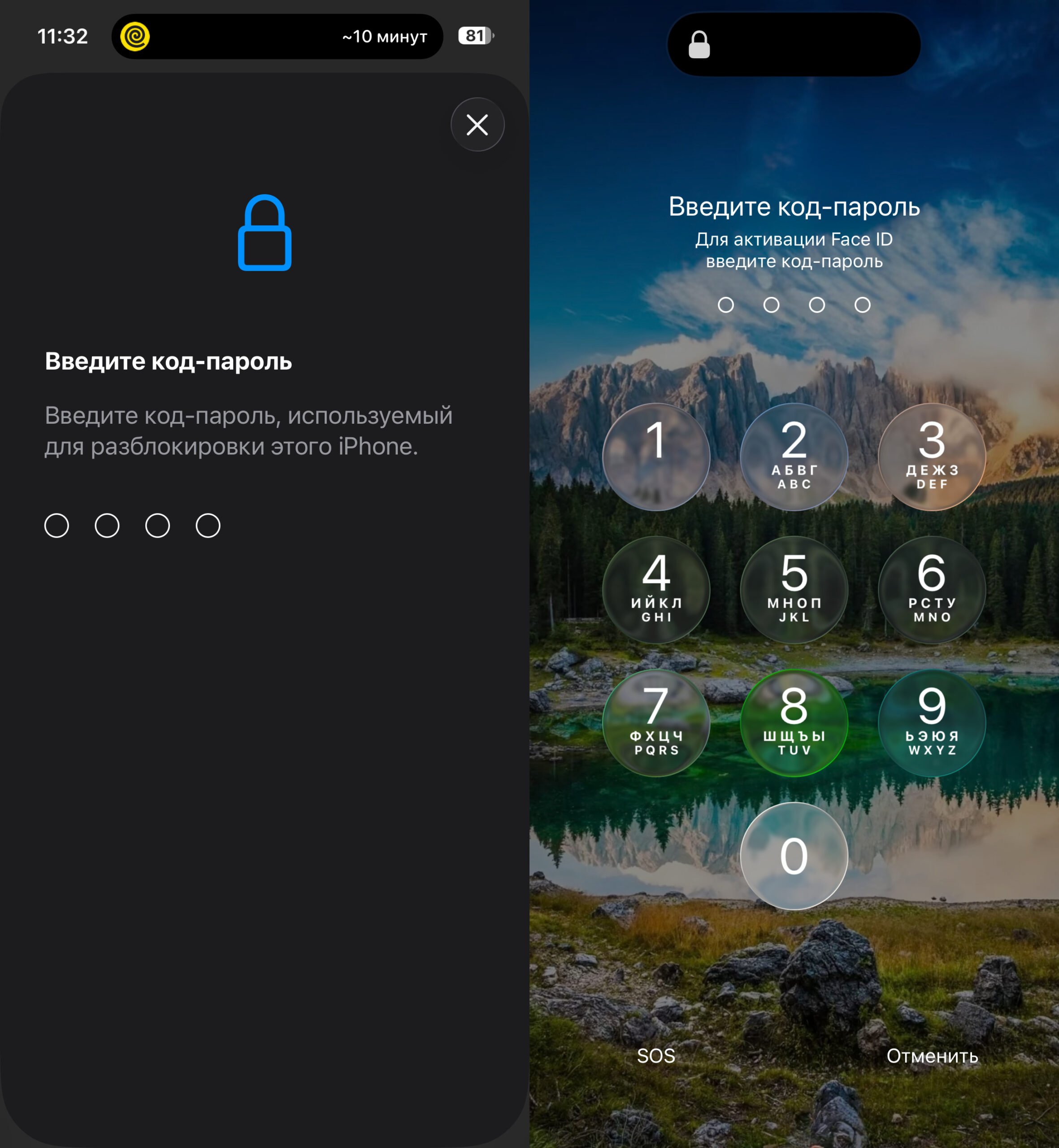
Even with Face ID enabled, in some situations you’ll need to enter a passcode with no alternative
Additionally, a passcode will be mandatory when changing security settings, adding new faces, updating the system, and even accessing Face ID settings. This way, Apple ensures that access to key device functions is always confirmed by the owner.