Every time after restarting your Mac, a bunch of apps you don’t even plan to use right now open up. Yandex Disk, Google Drive, MAX, Telegram, Steam, and other programs launch automatically when you turn on the computer — consuming resources before you even get to open what you actually need. In addition to the large number of new features in macOS 26 Tahoe, there are two convenient ways to fix this.
Make sure to configure auto-launch apps on macOS. Image: howtogeek.com
Why Programs on Mac Launch Automatically
Many programs add themselves to the startup list during installation. Sometimes they ask for permission, sometimes they don’t. As a result, after every restart — for example, after a macOS update — your Mac spends time and RAM launching everything at once. If you don’t use these apps constantly, there’s no point in having them start up.
This is especially annoying after system updates or when restarting due to issues — instead of a clean start, you get a dozen unnecessary windows.
How to Remove an App from Auto-Launch via the Dock
If a specific app that opens by itself when you turn on your Mac is bothering you, you can quickly fix it right from the Dock:
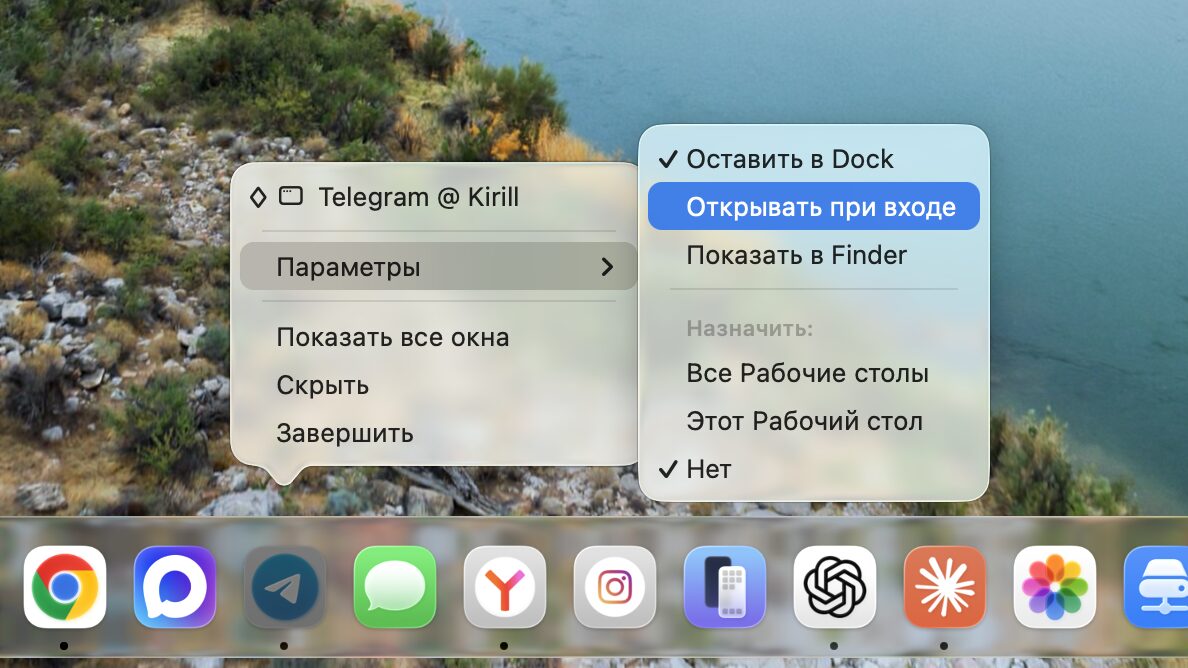
You can remove auto-launch for a specific program right from the Dock
- Find the icon of the desired app in the Dock (it must be running).
- Right-click on the icon.
- In the context menu, hover over “Options.”
- Uncheck “Open at Login.”
If there’s a checkmark next to “Open at Login” — the app launches automatically. Remove the checkmark — it won’t anymore. This method is suitable for quickly configuring one or two apps, but it won’t show the full list of everything that launches at startup.
Login Items in macOS: Where to Find Them and How to Configure
If you want to see the complete list of programs that load along with your Mac, here’s the path:
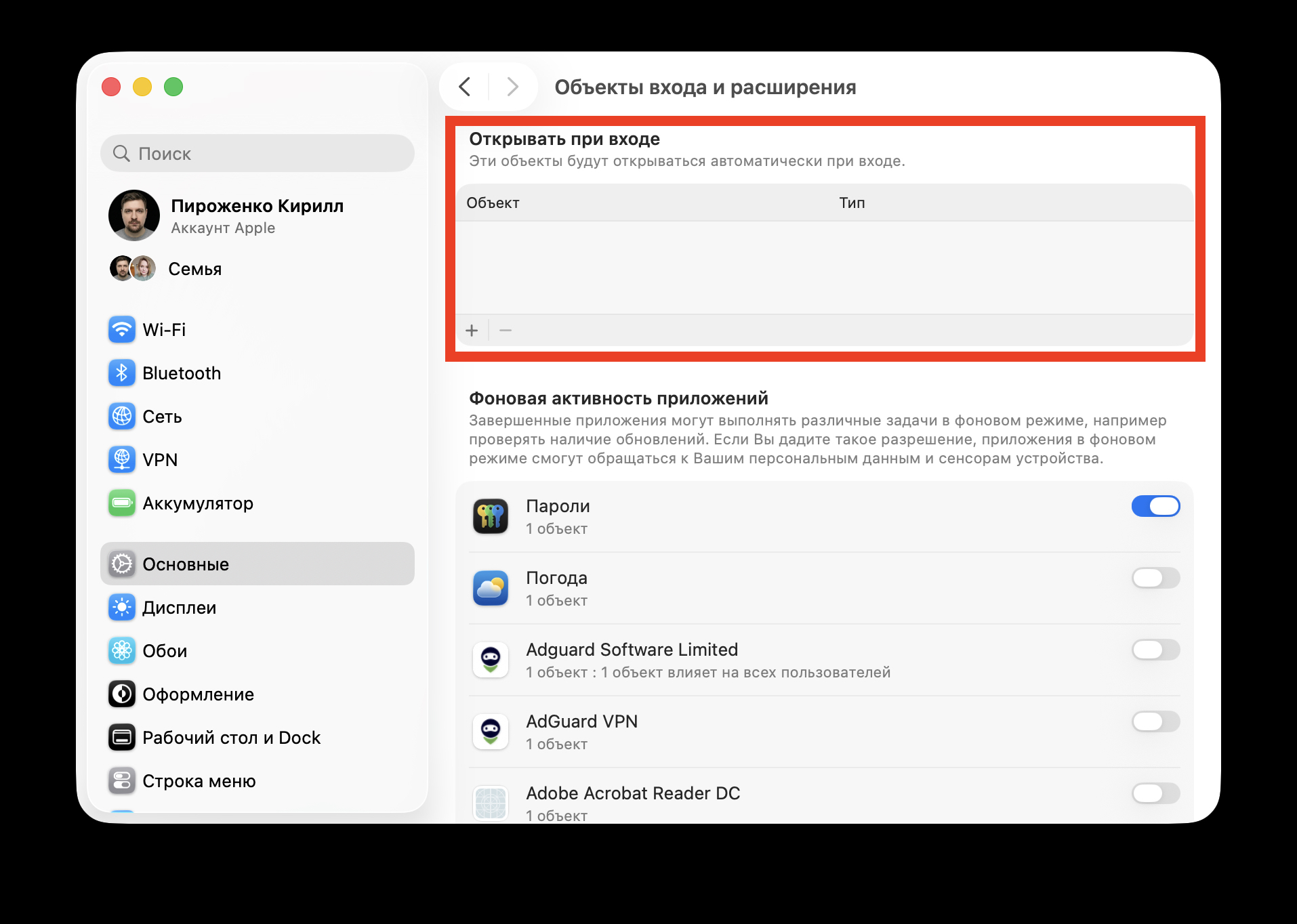
This list contains all auto-launch programs. Remove anything unnecessary using the “−” button
- Open “System Settings.”
- In the sidebar, select “General.”
- Scroll down and select “Login Items & Extensions.”
At the top of the section, you’ll find the “Open at Login” block — this is the complete list of apps that launch automatically with every Mac startup. To remove an app from auto-launch, select it and click the “minus” (−) button. After that, it will no longer launch on restart.
How to Disable Background App Activity on Mac
In the same section of System Settings, just below, you’ll find the “Allow in the Background” block. Here you’ll see programs that can run in the background — checking for updates, syncing data, and performing other tasks, even when you haven’t opened them.
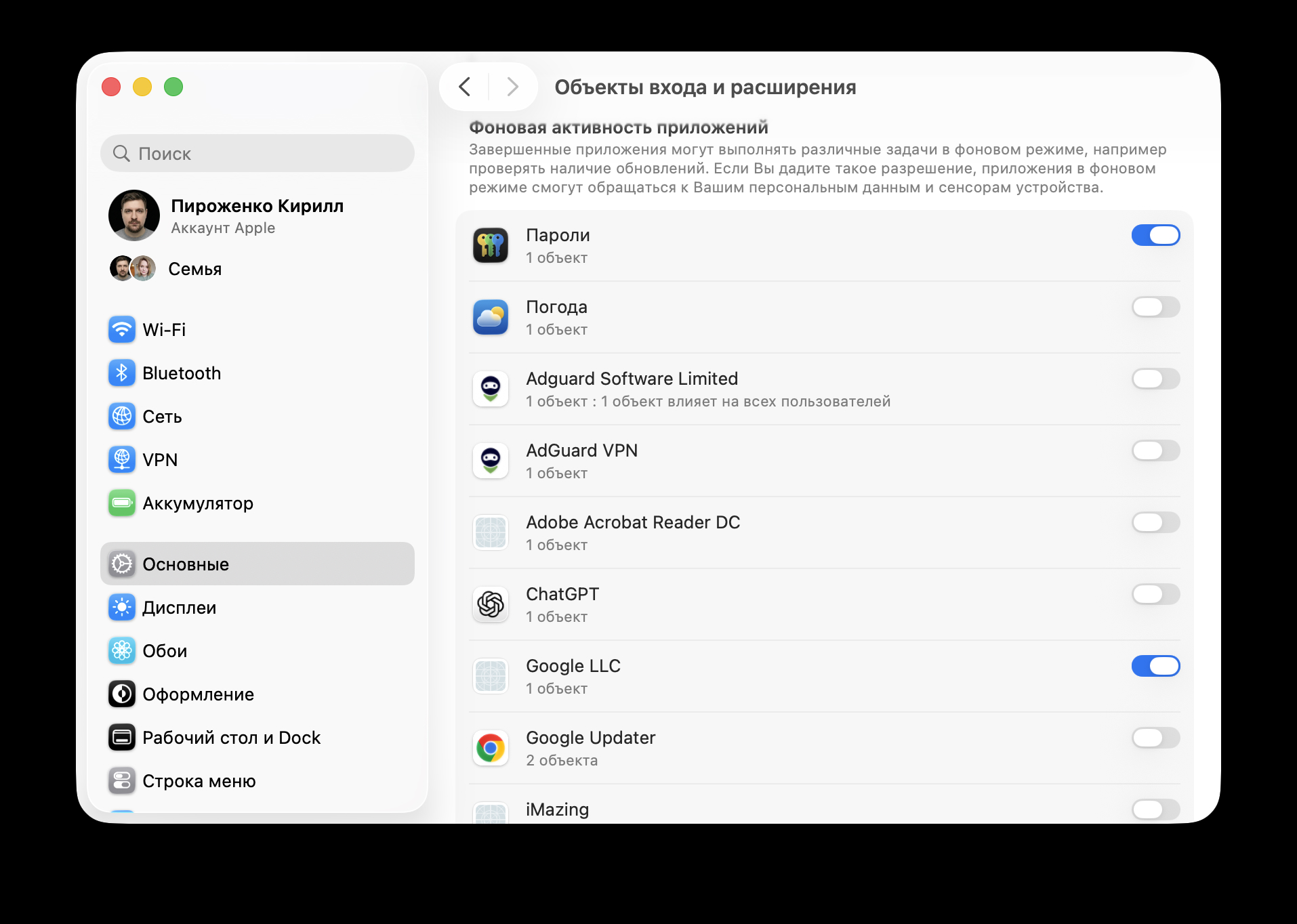
Restrict background activity for apps that objectively don’t need it
Important distinction: you cannot remove apps from the background activity list, but you can toggle the switch next to each one. Keep in mind that disabling background activity may affect functionality — for example, a messenger will stop showing notifications if you disable its background activity.
How Auto-Launch in macOS 26 Tahoe Differs from Older Versions
In older versions of macOS (before Ventura), startup management was hidden in the “Users & Groups” section. It was noticeably harder to find. In macOS 26 Tahoe, everything is gathered in one place — under “General” — “Login Items & Extensions”, and it’s genuinely simpler and more intuitive.
If your Mac has become slower to boot or you notice unnecessary apps right after turning it on — start with the “Login Items” section in System Settings. Cleanup will take a couple of minutes, and the difference in boot speed can be noticeable. If everything works fine for you, there’s no need to change anything — auto-launch isn’t dangerous, it just wastes resources unnecessarily.


