If your AirPods Pro case beeps when charging, makes strange sounds at night, or chimes for no apparent reason — you’re not alone. When the earbuds first came out, the AirPods Pro 2 case sounds were a shock to practically all buyers. Fortunately, you can disable the charging case sounds in just a couple of taps, but not all sounds are the same: some can be turned off through settings, while others are part of how the earbuds work, and there’s no way to get rid of them yet. In this article, we’ll cover all types of case sounds, show you step by step how to disable them, and explain what to do if the toggle is grayed out.
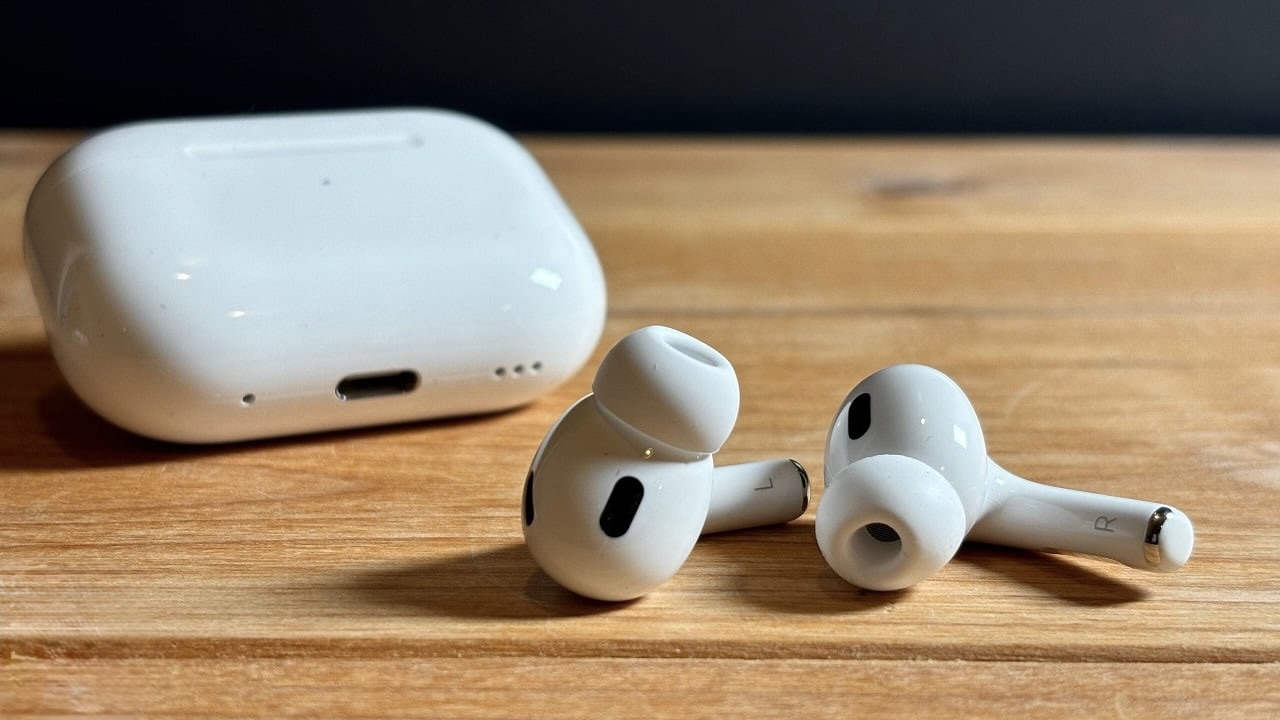
AirPods got a case with a speaker, and it can beep
AirPods Pro Case Sounds: What the Signals Mean
The AirPods Pro 2 and 3 charging case is equipped with a built-in speaker that wasn’t present in previous generations. This speaker plays several types of audio signals, each with its own purpose. Most importantly, make sure to update your AirPods to the latest firmware so everything works properly.
Charging start sound. When you place the case on a wireless charging pad or connect it with a cable, a short melodic chime plays. The AirPods Pro 2 case plays a soft chime when connected to charging — via MagSafe, Lightning, or USB-C. This is confirmation that charging has started successfully, similar to the charging sound on Apple Watch or iPhone.
Low battery sound. The case emits an audio signal when the battery level is low, reminding you to recharge.
Pairing sound. The AirPods 4 (ANC), AirPods Pro 2, or AirPods Pro 3 charging case plays a sound during pairing, charging, and other situations.
Quiet periodic chime (self-diagnostics). This is the most mysterious sound that startles owners: the earbuds, sitting in the case, suddenly emit a quiet high-frequency signal. According to Apple’s support page: “To ensure optimal performance of the AirPods microphones and speakers (for example, to obtain high-quality hearing test results), your AirPods may periodically play a quiet chime while in the charging case.” This sound is produced by the earbuds themselves, not the case speaker.
Apple added this feature to AirPods Pro 2 through firmware update version 7B19 in October 2024 — simultaneously with the launch of hearing health features, including the hearing test. AirPods Pro 2 check themselves because Apple’s hearing health technology personalizes sound based on a hearing profile. To maintain this personalization, the earbuds need to periodically run self-checks to ensure proper calibration.
AirPods Models with Charging Case Sound
Not all AirPods models produce case sounds — only those with a built-in speaker in the charging case. These include: AirPods Pro 2, AirPods Pro 3, and AirPods 4 ANC. Full list of models with a case speaker:
- AirPods Pro 2 (second generation) — both Lightning and USB-C versions
- AirPods Pro 3 (third generation)
- AirPods 4 with Active Noise Cancellation (ANC)
The charging cases of the first three generations of regular AirPods, AirPods 4 without noise cancellation, and first-generation AirPods Pro do not have built-in speakers. If you have one of these models and the case makes unusual sounds — this could be a sign of a malfunction, and you should contact service.
Disabling AirPods Pro Case Sounds via iPhone
You can turn off AirPods Pro 2 charging case sounds through iPhone settings. Step-by-step instructions:
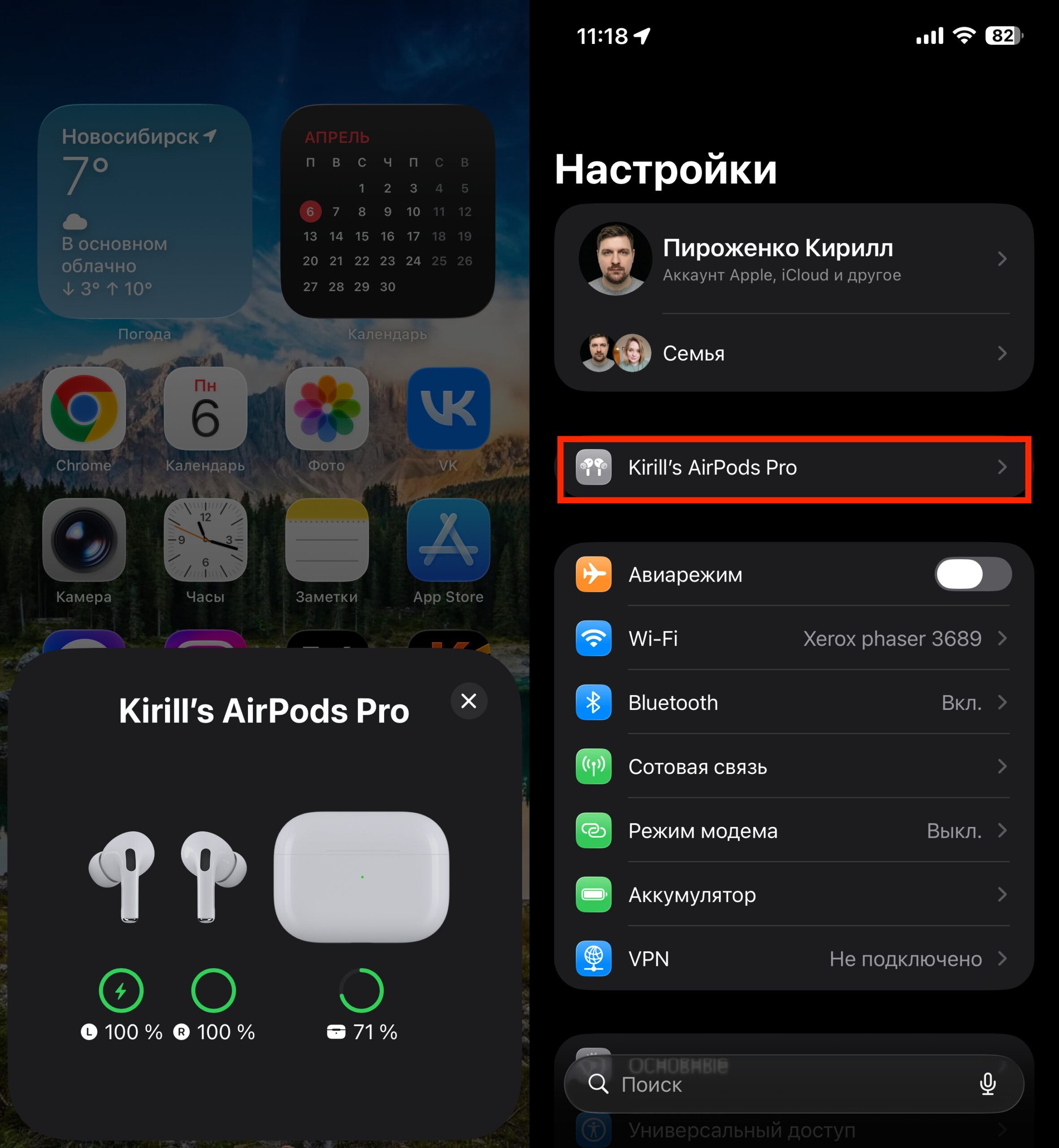
The charging sound can be turned off in AirPods settings
- Put both AirPods in your ears and make sure they’re connected to your iPhone.
- Open the Settings app.
- Tap on your AirPods name right below your Apple ID at the top of the screen.
- Scroll down to “Enable Charging Case Sounds” and toggle it off.
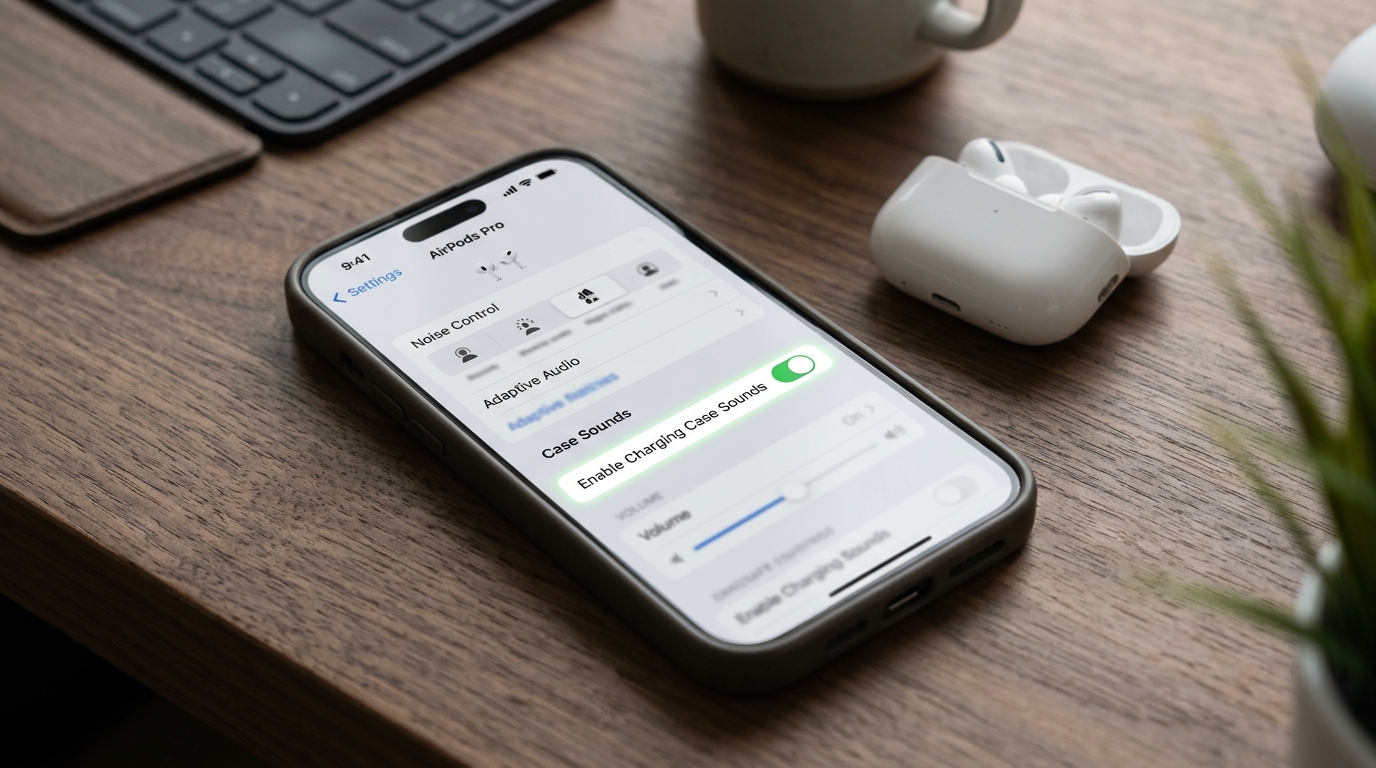
The “Enable Charging Case Sounds” option in AirPods settings on iPhone
After this, the AirPods charging case will no longer play a sound when connected to a charger or when the battery is low. However, it will still play a signal in other situations — for example, when searching through the Find My app.
Configuring AirPods Pro Case Sounds on Mac
If you don’t have an iPhone handy, you can disable AirPods case sounds through Mac.
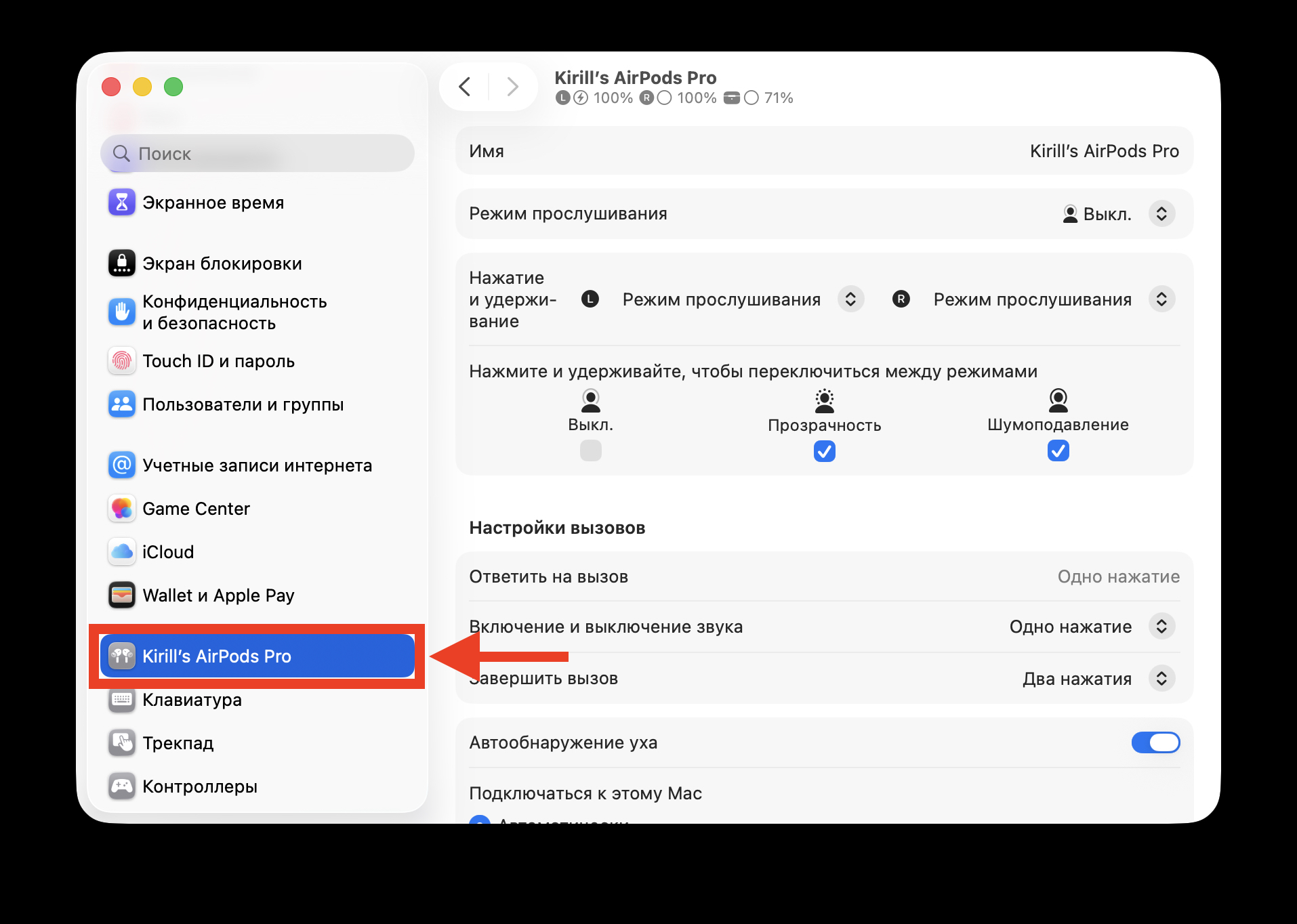
The same can be done on Mac
- Connect your AirPods to your Mac (put them in and make sure they’re active).
- Open System Settings.
- In the sidebar, find your AirPods name and click on it.
- Find the “Enable Charging Case Sounds” toggle and turn it off.
This same instruction also works for AirPods 4 with noise cancellation and AirPods Pro 3 — the setting is universal for all models with a case speaker.
Disabling AirPods 4 ANC Case Sounds
The procedure for AirPods 4 with active noise cancellation is completely identical to AirPods Pro 2. Open Settings on your iPhone, tap on the earbuds name at the top of the screen, and toggle off “Enable Charging Case Sounds.”
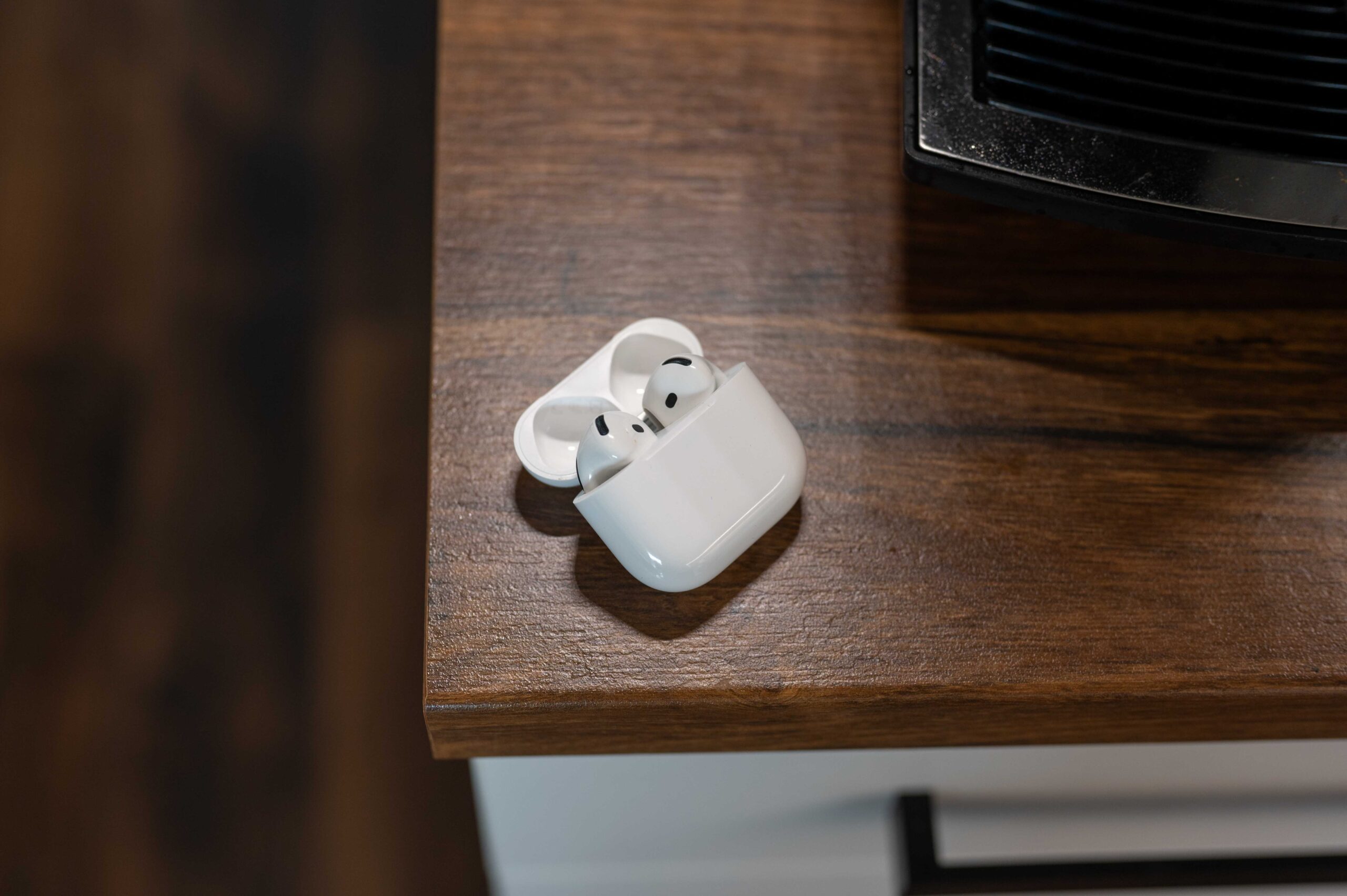
AirPods 4 ANC also has a speaker
Please note: AirPods 4 cases without noise cancellation do not have a built-in speaker and do not play audio notifications. So if you have the basic AirPods 4, this setting won’t appear in the menu.
Why AirPods Charging Case Sounds Won’t Turn Off
One of the most common complaints: the “Enable Charging Case Sounds” toggle appears grayed out and doesn’t respond to taps. This issue is encountered by many AirPods Pro 2 and AirPods 4 ANC users. Here are the main causes and solutions.
The case is connected to a charger. The setting remains inactive (grayed out) if the charging case is currently connected to a power source. Disconnect the case from the charger and try again.
Low case or earbuds battery. If the AirPods battery or case charge is too low, some audio features may be temporarily disabled. iOS limits these functions to conserve energy. Charge the case and earbuds to at least 20–30%, then check the setting.
Earbuds not in your ears. AirPods settings on iPhone only appear when the earbuds are in your ears. Make sure both earbuds are inserted and connected.