If you actively use the MAX messenger, sooner or later you’ll need to delete messages — an accidentally sent phrase, outdated files, or an entire conversation. Let’s figure out how to delete messages in MAX: from a single specific post to a complete chat cleanup. This guide covers personal dialogues, group chats, and channels.

Figuring out how to delete a message in MAX
How to Delete a Single Message in MAX
You can delete one or several messages in a MAX chat in just a couple of taps. The process is the same for Android and iPhone.
Step-by-step instructions for smartphone:
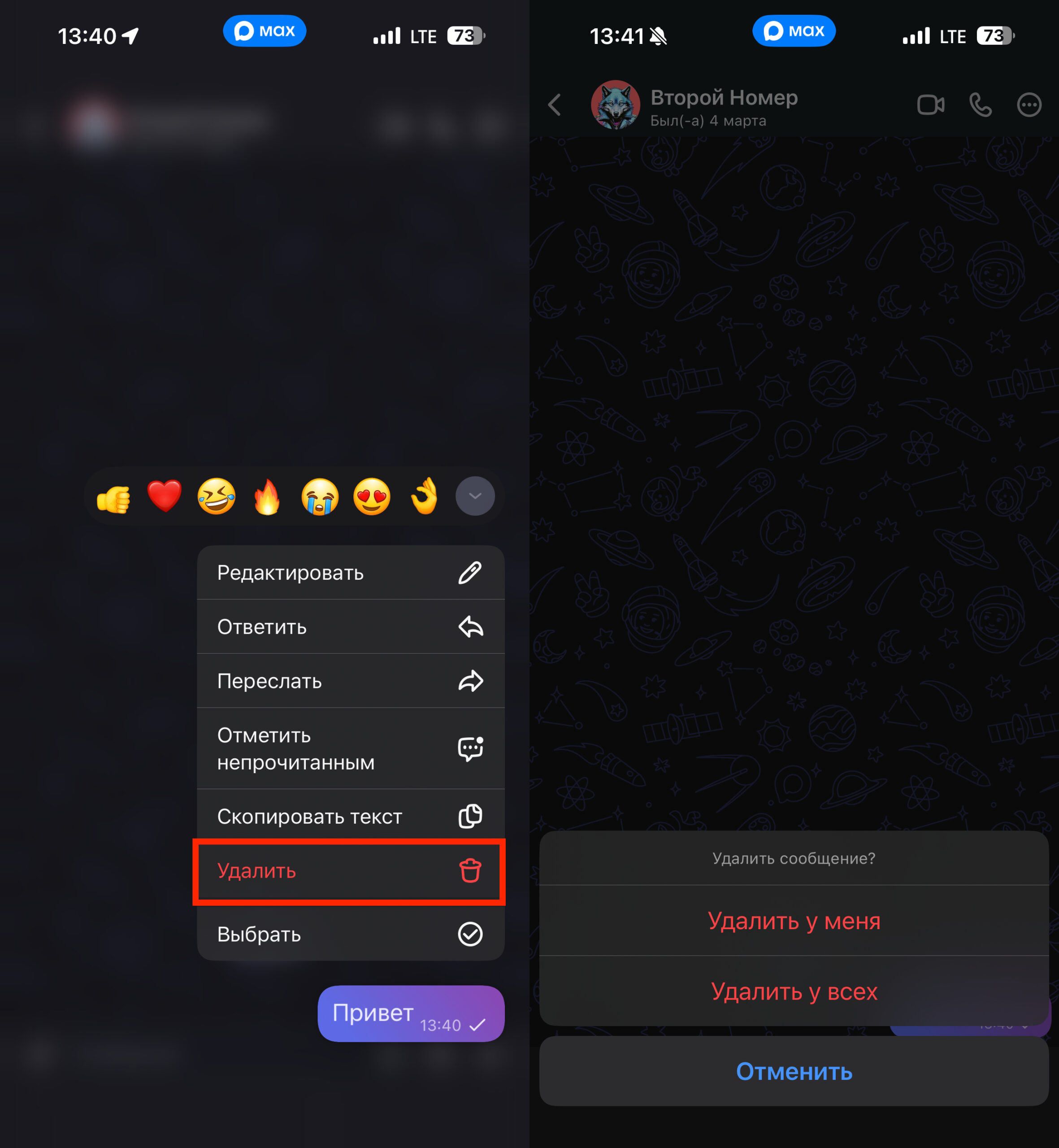
Deleting a message in MAX is very simple
- Open the desired chat in the MAX app.
- Press and hold the message you want to delete.
- If you need to remove multiple messages — sequentially select the others by tapping.
- Tap the trash icon at the top of the screen.
- Choose the deletion option: “Delete for me” or “Delete for everyone.”
If you’re deleting your own message, both options are available. If it’s someone else’s — only “Delete for me”: it will disappear from your screen but remain visible to the other person. On a computer or in the web version of MAX, do the same, but instead of a long press, right-click on the message and select “Delete” from the context menu.
Delete for Me or for Everyone in MAX — What’s the Difference
MAX offers two deletion modes, and it’s important not to confuse them:
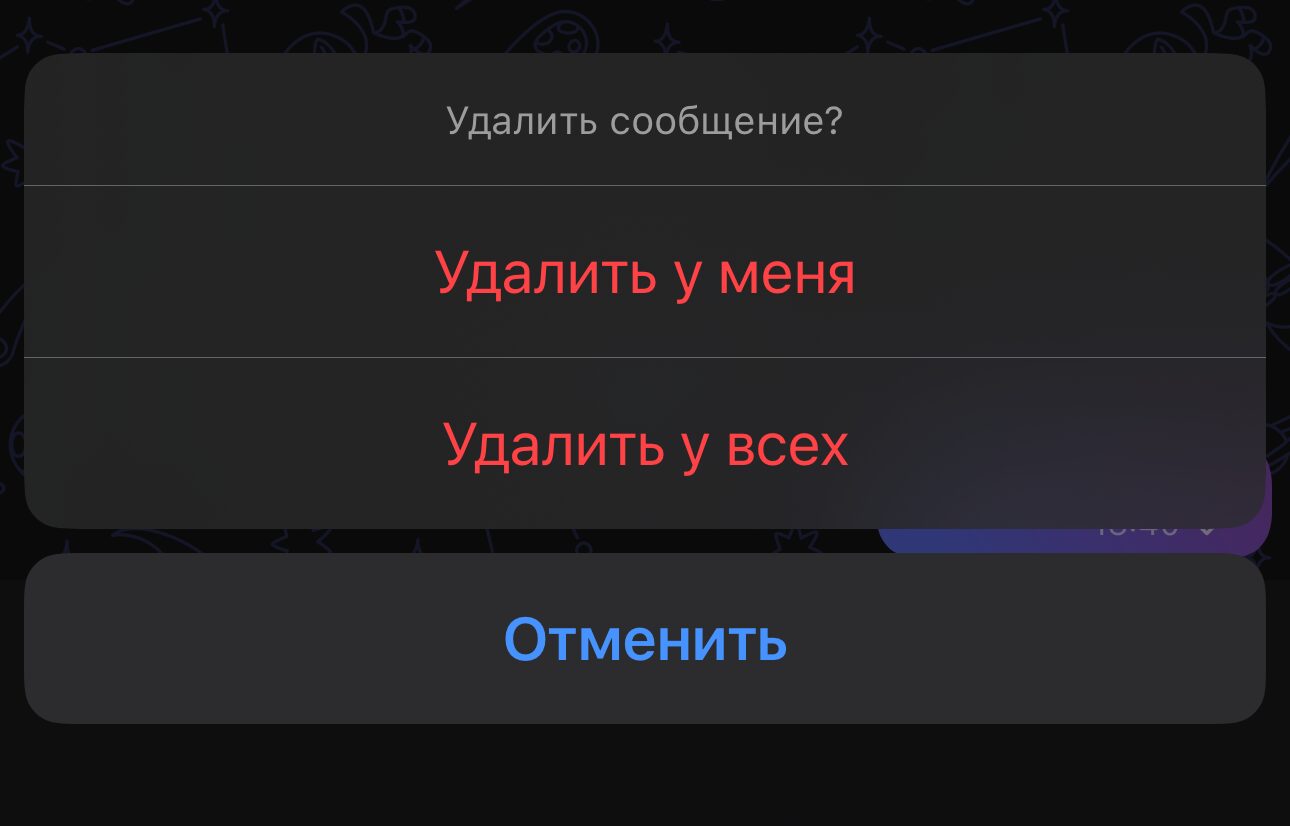
Two buttons for deleting messages
- “Delete for me” — the message disappears only from your device. The text, photo, or video still appears for the other person or in the group chat.
- “Delete for everyone” — the message is erased for all conversation participants. This option is only available for your own messages and is time-limited.
According to various sources, the time limit for “delete for everyone” is 7 days from the moment of sending. After that, you can only delete the message for yourself — it will remain visible to the other person. Keep this in mind when chatting: if you sent something unnecessary and want to remove it for everyone — act quickly, don’t put it off.
How to Delete All Messages in MAX and Clear a Chat Completely
If you need to erase an entire conversation history at once, you don’t have to delete each message one by one. MAX has a full chat clearing function.
Instructions for a personal dialogue:
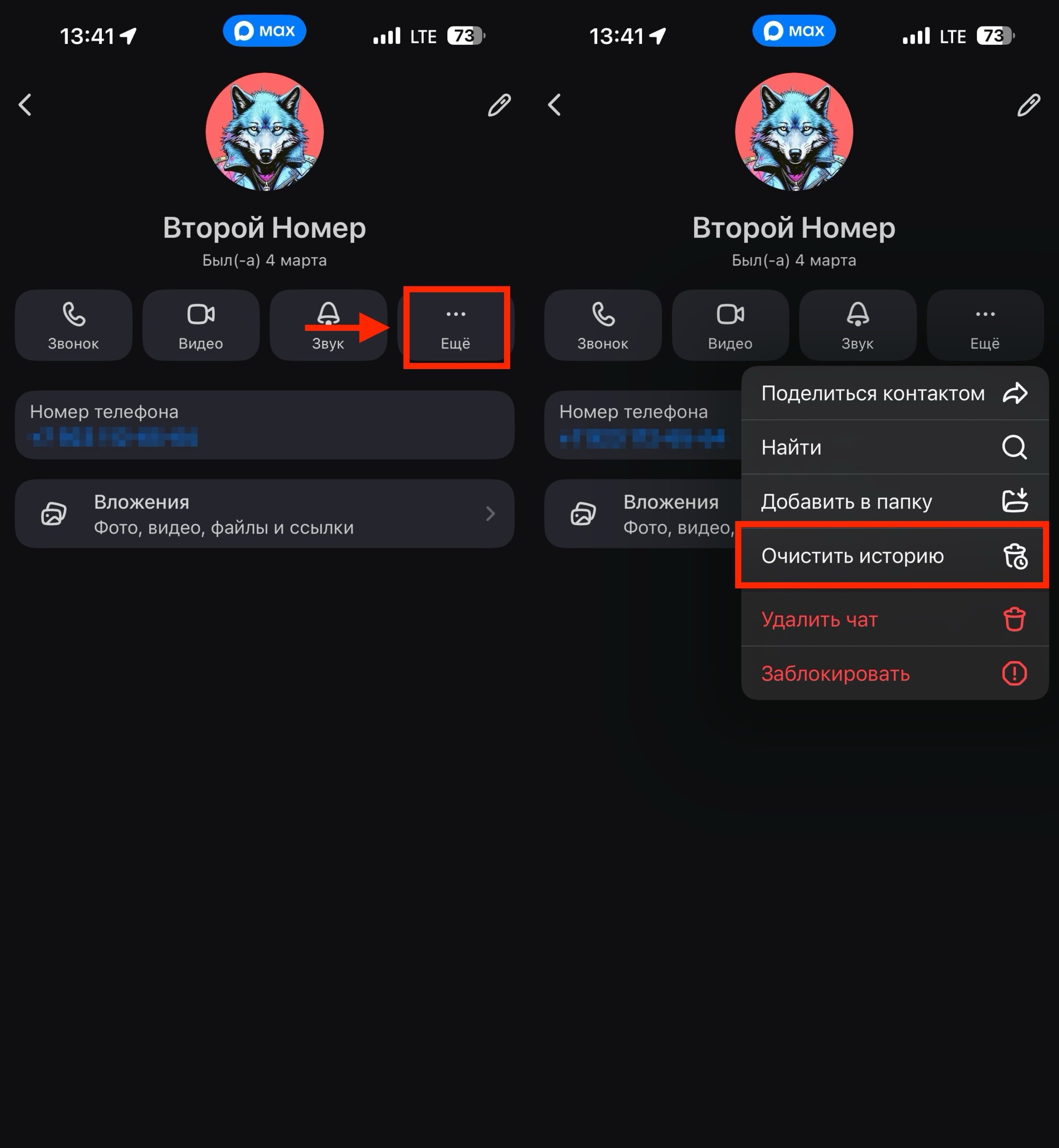
Clearing history is very simple
- Open the desired chat.
- Tap on the name or avatar of the contact at the top of the screen — their profile will open.
- Tap the “More” button.
- Select “Clear history” and confirm the action.
All messages will disappear from your device, but the conversation will be preserved for the other person. It’s not possible to erase the history simultaneously for everyone in a personal chat — each participant clears their own copy separately.
There’s also another option — “Delete chat.” The difference is as follows:
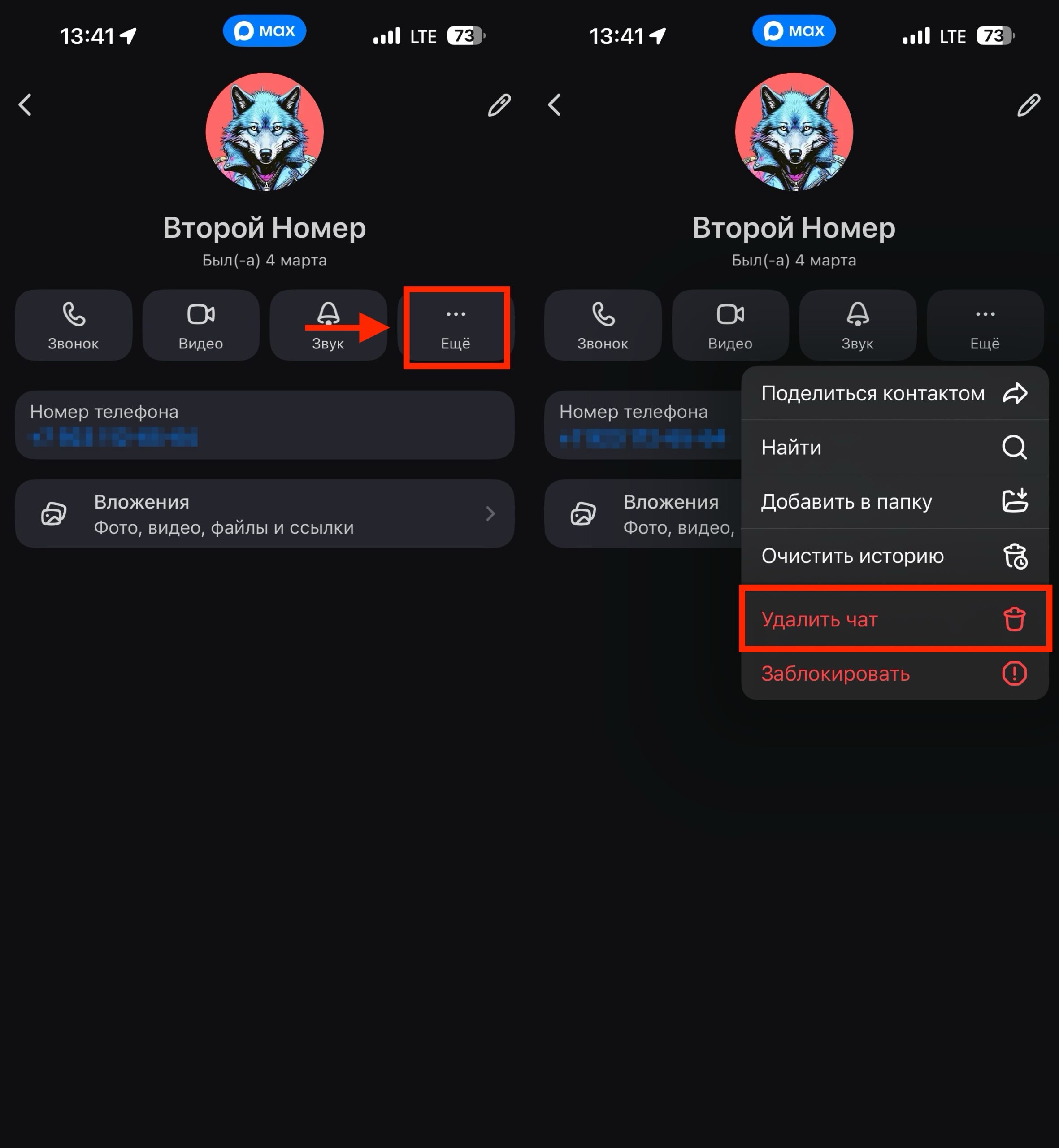
You can delete the entire chat completely
- “Clear history” — all messages disappear, but the dialogue itself remains in the chat list.
- “Delete chat” — both the messages and the chat itself are removed from the list.
On PC or in the web version of MAX, you can right-click on a dialogue in the chat list and select “Clear history” — it’s even faster this way.
It’s not possible to clear all chats at once in MAX. You’ll have to delete conversations in each dialogue separately.
How to Delete Messages in a MAX Group Chat
In MAX group chats, deletion rules depend on your role — regular participant or administrator.
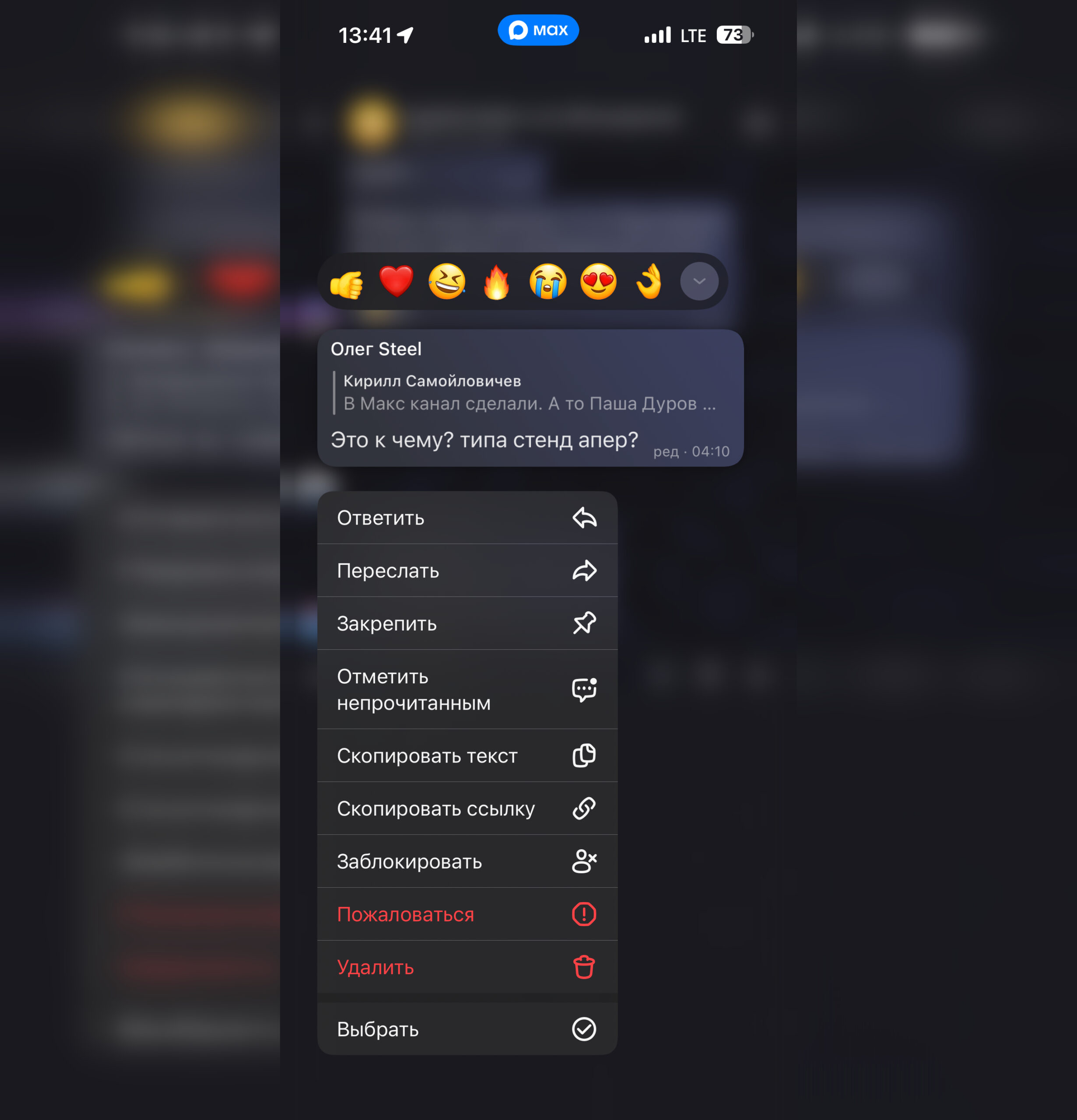
In a group chat, messages are deleted similarly to individual ones
If you’re a regular participant:
- Your own messages can be deleted for yourself or for everyone (within the established time limit).
- Other people’s messages — only for yourself.
- You can clear the group history, but only on your own device. The conversation will be preserved for other participants.
If you’re an administrator or group owner:
- You can delete any messages (your own and others’) for all participants.
- You can completely clear the group chat history for everyone.
To clear the group history as an administrator:
- Open the group chat and tap on its name.
- Tap “More” → “Clear history.”
- Select “Clear for everyone” and confirm. After this, no messages will remain in the chat for any of the participants.
If you’re not an administrator but want to remove unwanted posts from view, select them and delete “for me” — they will remain on other participants’ screens.
Can You Recover Deleted Messages in MAX
The short answer is no. The MAX messenger has no built-in function for recovering deleted conversations. There’s no archive or built-in backup feature either. The only chance to recover deleted content is to press the “Undo” button, which appears at the bottom of the screen for a few seconds after clearing or deleting a chat. According to various sources, you have about 5 seconds to do this. If you miss it — the conversation is gone permanently.
What else is useful to know:
- Photos and videos may still be saved in your phone’s gallery if you downloaded them earlier, but text messages cannot be recovered.
- If you deleted an important message only “for yourself,” it’s still visible to the other person — ask them to forward the needed text or file.
- When uninstalling the MAX app without clearing history, the conversations won’t disappear from the servers: if you reinstall the messenger and log in with the same number, messages will be restored.
- When deleting your profile (account) in MAX, all conversations are erased, and it will be impossible to recover them even with re-registration.
The conclusion is simple: before deleting anything, think carefully — recovery options in MAX are extremely limited.