The MAX messenger is becoming part of our lives, and we have to accept that. Also, MAX on iPhone can delete both individual messages and entire conversations, but not everyone figures out these settings on the first try. In some cases you can only delete a message for yourself, in others for everyone, and sometimes the app only gives you a few seconds to undo the action. So it’s better to understand right away how each feature works, so you’re not frantically searching for where everything went later.

Figuring out how to delete a message in MAX
How to Delete a Single Message in MAX on iPhone
Most often you need to remove not the entire chat, but one specific message. For example, if you sent it to the wrong person, made a mistake, or simply changed your mind about leaving it in the conversation. In MAX this is done fairly quickly, but the right option doesn’t always appear in an obvious way, especially if you rarely use the messenger.
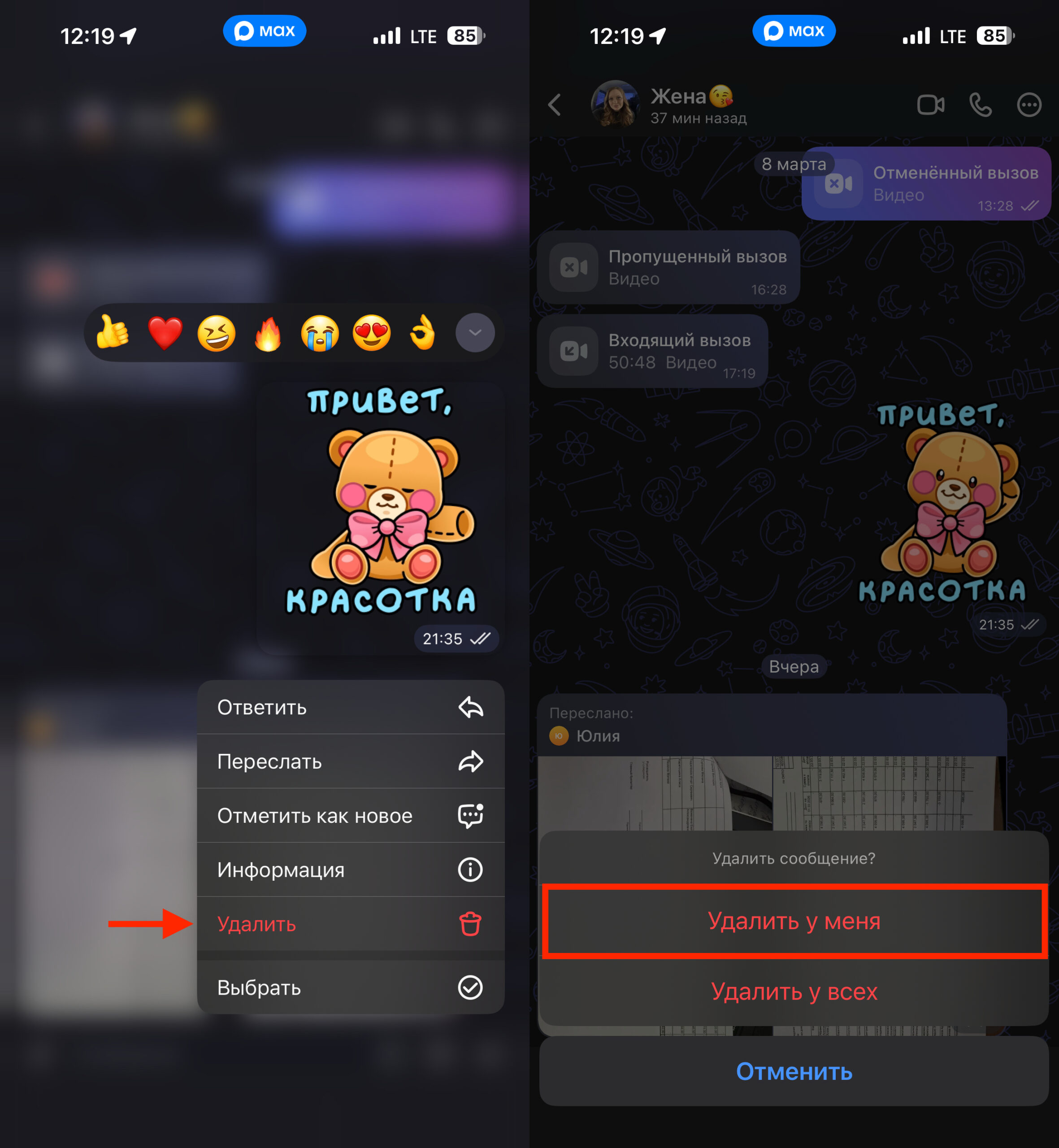
A single message is deleted with this button
- Open the desired chat in MAX.
- Long-press on the message you want to delete.
- Select “Delete.”
- Choose whether to delete the message only for yourself or for all participants in the conversation.
- Confirm the action.
The key here is not to rush on the last step. The app may offer to delete the message only for you or for all chat participants at once. These are fundamentally different actions, because in the first case you’re simply clearing the conversation on your iPhone, while the other person will still see everything as it was.
What Does “Delete for Everyone” Mean in MAX
This is the point where mistakes happen most often. Many people assume that if a message is deleted, it has disappeared everywhere. But in MAX things don’t work that straightforwardly: one mode removes the message only from your device, while the other actually deletes it for everyone participating in the conversation.
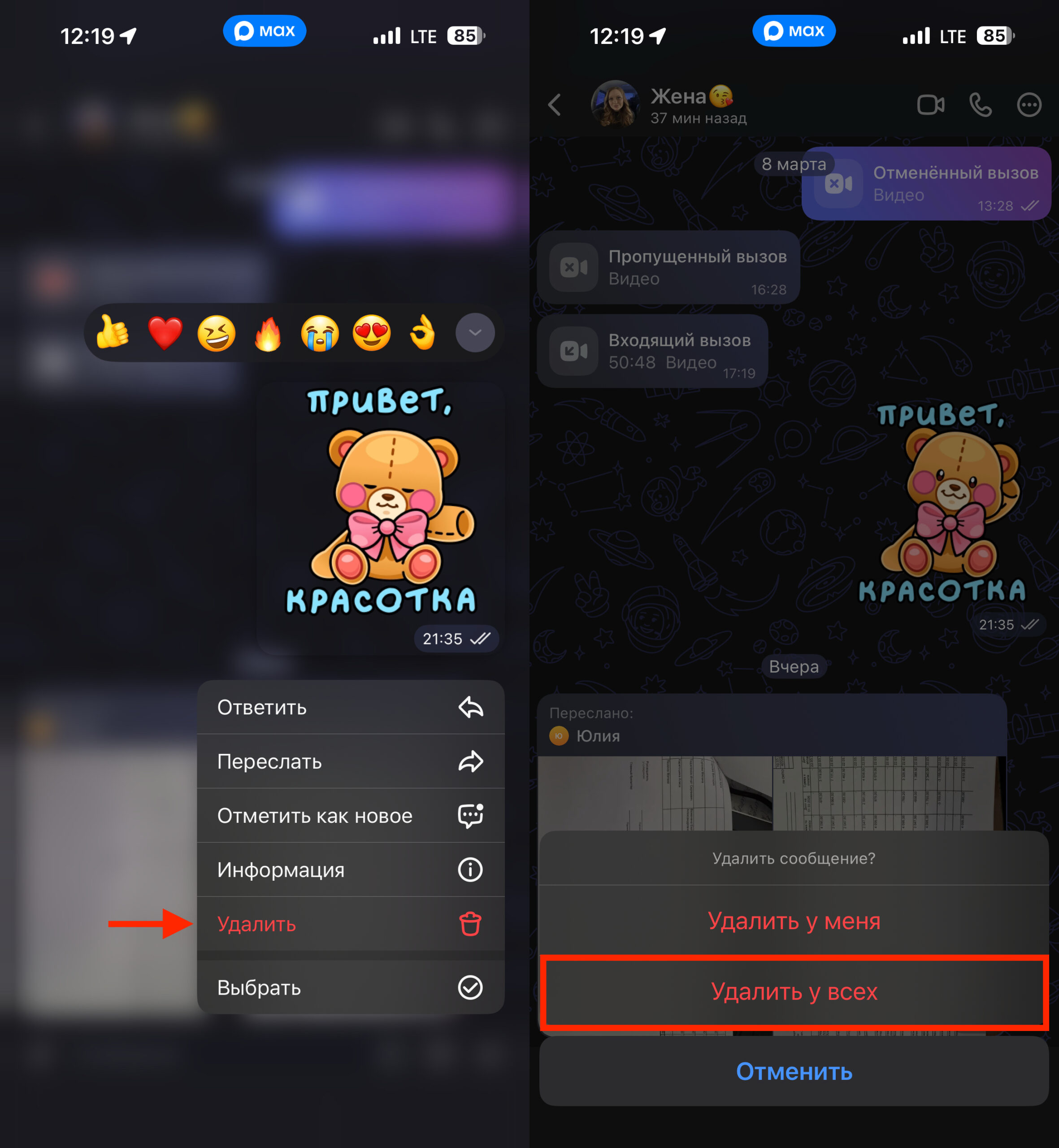
This is how a message is deleted for everyone
- Long-press on the desired message in the chat.
- Select “Delete.”
- Tap “Delete for everyone.”
It’s especially important to remember this in group chats. There, options may be limited, and not every message can simply be erased for all participants. If the message isn’t yours, the app won’t let you delete it globally without admin or group creator privileges, so the available options always depend on the situation.
How to Clear a Conversation in MAX
If too many messages have accumulated in a chat, deleting them one by one is pointless. In such a situation, it’s easier to clear the entire history. This is convenient when you no longer need the conversation, but you want to keep the chat itself so you don’t have to search for it again in your contacts or dialog list.
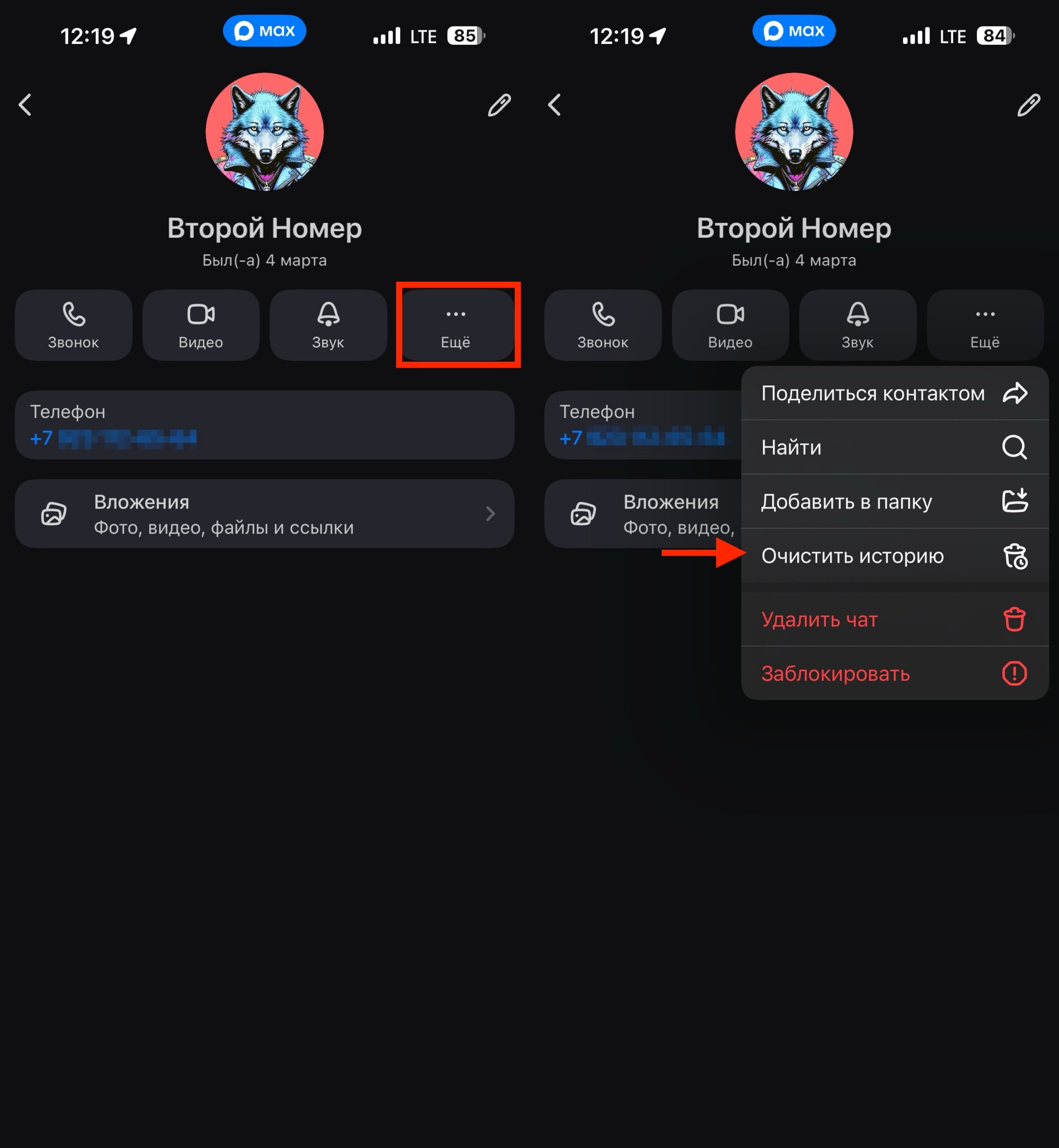
You can clear a conversation with just one button too
- Open the desired conversation.
- Tap on the contact’s name or chat title at the top of the screen.
- Tap the “More” button.
- Select “Clear history.”
- Confirm the action.
It’s important to understand the difference between clearing history and deleting a chat. In the first case, only the messages disappear, while the dialog itself stays in place. In the second case, you remove everything entirely, and the chat disappears from your conversation list as if it was never there.
How to Delete a Chat in MAX
Sometimes you need to not just clear a conversation, but completely get rid of the chat itself. For example, if the dialog is no longer needed, it clutters your list, or you simply want to tidy up the app. MAX has a separate command for this, and it works noticeably more aggressively than a simple history clear.
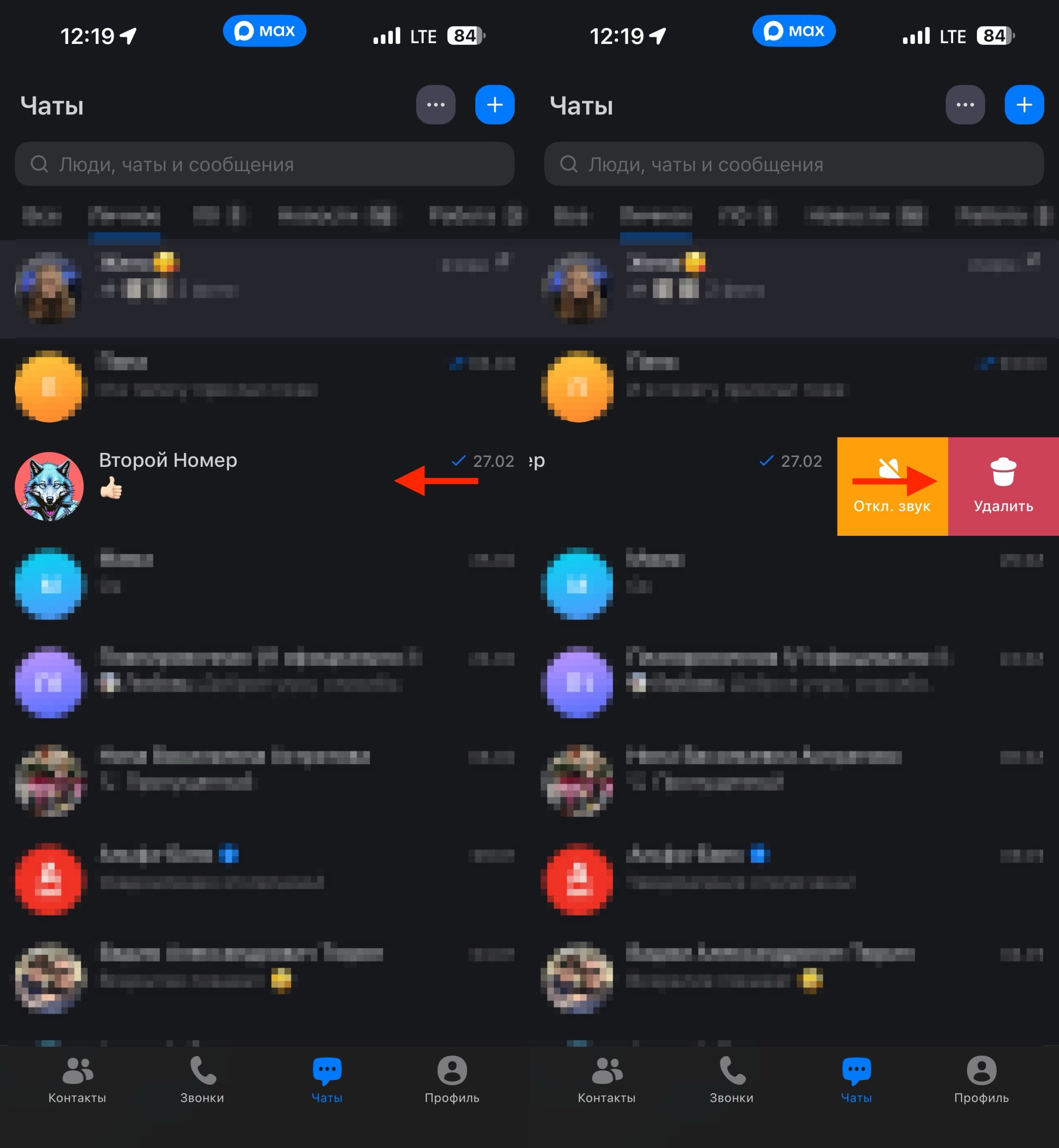
An entire chat can be deleted from the main page
- Find the desired chat in the conversation list.
- Swipe the chat from left to right.
- Select “Delete.”
- Confirm the deletion.
- Verify that the chat has disappeared from the list.
This will let you immediately and completely get rid of an unwanted chat. Considering that MAX still hasn’t introduced an archive feature, this is the only way to tidy up the main page of the national messenger.
How to Restore a Deleted Chat in MAX
This is where MAX isn’t as generous. If you accidentally deleted a chat, the app will show an undo button, but only for 5 seconds. Essentially, this isn’t a full-fledged restoration but rather a brief safety net in case you tapped the wrong thing.
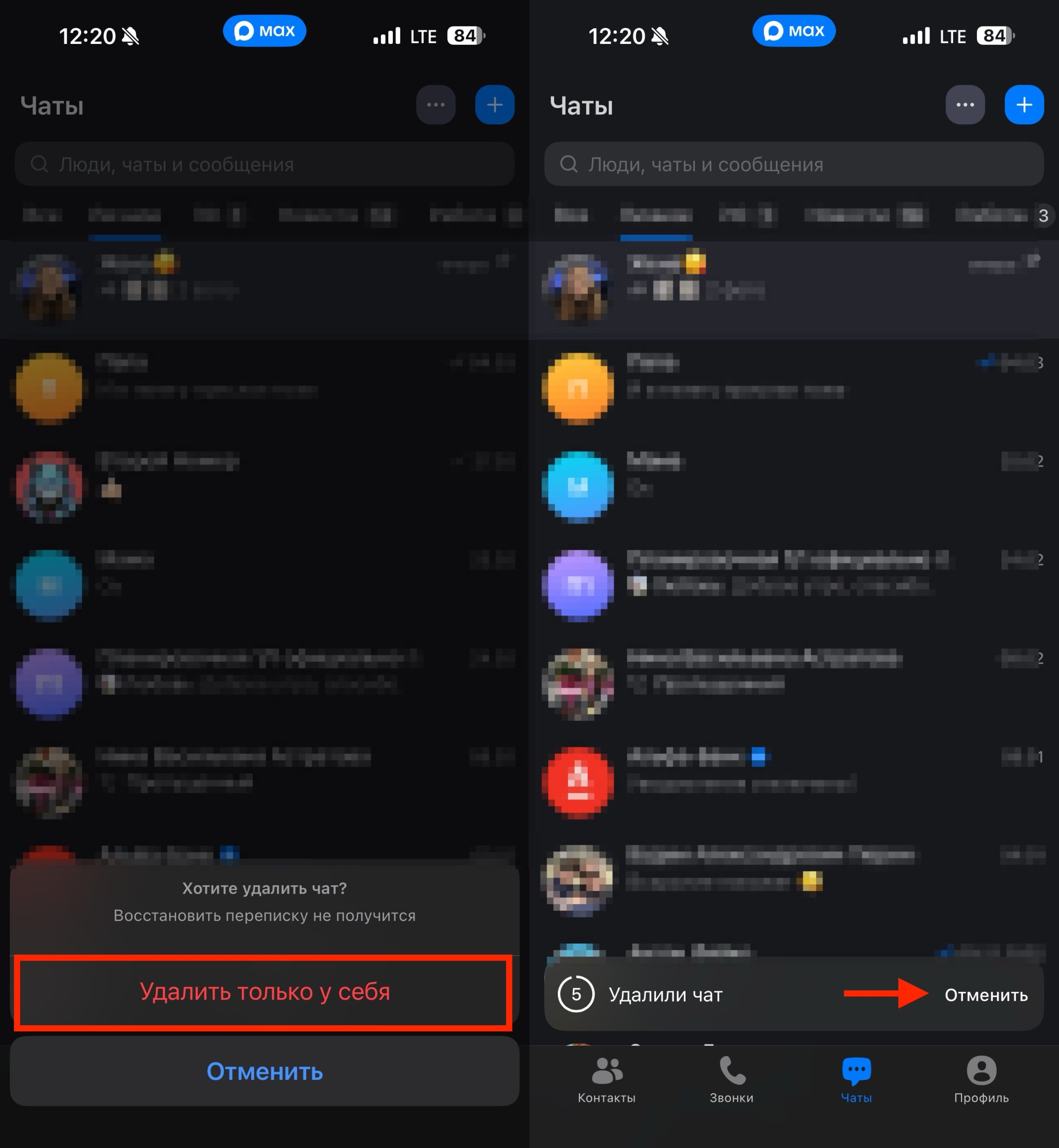
You only have 5 seconds to restore it
- Immediately after deleting, look at the bottom of the screen.
- Wait for the “Undo” button to appear.
- Tap it as quickly as possible.
- Make sure the conversation has returned.
- If the button has disappeared, restoring the chat through normal means is no longer possible.
This is exactly why you can’t get distracted after deleting. If the button at the bottom disappears, the chat is gone for good.