The national messenger is gradually gaining features that make it resemble a full-fledged messenger rather than just an SMS replacement. One of the key capabilities is the group chat in MAX, which can simply be called a “group.” If you’re just getting started with the app, it’s worth familiarizing yourself with the basic functions first. Here we’ll focus specifically on creating a group and working with it.
Creating a group in MAX and adding all relatives
Can You Create a Group in MAX?
Yes, you can create a group in MAX. It’s a shared chat where multiple participants can communicate simultaneously. All participants see each other’s messages and can reply, send files, photos, and voice messages.
All groups in MAX are private. You can’t find them through search. To access a private group chat in MAX, you need an invitation from an administrator or one of the participants. It’s a great solution for family and work communication.
What’s the Difference Between a Group and a Channel in MAX?
This is an important question because beginners often confuse the two formats. A group is a space for communication: all participants can write messages, reply to each other, and participate in the dialogue. A channel is a broadcasting platform: only the owner or editors publish messages, while subscribers can only read and leave reactions.
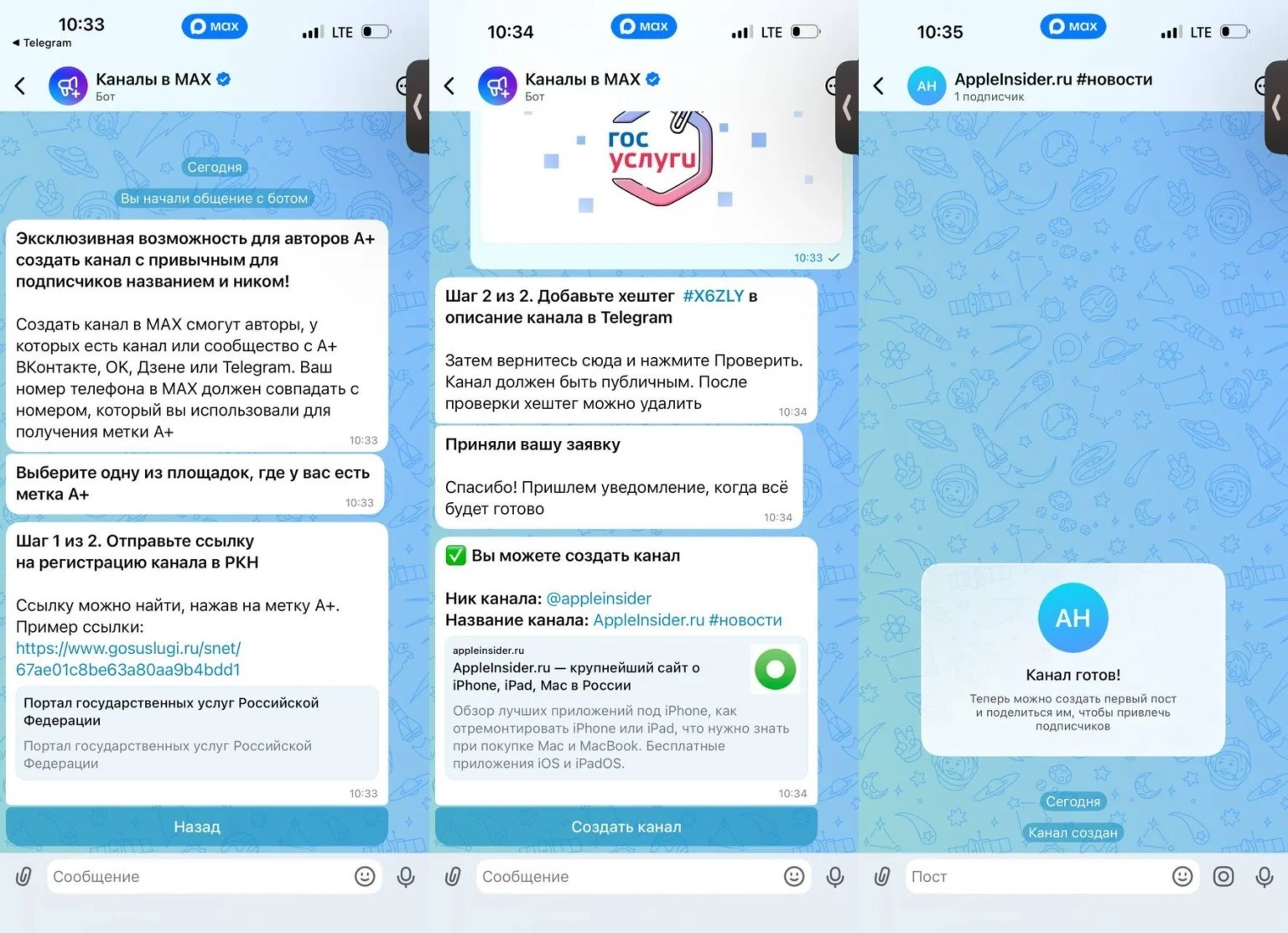
A channel needs to be registered with Roskomnadzor, but a group does not
If you need to organize a class chat, work correspondence, or a family chat in MAX — that’s a group. If you need to publish news, announcements, or content for an audience — that’s a channel. Here we’re talking about groups.
Another difference concerns management. In a group, every participant can write by default. The administrator can restrict the rights of individual participants or allow only certain people to send messages. In a channel, this isn’t an issue: only the author writes there by default.
How to Create a Group in MAX
Creating a new group in MAX is easy. The entire procedure takes about a minute:
- Open the MAX app and go to the “Chats” tab.
- Tap the pencil or plus icon in the upper right corner of the screen.
- Select “Create Group.”
- Invite participants from your contacts list and tap “Continue.”
- Set the group name. It’s required and should be clear to participants.
- Optionally, add a photo or avatar for the group by tapping the camera icon next to the name field.
- Tap “Create.”
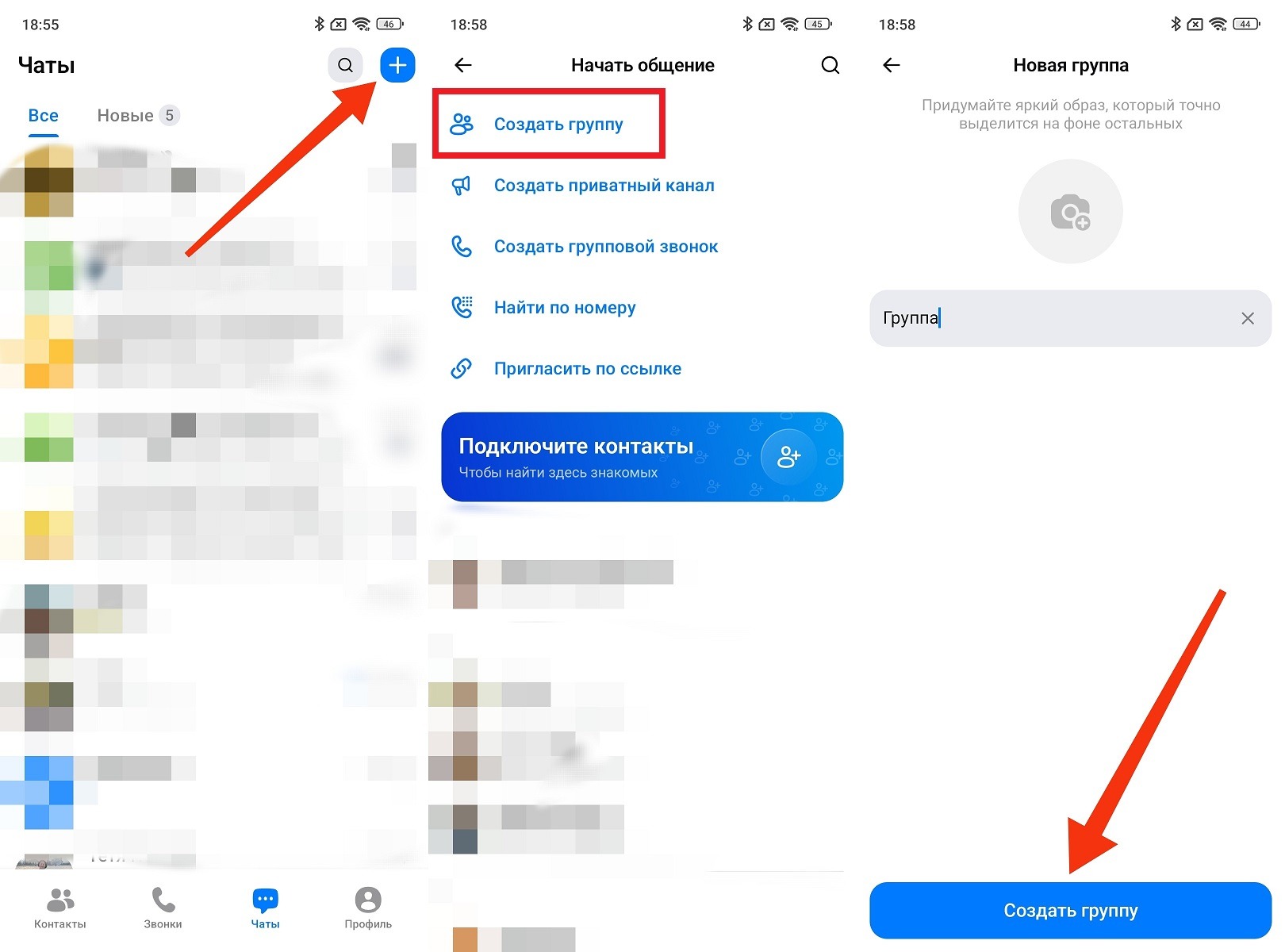
A group chat is created through the main menu of the messenger
After creation, the group will appear in your chat list. You automatically become its administrator with full management rights. In the group settings in the MAX app, you can change the name, avatar, description, and group type at any time. To do this, tap the group name at the top of the screen, then tap the edit icon.
How to Invite People to a MAX Group
You can add participants to a group chat in MAX in several ways. Each is suitable for different situations.
The first method is to add directly from contacts. This is the simplest option if the people you need are already in your phone book and registered in MAX:
- Open the group and tap its name at the top of the screen.
- Select “Add Member.”
- Find the right person in your contacts list and tap their name.
- Confirm the addition.
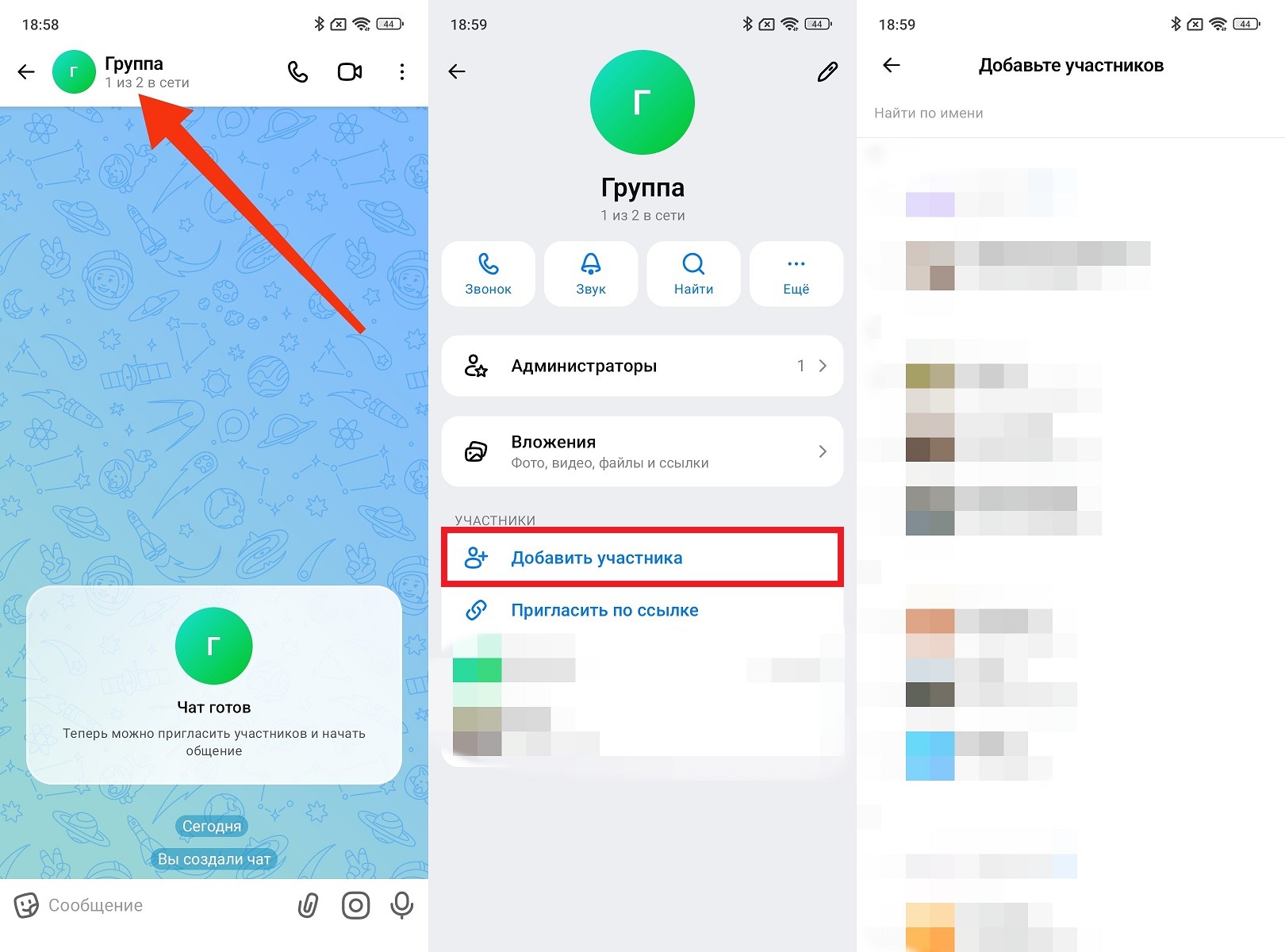
Here you can only add contacts
The added participant will immediately appear in the group and receive a notification. If a contact isn’t on the list, they may not yet be registered in the messenger or haven’t synced with the app.
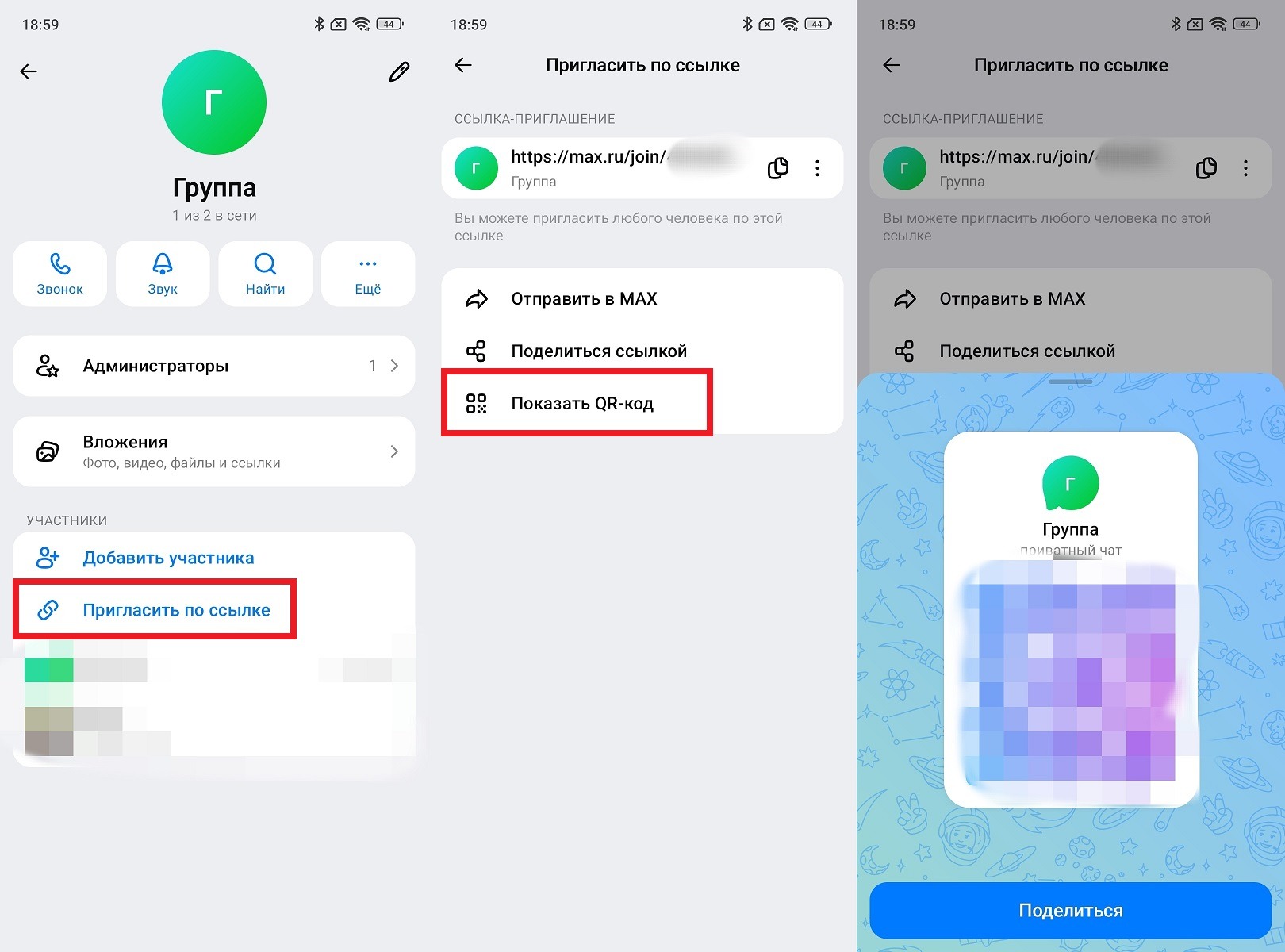
The second method is to share a group link in MAX. This option is convenient when you need to invite many people or those who aren’t in your phone book:
- Open the group and go to its settings by tapping the name.
- Find the “Invite via Link” option.
- Copy the link and send it in any convenient way: in a private message, by email, or in another chat.
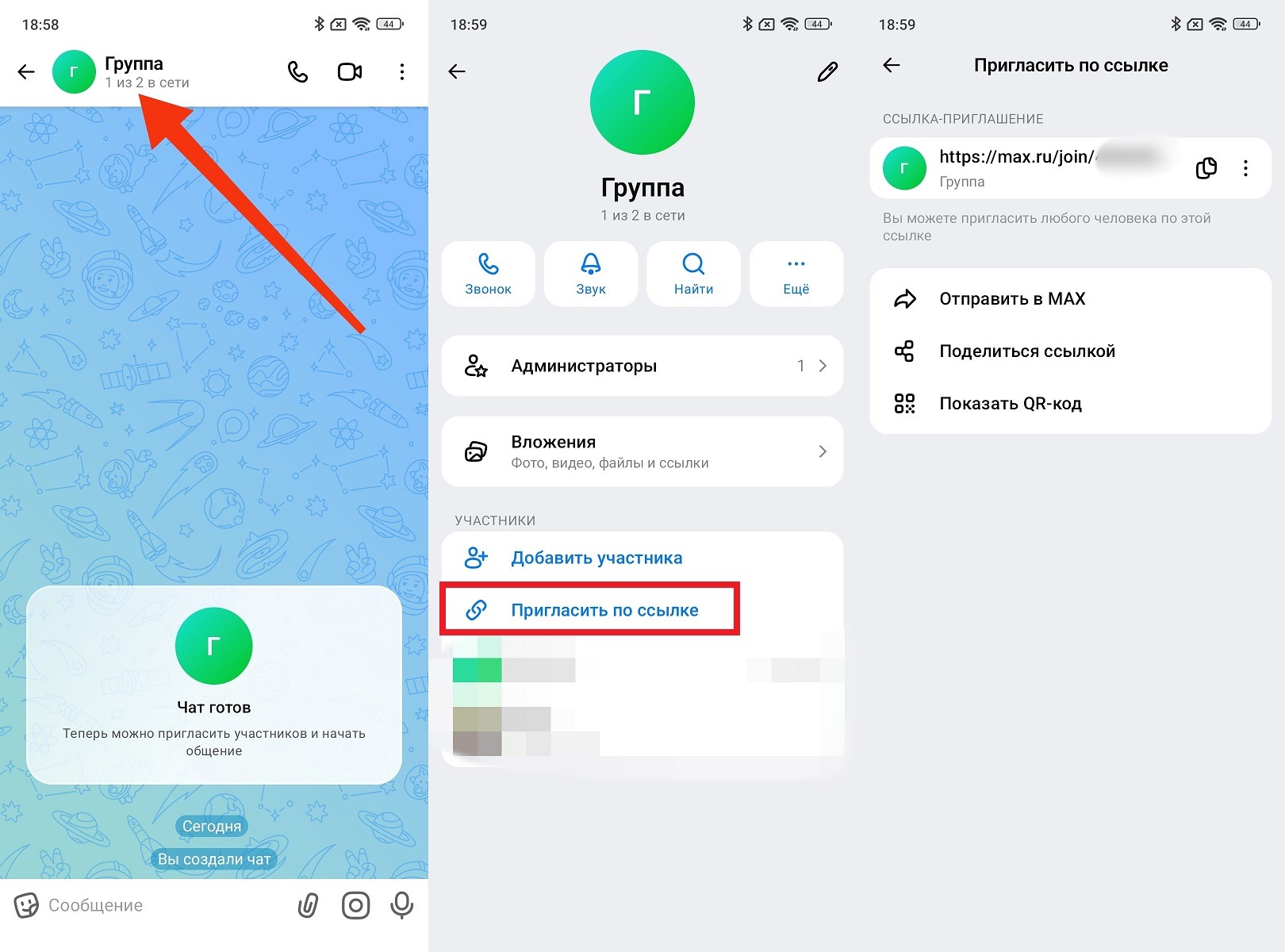
You can share the link in different ways
The link to a group chat in MAX is valid indefinitely, but you can reset it in the settings and generate a new one. For example, if the old one ended up with unwanted people. You wouldn’t want to deal with that, would you?
The third method is an invitation to a MAX group via QR code. This option is convenient for in-person meetings:
- Open the group settings.
- Find the “Invite via Link” section.
- Tap “Show QR Code.”
- Show the QR code to the other person. They scan it with their smartphone camera and join the group.