With the release of iOS 26, AirPods Pro have accumulated more than ten gestures and commands tied to the earbuds’ stems. Some of them have been around for a while, but others appeared quite recently — and not everyone knows about them yet. Here’s a complete list with practical explanations of what’s useful for whom.
New features in iOS 26 aren’t limited to just iPhone. Image: 9to5mac.com
How to Enable Noise Cancellation on AirPods
The set of touch controls on AirPods Pro has grown significantly in recent years. Here’s a complete up-to-date list of what you can do by pressing, swiping, or holding the earbuds’ stems:
All AirPods Pro features tied to gestures and presses. Image: 9to5mac.com
- Play and Pause — single press on the stem.
- Next track — double press.
- Previous track — triple press.
- Answer a call — single press during an incoming call.
- Mute and unmute microphone during a call — single press during a conversation.
- End a call — double press.
- Volume control — light swipe up or down on the stem.
- Switch between noise cancellation, transparency, and adaptive audio — press and hold the stem (needs to be configured in settings).
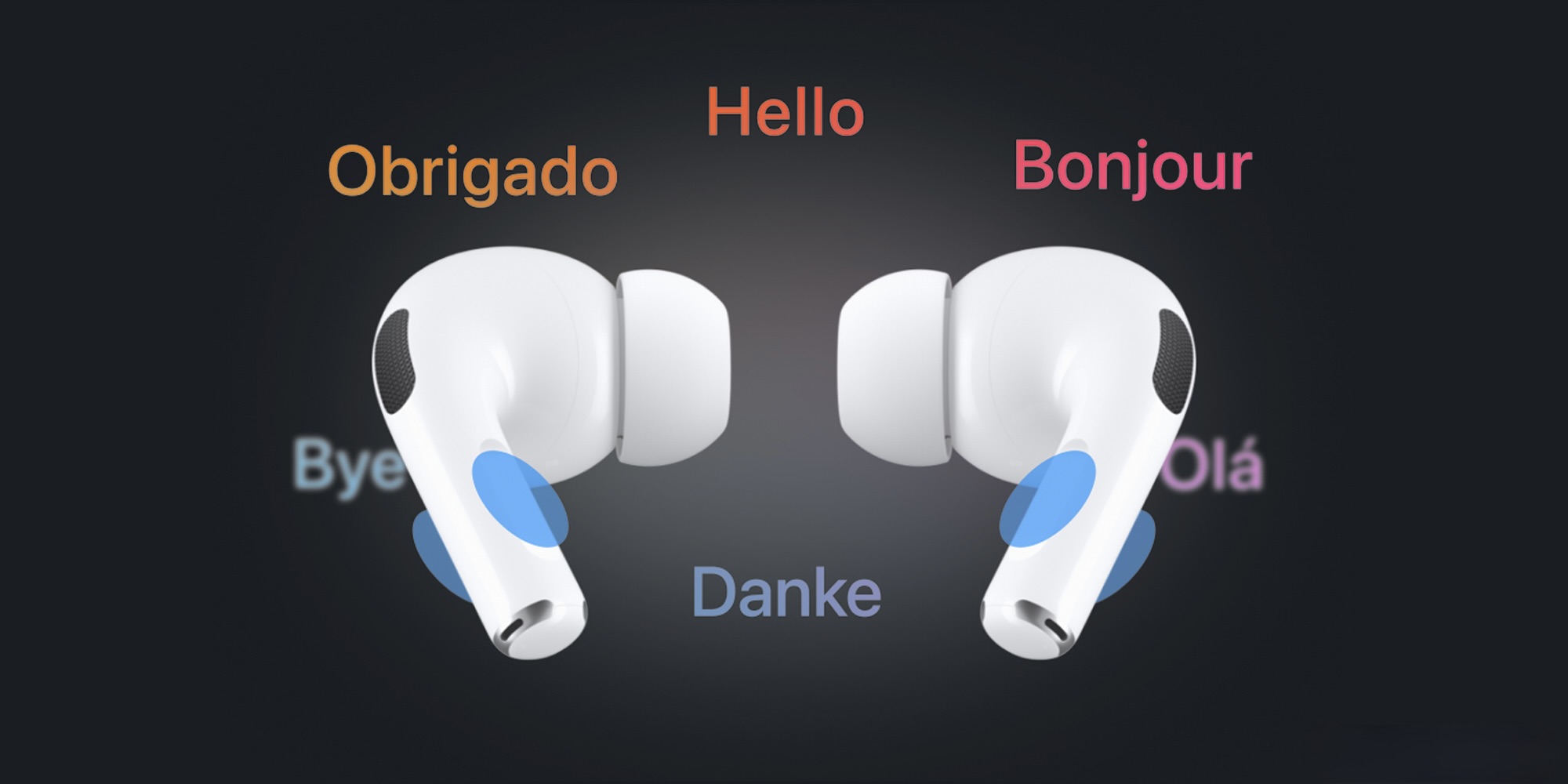
- Live Translation — simultaneously press and hold the stems of both earbuds.
- Invoke Siri — press and hold the stem (needs to be selected in settings).
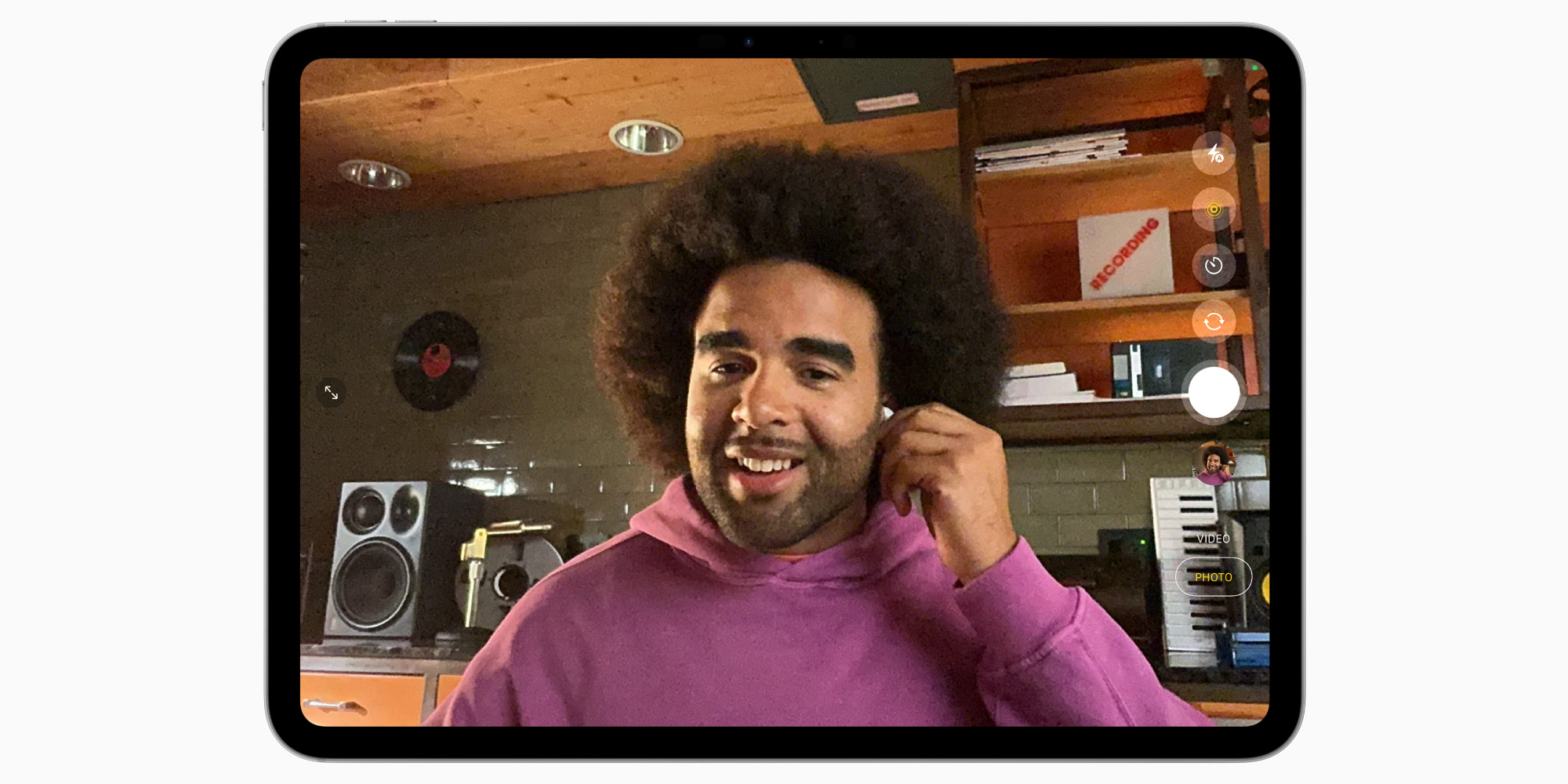
- iPhone camera control — press or hold the stem while the Camera app is open.
- Head gestures — nod or shake your head to answer Siri “yes” or “no.”
Some features require prior setup: go to “Settings” → your AirPods and choose which action to assign to a long press for each earbud. Some gestures need to be manually enabled before they work.
What’s New in iOS 26 for AirPods
The two most notable additions to the gesture list came specifically with iOS 26 — these are Live Translation and camera control. Camera control works similarly to the Camera Remote app on Apple Watch: you can take a photo or start recording video by squeezing the earbud stem. In settings, you can choose the activation method — a single press or press and hold, after which a countdown to capture begins. This is convenient for group photos when the iPhone is on a tripod or propped against something and you don’t want to run over to press the button.
Unfortunately, Russian translation isn’t supported yet. Image: 9to5mac.com
Live Translation translates your conversation partner’s speech into your language in real time directly into the earbuds. If both participants are wearing AirPods, communication becomes virtually seamless.

Live Translation through AirPods Pro in conversation
An important limitation: Russian language in Live Translation on AirPods is not yet supported — it’s not on the list of available languages. Currently, translation works between English, French, German, Portuguese (Brazil), and Spanish. Apple promises to add Italian, Japanese, Korean, and Chinese later. For users from Russia, this feature is only useful when traveling where translation between the listed languages is needed.
Which AirPods Support Gestures
The full set of gestures from the list is available specifically on AirPods Pro — both third and second generation. iOS 26 is a major update for the earbuds, and many new features are available to owners of AirPods Pro 2, AirPods Pro 3, and AirPods 4 with noise cancellation.
For Live Translation and camera control, you need an iPhone 15 Pro or newer with iOS 26, because these features work through Apple Intelligence and processing happens on the iPhone itself. If you have an iPhone 14 or older, these gestures simply won’t appear in settings.
How to Set Up AirPods Controls
Not all features work out of the box. Here’s what you should check:
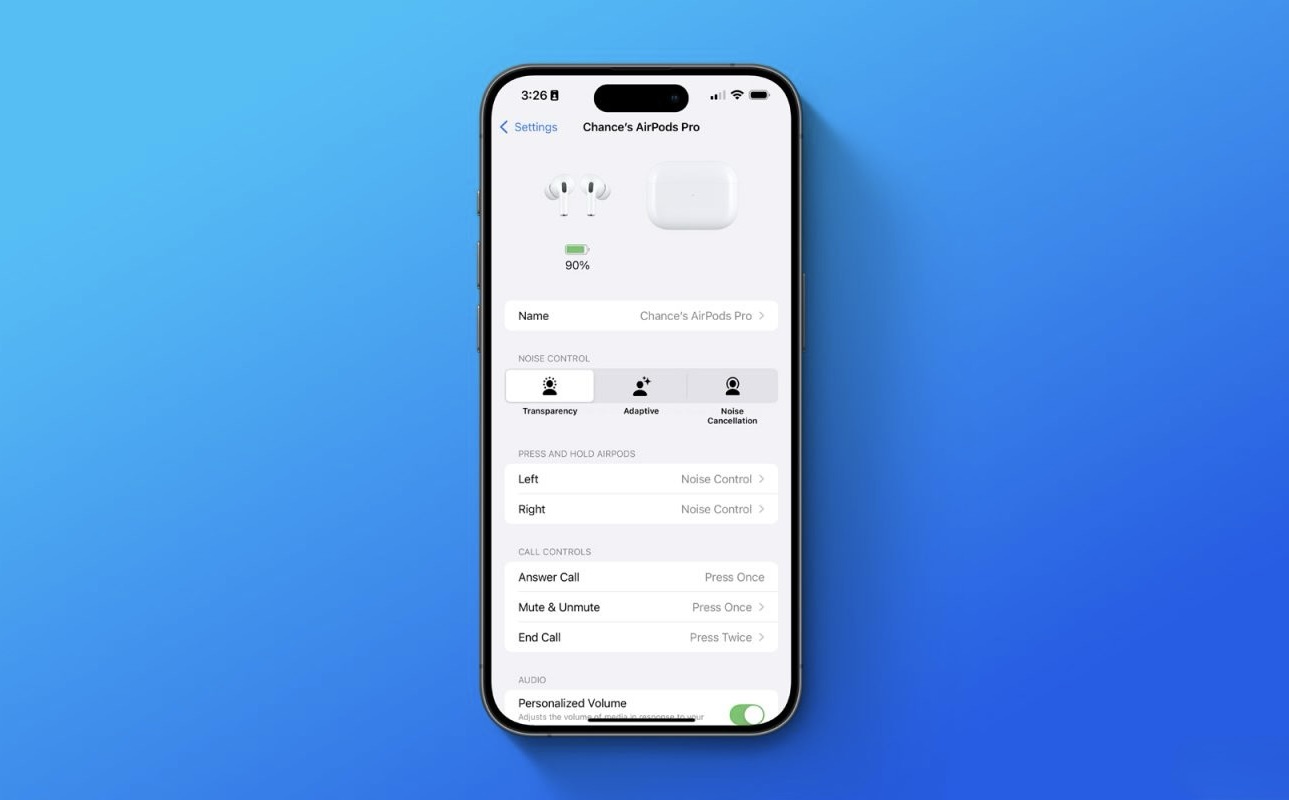
In AirPods settings, check which gestures are enabled and what they do. Image: 9to5mac.com
- Open “Settings” → your AirPods name.
- In the “Press and Hold AirPods” section, choose what pressing and holding the left and right earbud will do — switch noise cancellation modes or invoke Siri.
- For camera control, enable this feature in AirPods settings (Camera Remote section) — otherwise pressing while the camera is open won’t do anything.
- For Live Translation, download the required languages in the Translate app and make sure Apple Intelligence is enabled.
Note: press and hold can only be assigned to one function per earbud. If you choose Siri for the right one, noise cancellation switching will remain on the left — and vice versa. Live Translation is activated separately: you need to press and hold the stems of both earbuds simultaneously, and this doesn’t conflict with other settings.