Apple has long limited MacBook owners in the number of external monitors they could connect. M1 and M2 chips only allowed connecting a single display without workarounds like DisplayLink, while M4 Pro and M4 Max supported a maximum of two through a single Thunderbolt port. With the release of M5 Pro and M5 Max, the limit has finally increased: three and four external displays respectively — all through a single Thunderbolt 5 cable. Just keep in mind that the MacBook Pro 14 with M5 Max struggles under heavy load and throttles performance, and it’s scary to imagine what happens when you also connect external monitors.
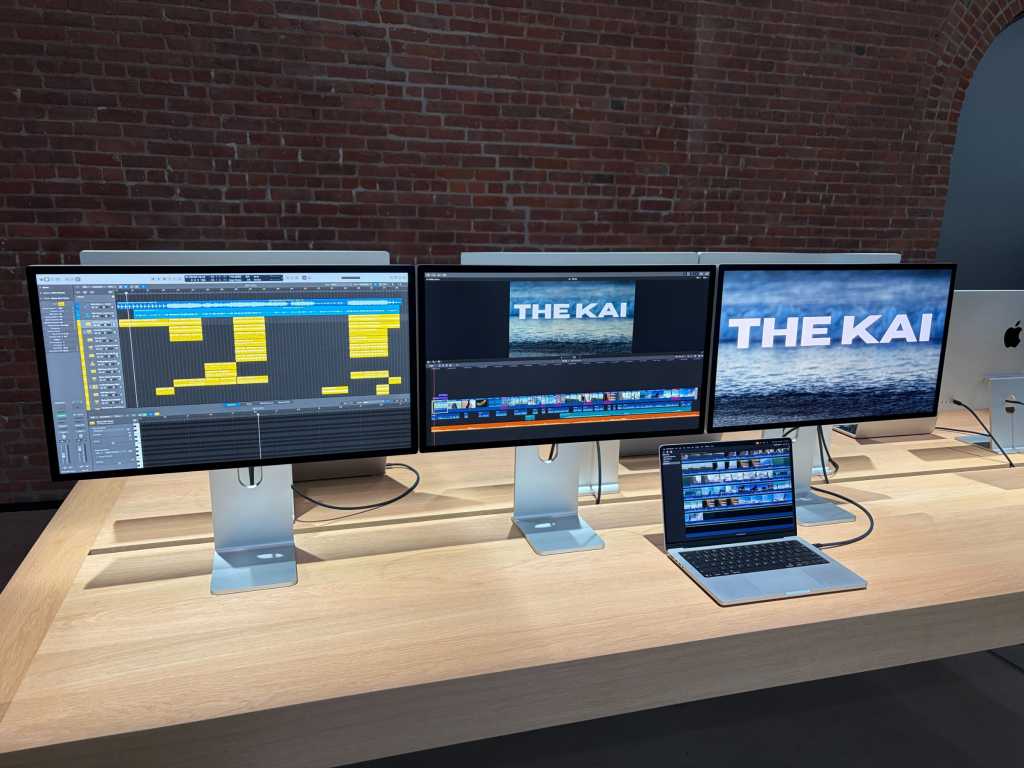
3-4 monitors for MacBook Pro are no longer a problem. Image: macworld.com
How Many Monitors Do MacBooks with M5 Pro and M5 Max Support
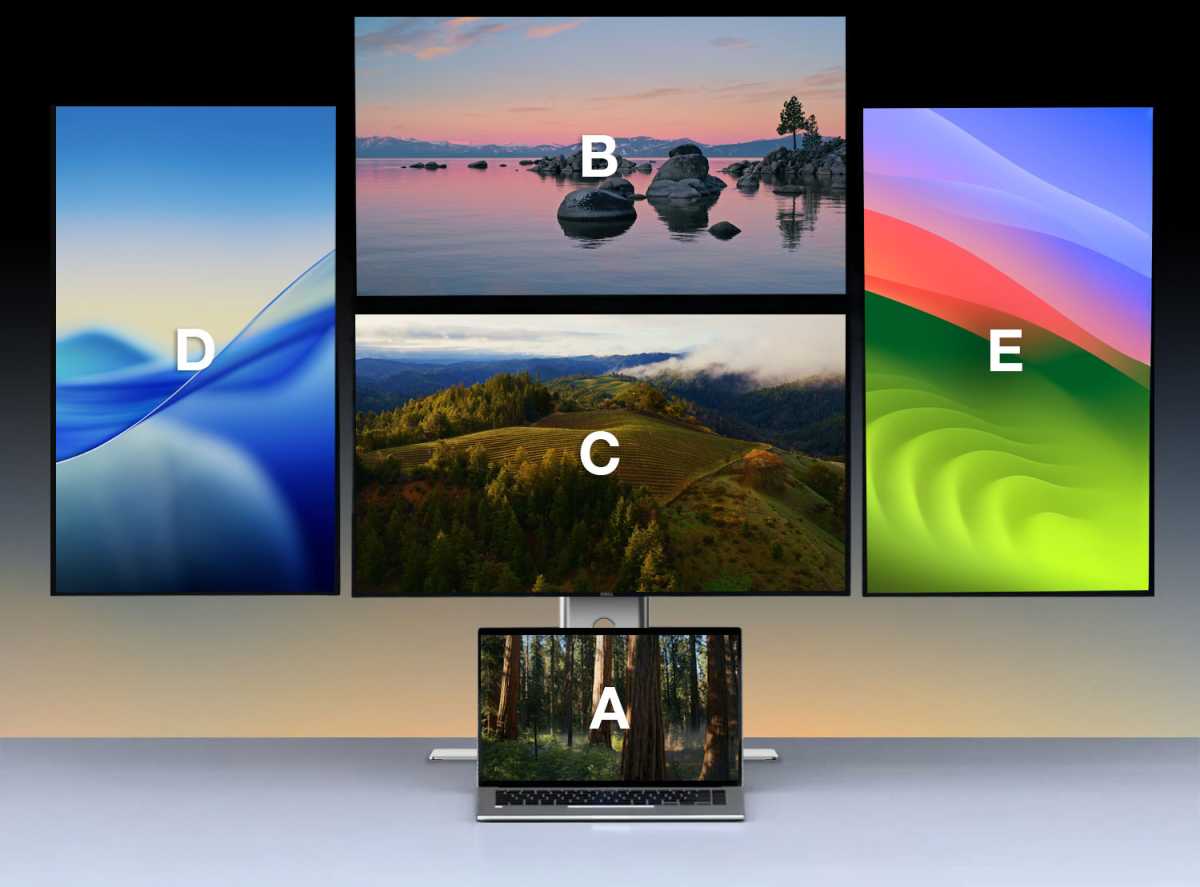
MacBook Pro with four external monitors through a single Thunderbolt 5 dock. Image: macworld.com
Here’s the current picture of external display support through a single Thunderbolt port across different generations of Apple chips:
- M5 Pro — up to three external displays through a single Thunderbolt 5 cable.
- M5 Max — up to four external displays through a single Thunderbolt 5 cable.
- M4 Pro / M4 Max and earlier — up to two external displays.
- M1, M2, A18 Pro — only one display (without software workarounds like DisplayLink).
According to Macworld, the M5 Max effectively doubles the capabilities of its predecessor, the M4 Max, when it comes to connecting monitors through a dock. For MacBook Pro owners with top-tier chips, this is a significant step forward — previously, this kind of multi-monitor flexibility was a privilege of Windows laptops.
What You Need to Connect Multiple Monitors to a MacBook
A MacBook with M5 Pro or M5 Max alone isn’t enough — the entire chain matters. Here’s the minimum setup:
- A dock with Thunderbolt 5 support. This is how a single cable from the MacBook “branches out” into multiple video outputs. Most certified Thunderbolt 5 docks that previously supported only two monitors will now be able to work with three (M5 Pro) or four (M5 Max) displays.
- Monitors with compatible inputs. Three displays connect to the dock’s ports directly. For a fourth monitor (in the case of M5 Max), you’ll need daisy-chaining — sequential connection via USB-C, if the monitor supports it.
- A Thunderbolt 5 cable. One cable from the MacBook to the dock — and that’s it. No additional wires from the laptop to the monitors.
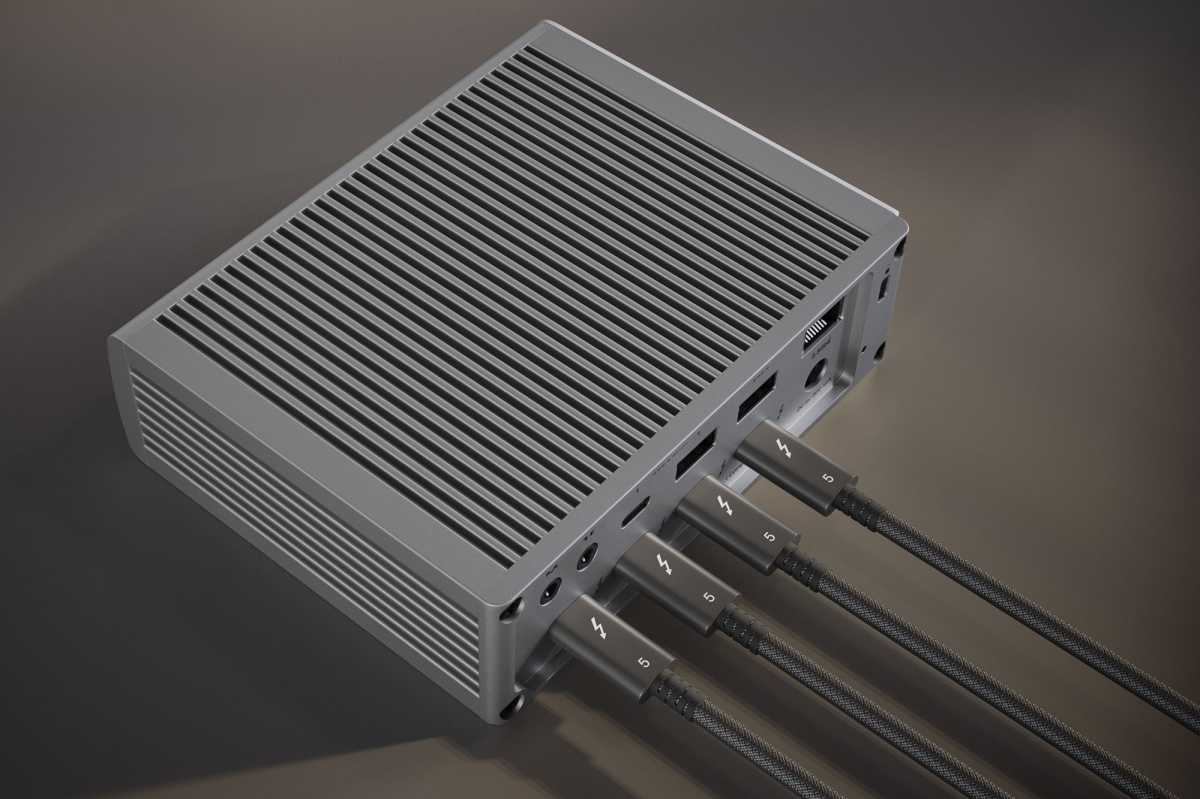
What you need to connect multiple monitors to a MacBook. Image: macworld.com
The specific configuration depends on what ports your dock has and whether your monitors can connect to each other via USB-C daisy chain.
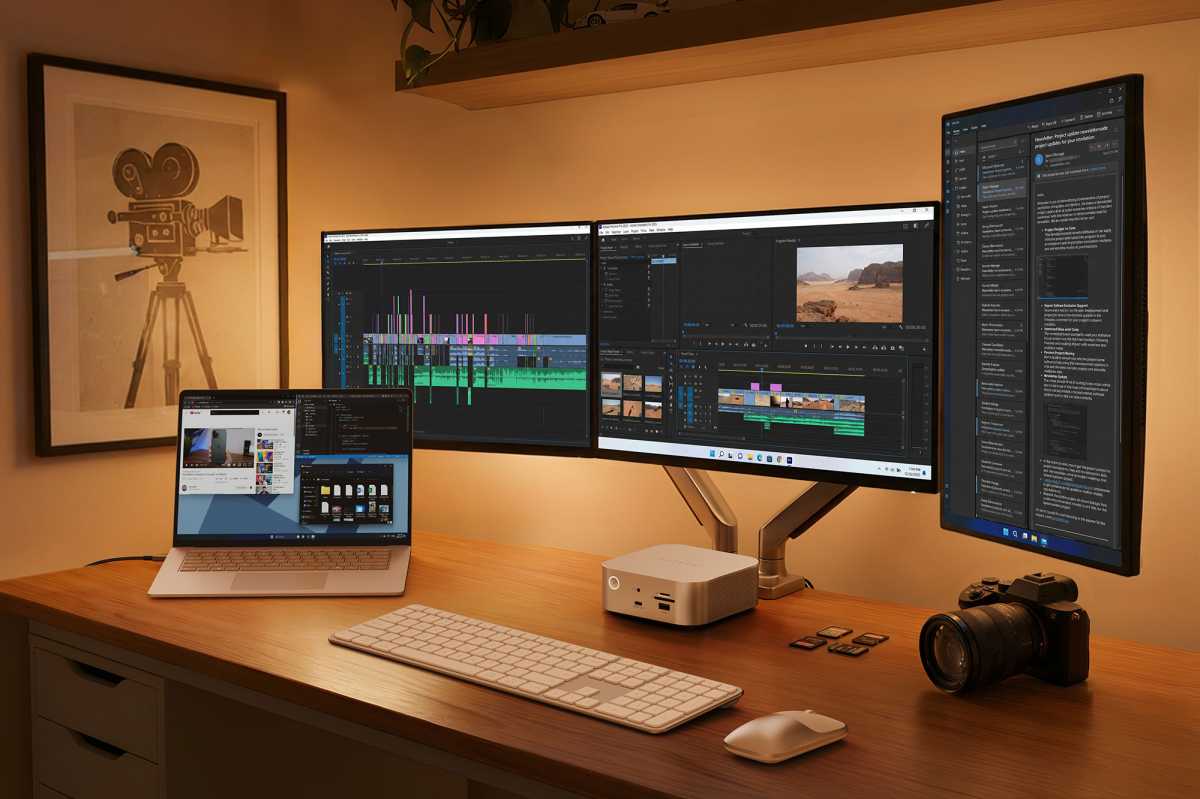 Building such a configuration with a MacBook is no longer a problem. Image: macworld.com
An important nuance: Mac still can’t split a video signal across multiple monitors through a single port the way it has long worked on Windows computers. Windows uses MST technology for this. Apple’s macOS still doesn’t support it. However, Apple solved the issue differently. The company didn’t add MST — instead, it simply enhanced the chip’s capabilities. That’s why the Mac has its own approach.
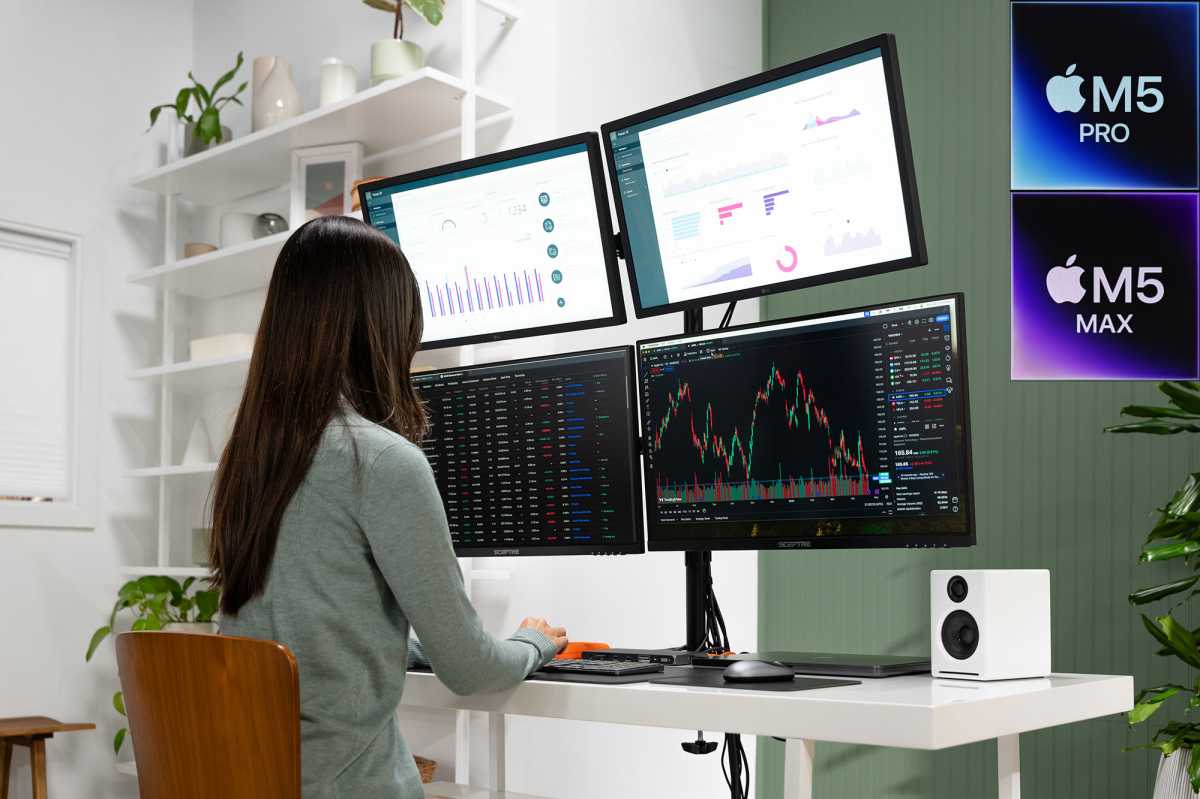
Set up something like this with your MacBook and work at full capacity. Image: macworld.com
What does this mean in everyday life? Buying MST hubs, adapters, and splitters for Mac is pointless — they won’t do any good. Old methods that sometimes work on Windows still don’t work on Mac. Here, everything depends on three things: the chip itself, Thunderbolt 5, and a compatible dock.
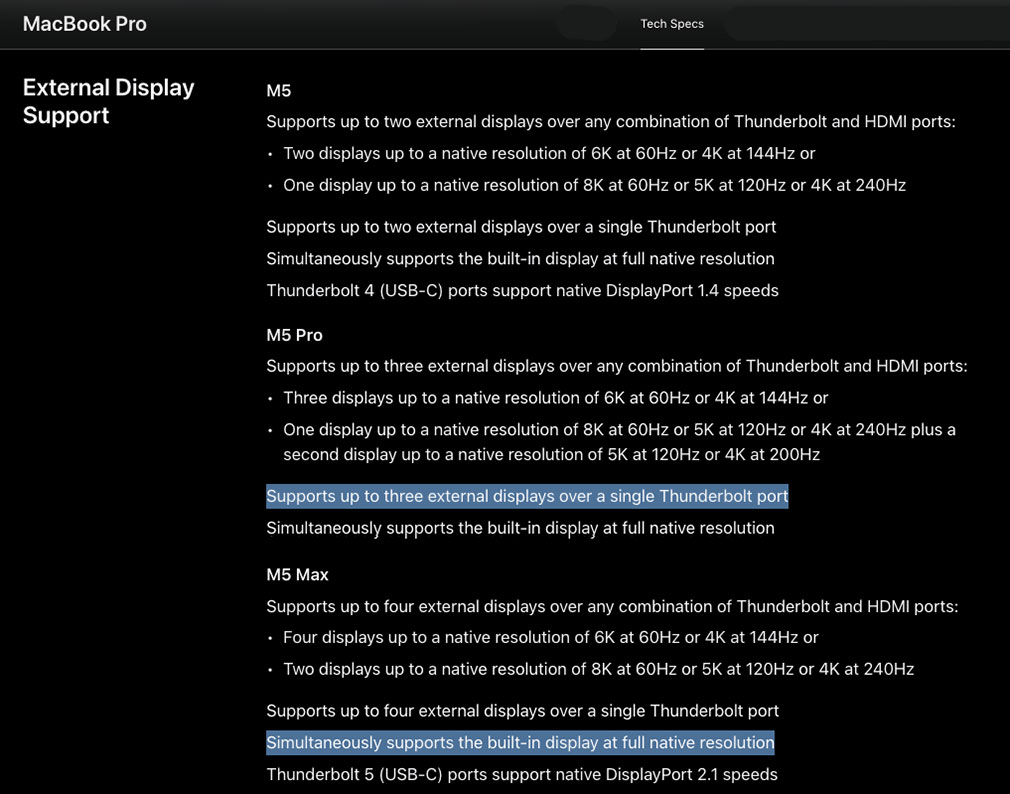
External monitor support information from Apple’s website. Image: macworld.com
Who Should Buy a MacBook with M5 Pro and M5 Max
Multiple monitors are useful for developers, video editors, traders, designers — anyone who needs to see several workspaces simultaneously. Previously, connecting three to four monitors on a Mac required using DisplayLink (with its latency and limitations) or buying a Mac Studio / Mac Pro.
Now the MacBook Pro with M5 Pro covers the need for three screens, and the M5 Max handles four, all through a single cable from the dock. Your workspace becomes significantly cleaner, and the need for a desktop setup becomes weaker.
If you work with one or two external monitors, this news doesn’t concern you — previous MacBooks with M4 Pro/Max handle two displays without issues. Upgrading only makes sense for those who truly needed a third or fourth screen without workarounds. Also keep in mind that for full functionality, you’ll need a new Thunderbolt 5 dock — older Thunderbolt 4 docks won’t unlock the additional monitors.