Apple charges a lot of money for Mac storage, and replacing the internal drive in newer models is nearly impossible. Cloud storage doesn’t always help either: you have to pay for it every month, and it’s useless without internet. NAS isn’t convenient for everyone because it works over a network and is often slower. That’s why a regular external hard drive remains the simplest and cheapest way to add a lot of storage space if you don’t need record-breaking speed.
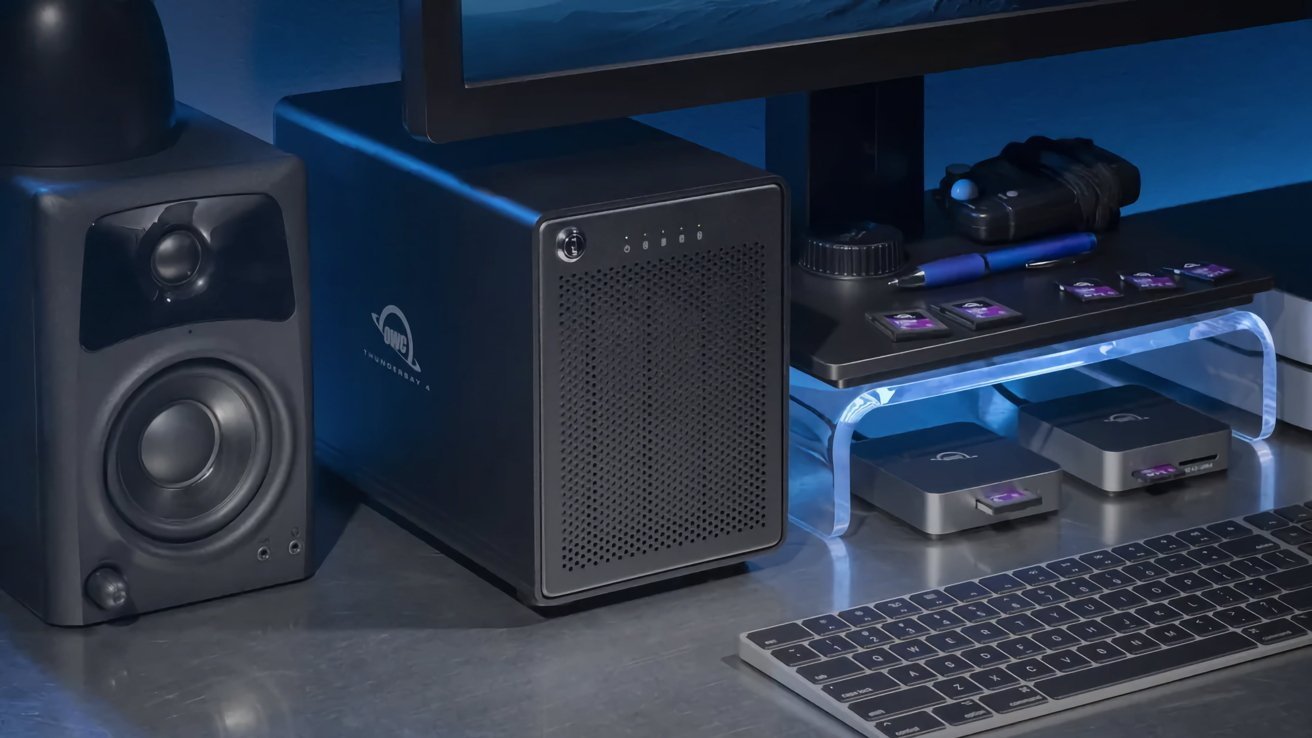
Choosing an external drive for Mac. Image: appleinsider.com
Which External Drive to Choose for Mac: HDD or SSD
SSD is better in every way: it’s faster, quieter, and usually more reliable. A regular hard drive typically delivers about 75–150 MB/s, while an SSD easily works at 300 MB/s and much higher. SSDs have no moving parts, so they don’t rattle, hum, or fear impacts as much.
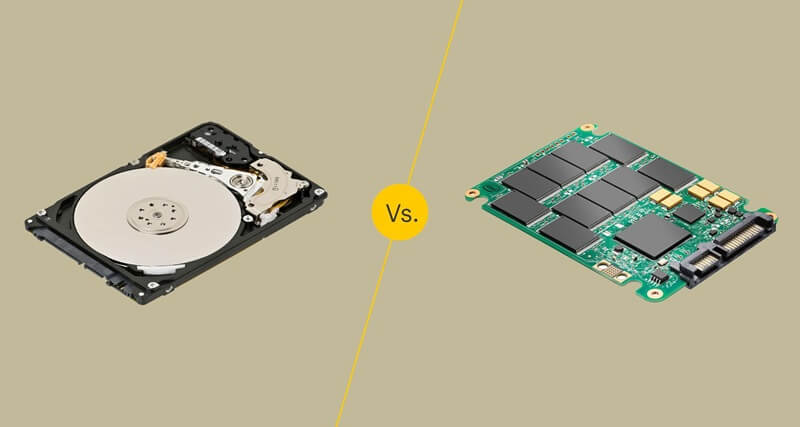
SSD is smaller in size and handles transportation better. Image: computerinfo.ru
But HDD has one very important advantage: it’s much cheaper. For the same price as an SSD, you can buy a hard drive several times larger in capacity. If you need to store lots of photos, videos, movies, or backups, that’s often more important than speed.
If the drive is just going to sit on your desk at home storing an archive, an HDD will do just fine. For example, for a photo library, old videos, or Time Machine backups. But if you have a MacBook and constantly carry the drive with you, it’s better to go straight for an external SSD.
How to Choose a Hard Drive for an External Enclosure
For external enclosures, people usually get hard drives in two sizes: 3.5-inch and 2.5-inch. 3.5-inch drives are physically larger but are usually cheaper, faster, and available in higher capacities. They connect via SATA — the most common and standard option. SAS drives are best avoided for this purpose: they usually don’t work with simple home enclosures.
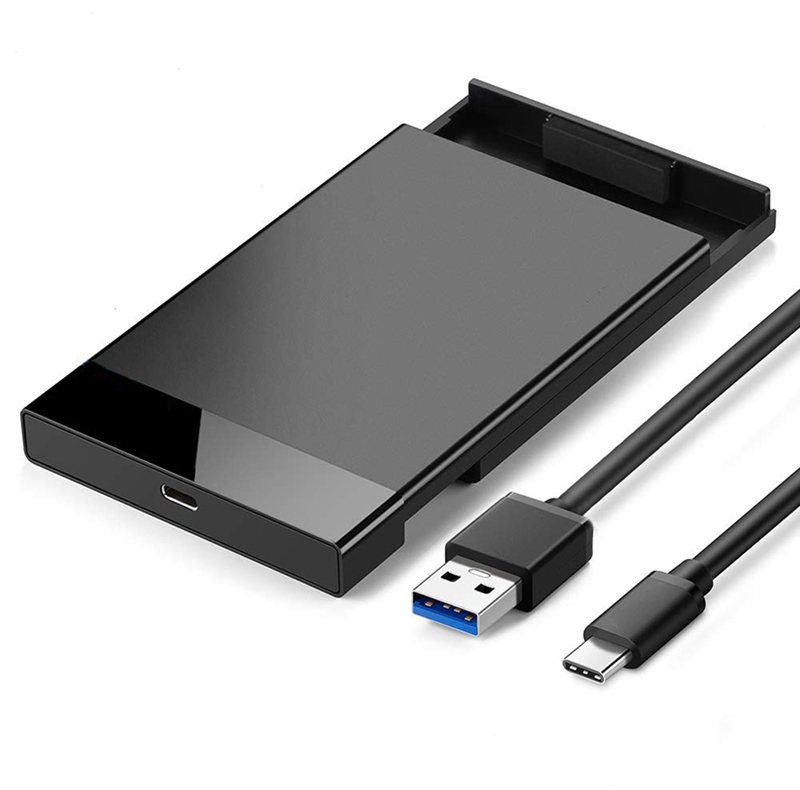
Take an enclosure, insert a regular hard drive, and you get an external drive. Image: russian.alibaba.com
It’s also important to look at the rotation speed. A 7200 RPM drive is usually slightly faster but also noisier. A 5400 RPM drive is quieter but slower. Some models have a small fast buffer that helps somewhat during writing.
If you need a single drive for a regular enclosure, a simple consumer HDD will work. Standard product lines like Seagate BarraCuda or WD Blue are well suited for this. But if you’re building a multi-drive enclosure, it’s better to look at NAS-oriented series like Seagate IronWolf or WD Red. They handle continuous operation and vibrations from neighboring drives better.
Which Recording Type to Choose for an HDD
Hard drives use different methods of writing data, and this affects performance. CMR is the standard, straightforward, and proven option. SMR allows more data to be written on the same drive, but during active rewriting it can noticeably slow down.
To put it simply, SMR saves space but sometimes at the cost of speed. While you’re just storing files, the difference may not be very noticeable. But if you frequently delete, re-copy, and constantly move large volumes of data, such a drive can become frustrating.
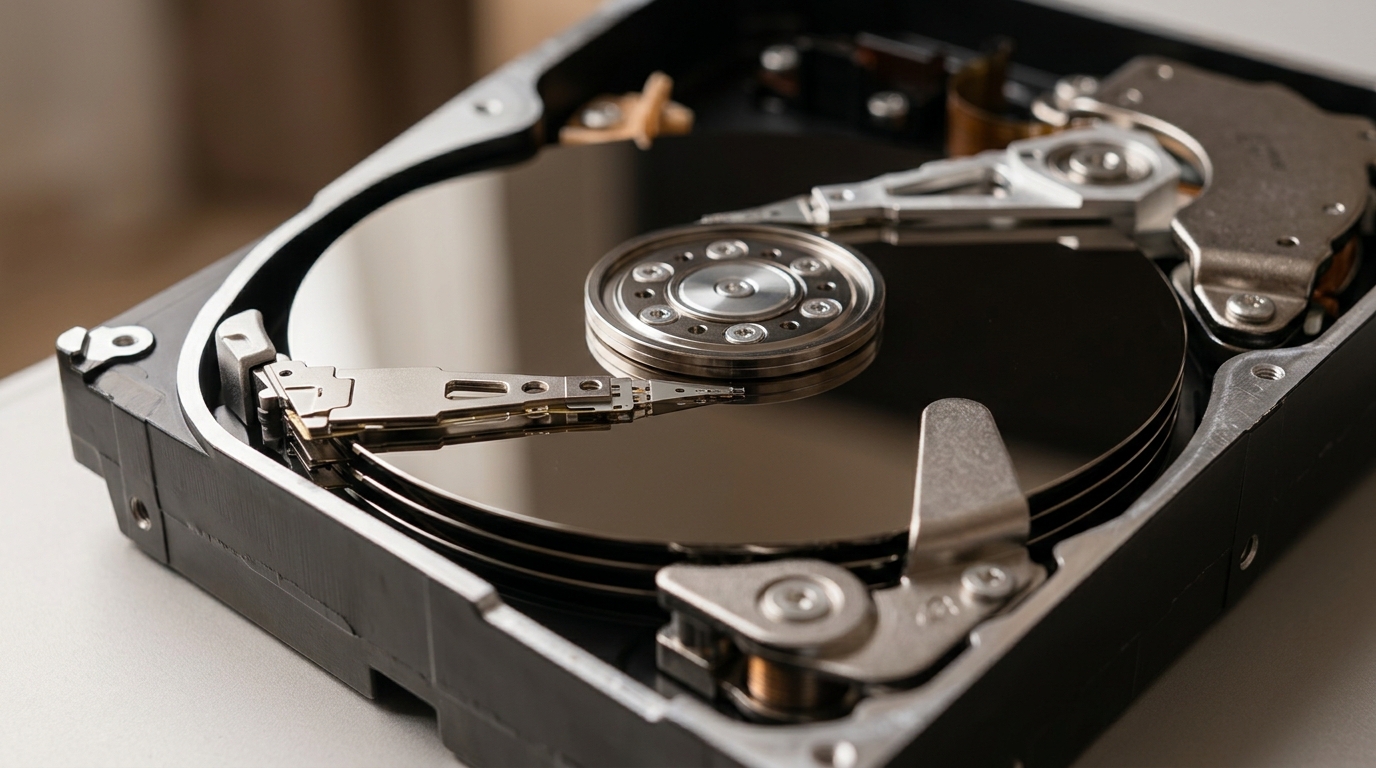
Platters and read head inside a hard drive
HAMR is a more modern technology that helps fit even more data on a drive. For the average user, what matters more is this: if the drive is needed for frequent writing and rewriting, it’s better to choose a model with CMR. That way you’re less likely to encounter unpleasant speed drops.
What to Choose for Mac: An Enclosure or a DAS
There are usually three options: a simple single-drive enclosure, a multi-drive box called a DAS, and various docking stations or hubs with built-in storage bays.
If you simply need more storage for a single Mac, a regular single-drive enclosure will suffice. It’s the cheapest and most straightforward option: insert an HDD, connect it to your Mac, and start using it. For backups and a home archive, this is usually more than enough.
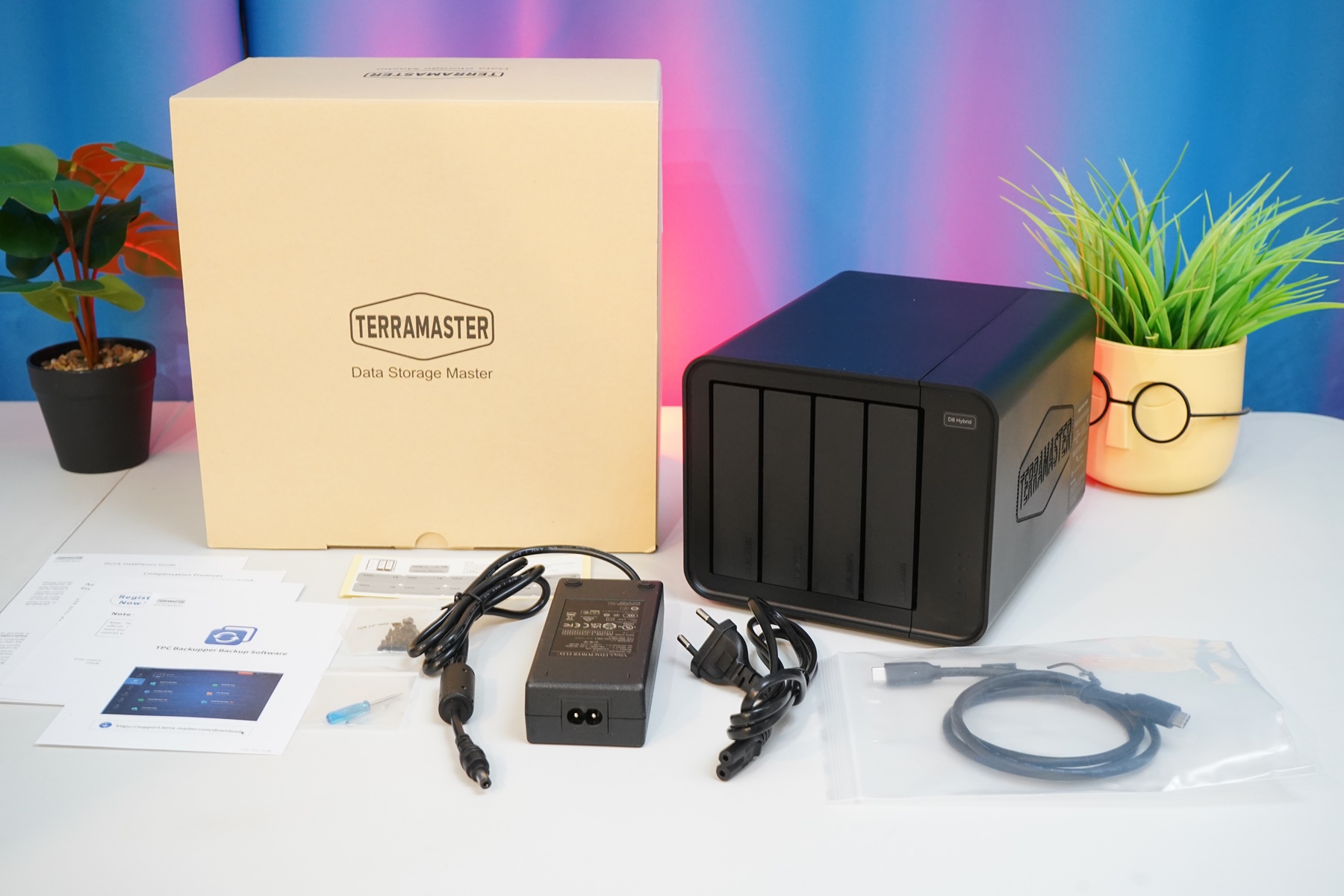
A DAS combines multiple drives and connects directly to the desired device. Image: ixbt.com
A DAS is for those who need more than one drive. You can install multiple drives at once and combine them for greater speed or reliability. This is an option for those who store a lot of data, work with large archives, or want to build something more serious than a regular external drive.
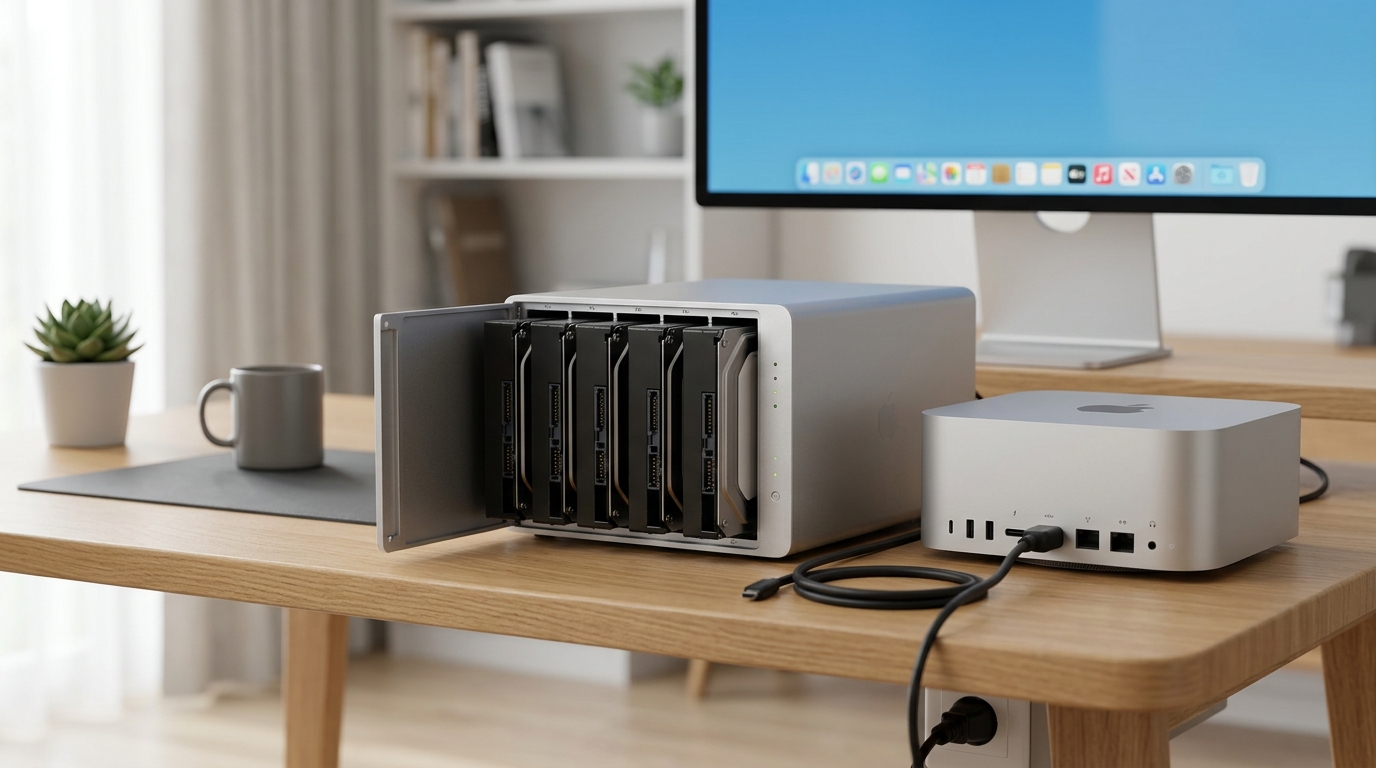
Multi-drive DAS enclosure next to a Mac Studio
How to Connect an External Drive to a Mac Without Losing Speed
Most affordable enclosures connect via USB-C. For a single regular hard drive, this is more than enough because the HDD itself can’t work too fast anyway. Simply put, even budget USB won’t be a bottleneck for it.
But if you’re connecting a box with multiple drives, especially if they’re combined into a fast array, regular USB can become a bottleneck. In that case, it makes sense to look at Thunderbolt or USB 4. They provide much greater bandwidth.
For Mac owners, there’s another important detail. Apple does not support the USB 3.2 Gen 2×2 standard at 20 Gbps. So if you see an enclosure with a nice label about 20 Gbps, on a Mac it will most likely still work as a regular 10-gigabit USB device. So there’s usually no point in paying extra for that labeling.
How to Set Up RAID on Mac
On a Mac, you can combine multiple drives into a single array using built-in macOS tools. Disk Utility handles this. Through it, you can create RAID 0 for speed, RAID 1 for reliability, and JBOD, where multiple drives are simply merged into one large volume.
To put it very simply, RAID 0 makes things faster, but if even one drive fails, you can lose everything. RAID 1, on the other hand, copies data to two drives simultaneously. You get half the space, but if one drive fails, the data remains on the second one.
More complex options like RAID 5 aren’t supported by macOS natively — you need separate software for that. Such configurations are suited for those who need both lots of space and protection against a single drive failure. But for a regular home archive, most people are fine with either a single drive or a simple RAID 1 mirror.
What’s Better for Mac: An External Drive or a NAS
A NAS and an external drive are really different things. A NAS is needed when you want to store files in one place and access them from different devices over a network. For example, from a Mac, TV, phone, or another computer. It’s convenient, but usually slower than a direct cable connection.