In iOS 26.4, Apple added a convenient feature for those who share internet from their iPhone: now, right in the hotspot settings, you can see how much data each connected device has used. It’s a small change, but for those with limited data plans — truly useful.
Personal Hotspot on iPhone got a very useful feature. Image: 9to5mac.com
Personal Hotspot in iOS 26.4: What’s New
Personal Hotspot is a feature that allows you to share mobile internet from your iPhone with other devices: iPad, MacBook, a friend’s laptop, or a child’s tablet. Before iOS 26.4, it was difficult to understand who exactly used how much data through your hotspot.
Now, in the Personal Hotspot menu at the bottom of the screen, there’s a new item — “Data Usage.” Inside — a breakdown for each device that connected to your hotspot. The item only appears if you’ve recently used the hotspot.
What Is Personal Hotspot For and Who Will Benefit from the New Statistics
If you only connect your own iPad or MacBook to your iPhone, the statistics will help you understand which of your devices uses the most data. This is convenient when you’re working away from home and want to control data usage — especially on plans with a fixed data allowance, which are usually cheaper than unlimited ones.
But the feature will be even more useful for those who regularly share internet with other people — colleagues, friends, family members. Now you don’t have to guess who exactly “ate up” all the data during a trip.
How to Find Hotspot Data Usage Statistics in iOS 26.4
Getting to the new feature is quite simple. The main thing is that you need to have Personal Hotspot set up:
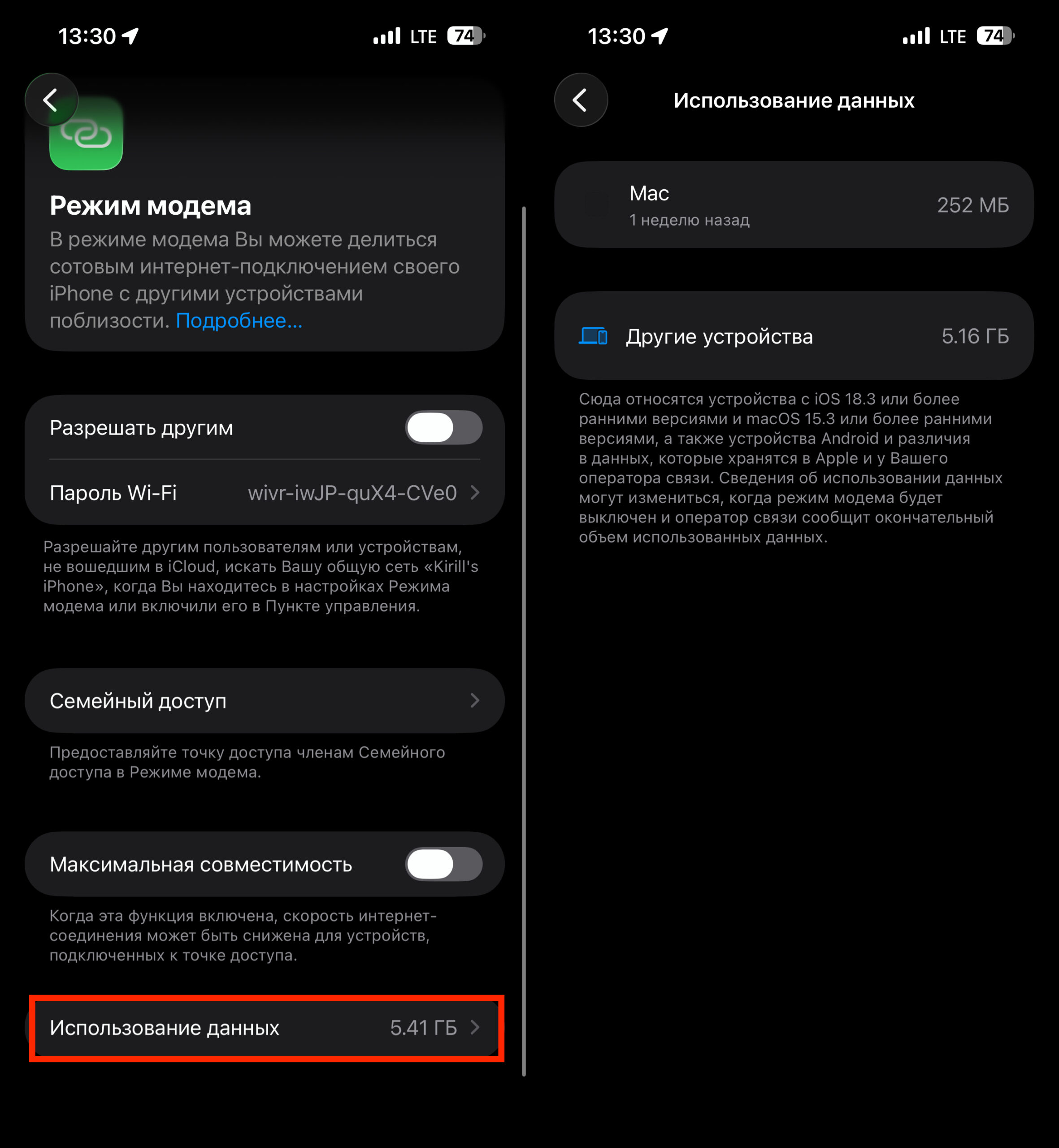
Here you can see who is consuming how much data
- Open “Settings” on your iPhone.
- Go to the “Personal Hotspot” section.
- Scroll down — you’ll see a new item called “Data Usage.”
- Inside, you’ll find a list of devices and the amount of data each one has used.
If the item doesn’t appear, it means you haven’t used the hotspot recently — the statistics only show up when there’s been recent activity.
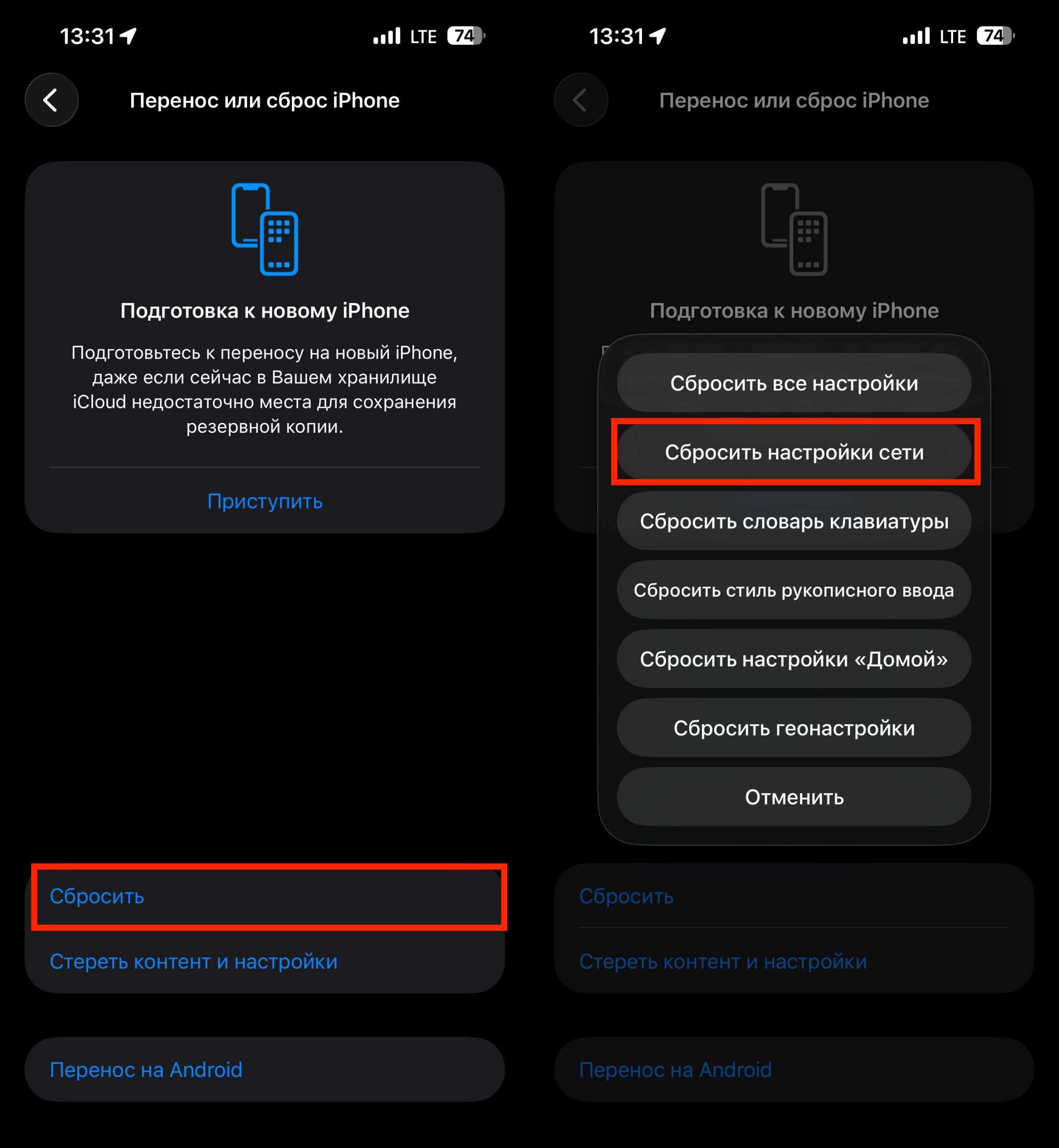
After this, you’ll need to reconnect to all Wi-Fi networks
To reset the counter, go to “Settings” — “Cellular” and reset cellular data usage statistics. Keep in mind: the reset will clear all cellular data statistics, not just the hotspot data.
iOS 26.4 — Release Date and How to Update
iOS 26.4 is already out — the update became available last week. You can install it the standard way: “Settings” — “General” — “Software Update.” In addition to the new hotspot statistics, the update includes other changes as well.
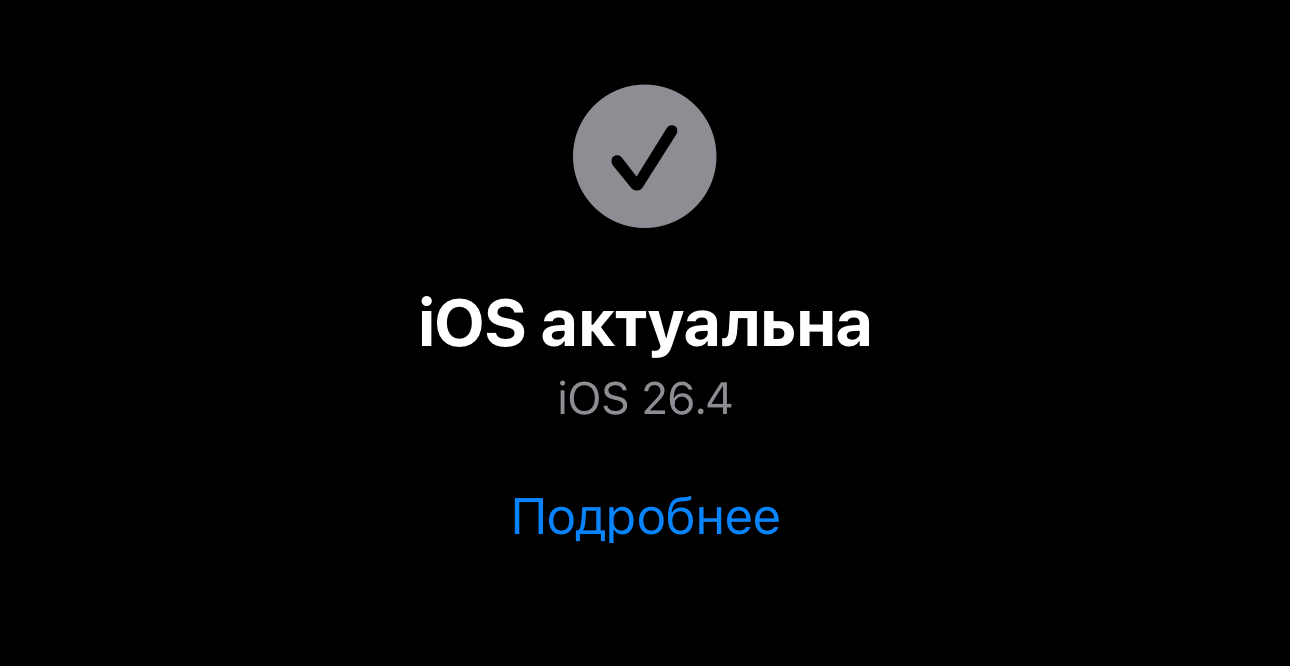
iOS 26.4 is already available for installation
It’s worth noting that Apple technically stored similar information somewhere deep in settings before. But even experienced iPhone users who had been writing about iOS for years admit they didn’t know it existed. Now the data is finally where you’d logically look for it — right in the hotspot section itself.
Is It Worth Updating to iOS 26.4
If you frequently share internet from your iPhone and keep track of your data usage — the update is definitely useful. Separate per-device statistics save time and eliminate the question “where did all my gigabytes go.”
If using the hotspot is rare for you, this feature is unlikely to be the deciding argument for updating. But iOS 26.4 contains other new features as well, so it’s worth updating anyway — at least for security fixes and overall system stability.


