I’m walking with the navigator, and it confidently leads me down a parallel street. The blue dot on the map lives its own life — I’m standing still, but it’s moving. I miss a turn because the app reacts with a ten-second delay. Sound familiar? I spent a long time thinking it was a problem with a specific navigator app, switching between apps and getting frustrated. Then it turned out the issue was something entirely different. Here’s specifically how I fixed it and performed GPS calibration.

The main thing is to set everything up correctly
Why GPS Lies on Android
Before fixing anything, it’s worth understanding why GPS makes errors in the first place. There are several reasons, and they differ in nature:
- Signal reflection. The GPS signal comes from satellites and bounces off buildings, trees, and terrain along the way. The phone receives multiple copies of the same signal with different delays and gets confused. This is especially noticeable in dense urban environments;
- Outdated A-GPS data. This is an auxiliary technology that helps the phone find satellites faster. The phone downloads data about their positions in advance — a kind of schedule. If this data is outdated, the smartphone looks for satellites in the wrong places. GPS accuracy drops specifically in the first few minutes after starting navigation;
- Uncalibrated compass. The accelerometer and magnetometer in the phone affect which direction the navigator “looks.” If they’re off, the navigator lies not so much about position but about the direction of movement;
- Incorrect location mode. Android can operate in several accuracy modes. The battery-saving mode uses only Wi-Fi and cell towers and gives an error of up to several hundred meters.
The last point is the most frustrating because the problem is literally solved in ten seconds in settings.
How to Check GPS Accuracy on Android
Before calibrating, it’s worth understanding the scale of the problem. I use the GPS Test app — it’s free, shows how many satellites the phone sees, how accurately it identifies them, and what the current error is in meters.
- Install GPS Test from Google Play or RuStore.
- Go outside with a clear view of the sky (satellites are poorly received indoors).
- Launch the app and wait 1-2 minutes.
- Look at the Accuracy parameter — the norm for a smartphone is 3 to 10 meters. If it’s more than 15 meters under clear skies — there’s a problem.
- Pay attention to the number of satellites. Good — 8 or more active. Fewer than 4 — poor reception.
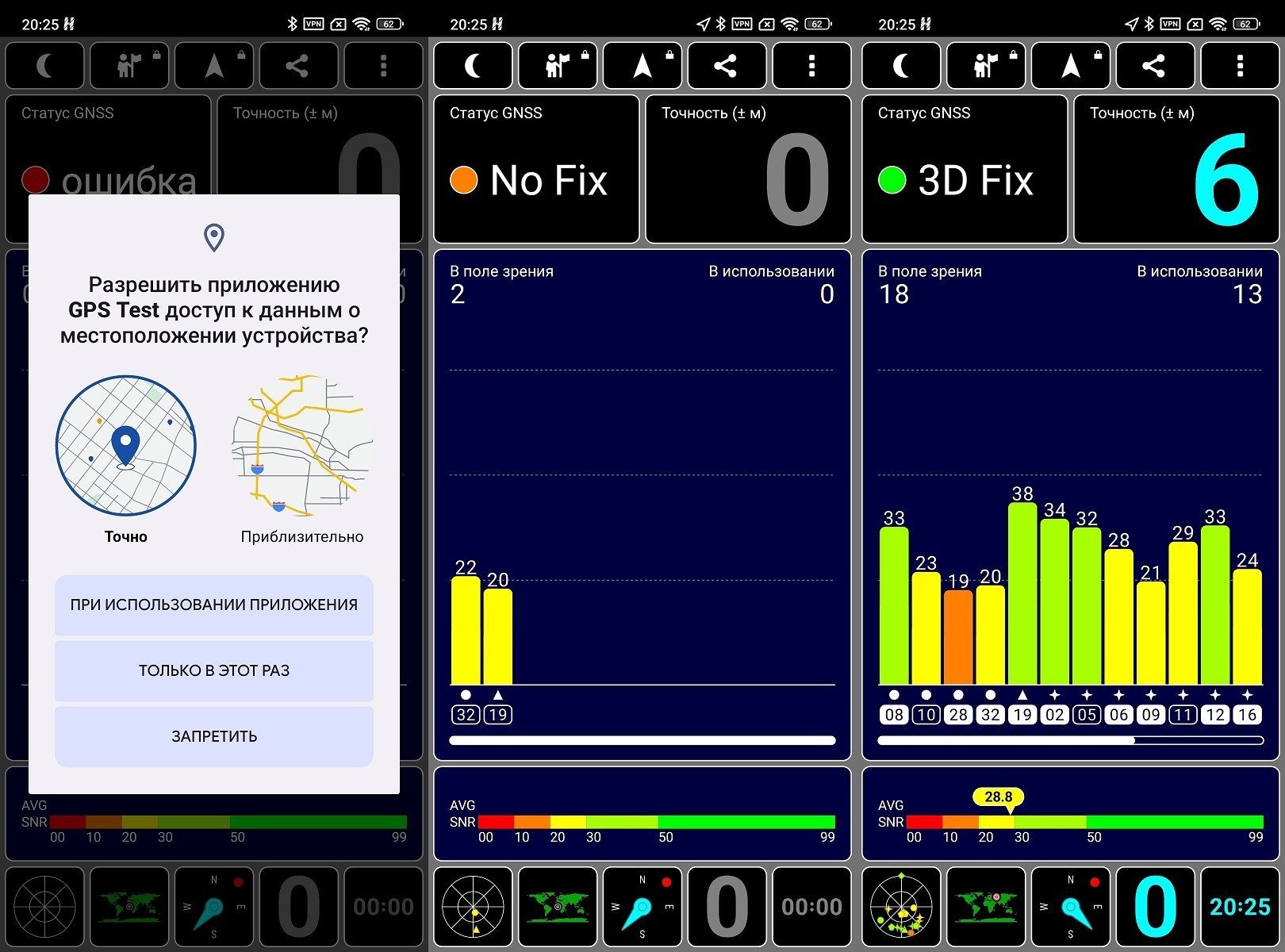
Use this app to check satellites
If location accuracy is low even with a large number of satellites — the compass is most likely off or the A-GPS data is outdated. If there are few satellites under clear skies — there may be a hardware or software issue.
How to Calibrate GPS on Android
There are several methods that work differently. You should start with the simple ones. First, you need to calibrate the compass with a figure-eight motion. This is the fastest way to calibrate the magnetometer. It’s responsible for the direction the blue arrow points in the navigator:
- Hold the phone horizontally in your hand, screen facing up.
- Slowly draw a figure 8 in the air — smoothly, as if writing on a board.
- Repeat 5-6 times in different planes: horizontally, vertically, at an angle.
- Open any compass app and check if the reading matches the actual direction.
It sounds a bit strange, but it works. After this procedure, my navigator stopped showing that I was driving in the opposite direction. Next, you should reset the A-GPS data. This option helps if Android navigation takes a long time to find a signal or is significantly inaccurate for the first few minutes:
- Install the GPS Status & Toolbox app (available on RuStore and Google Play).
- Open the app, tap the three dots in the menu.
- Select “Manage A-GPS” — “Reset.”
- Then tap “Download” — the app will download fresh satellite position data.
- Go outside, launch the navigator, and give it 2-3 minutes for the initial search.
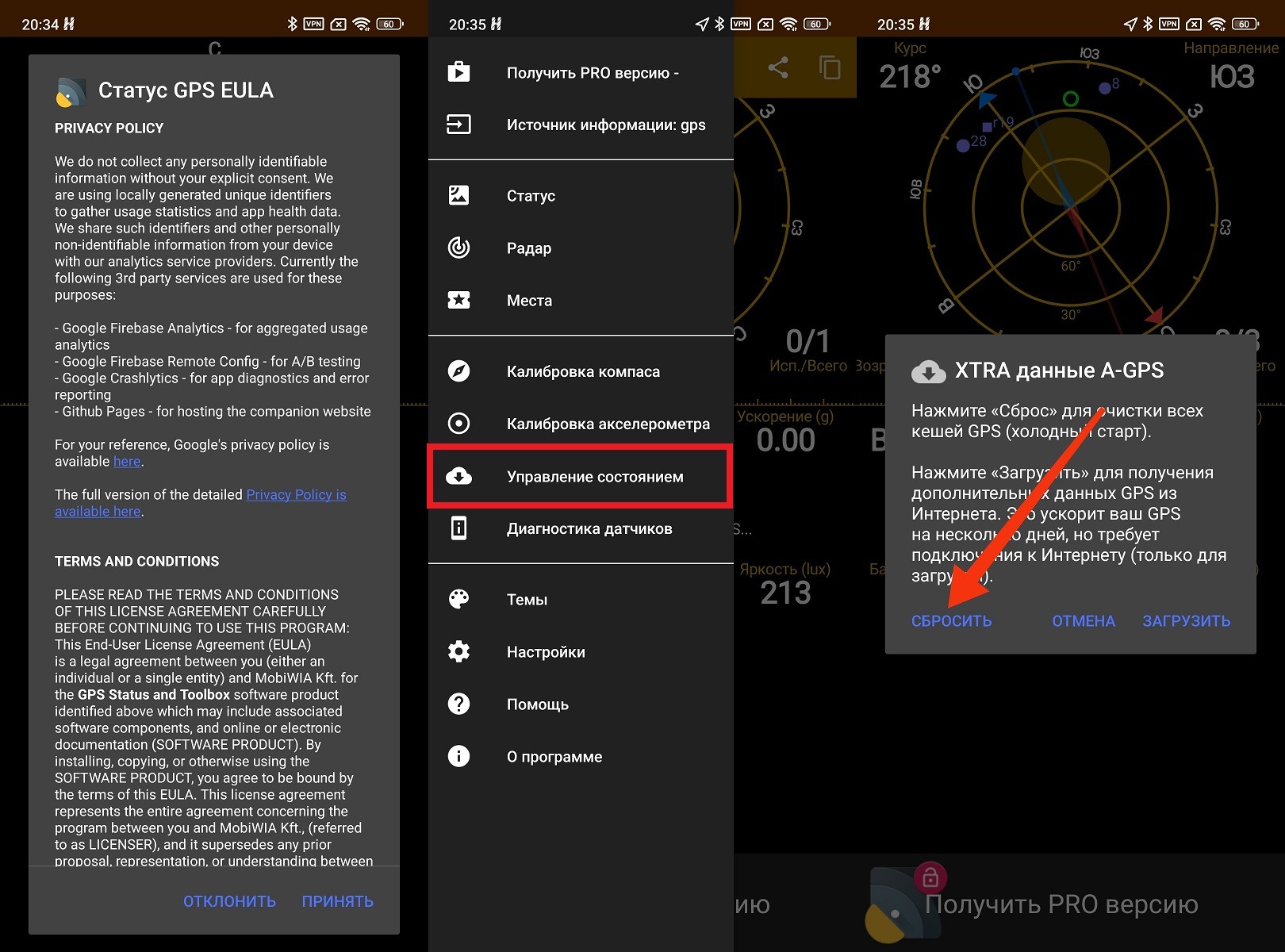
You can reset GPS data through this app
After the reset, the phone re-downloads current satellite data. GPS calibration using this method is especially helpful if you haven’t used the navigator for a long time or recently arrived in a new city after a long flight.
Finally, you need to properly configure location settings on Android:
- Open your phone’s “Settings.”
- Go to “Location” or “Geolocation.”
- Make sure “High accuracy” mode is selected, or manually enable location via Wi-Fi and Bluetooth.
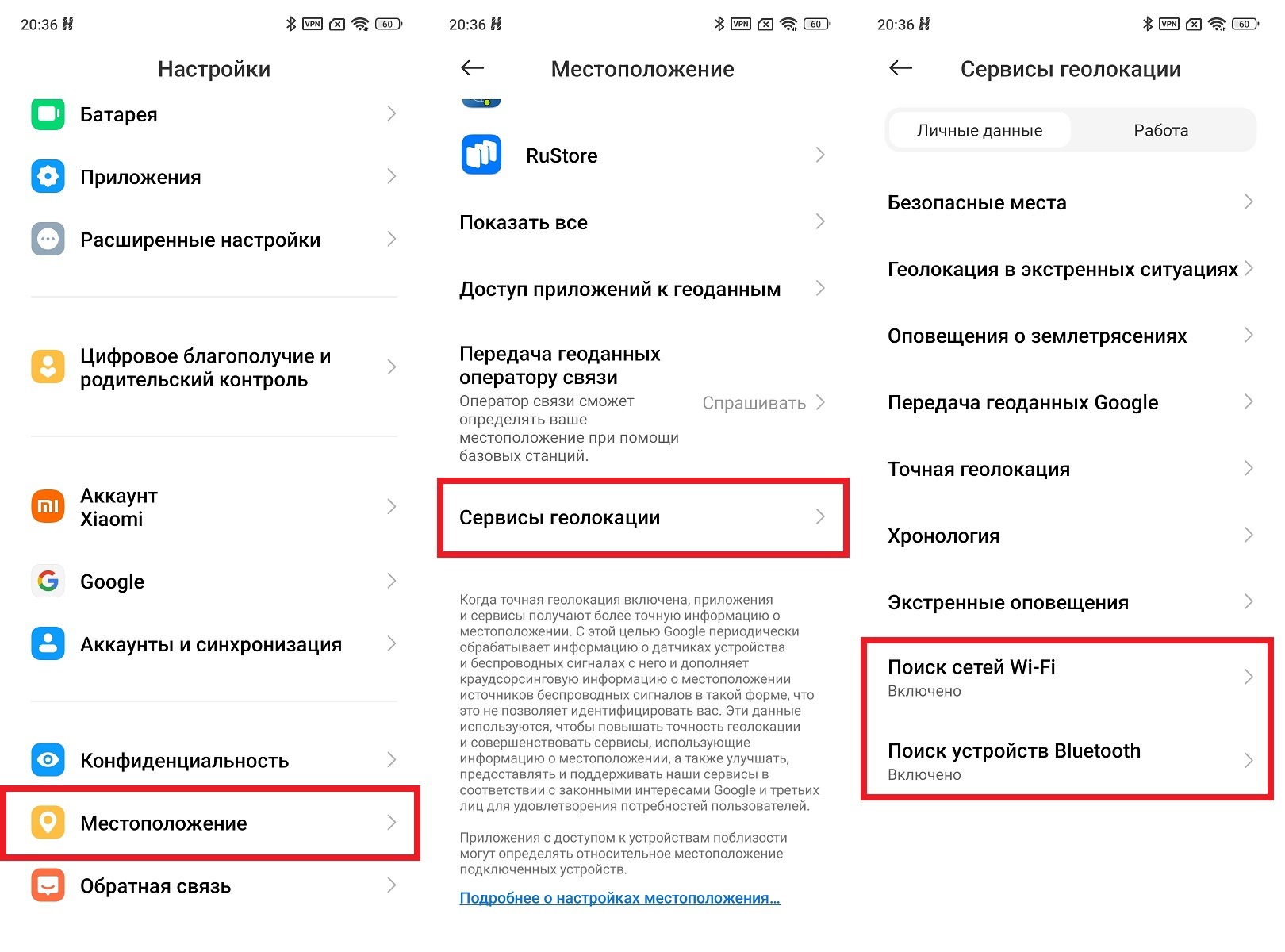
It’s important that Bluetooth and Wi-Fi are used for location detection
Battery saving mode uses only cell towers and Wi-Fi. This gives a rough approximation that’s suitable for determining a city but not for phone navigation on streets.
How to Improve GPS Accuracy on Android
Location settings aren’t the only thing that affects navigator performance. Here’s what else helps achieve a stable result.
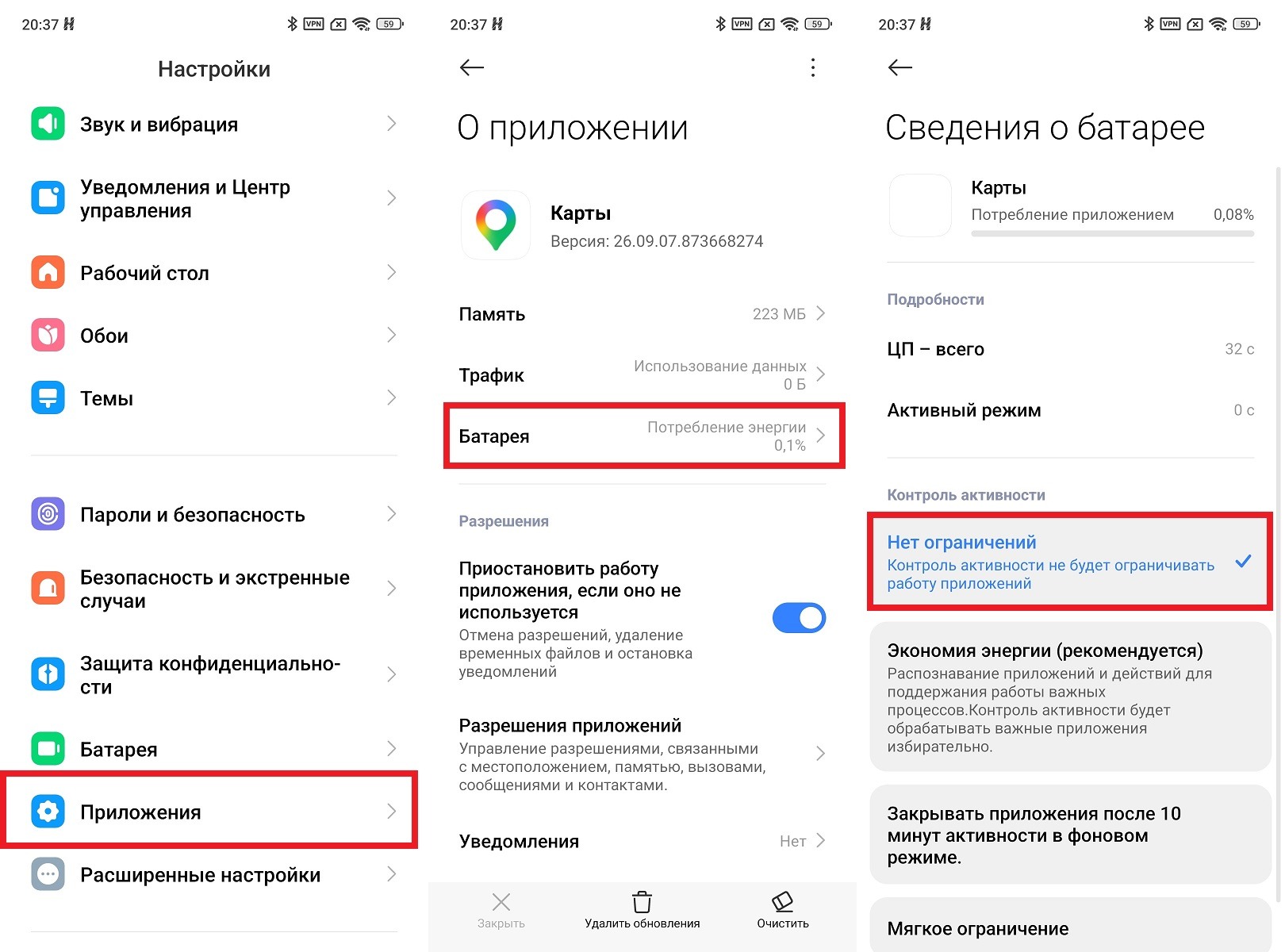
Disable background activity restrictions for the navigator. Many phones automatically restrict apps in the background to save battery. The navigator may lose signal when the screen is off:
- Go to “Settings” — “Apps.”
- Find your navigator.
- Open the “Battery” or “Power consumption” section.
- Select “Unrestricted” or “Don’t optimize.”