Safari on iPhone is a fairly advanced browser. You can send a link directly to a specific part of an article or remove ads, pop-up banners, and annoying windows for free — without installing blockers or extensions. The feature is called “Hide Distracting Items” and it appeared back in iOS 18. It doesn’t replace a full-fledged ad blocker, but it solves problems that ad blockers can’t handle. If you’re annoyed by windows asking you to subscribe, accept cookies, or sign into an account — and there’s no close button — this feature will come in handy. Below is a step-by-step guide and important limitations you should know about.
Safari on iPhone is full of surprises. Image: pcmag.com
What Is “Hide Distracting Items” in Safari on iPhone
Modern websites are literally packed with distracting elements: ad banners, pop-up windows asking you to subscribe, cookie notifications, auto-playing videos. Regular ad blockers don’t handle everything — they filter ads loaded from external servers but don’t touch the site’s own elements.
The “Hide Distracting Items” feature works differently. It allows you to manually select any element on the page and hide it. This could be an ad block, a banner asking you to sign in via Google, a newsletter subscription window — anything.
Why not just turn on Reader Mode? Some sites have learned to bypass it — they block the display of full text in Reader, forcing you to look at ads. Hide Distracting Items lets you remove such elements manually while keeping the normal page layout.
How to Enable Ad Blocking in Safari
The feature is already built into Safari — no downloads needed. Here’s how to activate it:
- Open Safari and go to the desired website.
- Tap the page menu button — it’s located to the left of the address bar.
- Select “Hide Distracting Items”.
- Tap on the element you want to remove — it will be highlighted with a frame.
- Confirm your selection with the “Hide” button. The element will disappear with an animation.
- Repeat for any other annoying elements.
- When you’re done, tap “Done”.
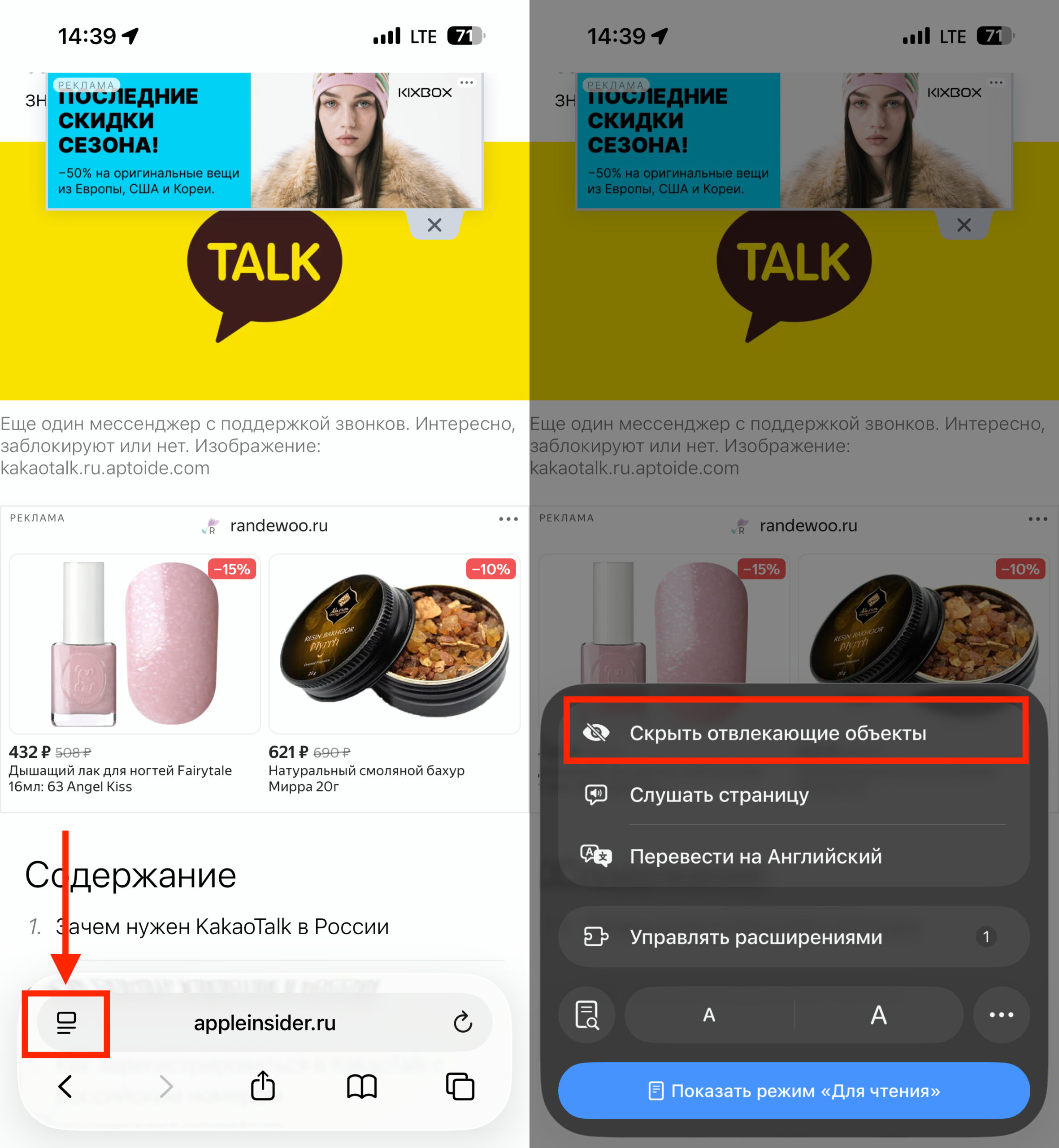
Go to site settings

Remove everything unnecessary from the page
If you don’t see the “Hide Distracting Items” option in the menu, it might be hidden deeper. Tap “More” (⋯) in the bottom left corner, then “Edit” in the top right — and add the feature to your favorites.
How to Restore Hidden Elements in Safari on iPhone
If you accidentally removed something you need, it’s easy to fix. Open the same page menu and select “Show Hidden Items” — all removed elements will immediately return.
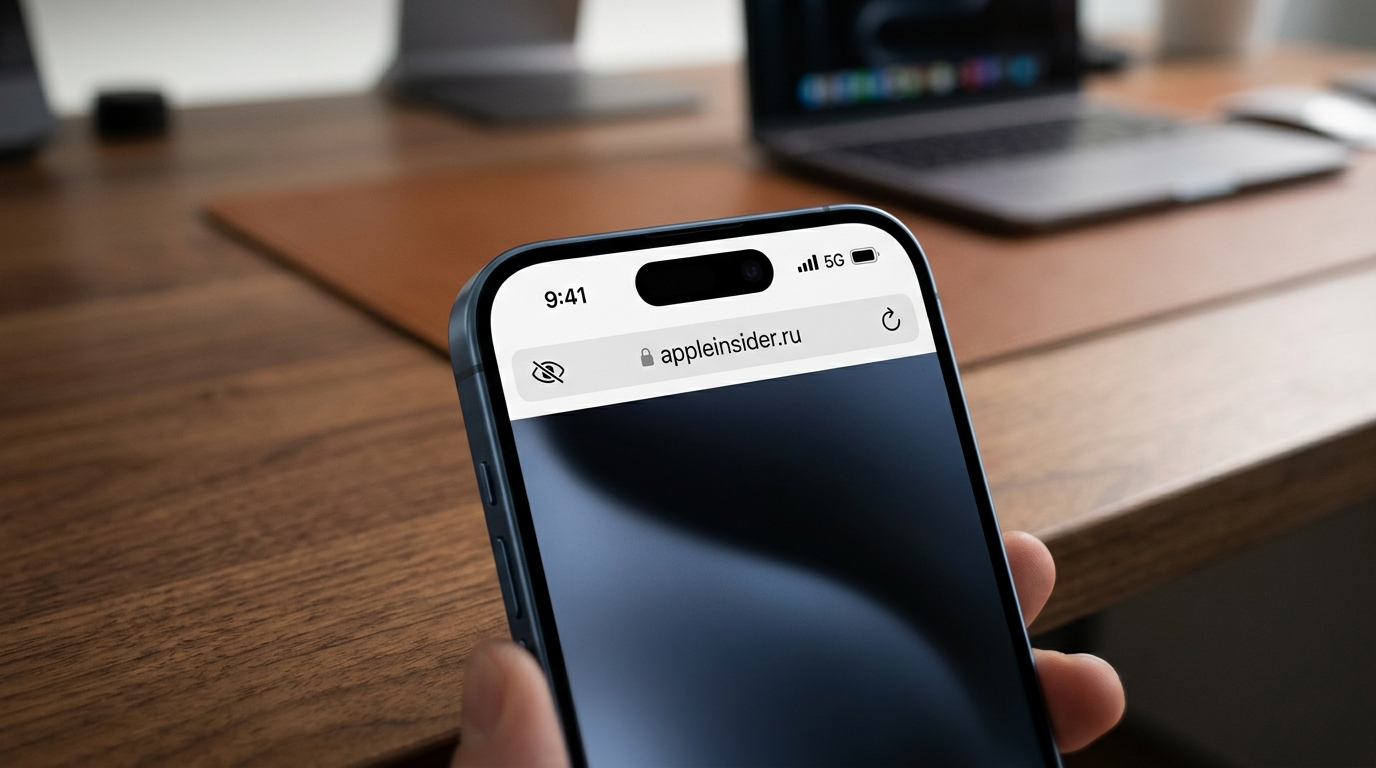
The crossed-out eye icon in the Safari address bar signals hidden elements
On pages where you’ve hidden something, a small crossed-out eye icon will appear in the address bar — it reminds you that some content is hidden. You can also send Apple a report about issues with the feature through the menu — for example, if an element can’t be selected or hidden items don’t persist after reloading the page. It’s important to understand that Hide Distracting Items is not a full-fledged ad blocker. Here are the main limitations:
- The feature doesn’t hide ads automatically — you need to select each element manually.
- Dynamic ads that frequently refresh may reappear after reloading the page.
- Hidden elements don’t sync between devices — if you removed a banner on iPhone, it will still appear on iPad.
- If you hide a cookie consent banner, the site may not work correctly — for example, it may not save items in your cart.
- When you clear Safari history, all hidden elements are reset.
- In private browsing mode, hidden elements are not saved after closing Safari.
For the best results, you should use Hide Distracting Items together with a regular ad blocker — they complement each other.
Why You Need Ad Blocking in Safari on iPhone
The feature is useful for those who read websites through Safari and regularly encounter elements that regular blockers can’t remove: login windows, newsletter subscription banners, prompts to switch to an app. All of these can be hidden once, and on familiar sites the settings will be preserved.
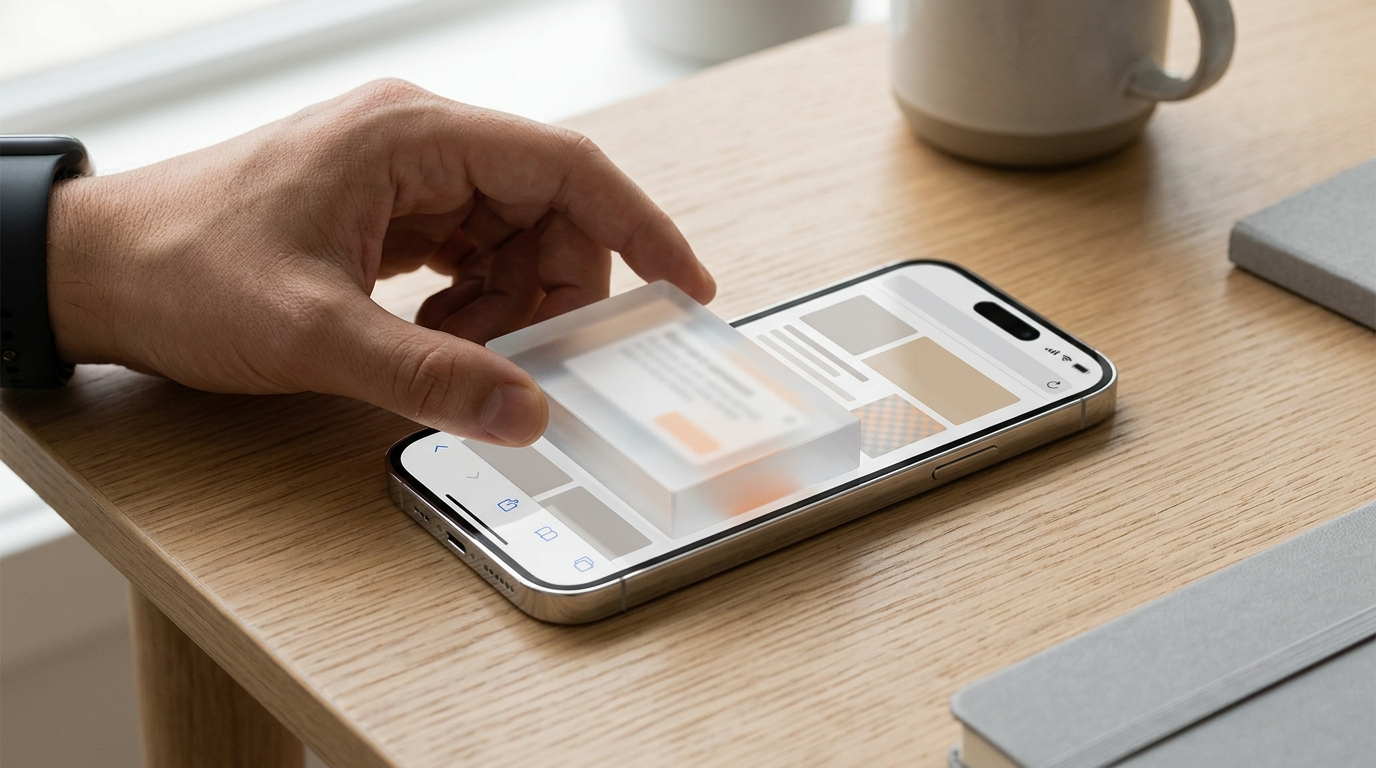
How to block ads (and other distracting things) on iPhone for free
If you want to remove all ads automatically without manual setup — Hide Distracting Items alone won’t be enough. For full-scale filtering, you still need a third-party blocker from the App Store. And for those who use Yandex Browser on iPhone, this Safari feature naturally doesn’t work — it’s only available in Safari.
Overall, this is a good free tool for targeted combat against the most annoying elements. Not a silver bullet, but a nice addition to Safari that few people know about.