Archive in Telegram is a simple way to tidy up your chat list without deleting anything permanently. If your dialog list has grown excessively and you don’t want to delete conversations — the archive solves this problem. We explain how to use it on all platforms and what to watch out for so that chats don’t come back on their own.

Understanding Telegram’s most convenient tool — the archive
What Is the Chat Archive in Telegram and Why Do You Need It
The archive in Telegram is something like a bin for chats that you don’t want to see on the main page but aren’t ready to delete yet. You can send personal conversations, group chats, and channels there — anything you like. Telegram remembers where you left off in a channel or group feed, so after restoring from the archive you’ll continue from the same place.
The archive section itself can be displayed at the top of the chat list or hidden — this is configurable. The main thing is that archiving does not delete messages or history. It’s simply a way to remove from view what you don’t need right now.
How to Add a Chat to the Telegram Archive on iPhone, Android, and Computer
The archiving process takes a couple of seconds but differs slightly depending on the device.
On iPhone:
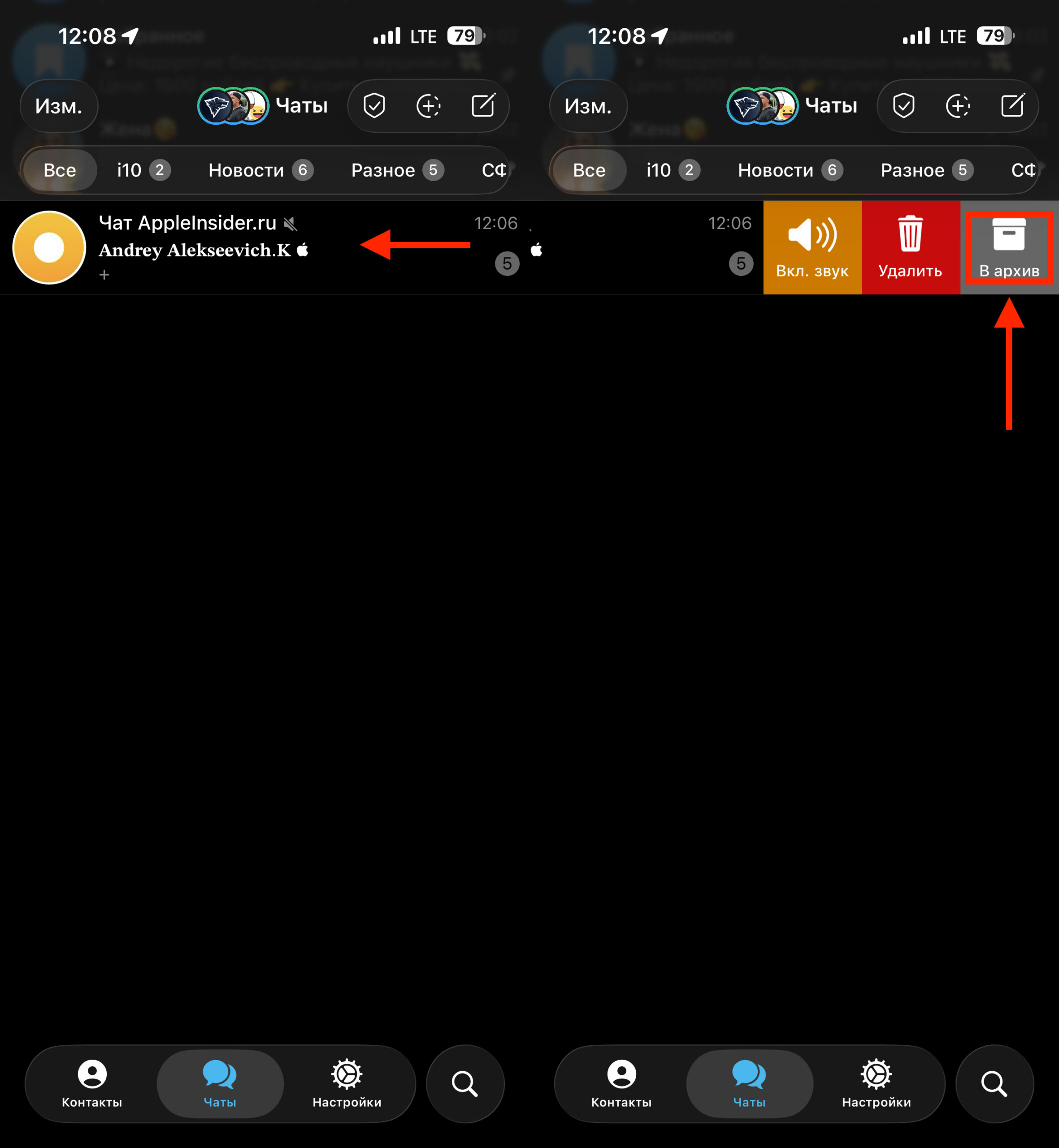
You can archive a chat in a couple of taps
- Open your dialog list in Telegram.
- Find the desired chat or channel and swipe left.
- Tap the “Archive” button.
On Android:
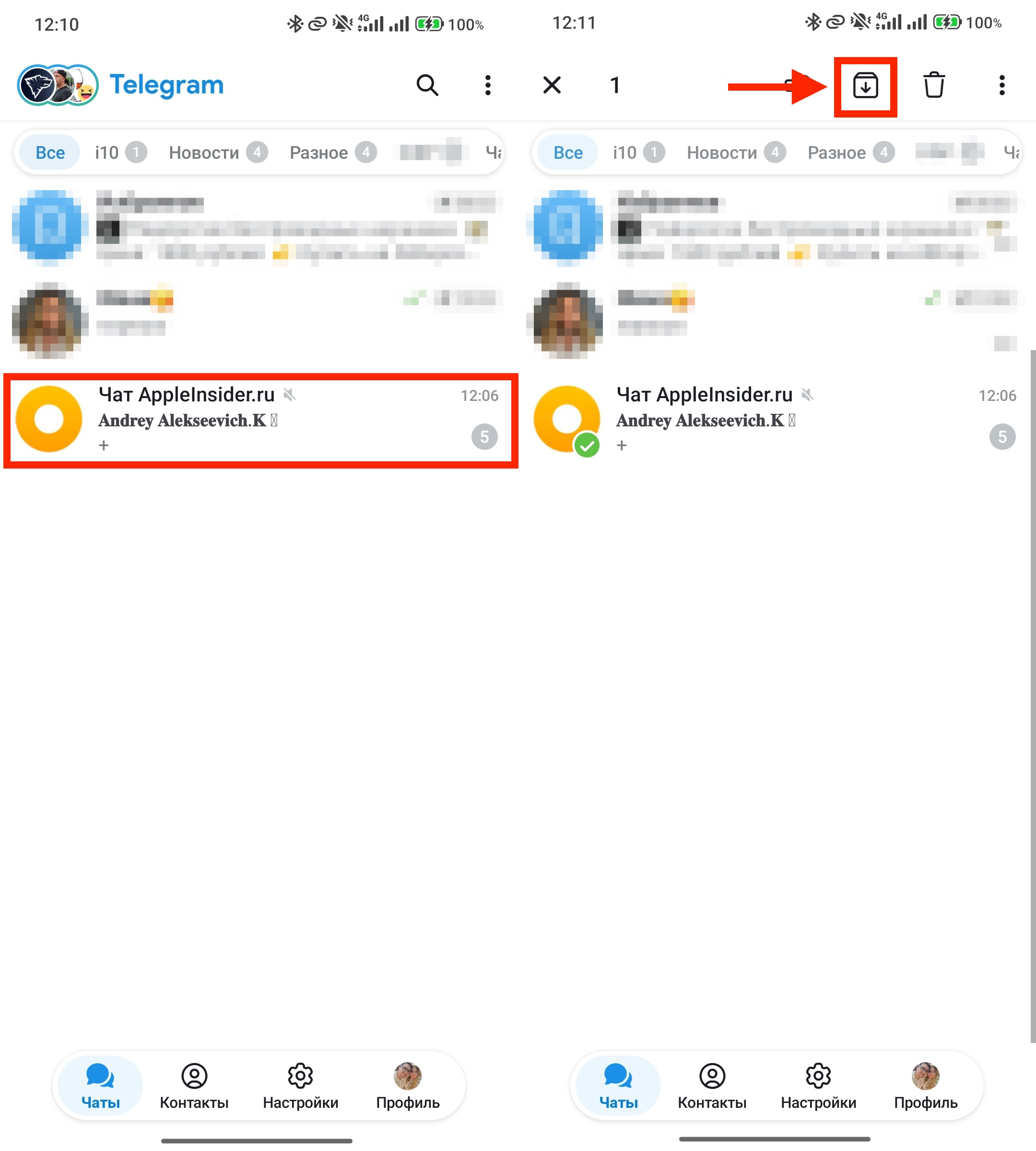
On Android, the process is slightly more complicated than on iPhone
- Open the chats page.
- Long-press the unwanted chat so it gets checked.
- At the top of the screen, tap the box with the downward arrow.
On computer (desktop version):
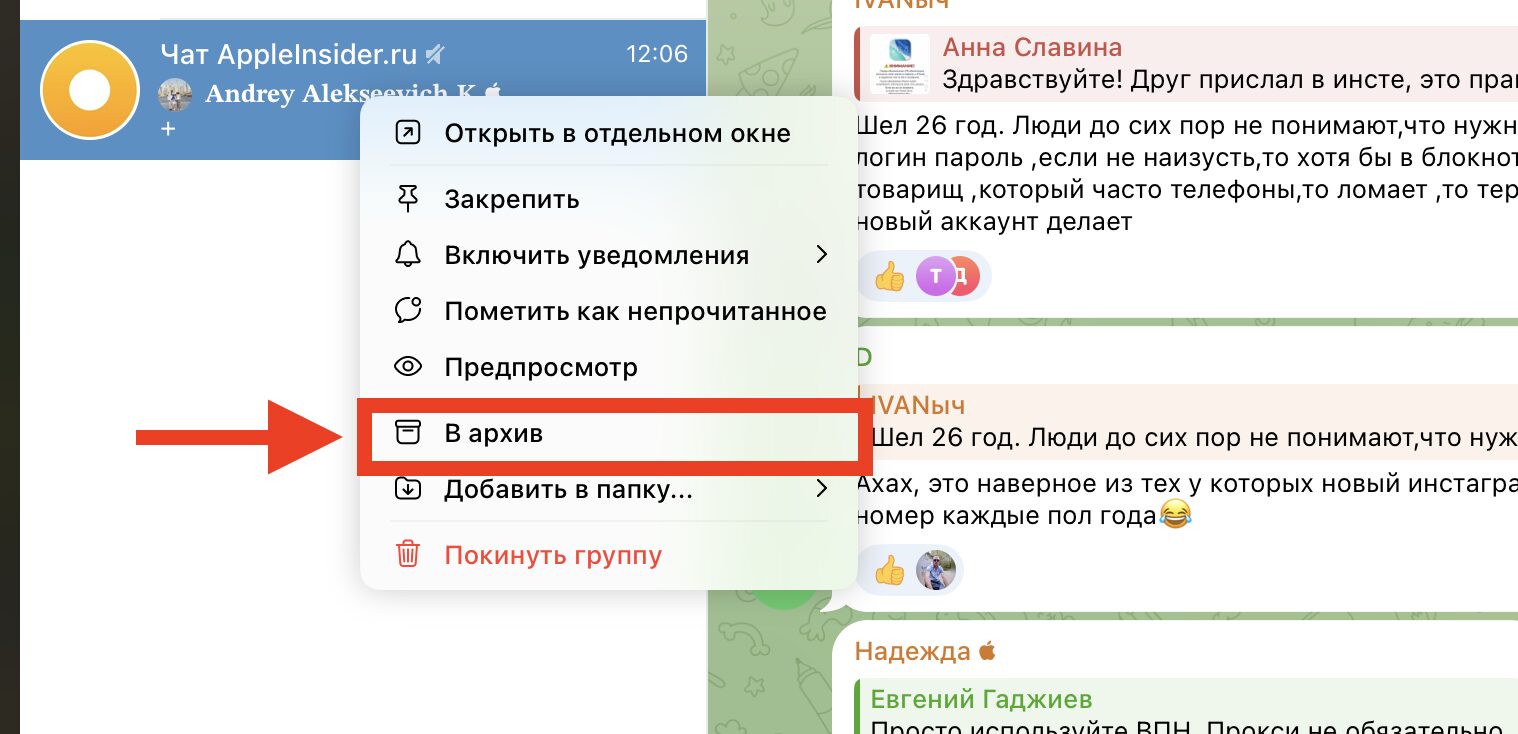
Archiving on the computer is a pleasure
- Right-click on the chat.
- Select “Archive”.
You can add anything to the archive — personal conversations, groups, channels. There are no quantity limits.
Why a Chat Returns from the Telegram Archive on Its Own
This is one of the most common questions, and it has a simple explanation. If a new message arrives in an archived chat and notifications are not muted — the chat automatically returns to the main page. Telegram considers that since notifications are enabled, it’s important for you to see new messages.
To prevent this from happening, there are two options:
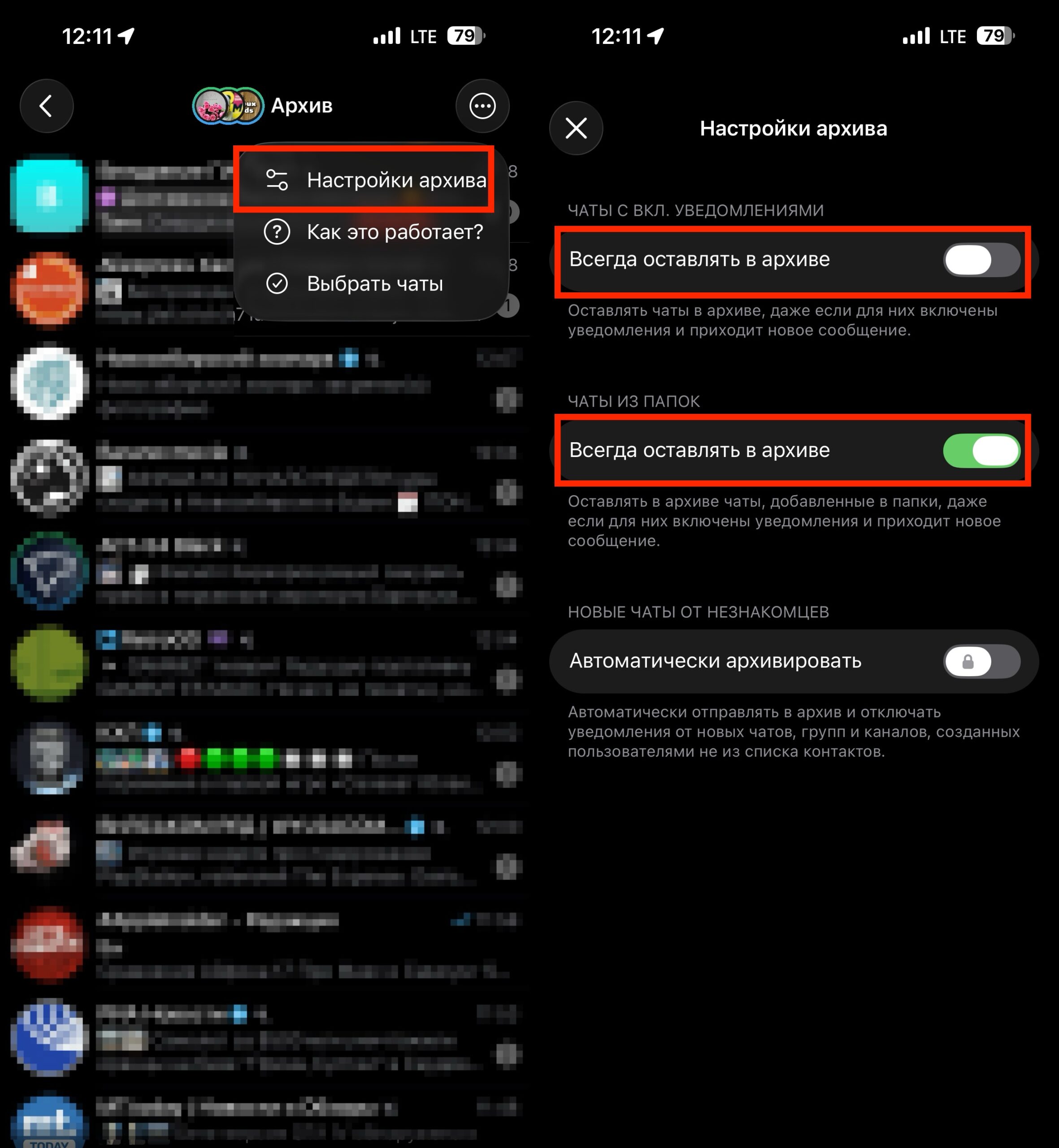
Enable these two toggles, but don’t forget to mute the chat
- Mute notifications in the specific chat before archiving.
- Go to archive settings and enable the “Always keep archived” option — then chats will stop “jumping back” with every new message.
This is especially useful for noisy channels and group chats that generate dozens of messages a day.
Where to Find the Chat Archive in Telegram and How to Restore a Chat
Finding the archive is easy, but it’s located slightly differently on different devices.
On iPhone:
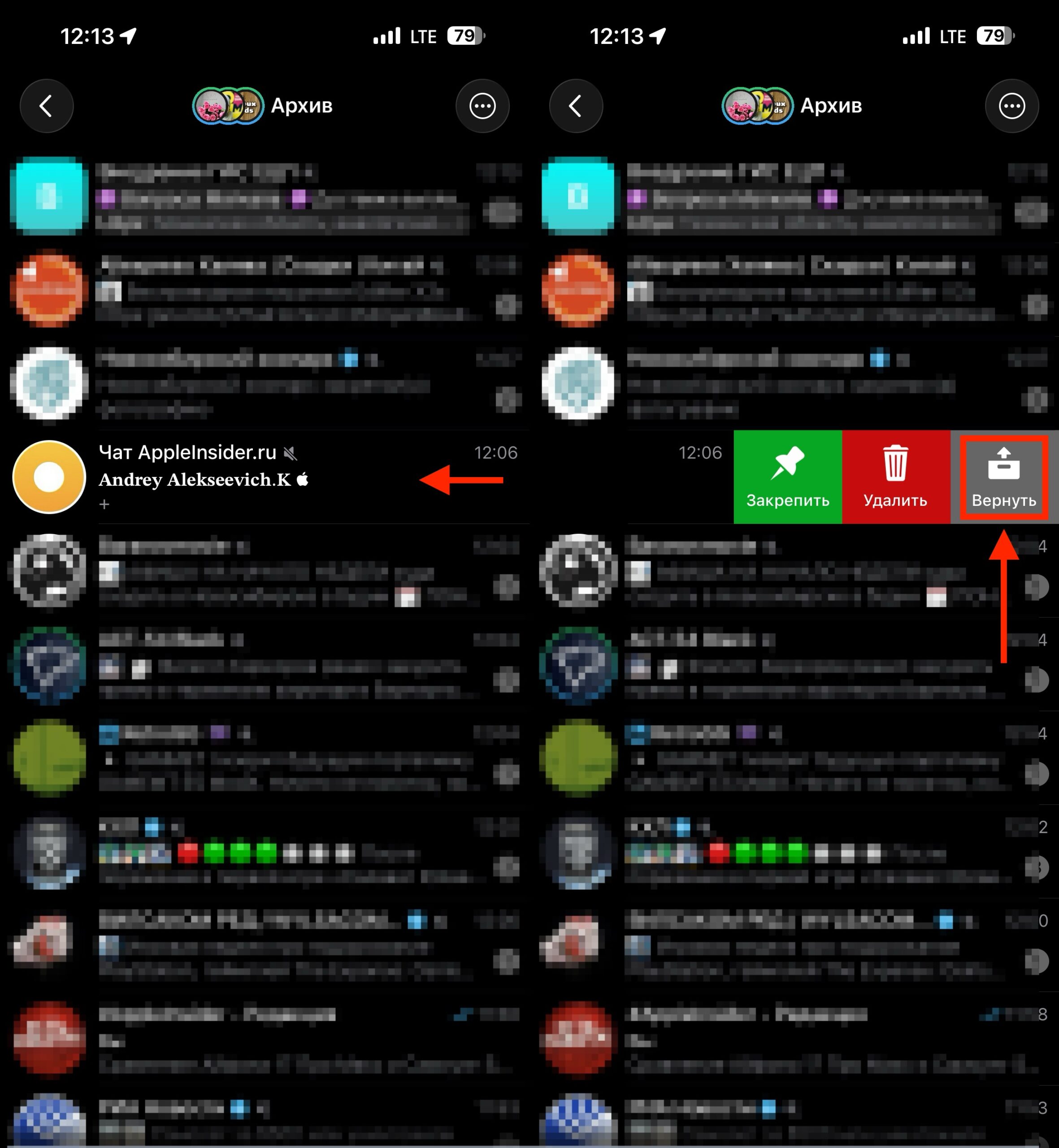
Restoring a chat from the archive is also very simple
- In the chat list, find the “Archive” section — it’s displayed at the top.
- Go into it, find the desired chat, and swipe left.
- Tap “Unarchive”.
On Android:
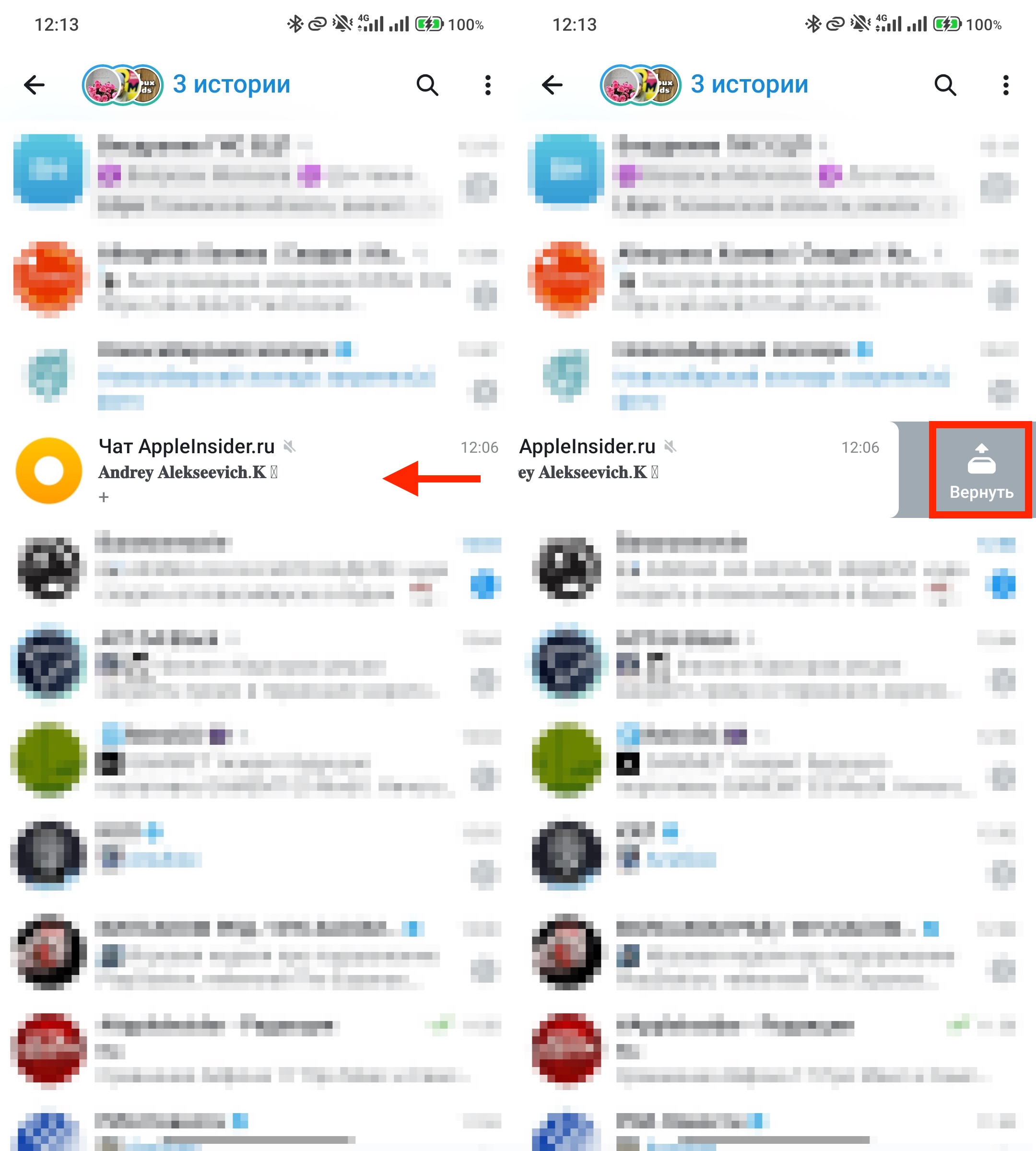
Here you can use a swipe
- Open the chats page and go to “Archive” at the top of the list.
- Swipe the desired chat to the left — it will return to the main page.
On computer:
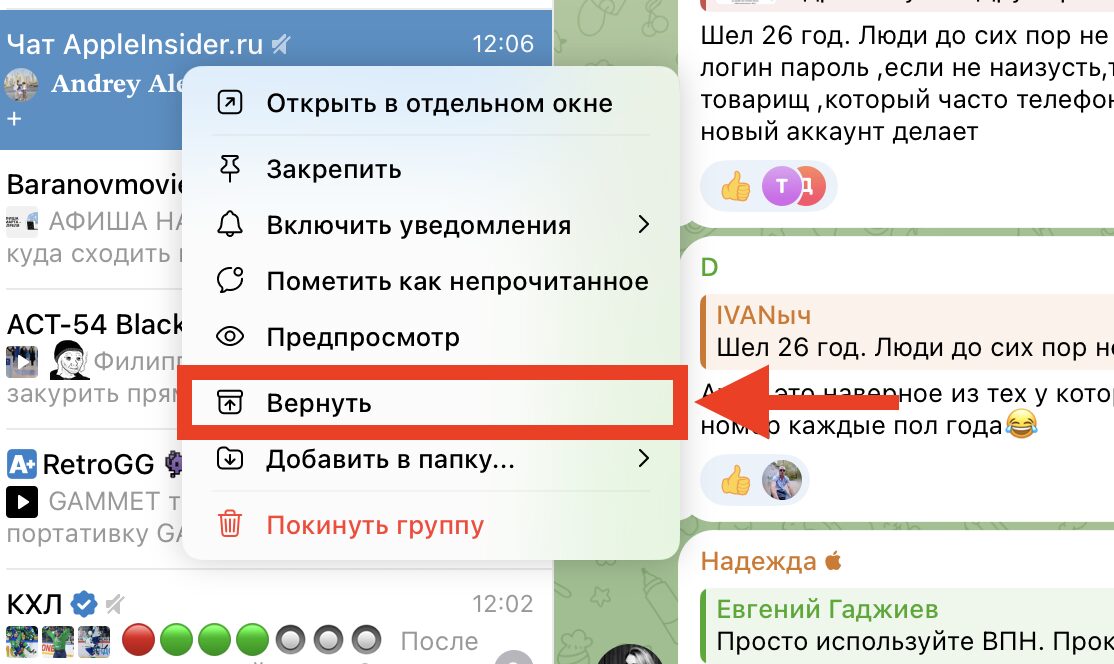
On the computer, everything is solved with a couple of clicks
- In the chat panel, find the barely noticeable word “Archive” at the top.
- Go into it, right-click on the desired chat.
- Select “Unarchive”.
The chat will immediately appear back in the main list with its full message history.
Can You Archive an Entire Chat Folder in Telegram
Short answer — no. Telegram does not allow you to archive an entire folder. You can only archive individual chats. Moreover, if a chat belongs to a folder and you archive it, it won’t disappear from the folder — it will just vanish from the main page.
If you want to completely “remove” a folder, you’ll have to do it manually: archive each chat individually, then delete the folder itself. On a computer — right-click on the folder; on a phone — long-press.