Setting the alarm volume on iPhone separately from the main ringtone and notification volume is a challenge many people face. During the day, you want to keep your phone almost silent, but in the morning, you need a loud signal that will definitely wake you up. In this article, we’ll cover all the ways to control alarm sound: from built-in iOS settings to automation through the Shortcuts app.
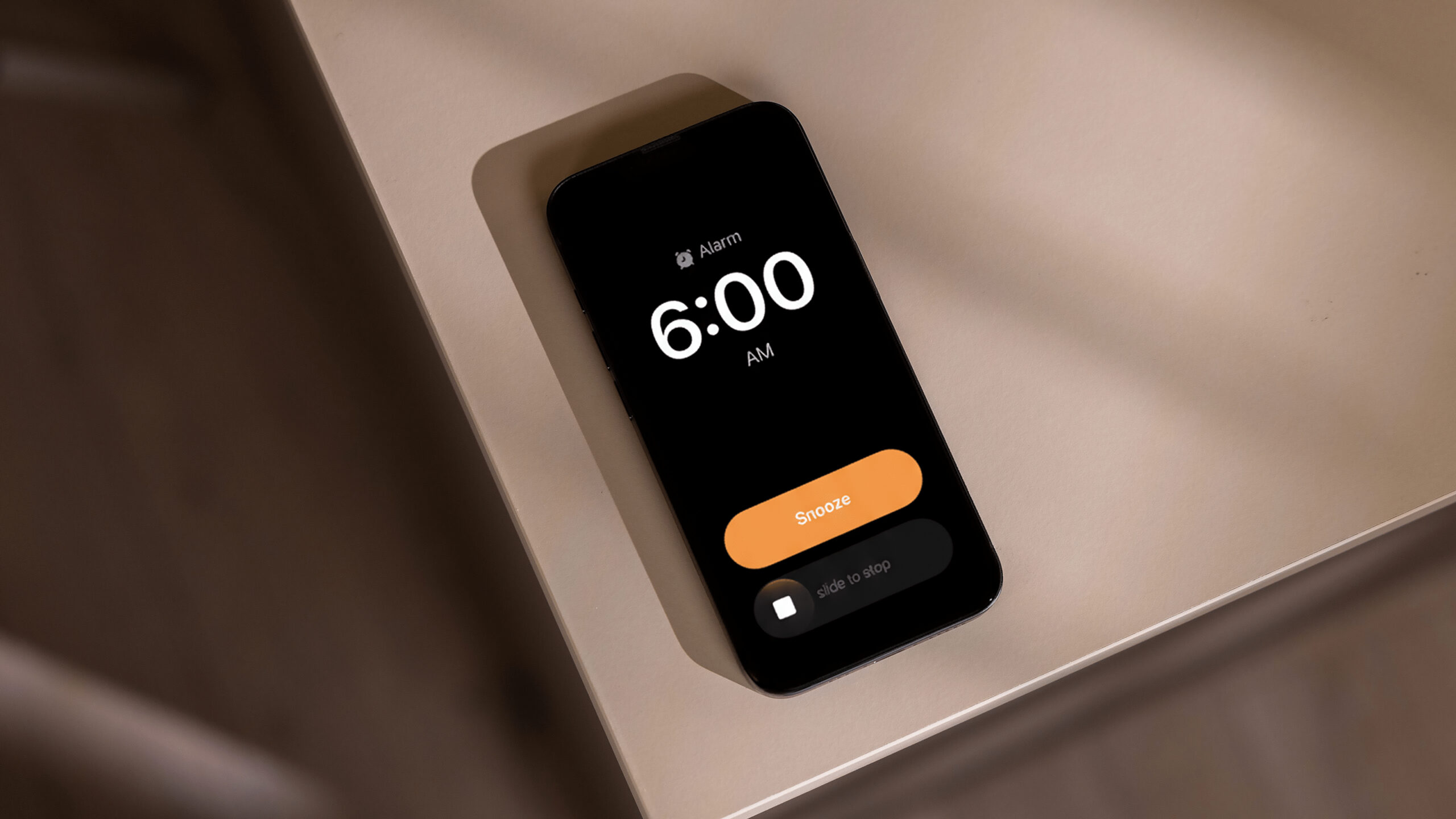
Setting up alarm volume separately from the main smartphone volume. Image: nextpit.com
Why the iPhone Alarm Rings Quietly or Without Sound
Before adjusting the volume, it’s worth understanding why the alarm might sound quiet or not sound at all. This is one of the most common complaints from iPhone owners, and the reasons are usually straightforward.
The alarm volume in iOS is tied to the ringtone and notification volume — the same one responsible for calls, SMS, and app alerts. If you turned this volume down to minimum in the evening, the alarm will ring barely audibly in the morning. Media volume (music, video, podcasts) does not affect the alarm — it’s a separate slider.
Main reasons for a quiet or silent alarm:
- Ringtone volume is turned down to minimum. The side buttons on the iPhone by default control media sound, not the ringtone, so many people don’t notice that the notification sound is set to zero.
- The “Attention Aware” feature is enabled on iPhones with Face ID — it automatically reduces volume when you’re looking at the screen.
- A Focus mode is active (for example, “Sleep”), which can muffle sounds, although the alarm usually breaks through it.
- The speaker is clogged with dust or covered by a case — simple, but happens frequently.
The silent mode switch (the physical toggle on the side or the Action button on iPhone 15 Pro and later) does not affect the alarm — it will ring even in silent mode. But only if the ringtone volume is set above zero.
How to Adjust Alarm Volume on iPhone Through Standard Settings
There is no separate “alarm volume” slider in iOS. But you can increase the alarm volume on iPhone through ringtone settings — and it’s easier than it seems.
Method 1: Through “Settings”
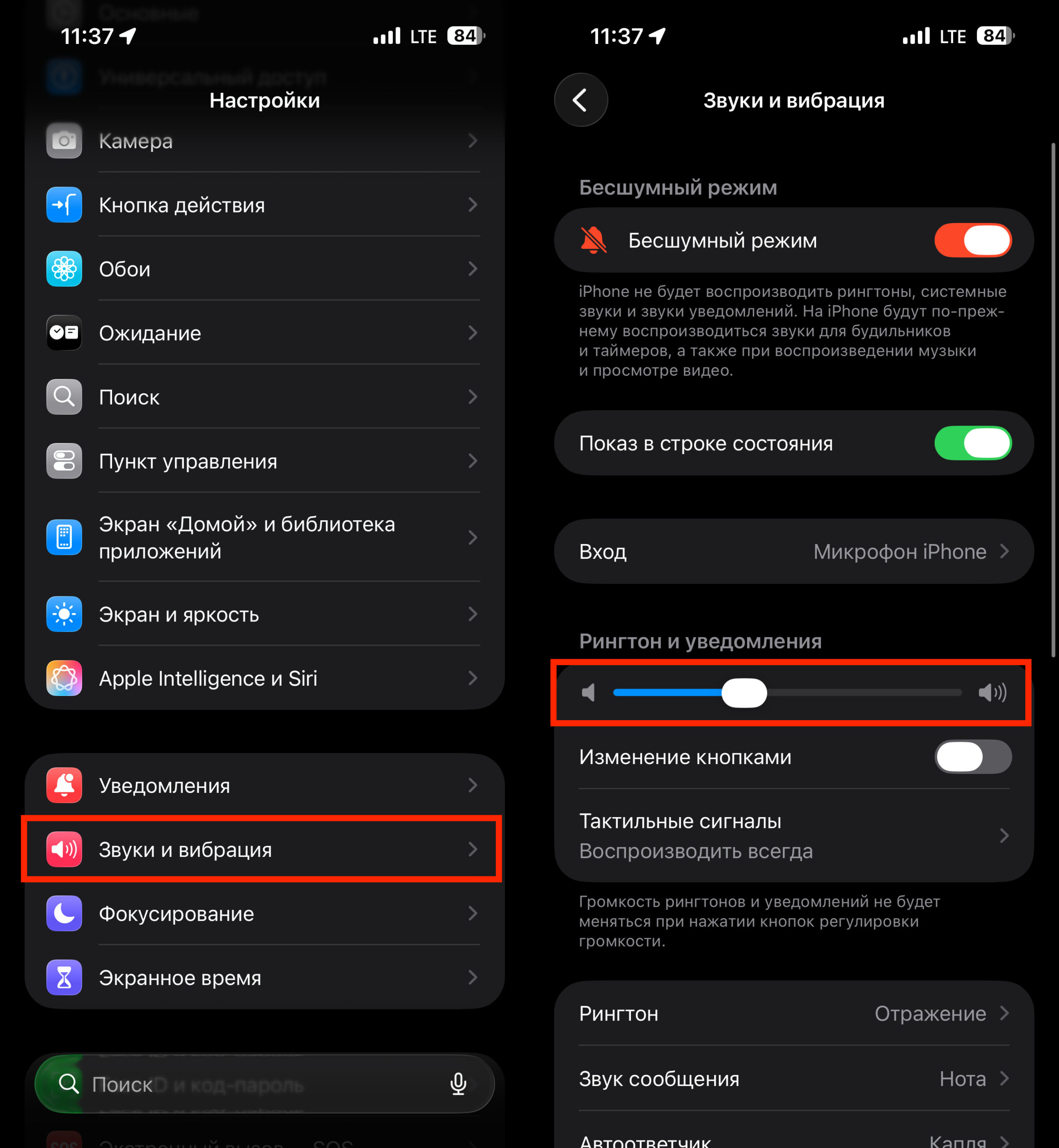
Simply drag the slider to the desired level
- Open “Settings” → “Sounds & Haptics”.
- Find the “Ringtone and Alerts” slider — drag it to the right to the desired level.
- If you want to change this volume with the side buttons in the future, turn on the “Change with Buttons” toggle just below the slider.
After this, the volume buttons on the side of the iPhone will control the ringtone (and therefore the alarm) when there’s no active media player on the screen.
Method 2: Quick adjustment from the home screen
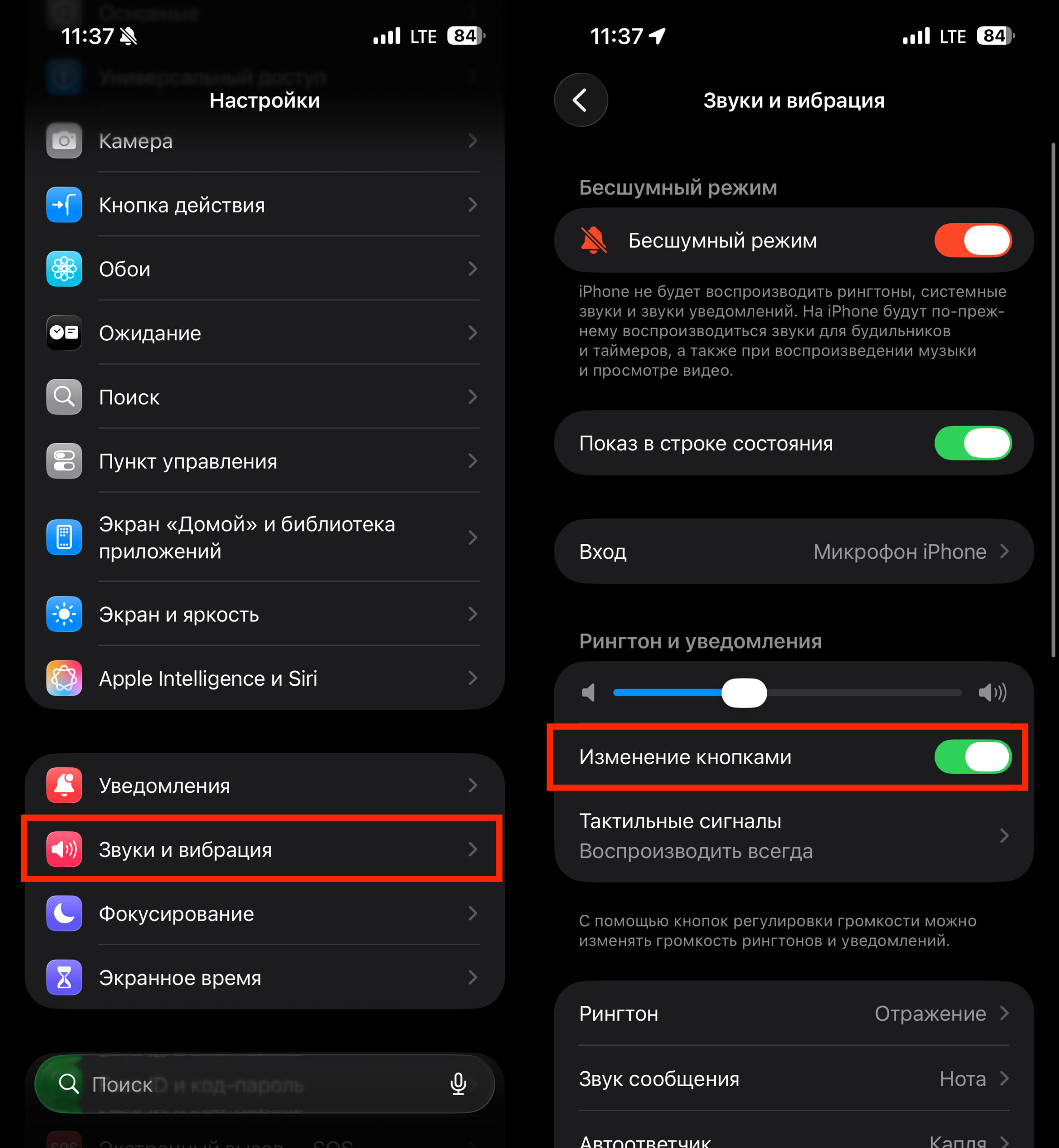
You can adjust alarm volume with the side buttons
- Make sure the “Change with Buttons” toggle is active in “Settings” → “Sounds & Haptics”.
- Close all apps playing media (music, video).
- On the home screen, press the volume up button — an indicator labeled “Ringer” will appear on screen. Set the desired level.
This trick is convenient when you need to quickly max out the alarm volume before bed. But there’s an obvious downside: in the morning, after waking up, the ringtone will remain loud, and the first notification will startle you in the silence. This is exactly the problem that automation solves.
How to Set the iPhone Alarm to Maximum Volume Using Automation
The Shortcuts app allows you to create an automation that will automatically increase the ringtone volume before the alarm and return it afterwards. You won’t have to remember to adjust the sound every evening.
What you’ll need
- An iPhone with iOS 16 or later (the Shortcuts app is preinstalled).
- An alarm set in the standard Clock app — remember the exact trigger time.
Step 1: Create an automation to increase volume
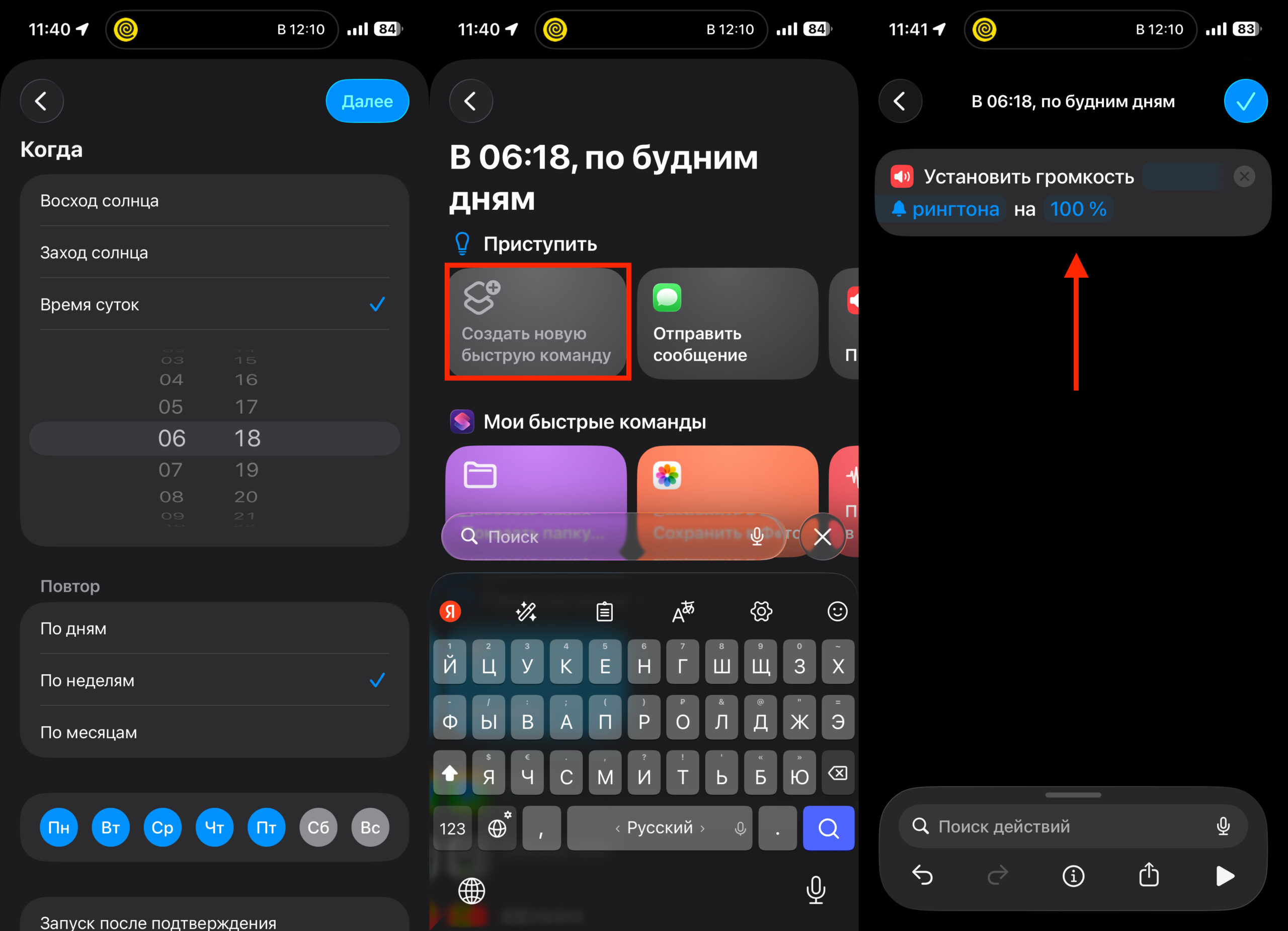
The first automation will max out the volume a couple of minutes before the alarm
- Open the Shortcuts app and go to the “Automation” tab.
- Tap “+” in the upper right corner and select “New Automation”.
- In the list of conditions, select “Time of Day”.
- Set the time to 2–3 minutes before your alarm. For example, if the alarm is at 6:20, set it to 6:18.
- In the “Repeat” section, choose the desired days of the week (for example, “Weekdays” or specific days).
- Select “Run Immediately” — so the automation triggers without confirmation.
- Tap “Next”, then “New Blank Automation”.
- In the search, type “Set Volume” and select this action.
- Set the parameter to “Ringer” and the level to 100%.
- Tap “Done”.
Step 2: Create a reverse automation to lower the volume
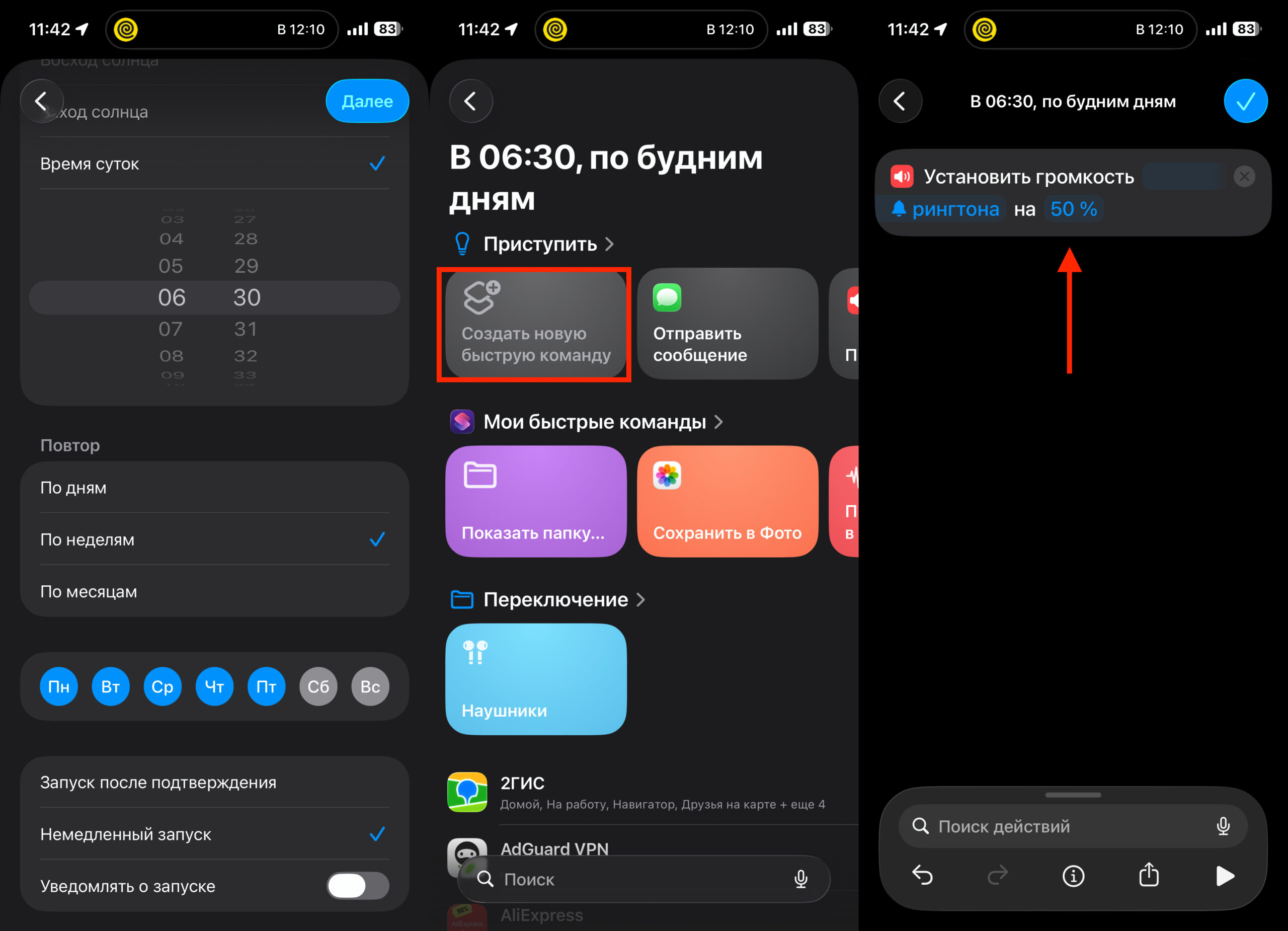
The second automation will return it to the desired value after the alarm
- Repeat steps 1–6, but set the time to 5–10 minutes after the alarm (for example, 6:30). The buffer is needed so you have time to wake up and dismiss the alarm.
- In the “Set Volume” action, select “Ringer” and your comfortable level — for example, 30% or 50%.
- Tap “Done”.
Now every morning, your iPhone will automatically max out the ringtone volume before the alarm, and a few minutes later return it to a comfortable level. You’re guaranteed to hear the alarm, while during the day your phone won’t ring throughout the entire office.
What to Do If the iPhone Alarm Still Doesn’t Sound
If you’ve adjusted the volume but the alarm is still silent or unexpectedly quiet, check a few things:
- The alarm tone is not set to “None.” Open Clock → Alarm → tap “Edit” → select the alarm → “Sound.” Make sure a melody is selected, not silence.