A new smartphone is always exciting. But most people make the same mistake: they immediately jump into Instagram, download games, and start taking photos, forgetting about the basic Android phone setup. Then it turns out that data from the old phone is lost, the system hasn’t been updated in months, and half of the pre-installed apps are quietly draining the battery in the background. If you’ve just picked out a new smartphone, here’s what you need to do in the first few minutes — step by step, without the fluff.
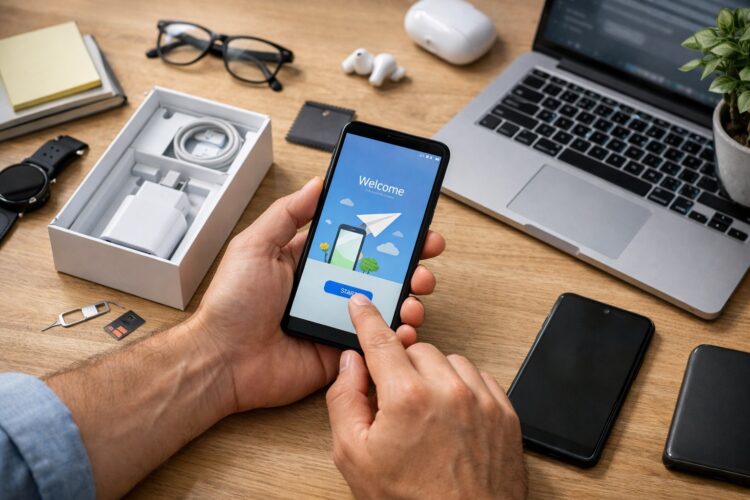
Explaining the basic Android setup for everyone
How to Set Up Lock Screen on Android
This is the first thing the setup wizard will ask about when you turn on the phone for the first time. And rightly so: the lock screen protects all your data, accounts, and apps from strangers. You shouldn’t skip this step even if you think you’ll set it up later.
During the initial setup, the smartphone will offer you a choice of protection: lock screen password, pattern lock, or PIN code. It’s better to choose a PIN or password rather than a pattern lock: patterns are easily guessed from smudge marks on the screen. At the same time, add a fingerprint on the phone — it will be your primary unlock method, while the password serves as a backup. Register two fingerprints right away, for example, the thumb of your right and left hand. This is convenient when one hand is busy.
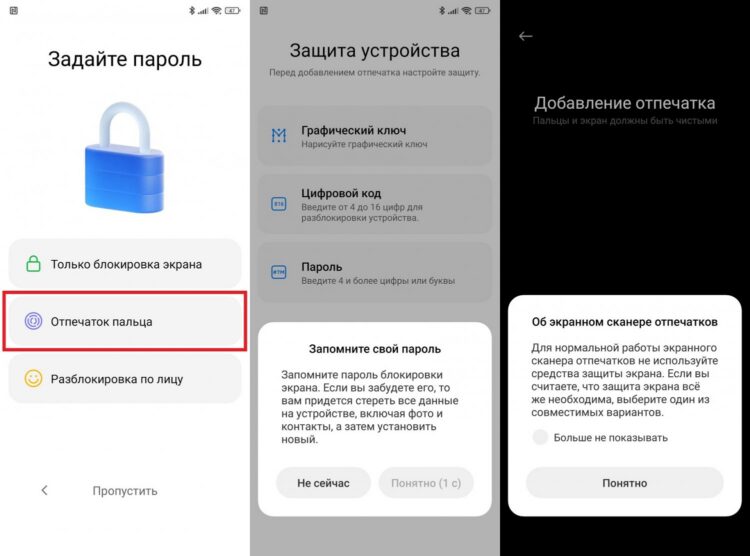
It’s better to set up the lock screen right away
If you skipped this step during the initial setup, no worries. Go to “Settings” — “Security” — “Screen Lock” and configure everything there.
Transferring Data from Android to Android
The setup wizard during the first boot will offer to transfer data from your old smartphone. This is the most convenient moment, and you shouldn’t skip it. During the transfer, it automatically signs into your Google account, pulls in contacts, apps, photos, and even some settings. You won’t have to remember passwords and restore everything manually.
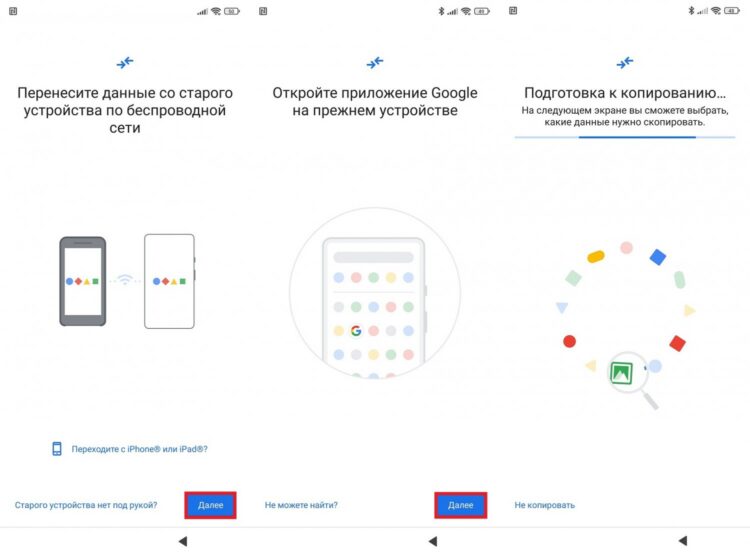
The smartphone will offer to transfer data during the first boot
If you did press “Skip” — no big deal. You can transfer data from phone to phone even after the initial setup through Google’s “Data Transfer” app or the proprietary app from your smartphone’s manufacturer.
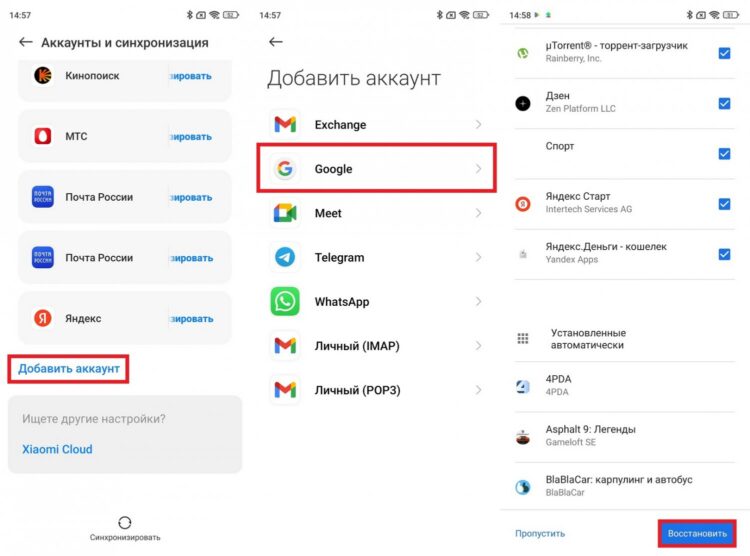
You can transfer data even after turning on by setting up Google sync
Contacts deserve a separate mention. If they weren’t transferred automatically, you can transfer contacts from phone to phone via your Google account: they sync in the cloud and appear on the new device right after signing in. Your Google account is the key to everything: contacts, email, photos, Play Store purchases. If for some reason you haven’t created one yet, you can create a Google account on Android in several ways.
How to Update Android on Your Phone
After the data has been transferred and the basic Google setup on Android is complete, the first thing to do is check for system updates. The smartphone may have been sitting in a warehouse for several months, and during that time the manufacturer released security patches, fixed bugs, and possibly added new features. Updating Android on your phone takes just a few minutes but significantly affects the stability and security of the device.
To download an update on your phone, do the following:
- Open your smartphone’s “Settings.”
- Go to the “About Phone” or “System” section.
- Find “System Update” or “Software Update.”
- Tap “Check for Updates.”
- If an update is available, download and install it.
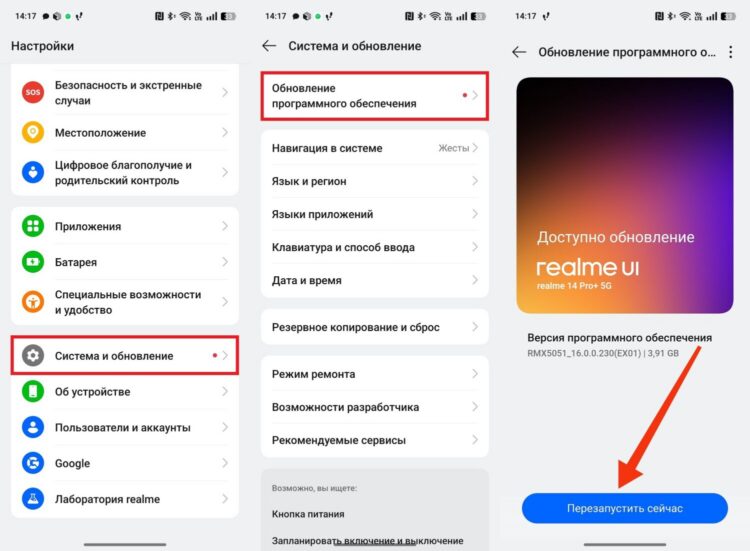
Some menu item names may differ
After installation, the smartphone will restart — this is normal.
How to Remove Unnecessary Apps on Android
This is one of the most underrated steps. Most Android smartphones come out of the box with a huge number of pre-installed apps that you’ll never use: partner services, duplicate browsers, branded content stores, manufacturer utilities. They all take up space, have permissions, and often run in the background, draining battery life.
Xiaomi, realme, and Samsung are especially guilty of this. Xiaomi smartphones may have up to twenty partner apps installed by default, all of which can be removed without any consequences. Samsung bundles its devices with its own alternatives to all standard programs — browser, email, gallery, app store — even where Google versions already exist. To completely uninstall an app on Android:
- Long-press the app icon on the home screen.
- Select “Uninstall” or drag the icon to the trash.
- Confirm the deletion.