Prolonged use of an iPhone or iPad can cause eye strain, headaches, and a feeling of exhaustion. If you spend several hours a day in front of a screen — and most people do — it’s worth customizing your device and picking up a few simple habits. Here are several specific ways to reduce eye strain — from built-in iOS features to everyday little things people often forget about.
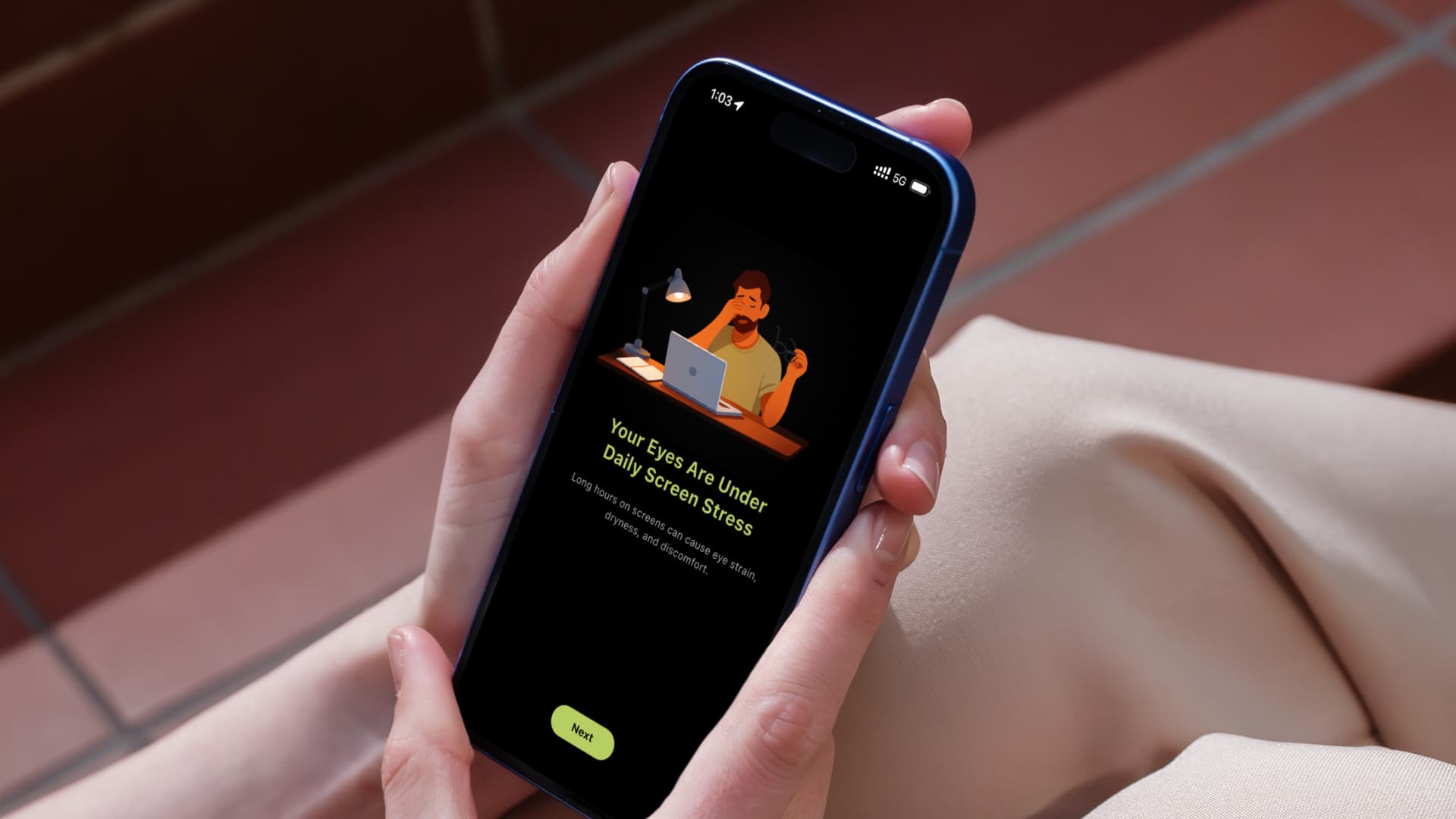
Tips on how to reduce eye strain when using iPhone or iPad
The 20-20-20 Rule — How to Protect Your Eyes When Working with a Screen
One of the simplest and most proven ways to relieve eye strain is the 20-20-20 rule. The idea: every 20 minutes, look away from the screen and spend 20 seconds looking at an object approximately 6 meters (20 feet) away from you. This relaxes the eye muscles and reduces discomfort.
The problem is that few people can remember to do this without a reminder. The App Store has free apps that will send you notifications every 20 minutes:
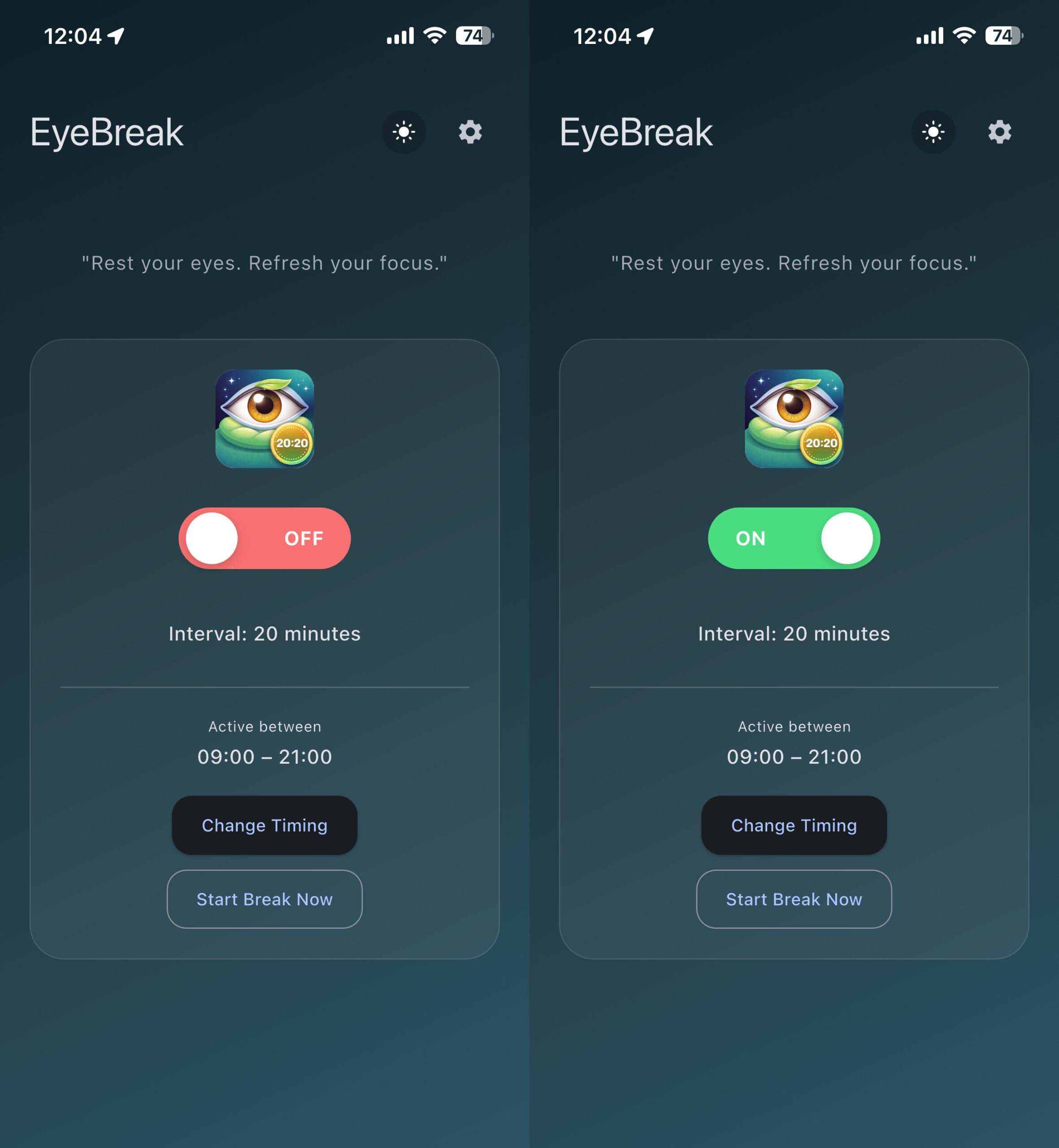
Just flip the toggle and wait for the notification
If you have the iPhone Mirroring feature set up on your Mac, notifications from these apps will also appear on your computer — no separate reminder app for Mac needed. By the way, here’s another simple habit: try to blink more often. When we scroll through social media feeds, we blink significantly less than usual — which causes our eyes to dry out and start hurting.
Brightness Settings and Dark Mode on iPhone
Auto-brightness is enabled on iPhone by default, but it doesn’t work perfectly. If the screen is too bright or, conversely, too dim — go to Control Center and adjust the brightness manually. It’s a basic action, but many people neglect it, even though it noticeably reduces eye strain. Many video apps — like Netflix — let you adjust brightness by swiping directly on the player screen. Learn how this works in your favorite apps and use it.
If even the minimum screen brightness seems too strong — for example, in complete darkness before bed — there’s a way to make the screen even dimmer. iOS has a feature called “Reduce White Point”: go to Settings — Accessibility — Display & Text Size and turn it on. The slider lets you find a comfortable level. This feature reduces the intensity of bright colors without dimming the entire screen — useful if you’re sensitive to light.
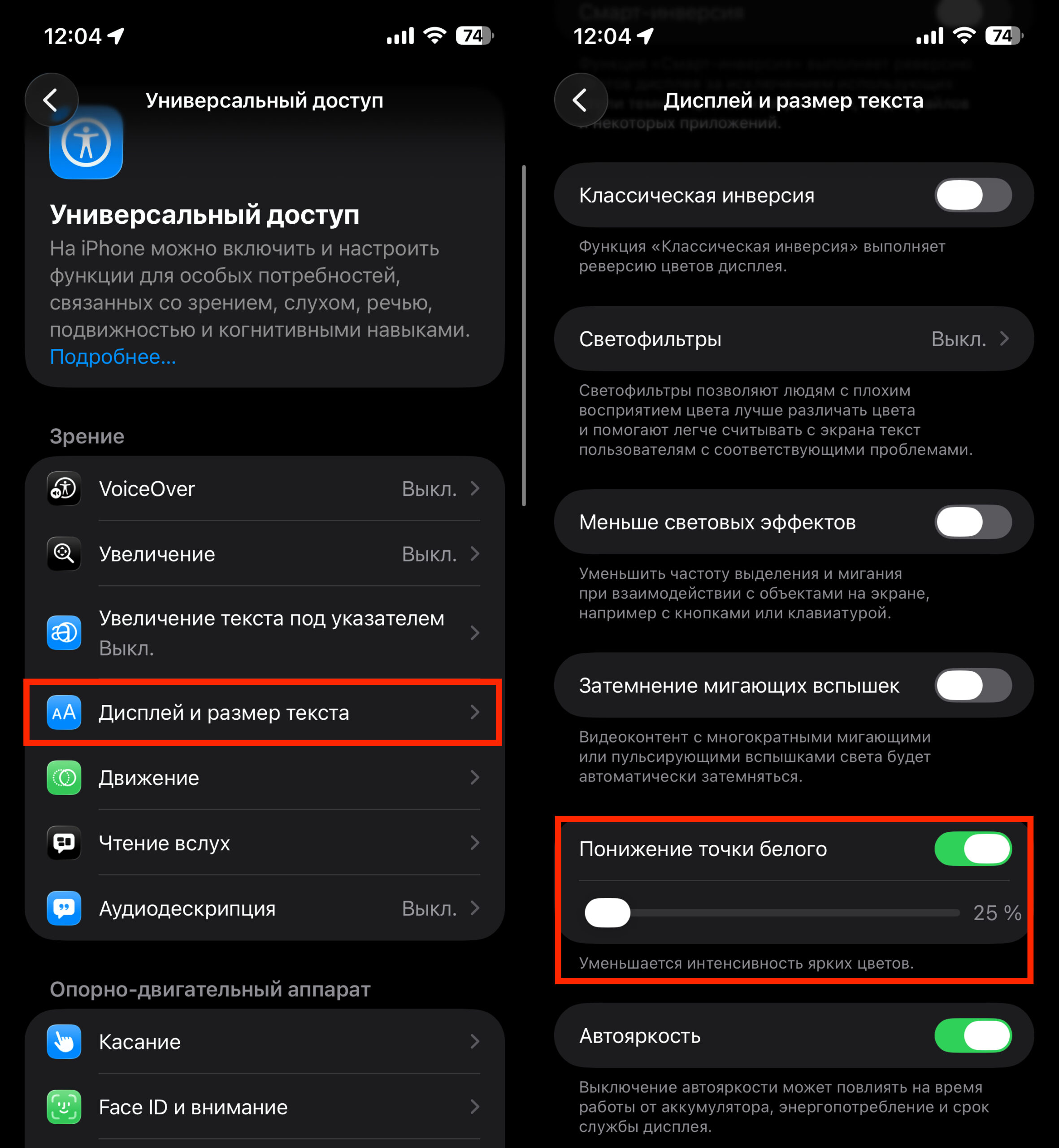
This feature lets you make brightness lower than the standard minimum
As for dark mode: it’s great at night because it removes excess light from the screen. But during the day, dark mode isn’t for everyone — white text on a black background can be harder to read. So if dark mode feels uncomfortable during the day, just turn it off until evening.
Text Size and Screen Distance on iPhone
If you’re squinting to read small text — you’re putting extra strain on your eyes. iOS lets you increase the text size on three levels:
- in a specific app (through Accessibility settings)
- on web pages in Safari
- system-wide (Settings — Display & Brightness — Text Size)
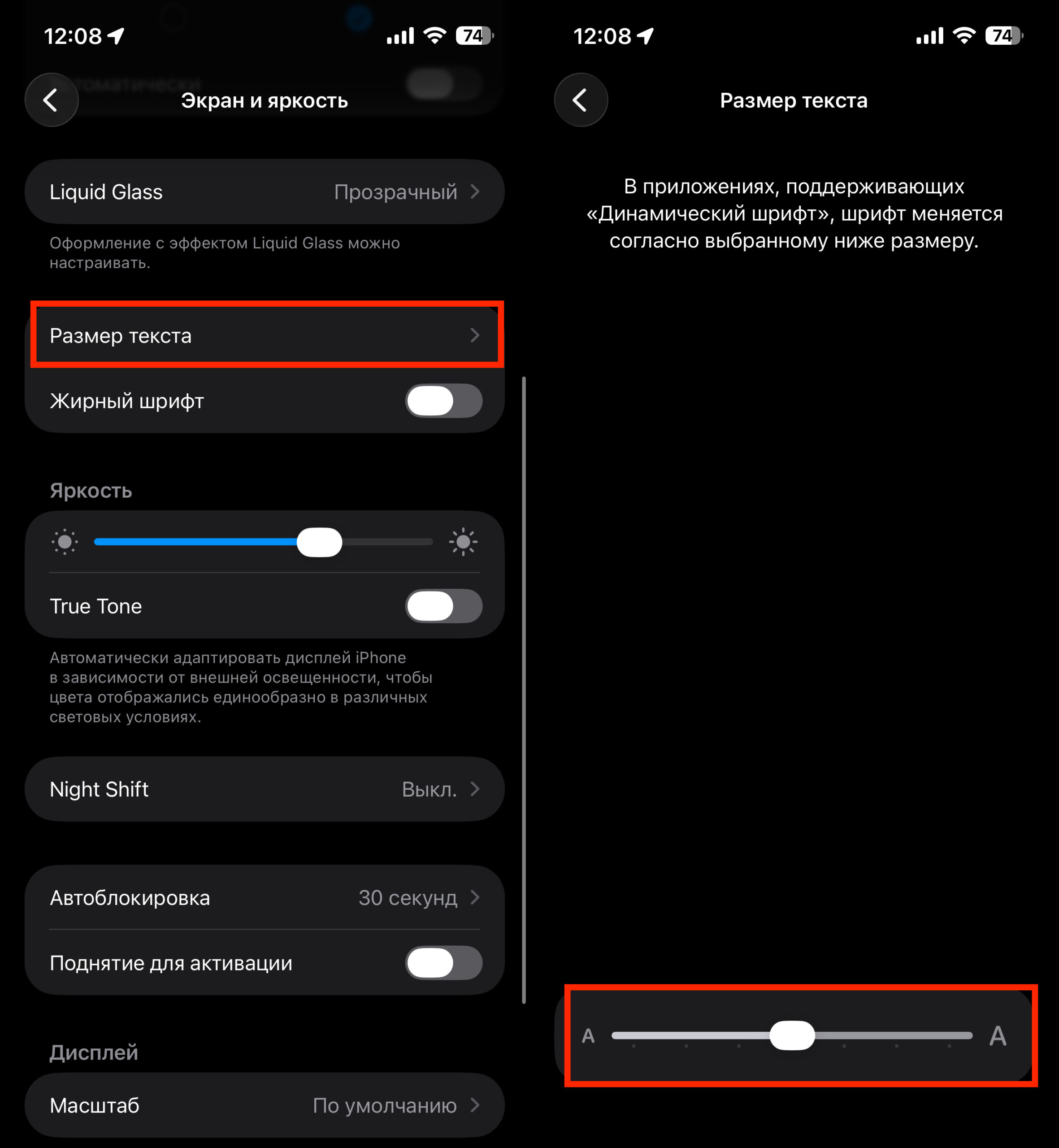
Change the text size however you like
Find a comfortable size — it takes a couple of minutes, but your eyes will feel noticeably better.
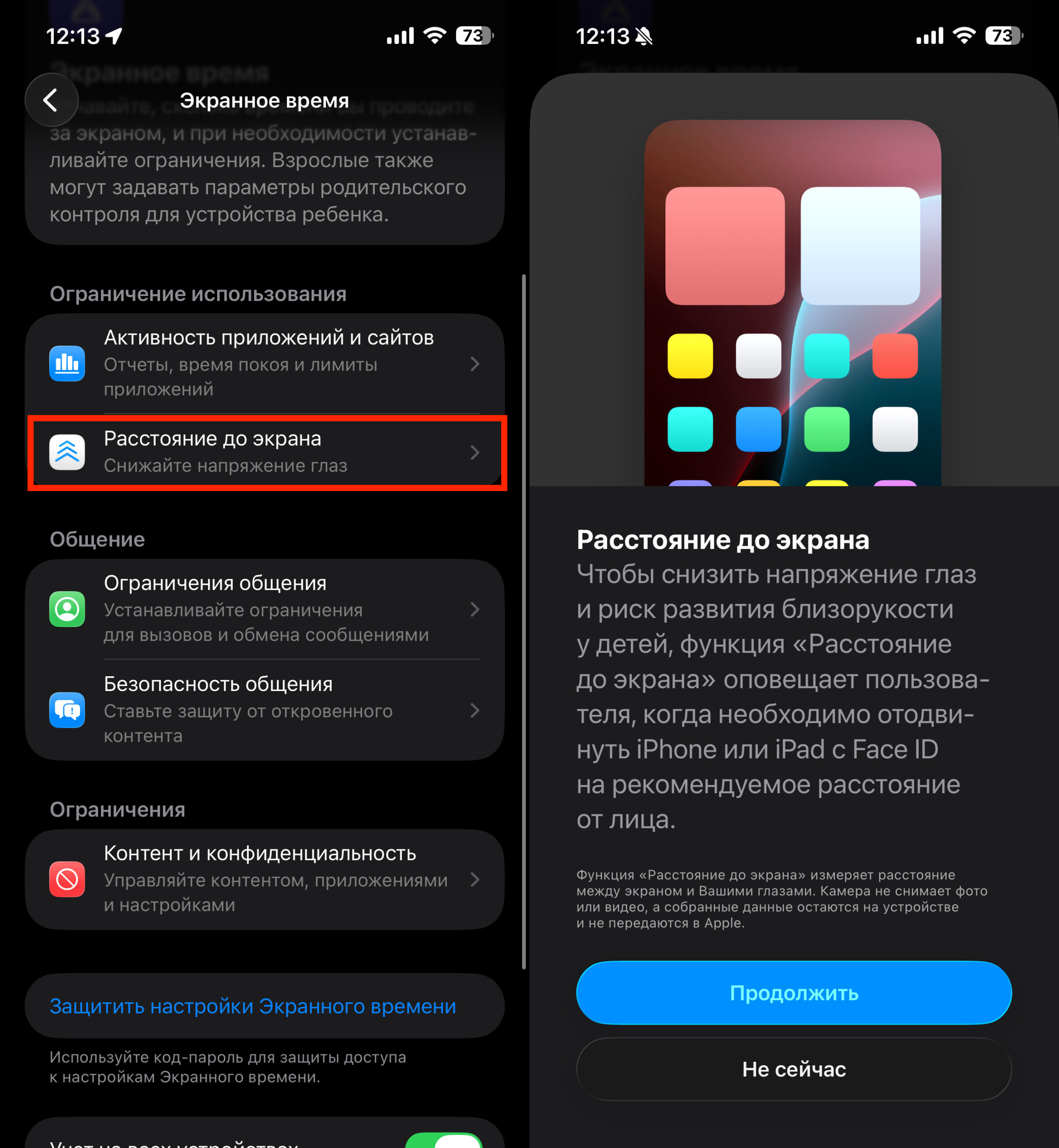
Don’t forget to set up screen distance too
Another useful but little-known feature is “Screen Distance”. It uses the TrueDepth camera (the same one used for Face ID) to detect when you’ve been holding your iPhone closer than 30 centimeters (about 12 inches) from your face for too long. When this happens, a warning appears on screen — you can only continue after moving the device farther away. It can be enabled in Settings — Screen Time — Screen Distance. The feature works on all iPhones with Face ID.
True Tone, Night Shift, and Disabling Animations in iOS
The iPhone has two features that adjust screen color to match your surroundings:
- True Tone — automatically changes the screen’s color temperature depending on the lighting around you. The image looks more natural and is less irritating to the eyes.
- Night Shift — removes the cool blue tint and makes the screen warmer, with an orange tone. Especially useful if you use your phone before bed.
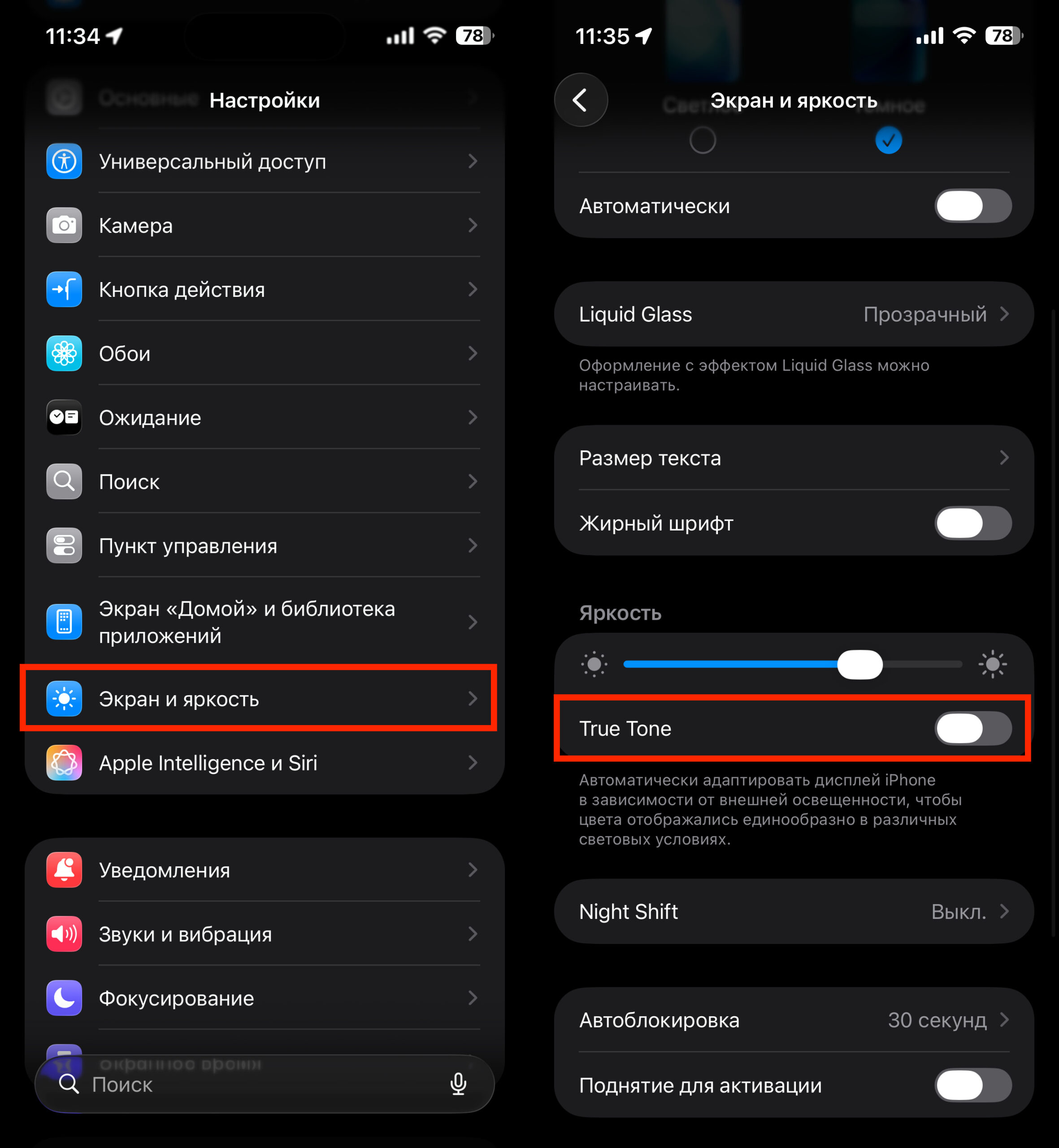
Many people like True Tone, but I turn it off
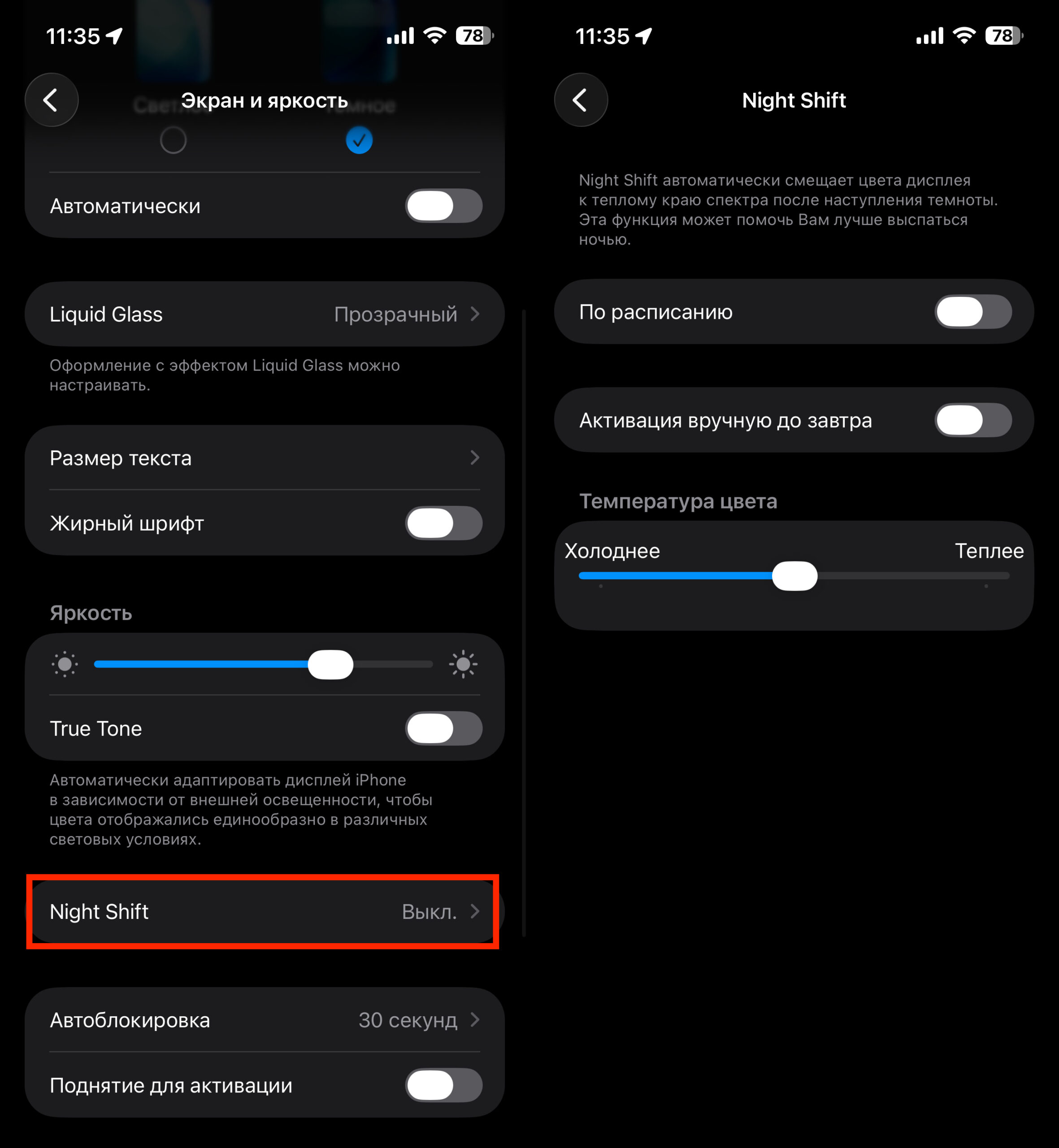
Night Shift is especially great in the evening
Both features can be enabled through Control Center: press and hold the brightness slider. They are also available in Settings.