Apple has brought back the compact tab bar in Safari, which was removed last fall during the transition to macOS Tahoe and iPadOS 26. The macOS 26.4 and iPadOS 26.4 updates, released this week, restore this option. If you’ve been missing the more space-efficient browser interface — you can now turn it back on.
Safari got back a feature that many people missed. Image: cnet.com
What Is the Compact Tab Bar in Safari and Why Do You Need It
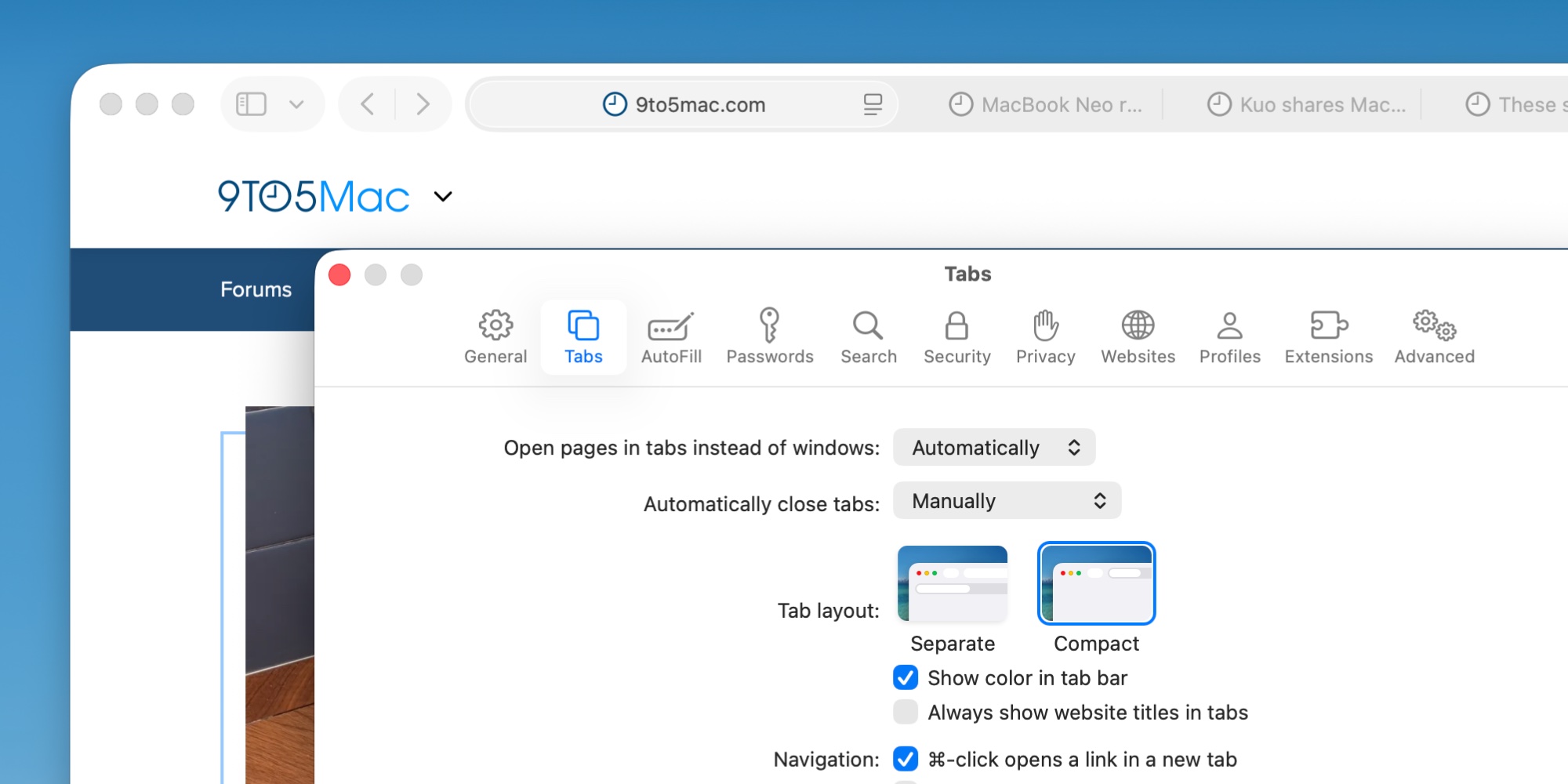
Compact Tab Bar: How to Enable the New Design in Safari on iPad and Mac. Image: 9to5mac.com
The compact tab bar is an alternative layout for the top section of Safari on Mac and iPad. In the default mode (Separate Tab Bar), the address bar and tabs are arranged in two separate rows. Compact mode merges them into a single line: the address bar, open tabs, and controls all occupy one horizontal strip.
In practice, this saves vertical screen space. The web page gets more room, and when working with many tabs, the interface clutters the screen less. This is especially noticeable on laptops with smaller displays — for example, on 13-inch MacBook Air models — and when using an iPad in landscape orientation.
Why Apple Removed Compact Mode in Safari and Why It Brought It Back
When macOS Tahoe and iPadOS 26 launched last fall, the compact tab bar simply disappeared from the settings. Most likely, the reason was the sweeping redesign of the Liquid Glass interface: Apple focused on the new visual style and didn’t have time to adapt compact mode for it.
Many users took it hard. On Apple and MacRumors forums, people complained about losing their preferred way of working. Some even refused to upgrade to macOS Tahoe specifically because of the missing compact tabs. Apparently, the feedback worked: Apple listened and restored the option in the 26.4 update.
How to Enable the Compact Tab Bar in Safari on Mac
The setting is available after updating to macOS 26.4. Here’s how to activate it:
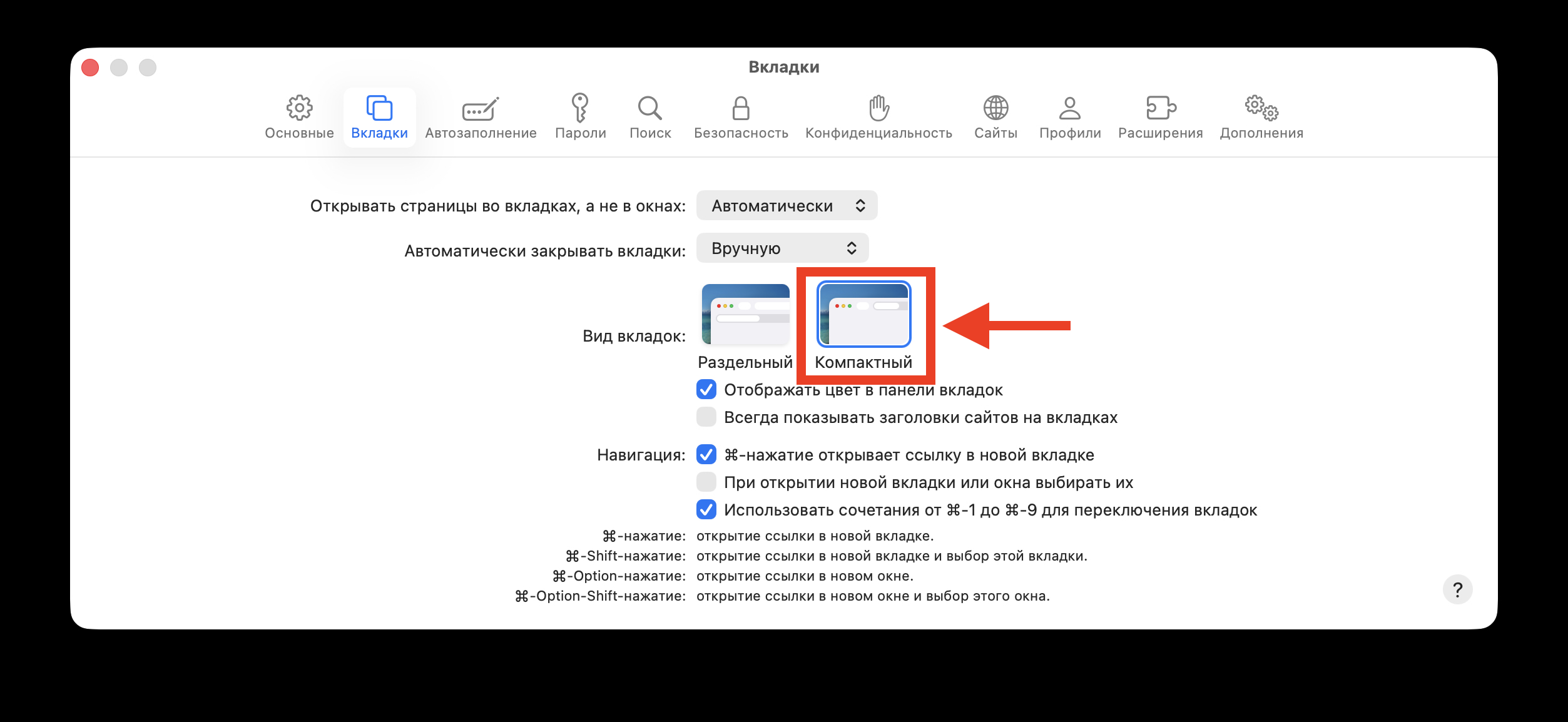
Switch to the compact tab bar and the changes will apply immediately
- Open the Safari app.
- Click on the Safari menu in the upper right corner of the screen and select Settings from the dropdown list.
- Find the “Tabs” section.
- Under “Tab layout,” select “Compact.”
The change takes effect instantly. If you don’t like it — you can switch back the same way.
How to Enable the Compact Tab Bar in Safari on iPad
On iPad, the process is similar, but the path is slightly different:
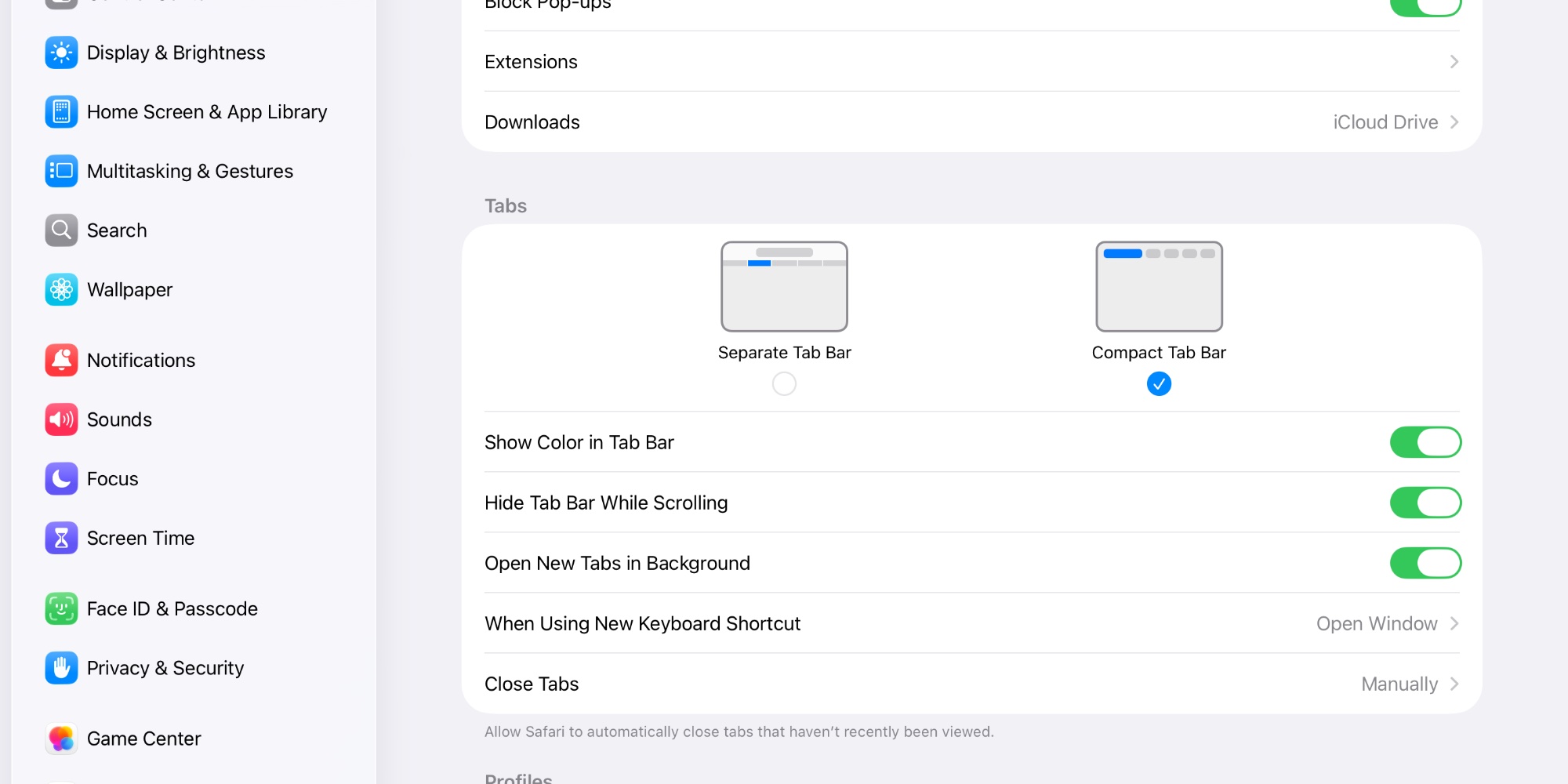
On iPad, everything is done in the device settings. Image: 9to5mac.com
- Open the Settings app.
- Find and open the Safari section (through the app list or search).
- Scroll down to the “Tabs” section.
- Select “Compact Tab Bar.”
The result is visible immediately: the top part of Safari becomes more compact, and the page content takes up more space on the screen. For iPad with its not-so-large display, it’s a noticeable difference.
Who Will Benefit from Safari’s Compact Mode and Who Won’t
The compact tab bar isn’t a new feature — it’s the return of an old one. It will be most useful for those who:
- Work on a MacBook Air or another laptop with a compact screen and want to see more page content
- Were accustomed to this mode before updating to macOS Tahoe and iPadOS 26
- Use an iPad as their primary device for web browsing and value every inch of screen space
- Keep many tabs open at the same time
If you’re comfortable with the separate tab bar and don’t notice a lack of space — there’s no need to change anything. The default mode remains the same; compact mode is only enabled manually.
It’s also worth noting: with a large number of open tabs in compact mode, each tab gets very little width, making it harder to read their titles. That’s the trade-off of saving space.
What Other Changes Safari Received in macOS 26.4 and iPadOS 26.4
The compact tab bar isn’t the only change in these updates. macOS 26.4 also introduced:
- Battery charge limit — MacBook users can now set a maximum charging level from 80% to 100% in 5% increments to extend battery lifespan
- Eight new emoji
- Warnings for apps that will stop working after Apple drops Rosetta 2 support in macOS 28
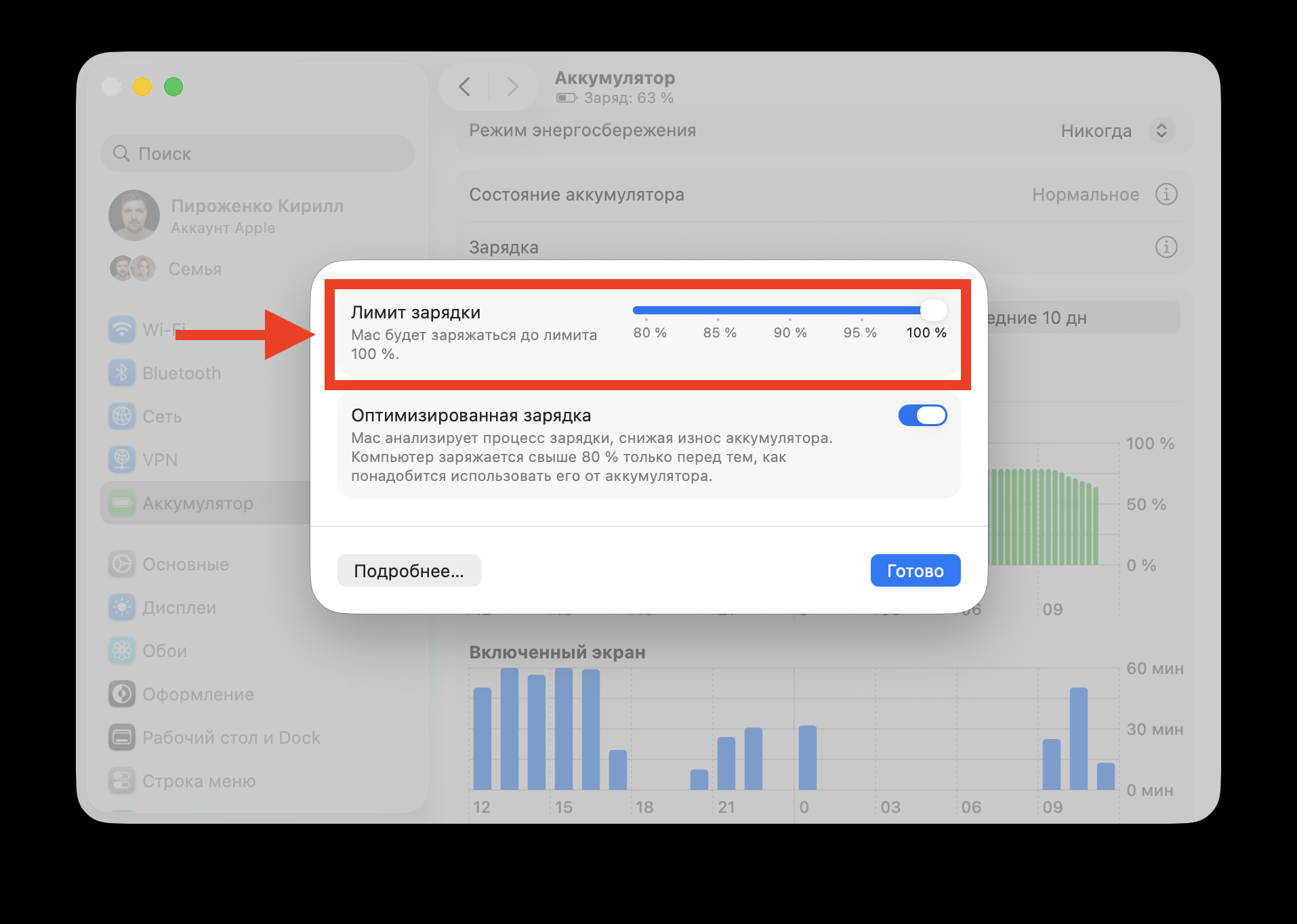
Set a charge limit to preserve your battery as long as possible
The iPadOS 26.4 update also includes new emoji and other system improvements. To install, simply go to Settings → General → Software Update on iPad, or System Settings → Software Update on Mac.
The compact tab bar in Safari is a small but important return. It won’t change your life dramatically, but it will restore a familiar, convenient way of working for those who’ve been waiting. If you’ve been wanting to update your Mac to Tahoe or your iPad to iPadOS 26.4 but held off specifically because of this — the reason to update just got stronger.