App Store on iPhone won’t load, shows a blank screen, or displays “Cannot Connect” — many users in Russia have encountered this problem in recent weeks. Some thought Apple had shut down the store, but in reality, App Store continues to work. There is a problem that is most often related to internet settings on the device, and it can be resolved in just a couple of minutes.
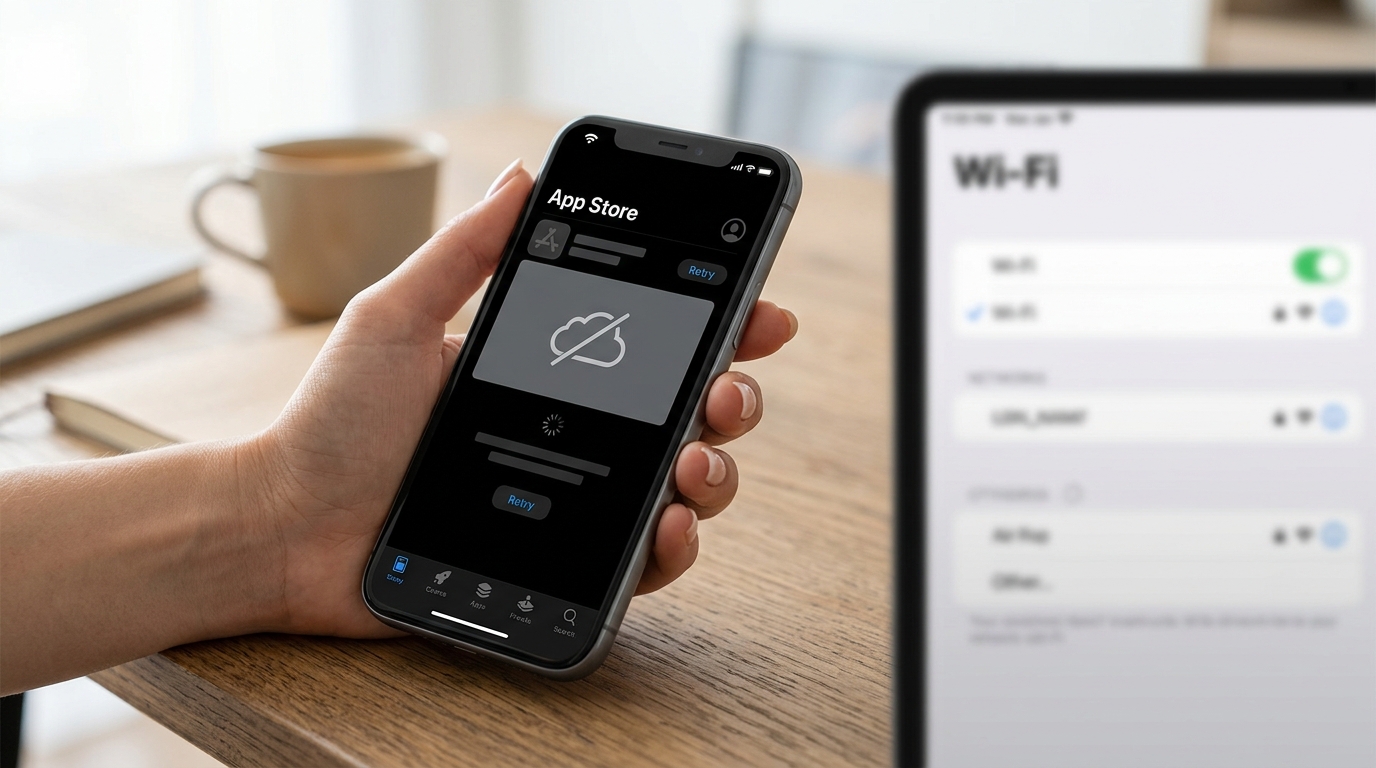
Cannot Connect to App Store. What to Do?
Why App Store Won’t Connect on iPhone in Russia
DNS is responsible for establishing a connection with the servers that run the service you need. Sometimes DNS can work intermittently or not work at all — for example, due to Roskomnadzor blocks — and then it needs to be replaced with another one. Simply put, DNS is the “phone book” of the internet that tells your iPhone exactly where the App Store server is located. If this “book” malfunctions, your iPhone simply can’t find the way to the app store.
The problem became widespread amid active slowdowns and blocks of Telegram in Russia. Restrictions on Telegram began to be introduced in February 2026. A side effect of such measures can be disrupted DNS operation for a number of providers — and App Store gets caught in the crossfire.
Even if App Store suddenly stopped opening, it is most often related to the network or temporary service outages, rather than the device’s region. Users often think that the problem is related to Apple ID. In practice, this happens extremely rarely. Most often, the issue lies in the network connection, temporary Apple services outages, or a local error in the system itself.
How to Fix the App Store Error by Changing DNS on iPhone
The most effective method that has helped the majority of users is replacing the standard provider DNS server with a public one. Here is a step-by-step guide:
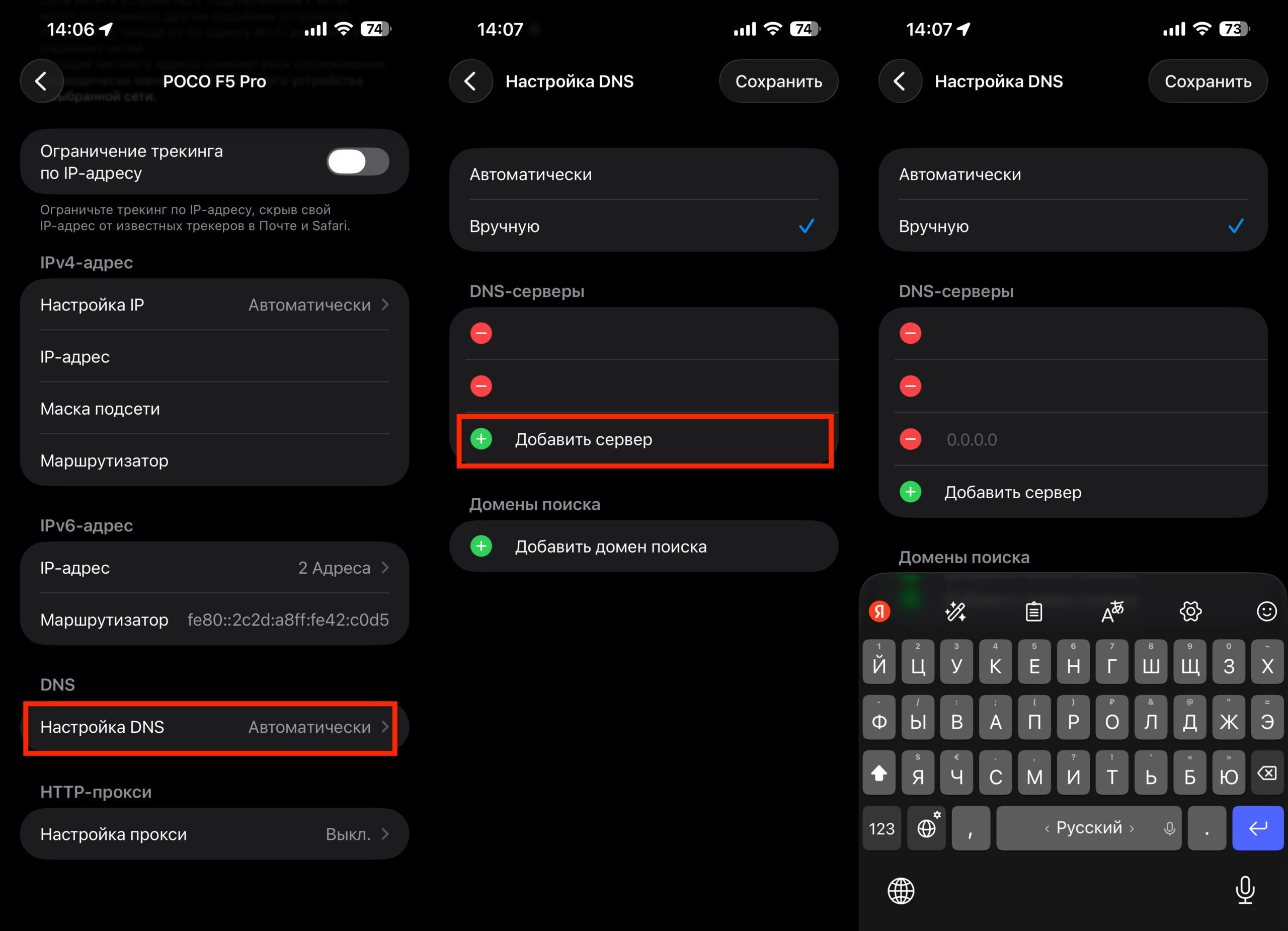
Add the required DNS, and App Store will work
- Open Settings → Wi-Fi.
- Find the network your iPhone is connected to and tap the ⓘ icon next to its name.
- Scroll down and tap “Configure DNS”.
- Select “Manual”.
- Delete the current DNS server (usually your router’s address, for example 192.168.0.1).
- Tap “Add Server” and enter the following three addresses one by one: 1.1.1.1, 8.8.8.8, 4.4.4.4.
- Tap “Save”.
After that, open the App Store — it should work. DNS address 1.1.1.1 belongs to Cloudflare, which has servers worldwide and provides high stability and signal speed. Unlike the VPN service of the same name, this DNS is not blocked in Russia — authorities have no issues with it since it doesn’t allow bypassing blocks. Address 8.8.8.8 is a public DNS from Google, which also works well on most networks.
Important note: you can only set a custom DNS for a Wi-Fi network. In mobile internet (cellular data) settings on iPhone, there is no such option. This means that if App Store won’t load over a mobile network, connect to any Wi-Fi and configure DNS using the instructions above.
Also, DNS settings are saved separately for each Wi-Fi network. If you connect to a different one — at home, at work, in a café — you’ll need to repeat the setup. It’s not difficult, but worth keeping in mind. Some users report the opposite situation: App Store only works over mobile internet, but not through Wi-Fi. This further confirms that the problem lies specifically in the DNS of a particular provider.
What to Do If App Store Doesn’t Work
If changing DNS didn’t help, there are several more steps to try:
- Check Apple server status. The problem may be on Apple’s side, and nobody can access the App Store right now. In this case, check the “System Status” page on Apple’s website.
- Toggle Airplane Mode on and off. This restarts the network connection and sometimes helps with temporary glitches.
- Restart your iPhone. A basic but effective tip — especially if the problem appeared after prolonged use without a restart.
- Sign out of Apple ID and sign back in. Sometimes issues are resolved by signing out and signing back in. To do this, go to “Settings” → “iTunes Store & App Store.” Tap on Apple ID and select “Sign Out.”
- Reset network settings. This can be done in “General” → “Transfer or Reset iPhone.” Keep in mind that all saved Wi-Fi networks will be deleted. This is a last resort — only use it if nothing else has worked.
Incorrect time and date settings can also prevent connection to App Store — the service uses these parameters to synchronize with Apple servers. Make sure that automatic detection is enabled in Settings → General → Date & Time.
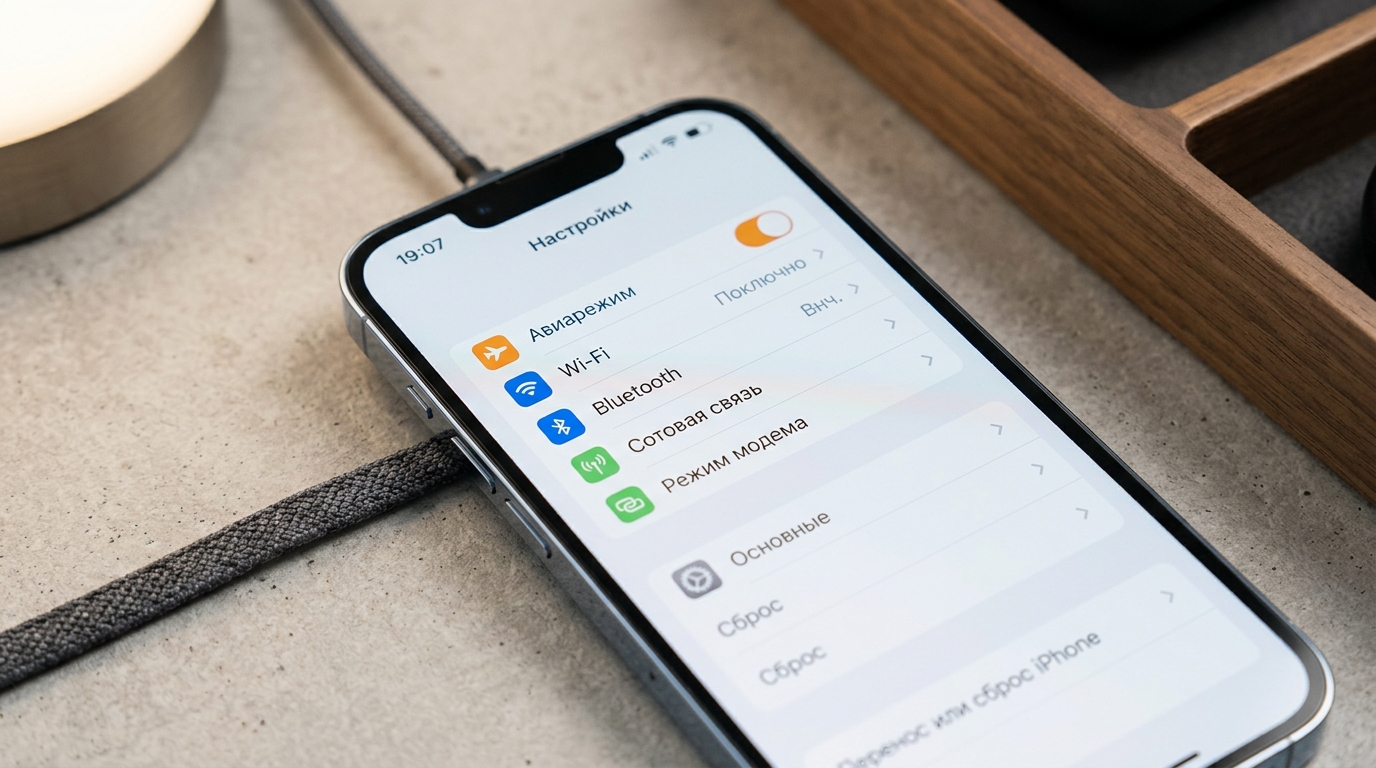
Airplane Mode and network settings reset — additional ways to restore connection
App Store Not Working in Russia — Block or Technical Issue
Every time App Store starts acting up, rumors appear about the store being completely shut down in Russia. Despite the fact that Apple has not shut down App Store in Russia, from time to time users encounter store unavailability. iPhone simply displays: “App Store Connection Failed.” Many think Apple has finally gone all in. Fortunately for all of us, that’s not the case.
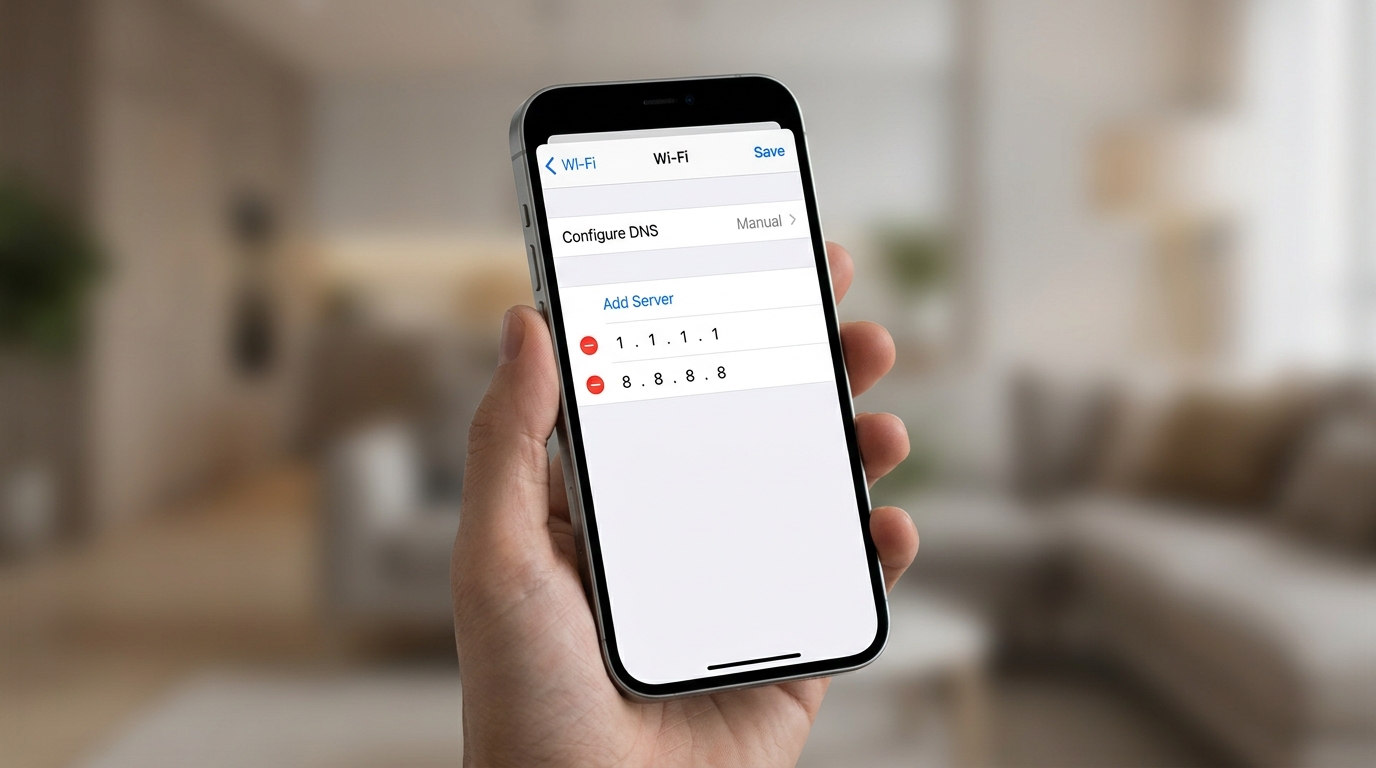
Manual DNS configuration in Wi-Fi settings on iPhone
Some networks or providers may not work correctly with Apple servers. Given that various services are regularly blocked in Russia, such a scenario is quite possible. This is exactly why the problem is widespread and affects not just one specific iPhone, but entire home networks. If App Store doesn’t work on multiple devices connected to the same Wi-Fi — the cause is almost certainly the provider’s DNS.
For those who encountered the “Cannot Connect to App Store” error, the first thing to try is changing DNS — it takes less than a minute and solves the problem in the vast majority of cases. If your iPhone is connected to mobile internet, simply switch to Wi-Fi with configured DNS servers. There’s absolutely no need to panic and factory reset your device.