You bought a second-hand iPhone, paid the money, and the phone turns on and works. But a couple of days later, an unpleasant thought creeps in: what if the previous owner can see your photos, read your messages, or lock the device at any moment? It sounds like paranoia, but there is reason for concern, and it depends on one detail at the time of purchase. Let’s figure out what’s a real threat and what’s a myth.
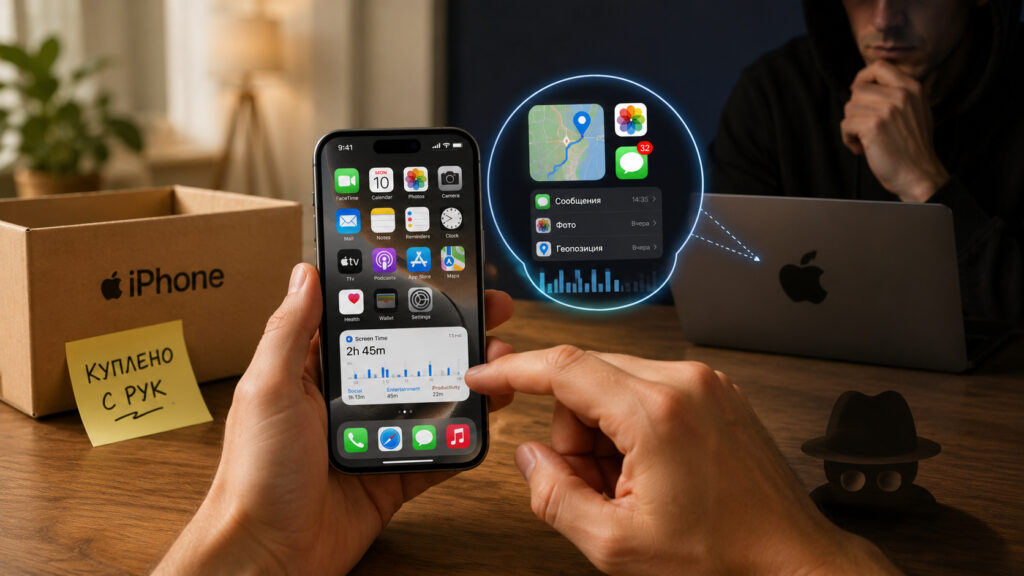
To prevent the previous owner from tracking your activity, you need to buy the smartphone correctly
Why a Previous Owner’s Apple ID Left on the Phone Is Dangerous
The main threat when buying second-hand isn’t viruses or a worn-out battery — it’s someone else’s Apple ID in the settings. If the previous owner didn’t sign out of their account, the phone formally remains linked to them. And this is no small matter.
Through the Find My service, the account owner can remotely lock the device, put it in Lost Mode, and even erase all its contents. Imagine: you’ve been using the phone for a week, and then it suddenly shows a lock screen asking for someone else’s account password. This is Activation Lock — Apple’s anti-theft protection. It will work against you just as effectively as it would against a pickpocket.
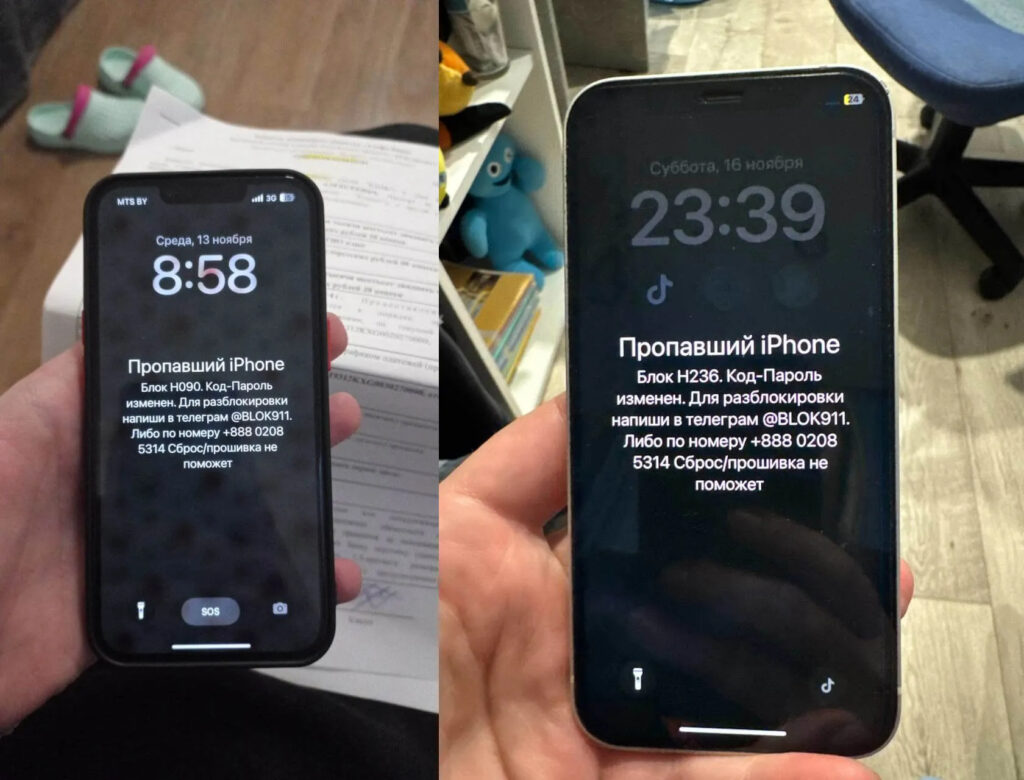
If Apple ID sign-out wasn’t performed, the previous owner can lock the smartphone
It gets worse. As long as someone else’s Apple ID remains on the iPhone, your App Store purchases, subscriptions, and backups may go astray. And the seller retains access to manage the device through icloud.com. Even if they’re not a malicious actor and simply forgot to sign out, the lever remains in their hands.
The conclusion is simple: a phone with someone else’s Apple ID is not your phone. It’s a device you’ve been temporarily allowed to use.
Can the Previous Owner Read Your Data?
There’s good news here. If you created your own account and signed in with it, the previous owner cannot see your messages, photos, or notes. Apple accounts are isolated from each other, and one person’s data doesn’t flow to another just because both held the same device.
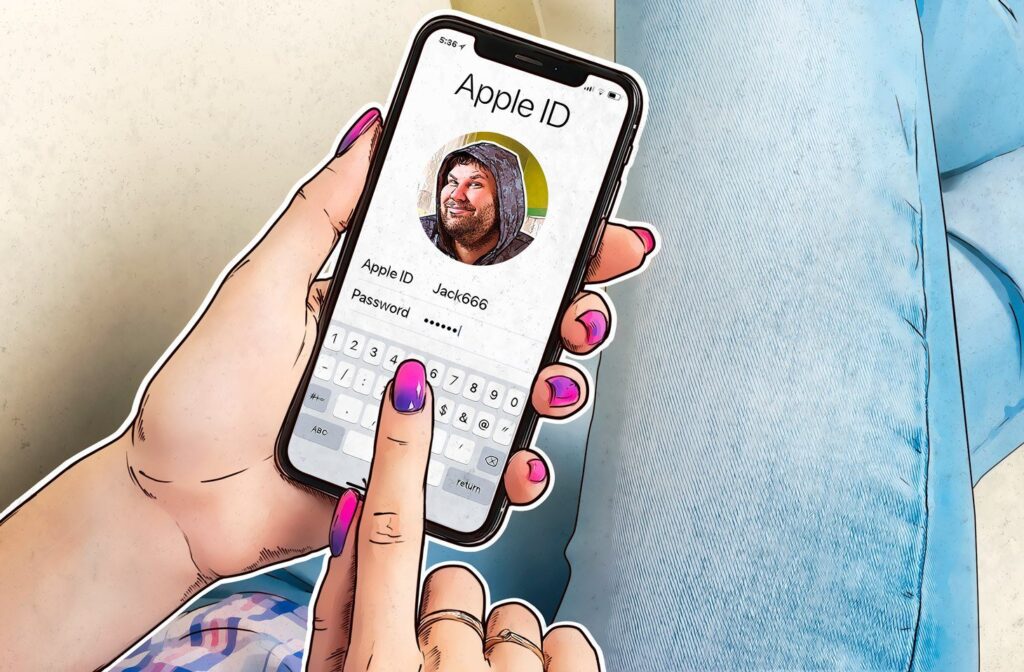
Be careful with third-party Apple IDs
Your iMessage, iCloud photos, Safari history, and Keychain passwords are tied to a specific Apple ID. When the account changes, the data owner changes too. The previous owner cannot read your messages without knowing your account password.
The danger arises in one case: if the phone was never reset, and you simply started using it on top of the old account. In that case, you’re effectively sitting in someone else’s profile. All your activity goes to their iCloud, and yes, they can actually see it.
So the rule is ironclad: never use a phone on top of someone else’s account. First, do a full reset and sign in with your own account, and only then transfer your personal data. Until you do that, consider that a stranger is looking over your shoulder.
How to Tell If an iPhone Isn’t “Clean”
You can check the device before paying, and it only takes a couple of minutes. Go through this short checklist:
- During initial setup, watch the screen. If a password prompt for the previous owner’s Apple ID or a message saying “iPhone is linked to an owner” appears, you’re looking at a locked device — don’t buy it at any price.
- Open Settings and look at the very top. There should be no one else’s name and email — otherwise the phone is still in someone else’s hands.
- Go to Settings > General > VPN & Device Management and check for a management profile. Such profiles are installed on corporate phones, and the company can remotely manage them.
- Check the phone by IMEI: dial *#06#, compare the number with the box and receipt, and run it through online services to check for Activation Lock and theft reports.
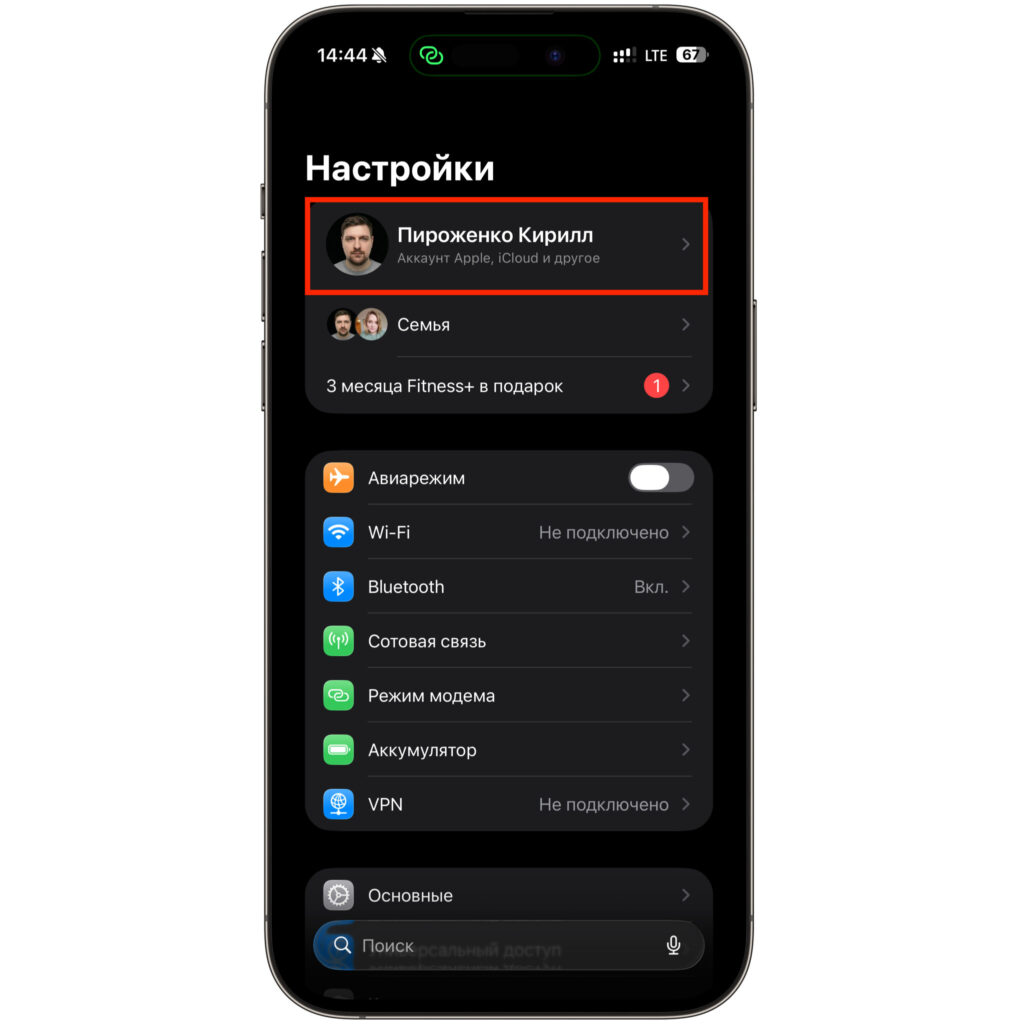
Make sure there’s no account here
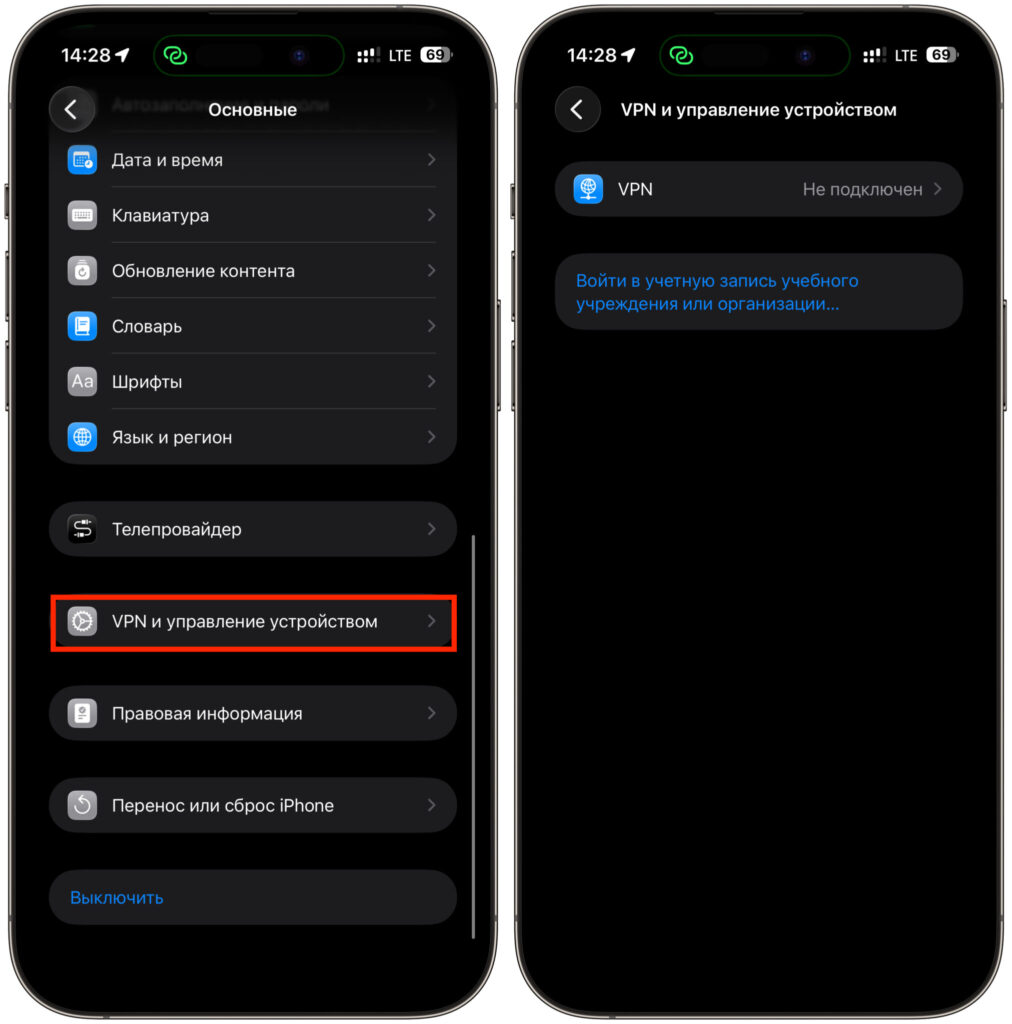
There should be no profiles or certificates in this section
If the phone is reported stolen or on an operator’s blacklist, it’s better to walk away, even if the price is very attractive.
What You Must Check When Buying Second-Hand
Agree with the seller that all checks are done in your presence, not on a “figure it out at home” basis. An honest person has nothing to hide, while rushing and excuses are a warning sign. Go through these steps:
- Ask the seller to sign out of Apple ID: Settings, tap the card at the top, scroll down, and tap “Sign Out.”
- Perform a full reset through General > Transfer or Reset iPhone. The phone should reach the welcome screen and set up without asking for someone else’s password.
- Check the battery health: Settings > Battery > Battery Health & Charging. A figure below 80 percent is a reason to negotiate or look for another option.
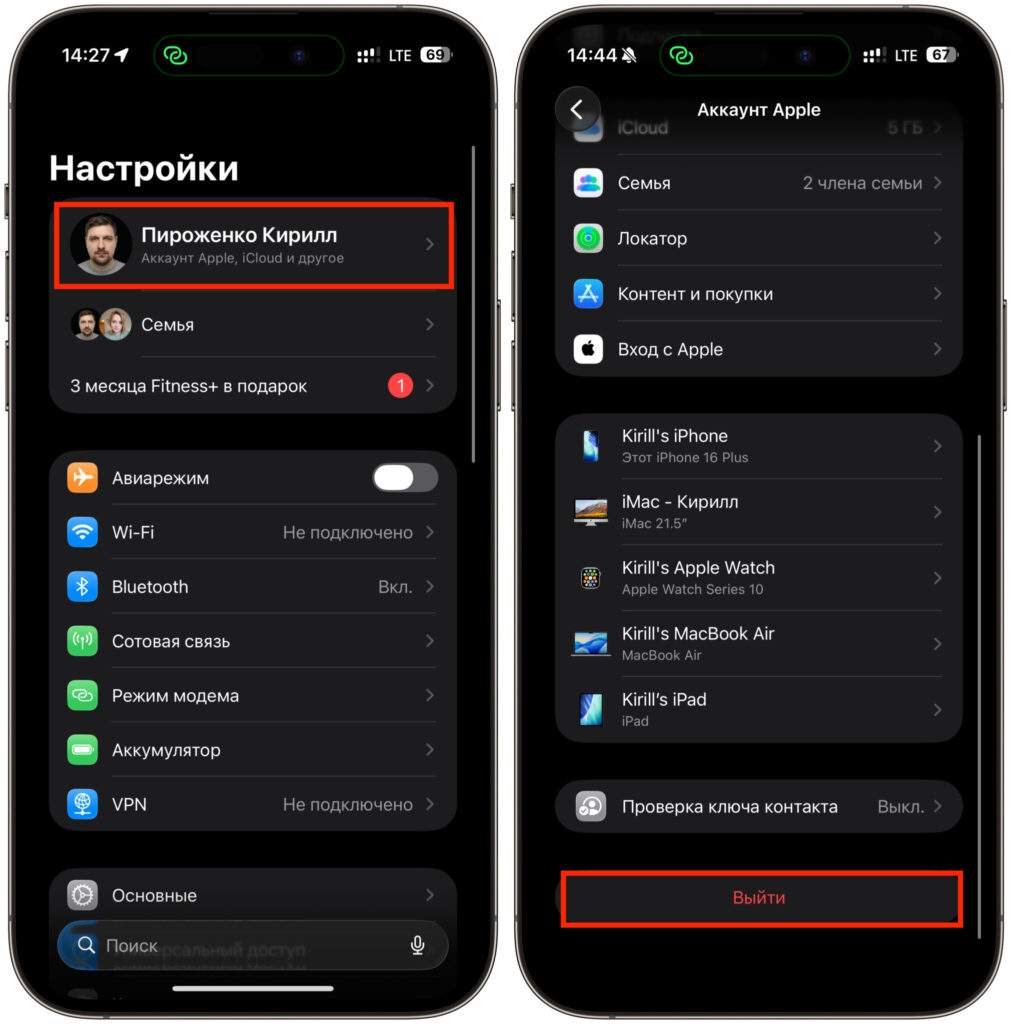
Sign out of the account
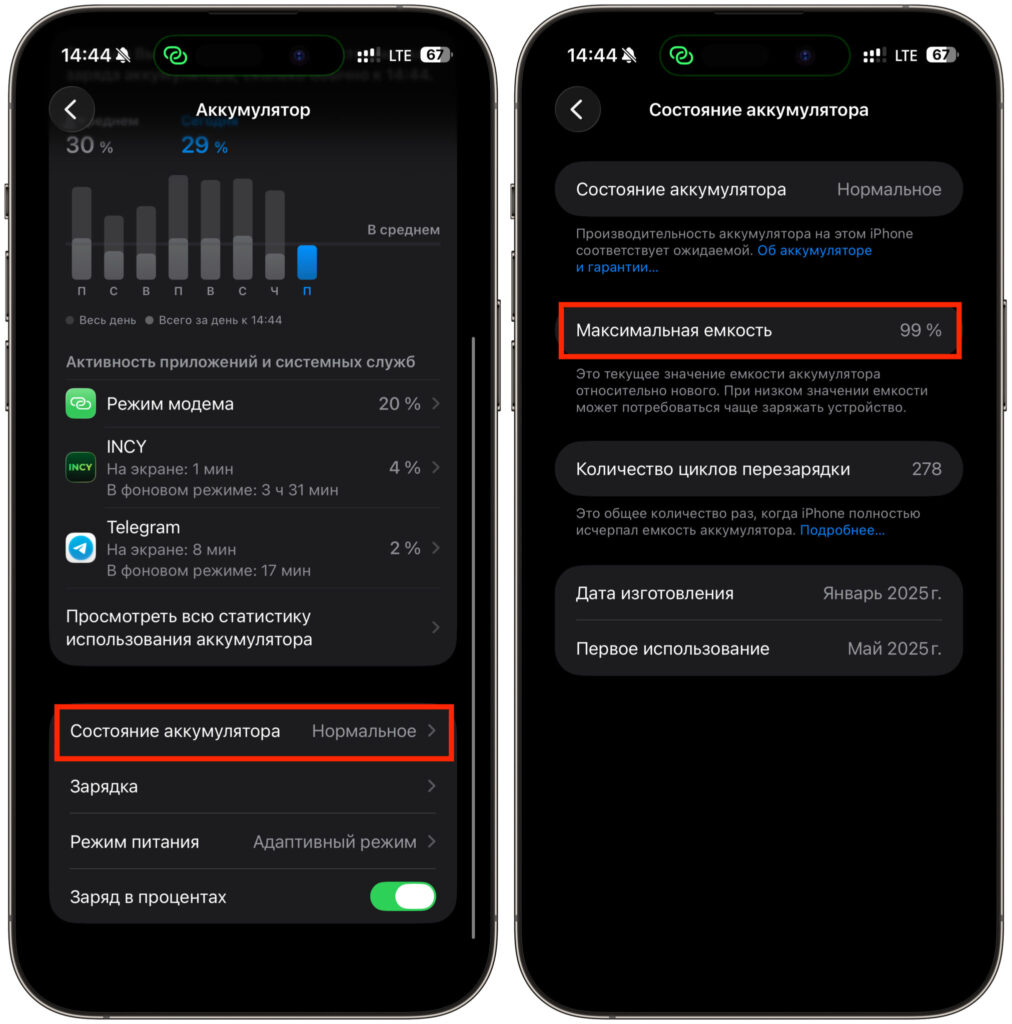
Check the battery health