Apple is turning 50, and the iPhone has been with us for almost 20 years. Over this time, iOS has accumulated so many features that even experienced users regularly miss useful things. We’ve collected 30 hidden iPhone features — from display and camera settings to tricks with messages and Siri that truly simplify everyday use. Most of them don’t require a new device — you just need to know where to look. Some of these features only appeared in iOS 26.4, so make sure to update to the latest OS version.
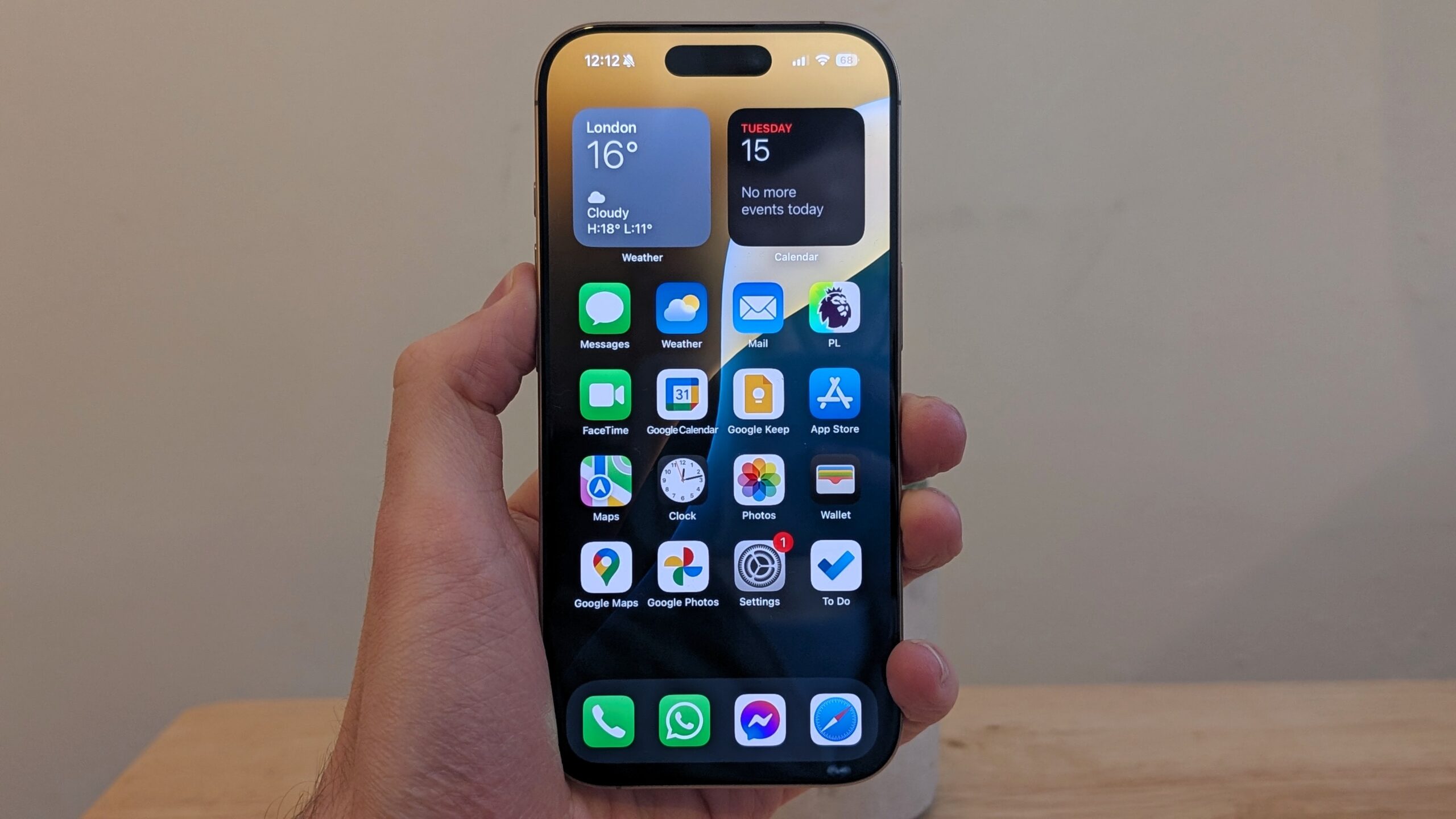
Did you know about these iPhone tricks?
iPhone Display Settings for Eye Comfort
Several settings help make the iPhone screen less aggressive, especially in the dark or during prolonged use. The iPhone 17 Pro has a dedicated setting for this, while for other models it’s better to use the following options.
Dim Flashing Lights — a new setting in iOS 26.4 that dims bright flashes when tapping buttons and links. You can find it at: Settings — Accessibility — Display & Text Size — “Reduce Bright Effects.” Especially useful at night when even minimum brightness seems excessive.
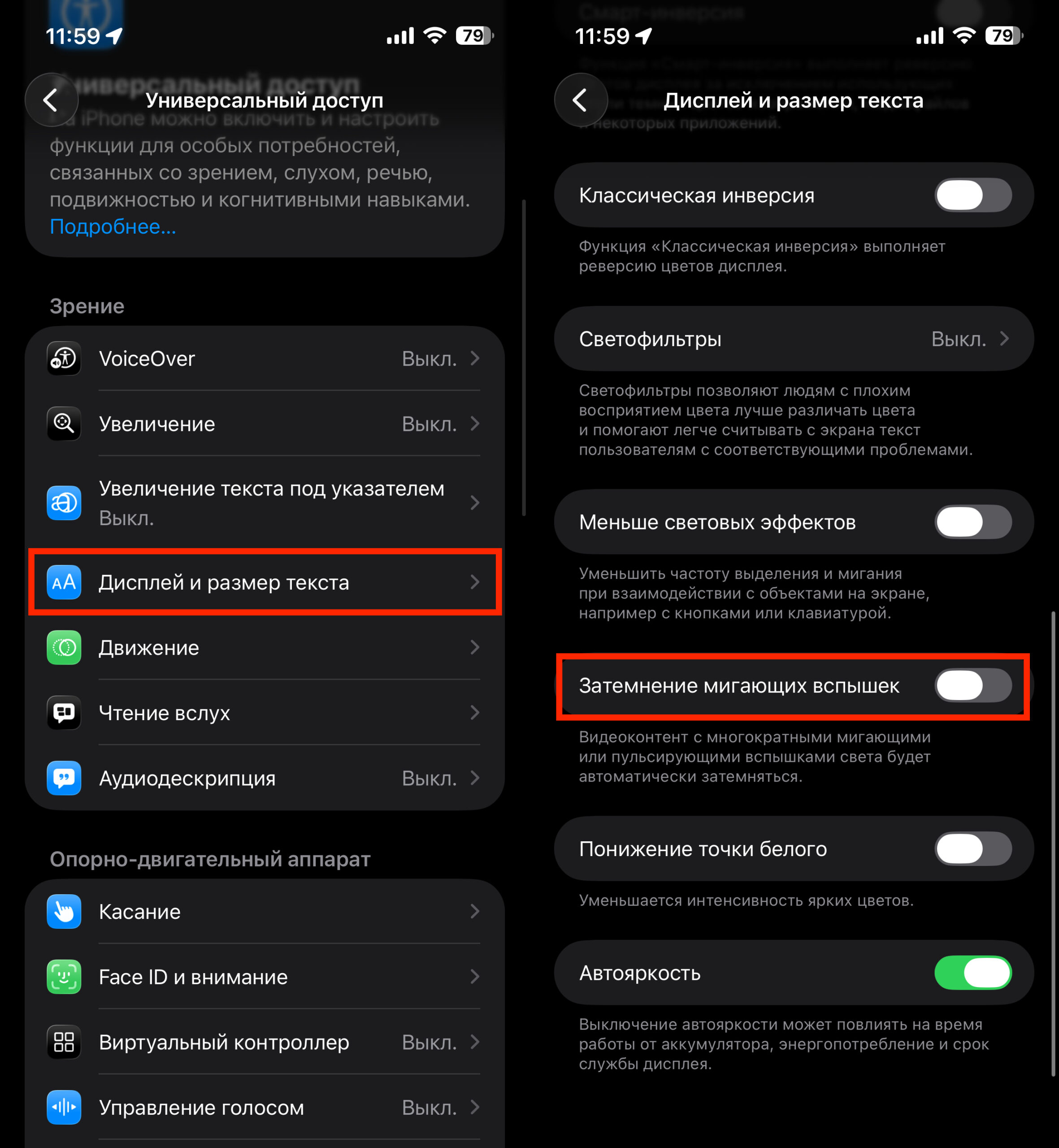
If you didn’t appreciate Liquid Glass, this is one way to reduce the effect
Reduce Motion — an updated setting in iOS 26.4 that now handles Liquid Glass animations better. Path: Settings — Accessibility — Motion — “Reduce Motion.” Both settings can be enabled simultaneously for maximum effect.
Reduce White Point — a real find for nighttime reading. Settings — Accessibility — Display & Text Size — “Reduce White Point.” The slider lets you make the screen darker than the standard minimum brightness. If you feel your iPhone is too bright even at minimum — this is exactly what you need.
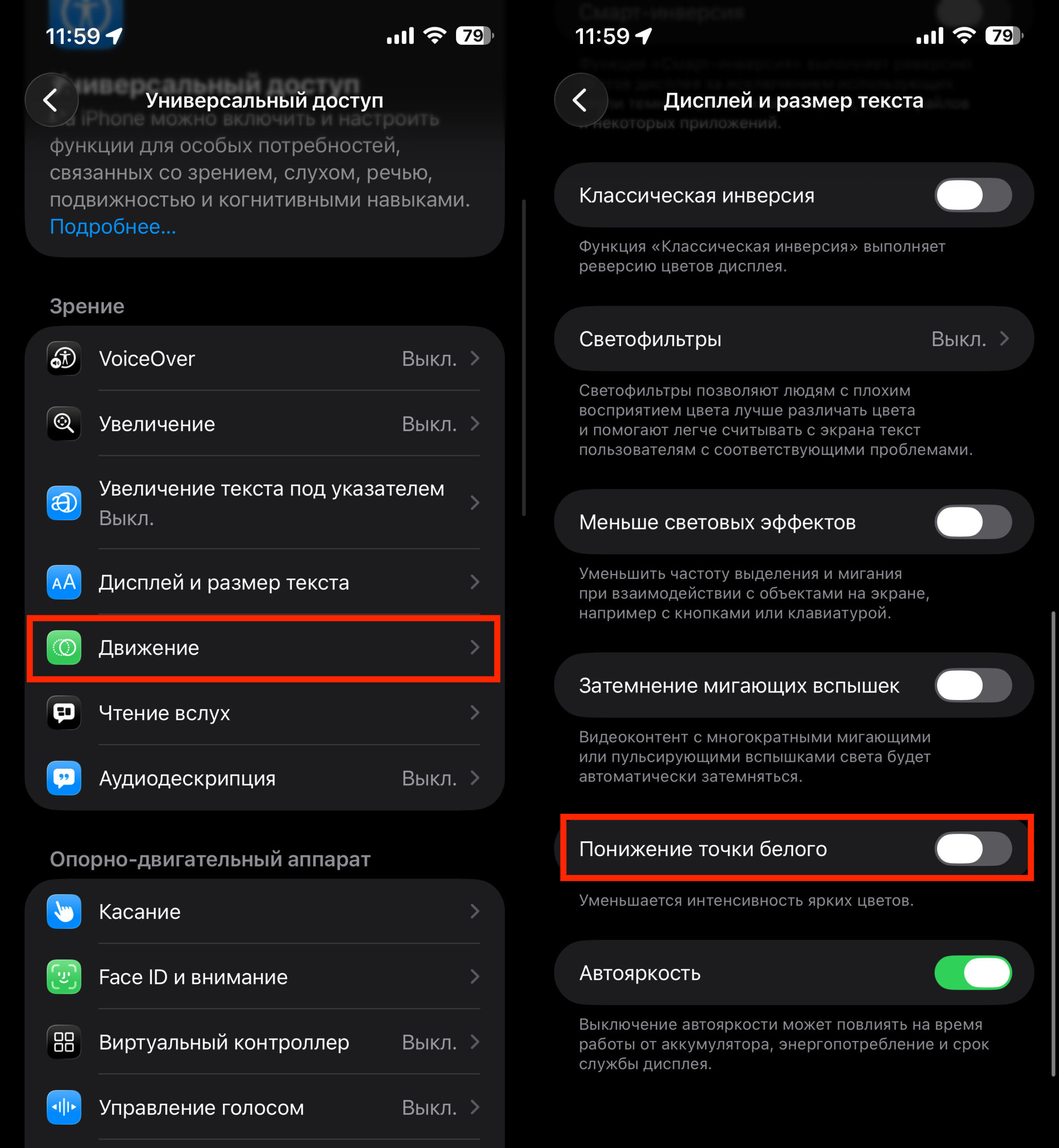
Allows more flexible brightness adjustment
Screen Distance — a feature many can’t find because it’s hidden not in display settings but in the “Screen Time” section. Path: Settings — Screen Time — Screen Distance. iPhone will detect when you’re holding it too close to your face and warn you about it.
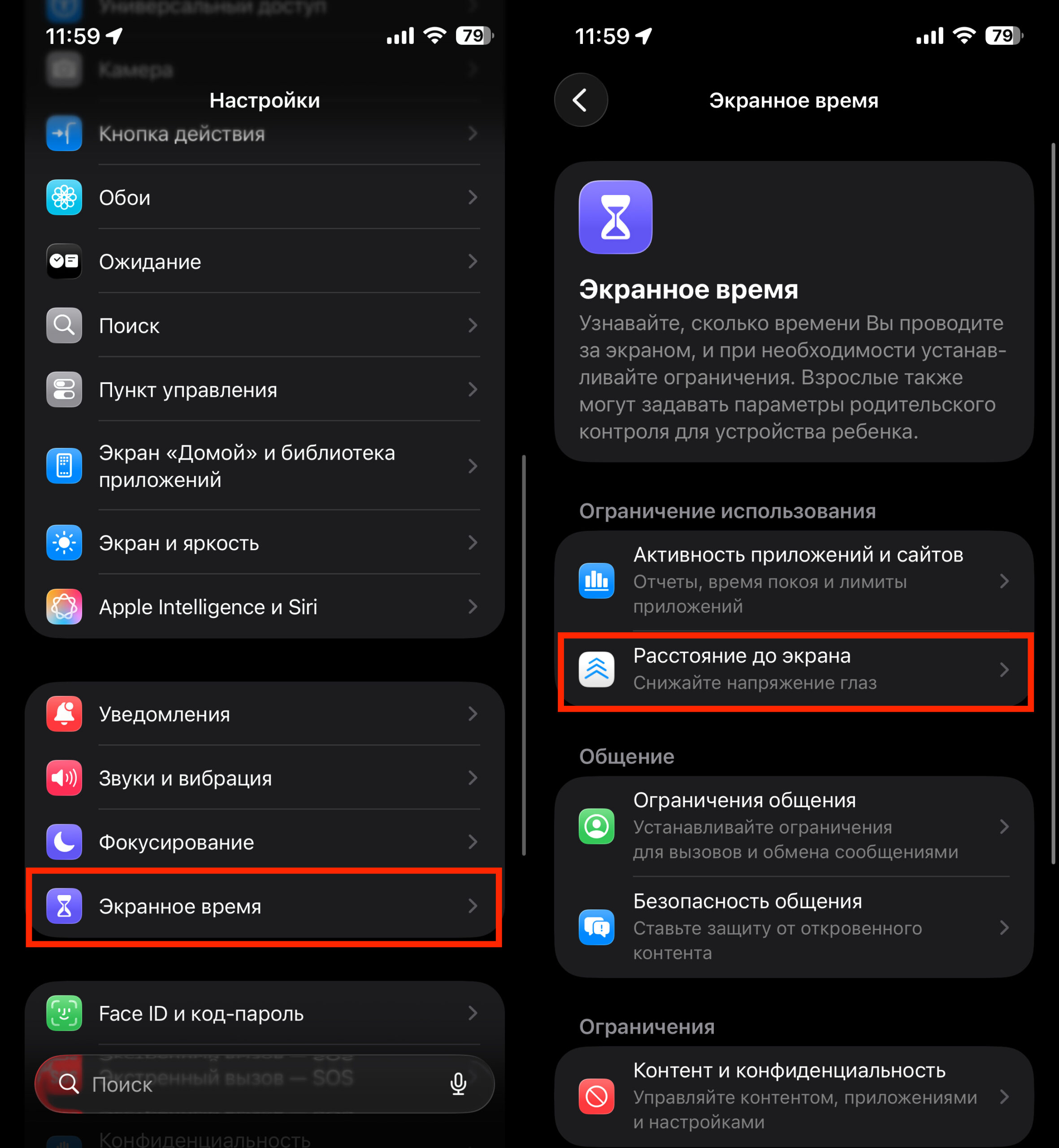
Make sure to enable this feature, especially for children
Enhanced Dark Mode — the standard Dark Mode can be supplemented with several settings. First, in the “Display & Brightness” section, choose Liquid Glass — Solid for a darker interface. Then in “Accessibility — Display & Text Size,” enable three options: “Button Shapes,” “Reduce Transparency,” and “Increase Contrast.” Together they make the interface noticeably sharper and darker.
Hidden iPhone Camera Features
The standard iPhone camera has several non-obvious capabilities that work on most modern models.
Video without switching modes. In “Photo” mode, press and hold the shutter button — iPhone will start recording video. Release — the recording stops. If you need to record longer, press and hold the button and slide your finger to the right — the recording will lock. During recording, you can take photos by tapping the white button on the right.
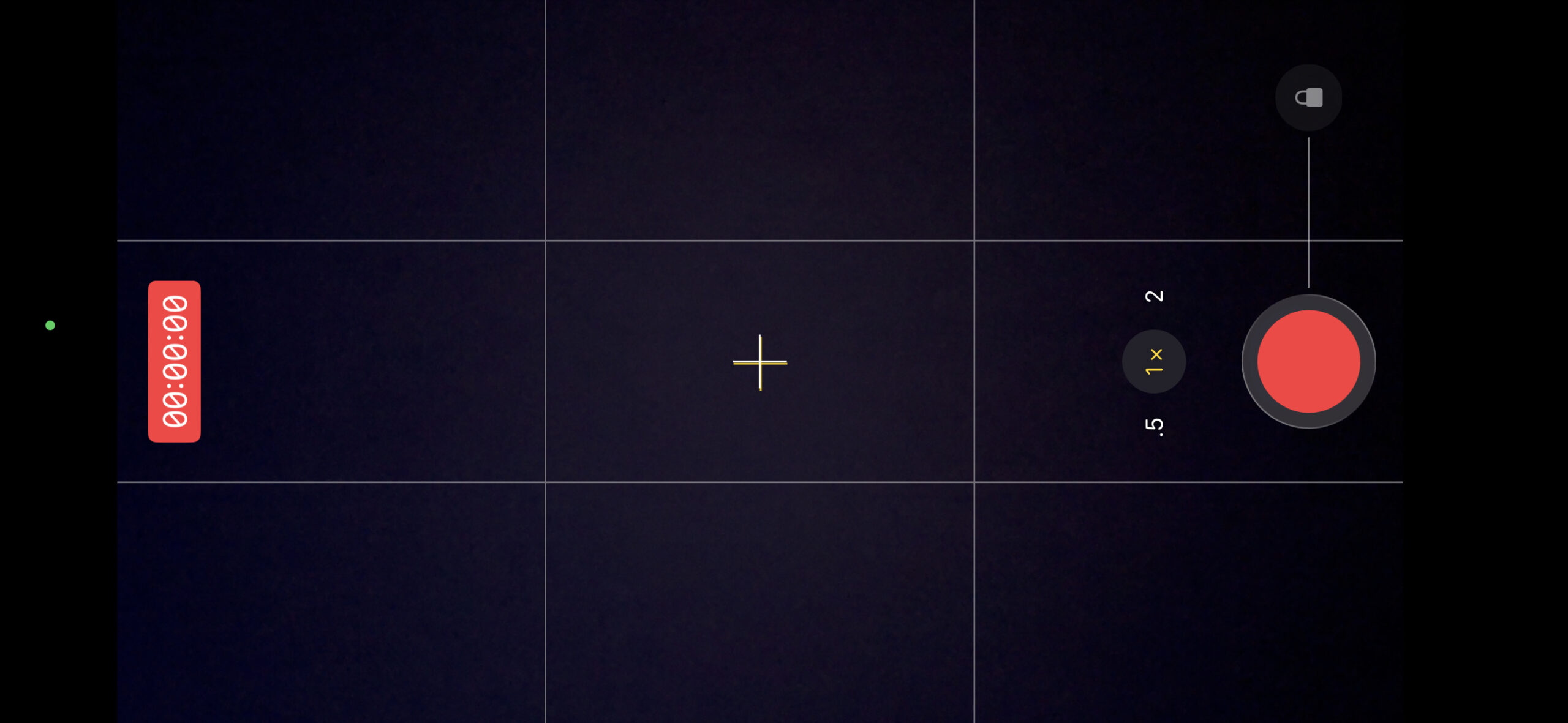
Recording video from Photo mode
Horizon level. Settings — Camera — “Composition” section — enable “Level.” Now a crosshair will appear in the viewfinder that turns yellow when the iPhone is perfectly level. A small detail, but photos come out straighter without post-processing.
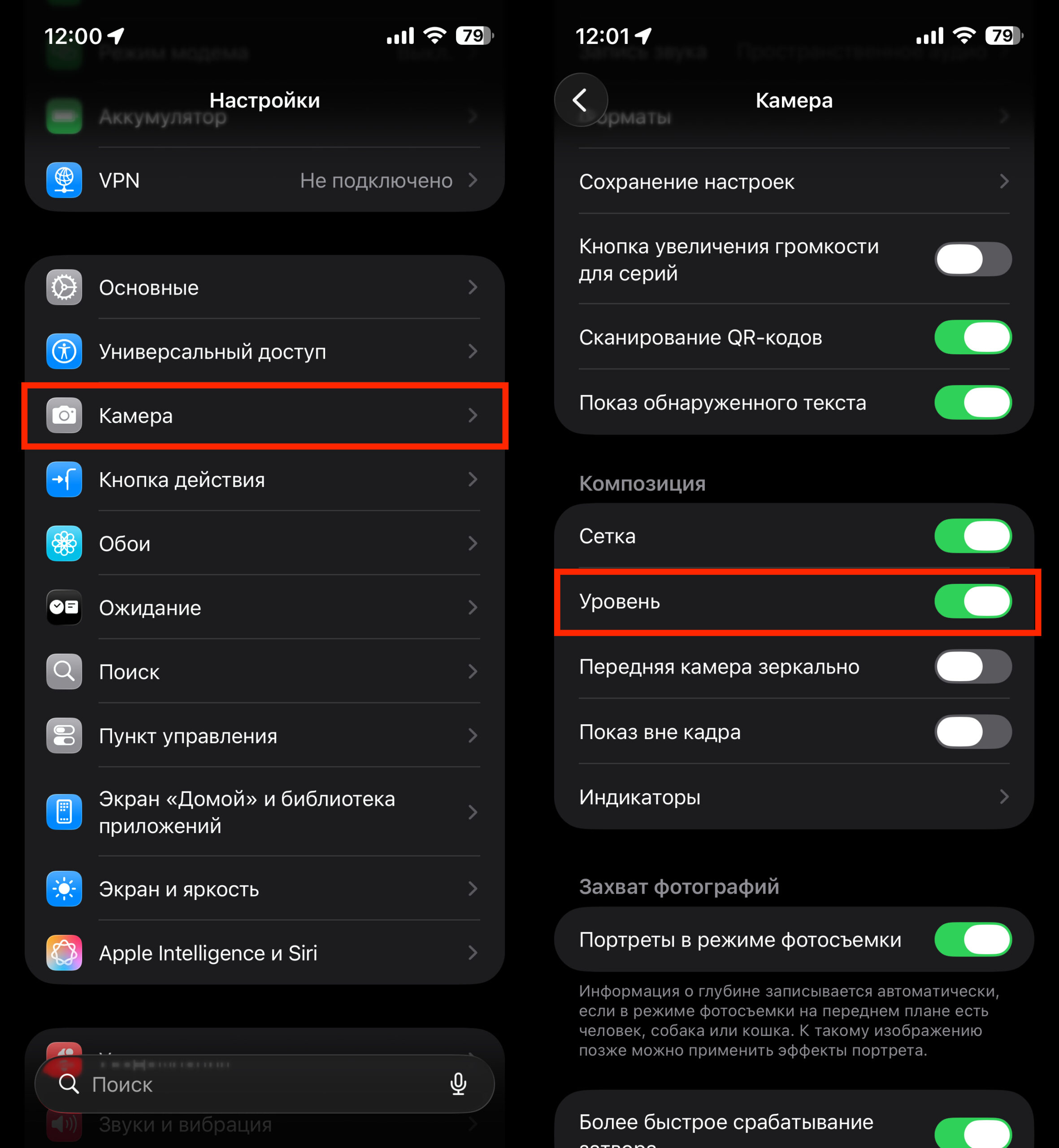
Make sure to enable the level so you don’t tilt the horizon
Scanning text through the camera. Point the camera in “Photo” mode at any text — a sign, document, business card. When iPhone recognizes the text, a Live Text icon will appear at the bottom right. Tap it, and you can copy, translate, or follow the link — without taking a photo.
Changing the key frame in Live Photo. Open any Live Photo, tap “Edit,” then the Live Photo icon at the bottom (concentric circles). A strip of frames will appear — scroll to the desired moment (open eyes, best facial expression) and tap “Make Key Photo.” The original animation will be preserved.
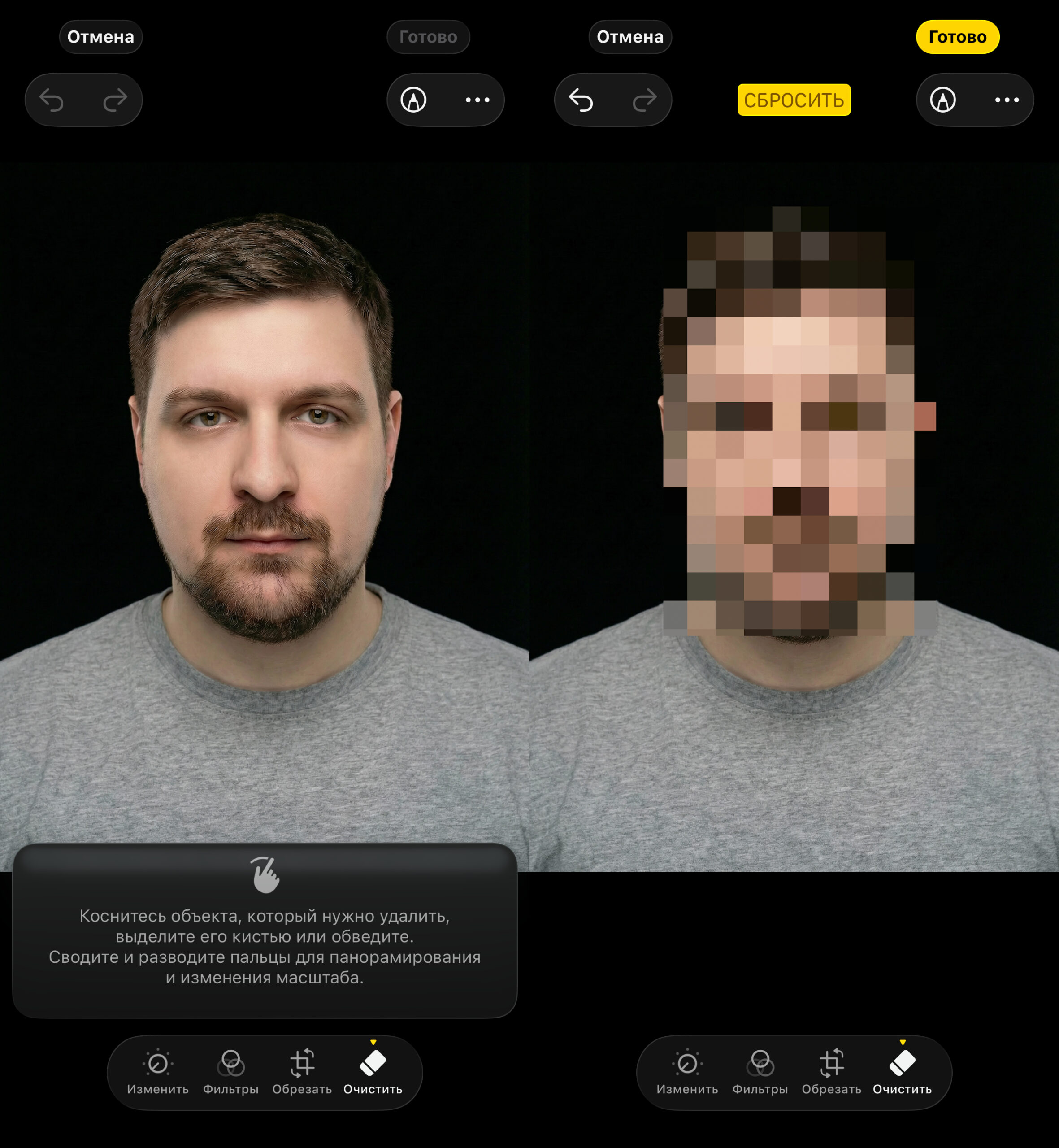
This is how the magic eraser can blur faces
Blurring faces in photos. Open a photo — “Edit” — “Clean Up.” Swipe your finger over the face you want to hide — iPhone will automatically detect it and apply the effect. Convenient for posting photos on social media when you need to protect someone’s privacy without third-party apps.
Useful Messages and Phone Features on iPhone
The standard “Messages” and “Phone” apps have features that save time and frustration every day.
Selecting part of text in a message. Starting with iOS 18, in “Messages” you can copy not the entire bubble but only the needed fragment. Press and hold the text in a message — selection markers will appear