In 1968, Apollo 8 took the famous “Earthrise” photo, and it literally revolutionized humanity’s perception of its place in the Universe. Nearly 60 years later, the crew of the Artemis II mission sent us a new batch of images of Earth and the Moon — and they look so stunning that they’re begging to be put on your iPhone lock screen.
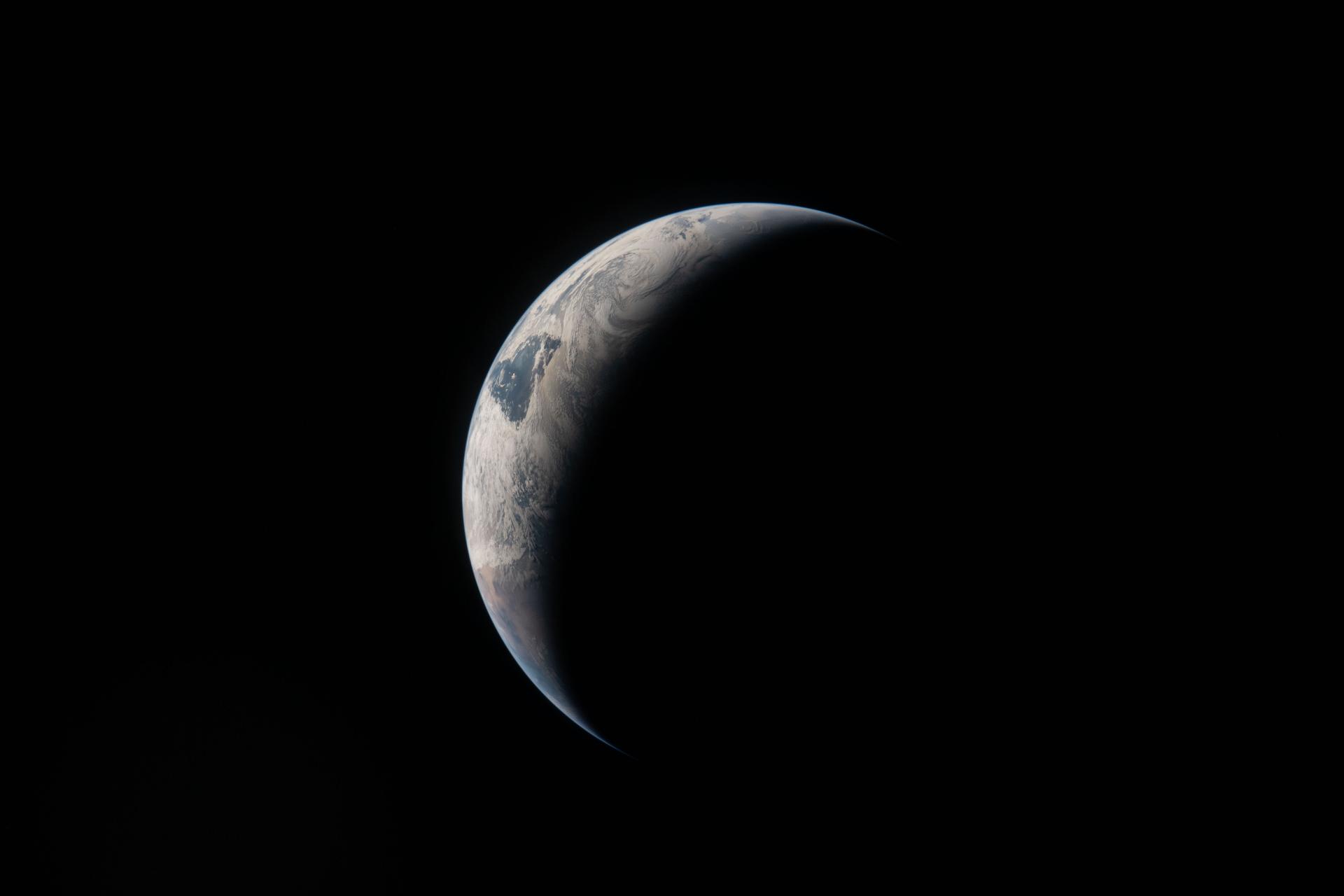
Artemis II captured stunning shots that make perfect iPhone wallpapers
As a reminder, the Artemis II mission is the first crewed flight to the Moon in over half a century. The crew of four astronauts doesn’t land on the surface but flies around Earth’s satellite, testing technologies for future landings under the Artemis III program. That’s why all the photos were taken from orbit, not from the lunar surface.
Photos of Earth and the Moon from the Artemis II Mission
All original photographs are published on NASA’s official website in open access. Designer BasicAppleGuy took the originals, cropped them to iPhone aspect ratios, and polished them — adjusted contrast, removed unnecessary elements, and preserved resolution for modern displays with ProMotion.
The collection includes six shots:
- Earth photographed through the Orion spacecraft’s window
- Close-up of the lunar surface with characteristic craters
- Crescent Earth against the black void of space
- Total solar eclipse by the Moon
- A dual shot with Earth and Moon in one composition
- Another close-up variant of the lunar surface
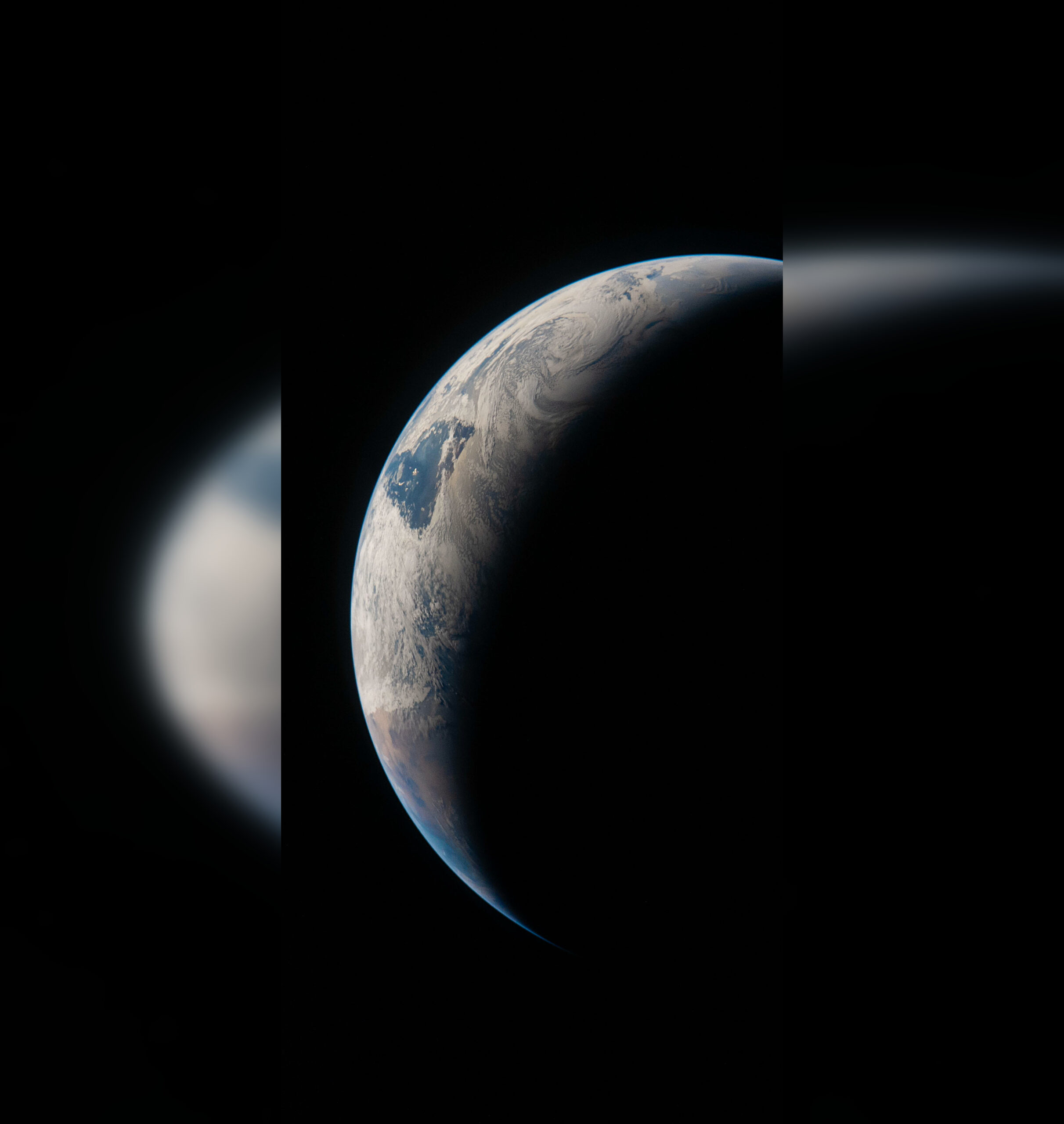
Looks stunning
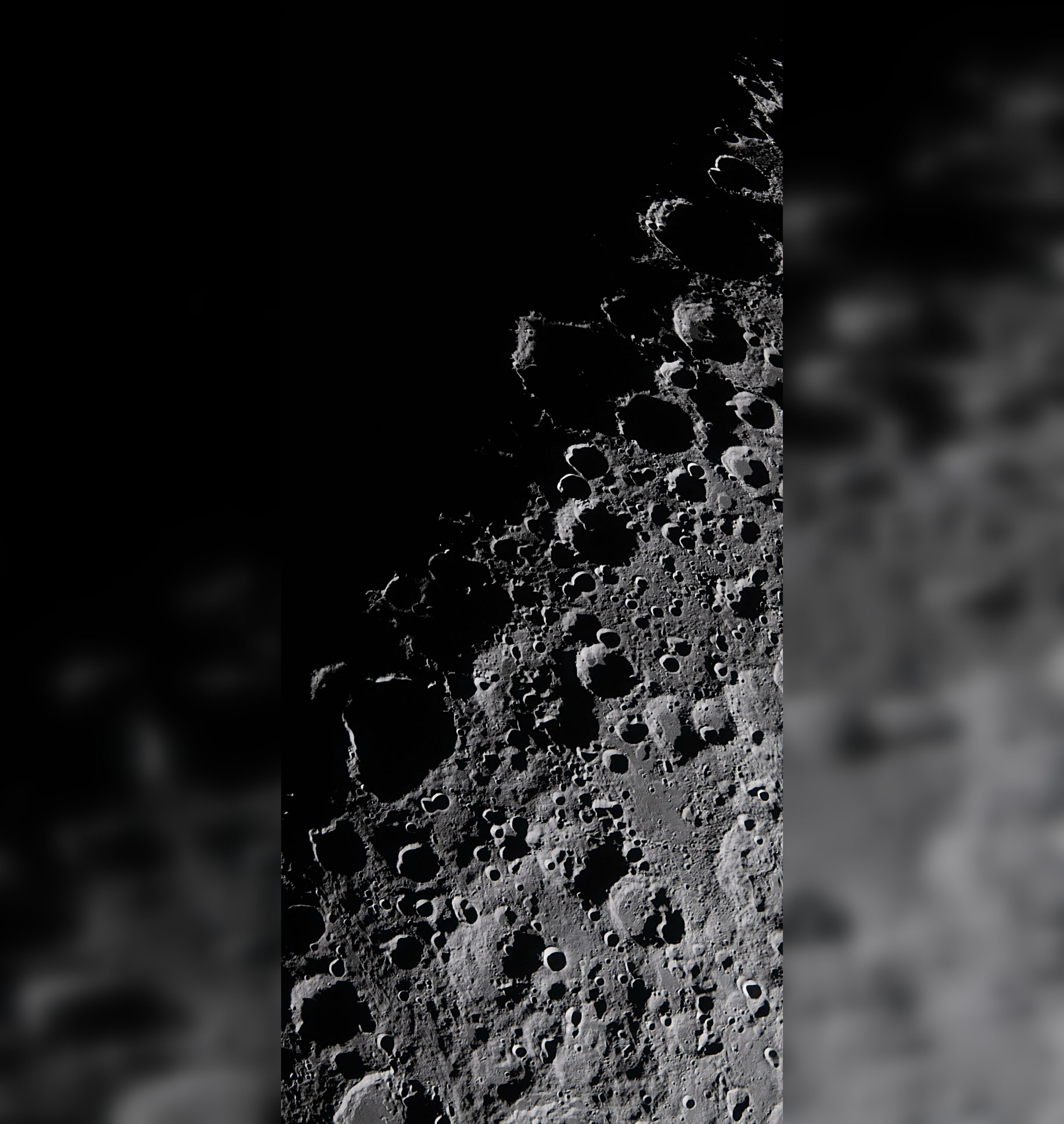
One of my favorite shots
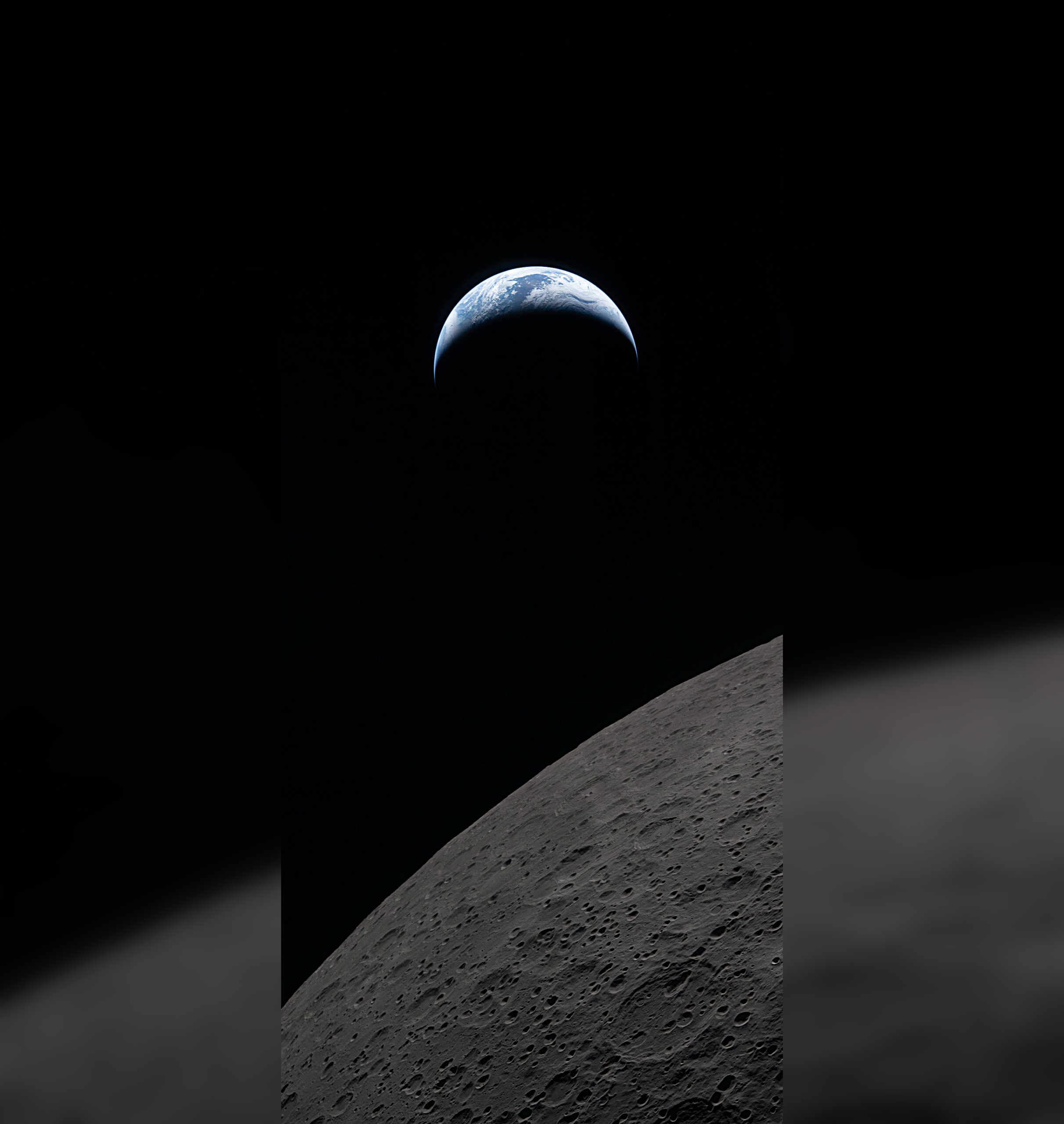
Earth from a distance
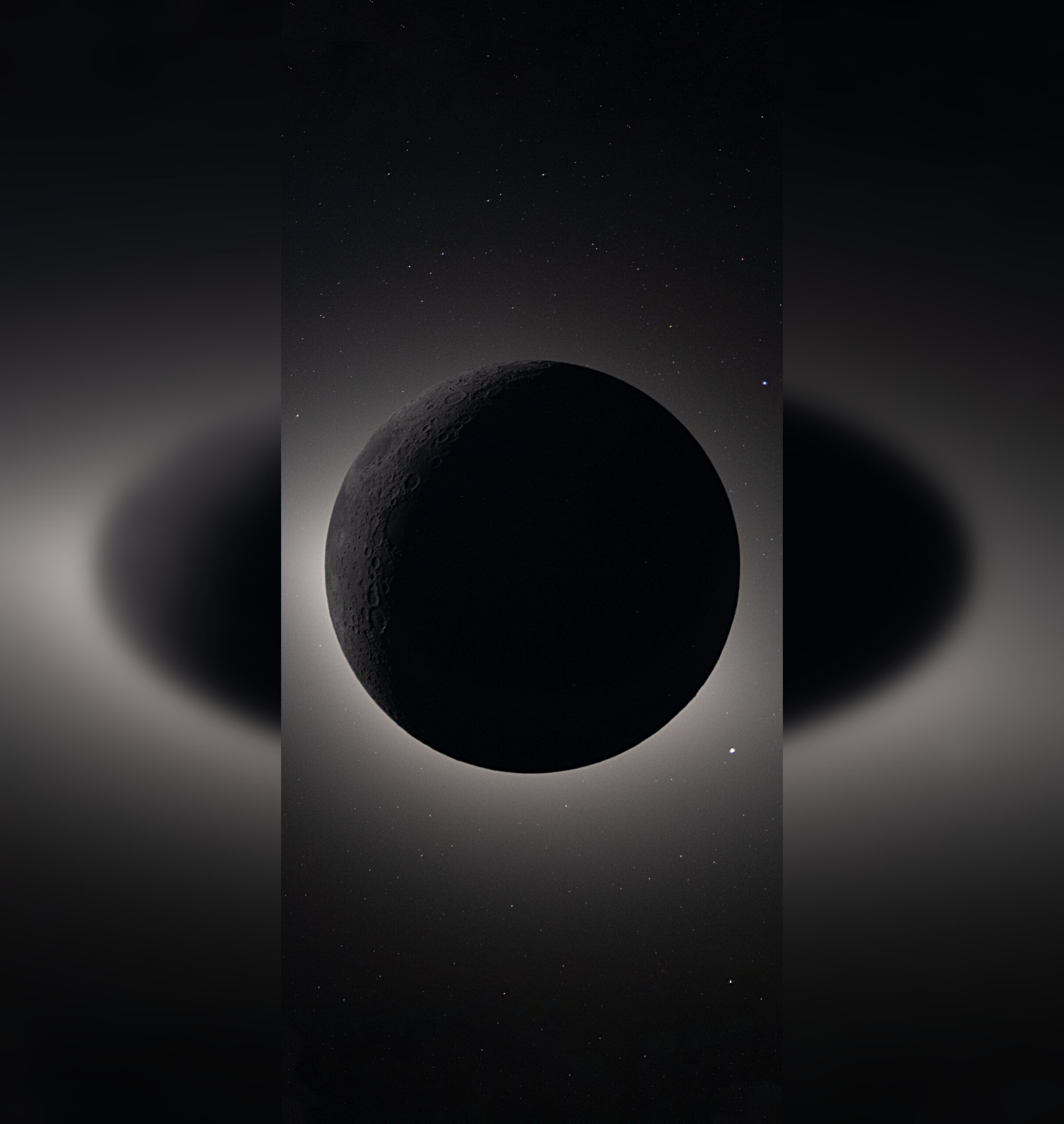
The total eclipse also looks amazing
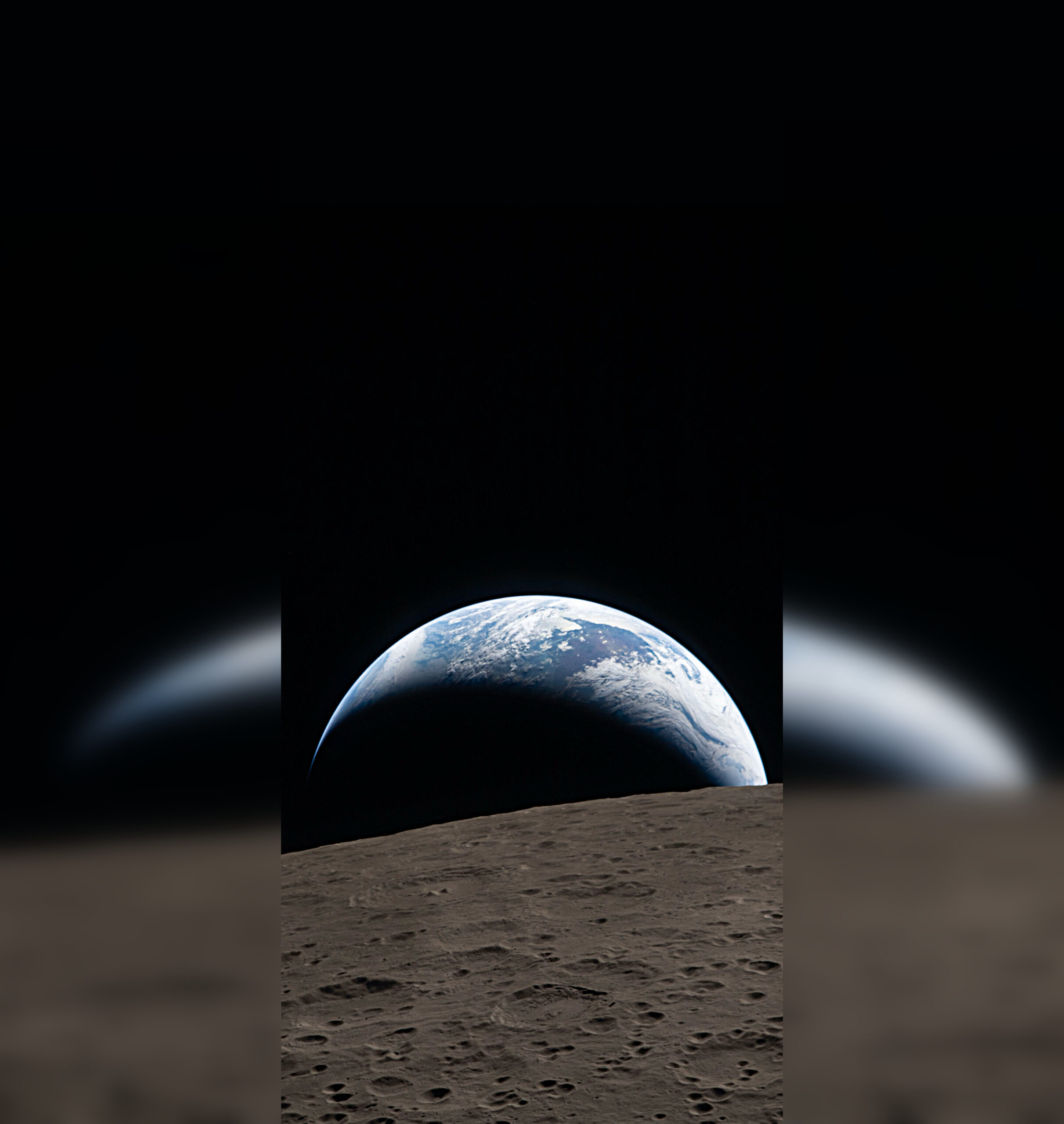
Both Earth and Moon are visible
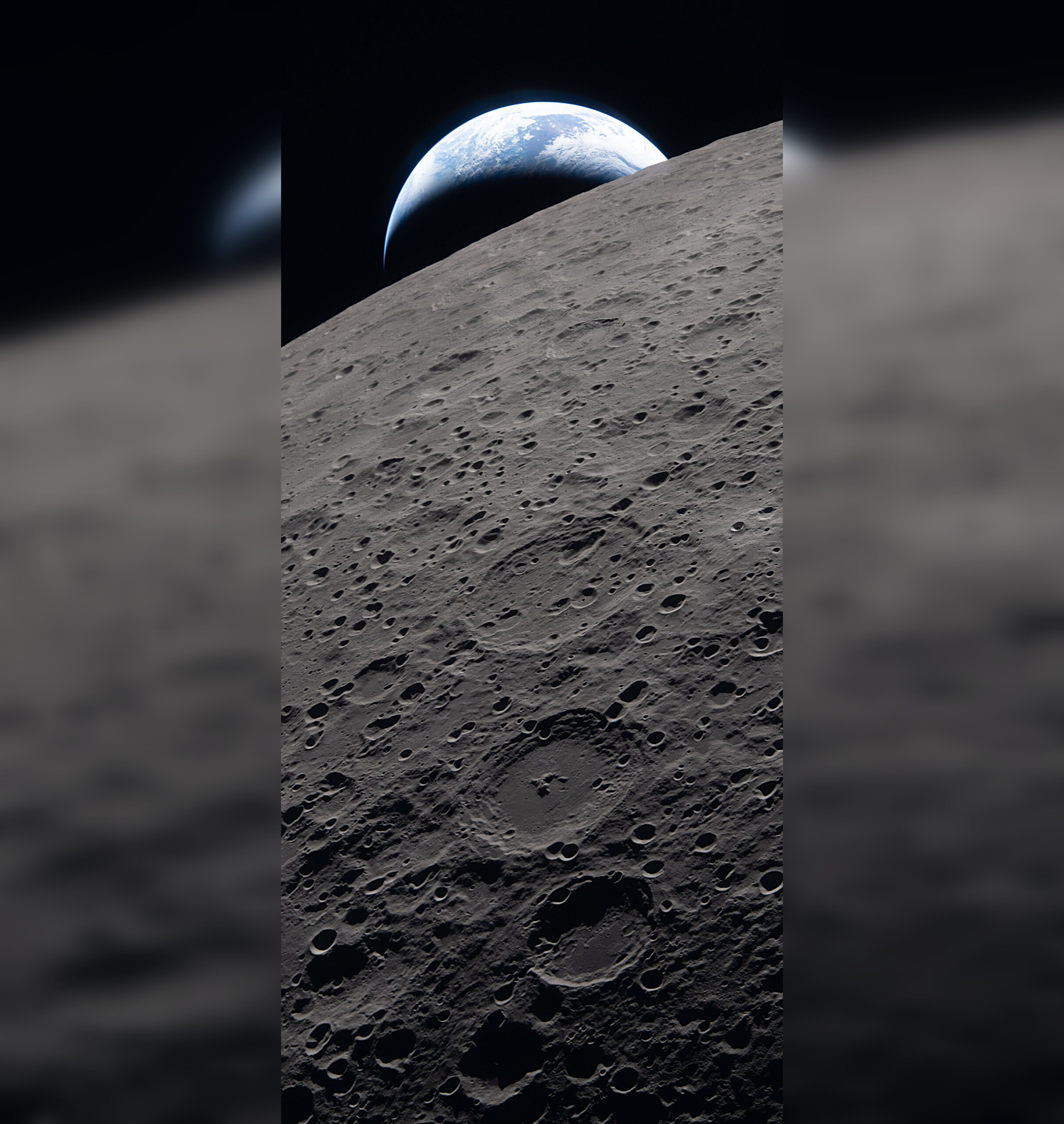
A closer look at the Moon
They all look gorgeous and, let’s be honest, they’re breathtaking. These are images you want to admire every day.
Download Artemis II Wallpapers for iPhone
All original photographs are available in full resolution on NASA’s official website. Simply open the gallery, tap on the image you like, and save it to your Photos.
How to Set Wallpapers on iPhone
The process takes less than a minute. Here’s a step-by-step guide:
- Save the desired wallpaper image to your iPhone
- Tap on the image to view it full screen
- Tap the “Share” icon in the bottom right corner and select Save to Photos
- Go to the Photos app and open the image you just saved
- Tap “Share” again and select Use as Wallpaper
- Adjust the position, tap Done, and choose Set as Wallpaper Pair
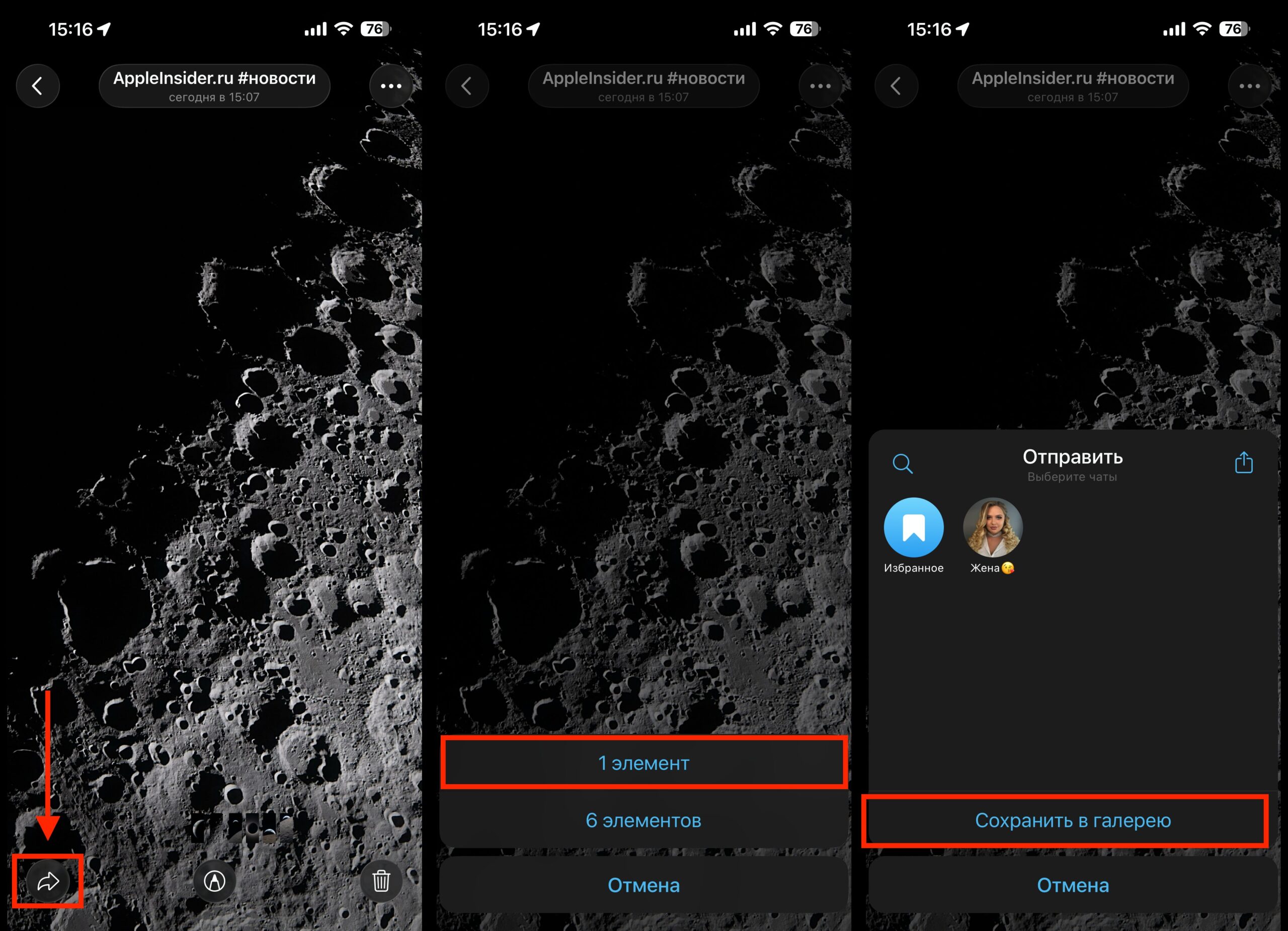
First, download the image to your iPhone
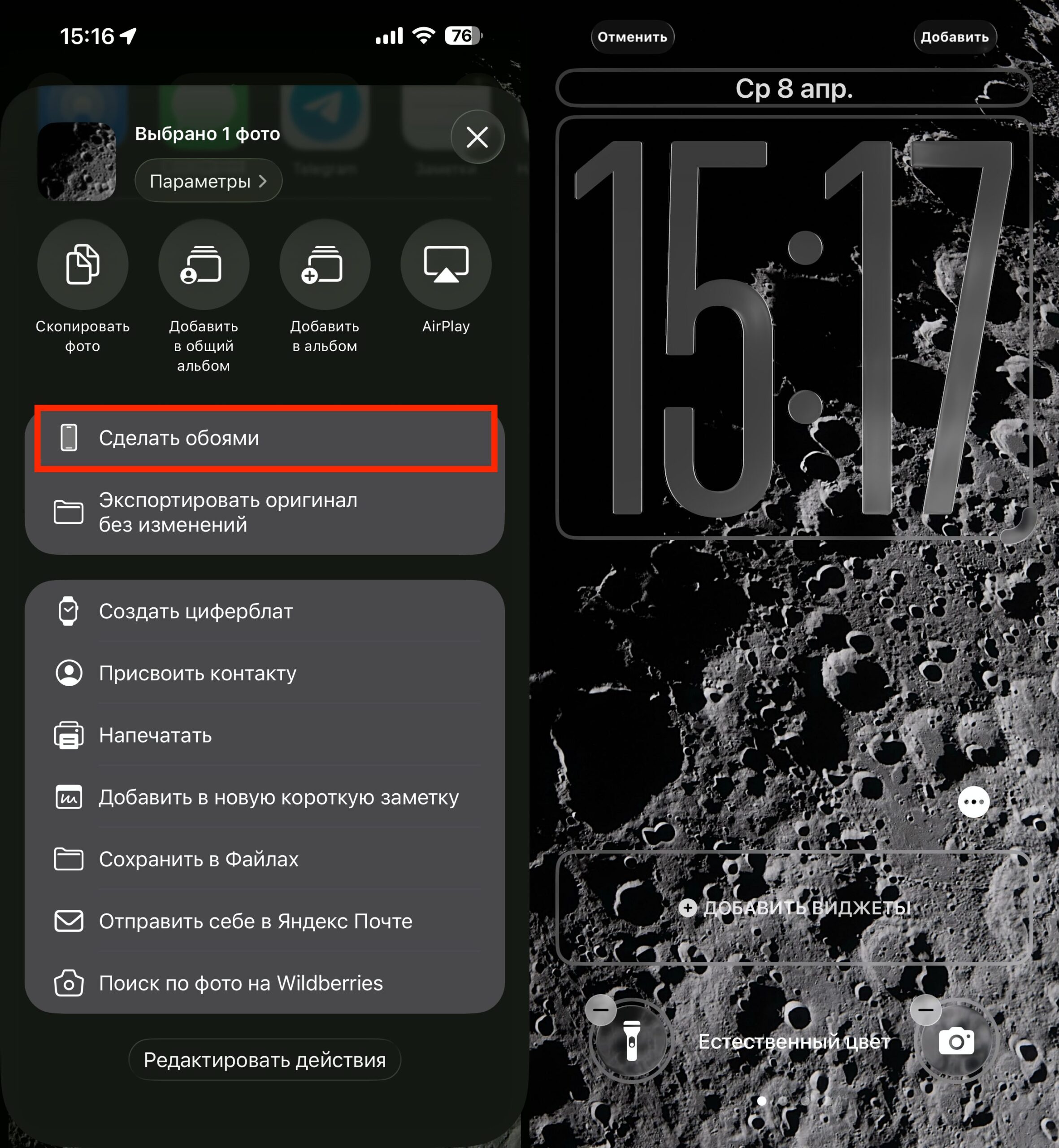
Set it up in just a couple of taps
By the way, if you have iOS 26 or a newer version, the system will automatically offer to apply a depth effect to the wallpaper. With these shots, it works especially impressively: the Moon or Earth seem to pop out of the screen.


