In recent days, some iPhone owners have started complaining about a strange problem: App Store opens but doesn’t load anything. Some users see a blank screen, others experience endless loading or a connection error. Many even think that the situation in the UAE has led not only to the disappearance of Apple products from Russian stores but also to the shutdown of the App Store. But in practice, the situation is explained by completely different reasons, unrelated to world events.
Let’s figure out what’s happening with the App Store and how to fix the problem
Why App Store Won’t Open or Load on iPhone
Based on user reports, the problem looks roughly the same. When launching the App Store, the app opens, but the “Today,” “Games,” and “Apps” tabs don’t load. The screen remains blank or shows a loading indicator that can spin indefinitely. Sometimes after a few seconds, a message appears saying it was unable to connect to the App Store.
Interestingly, in some cases the store works on another device with the same Apple ID. For example, everything opens fine on an iPad or Mac, but on a specific iPhone, the App Store storefront doesn’t load at all. This immediately shows that the problem is more often related not to the account, but to the network or the device itself.
Does the App Store Work on iPhones from Dubai
The news that Apple temporarily closed retail stores in the UAE did indeed appear in early March. However, this only concerns the company’s offline stores. Such decisions are made due to government recommendations or security concerns and have no direct relation to the operation of Apple’s digital services.
The App Store operates centrally worldwide. If Apple were restricting access to the store in a specific country, it would affect all devices in the region and would quickly become noticeable through mass complaints. Therefore, the fact that an iPhone was purchased in the UAE has no effect on how the App Store works.
How to Check if the App Store is Working
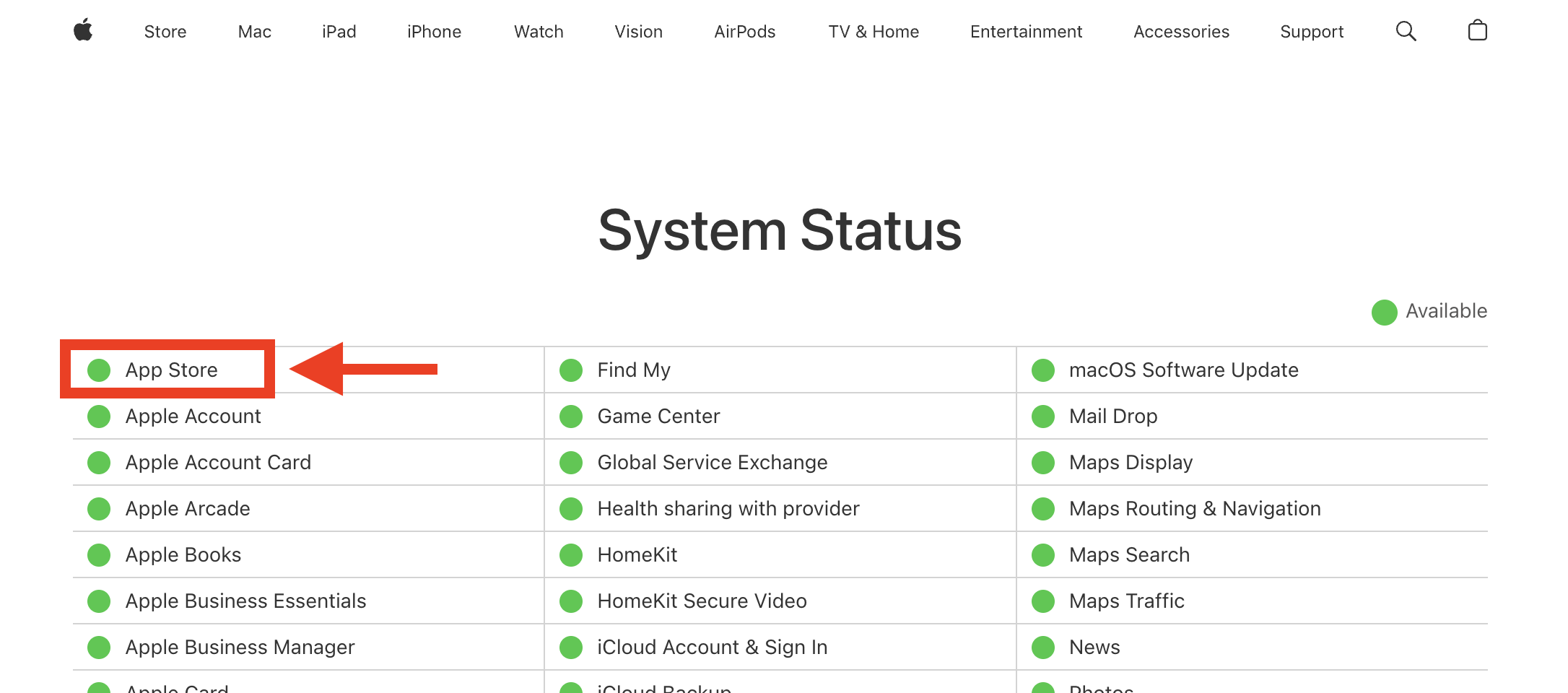
All Apple services are gathered on one page
The simplest way is to check the Apple services status. On the system status page, you can see if the company is having problems with the App Store or other services. If an outage is displayed there, you just have to wait until Apple fixes it. There are three colors in total:
- Green — everything is working perfectly;
- Yellow — working, but there are issues;
- Red — not working at all.
In any case, practice shows that such problems are usually temporary. Even if the App Store suddenly stopped opening, most often it’s related to the network or temporary service outages, and not to the country where the iPhone was purchased.
What to Do if the App Store Won’t Open
When the App Store stops opening, users often think the problem is related to Apple ID or even the device’s region. In practice, this happens extremely rarely. Most often, the issue lies in the network connection, temporary Apple service outages, or a local error in the system itself.
It’s important to understand that the App Store is a regular internet service that connects to Apple servers. If a failure occurs along this path — for example, due to DNS, routing, or an iOS error — the store’s storefront may simply not load. Visually, this looks like a blank screen or endless loading. There are several most common reasons why the App Store stops opening:
- Temporary Apple service outages. Sometimes the app store works unstably due to technical problems on the company’s side.
- Internet connection or DNS problems. Some networks or providers may not work correctly with Apple servers. Considering that in Russia various services are regularly blocked — sometimes intentionally, sometimes accidentally — this scenario is also possible.
- App Store failure after an iOS update. Sometimes the problem appears after a system update. For example, in iOS 26.3, many had an App Store launch issue.
- Apple ID settings errors. In rare cases, problems are caused by the account region or stuck operations in the “Content & Purchases” section.
If the App Store isn’t loading, don’t immediately reset your iPhone or reinstall the system. In most cases, the problem is solved much more simply. It’s enough to check a few basic things that often turn out to be the cause of the error.
It’s best to move from the quickest and safest actions to more serious ones. This approach allows you to quickly understand whether the problem is related to the internet, device settings, or a temporary service outage. There are several ways to quickly check what exactly the problem is:
- Switch from Wi-Fi to mobile data or vice versa.
- Try connecting to a different Wi-Fi network.
- Restart your iPhone using any convenient method.
- Update to the latest available version of iOS.
- Sign out of Apple ID in the “Content & Purchases” section and sign back in.
- Reset network settings in “General” → “Transfer or Reset iPhone.” Keep in mind that all saved Wi-Fi networks will be deleted.
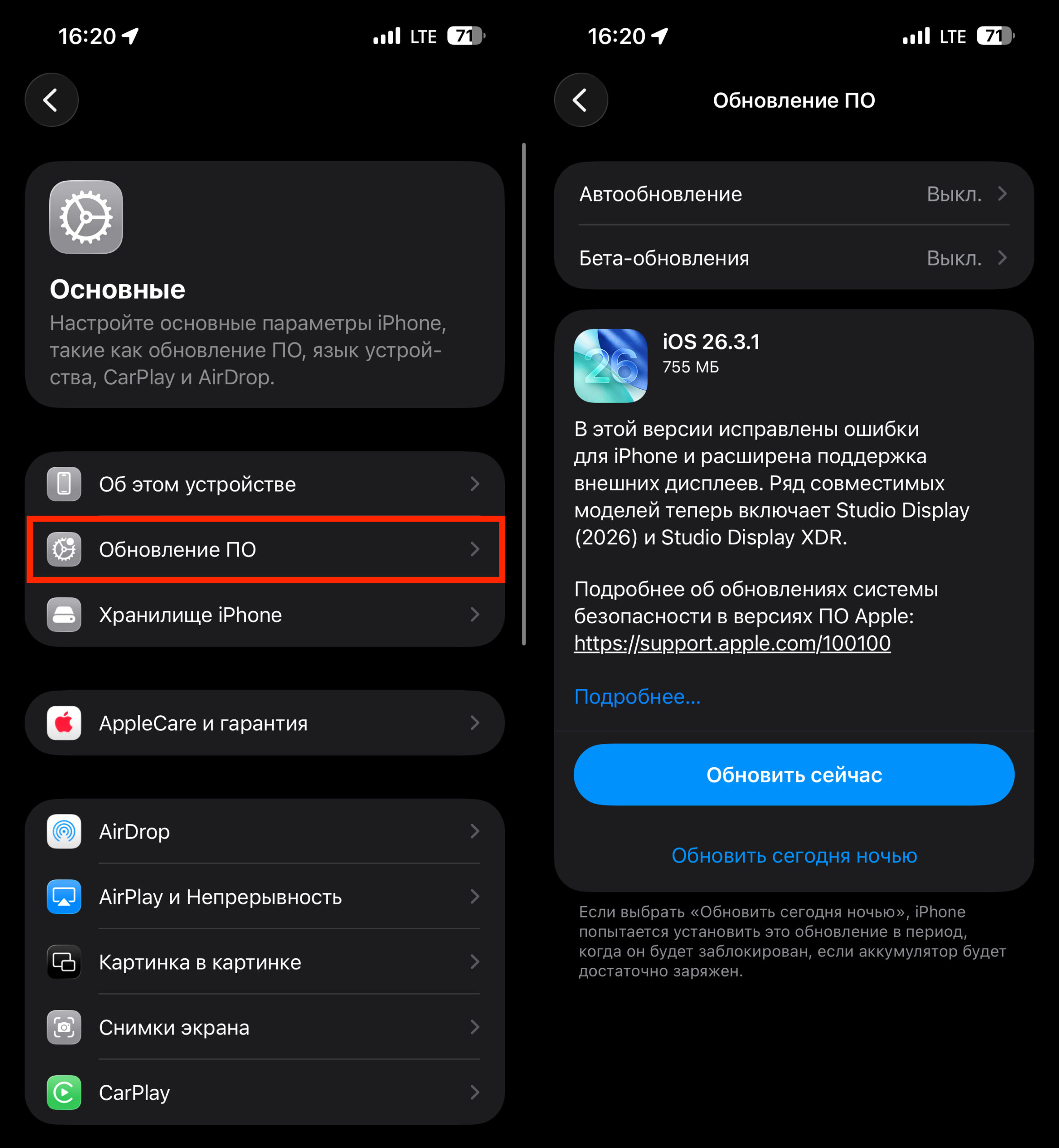
An update can not only create but also solve a problem
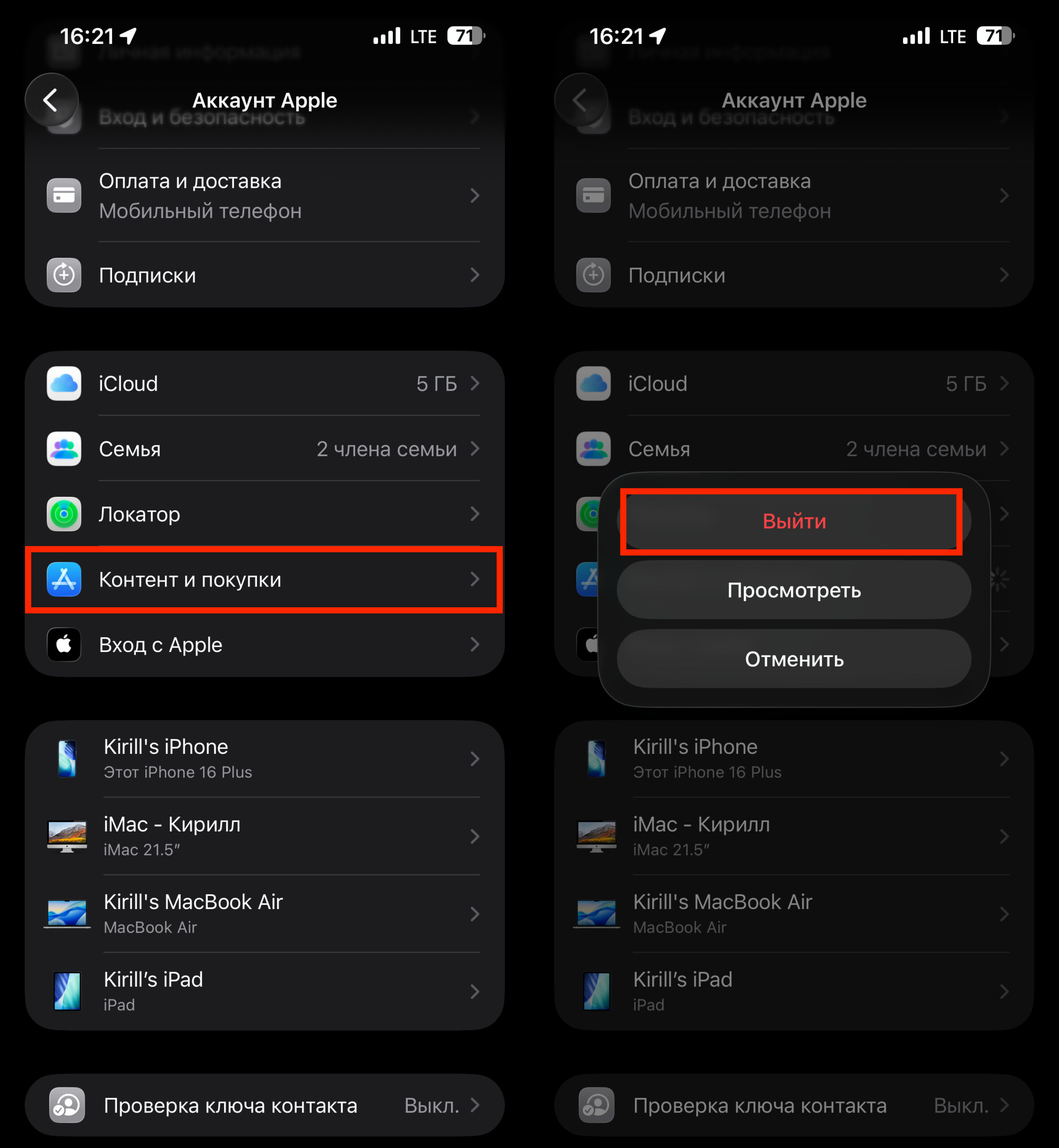
Re-sign into your App Store account in iPhone settings
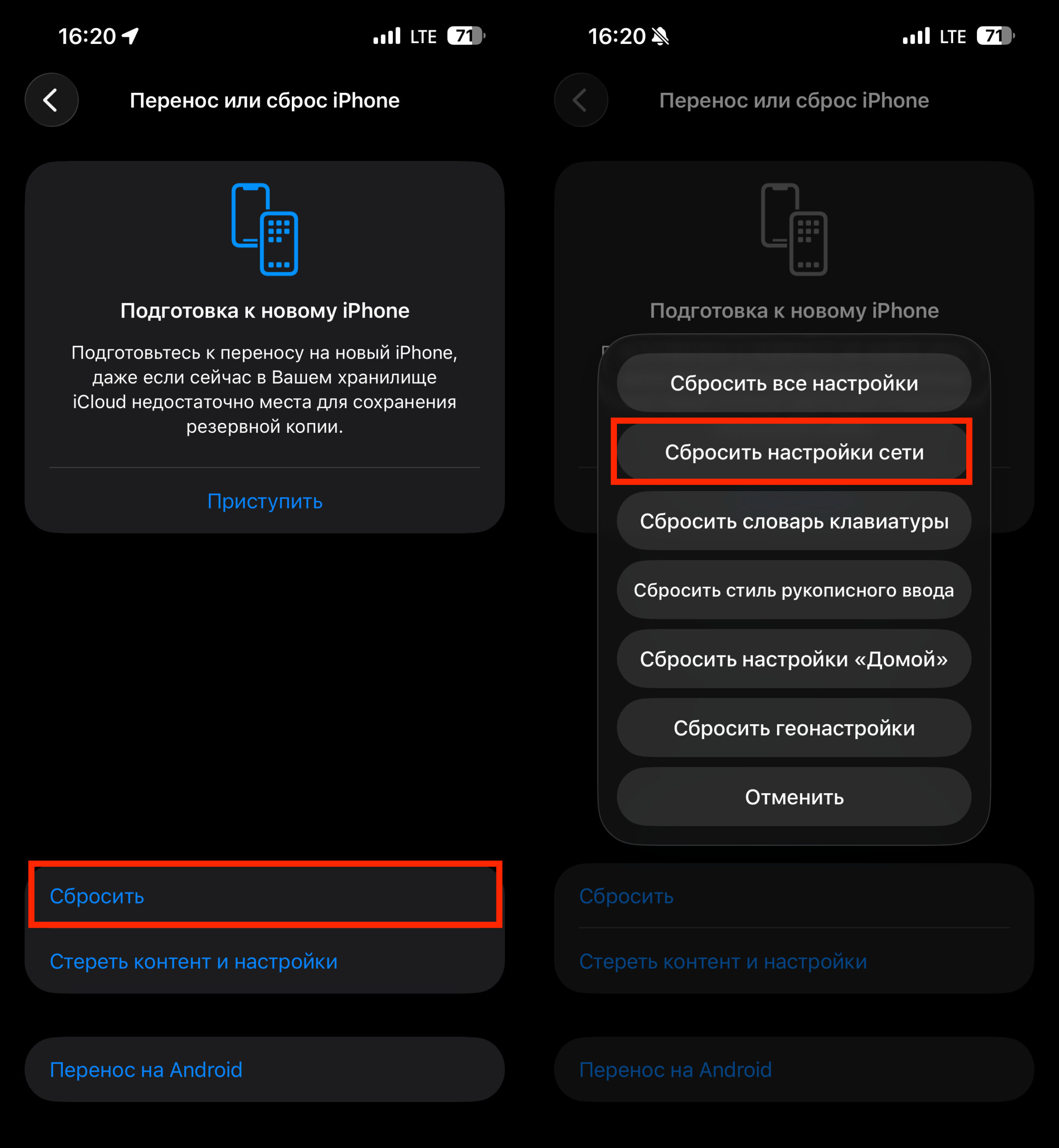
Try resetting network settings, but be prepared to restore all Wi-Fi networks manually
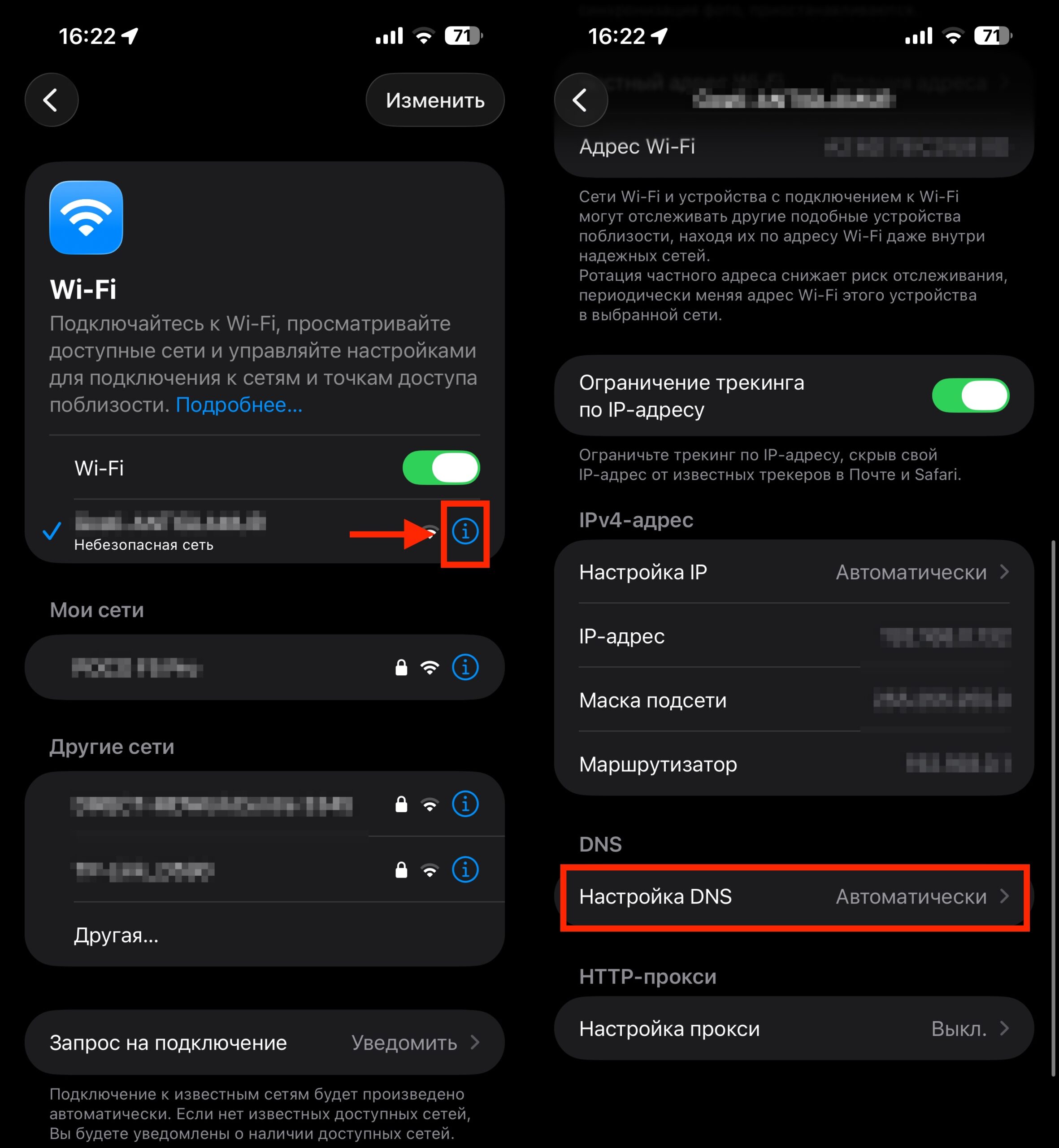
It’s also worth trying to change DNS servers in Wi-Fi settings. Sometimes switching to public DNS helps, such as 1.1.1.1 or 8.8.8.8.