Have you noticed your data plan running out too quickly, even though your habits don’t seem to change? Your smartphone continues living its own life: updating something, downloading and syncing things in the background. So before blaming your plan, it’s useful to first understand where your mobile data is going. Then you can calmly estimate how much mobile data you actually need per month and compare it with your real usage. After all, the problem often turns out to be not with the carrier, but with how mobile data traffic is consumed within Android itself.
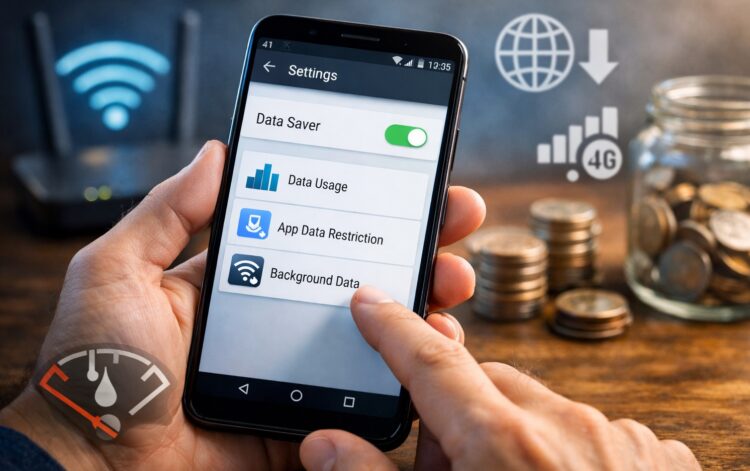
Helping you save data on your Android smartphone
Which Apps Are Eating Your Data
If your data runs out ahead of time, you first need to find the culprit. Very often, services that the user doesn’t even think about are running in the background. That’s why the first thing to do is check app data usage. After such a check, it quickly becomes clear which programs are accessing the network more actively than others. And then you can understand which apps are consuming data without much benefit:
- Open your smartphone settings.
- Go to “Network & Internet” or “Mobile Network,” then “Data Management.”
- Find the “Data Usage” option.
- Open the mobile network section.
- See which programs have used the most data.
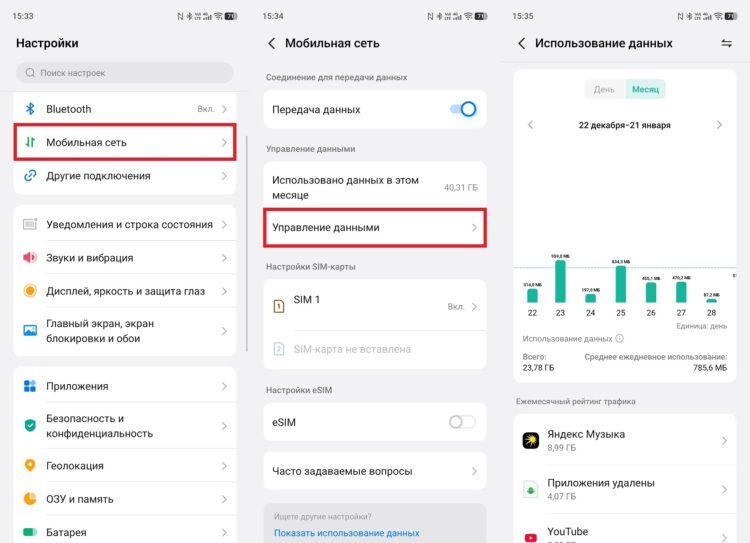
Here you can see which apps consume the most traffic
This way you can quickly see app traffic for the day, week, or month. Usually social networks, cloud services, and messengers appear at the top of the list. If you open each program individually, you can more precisely view app traffic and understand where your data is going.
How to Disable Internet Access for an App on Android
After checking the statistics, it usually becomes clear which programs are better to restrict a bit. You don’t always need to completely cut off their network access, because sometimes it’s enough to block background access. This is especially useful when your phone is consuming data even though you’re barely doing anything. In most Android skins, the needed toggle is located in the same place where network usage statistics are shown. If it’s not there, you need to look for the setting in the “Apps” section. Most often, restricting background activity has the biggest impact on app traffic rather than manual data loading:
- Open your phone settings.
- Go to the “Data Usage” section.
- Select the app that’s using too much data.
- Disable background data transfer.
- If needed, completely block access to mobile network.
- If this option isn’t available, open the “Apps” section and look for network permissions there.
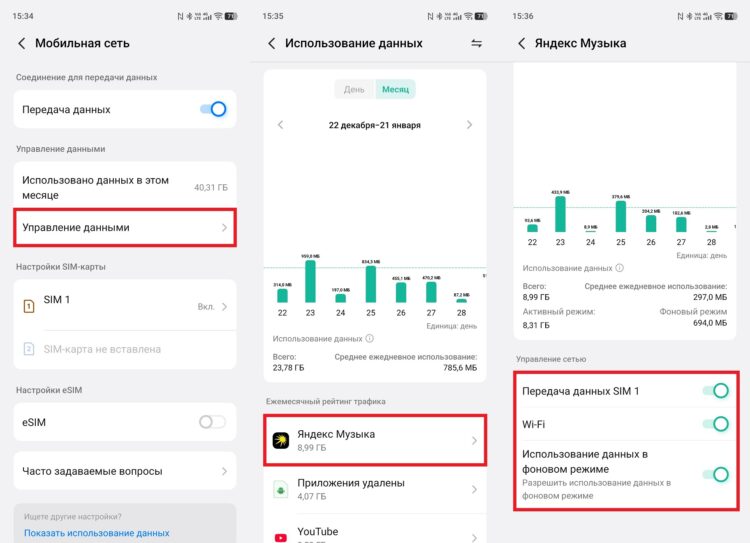
You can block apps from accessing the internet
After this, the program will stop updating data on its own until you open it. Because of this, notifications may arrive later, and some content will only load manually. But that’s exactly how real data saving works on Android.
Data Saving on Your Smartphone
If you don’t want to manually deal with each program, it’s easier to enable a system-wide restriction. Android has a special data saver mode for this, which blocks background activity for most apps. The great thing is that it works for the entire system at once and doesn’t require lengthy configuration:
- Open your smartphone settings.
- Go to “Network & Internet” or “Mobile Network,” then “Data Management.”
- Find the “Data Saver” or “Data Saver Mode” option.
- Turn on the toggle.
- If needed, add important apps to exceptions.
- Check whether essential services continue to receive notifications.
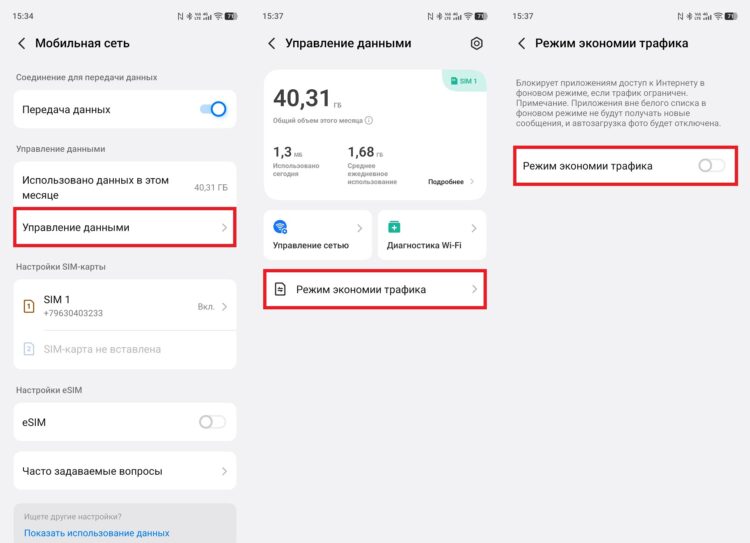
Data saver mode is available almost everywhere
After this, the data saving feature kicks in, and unnecessary background connections are automatically cut. If you didn’t know how to enable data saving, this is the simplest way to reduce usage without manually tweaking each app. For most users, this is already enough to make their data plan last noticeably longer.
Photo and Video Downloads in Messengers
Very often, gigabytes are spent not on the browser or videos, but on automatic media downloads in chats. Your smartphone downloads photos, videos, and voice messages on its own, even though you haven’t even opened them. So sometimes it’s enough to simply disable media downloads to make your usage noticeably calmer. This is especially useful in large chats and channels where there’s always a lot of content:
- Open a messenger (for example, Telegram).
- Go to “Settings.”
- Select the “Data and Storage” section.
- Open the auto-download media settings.
- Disable downloads for mobile network.
- If desired, separately disable auto-download for videos and files.
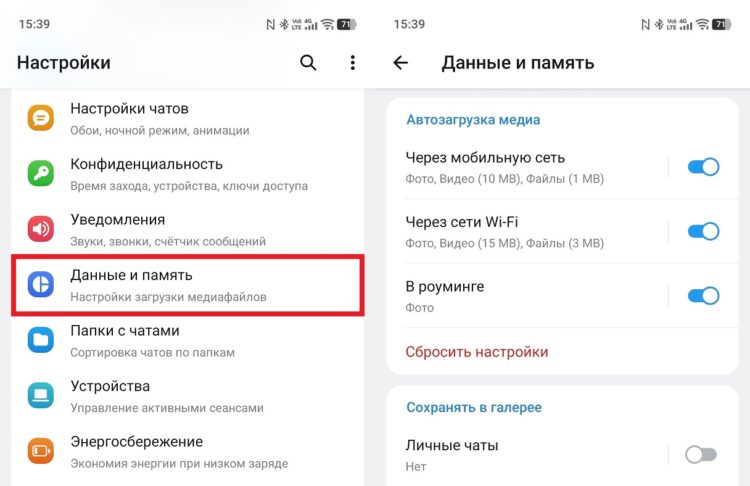
Disable media auto-download over mobile network
After this, the messenger will stop pulling heavy attachments on its own. In Telegram, this is configured quite flexibly, and in other apps the logic is roughly the same. If you disable media downloads just once, your mobile data will stop draining so quickly on pictures and videos you didn’t need right away.
How to Disable Auto-Update for Apps
Another silent cause of data overuse is auto-updating apps from Google Play. Updates can download automatically and quite inconspicuously, especially if you have many programs installed on your phone. Because of this, having this feature enabled often consumes more data than the user themselves. At the same time, you don’t have to completely disable updates. It’s enough to block auto-updating apps on Android specifically over mobile network:
- Open Google Play.
- Tap on the profile icon.
- Go to store settings.
- Open the “Auto-update apps” option.
- Select “Over Wi-Fi only.”
- If desired, completely disable automatic update installation.
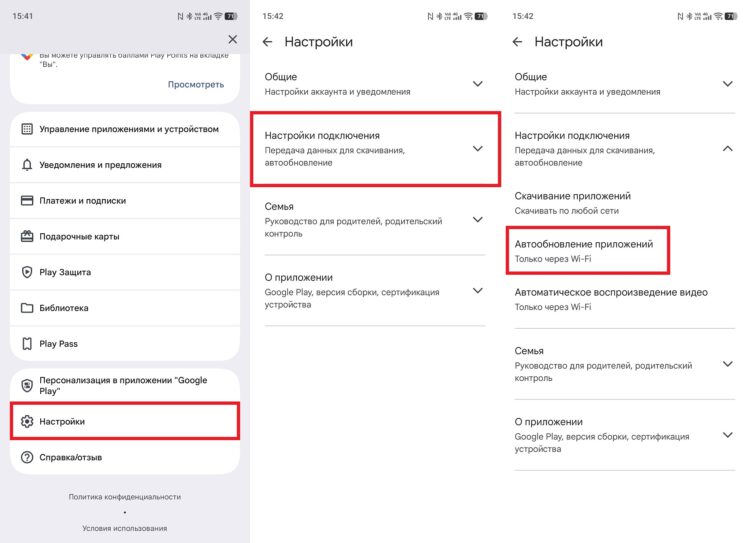
It’s better for apps not to update automatically either
After this, new versions of programs won’t download while you’re on the go or away from home. Your smartphone will still update, but it will do so over Wi-Fi when you won’t even notice. For those whose mobile data frequently runs out, app auto-updates often turn out to be one of the main hidden causes of data overuse.