If you’ve ever charged your iPhone at an airport or shopping mall, you’ve probably seen the pop-up notification: “Allow accessory to connect?” This is not an error and no reason to panic — it’s how iOS’s built-in protection against potential data theft via USB port works. It’s another layer of iPhone security. Let’s figure out what exactly this feature protects against, how real the threat is, and what settings you should check right now.
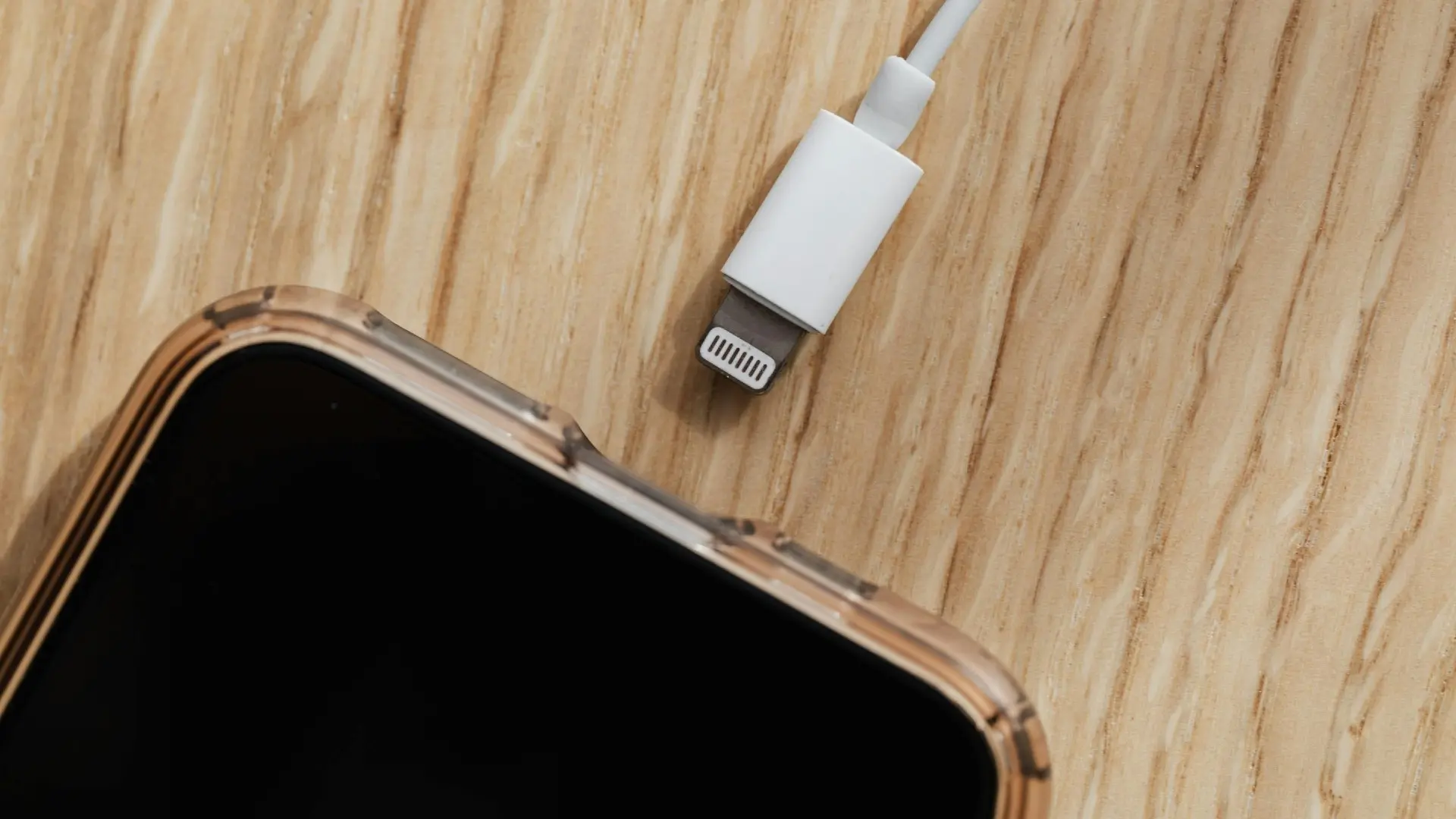
What the USB restriction notification on iPhone means and whether you should worry about it
Attack via USB Charging: What It Is and the Real Danger
The term juice jacking describes an attack in which attackers embed malicious software into public USB charging ports — at airports, hotels, and cafes. The idea is that a USB cable transmits not only power but also data, and through this connection someone can gain access to your phone’s contents without your knowledge.
The concept was first demonstrated at the DefCon hacking conference back in 2011. Since then, the FBI and the U.S. Federal Communications Commission have published warnings, and the topic regularly comes up in news and on Reddit.
But here’s what’s important: not a single confirmed case of an actual juice jacking attack on regular users has been recorded to date. The Los Angeles District Attorney’s office, after issuing its own warning, later admitted it didn’t have a single case on the matter. Even the FCC couldn’t point to specific incidents. Cybersecurity experts believe such an attack is theoretically possible but only makes sense against specific targets — high-ranking officials, investigative journalists, or top executives. For an ordinary iPhone owner in a waiting area, the real risk is close to zero.
USB Restricted Mode on iPhone: How It Works
Apple didn’t rely on the threat remaining theoretical and over several years built serious protection at the system level.
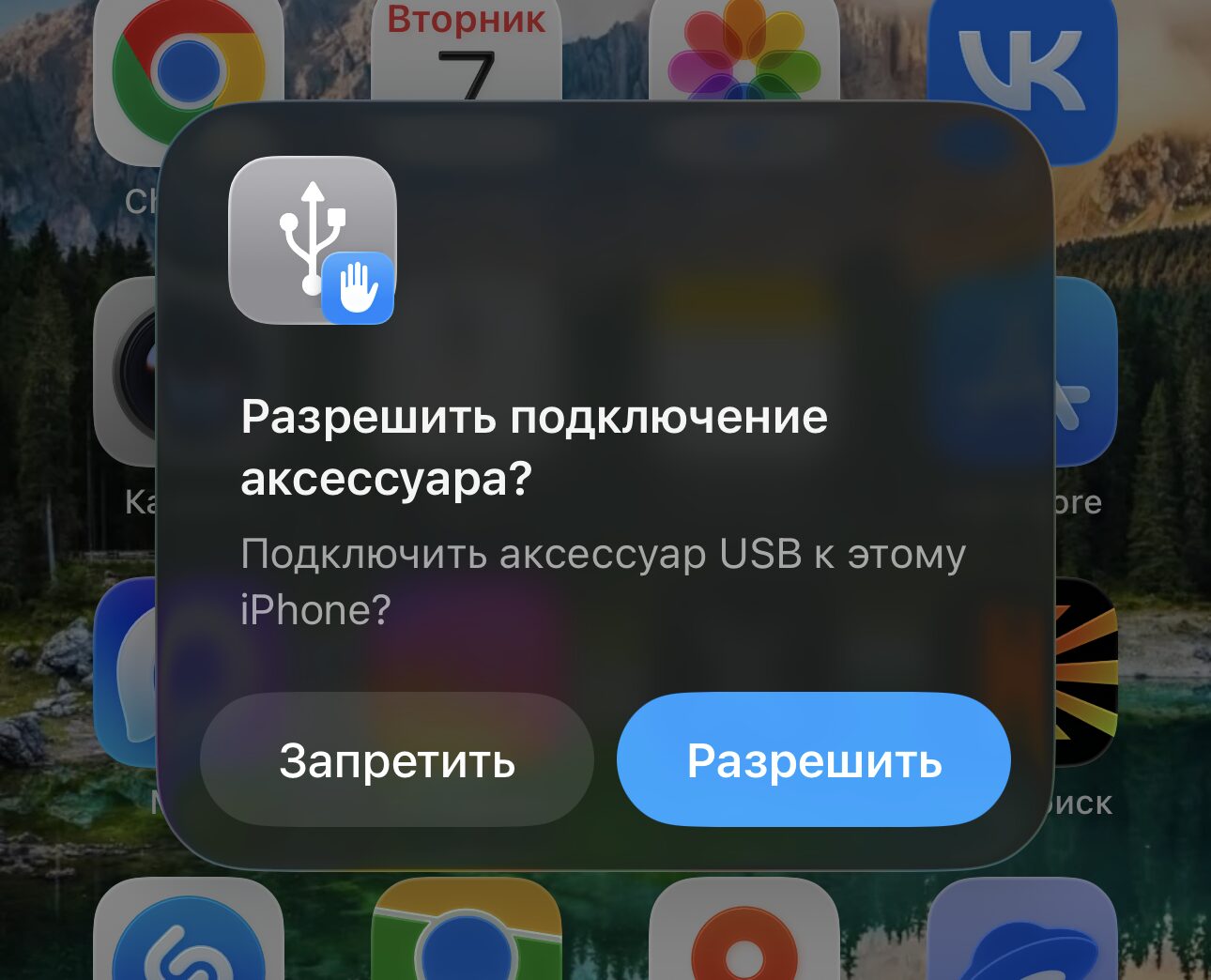
iPhone will immediately ask your permission to connect to an accessory
The main mechanism is USB Restricted Mode, available on all iPhones starting with iOS 11.4.1. It works simply: if the iPhone has been locked for more than an hour, the Lightning or USB-C port stops transmitting data. Charging continues, but access to photos, messages, and passwords via the cable is completely blocked.
That’s exactly why when connecting to an unfamiliar port, iPhone may show a prompt — to “trust” this computer or “allow” the accessory. If you see such a prompt at a public charging station, the correct action is one: tap “Don’t Trust” (“Deny” in iOS 26) or simply disconnect the cable. A regular charging station has no reason to request data transfer.
Configuring USB Accessory Restrictions on iPhone
In recent versions of iOS, Apple added more granular control over USB connections. Here’s what you can configure:
Go to Settings — Privacy & Security — Wired Accessories. There are four options available:
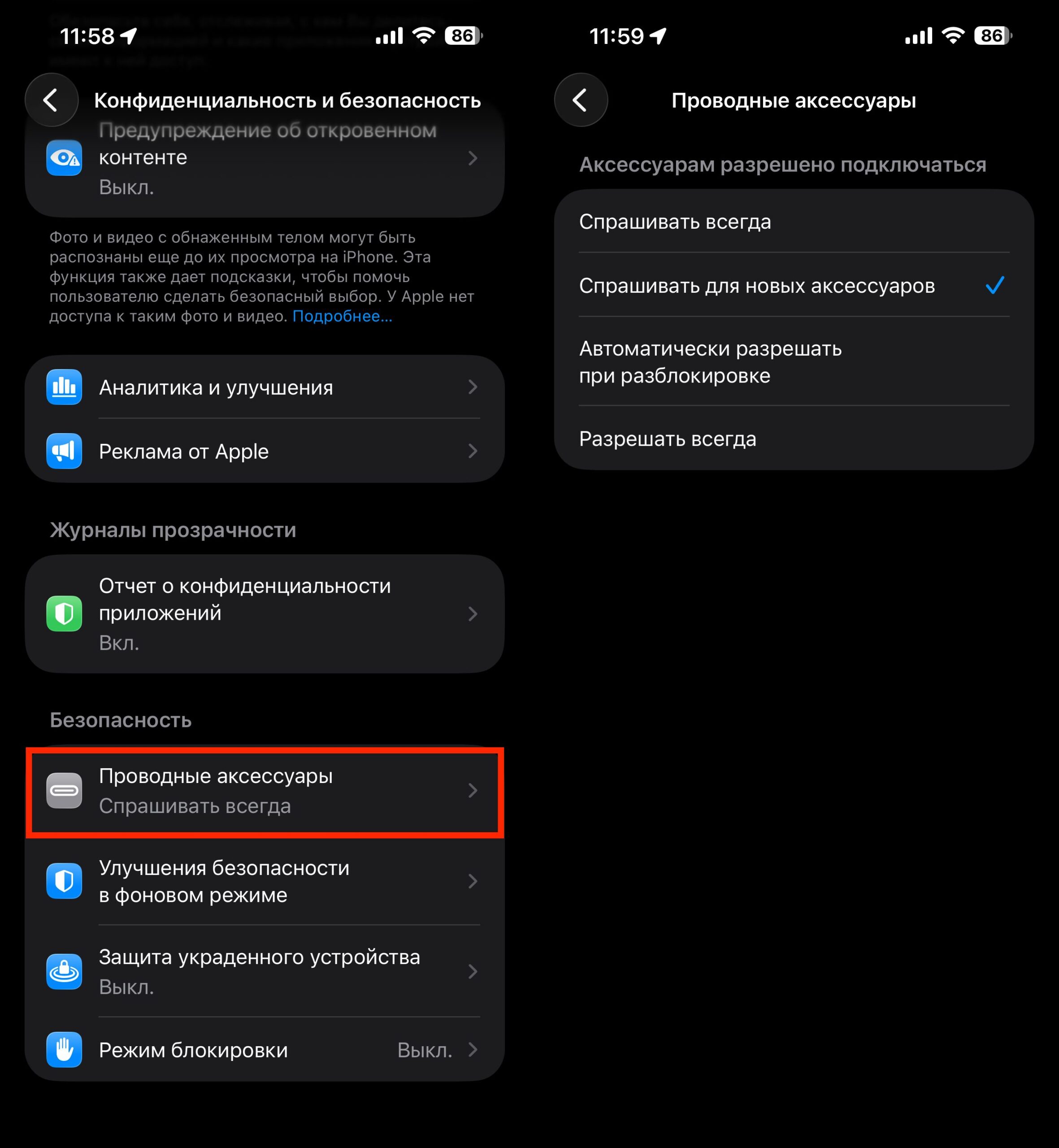
You can change your preferences in this settings section
- Always Ask — iPhone will request confirmation every time a new USB device is connected
- Ask for New Accessories — confirmation will only be required when connecting an unfamiliar device for the first time
- Automatically Allow When Unlocked — the default option
- Always Allow — the connection prompt will never appear
For those who travel frequently and use others’ chargers, it makes sense to choose “Ask for New Accessories.” Then a regular charging station will simply start charging your phone without extra questions (that’s a good sign), and if a suspicious prompt appears — you can decline it.
There’s also a second setting worth knowing about. It’s located in Settings — Face ID & Passcode — USB Accessories. If this toggle is off, accessories won’t be able to establish a data transfer connection when iPhone has been locked for more than an hour. Keeping it off is the safer option.
Safely Charging Your iPhone at Airports and Public Places
Even if the real risk of juice jacking is minimal, simple habits will help eliminate it completely:
- Bring your own power adapter. Plug into a regular wall outlet, not a USB port. Data cannot be transmitted through a wall outlet, and most charging stations have standard power sockets next to USB ports
- Carry a portable battery pack. You can safely charge it from any public USB — it doesn’t contain your data. Then charge your iPhone from the battery pack
- Don’t tap “Trust” on prompts when connecting to unfamiliar ports
Essentially, it all comes down to one rule: don’t give unfamiliar USB ports access to your iPhone data. The system is already configured to block such attempts, but it’s better to know how it works.
Is It Dangerous to Charge Your iPhone via USB in Public Places
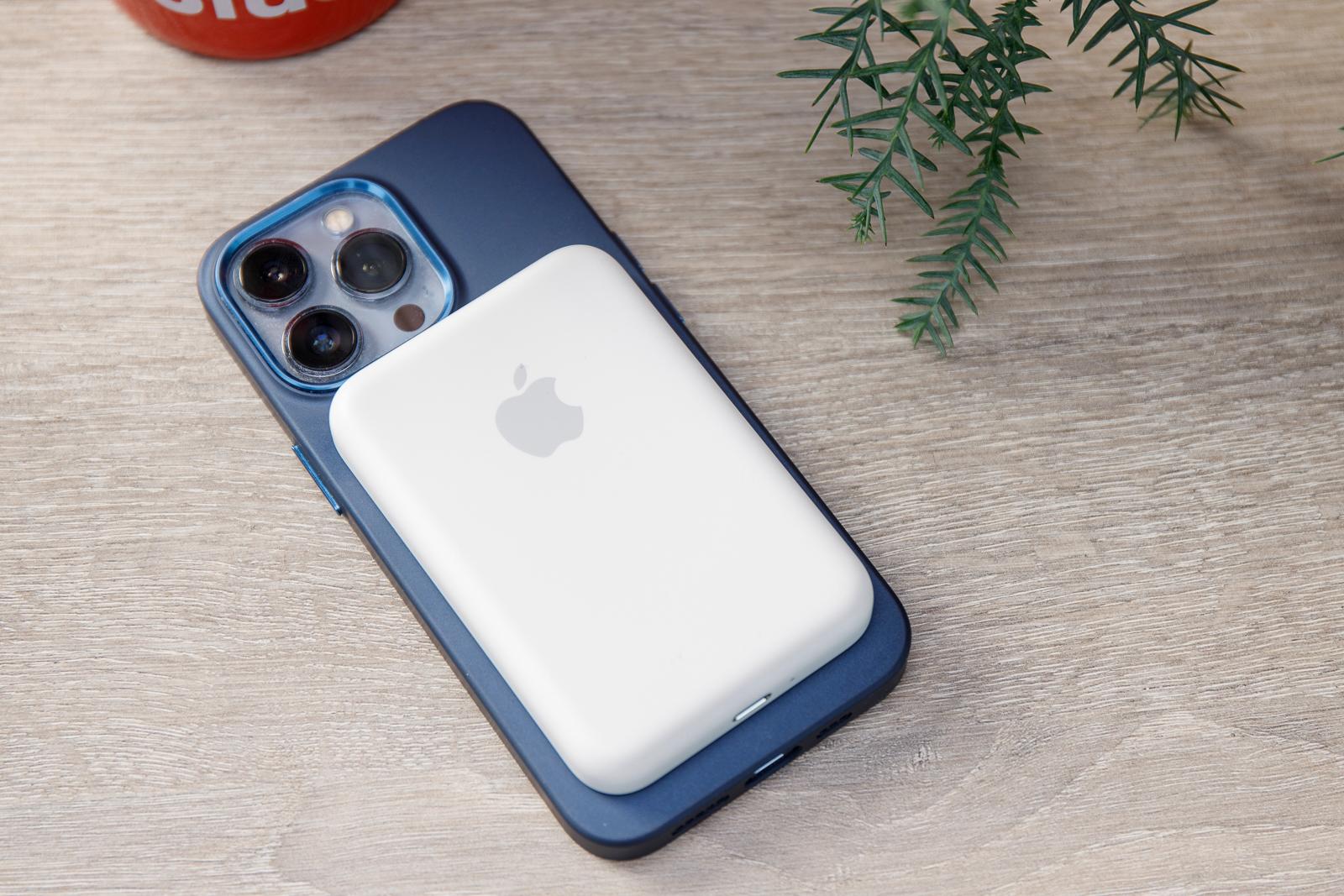
Carry a power bank or charger with you, and you’ll have no problems
Juice jacking is a real technical concept, but in practice it remains more of a theoretical threat. Not a single confirmed case of a mass attack on regular users has ever emerged. iPhone’s built-in protection closes this attack vector for the vast majority of people without any additional actions.
If you’re a regular user who occasionally charges your phone at the airport — check your USB accessory settings (it takes 30 seconds), don’t tap “Trust” at unfamiliar charging stations, and that’s it. If your work involves confidential information or you’re a public figure — it makes sense to use only your own adapter and external battery. Not out of panic, but simply because it costs nothing.