Recently we covered how to check the balance on a MegaFon number. Now let’s figure out how to do it on MTS. You can check your MTS balance in just a few seconds — but there are so many ways that it’s easy to get confused. USSD commands, SMS, the app, your personal account, calling the operator — everything works, but different options are convenient in different situations. Let’s go through each one in order: what works for iPhone, what works for Mac, and what will help when you have no internet at all.
Figuring out the MTS balance. Image: digital-report.ru
How to Check MTS Balance with the *100# Command
Last week it became impossible to top up Apple ID from an MTS number. So now you have to monitor your balance less often. The fastest and oldest method is a USSD request. It works on any phone, doesn’t require internet, and costs 0 rubles.
The main command:
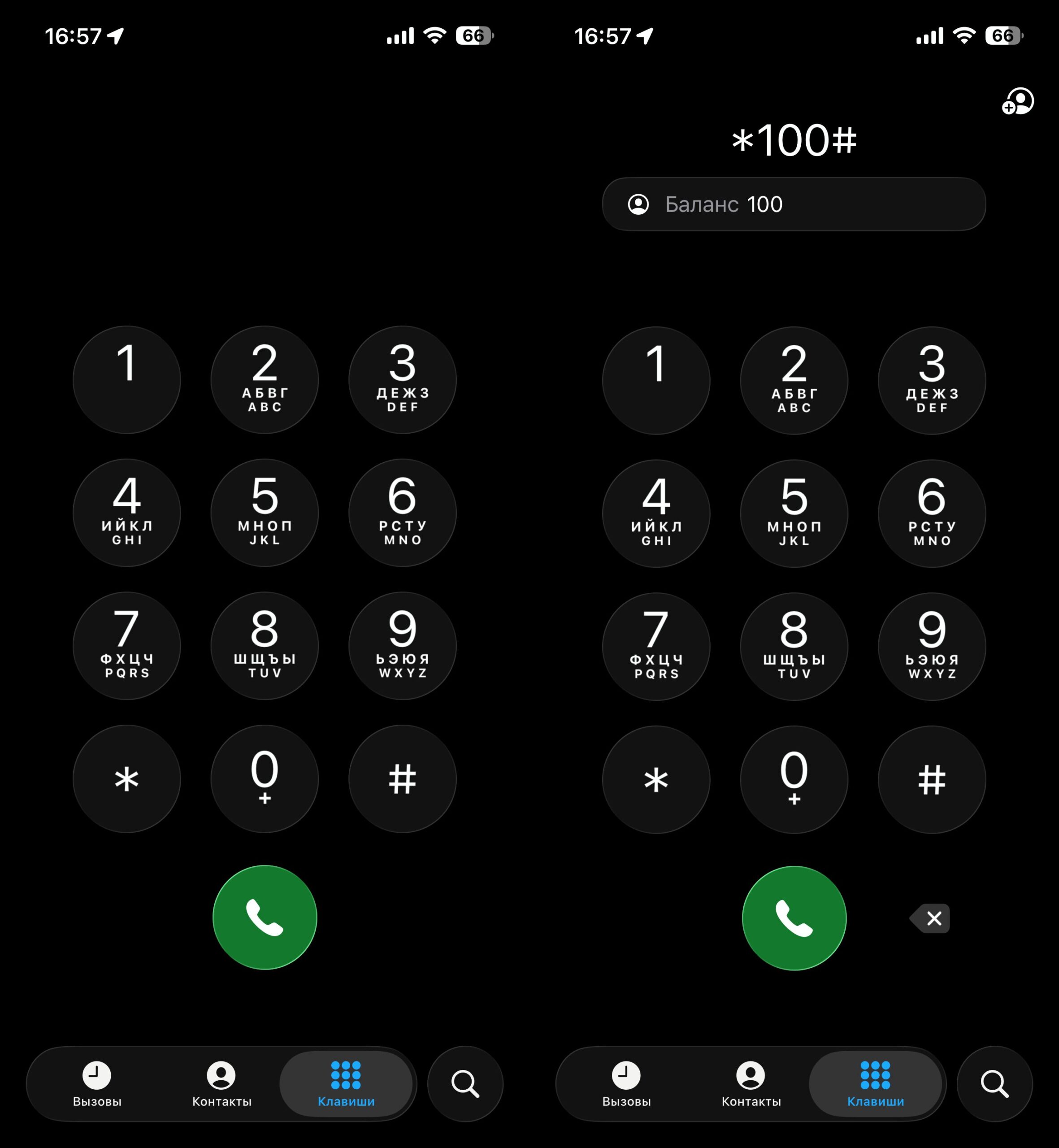
Everyone who used a feature phone knows this command
- *100# and the call button — the main account balance will appear on the screen in a couple of seconds
Additional useful MTS codes:
- *152# — information about recent charges and payments
- *111# — the main MTS USSD menu, through which you can navigate to balance checking and service management
On iPhone, USSD codes are dialed through the standard Phone app — simply enter *100# and press call. The result will appear in a pop-up window. If you have eSIM and a physical SIM simultaneously, make sure the call is being made from the correct line — you can switch in the call settings.
Requesting MTS Balance via SMS to 111
If a USSD request doesn’t go through for some reason (this happens in roaming or with some virtual numbers), you can send an SMS.
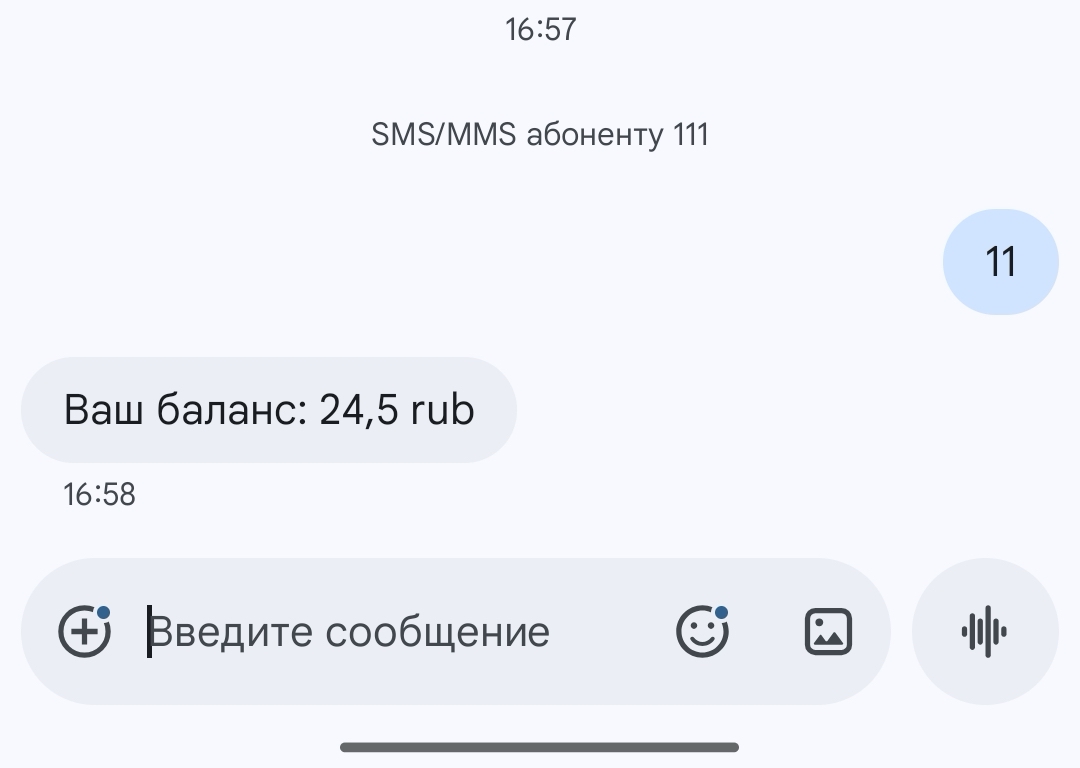
You can send an SMS and get a response
- Open the Messages app on iPhone or any other phone
- Create a new message to the number 111
- In the text, type 11
- Send it — you’ll receive balance information in a reply SMS
This method is free when you’re on the MTS home network. In international roaming, sending an SMS may incur charges according to your plan — keep this in mind if checking your balance abroad.
MTS Balance in the “My MTS” App on iPhone
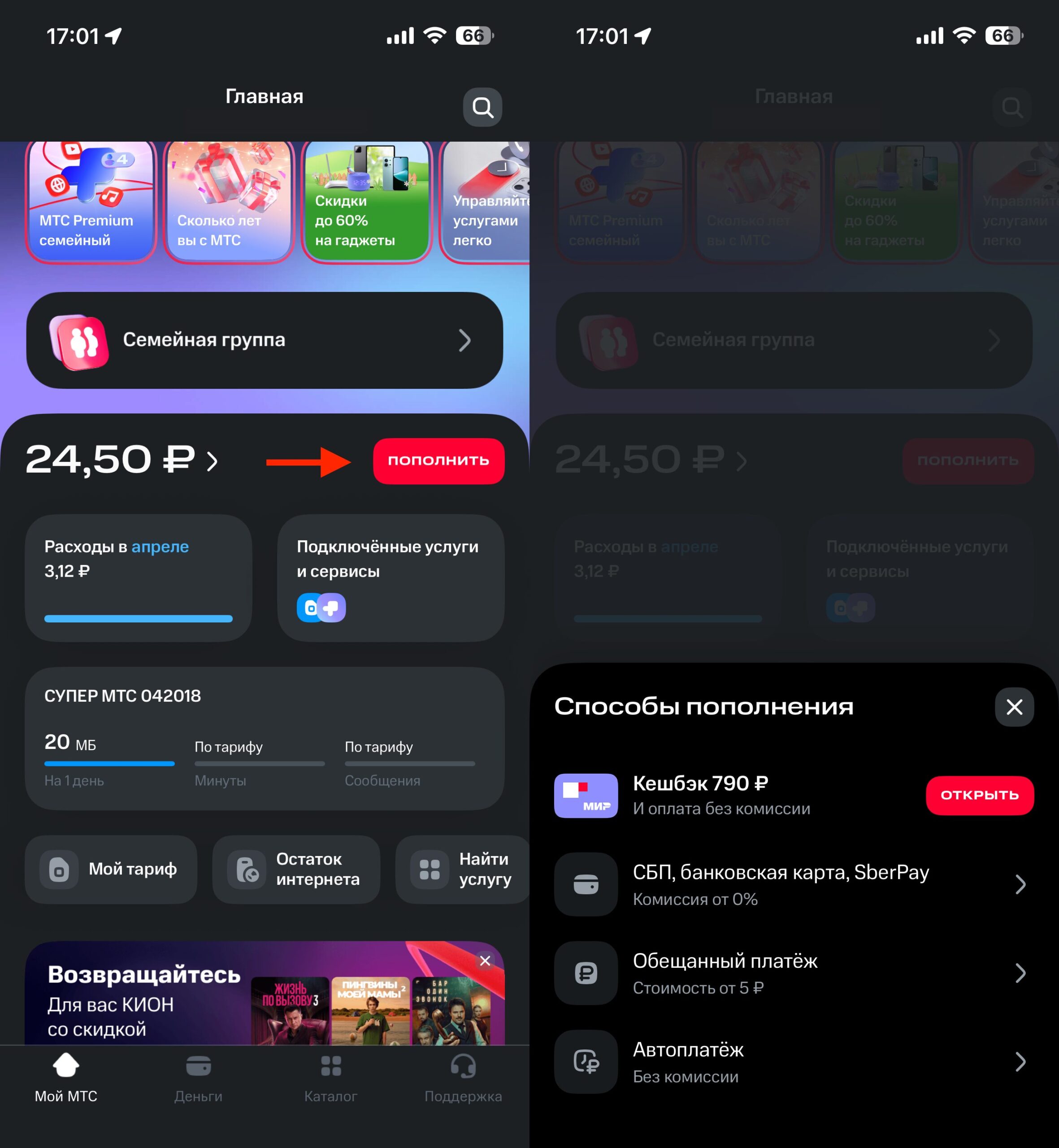
For smartphone users, the “My MTS” app is the most visual option. The balance is displayed right on the app’s home screen immediately after logging in, along with remaining packages of minutes, SMS, and data.
How to set up:
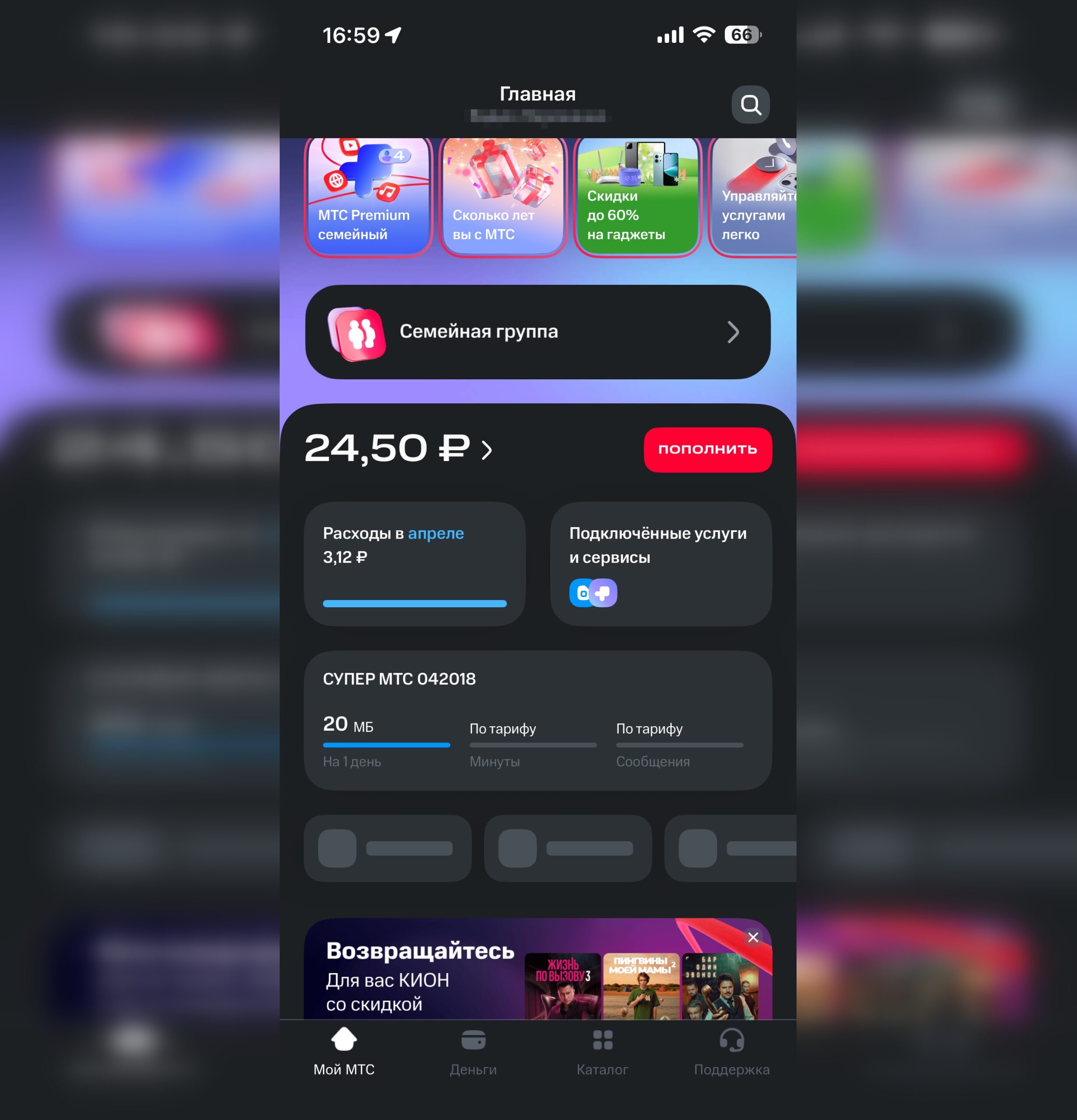
In the app, the balance is displayed right on the main page
- Download “My MTS” from the App Store
- Log in with your phone number — a confirmation code will arrive via SMS
- On the app’s home screen, your current balance and plan details will be displayed immediately
On iPhone, you can add a “My MTS” widget to the Home Screen or to the Lock Screen — then the balance will be visible without launching the app. To do this, press and hold an empty space on the screen, tap “+” in the corner, and find the MTS widget.
Checking MTS Balance in the Personal Account on the MTS Website
If you’re at a computer — Mac, MacBook, or any other — it’s more convenient to check your balance through the MTS personal account in a browser.
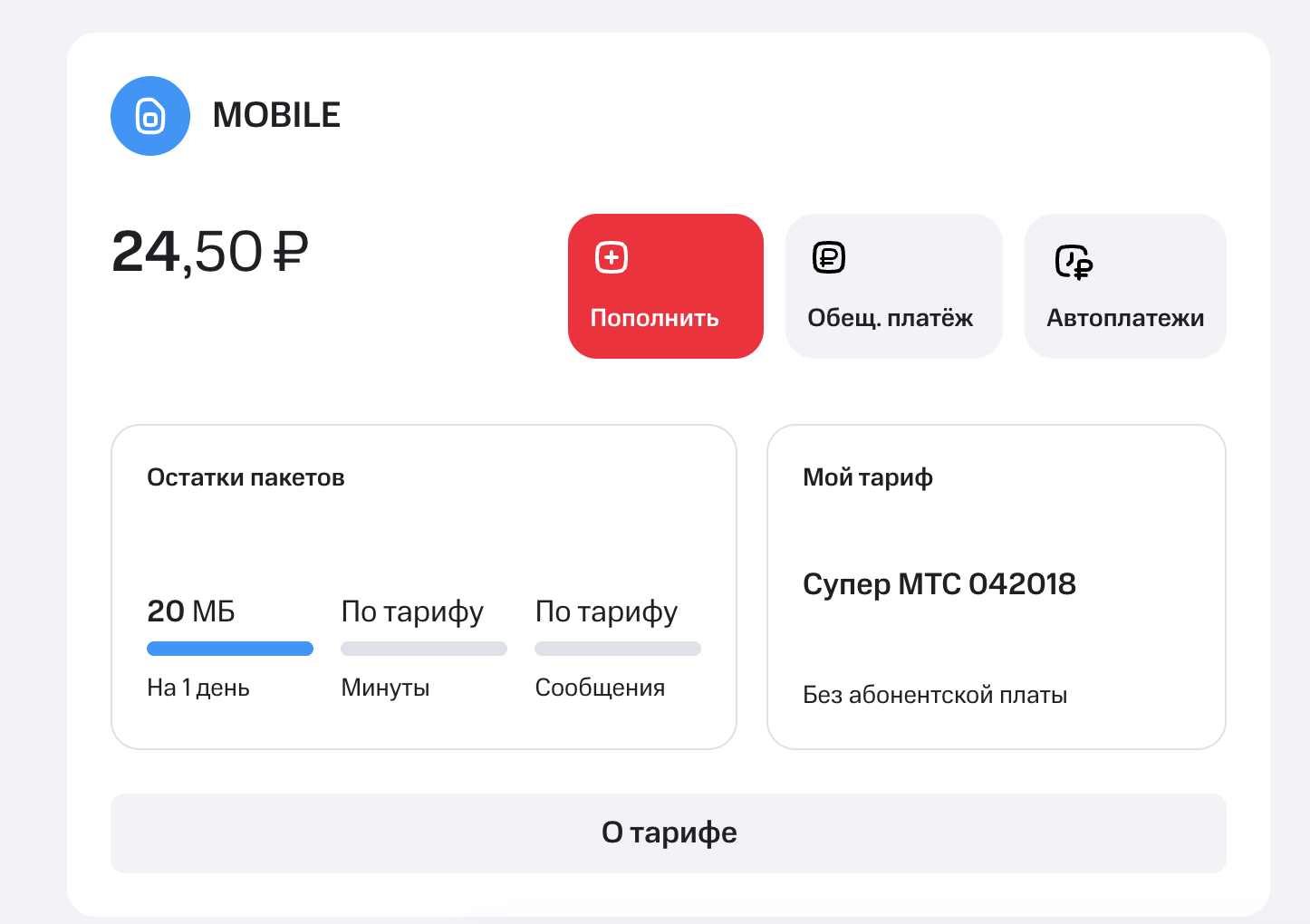
The personal account on the website shows the same information as the app
- Open Safari (or any browser) and go to lk.mts.ru
- Log in with your phone number — a confirmation code will arrive via SMS
- On the personal account’s main page, your balance, plan, and connected services will be displayed
The personal account is useful not only for checking the balance — here you can also view expense details, disable unnecessary subscriptions, and change your plan. If you use a Mac, you can save lk.mts.ru to the Dock through Safari — the site will open as a standalone app.
Check MTS Balance by Phone
When there’s no internet and USSD doesn’t work (for example, the phone is old or the screen is damaged), you can simply make a call.
- 0890 — a free call to the MTS auto-informer. Follow the voice prompts: the balance is usually announced in the very first menu item
- 8-800-250-0890 — for calls from landline phones or numbers of other carriers (free across Russia)
The voice auto-informer operates 24/7. If you need to speak with a live operator — wait for the corresponding menu option, but be prepared for a wait.
How to Check the MTS Balance on a Child’s Number
If you want to monitor the balance on a child’s number or an elderly relative’s number, MTS has separate tools for this.
Through the “My MTS” app: if you registered the child’s SIM card under your name, you can add that number to the app and switch between accounts. The balance of each number will be visible on the home screen.
Alternative options:
- “Friend’s Balance” service — allows you to request the balance of another MTS subscriber with their prior consent. It can be activated through a USSD command or in your personal account
- Personal account at lk.mts.ru — if multiple numbers are registered under one passport, they all appear in one account
Important: you cannot check the balance of someone else’s number without the owner’s consent — this is an operator restriction for security purposes.
Home Internet and TV MTS Balance
The balance for MTS home internet and television is not checked through *100#, but through the personal account or the app.
- Personal account: at lk.mts.ru, select the “Home Internet and TV” section — it displays the balance, the next billing date, and connected channel packages
- “My MTS” app: home services are also displayed in the app if they are linked to your number
If your home internet is registered under a separate account (not linked to a mobile number), use the contract number and password provided at the time of connection to log into the personal account.
Ways to Top Up MTS Balance in 2026
When your balance has gone negative or is approaching zero, there are several ways to quickly top up your account:
- In the “My MTS” app — with a bank card right from the home screen. On iPhone, payment via Apple Pay works if your card is supported