Your smartphone offers dozens of settings that at first glance seem obviously useful. Turn it on — and things get better. But in practice, many Android settings work the exact opposite way: instead of convenience, they bring lag, overheating, or rapid battery drain. Let’s break down 7 of the most common mistakes and explain how to properly use Android’s capabilities so your smartphone works better.
Some Android settings you change for absolutely no reason
Android Power Saving Mode
The logic is clear: since power saving mode saves battery, it should always be on. In reality, this is one of the most harmful habits. In this mode, the system forcibly reduces processor performance, limits background sync, disables some animations, and cuts connection quality. At full charge, all of this is completely pointless — you simply get a slow smartphone with no benefit whatsoever.
The correct setting — activate phone power saving only when needed:
- Open “Settings.”
- Go to the “Battery” section.
- Find the “Current mode” option.
- Set the balanced mode.
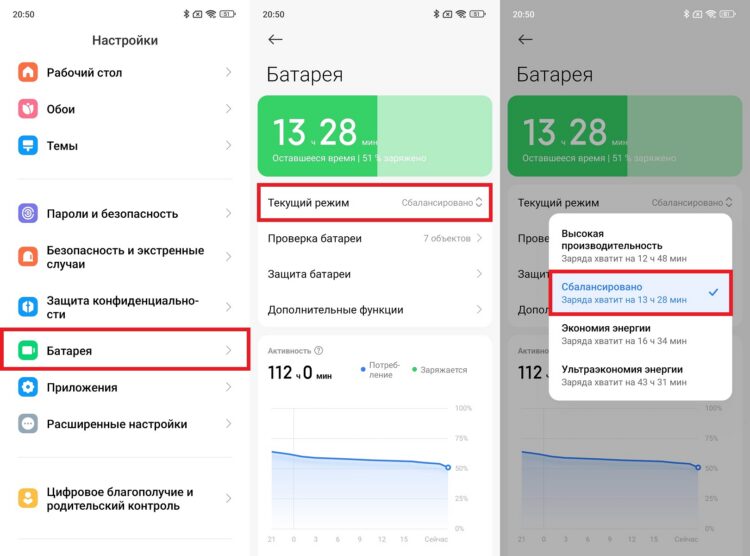
Power saving mode will turn on by itself when needed
This way, the mode will activate only when it’s truly needed, and the rest of the time your smartphone will work at full power without artificial limitations.
Phone Auto-Brightness Disabled
Many people disable auto-brightness, thinking they can handle the adjustment better themselves. As a result, they either crank brightness to maximum and kill the battery, or forget to lower it in the dark and get eye fatigue within half an hour. Manual brightness control requires constant attention that nobody actually pays in real life. Properly setting up auto-brightness takes just a few seconds:
- Open “Settings.”
- Go to the “Display” section, then “Brightness.”
- Enable “Adaptive brightness,” “Auto-brightness,” or “Auto-adjust.”
- Manually adjust the brightness slider to your preference — the system will remember the correction.
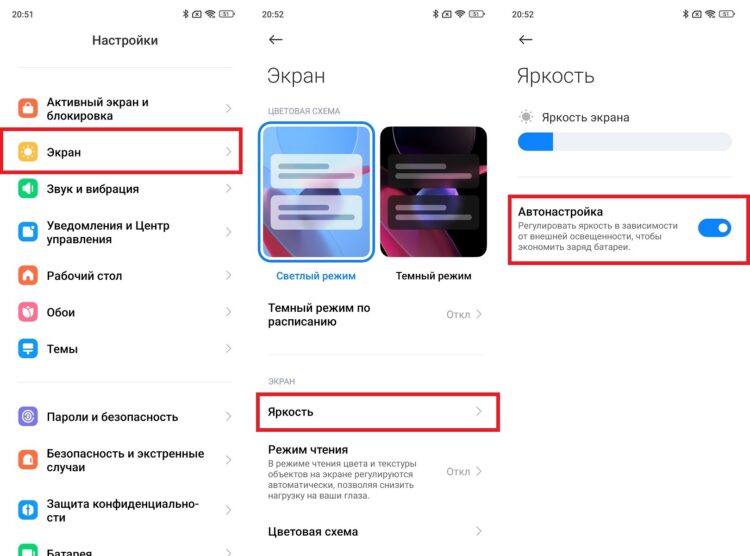
Auto-brightness is better left on and properly configured
Give the algorithm a few days to learn — over time it will select brightness more accurately.
Animation Speed on Android
A popular life hack from the “make your smartphone faster” series: go into developer mode and set the animation speed on Android to 0.5x or disable it entirely. On old budget phones, this actually helped. On modern devices, the effect is questionable: the interface starts looking jerky, transitions between screens lose smoothness, and the feeling of responsiveness paradoxically worsens — the brain perceives abrupt switches as lag, not speed.
To restore normal animation speed, do the following:
- Open “Settings” and go to “Developer Options.”
- Find the options “Window animation scale,” “Transition animation scale,” and “Animator duration scale.”
- Set the value to 1x for each of them.
- If you no longer need developer mode — disable it right there.
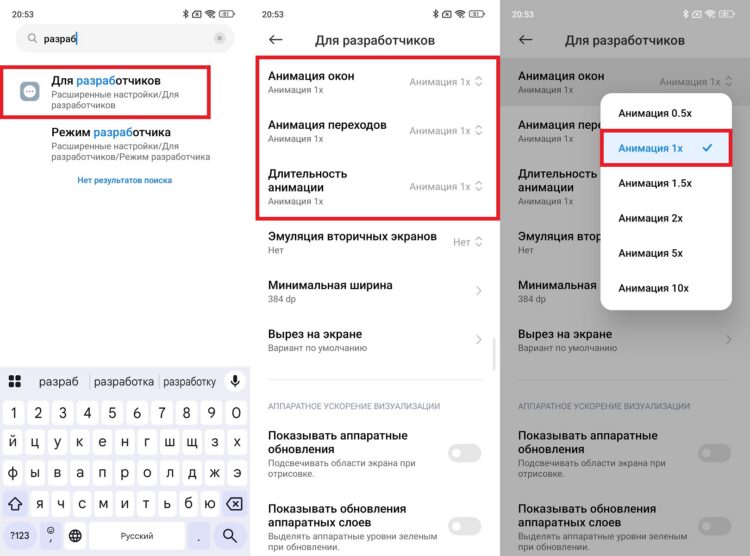
Animations are better restored to factory values
If your smartphone still lags after this, the cause isn’t the animations but rather full memory or background processes — that’s the problem you need to solve.
Always-On Display Constantly Enabled
Always On Display seems convenient: no need to pick up the phone to check the time or notifications. But few people calculate how much it costs the battery. The always-on display on the phone in AOD mode consumes 3 to 8% charge per hour depending on the model and brightness. Over a day, that’s 15-20% of battery that goes literally to nothing — especially when the phone is lying face down or in a pocket.
To set up AOD on a schedule and not waste charge, do the following:
- Open “Settings.”
- Go to the “Display” or “Lock Screen” section.
- Find the “Always On Display” option.
- Select “On schedule” mode and set the desired hours, or disable the always-on display entirely.
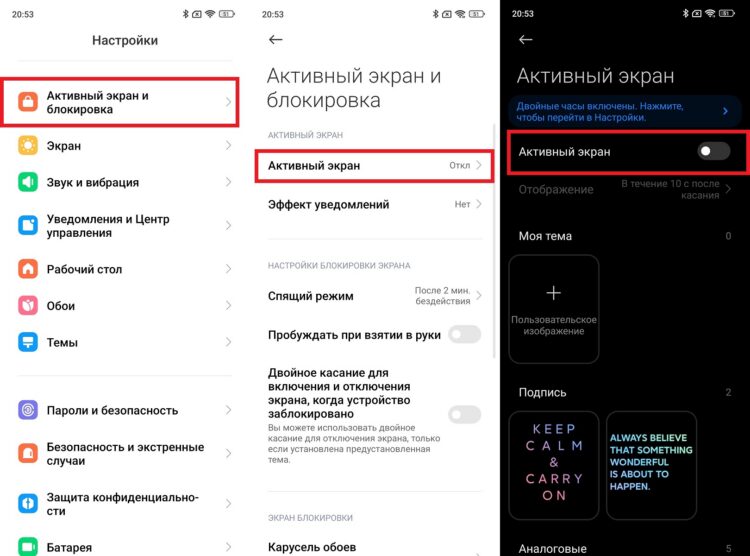
Always-on display is recommended to be disabled
As an alternative, consider the “Lift to Wake” feature — it shows the screen only when you pick up the phone and doesn’t require a constantly active display.
Phone Auto-Rotate
Auto-rotate is annoying when reading while lying down, watching videos in an uncomfortable position, or when the smartphone is simply lying on a table at an angle. Nevertheless, most users keep it constantly enabled, not realizing that switching it can be done in literally two taps without going into settings.