Despite the fact that Galaxy smartphones have their share of controversial decisions, users continue to buy them and upgrade to newer models. Many have heard about the drawbacks, but this doesn’t stop Korean devices from remaining some of the most popular on the market. However, after purchasing, you should immediately check the settings, because One UI has many features enabled that can interfere with your experience, drain the battery, or collect unnecessary data. Let’s look at which Samsung settings you should disable right after purchase.
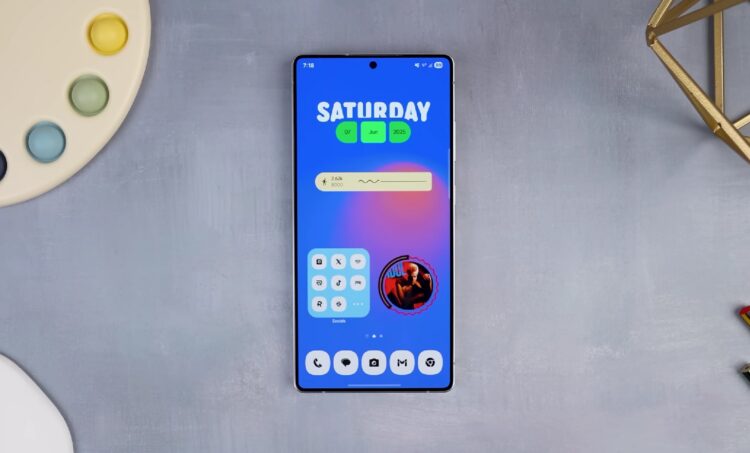
Overview of useless One UI features. Image: HowToMen
Which Samsung Galaxy Features to Disable Right Away
The problem isn’t that Samsung has too many settings. On the contrary, many people love smartphones of this brand precisely for their flexibility. But some Samsung Galaxy features work as if they were added just to check a box: they’re annoying, interfere with system usage, or simply make the interface less convenient. Based on practical experience, right after purchase you should pay attention to these things:
- Samsung Keyboard;
- split notification shade and quick settings;
- Edge Panels side panel;
- Samsung Wallet quick access shortcuts;
- notification icons on the lock screen instead of cards;
- palm swipe screenshot gesture.
None of these features make the phone bad. But they are the ones that most often ruin the first impression of Samsung, especially if the person previously used a different Android smartphone.
Why Disable Samsung Keyboard
The first feature that’s often recommended to disable is the proprietary Samsung Keyboard. Formally, it can do everything its competitors can, but in practice it has questionable autocorrect, not the most convenient voice typing, and overall a less pleasant typing experience. That’s why many Galaxy owners switch to Gboard or another keyboard almost immediately. The reasoning is simple: if you text a lot, a bad keyboard starts to irritate you every day. And since this is one of the most frequently used phone features, it’s definitely not worth compromising on convenience.
To disable Samsung Keyboard and install a different one, do the following:
- Install Gboard or another keyboard from Google Play.
- Open the installed app.
- Tap the enable button in the settings.
- Activate the new keyboard in the list.
- Confirm the change.
- Select it as the default keyboard.
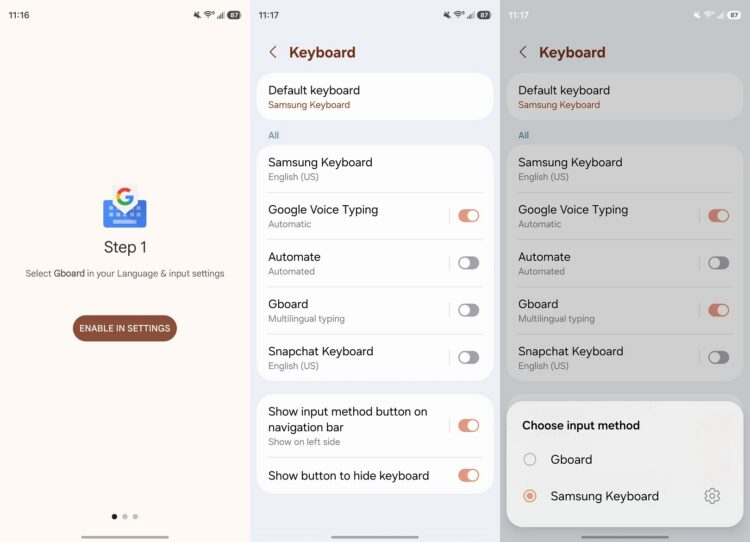
Gboard will be better than Samsung keyboard
After this, typing will become more familiar and convenient. For many, this is the very first change worth making in One UI right after buying the phone.
How to Restore the Normal Notification Shade in One UI
In modern Samsung smartphones, notifications and quick settings are split into two separate pages by default. Swiping down from the top left opens notifications. Swiping down from the top right opens quick toggles. On paper, the idea looks logical, but in real life it often just causes frustration.
The problem is that people are used to pulling down the shade with a single motion, but here you need to remember which part of the screen to swipe. Because of this, the interface feels less convenient, although fixing it takes only half a minute. To disable the split panel in One UI, do the following:
- Swipe down from the upper right corner of the screen.
- Open quick settings.
- Tap the pencil icon.
- Go to panel settings.
- Select the combined display option.
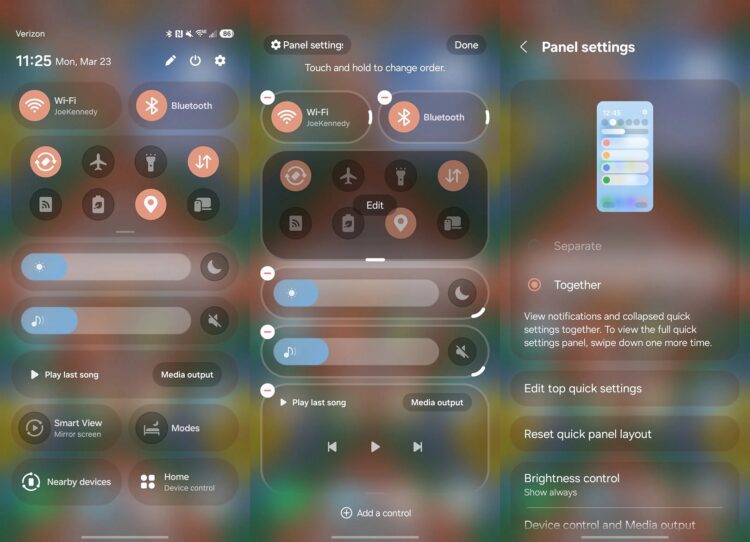
Many find the unified shade more convenient
After this, notifications and toggles will open together again, like on most Android smartphones. And for the average user, this is genuinely more convenient.
Should You Disable Edge Panel on Samsung
Edge Panels is Samsung’s proprietary side panel with quick access to apps and tools. The feature has its fans, but for many it only causes accidental triggers. The panel can open when you’re simply holding the phone in your hand or trying to do something near the edge of the screen.
On larger Samsung Galaxy models, this is especially noticeable. If you don’t deliberately use the side panel, it’s better to just remove it and not clutter the interface with an unnecessary element. To disable Edge Panel, do the following:
- Open “Settings.”
- Go to the “Display” section.
- Scroll down the list.
- Find the Edge Panels option.
- Turn off the toggle next to it.
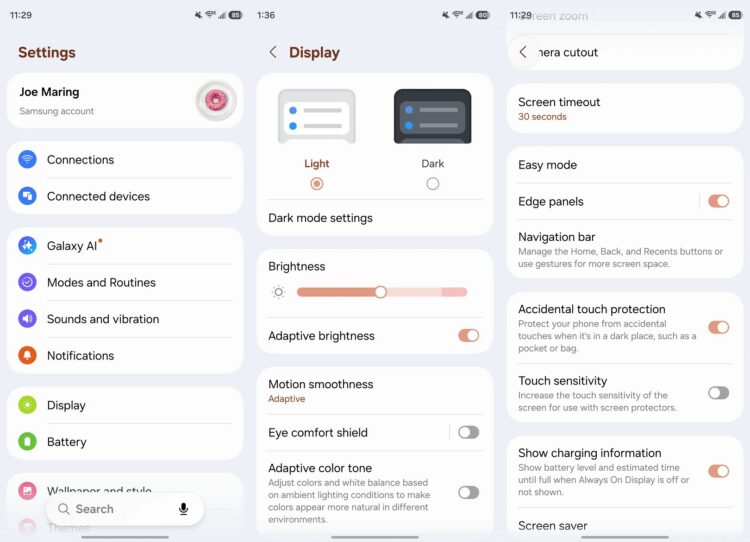
It’s better to remove the Edge panel too
After this, the side marker that hangs on the edge of the screen will disappear. If you later want to bring the feature back, you can enable it in the same section.
Why It’s Better to Remove Samsung Wallet Gestures
Another controversial feature is quick access to Samsung Wallet via a swipe from the bottom. If you actually use Samsung’s wallet, this can be convenient. But if you don’t need the service, the gesture only gets in the way and occasionally opens on its own at the worst possible moment.
This is especially annoying on the home screen and lock screen. The phone is supposed to simply respond to normal actions, but instead it launches something you don’t even use. To disable Samsung Wallet gestures, follow these steps:
- Open the Samsung Wallet app.
- Complete the initial setup if necessary.
- Tap the menu in the upper corner.