Have you ever noticed that your smartphone is already begging for a charge by lunchtime, even though you barely used it in the morning? It’s not a battery defect — it’s most likely misconfigured system settings that are active by default and silently “eat” your charge in the background. We’ve dealt with this before, so we found six switches in Android settings that deliver noticeable results without affecting the convenience of using your device.
These settings are enabled by default, and they’re the ones killing your charge
Most internet life hacks boil down to two extremes: either they advise you to turn off everything (Wi-Fi, Bluetooth, geolocation), turning your phone into a useless “brick,” or they suggest downloading yet another optimizer app that is not only useless but also consumes resources itself. Neither approach delivers stable results.
The secret is different: you need to disable not the features themselves, but their background activity — what runs when the screen is off and you’re not holding the phone in your hands.
Disable Background Wi-Fi and Bluetooth Scanning
This is perhaps the most underrated setting. Even when Wi-Fi and Bluetooth are turned off, Android continues to scan the airwaves by default looking for networks and devices — this is needed for accurate location detection. The radio modules keep working regardless.
How to disable:
- Open “Settings”
- Go to “Location” → “Location services”
- Turn off “Wi-Fi scanning” and “Bluetooth scanning”
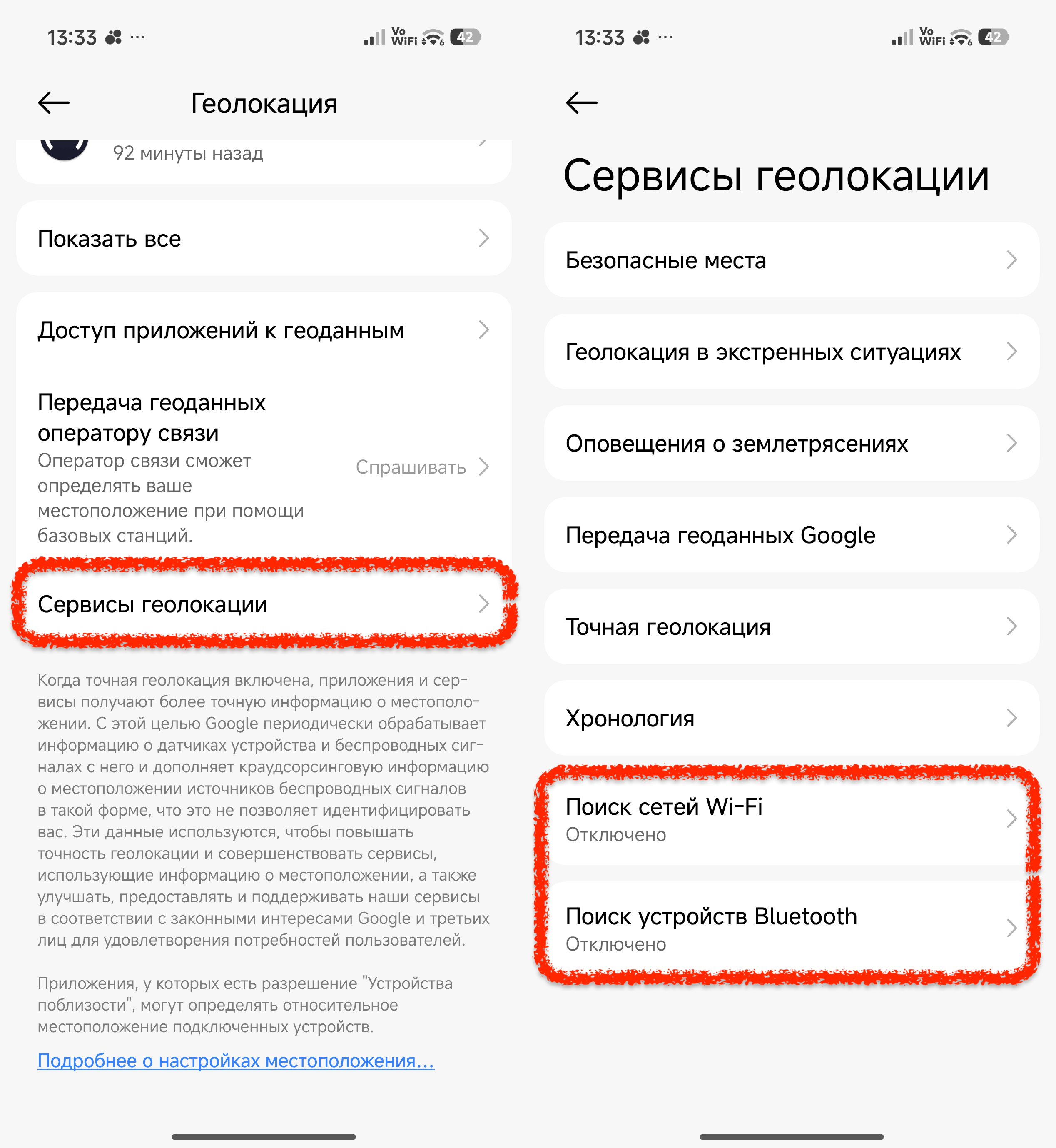
Turn off background network scanning — your phone will still find Wi-Fi when you turn it on manually
Turning off these two toggles doesn’t interfere with using Wi-Fi and Bluetooth normally, but eliminates parasitic battery drain in the background.
Restrict Background App Activity
Most apps, especially social networks, constantly “wake up” in the background to refresh feeds, check notifications, or connect to servers. Restricting background app activity is one of the most effective ways to save battery.
On Xiaomi smartphones with HyperOS:
- “Settings”, then “Apps”
- Select the desired app
- Open “Battery management”
- Check the box next to “Restrict background activity”
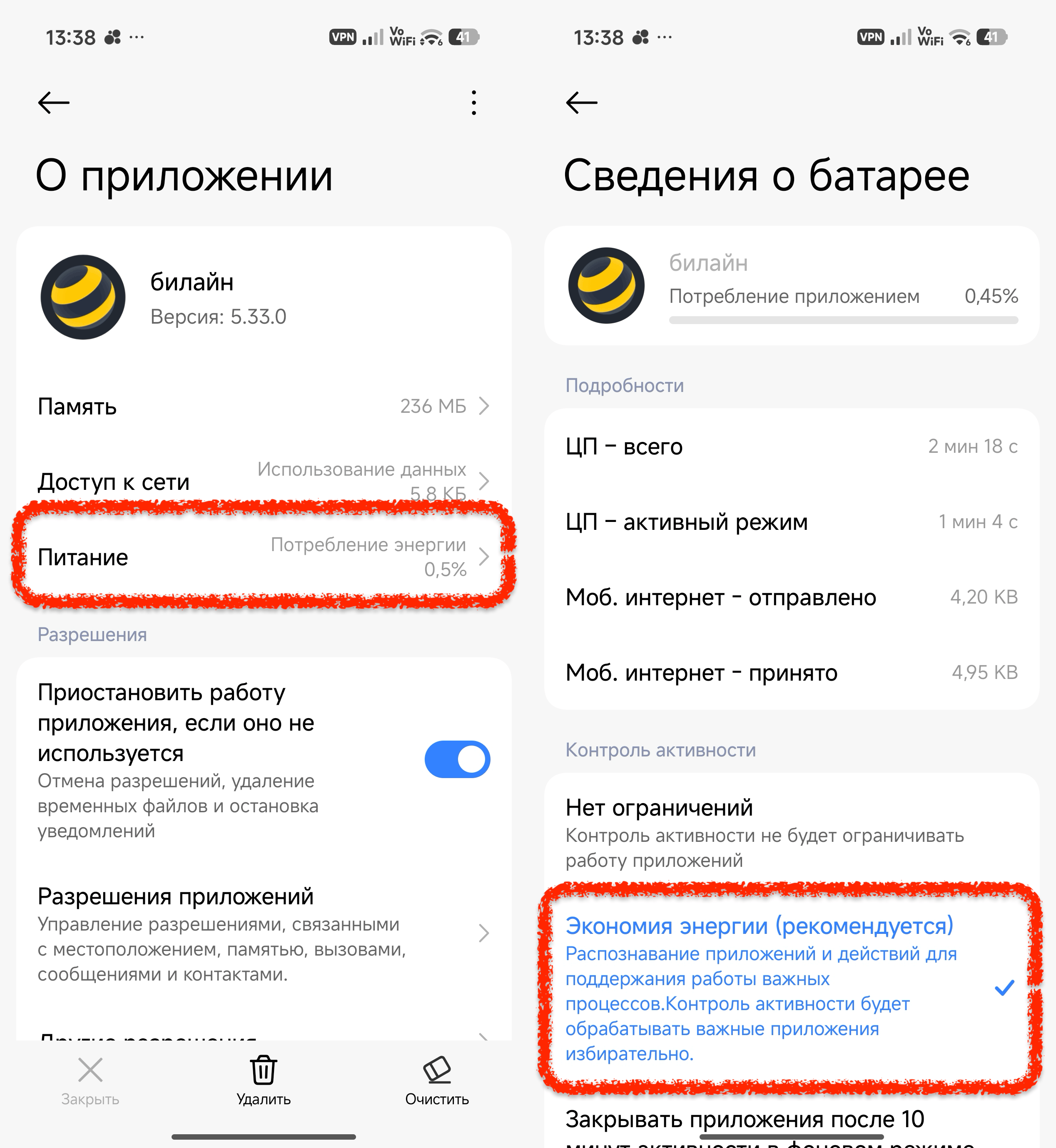
Check who’s eating battery in the background and restrict unnecessary consumers
Apps you can restrict in the background: Instagram*, TikTok, Facebook*, VKontakte, marketplaces (Ozon, Wildberries), games. Messengers (MAX, WhatsApp*, Telegram) — no, otherwise messages will arrive with a delay.
Set Up Adaptive Charging and Charge Limit
Limiting battery charge to 80% sounds paradoxical, but it extends the battery’s lifespan and indirectly improves long-term battery life. Lithium batteries degrade faster if they’re constantly kept at maximum.
- Open “Settings”, go to “Battery” and select “Battery protection”
- Choose “Optimized charging” or “Charge limit”
- Set it to no more than 80%
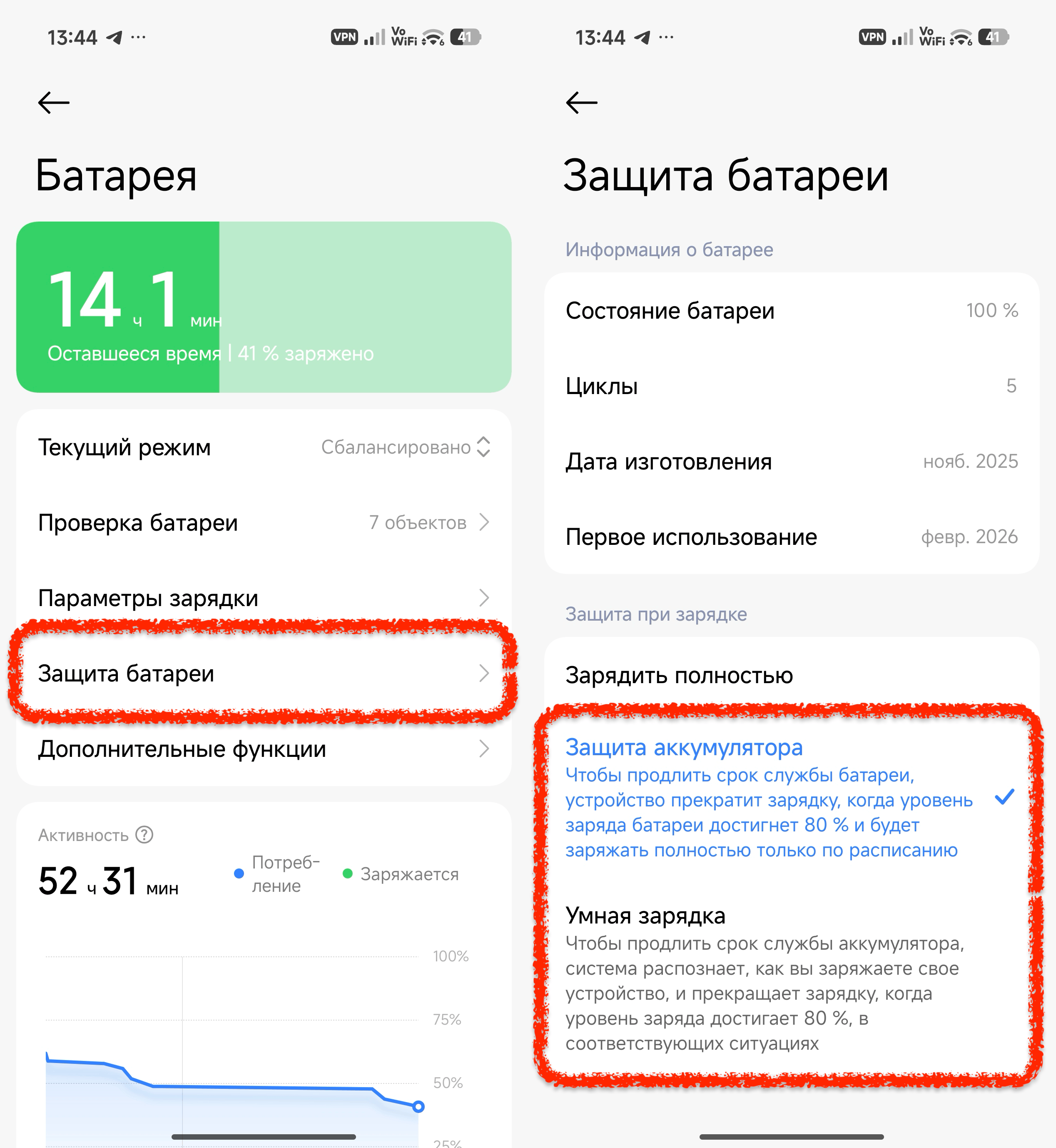
80% charge limit — the battery will last longer, and autonomy won’t suffer
If you often go out for the whole day and need maximum capacity — set the limit to 95% or leave it at 100%. One or even ten full charges won’t harm the battery.
Disable “Mobile Data Always Active”
This is a hidden option in the developer menu. By default, Android keeps mobile internet active even when connected to Wi-Fi — so that switching between networks is seamless. In practice, this means the 4G/5G radio module runs constantly.
- Go to “Settings”, then “About phone”
- Tap the firmware version 7 times in a row — this activates the developer menu
- Return to “Settings”, then go to “Advanced settings”
- Open “Developer options”, find “Mobile data always active” and turn it off
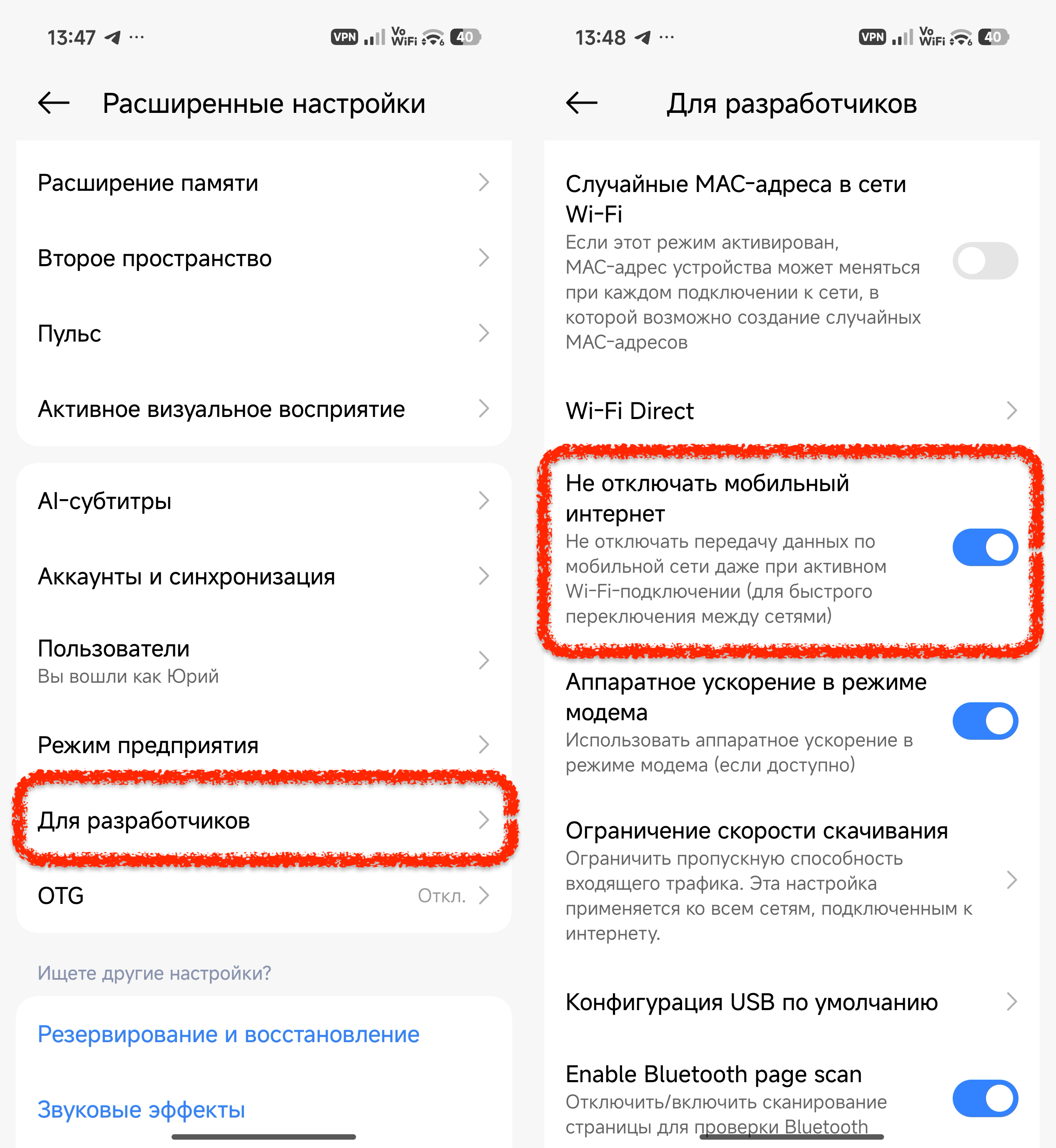
This toggle is hidden deep, but disabling it noticeably reduces energy consumption
Don’t change any other settings in the developer menu without understanding their purpose — otherwise you may encounter bugs that can only be fixed with a full factory reset.
Manage Screen Refresh Rate
Flagship smartphones support screens with refresh rates up to 120–144 Hz. This makes scrolling smooth but noticeably drains battery. Adaptive screen refresh rate automatically lowers it to 60 Hz with static content. Therefore:
- Open “Settings”, then “Display”
- Select “Screen refresh rate”
- Set it to “Auto” instead of fixed 120 or 144 Hz
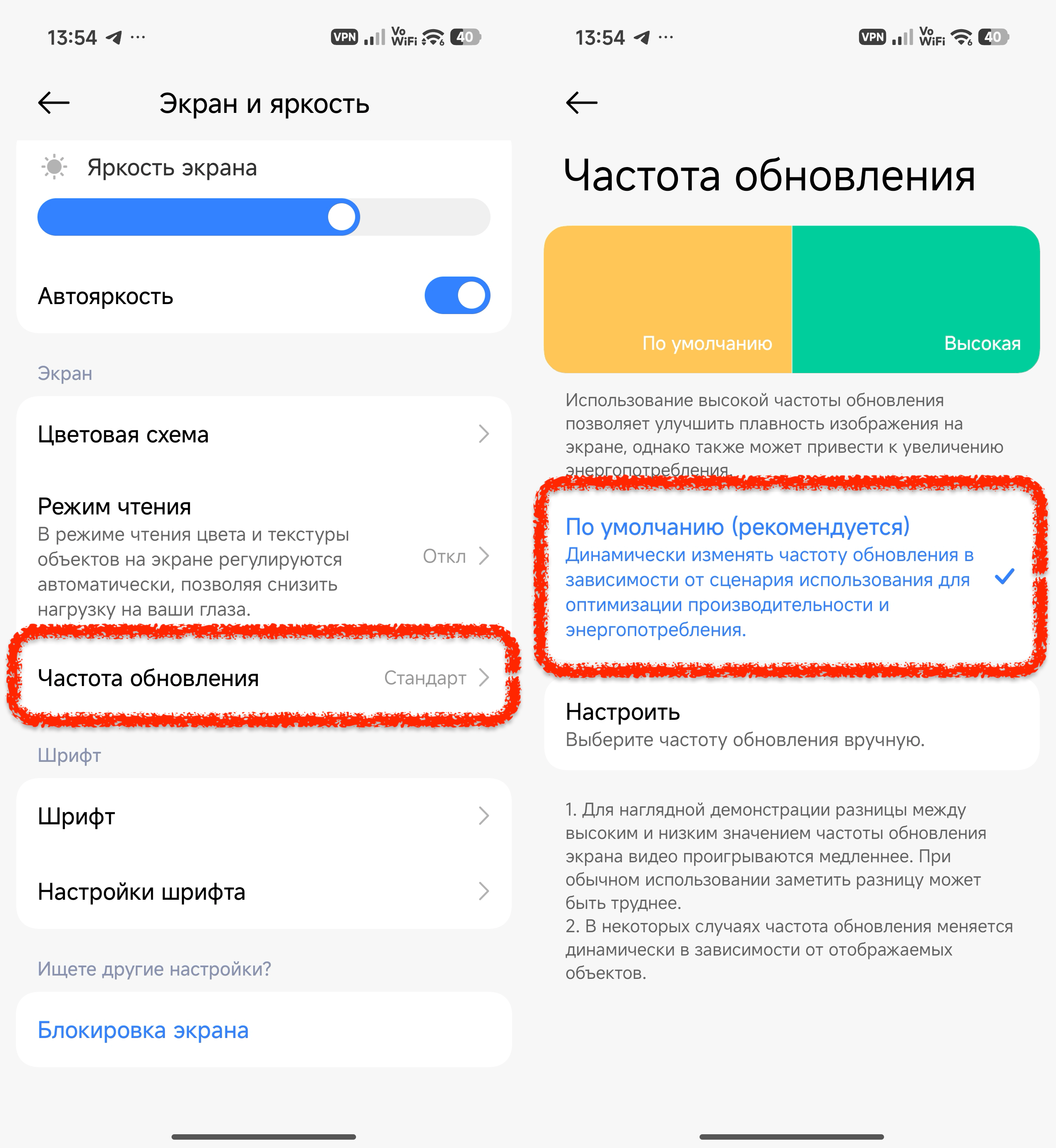
Auto mode provides smoothness where needed and saves battery where it doesn’t matter
Real savings: switching from constant 120 Hz to adaptive mode can save 10 to 20% of battery per day.
Disable Always-On Display or Set a Schedule
If your device has an OLED display, it most likely has the Always-On Display (AOD) feature — a constantly active screen showing the clock and notifications. The technology consumes 1 to 3% charge per hour even in standby mode. Over a day, this can add up to 24–72% additional battery drain. You can disable it:
- Go to “Settings”, then “Lock screen”
- Find Always-on Display and turn it off
- Or set a schedule (for example, from 8:00 AM to 10:00 PM)
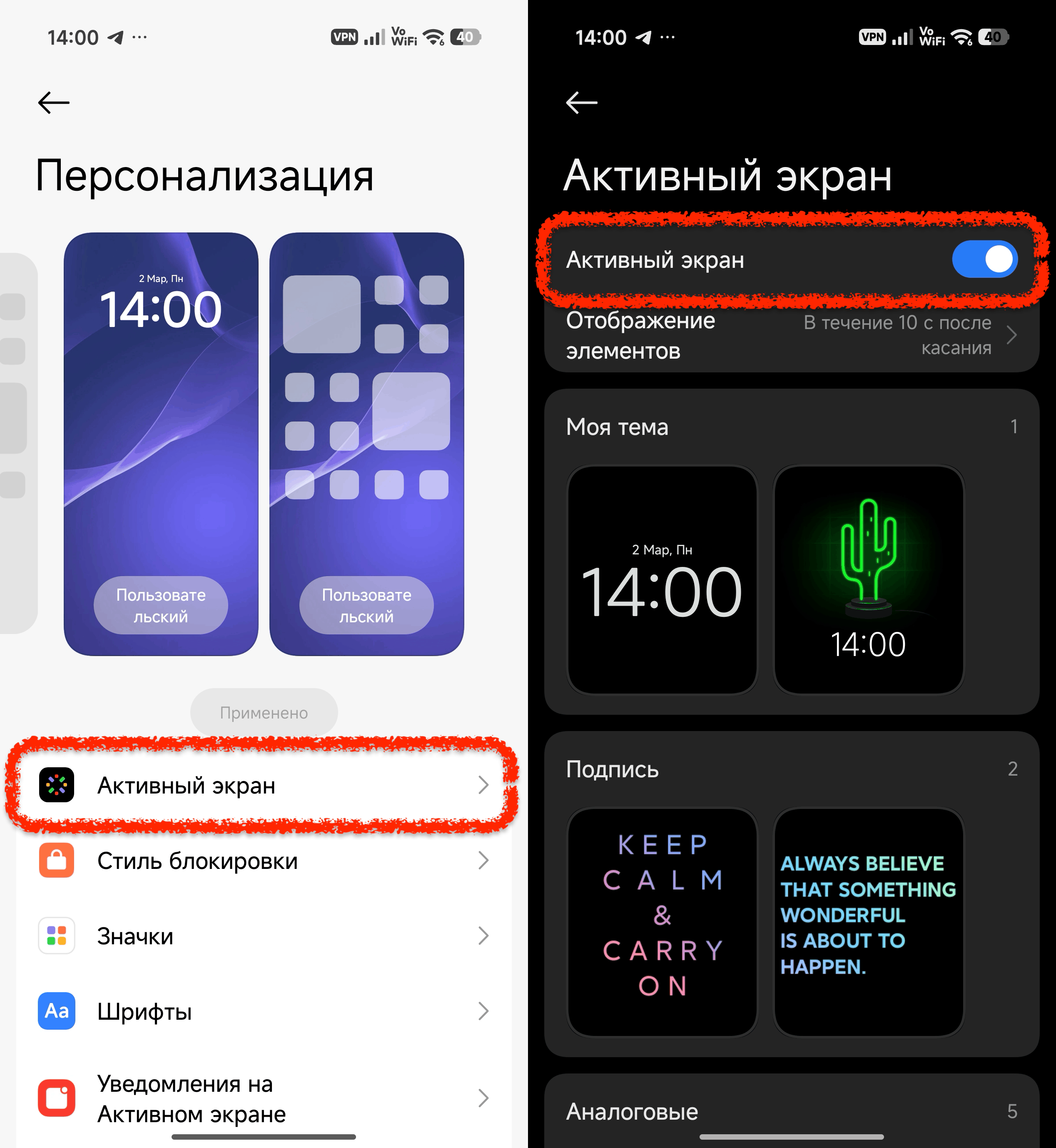
AOD looks beautiful but runs around the clock. A schedule is a sensible compromise