Despite the lack of end-to-end encryption, the MAX messenger does care about our protection. At least from other users like us, among whom there may be stalkers, scammers, and just bad people. Additionally, due to the link to government services, accounts in the national messenger become bait for various types of attackers, so everyone should know about the protection system in MAX.
Overview of security settings in MAX
How to Set a Password on MAX
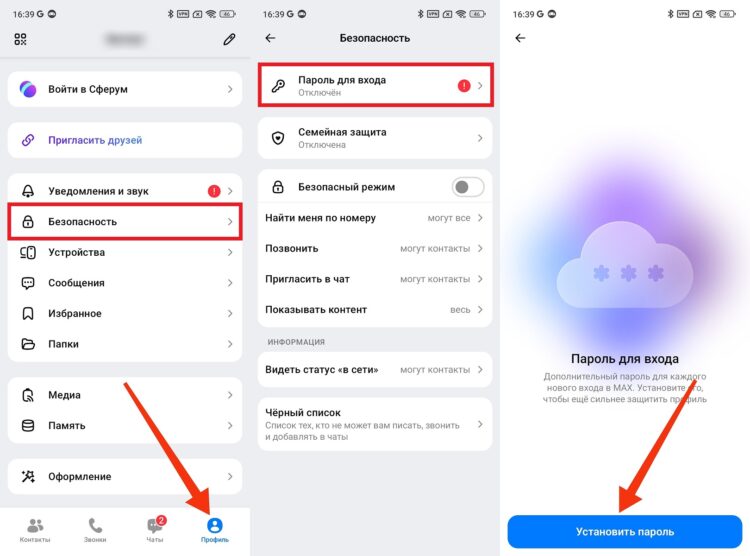
To prevent hacking of your MAX account, you need to set an additional password on the messenger. It will prevent attackers from logging into your account even if they manage to intercept the SMS message with the confirmation code:
- Launch MAX.
- Open the “Profile” tab.
- Go to the “Security” section, then — “Login Password.”
- Tap the “Set Password” button and follow the instructions that appear on the screen.
Don’t ignore two-factor authentication
After this, logging into the national messenger will be protected by two-factor authentication. If you encounter problems when trying to set up a password, read our detailed instructions published in a separate article.
Family Protection in MAX
Family Protection is a MAX feature that helps take care not so much of your own security, but of protecting the accounts of your loved ones, among whom you surely have either children or elderly people:
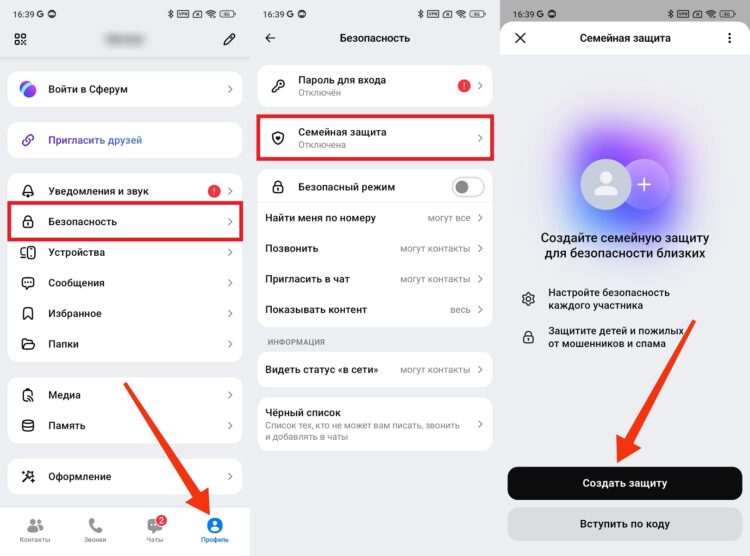
- Open MAX settings.
- Go to the “Security” section, then — “Family Protection.”
- Tap the “Create Protection” button.
Protect not only yourself but also your loved ones
The messenger will prompt you to add relatives to a group to manage their privacy settings in MAX. Now you are responsible for the accounts of children and elderly family members.
What Is Safe Mode in MAX
To take care of yourself, the national messenger provides a safe mode. It involves activating four protection features at once:
- prohibition on profile search;
- prohibition on calls from strangers;
- prohibition on chat invitations;
- strict content filter.
To enable safe mode in MAX, follow these instructions:
- Open profile settings.
- Go to the “Security” section.
- Activate the “Safe Mode” toggle.
- Tap the “Enable” button.
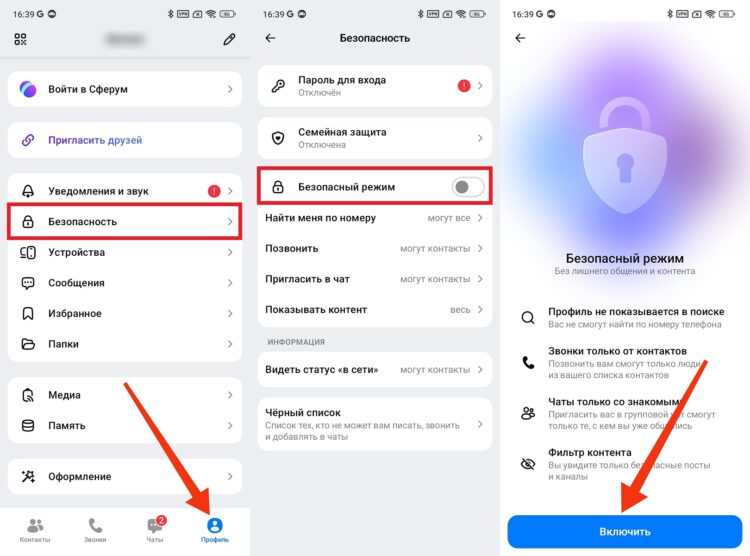
Safe mode enables 4 features at once
If needed, you can configure each safe mode feature in MAX individually. To do this, use the special tabs available in the “Security” settings section.
How to Hide Last Seen Time in MAX
Recently we talked about how to become invisible in MAX. This feature allows you to hide the last seen time in the national messenger, which increases the level of user protection by helping them protect themselves from being tracked by strangers:
- Open MAX security settings.
- Go to the “See Online Status” section.
- Set the value to “Nobody.”
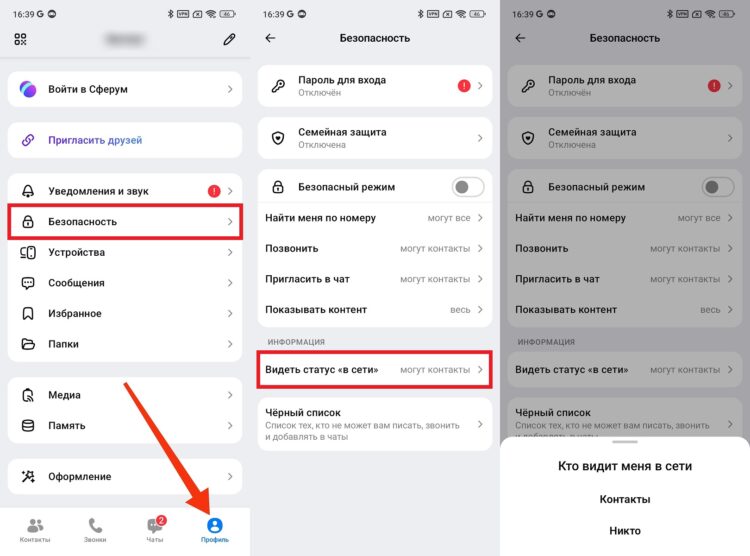
Don’t show your last seen time to others
After this, nobody, including people from your contact list, will see your last seen time in MAX. Instead of this information, the profile page will display the message “Was recently online.”
How to Block a Contact in MAX
Finally, don’t forget about the ability to block a person in MAX if they become annoying. It’s done in just a couple of clicks:
- Open the chat with the person.
- Tap on their profile, then — “More.”
- Select the “Block Contact” option.
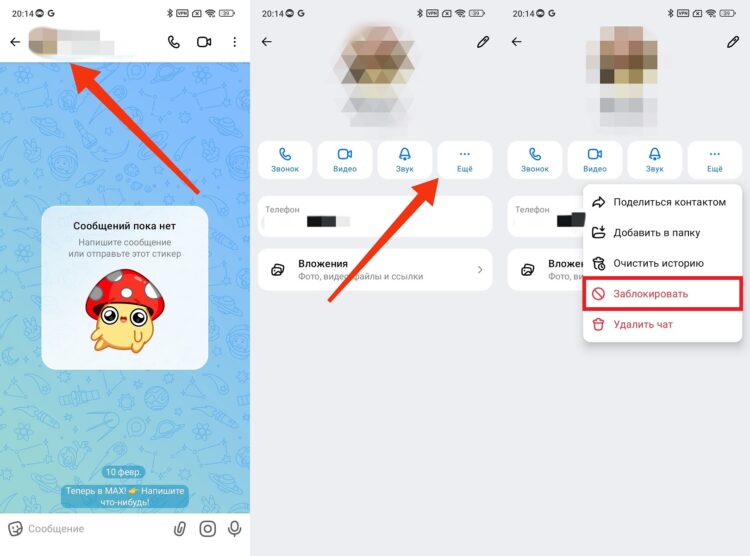
Block all unwanted people
By doing this, you will prevent the person from sending messages and making calls in MAX. And a more reliable way to protect yourself from intrusive people has yet to be invented.