Backups, encryption, and syncing — three built-in data protection tools on iPhone and iPad that many people simply don’t know about. While some are figuring out how scammers can remotely lock someone else’s iPhone, others have already lost all their data because they didn’t set up a backup in time. Let’s break down how these tools work and why you need to enable them today.

The key iPhone settings that will save your data in any situation
Every day we entrust our iPhone and iPad with tons of personal information: photos, messages, passwords, banking data. Yet most Apple device owners don’t even realize that right now their devices have three powerful security features that are either running in the background or waiting for you to activate them. And losing everything in an instant is easier than you think: a broken iPhone, a stolen iPad, a botched update — and it’s all gone.
iCloud Backup: How It Works and Why You Forgot About It
The first and arguably most important feature is automatic iCloud backup. It appeared many years ago, but statistically, a huge number of users have either turned it off or simply never checked whether it’s working at all.
The concept is simple: every night, when your iPhone or iPad is connected to Wi-Fi and charging, the device automatically creates a copy of all your data in the cloud. Photos, contacts, messages, app settings, Health data — everything goes to iCloud and is stored there in encrypted form.
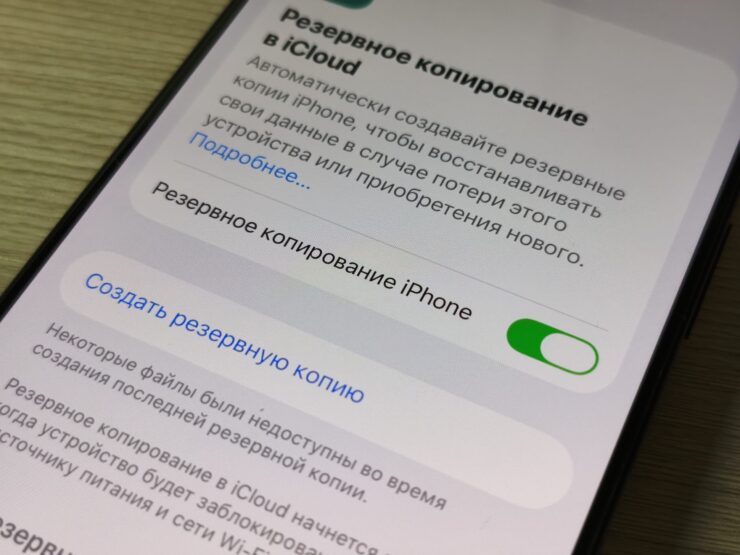
This little green button has saved millions of nerve cells around the world
But there’s a catch. The free 5 GB of iCloud storage isn’t enough for practically anyone. An average iPhone with a couple thousand photos and a dozen apps easily takes up 20-30 GB. That’s why Apple has long offered iCloud+ subscriptions: 50 GB, 200 GB, or 2 TB. In Russia, the subscription is available, though with certain payment limitations.
To check if your iPhone backup is enabled, do the following:
- Go to “Settings”
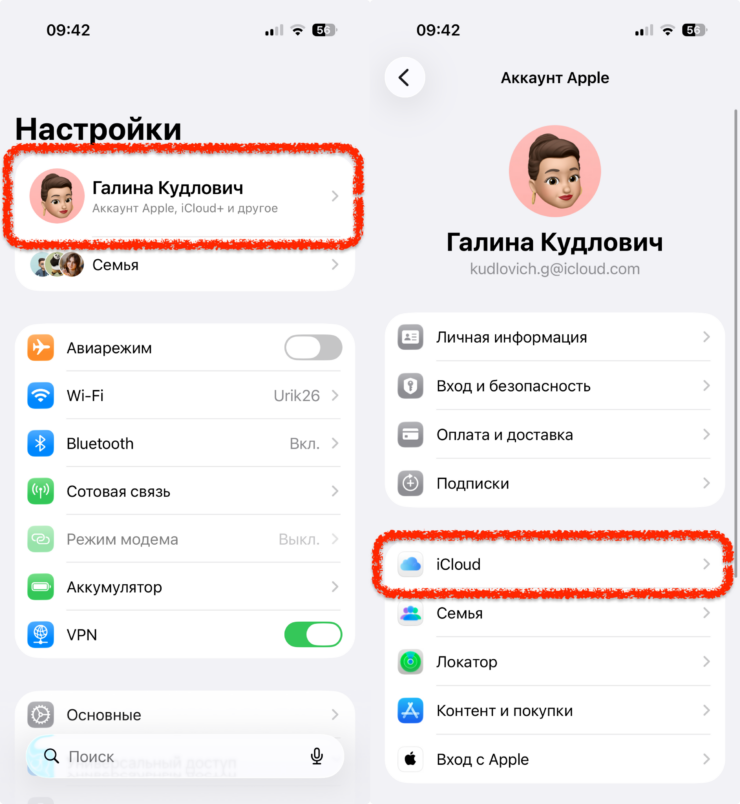
iPhone backups are found in iCloud settings
- Tap on your name
- Select iCloud, then go to “iCloud Backup”
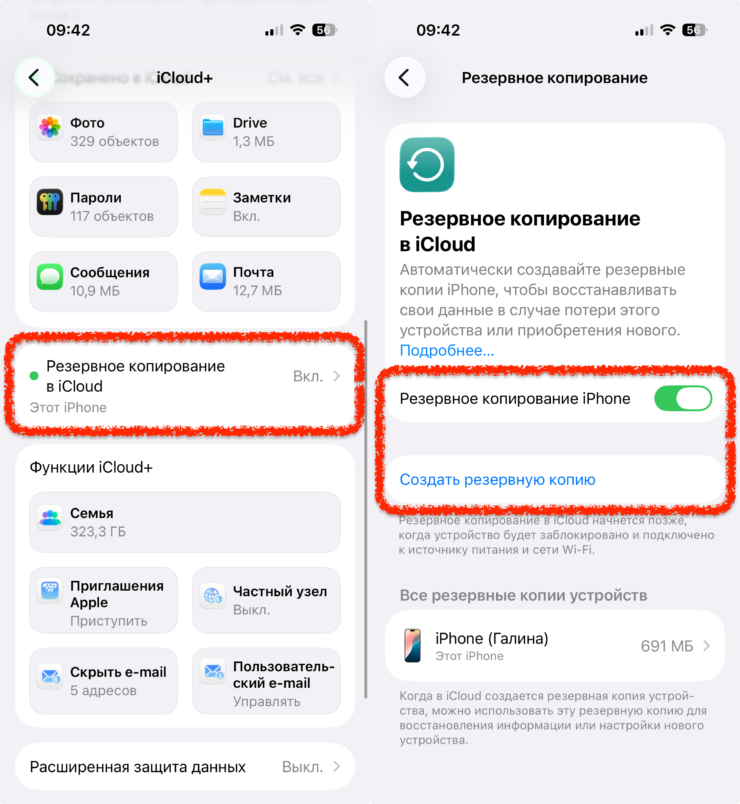
Turn it on and get maximum security for your data
If the toggle is active and you see the date of the last backup — great. If not — turn it on right now. Seriously, don’t put it off.
Computer Backup: The Old Method That’s Still the Best
The cloud is convenient, but a local backup on your computer is still the most reliable option. Here’s why: it includes absolutely everything, including data that iCloud might not save.
On Mac with macOS Catalina and later, backups are created through Finder. Connect your iPhone or iPad with a cable, select the device in the sidebar, and click “Back Up Now.” On Windows, use the Apple Devices app (it used to be iTunes, but Apple finally freed us from it).
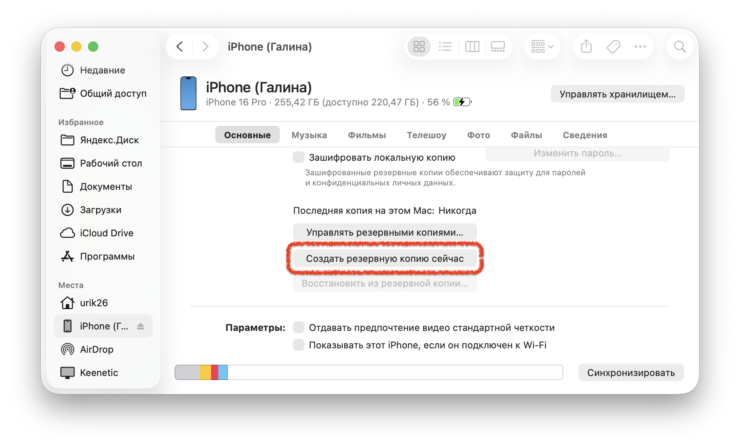
Via computer it’s always faster and more reliable
The most important thing — when creating a local backup, make sure to check the box “Encrypt local backup.” Without this, your backup won’t include saved passwords on iPhone, Health data, call history, and Wi-Fi settings. But with encryption — literally everything is included. Come up with a strong password and write it down somewhere. If you lose the password, you lose access to the backup, and Apple won’t be able to help you.
I’d recommend making a local backup at least once a month. Especially before updating iOS or iPadOS, which often break key smartphone features. In fact, this tip saves the most data — simply because the cloud sometimes fails, but a cable doesn’t.
Advanced Data Protection for iCloud: The Encryption Most People Don’t Know About
Now this is a feature that’s truly hidden from most users. It’s called “Advanced Data Protection,” and Apple added it in iOS 16.2. But it’s turned off by default.
What does it do? In normal mode, most of your iCloud data is encrypted, but Apple holds the encryption keys and can theoretically access your files — for example, upon a law enforcement request. When you enable Advanced Data Protection, end-to-end encryption in iCloud extends to virtually all data categories: photos, notes, backups, voice memos, reminders, and much more. The keys are stored only on your devices.
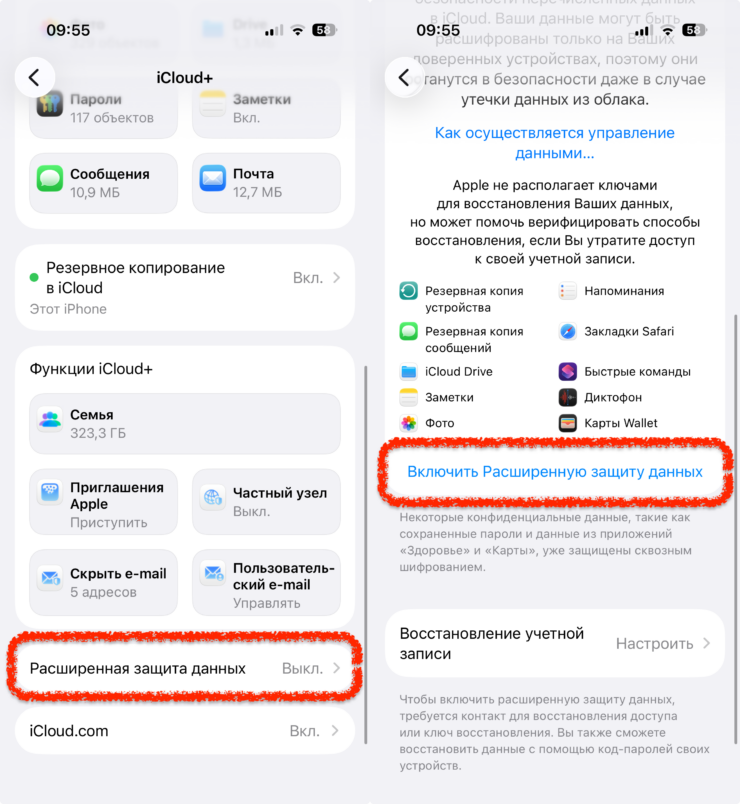
End-to-end encryption means even Apple doesn’t know what’s in your iCloud. And that’s the way it should be
To enable Advanced Data Protection:
- Open “Settings”
- Go to the section with your name
- Open iCloud, then “Advanced Data Protection”
The process takes a couple of minutes, but the peace of mind it gives you is priceless.
But it’s not that simple. Enabling this feature requires all devices on your Apple ID to be updated to the latest OS versions. If you have an old iPad lying around on iOS 15, you’ll need to either update it or remove it from your account. Additionally, you need to set up a recovery contact or recovery key. Without this, if you lose access to your devices, you won’t be able to recover your data — not even Apple can help.
By the way, while you’re sorting out encryption, it’s also worth tidying up the passwords on your iPhone — there’s plenty to configure there too, and many people don’t know about it.
How to Verify That All Your Backups Are Working
Okay, let’s say you’ve set everything up. But how do you make sure the system is actually working and not just pretending? Here’s a checklist I recommend going through right now:
- Check the date of the last iCloud backup. Go to “Settings” → [your name] → iCloud → “iCloud Backup.” If the last backup was created more than a week ago, something went wrong. Most likely, your iPhone isn’t connecting to Wi-Fi at night or isn’t